Tasks works with Siri, Shortcuts and Spotlight on iPhone, iPad and Mac. Start by talking to Siri, then build one small shortcut when you want the same steps done for you every time.
Talk to Siri
These phrases work as soon as Tasks is installed. There is nothing to set up.
| Say | What happens |
|---|---|
| “Add a task in Tasks” | Siri asks what to add, then saves it |
| “Add Renew car insurance in Tasks” | Saves the task in one go |
| “Open Home in Tasks” | Opens that project |
| “Show Today in Tasks” | Opens a filter, such as Today or Late |
| “Find tasks in Tasks” | Searches your tasks |
| “Set a task’s status in Tasks” | Moves a task to another status |
| “Add a comment in Tasks” | Comments on a task |
| “Start tracking time in Tasks” | Starts a timer. “Stop tracking time” ends it. |
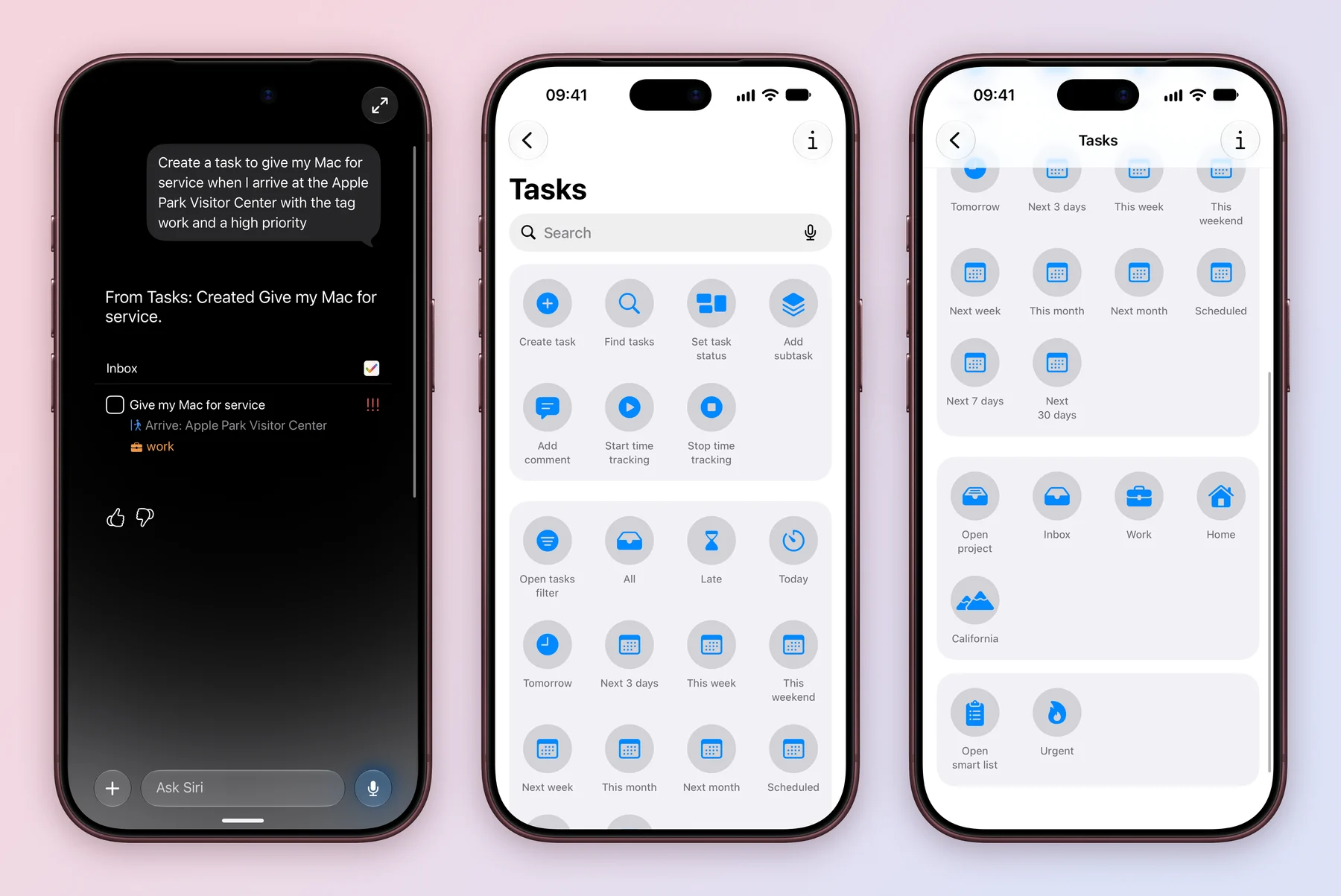
Siri can fill in more than the title. Say the place, a tag and a priority in the same sentence, such as “Create a task to give my Mac for service when I arrive at the Apple Park Visitor Center with the tag work and a high priority”, and Tasks saves it to Inbox with all three.
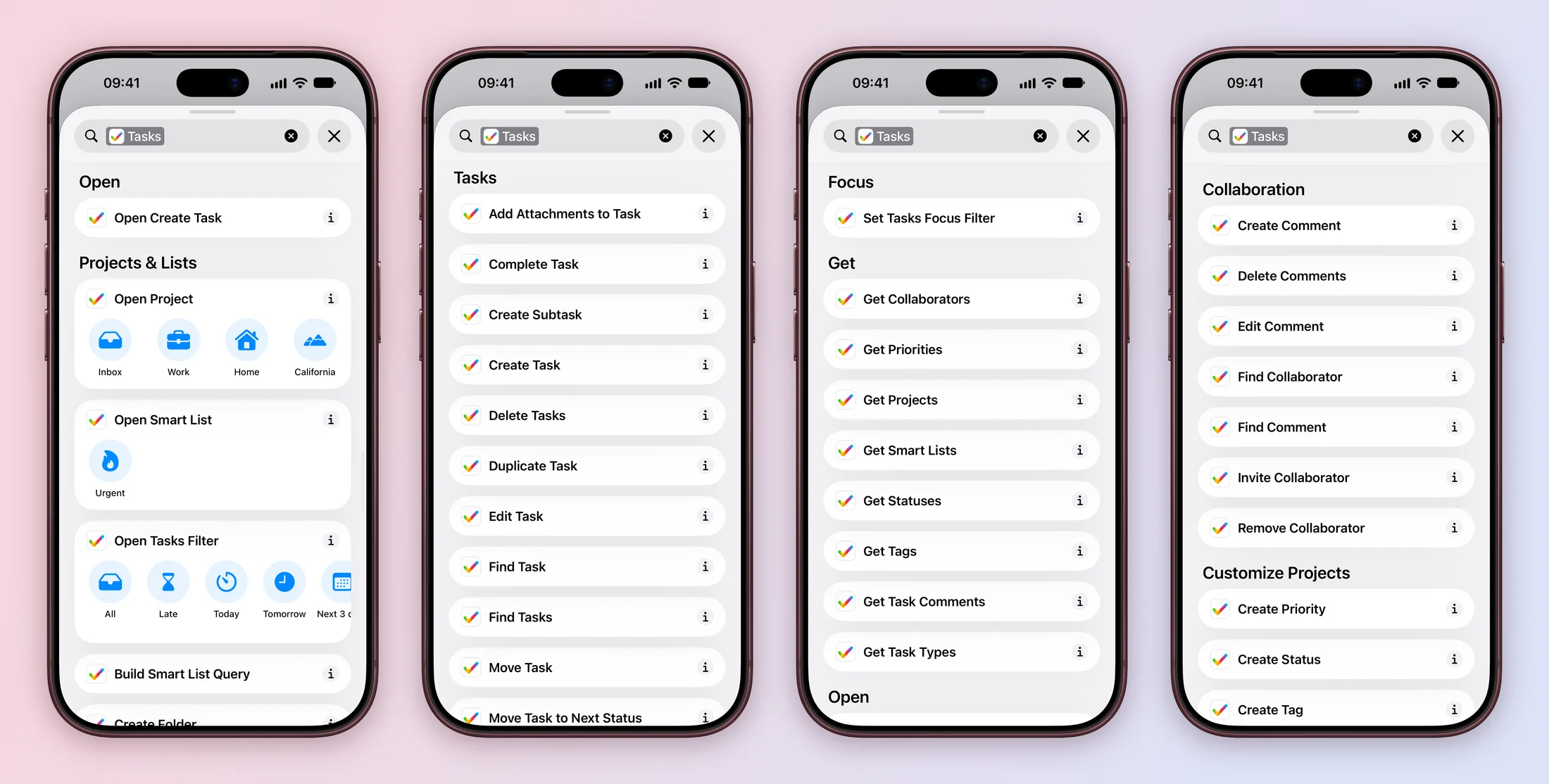
The same actions wait on the Tasks page of the Shortcuts app, ready to tap: Create task, Find tasks, Set task status, Add subtask, Add comment, the timer actions, each filter, and each project and Smart List.
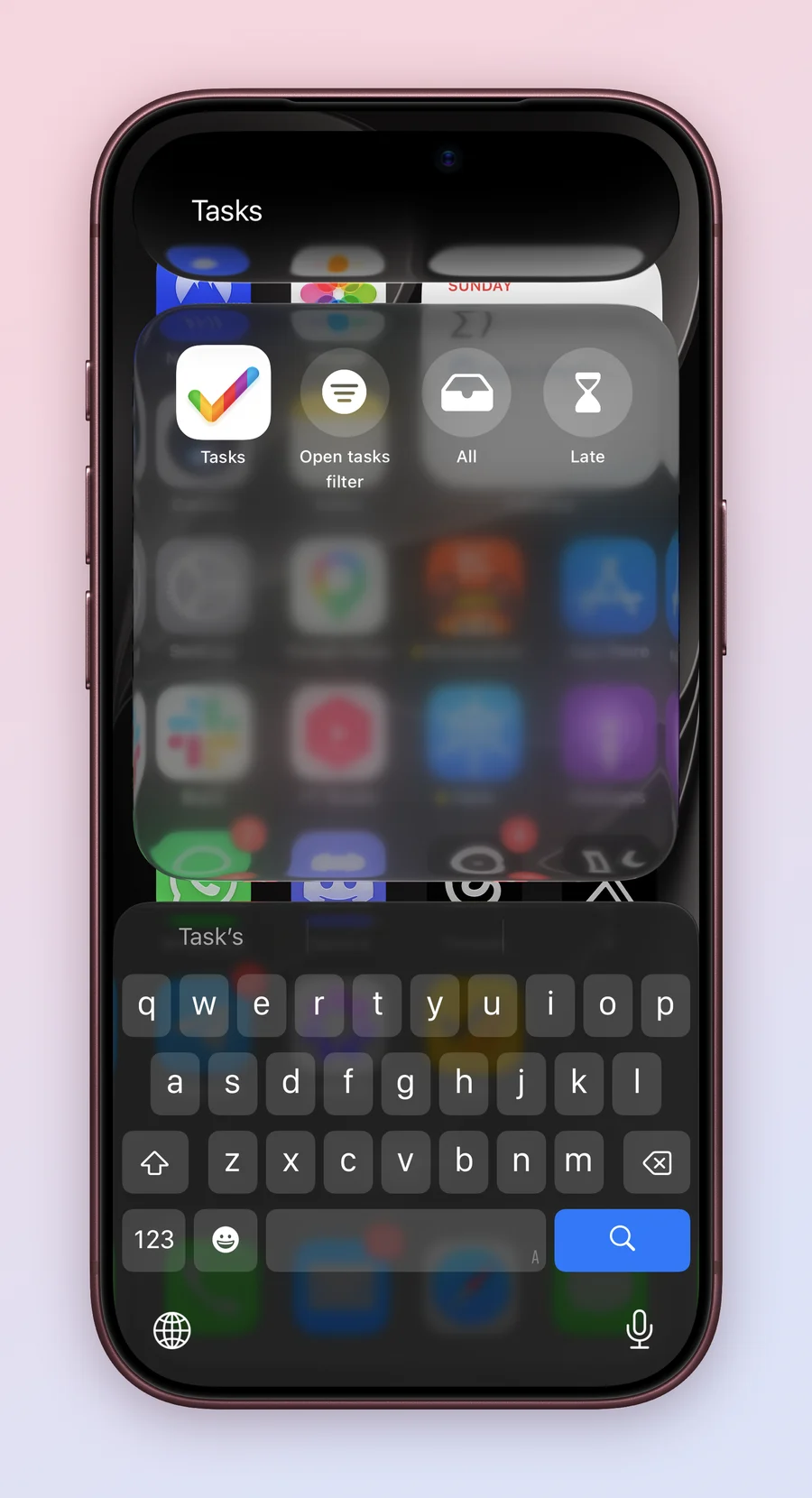
Spotlight finds your tasks, projects, folders, Smart Lists, tags and statuses, and it offers the same ready-made actions. Swipe down on the Home Screen, or press ⌘Space on Mac, and start typing.
Focus filters keep Tasks calm during a Focus. In Settings, open Focus, choose a Focus, add a Tasks filter and pick the projects to show, such as only Work during your Work Focus.
Build one small shortcut
This shortcut asks what you need to do, saves it, adds a note, then opens the task so you can check it.
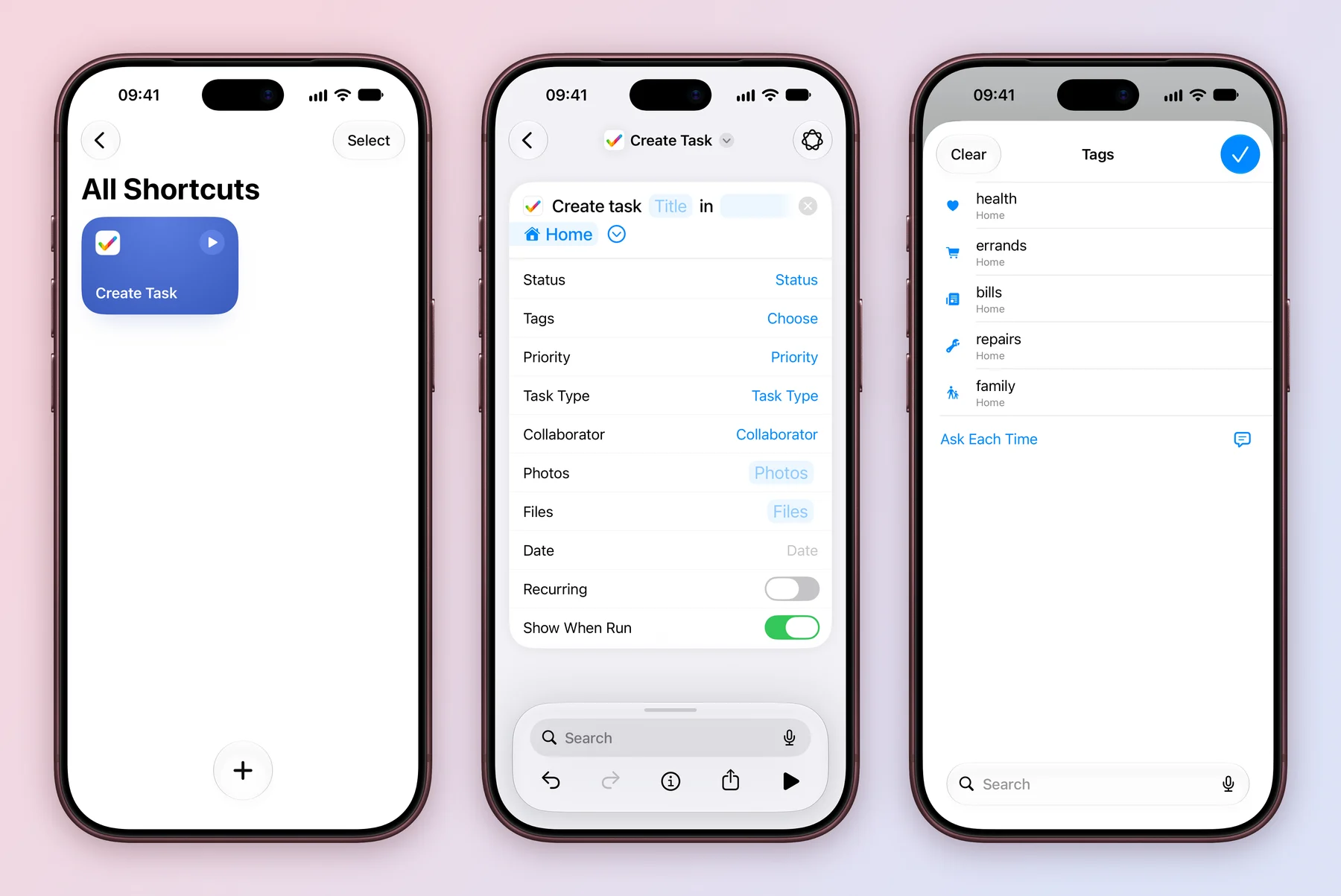
- Open the Shortcuts app and create a new shortcut. Name it something easy to say, such as Quick task.
- Add the Tasks action Create Task. Tap Title and choose Ask Each Time, then choose a project, such as Home.
- Add Create Comment and pass it the task from the step before.
- Add Open Task so the new task appears when the shortcut finishes.
- Run it once. Then say “Quick task” to Siri.
The same actions are in the Shortcuts app on Mac. Search for Tasks in the action list and drag them in.
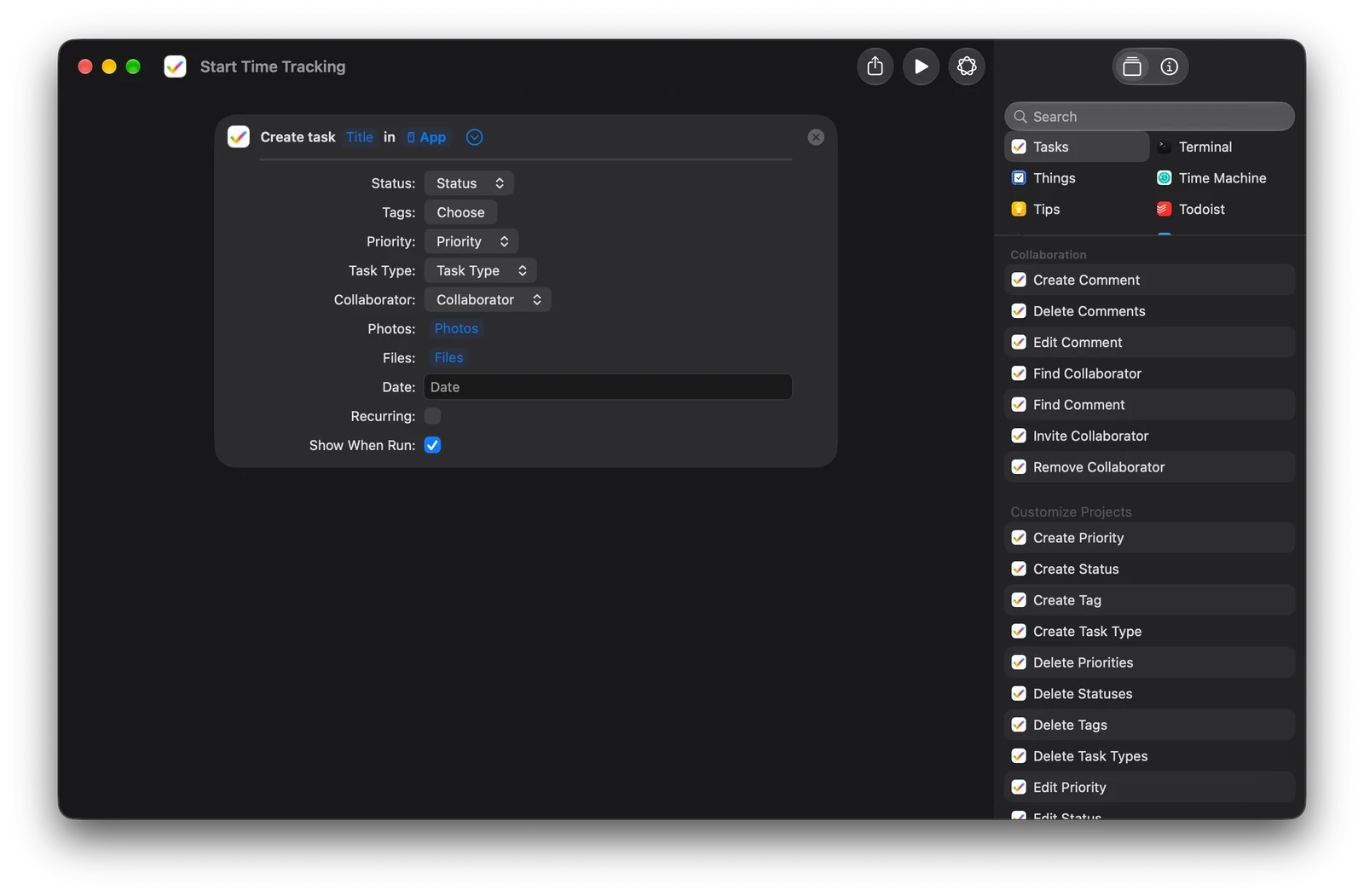
Create task can also set the status, tags, priority, task type, assignee, photos, files, date and repeat. Add one at a time and run the shortcut after each change. Beyond tasks, there are actions for time tracking, Focus, comments and collaborators, and for creating, editing and deleting tags, statuses, priorities and task types. See the full list.
Open the right screen with a link
Every task, project and Smart List has a link. Choose Copy Link from its menu to get a https://thetasks.app/... address that opens it in Tasks. You can also build links yourself:
| Link | Opens |
|---|---|
tasks:///add?text=Renew%20car%20insurance |
Create Task with the title filled in |
tasks:///search?q=insurance |
Search results for insurance |
tasks:///new-project |
A new project |
tasks:///bulk-import |
Add multiple tasks |
tasks:///settings |
Settings |
Put a link in a note, a calendar event or another app’s shortcut to jump straight to the work. Apps that use x-callback-url can call tasks://x-callback-url/ too.
Explore all 15 related features
Browse the related features below for more detail, or search every feature.
More than 50 App Intents
Build detailed automations around Tasks entities and actions.
Create actions
Create tasks, subtasks, projects, folders, Smart Lists, tags, statuses, priorities, task types, comments and collaborators.
Edit actions
Edit tasks and the project entities used by a workflow.
Delete actions
Delete supported tasks, projects, folders, Smart Lists and workflow entities.
Clone actions
Clone tasks, subtasks and projects through Shortcuts.
Read actions
Get projects, Smart Lists, tags, statuses, priorities, task types, comments and collaborators.
Search action
Find matching tasks and return their entities.
Workflow actions
Move, complete and reopen tasks through automation.
Open actions
Open a task, project, Smart List, filter or task-creation screen.
Returned entities
Pass created or found Tasks items into later Shortcut actions.
Spotlight integration
Find and open Tasks content through system search.
Focus Filters
Adjust the Tasks context used with an Apple Focus.
Tasks URL scheme
Open Tasks screens and actions from a URL.
x-callback-url
Connect Tasks to compatible URL-based workflows.
Deep links
Link directly to tasks, projects, folders, Smart Lists, comments, settings and more.