A project gives related tasks one home, with its own stages and fields. This walkthrough sets up a Groceries project, keeps trips like California together in a Trips folder and splits a task like Grocery shopping into smaller steps.
Set up a new project
Creating a project takes three short screens.
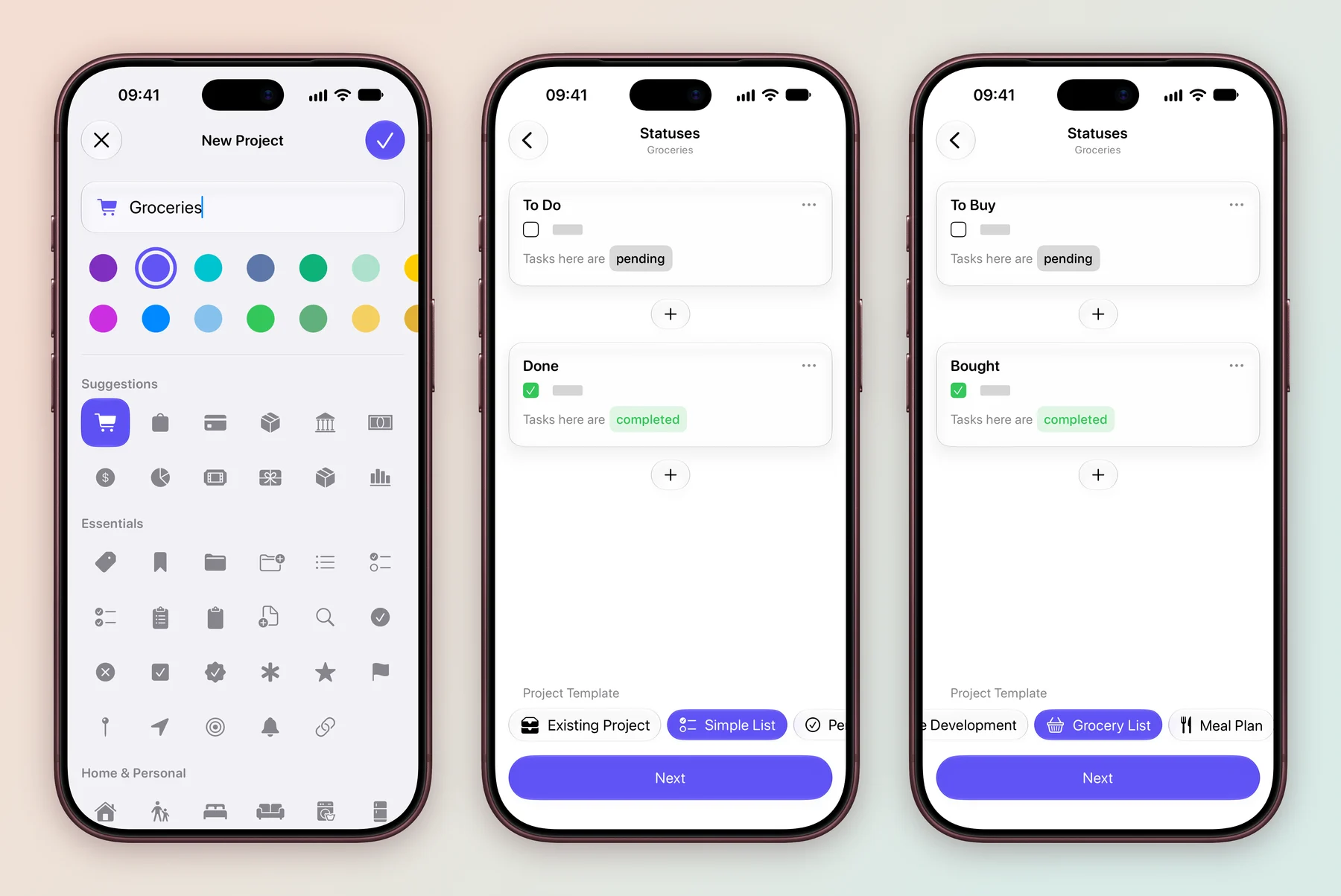
- Details. Type a name, then pick a colour and an icon, such as Groceries with a shopping cart. Tap the checkmark to go on.
- Statuses. Choose the stages a task moves through. A Project Template chip fills them in for you: Simple List gives To Do and Done, and Grocery List gives To Buy and Bought. Existing Project copies the setup of a project you already have. Tap + between the cards to add a stage, then tap Next.
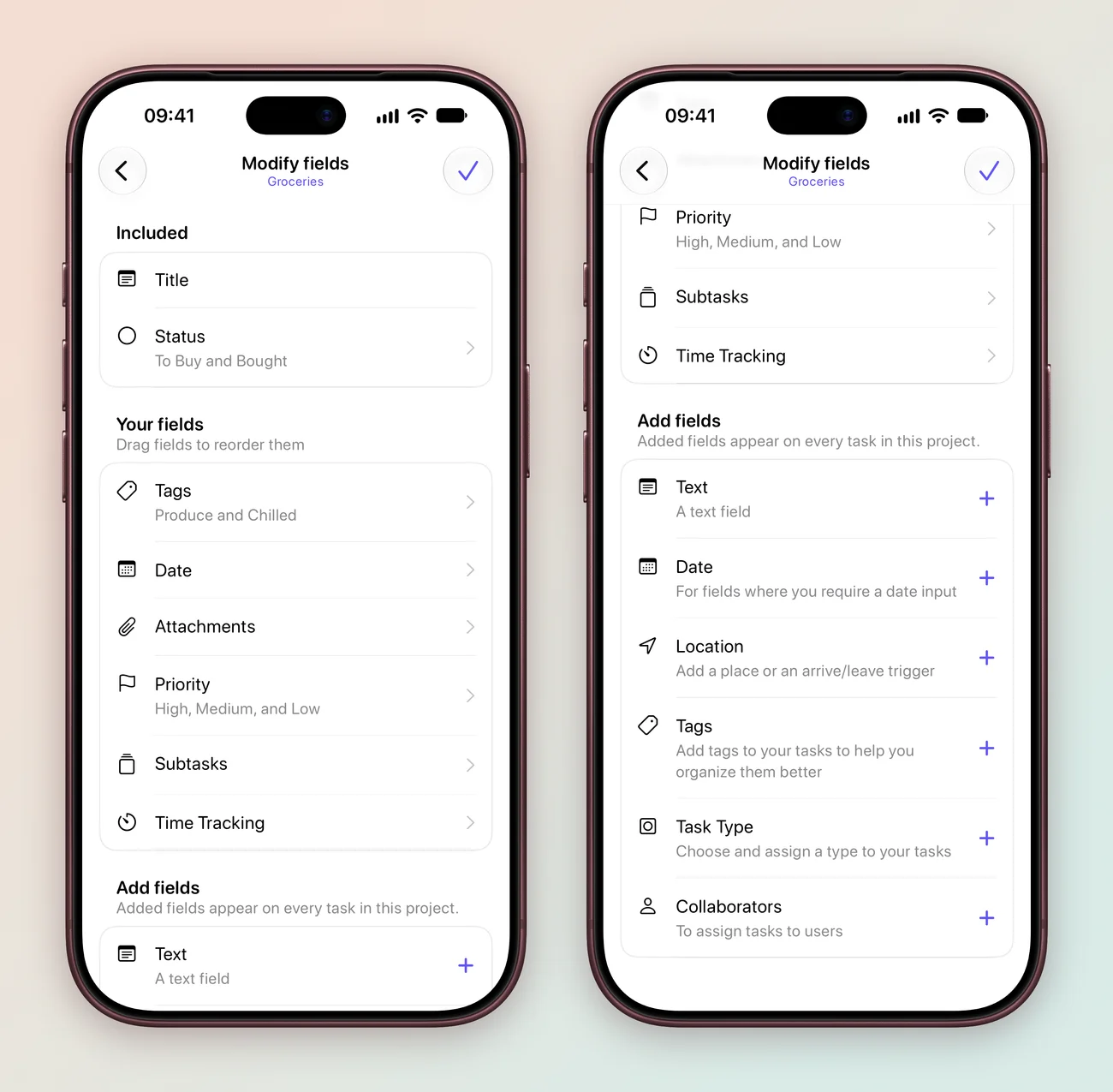
- Fields. Check what is Included, drag Your fields into order, and tap + next to anything under Add fields you want on every task, such as a Location. A template brings its own fields: Grocery List adds Tags with Produce and Chilled, Date, Attachments, Priority, Subtasks and Time Tracking.
Tap the checkmark to create the project. It opens, along with the screen for inviting people. Close that screen if you are planning alone.
On the Home screen, tap + at the bottom and choose Project.
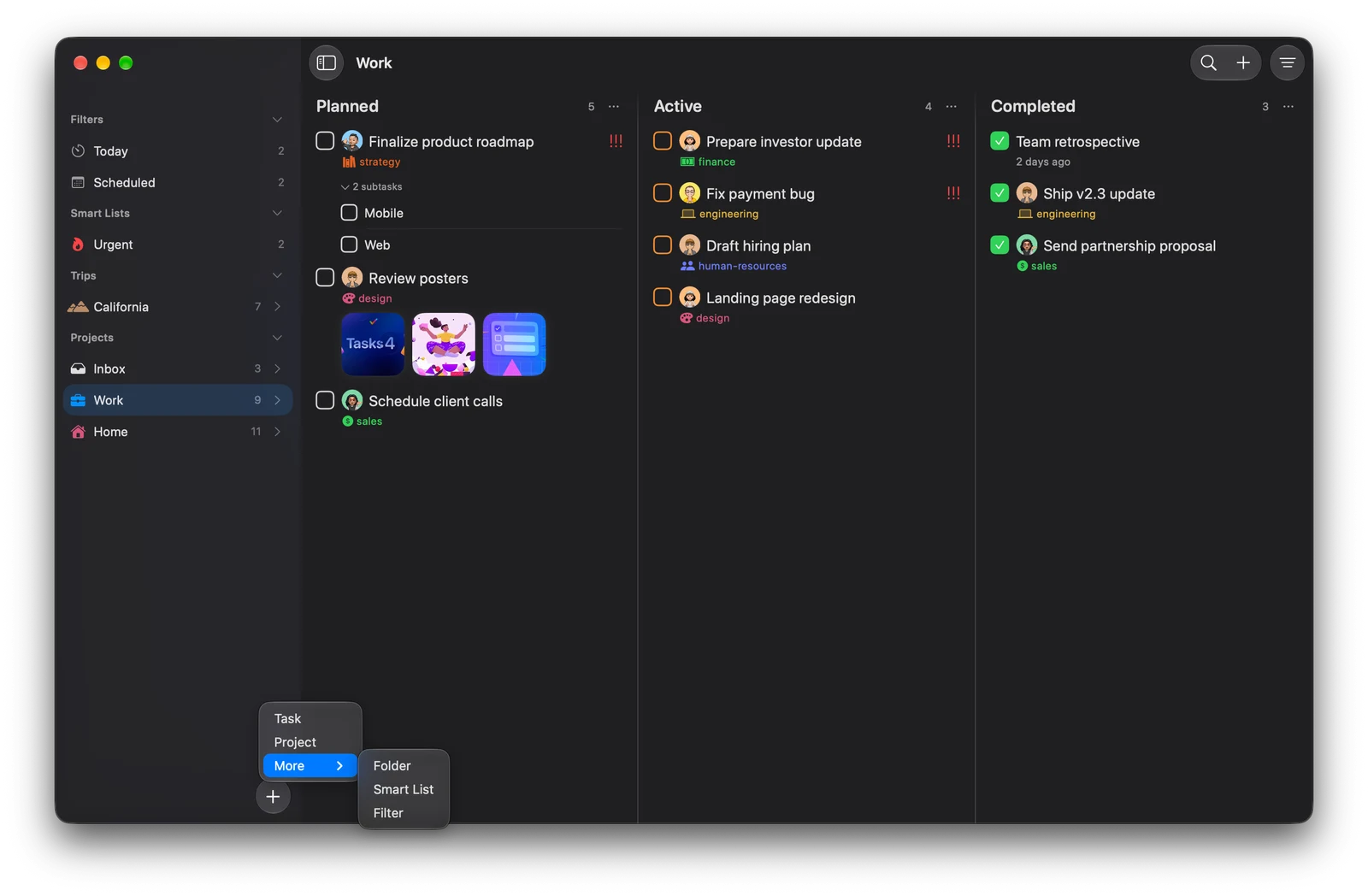
Press ⌥⌘N, or click + at the bottom of the sidebar and choose Project.
The first two projects are free. More projects need Tasks Plus.
Change a project later
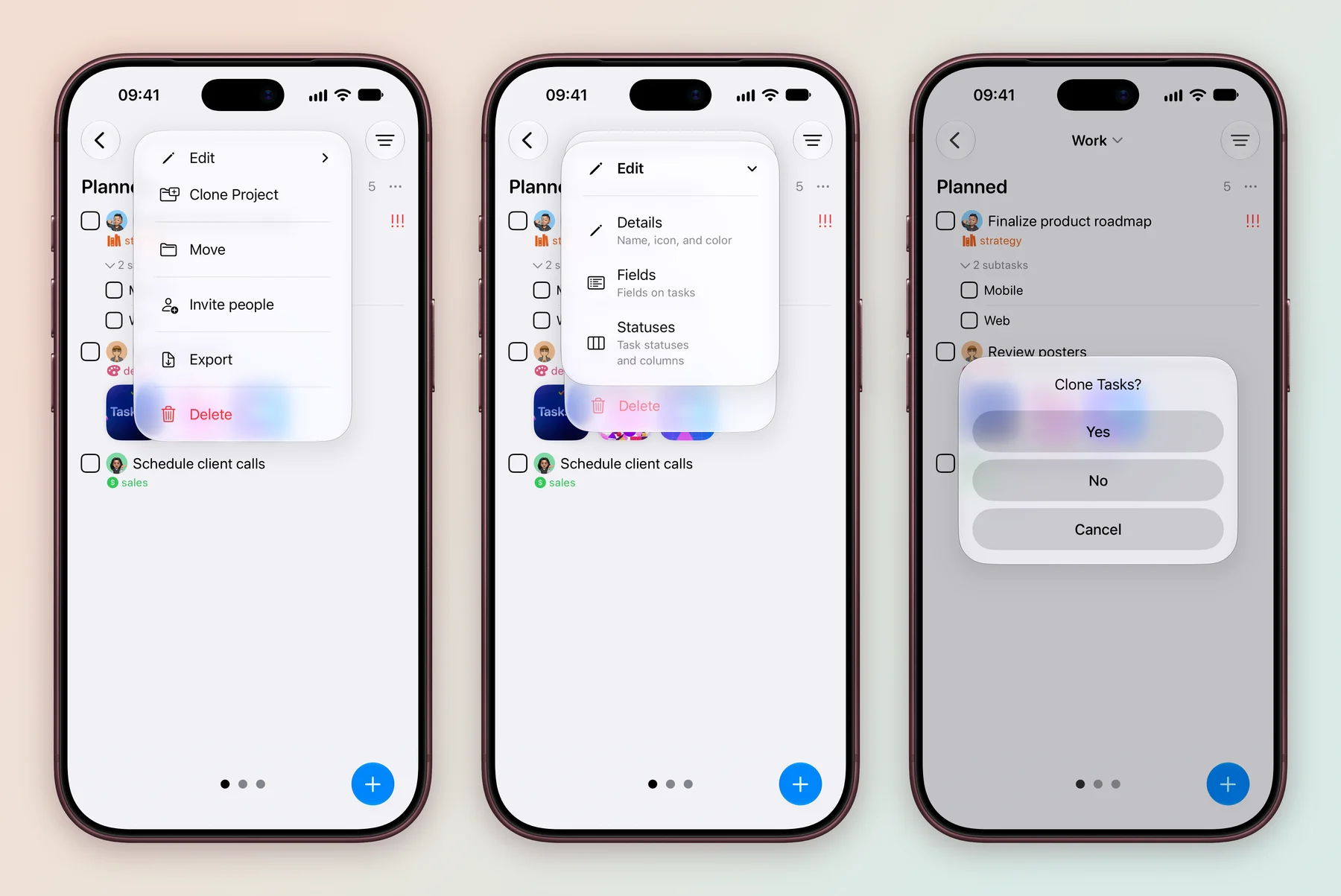
Open the project menu and choose Edit. Pick Details for the name, icon and colour, Fields for what appears on tasks, or Statuses for the stages and board columns. The same menu has Clone Project, Move to put it in a folder, Invite people, Export and Delete.
Long press the project on the Home screen, or tap the project name at the top of its board.
Right click the project in the sidebar, or click the project name at the top of its board. The Mac menu adds Open in New Window, so you can keep two projects open side by side.
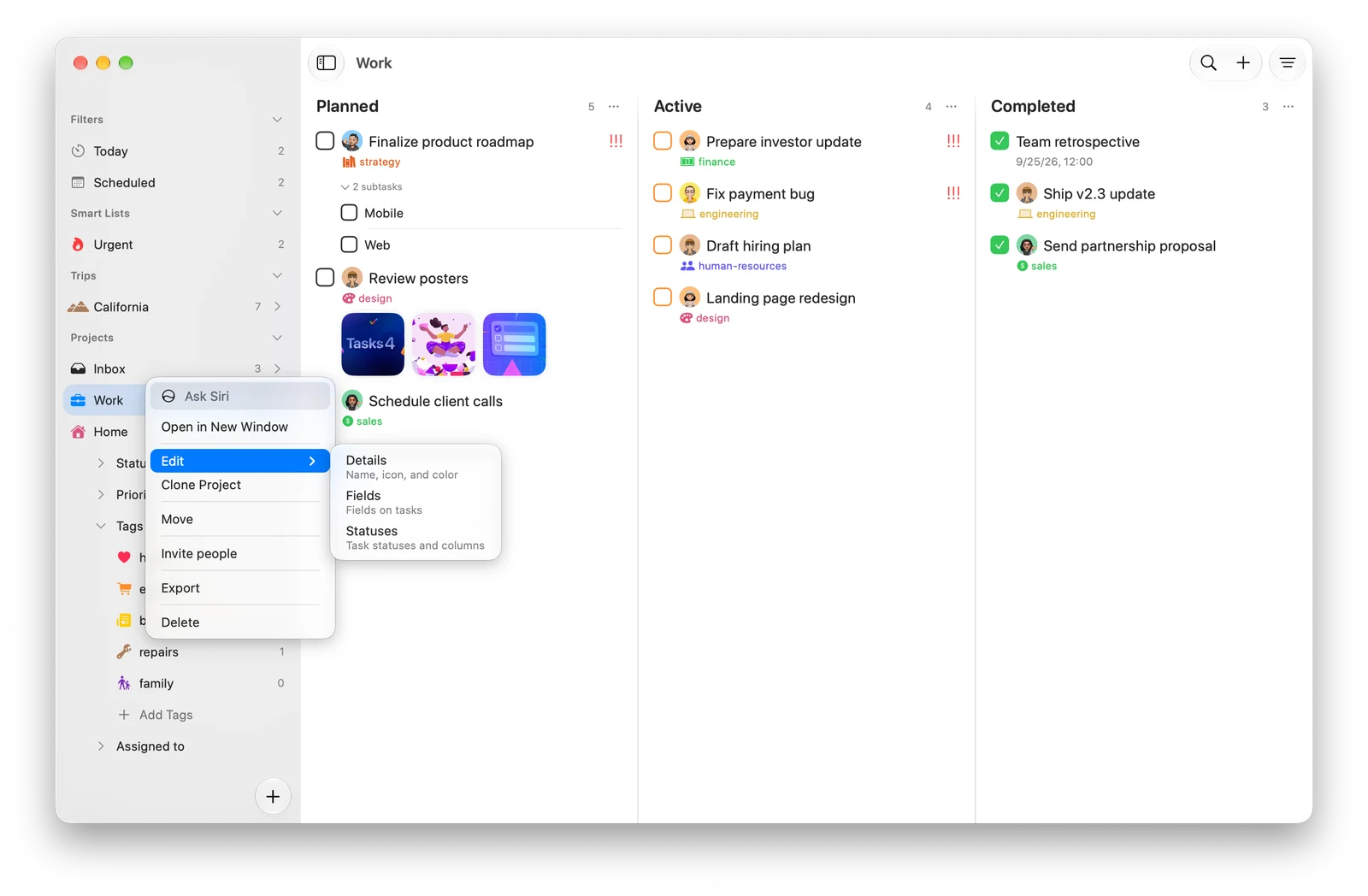
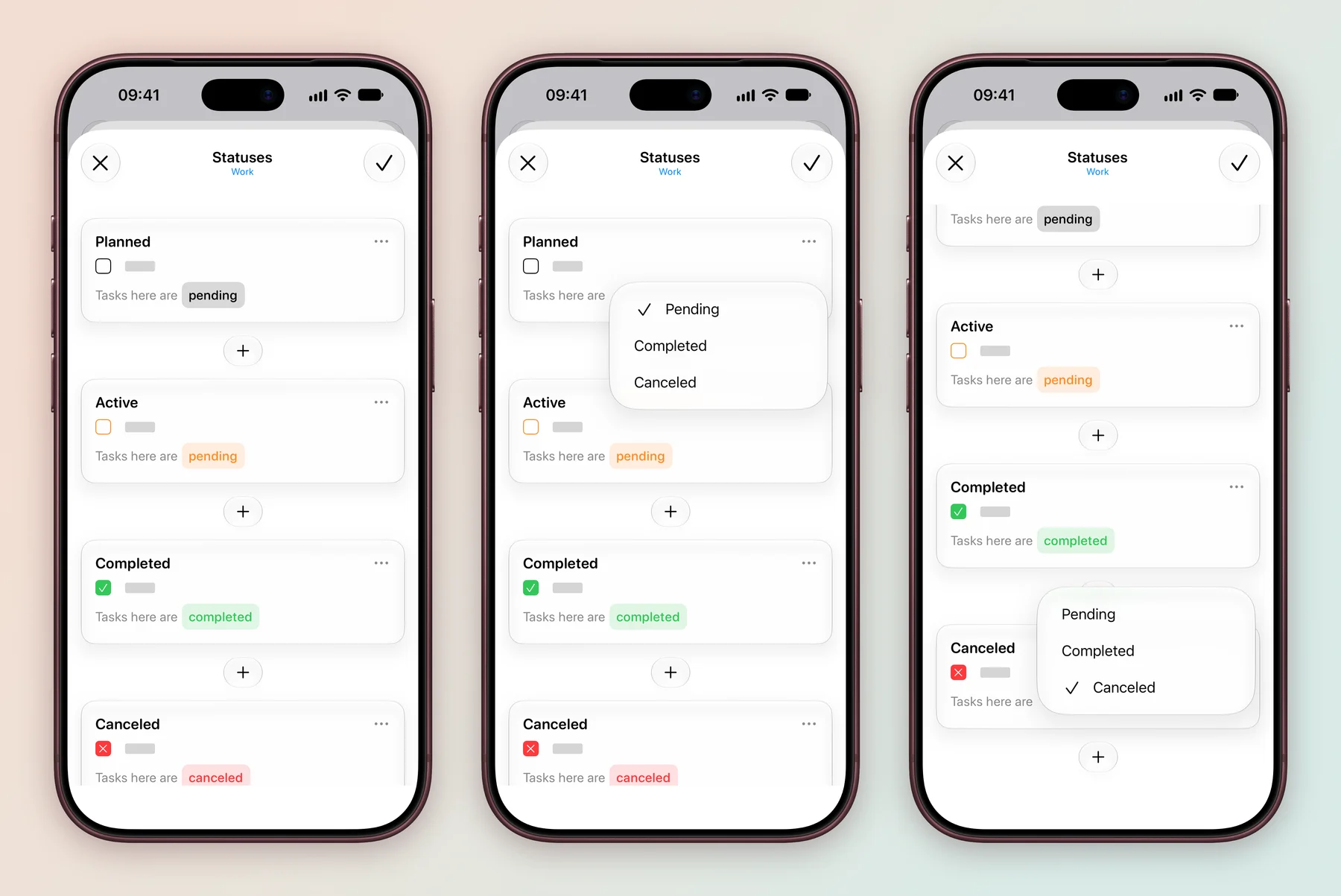
Each status card says what its tasks are. Tap the word after Tasks here are and choose Pending for work still to do, Completed for finished work, or Canceled for work you dropped. The Work project uses Planned and Active for pending work, then Completed and Canceled. Use … on a card to edit or remove it.
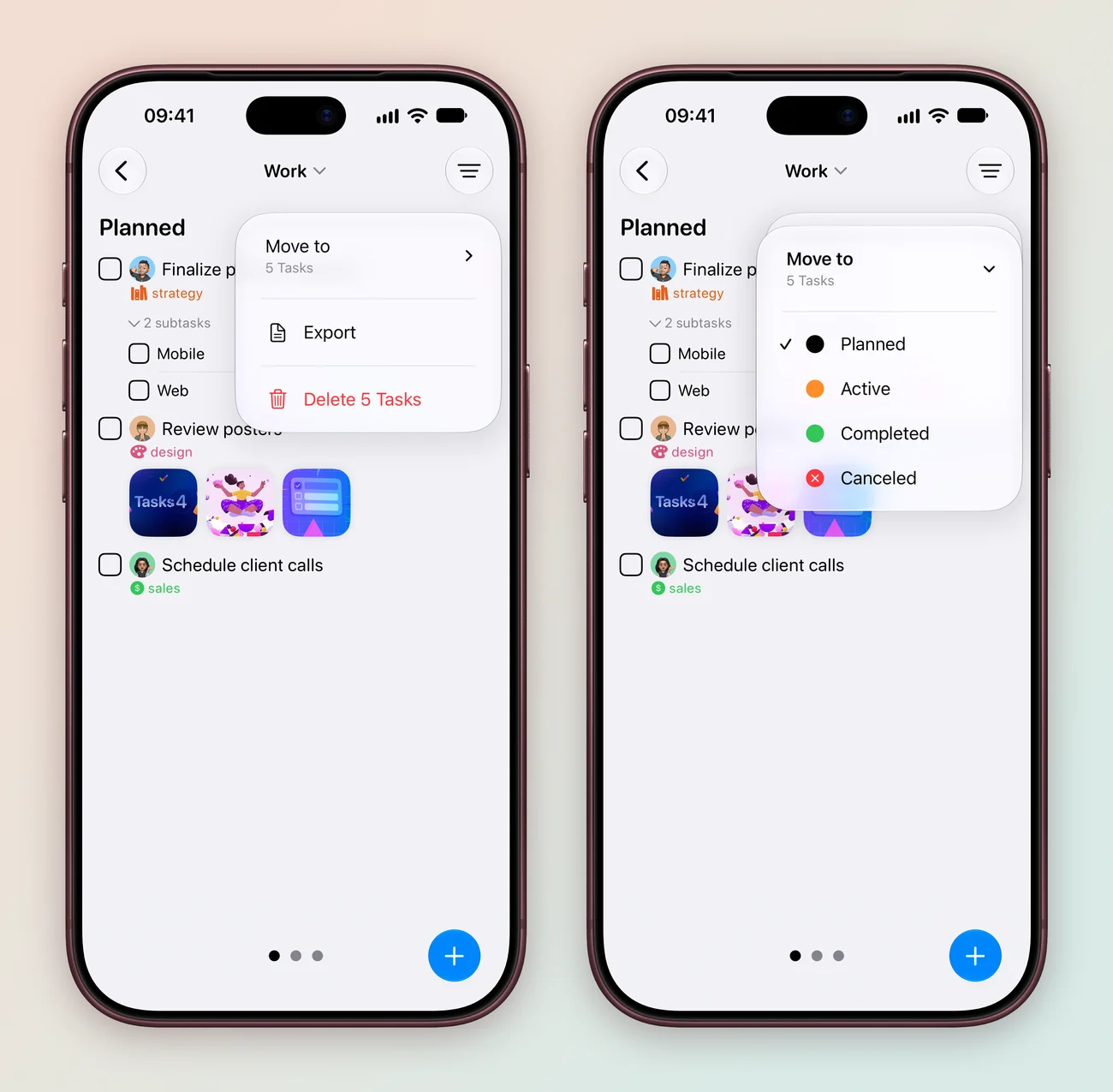
A column’s … menu on the board acts on every task in it. Move to sends them all to another status, Export makes a PDF of them, and Delete removes them after you confirm.
Deleting a field tells you how many tasks will lose what they saved in it before anything is removed.
Group projects into folders
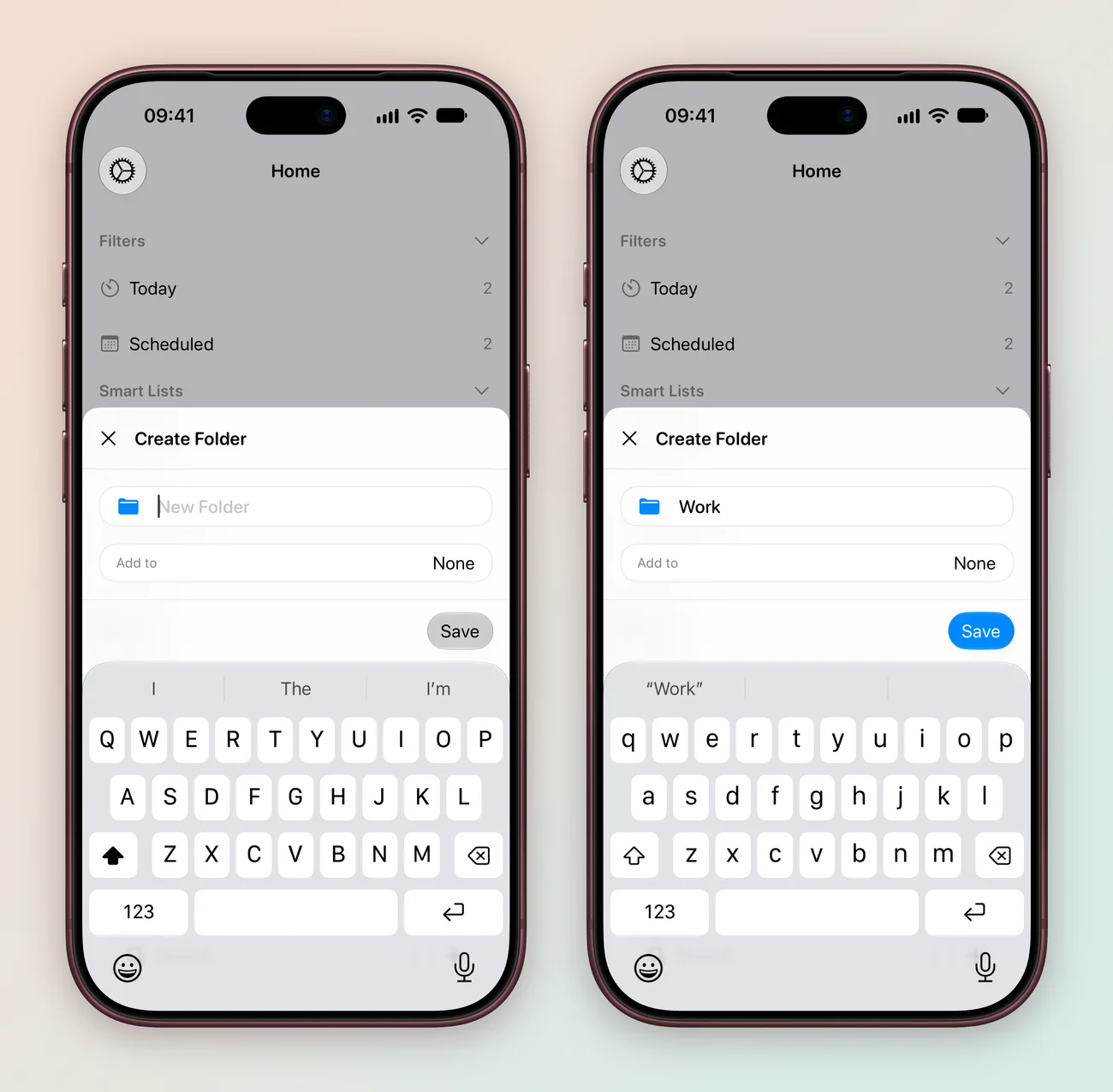
When the list grows, group projects into folders, such as a Trips folder for California. Use + at the bottom of the Home screen or sidebar, choose More, then Folder. Name it and tap Save. Set Add to to put the new folder inside another one.
To move a project in, drag it onto a folder, or choose Move from its menu. You can drop a folder inside another folder too, and drag anything to reorder it.
Break a task into steps
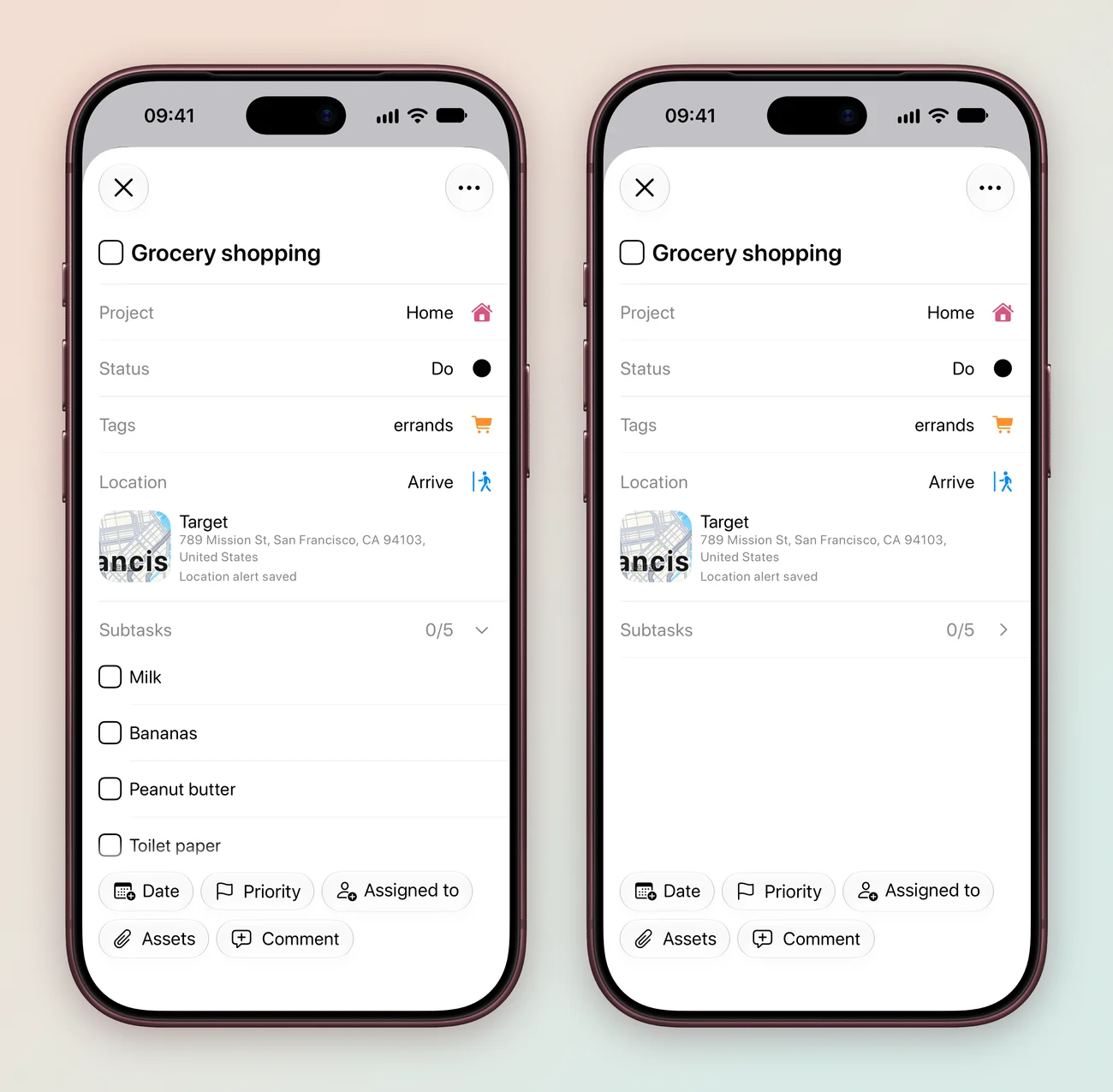
Open a task and tap + next to Subtasks to add steps. From the board, long press a task and choose Add Subtasks. In the Home project, Grocery shopping carries its list as subtasks: Milk, Bananas, Peanut butter, Toilet paper and Popcorn. Each one can be ticked off on its own, and the count shows how many are done.
- Fold the list by tapping the Subtasks row.
- Reorder them by dragging.
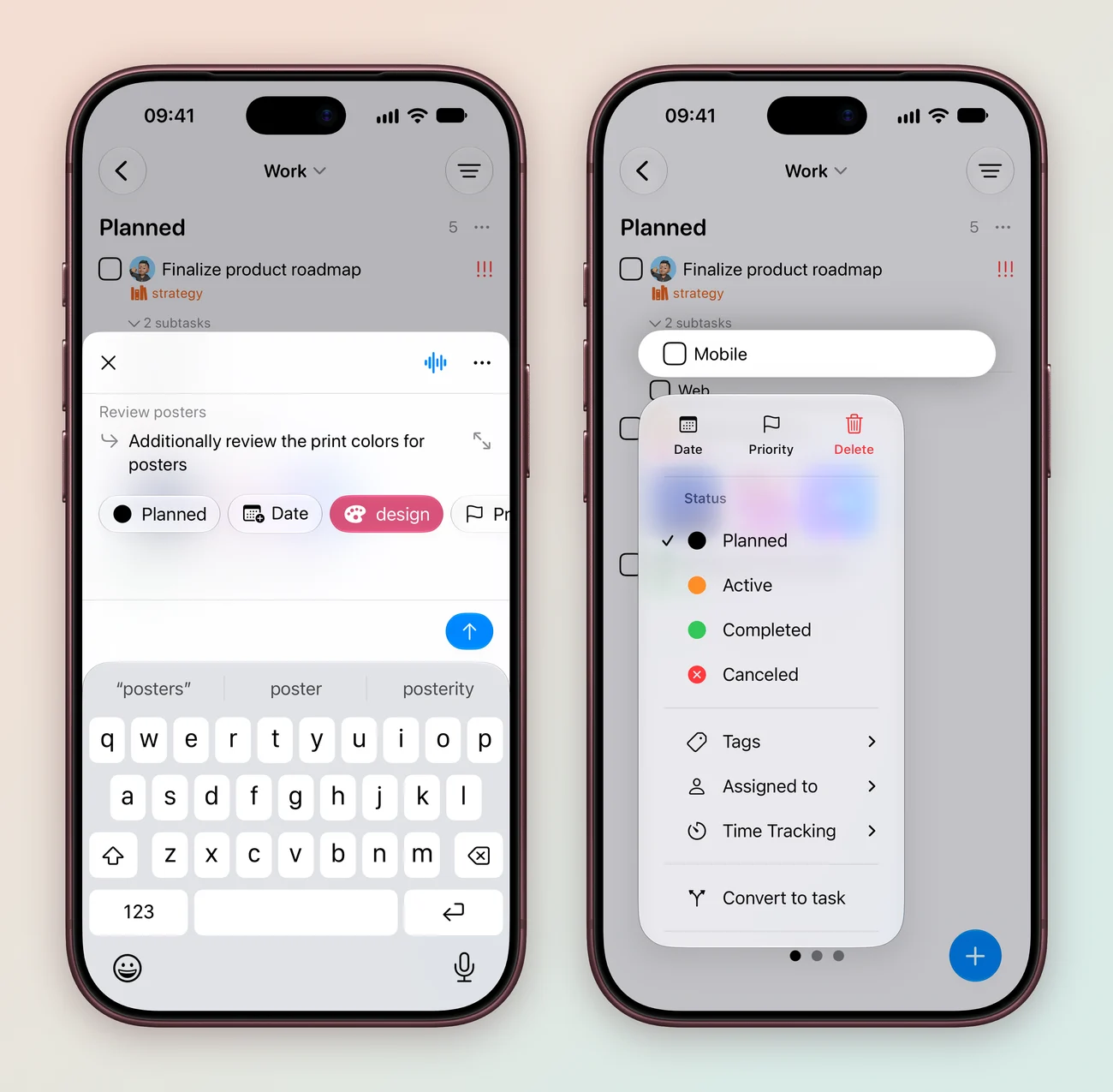
- Long press a subtask to change its date, priority, status, tags or assignee, Clone Task it or Copy link.
- Turn one into its own task with Convert to task.
- Nest a task by dropping it onto the middle of another task.
To reuse work, long press a task and choose Clone Task. When it has subtasks, Clone offers Task or Task & subtasks. If there are comments, choose whether to keep them. Dragging a task onto another project copies it there, subtasks and comments included. Clone Project reuses a whole project, which is handy for the next trip. It needs Tasks Plus.
Next, choose the details your tasks need in Custom fields and task details.
Explore all 22 related features
Browse the related features below for more detail, or search every feature.
Projects
Keep related tasks and their workflow together.
Folders
Group projects into a cleaner sidebar.
Nested folders
Create a folder inside another folder.
Subtasks
Break a task into smaller steps while keeping its hierarchy.
Collapsible subtasks
Hide or reveal a task's subtask tree.
Project templates
Start a new project from a reusable structure.
Clone tasks
Duplicate a task and preserve its useful details.
Clone subtask trees
Duplicate a task with its nested subtask hierarchy.
Clone projects
Reuse a complete project as a new starting point.
Move tasks
Move work between projects without recreating it.
Move projects
Place a project into a different folder.
Custom ordering
Drag tasks, statuses and project elements into a useful order.
Project icons
Give projects recognisable symbols.
Project colours
Use colour to identify projects and workflow elements.
Project links
Open a project directly with a Tasks link.
Project PDF export
Export a project as a PDF when a portable view is needed.
Multiple windows
Open a project in its own window on Mac.
Guided project setup
Name the project, choose its statuses, then pick its fields.
Edit menu for projects
Change a project's details, fields or statuses from one Edit menu.
Use an existing project
Copy the statuses and fields of a project you already have.
Clone with comments
Choose whether a cloned task keeps its comments.
Reorder subtasks
Drag subtasks into order, or use Move Previous and Move Next.