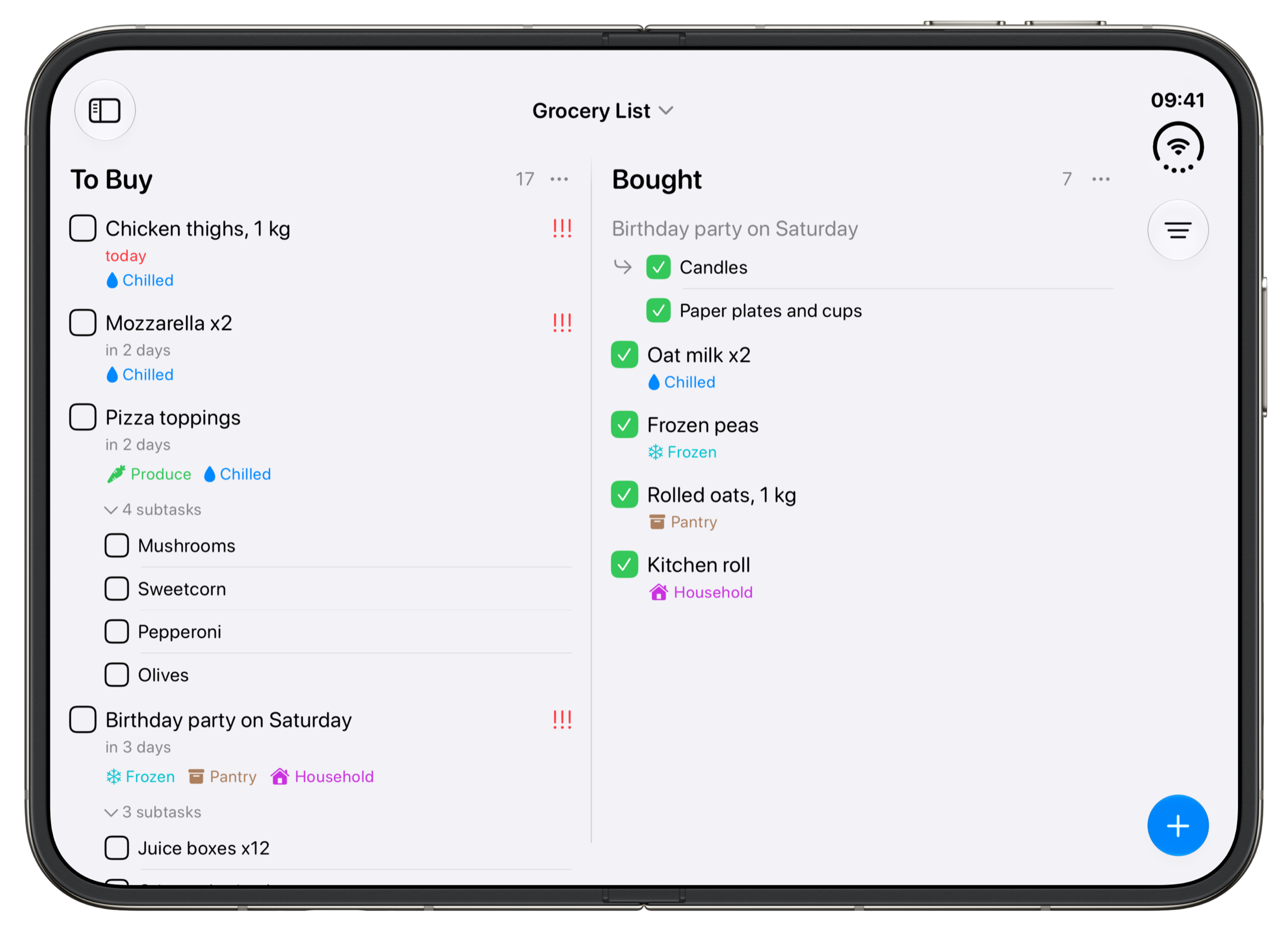
The board has two stages. To Buy is the list, and Bought is where items go when they're in the trolley, so you can see at a glance what's left. Things you need by a certain day, like food for a party, can have a date and a list of subtasks.
What's in the template
A project made from Grocery List starts with these fields. You can rename, remove or add fields before you create it, or later.
- Title
- The name of each task.
- Status
- To Buy and Bought. Moving a task to Bought completes it.
- Tags
- Produce and Chilled.Suggests Frozen, Pantry and Household while you set it up.
- Date
- A date, with a time, alert or repeat if you want one.
- Attachments
- Photos and files.
- Priority
- High, Medium and Low.
- Subtasks
- Smaller steps inside a task.
- Time Tracking
- Timers and time added by hand.
Create it in Tasks
- On iPhone, tap + at the bottom of the Home screen and choose Project. On Mac, press ⌥⌘N, or click + at the bottom of the sidebar and choose Project.
- Type a name, pick a colour and an icon, then tap the checkmark.
- Under Project Template, tap Grocery List. The stages change to To Buy and Bought. Tap Next.
- Check the fields the template brings, add anything else you want on every task, then tap the checkmark to create the project.
The projects guide shows each step with screenshots.
Download it
You can also download the template as a file and import it into Tasks. There are two versions. One is the board above with its 14 example tasks, so you can see how it works. The other is empty and ready for your own work. Both have every stage, field and tag, including the ones the app only suggests, and time tracking on every task.
- Download with the example tasks (Grocery-List.tasks)
- Download the empty template (Grocery-List-Template.tasks)
- Download one of the files on your iPhone, iPad or Mac.
- Tap the file, in your downloads or in Files. It opens in Tasks.
- Import Data? tells you what it will add. Tap Import, and the project appears on the Home screen.
If tapping the file doesn't open Tasks, open Settings in Tasks, scroll down to Import Data under Data & Integrations, tap it and pick the file. The example dates are made up, so move them to your own schedule. The backup and import guide has more on importing.
Make it yours
The template starts with Produce and Chilled. Tap Tags on the Fields step while you set up the project, then tap Frozen, Pantry and Household under Suggested Tags to add the rest of the shop. Both downloads below already include them.
Add a Projects widget for your grocery list to the Home Screen. Tapping an item's checkbox there moves it to Bought, so you can tick things off in the aisle without opening the app. The widgets guide shows how to set one up.
Type an item the way you'd say it, such as Milk #chilled, and Tasks offers the tag as a chip under the title. With Apple Intelligence on iOS 27, you can say it instead when your hands are full.Type or say a task lists the phrases it understands.
Questions
Is the grocery list template free?
Yes. Every template is in the free version of Tasks. The first two projects are free, and more projects need Tasks Plus.
Can my family share the same grocery list?
Yes. Share the project from its menu with Invite people, and an item anyone adds shows up for everyone. Only the person sharing needs Tasks Plus, and every Tasks Plus plan works with Apple Family Sharing.
Can I add my own aisles?
Yes. The aisles are tags. Open the project menu and choose Edit, then Fields, and tap Tags to add, rename or remove them. You can also tap Add in a task's tags menu to create one on the spot.