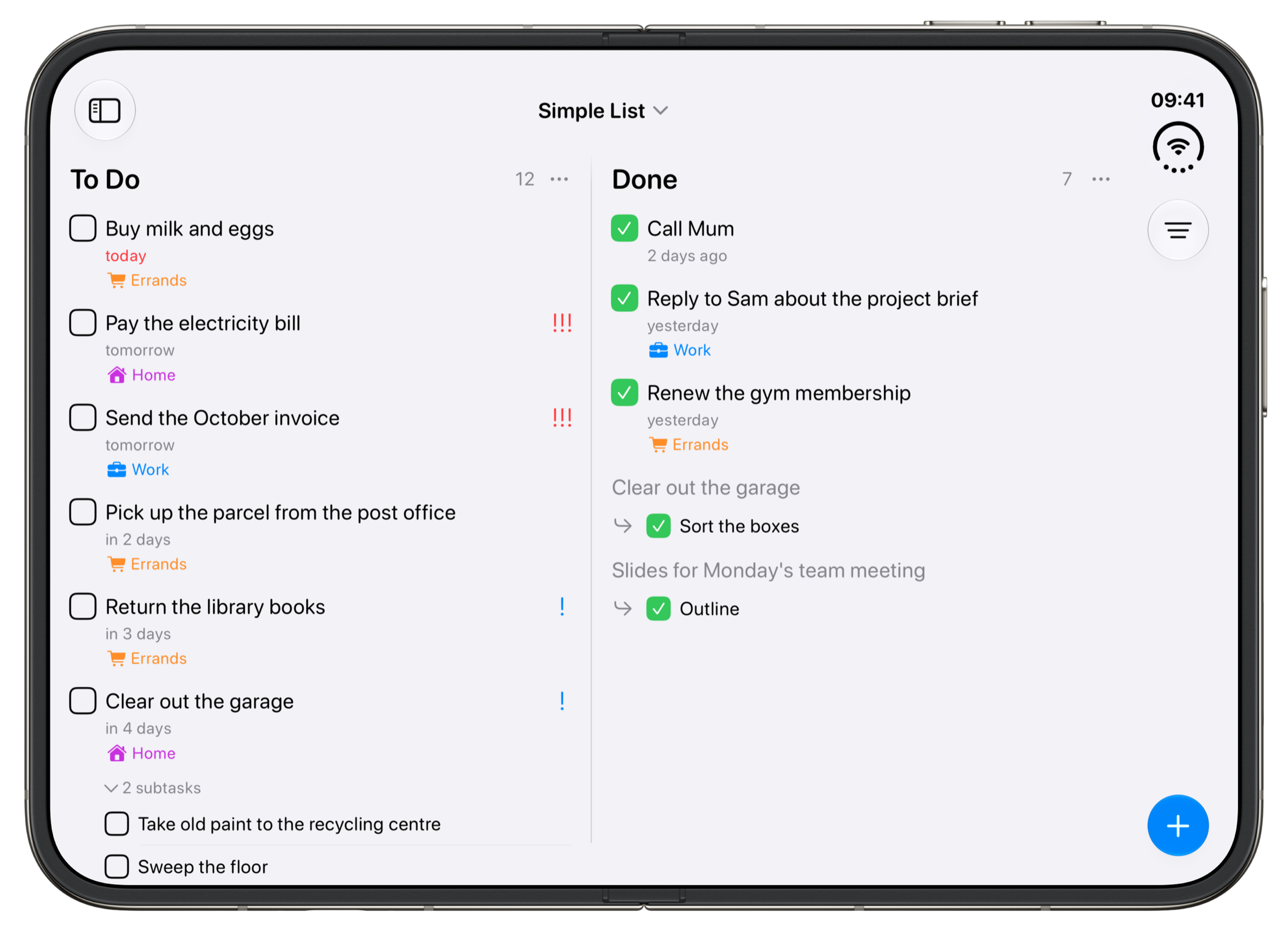
Simple List
- To Do
- Done
One list for everything you need to do, with a date when it matters.
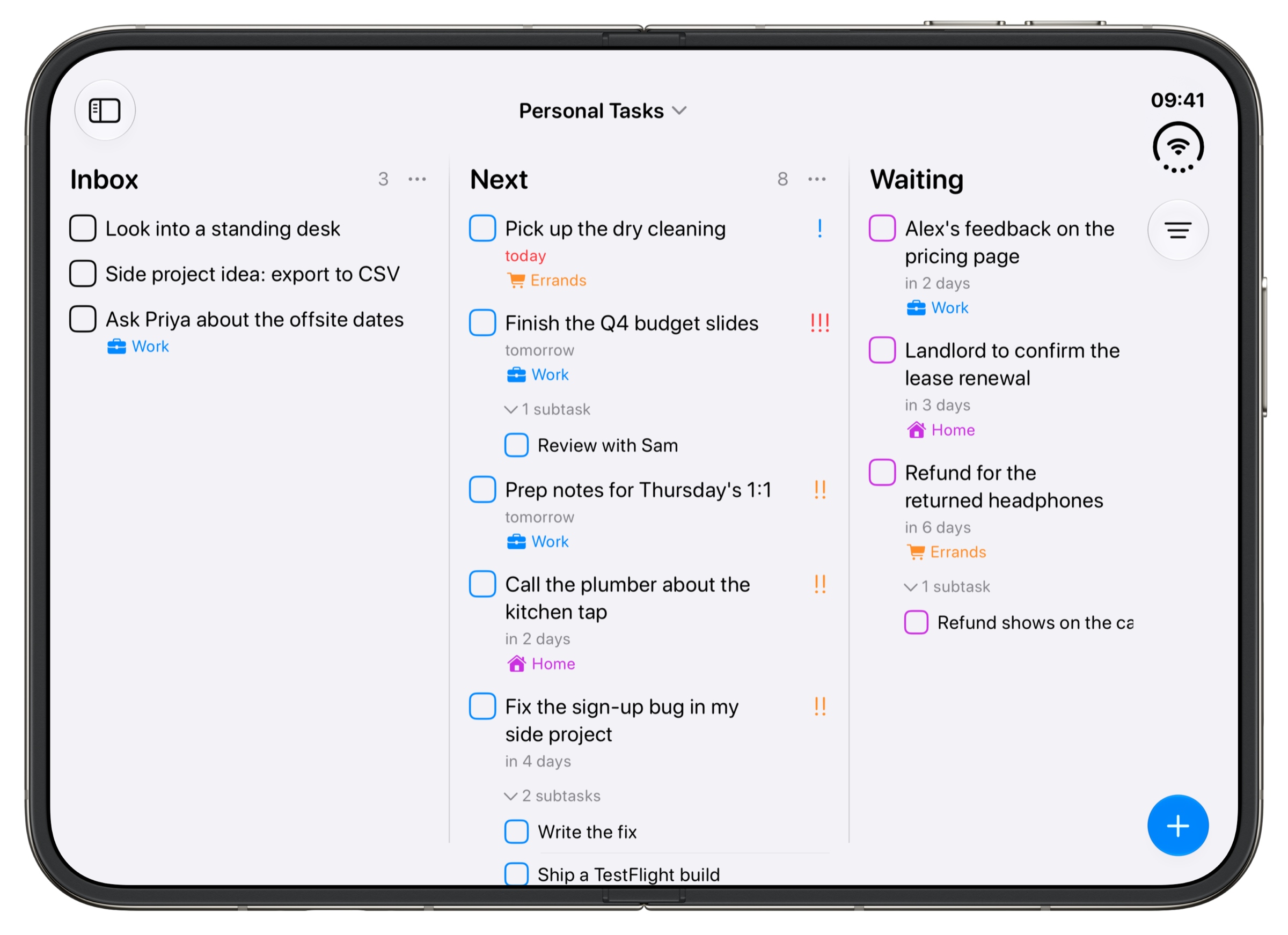
Personal Tasks
- Inbox
- Next
- Waiting
- Done
Write everything down in an Inbox, then decide what's next and what you're waiting on.
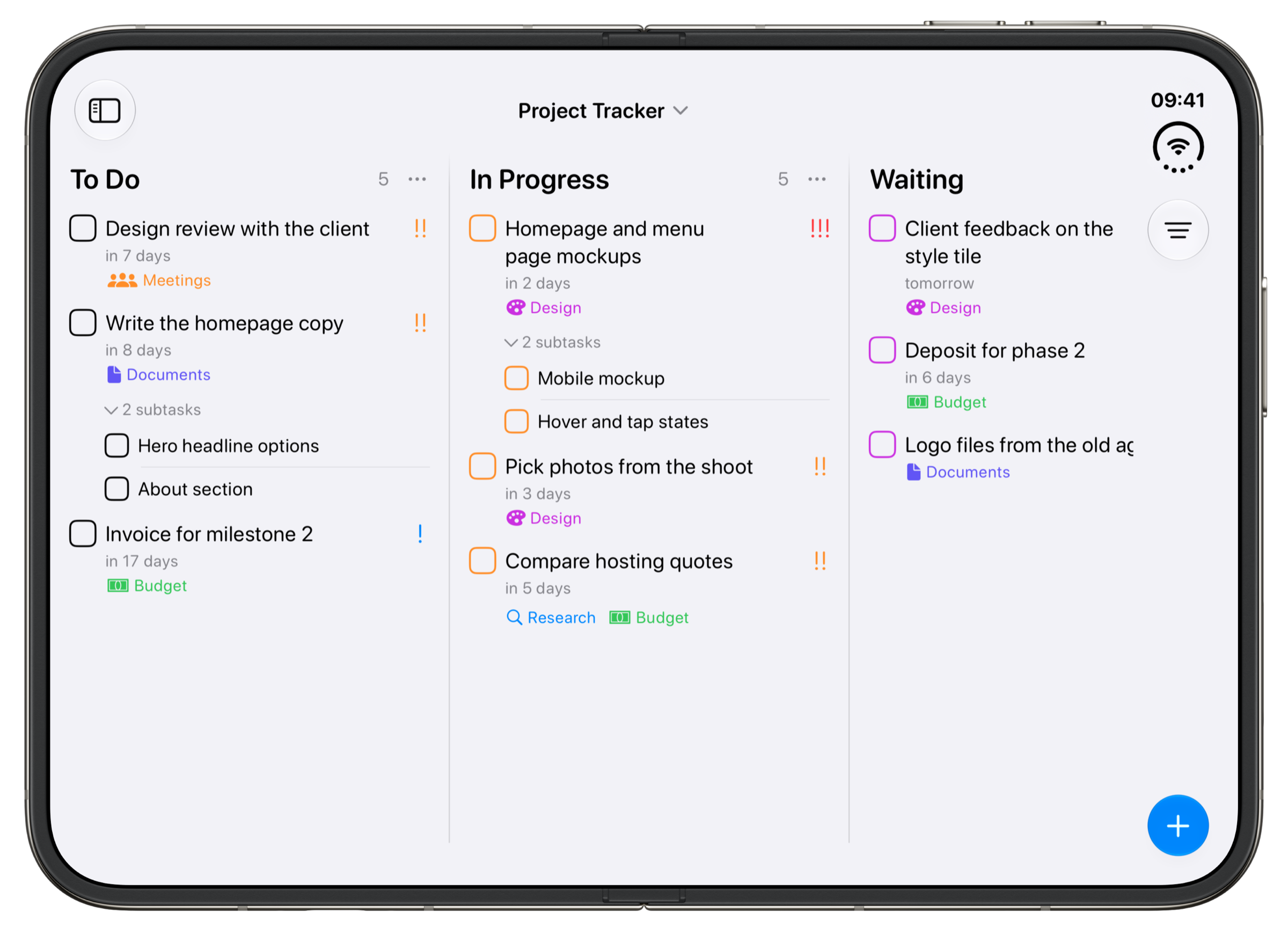
Project Tracker
- To Do
- In Progress
- Waiting
- Done
Break a project into steps, keep an eye on deadlines and see what you're waiting on.
Read more: Project TrackerDownload template: Project Tracker
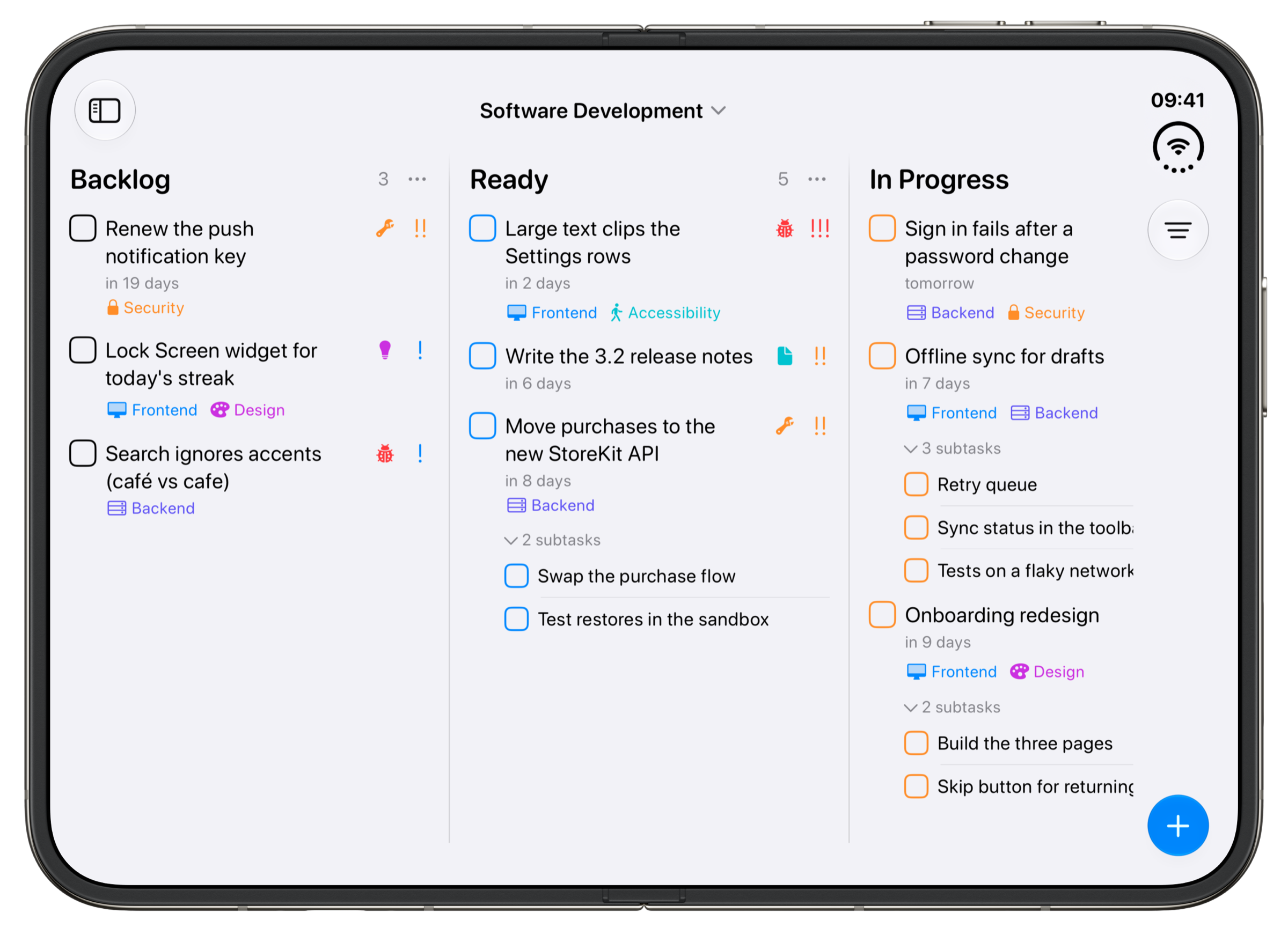
Software Development
- Backlog
- Ready
- In Progress
- In Review
- Done
Track features and bugs on a board, from the backlog through code review to done.
Read more: Software DevelopmentDownload template: Software Development
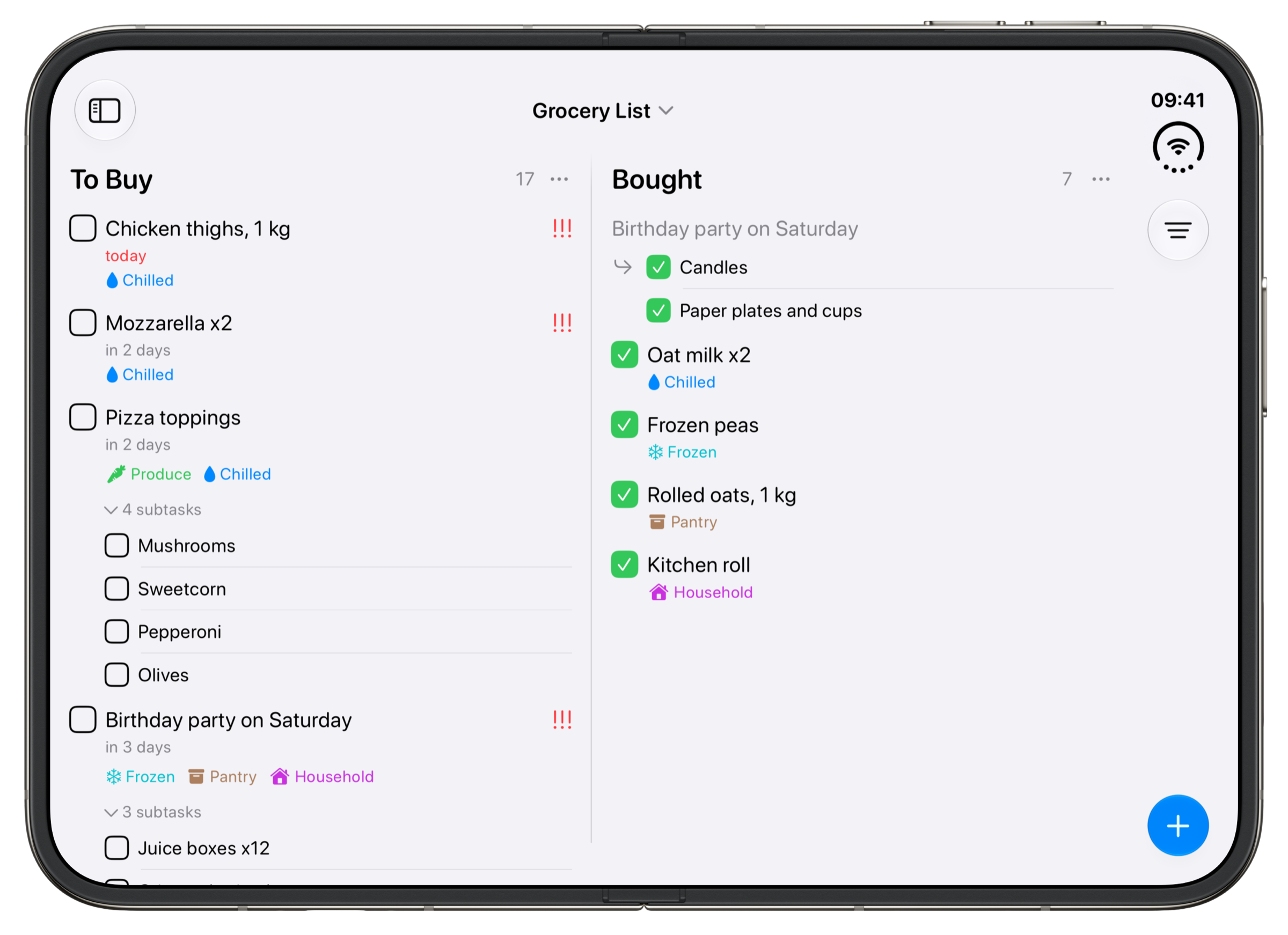
Grocery List
- To Buy
- Bought
One shopping list for the household, grouped by aisle and checked off as you go.
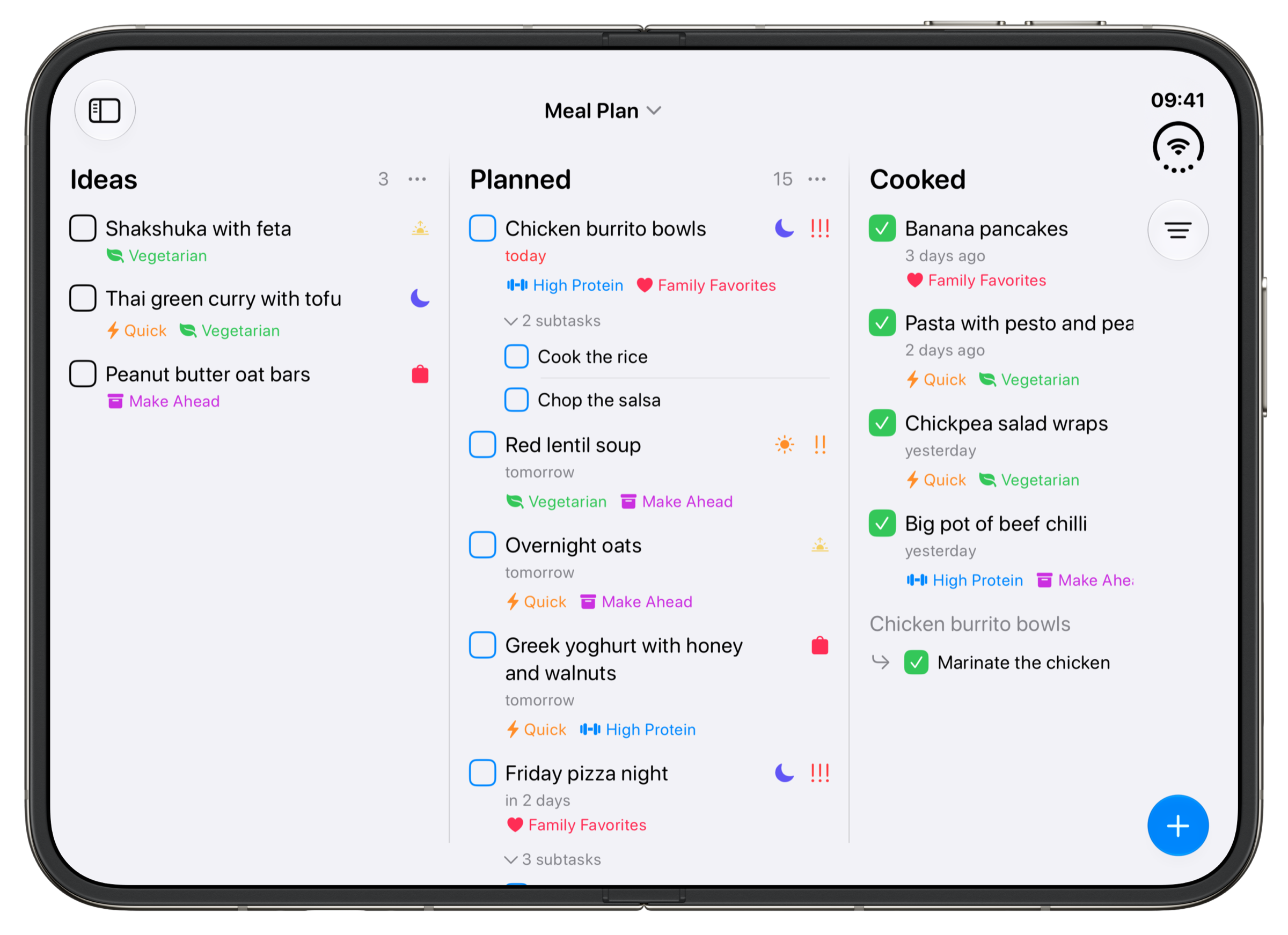
Meal Plan
- Ideas
- Planned
- Cooked
Plan the week's meals by day and keep the recipe on each one.
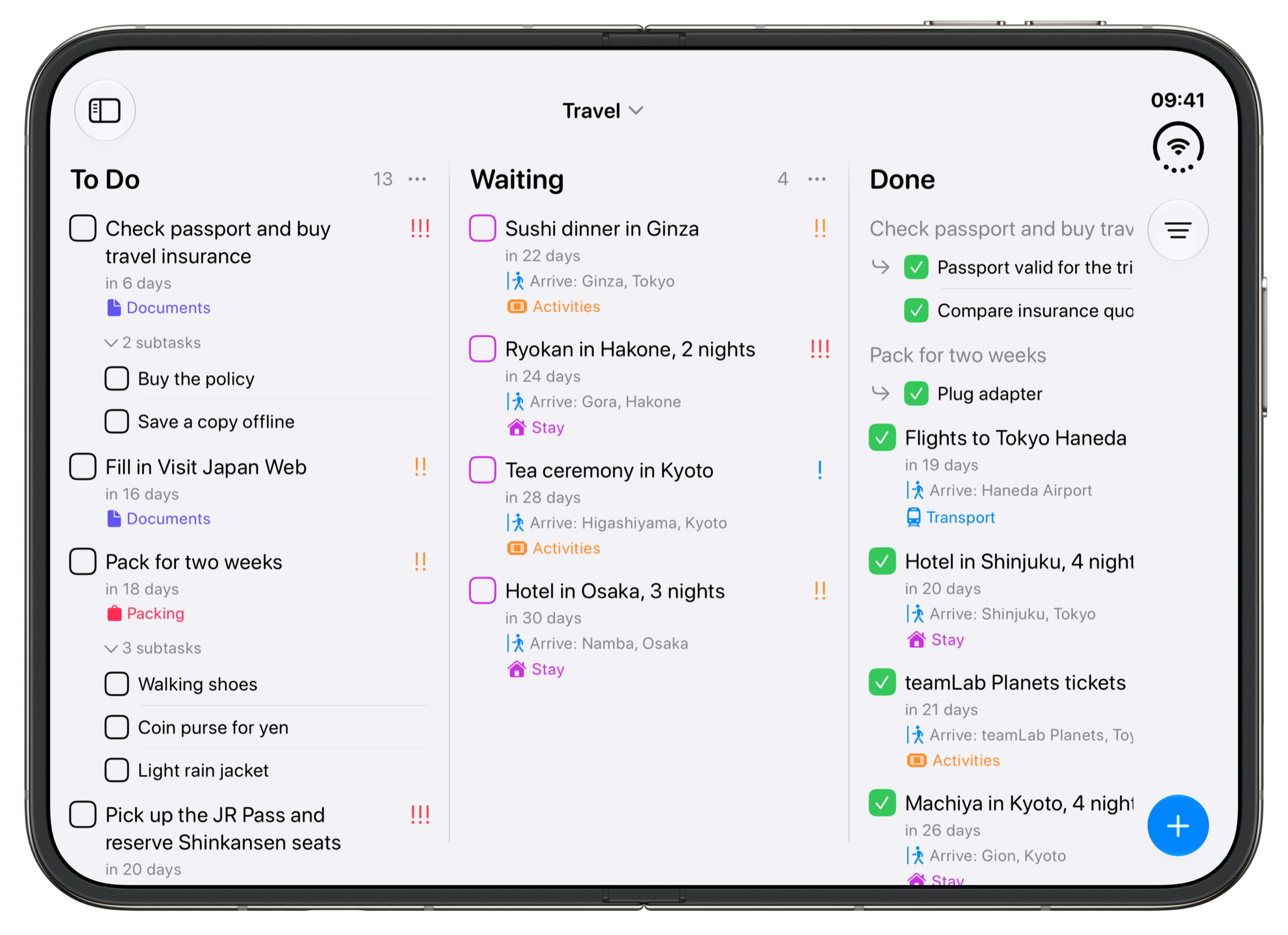
Travel
- To Do
- Waiting
- Done
Keep bookings, places and packing for a trip in one place.
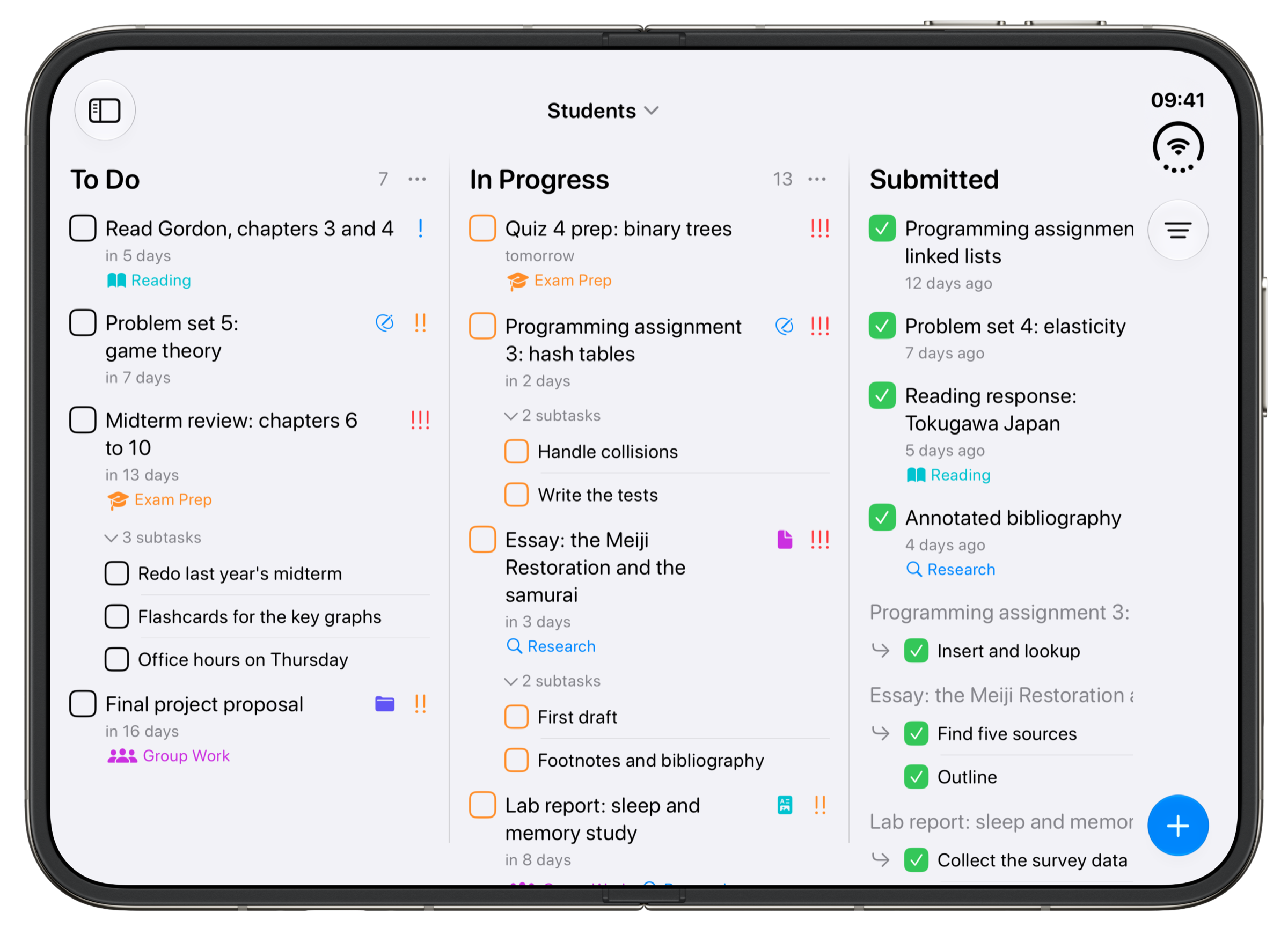
Students
- To Do
- In Progress
- Submitted
Track assignments by course and get each one in on time.
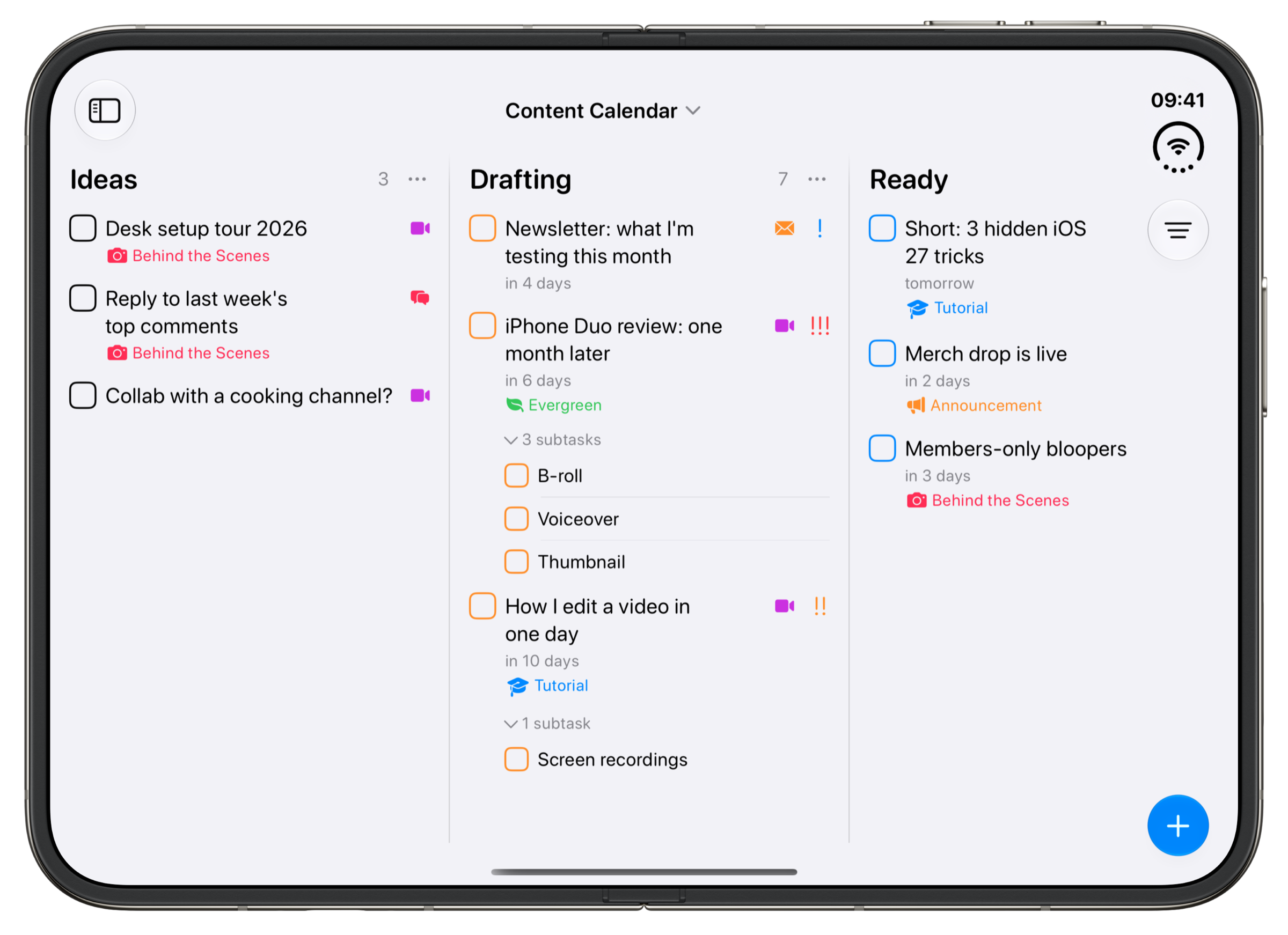
Content Calendar
- Ideas
- Drafting
- Ready
- Published
Plan videos and posts on a board, from the first idea to the day they go out.
Read more: Content CalendarDownload template: Content Calendar
Create a project from a template
- On iPhone, tap + at the bottom of the Home screen and choose Project. On Mac, press ⌥⌘N, or click + at the bottom of the sidebar and choose Project.
- Type a name, pick a colour and an icon, then tap the checkmark.
- Under Project Template, tap the template you want. The stages change to match it. Tap Next.
- Check the fields the template brings, add anything else you want on every task, then tap the checkmark to create the project.
The projects guide shows each step with screenshots.
Import a template file
Every template can be downloaded as a .tasks file. The template pages also have a version with example tasks, so you can see how a board works before you fill in your own. Both versions have every stage, field and tag, including the ones the app only suggests, and time tracking on every task.
- Download the file on your iPhone, iPad or Mac.
- Tap the file, in your downloads or in Files. It opens in Tasks.
- Import Data? tells you what it will add. Tap Import, and the project appears on the Home screen.
If tapping the file doesn't open Tasks, open Settings in Tasks, scroll down to Import Data under Data & Integrations, tap it and pick the file. The example dates are made up, so move them to your own schedule. The backup and import guide has more on importing.
New to projects? The projects guide walks through creating one, and the fields guide covers every kind of field.