Sync keeps your devices up to date. A backup is a separate copy you keep somewhere safe. Save one before a big reorganisation, and you can always get back to where you started.
Where your tasks are stored
Each project syncs in one of three ways.
| Storage | Used for | Good to know |
|---|---|---|
| iCloud | Your personal projects, by default | Stays in your own iCloud account and syncs across your Apple devices. |
| Tasks Cloud | Projects you share | Needs you to sign in with Apple or email. Sharing and AI assistants only work here. |
| Apple Reminders | Lists you connect | Choose Connect Apple Reminders for two way sync with the Reminders app. These lists stay in Reminders, so they are not part of a Tasks backup. |
To choose which Reminders lists appear in Tasks, follow Bring your Apple Reminders lists into Tasks.
Tasks does not need an account for personal projects in iCloud. Sign in only when you want to share or connect an assistant. Privacy policy and Terms of use, under Privacy & Legal in Settings, open the current privacy policy and terms.
Save a backup
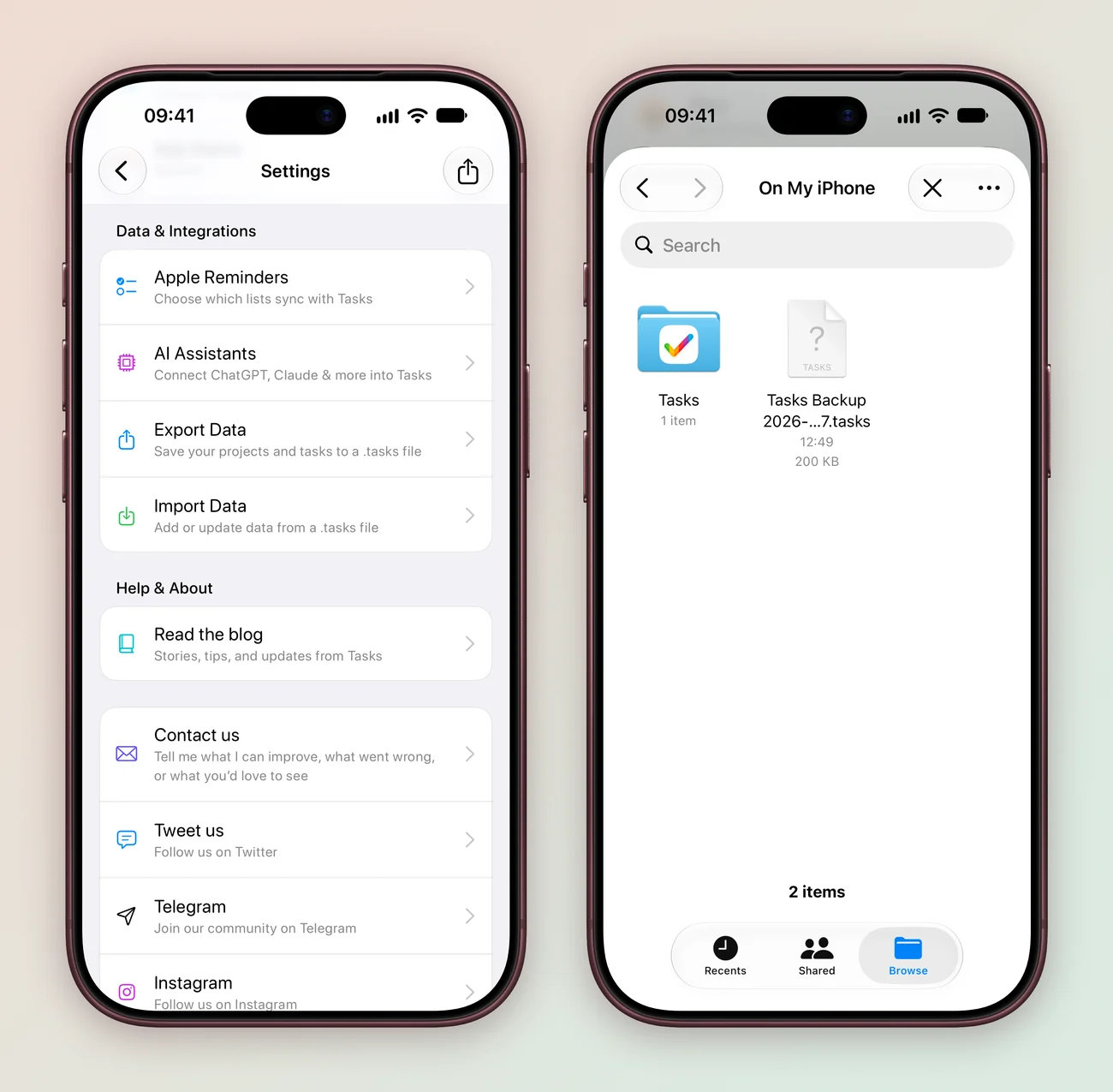
- Tap the gear at the top left of Home to open Settings.
- Under Data & Integrations, tap Export Data.
- Save the file to Files, iCloud Drive or anywhere else from the share sheet.
- Press ⌘, to open Settings.
- Under Data & Integrations, choose Export Data.
- Save the file somewhere you will find it again, such as a Backups folder.
The file holds your projects and tasks. Tasks names it with the date, such as Tasks Backup 2026-09-27.tasks, so you can tell backups apart.
Bring a backup back in
- Open Settings, then Import Data under Data & Integrations.
- Pick the Tasks Backup file.
- Import Data? tells you how many items the backup will add and update. Tap Import.
- Import Complete shows what was added, updated and already up to date. Check one familiar project before you carry on.
Importing merges the file with what you already have. It does not wipe your current tasks, and anything you deleted since the backup stays deleted.
Export one project
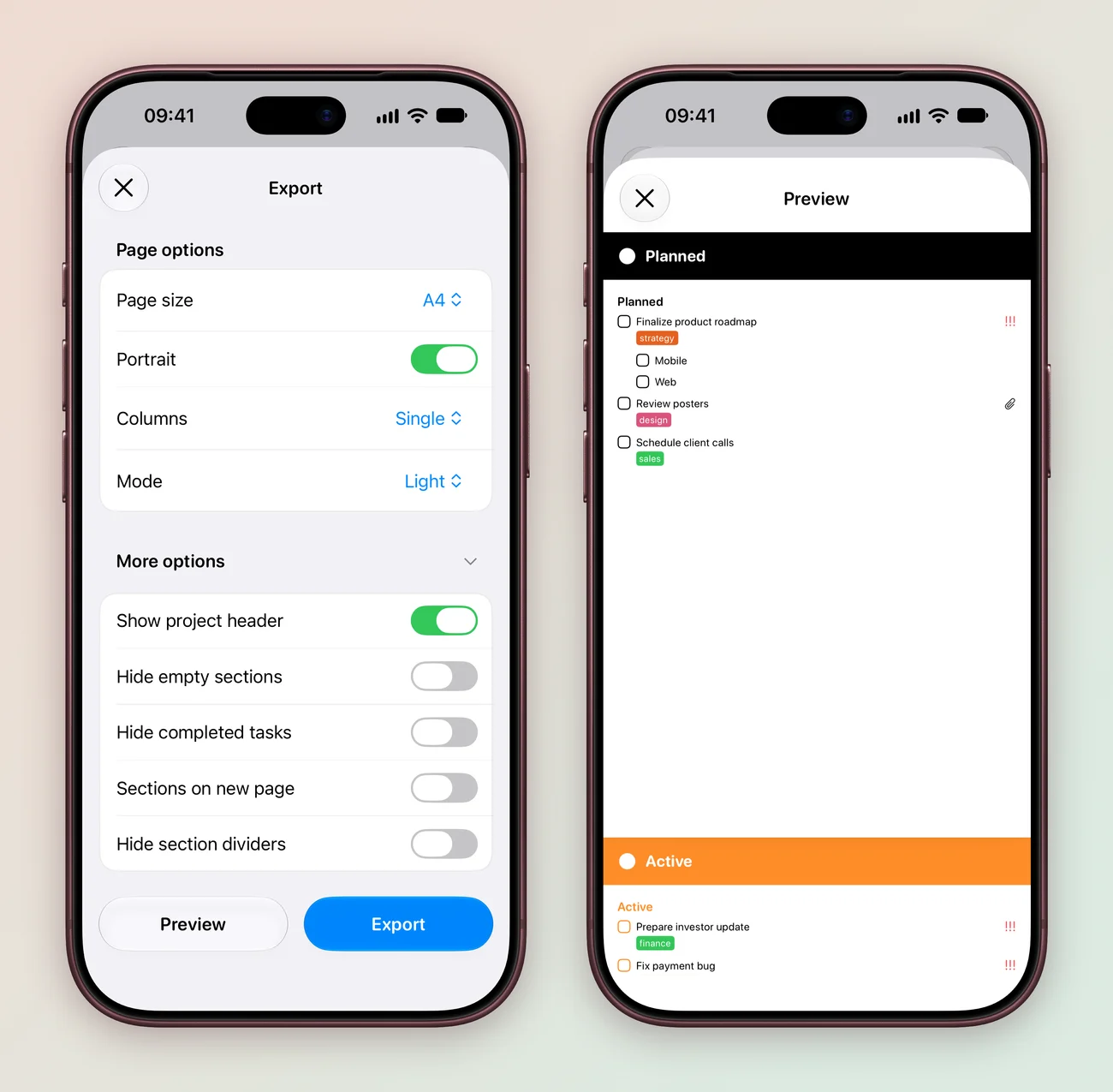
Open a project’s menu and choose Export to save the board as a PDF. Work makes a good example.
- Under Page options, choose the Page size, Portrait or landscape, Single or Multiple columns, and a Light or Dark mode.
- Open More options to show the project header, hide empty sections or completed tasks, start each section on a new page, or hide section dividers.
- Tap Preview to check the PDF, then Export and share it from the share sheet.
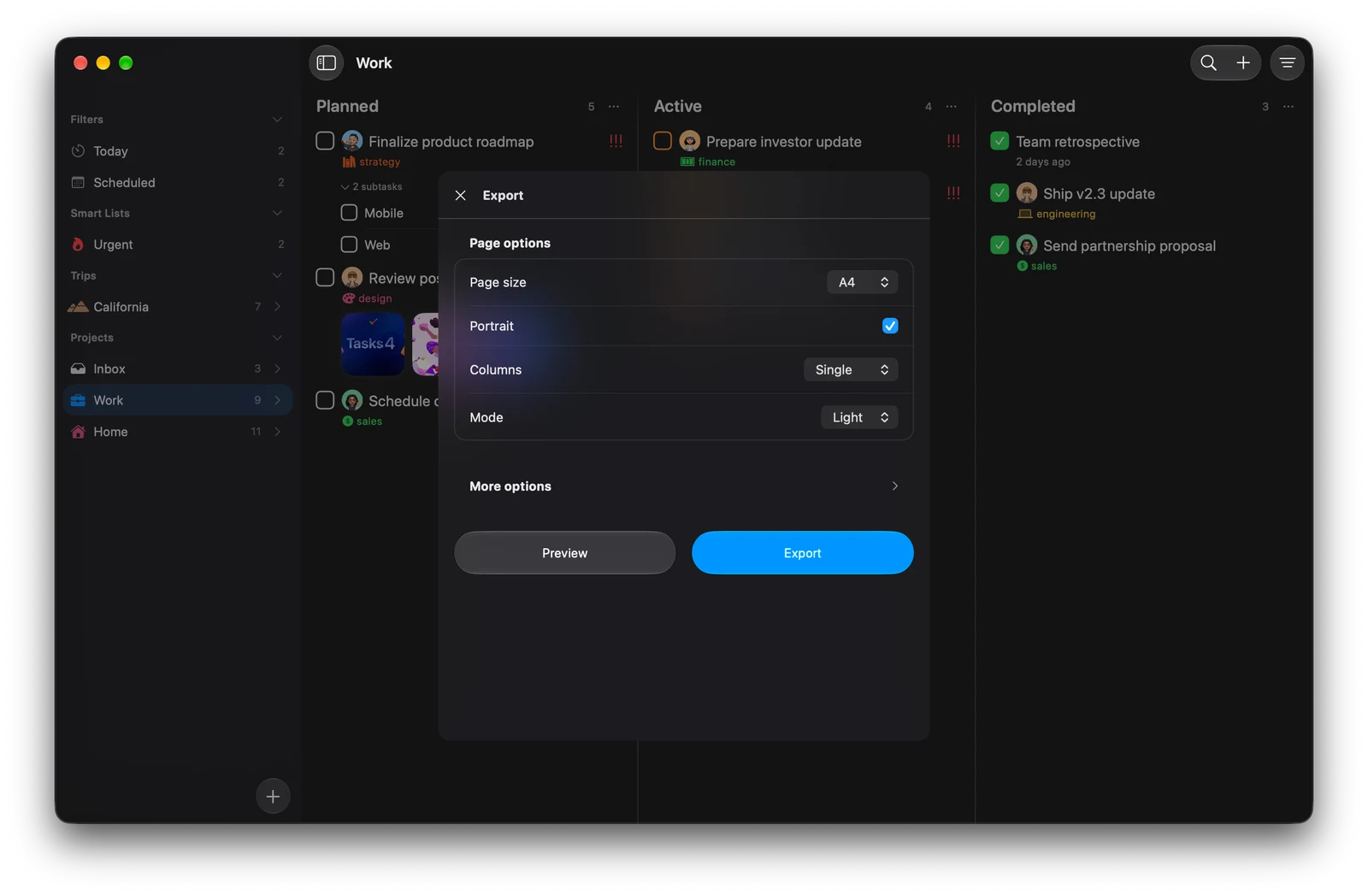
Right click the project in the sidebar, or click the board title, and choose Export. Pick the page options, click Preview to check the PDF, then click Export and choose where to save it.
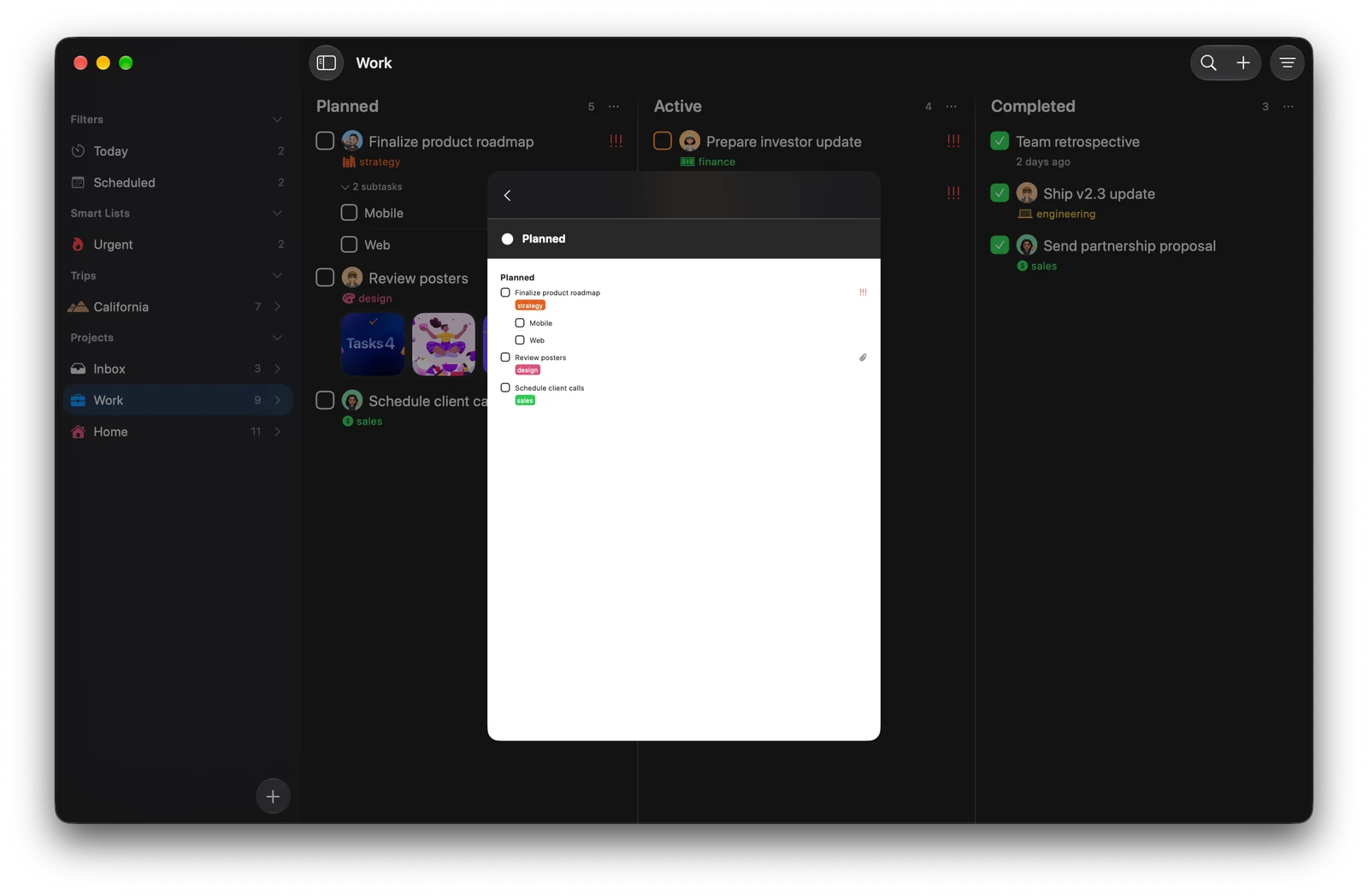
A project PDF is for reading, printing and sending. For a copy of everything, use Export Data in Settings.
Save a backup now, before you need one. It takes less than a minute.
Explore all 13 related features
Browse the related features below for more detail, or search every feature.
.tasks backups
Save supported Tasks data in a .tasks backup. Live Reminders lists are excluded.
.tasks restore
Merge supported saved data from a .tasks backup. Some deleted items may remain deleted.
Open Tasks files
Open supported Tasks documents from the system file browser.
Apple Reminders sync
Bring selected Reminders lists into Tasks and keep them in sync both ways.
Read moreApple Reminders sync
Connect Apple Reminders lists and keep them in sync both ways.
Apple Notes import
Bring supported content from Apple Notes into Tasks.
iCloud data option
Keep personal data in the user's iCloud account.
Optional Tasks Cloud
Use the optional Tasks service for supported sync and collaboration workflows.
Sign in with Apple
Use Apple sign-in for supported account features.
Email sign-in
Use email when Sign in with Apple is not available.
Private project lock
Protect selected projects with Face ID or Touch ID.
In-app privacy policy
Read the current data explanation from Settings.
Support ID
Copy an identifier that helps support investigate account-specific issues.