The fastest task is the one you write down the moment you think of it. Tasks gives you a quick way in from wherever you are, so you can capture now and organise later.
Add one task
- On the Home screen, pull down, or tap + at the bottom and choose Task. Inside a project, tap the Create Task button at the bottom.
- Type the action, such as Prepare client presentation.
- Check the project at the bottom of the sheet. Tap it to pick another one, such as California.
- Tap the arrow to save.
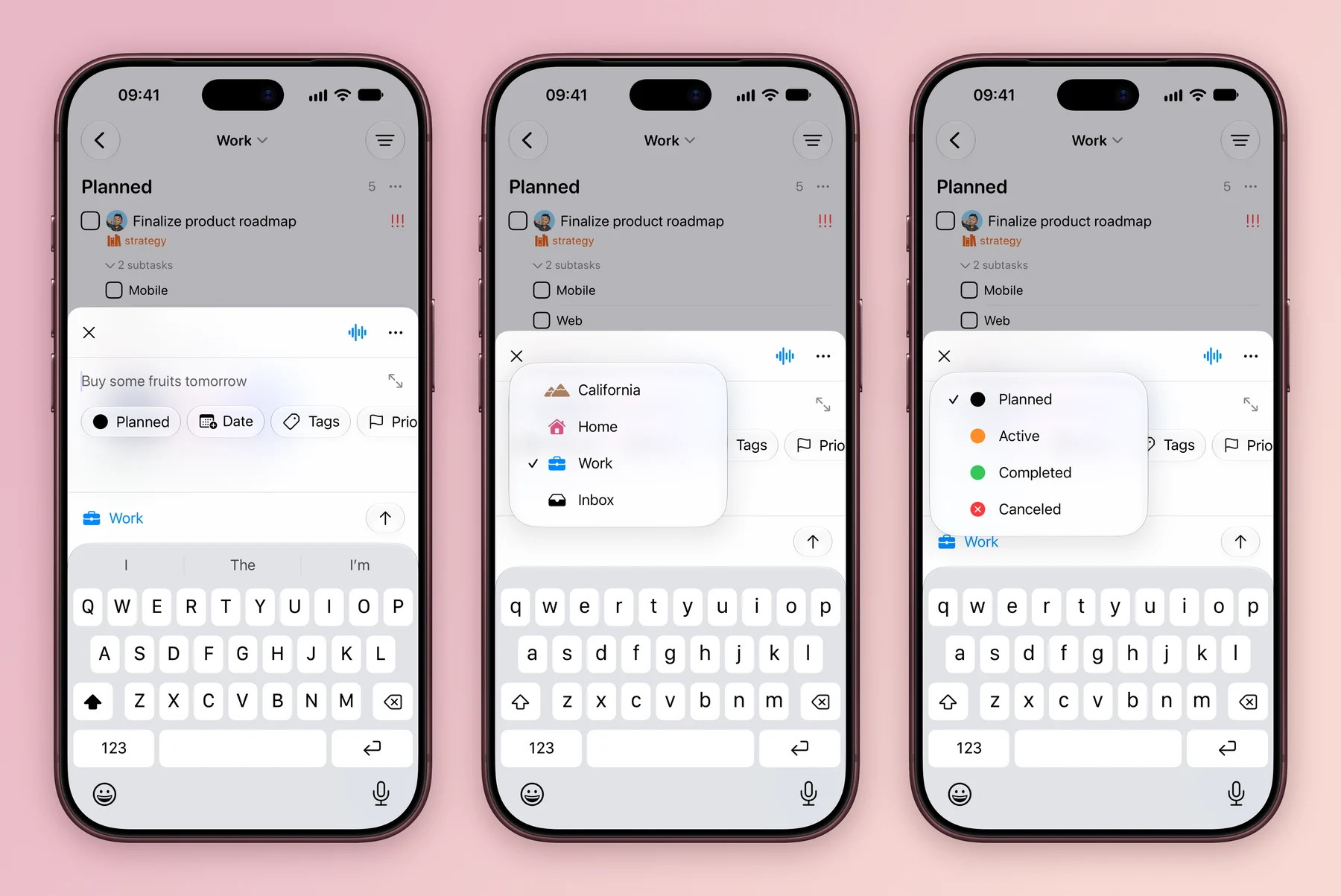
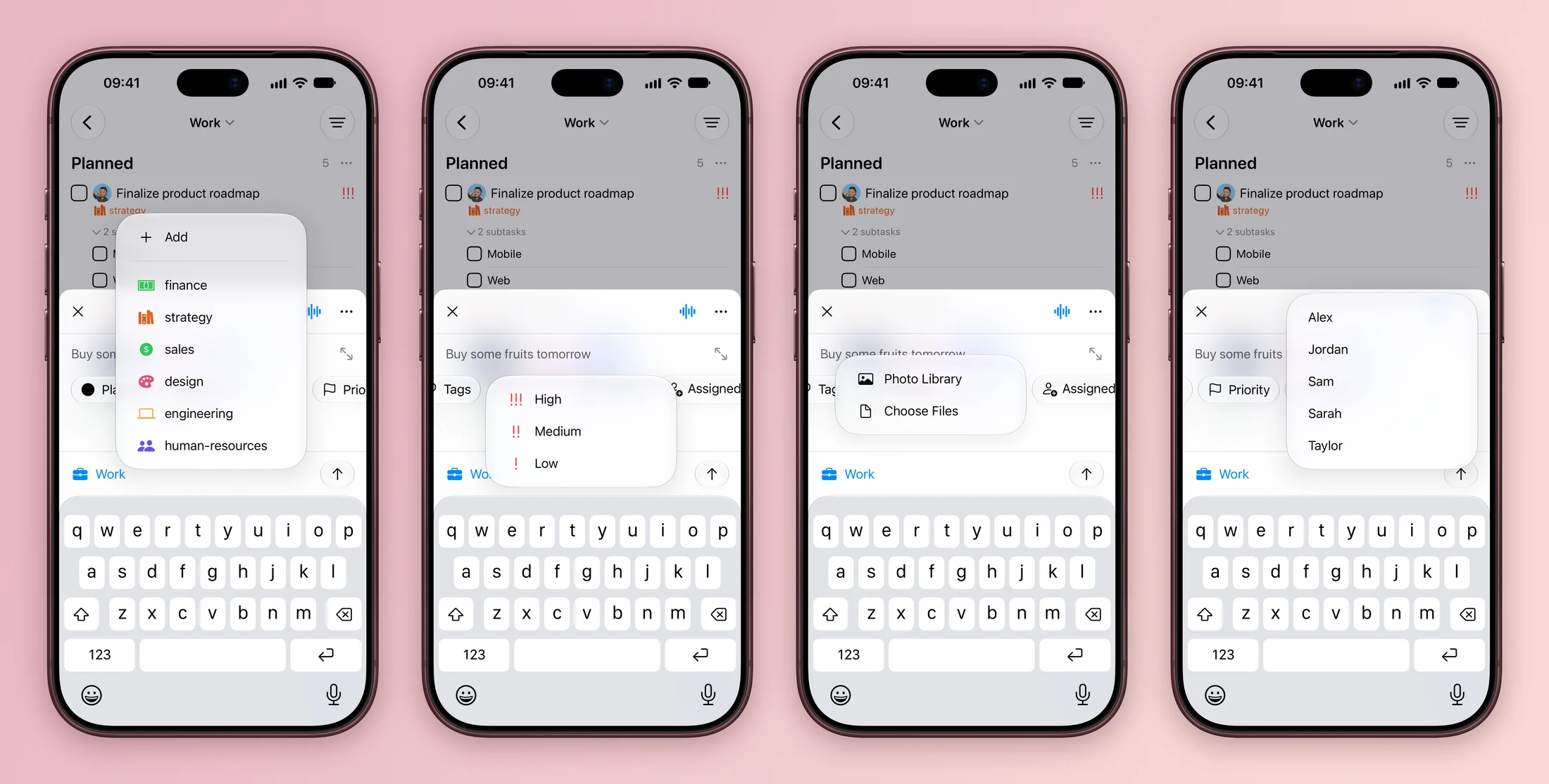
The chips under the title set details before you save. Tags, Priority, Assets and Assigned to each open a short list, and Assets attaches a picture from Photo Library or a file from Choose Files. Swipe the row to see the rest.
- Press ⌘N, or click + in the window toolbar. You can also hover a board column and click its + to add straight to that column.
- Type the action, such as Prepare client presentation.
- Check the project and the chips, then click Add or press ⌘Return.
When you are looking at a filtered board, the new task picks up that board’s project, tags, assignee and date for you.
A short title is enough. Add a date, tag or link only when it helps you act. You can also type them straight into the title, which is covered in Type or say a task.
Paste a whole list
Planning a trip or a shopping run? Paste the list instead of typing each task.
- Copy a list from Notes, Mail or a document. One line becomes one task.
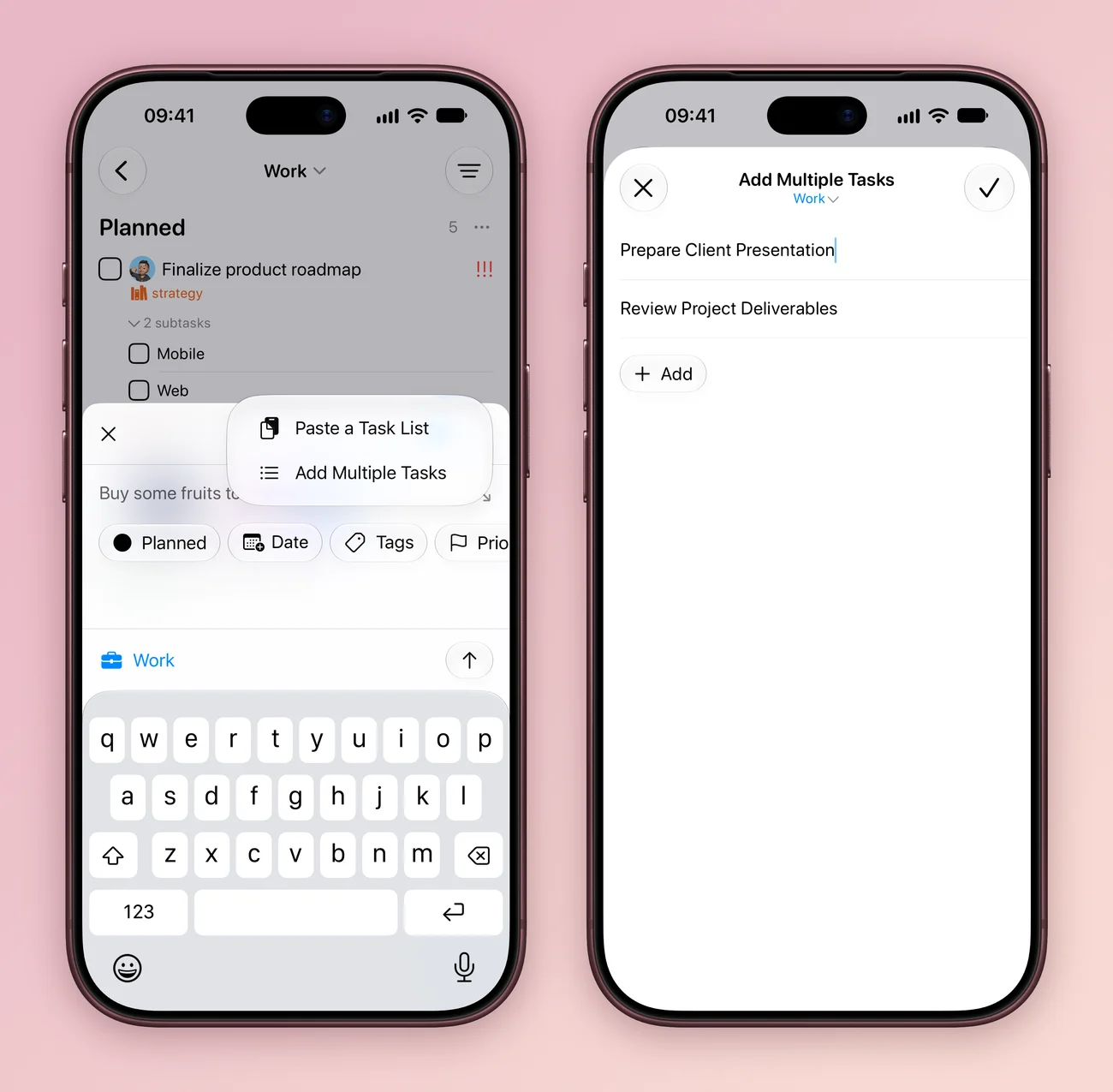
- Open Create Task, tap More (…) and choose Paste a Task List. To type them one per line instead, choose Add Multiple Tasks.
- Check the tasks on the Add Multiple Tasks screen. Tap Add for another line, or tap the project under the title to change it.
- Tap the checkmark to add them all.
Capture from other apps
| Where you are | What to do |
|---|---|
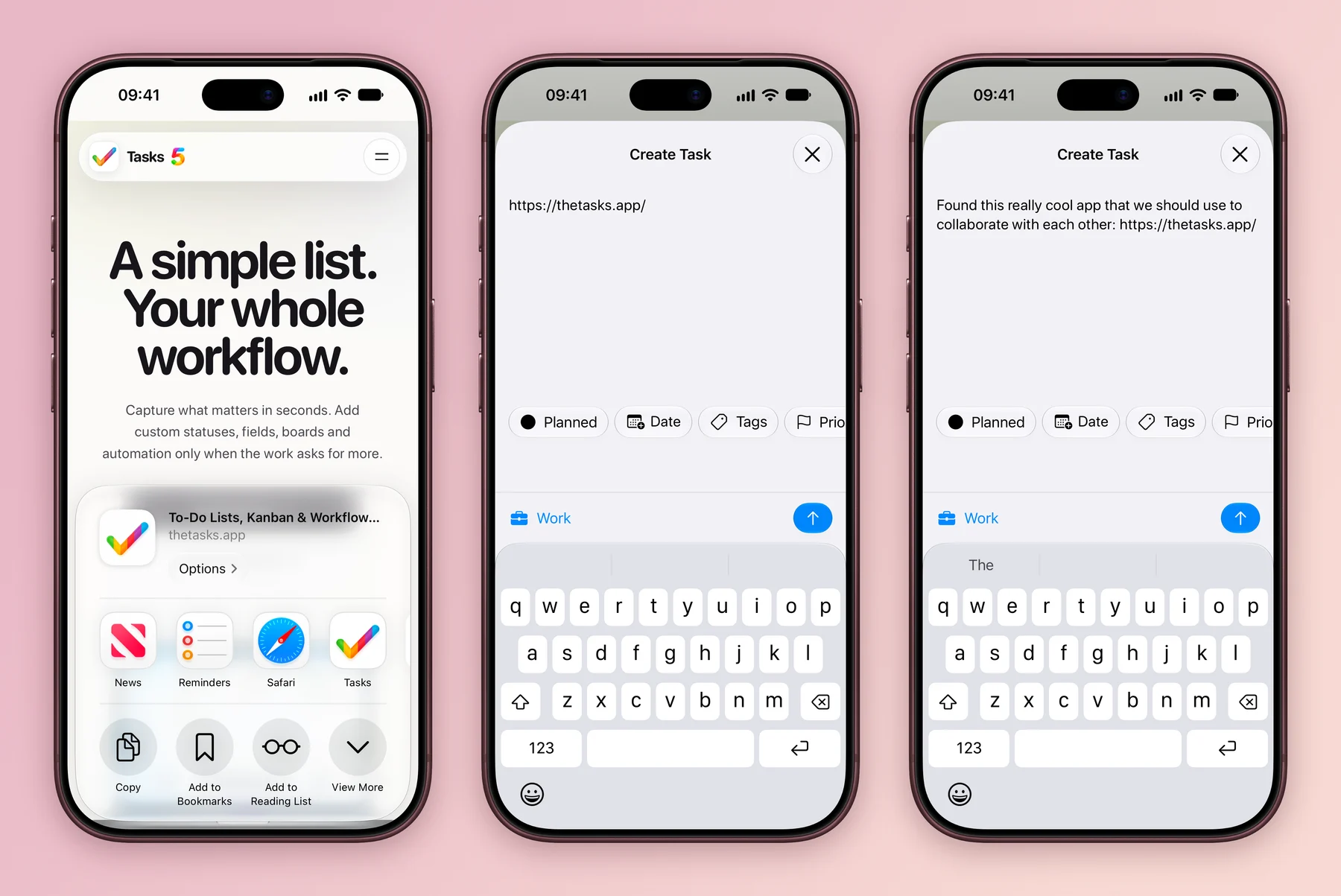
| Safari, Photos or Files | Tap Share, then Tasks. Text, a web page or up to five files or images come with you. |
| Anywhere | Add the Add Task control to Control Center or the Lock Screen. |
| Home Screen | Long press the Tasks icon and choose New Task or one of your top projects. |
| Hands busy | Ask Siri: “Add a task in Tasks”. See Siri and Shortcuts. |
What you share lands in the title of a Create Task sheet, where you can add your own words, set the chips and pick the project before you tap the arrow.
| Where you are | What to do |
|---|---|
| Any app | Press Add Anywhere, ⌃Space by default. A small Create Task window opens over the app you are using. Press Esc to close it. |
| Selected text | Right click, choose Services, then Create task in Tasks. |
| The menu bar | Click the Tasks icon and choose Add Task. |
| Safari or Finder | Use Share, then Tasks. |
| The Dock | Right click the Tasks icon for New Task and your top projects. |
Turn on Add Anywhere and change its keys in Settings (⌘,) under Keyboard Shortcuts. New tasks go to the project you opened last.

That is all you need to start. Next, learn to type a date or repeat right into the title.
Explore all 12 related features
Browse the related features below for more detail, or search every feature.
Quick capture
Add a task without setting up the whole project first.
Siri capture
Create tasks by voice through Siri.
Read moreBulk Add
Paste plain text or Markdown and review several tasks before saving.
Project-aware creation
Shows the fields and statuses that belong to the selected project.
Share extension
Turn content from another app into a task.
Action extension
Create a task from supported system action menus.
Add Anywhere on Mac
Use a configurable shortcut to capture from anywhere.
Mac Services capture
Create a task from selected text through the macOS Services menu.
Create Task control
Open task creation from Control Center on supported systems.
Paste images and PDFs
Paste supported media directly into task creation.
Tag and date suggestions
Surfaces useful choices while a task is being created.
Menu bar on Mac
Add a task, open projects and filters, and stop a timer from the Mac menu bar.