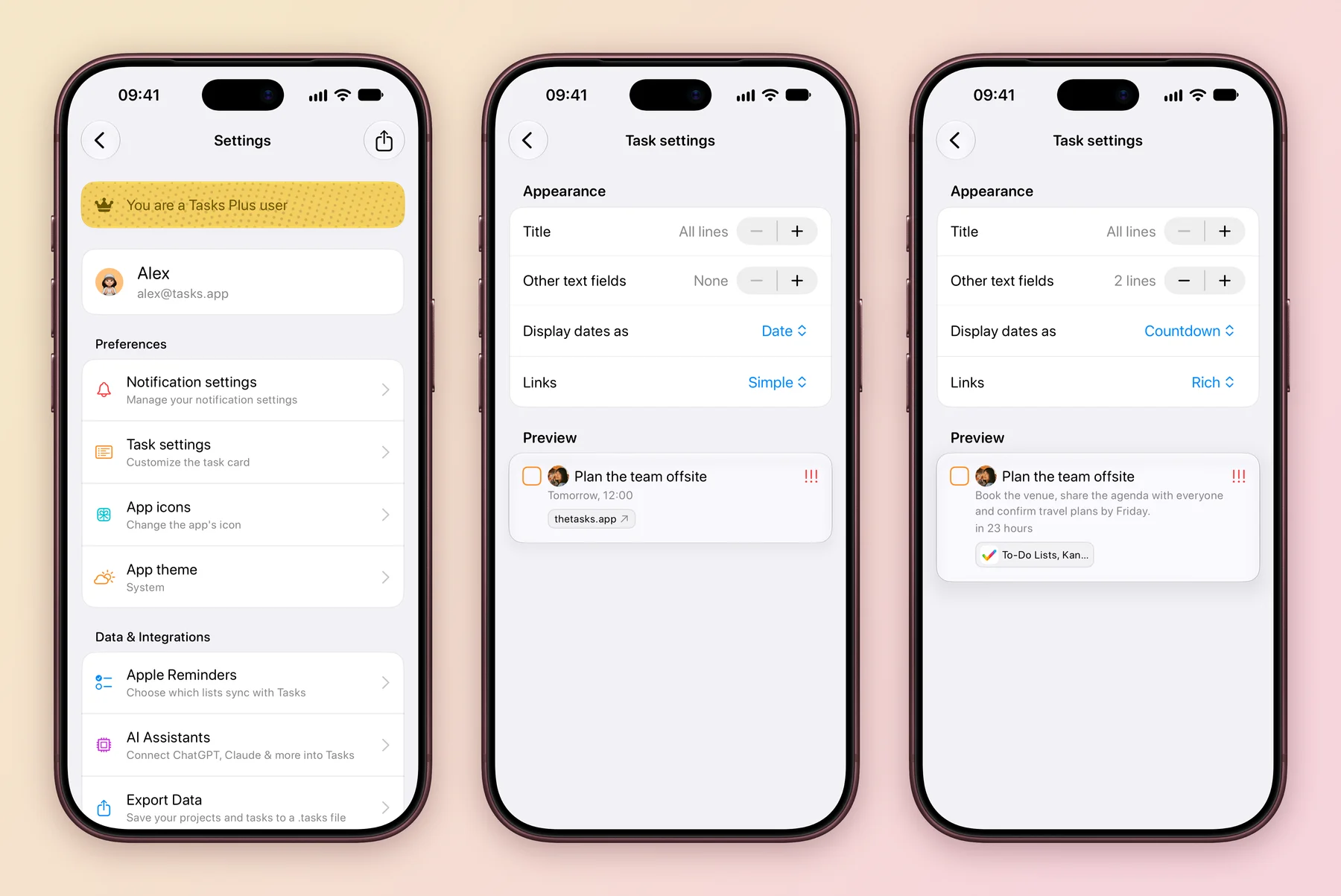
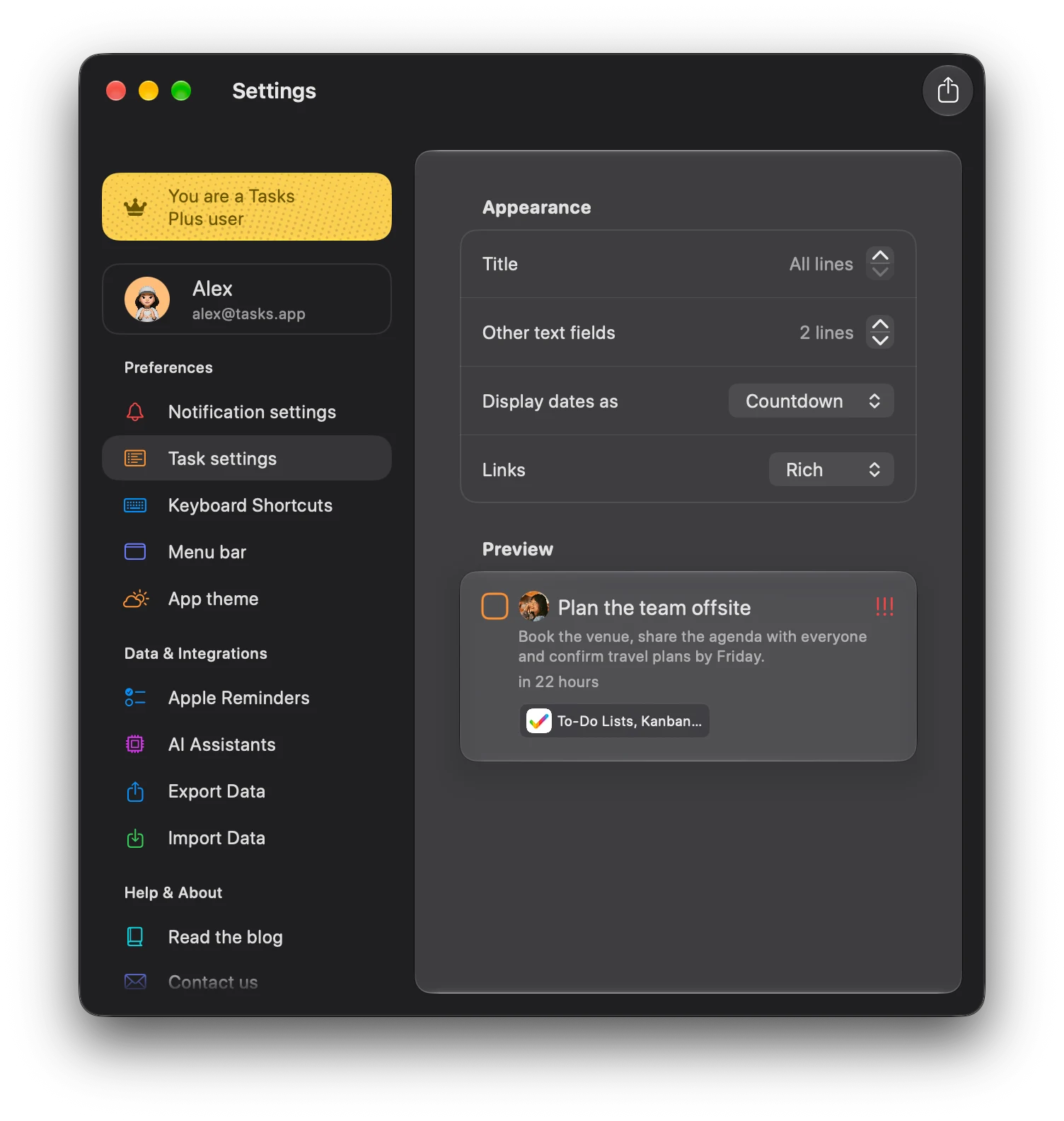
Some people want one tidy line per task. Others want to see the notes and link at a glance. Task settings lets you choose, and a live preview of Plan the team offsite shows the result before you leave the screen.
Choose how each task looks
- Tap the gear at the top left of Home to open Settings.
- Under Preferences, tap Task settings.
- Use + and − or the menus to change the options below, and watch the Preview card update.
- Press ⌘, to open the Settings window.
- Choose Task settings in the sidebar.
- Change the options below and watch the Preview card update.
| Setting | Choices | Good for |
|---|---|---|
| Title | All lines, or 1 to 5 lines | Long titles that should stay readable |
| Other text fields | None, or 1 to 5 lines | Seeing notes under each task without opening it |
| Display dates as | Date or Countdown | Countdown shows how long is left, such as in 23 hours, instead of Tomorrow, 12:00 |
| Links | None, Simple or Rich | Simple shows the site name. Rich also shows the page icon and title. |
Your choices apply everywhere tasks appear: lists, boards and widgets.
Pick a theme, an icon and a badge
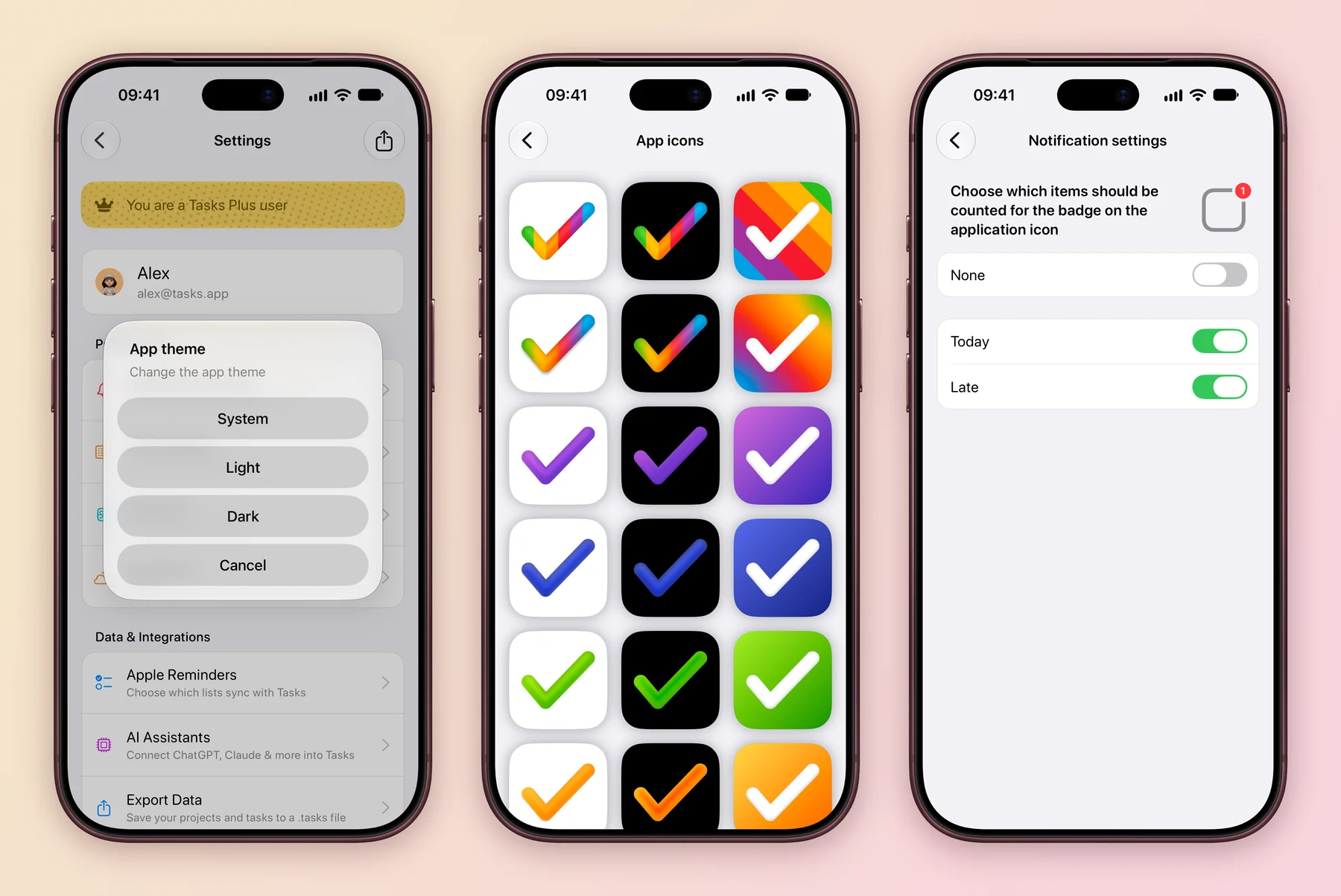
In Settings, under Preferences:
- App theme follows your iPhone with System, or stays Light or Dark.
- App icons offers a grid of alternate icons in white, black and colourful styles. Tap one to put it on your Home Screen. Alternate icons are part of Tasks Plus.
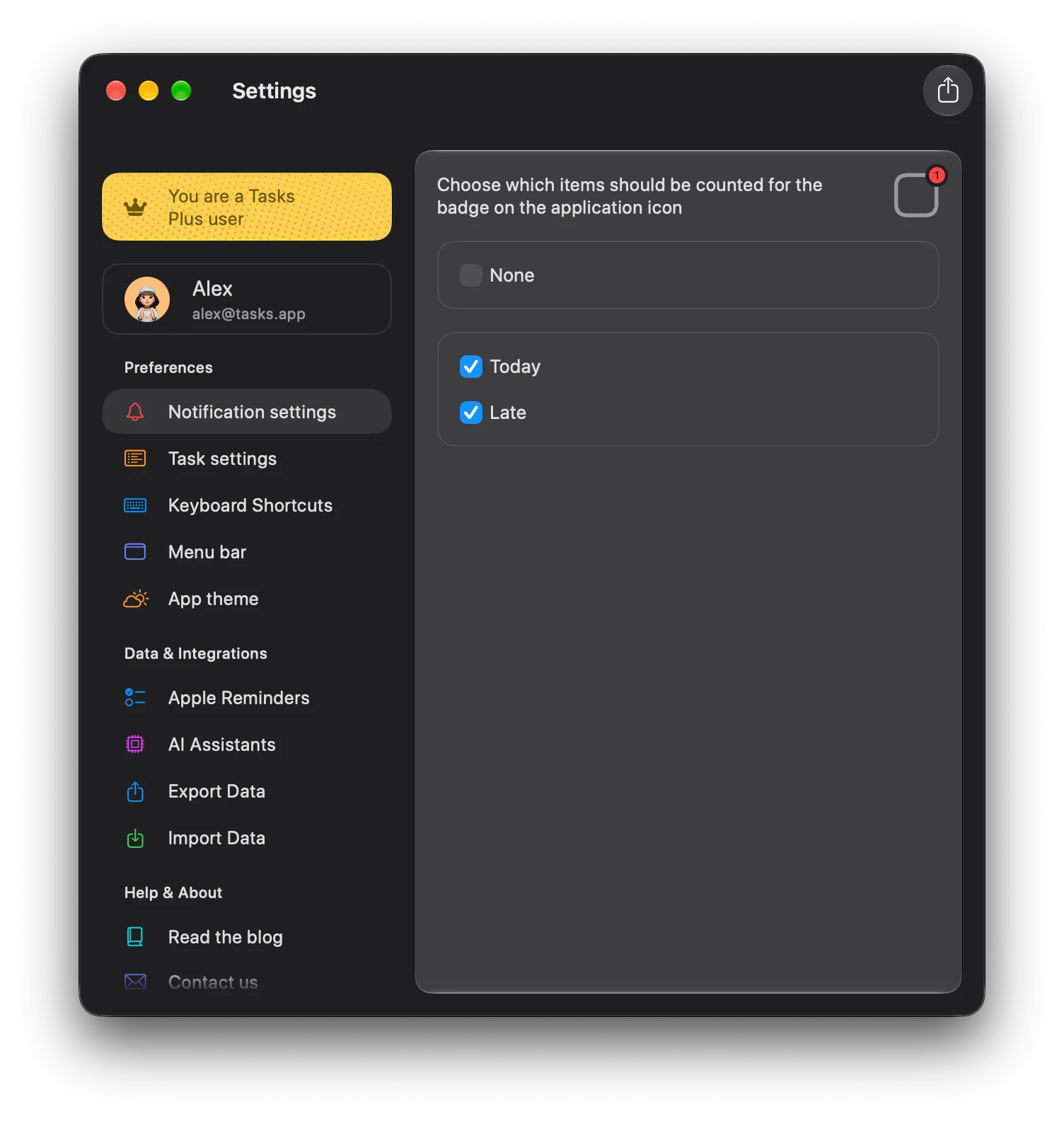
- Notification settings chooses what the red badge on the app icon counts. Turn on Today, Late or both, or turn on None for no badge.
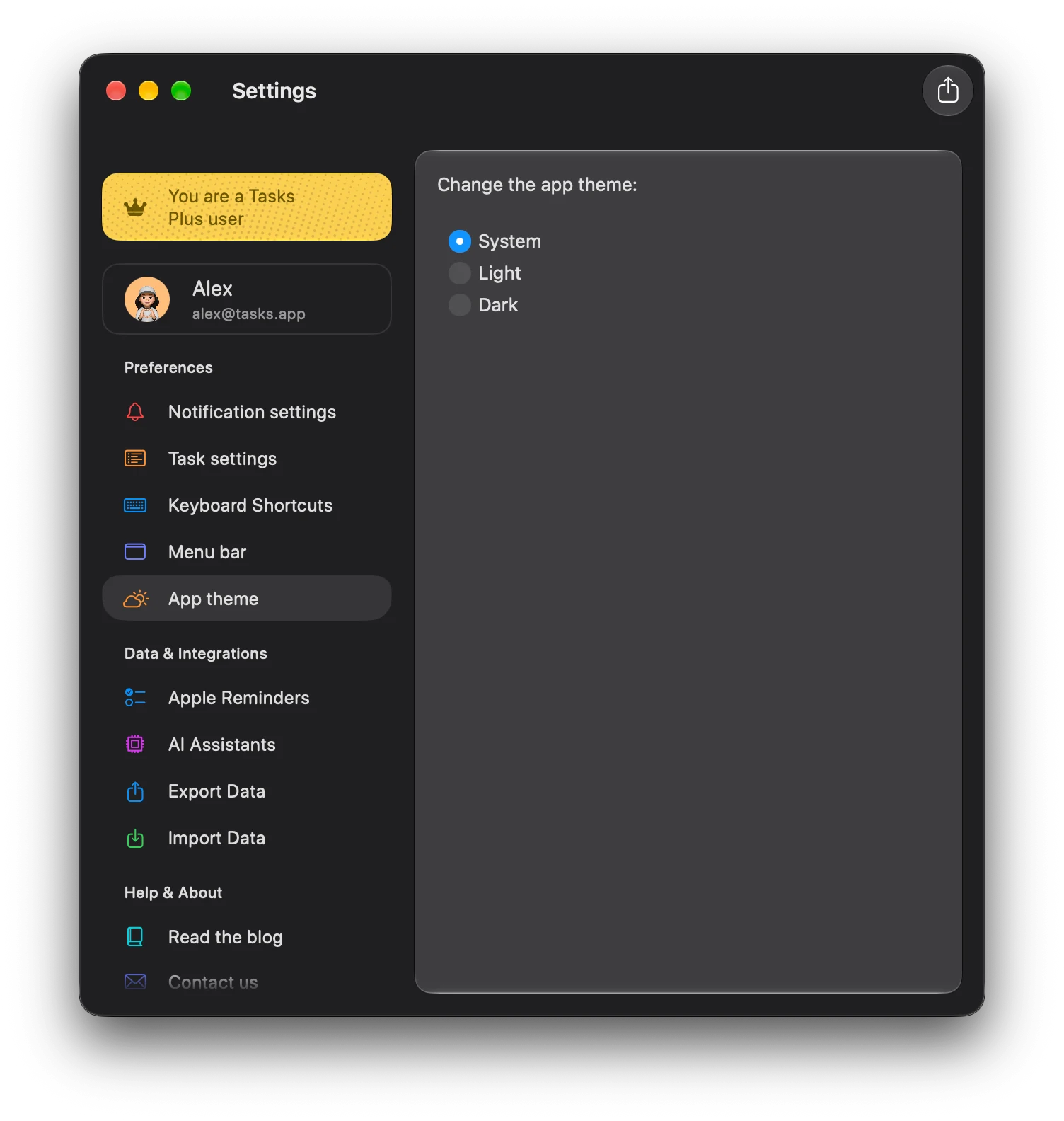
In the Settings window, choose App theme and pick System, Light or Dark. The whole app switches straight away. Alternate app icons are an iPhone feature.
Choose Notification settings to pick what the Dock icon badge counts: Today, Late, or None.
Update your name and photo
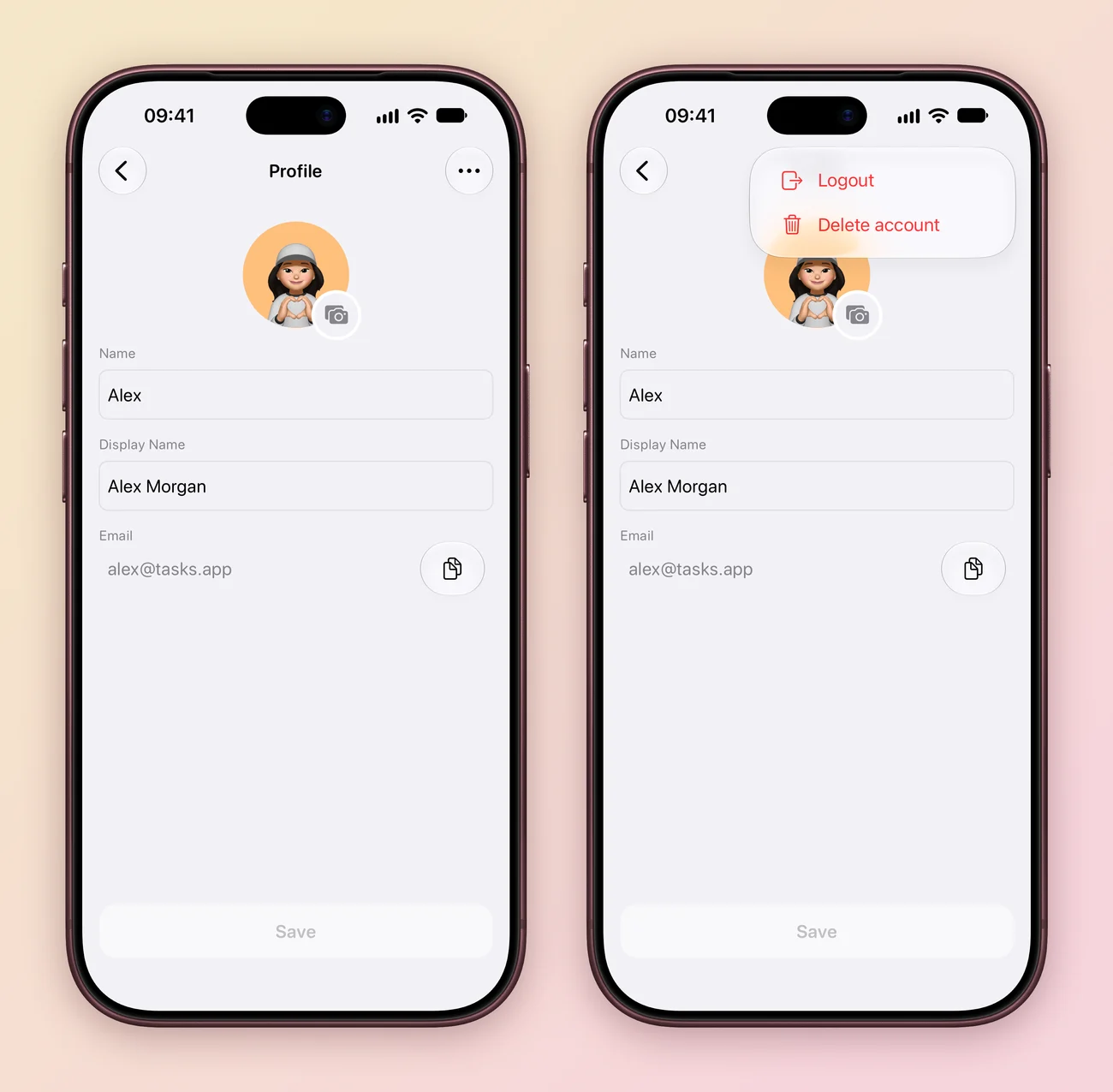
When you are signed in, your name and email sit at the top of Settings. This is what people in shared projects see.
- In Settings, tap your name.
- Tap the camera to change your photo, and edit your Name and Display Name. Tap the copy button to copy your email.
- Tap Save.
The ⋯ menu at the top right has Logout and Delete account. To delete your account, Tasks asks you to type confirm first. It cannot be undone.
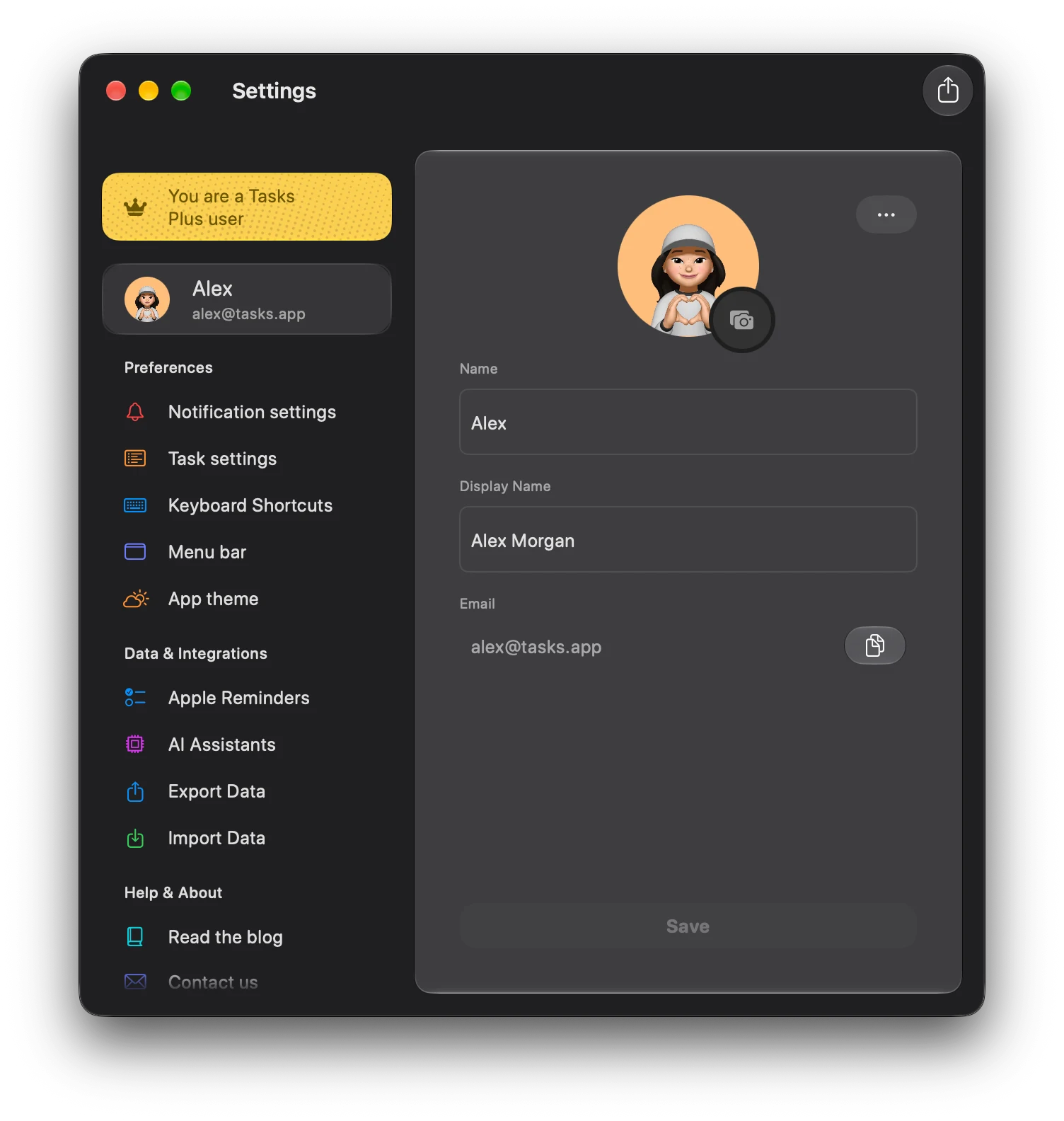
Click your name at the top of the Settings sidebar, make your changes and click Save. The ⋯ button has Logout and Delete account.
Make Tasks easier to read and use
- Larger text. Tasks follows your system text size. On iPhone, go to Settings, Display & Brightness, Text Size, or use Accessibility, Larger Text for even bigger sizes.
- VoiceOver. Buttons and fields have clear labels, and each task offers a Mark as action for its next status, so you can move work along without dragging.
- Reduce Motion. When it is on in your system settings, Tasks keeps animations calm.
- Clear names. Give statuses and tags written names as well as colours, so you never need to remember what a colour means.
Prefer the keyboard? See Keyboard shortcuts and Mac power features.
Try Countdown dates for a week. If you like knowing that something is due in 2 days more than on the 28th, keep it.
Explore all 12 related features
Browse the related features below for more detail, or search every feature.
System theme
Follow the device's light or dark appearance.
Light theme
Keep Tasks in light appearance.
Dark theme
Keep Tasks in dark appearance.
Alternate app icons
Choose another Tasks icon from Settings.
Dynamic Type
Scale text with the device's accessibility text size.
VoiceOver support
Use labelled controls with Apple's screen reader.
Accessibility display settings
Respect supported system display preferences.
Keyboard access
Navigate and act without relying only on touch.
Localised interface
Use Tasks in English and the additional languages listed on the App Store.
Task settings
Choose how many lines of title and text each task shows, with a live preview.
Countdown dates
Show dates as tomorrow or in 3 days instead of a calendar date.
Link style
Show links as plain text, a simple site name or a rich preview.