Give everyone one place to see what needs doing and who is doing it. A shared project works the same for a family Home list as it does for the team’s Work board.
Only the person sharing a project needs Tasks Plus. The project must use Tasks Cloud; if it is on iCloud, Tasks offers to switch it for you.
Invite people
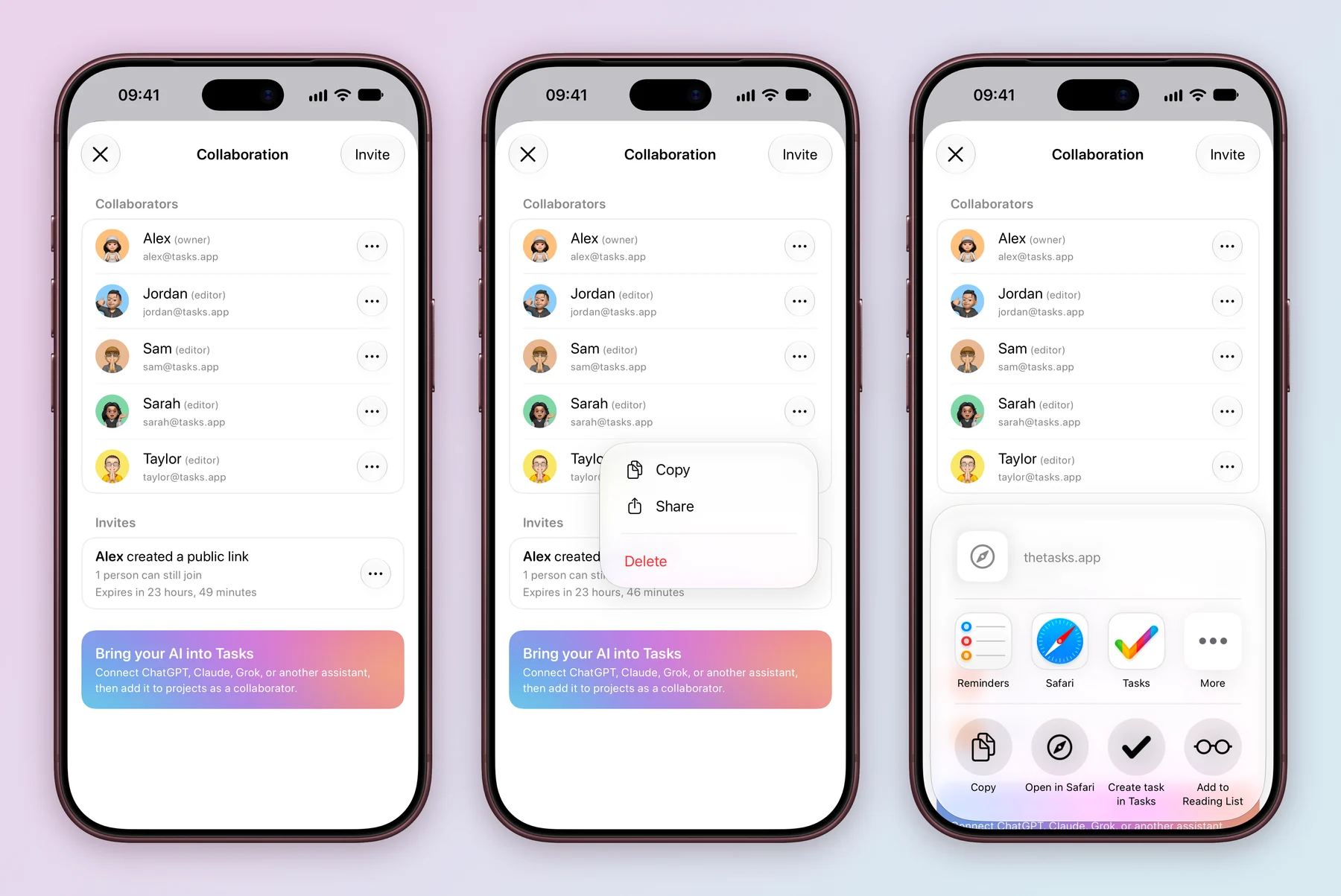
- Open the project menu for Work and choose Invite people. This screen also opens by itself right after you create a new project.
- Tap Invite at the top right.
- Choose a Role (Editor or Admin), how many People who can join (1 to 20) and when the Link expires (1 hour, 1 day, 7 days or 30 days).
- Tap Create. The link appears under Invites, showing how many people can still join and when it expires. Tap … next to it, then Copy or Share to send it.
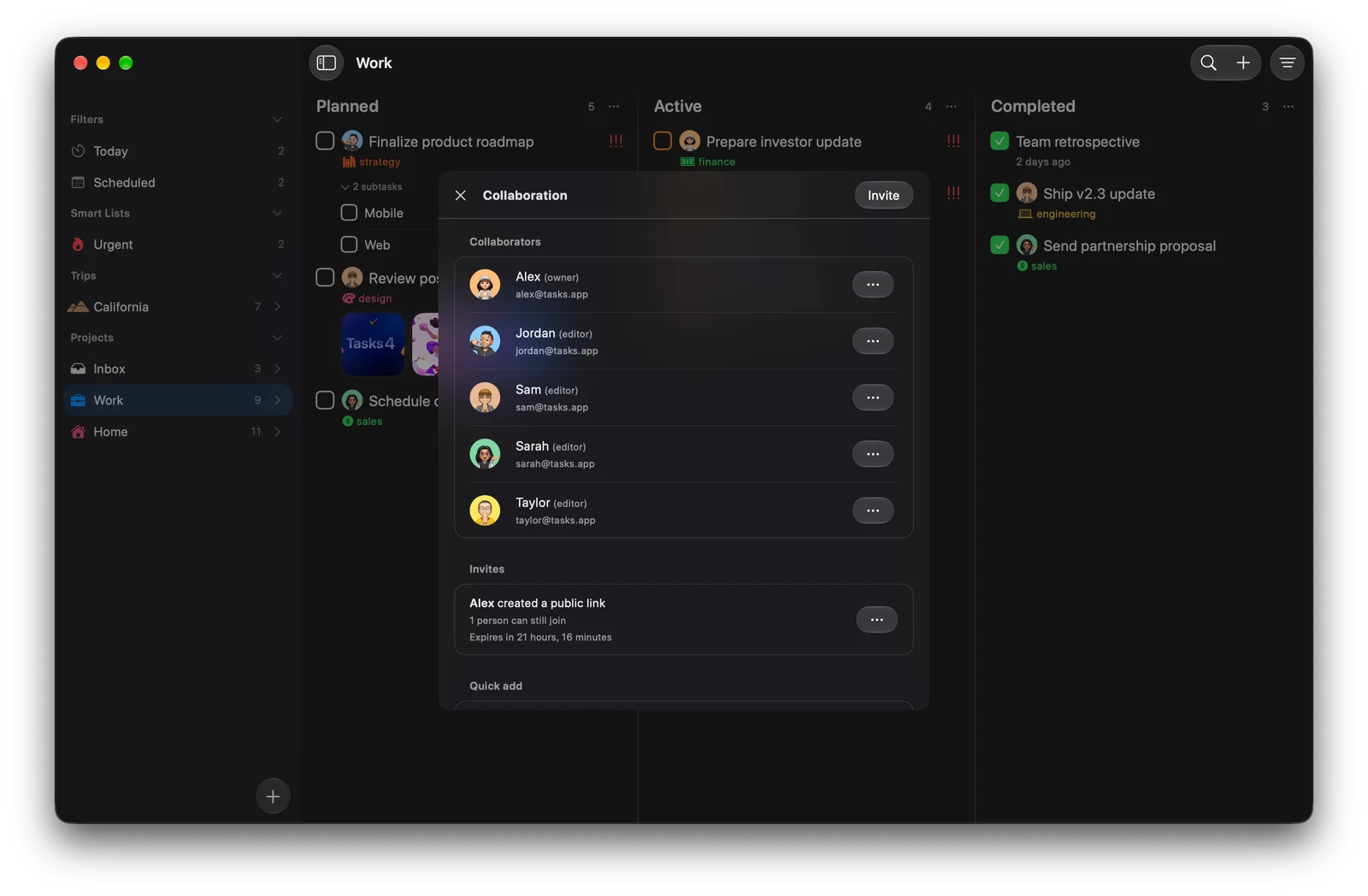
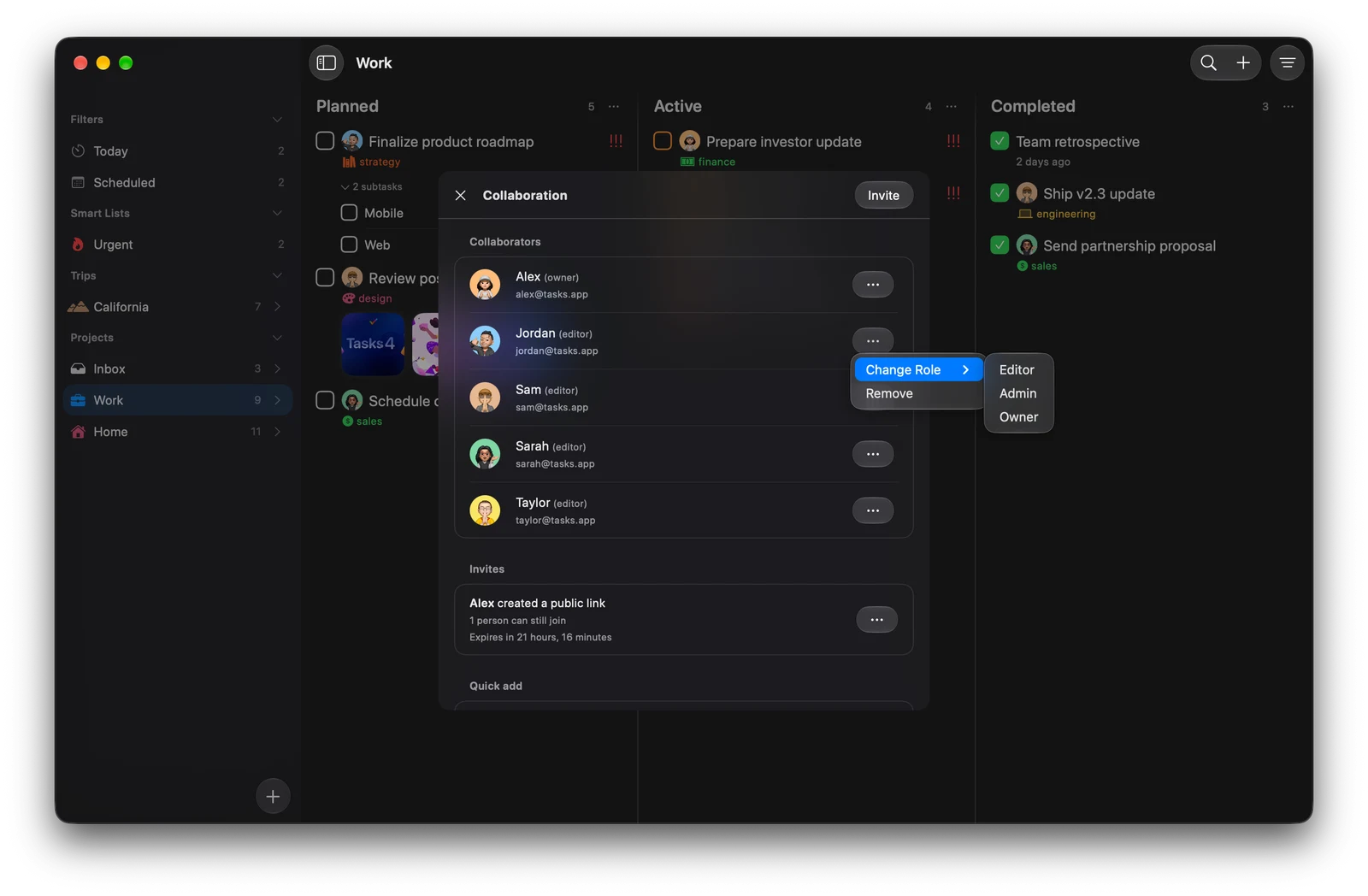
- Right click Work in the sidebar and choose Invite people. The Collaboration panel opens over the window.
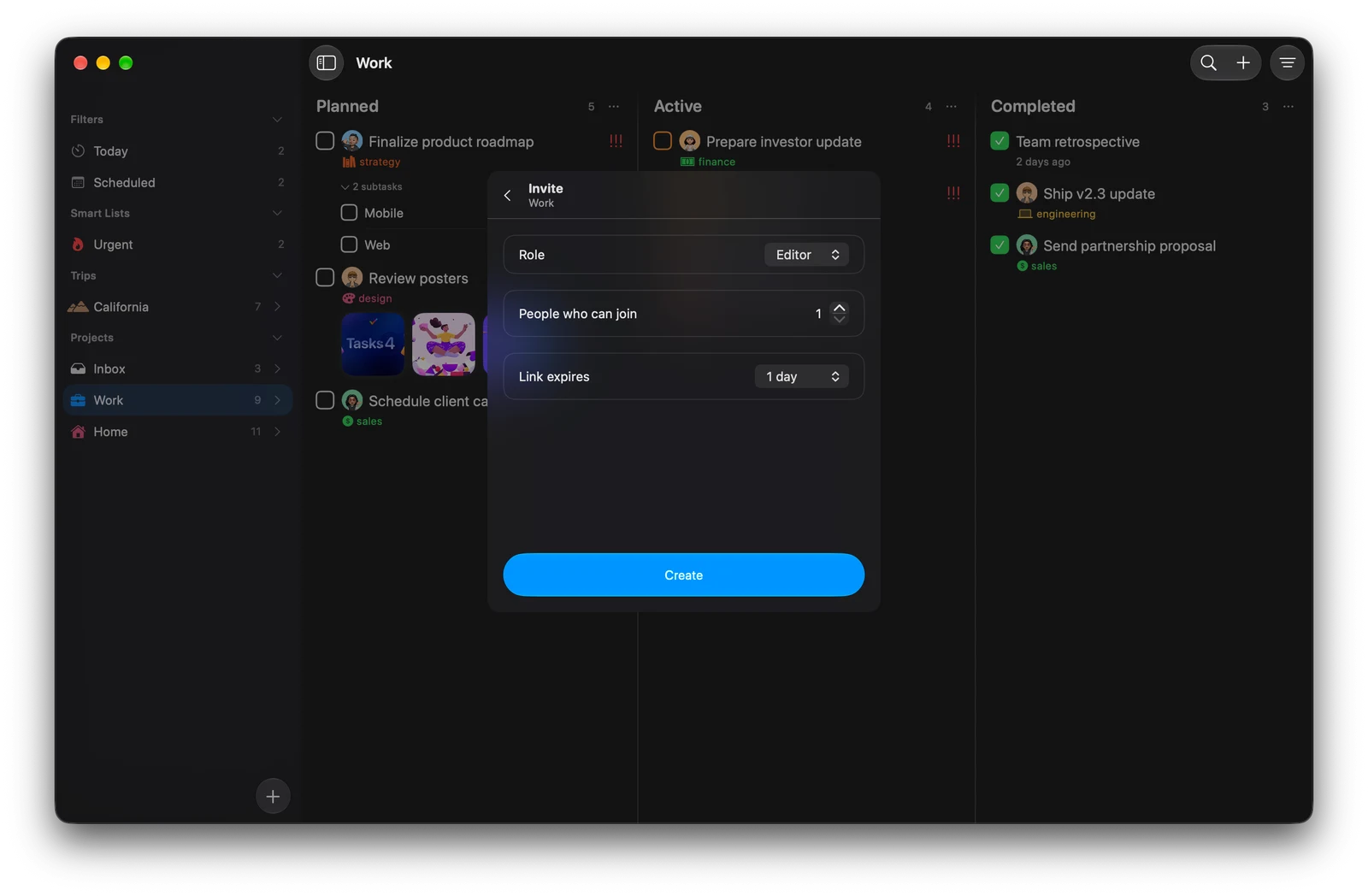
- Click Invite, then choose the Role, People who can join and when the Link expires.
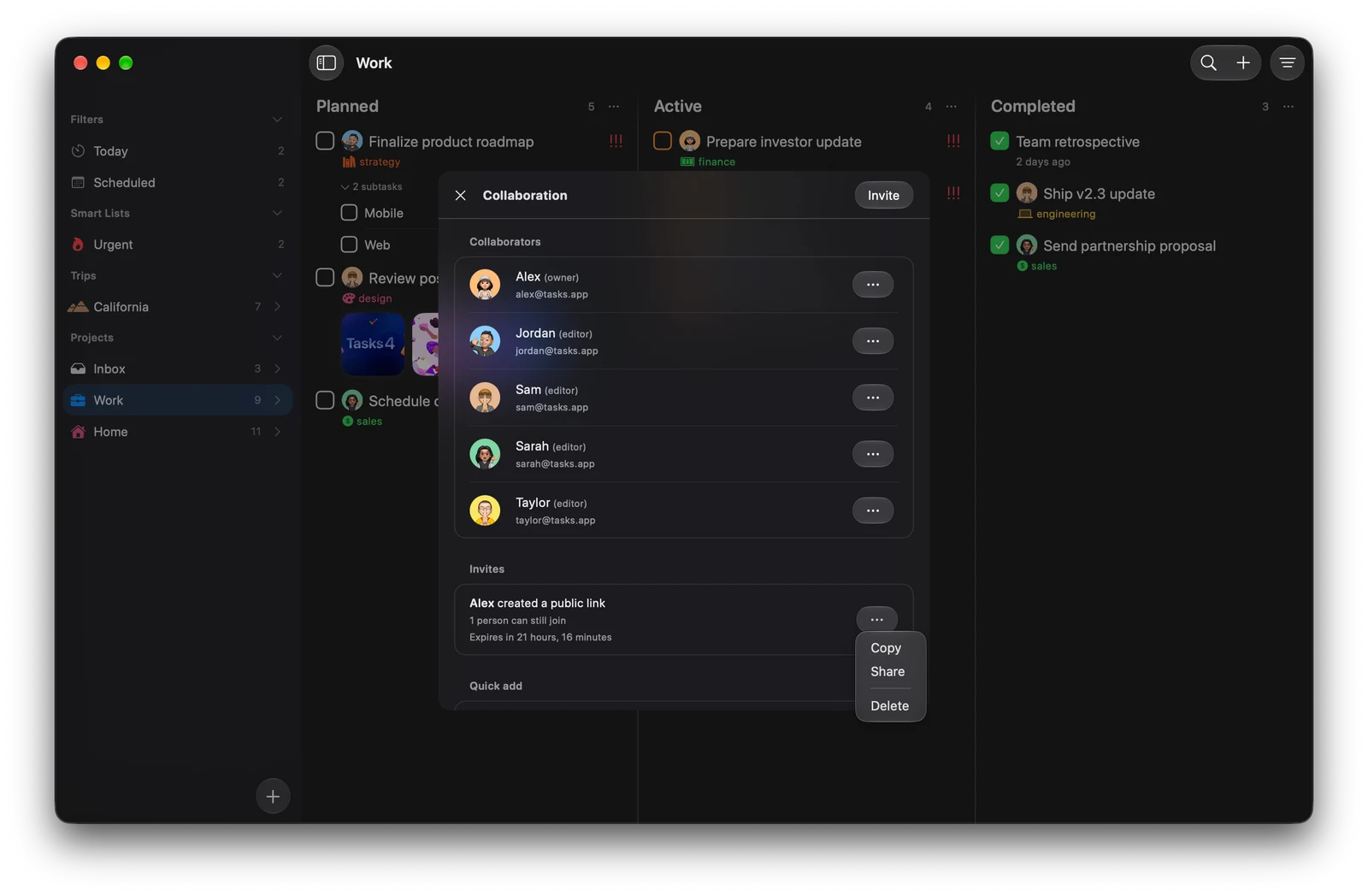
- Click Create. Under Invites, click … next to the link, then Copy or Share.
When someone invites you, the bell at the bottom of the sidebar opens your invitations in their own window.
Already work with someone? Under Quick add, people from your other shared projects are ready to go. Choose Invite, then Editor or Admin, and they get a private email invite that lasts two days. Your AI assistants show up here too.
Manage who is in the project
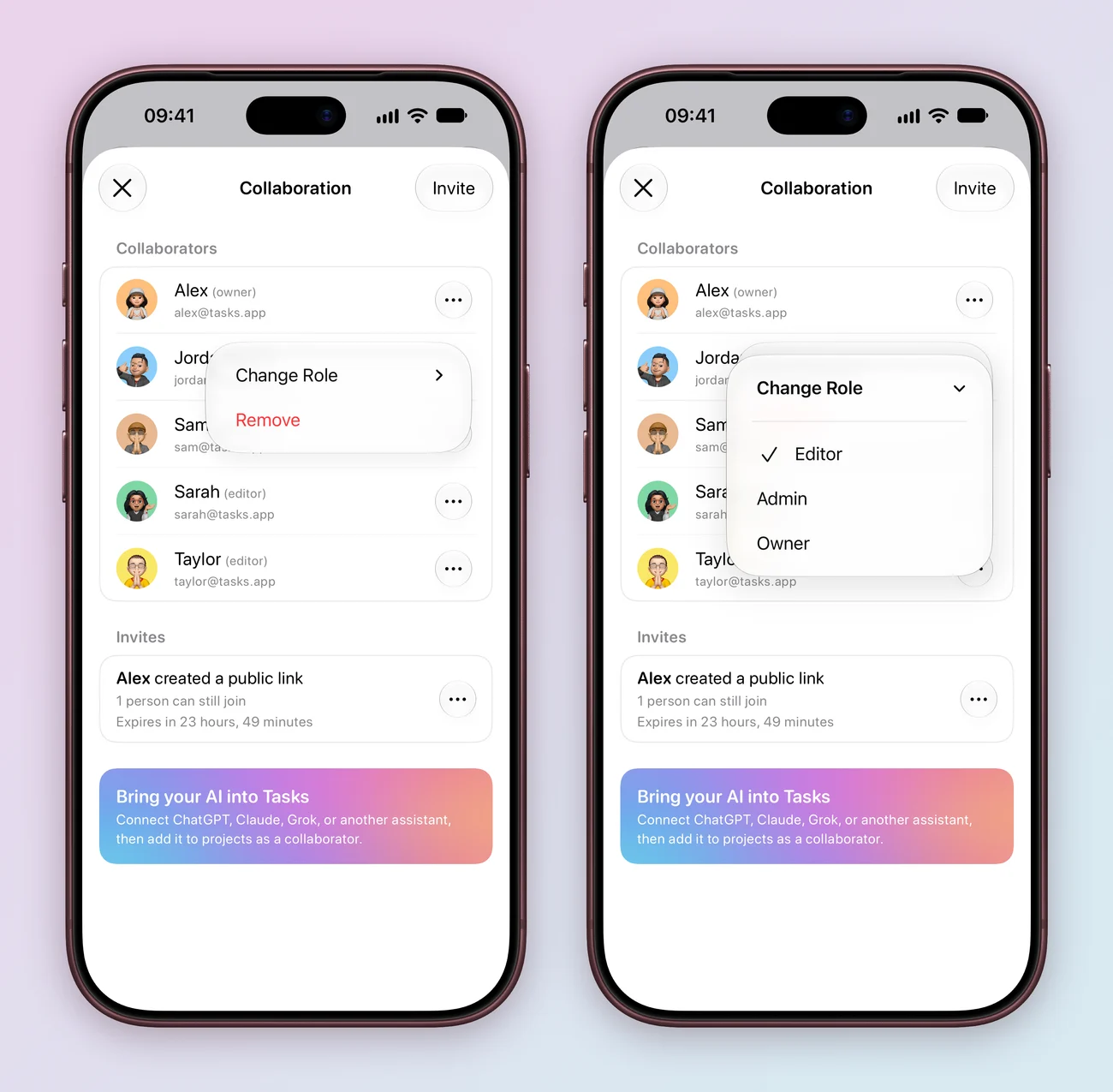
Open the … menu next to a person on the Collaboration screen:
- Change Role to Editor, Admin or Owner.
- Remove takes them out of the project. They move to Previous Collaborators, where Invite brings them back with one tap.
- On your own row, Leave takes you out. An owner needs to make someone else the owner first.
Links and email invites that are still open sit under Invites. Choose Delete in a link’s menu to turn it off.
Give each task an owner
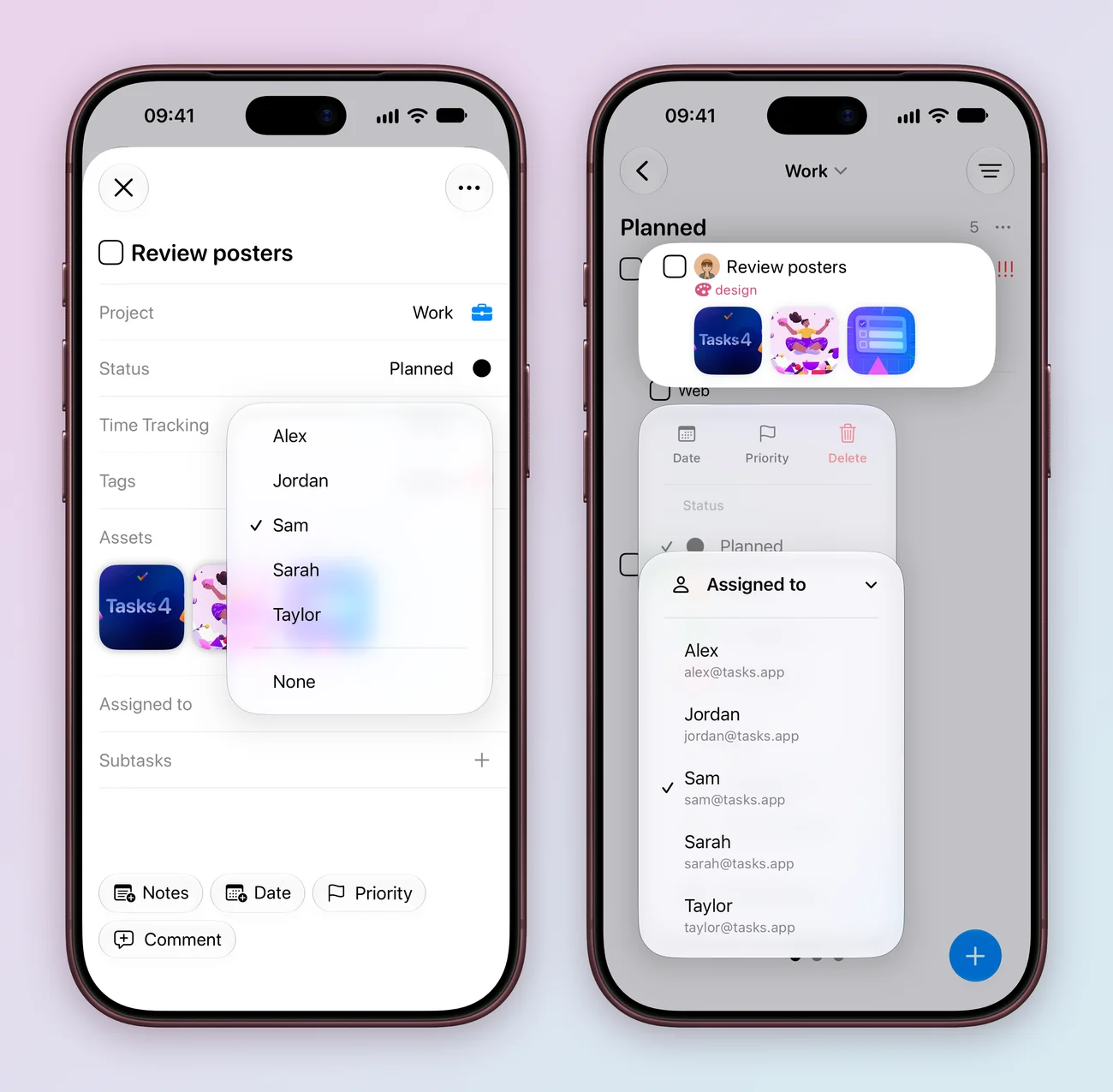
- Open a task, such as Review posters in Work.
- Choose Assigned to and pick a teammate, such as Sam. Choose None to clear it.
- Add a comment with the decision or the file they need, so the details stay with the task.
You can also long press a task on the board and choose Assigned to, or type + in the title while creating a task to pick a person.
Select a task and press ⇧⌘A to assign it, or drag it onto a person in the sidebar. In the task panel, the Comments button opens a side pane, so you can read the thread next to the task. Press ⌘Return to post.
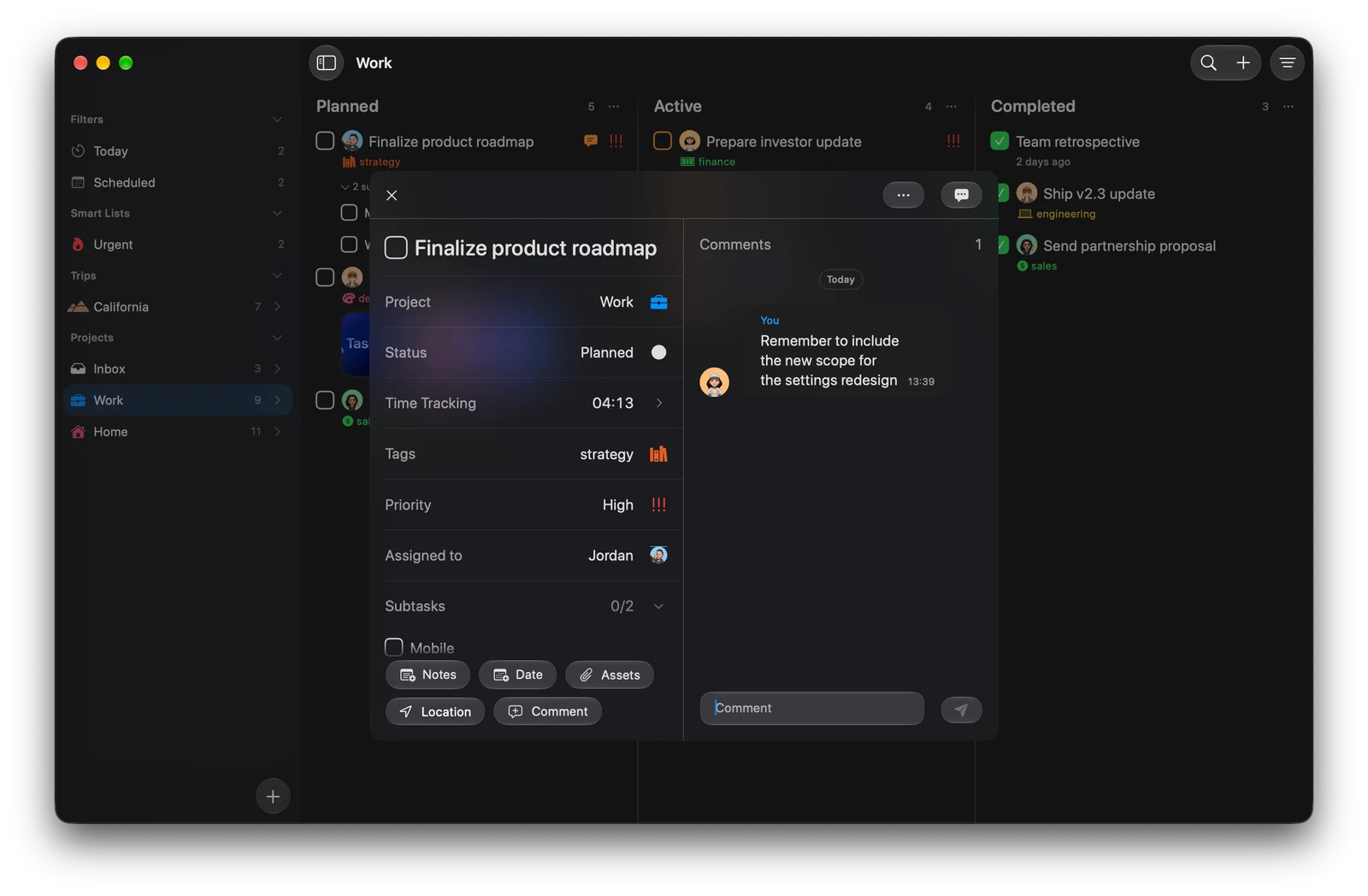
Everyone in the project shares the same statuses and fields, so moving a task to Completed means the same thing for all of you.
Start with one small shared project, then add an AI assistant as a teammate if you like.
Explore all 14 related features
Browse the related features below for more detail, or search every feature.
Invite by email
Share a project with a specific person.
Invite by public link
Let someone join from a shareable project link.
Task assignments
Give shared work a clear owner.
Task comments
Discuss the work beside the task.
Edit comments
Correct or update a comment after posting.
Copy comments
Copy comment text from its action menu.
Shared files
Keep project attachments with the task for collaborators.
Invite management
Review and accept project invitations.
Free collaborator access
Only the person sharing a project needs Tasks Plus.
Shared workflow structure
Everyone in a project works with the same statuses and fields.
Roles
Invite people as Editor or Admin, and change a role later.
Quick add
Invite people you already work with in other projects.
Re-invite
Bring back a previous collaborator with one tap.
Leave a project
Step out of a shared project you no longer need.