Every project’s statuses are its board columns, and each one also says what its tasks are: still to do, done, or canceled. Set that once, and the board only needs to show the work that’s still live.
The examples use Apps, the project from the indie app development case study, with the statuses Backlog, Next up, Building, Testing, Shipped and Canceled.
What a status means
Each status is one of three kinds:
| Kind | Its tasks are | The checkbox | Example |
|---|---|---|---|
| Pending | Still to do | Empty | Backlog, Next up, Building, Testing |
| Completed | Done | A tick | Shipped |
| Canceled | Finished with, but not done | A cross | Canceled |
Moving a task into a completed status finishes it. A canceled status is for work you decide not to do: the feature nobody asked for, the bug that never came back. The task stays on record with a cross, the reason can go in its notes, and it isn’t counted as done. That’s better than deleting it, because the next time the same idea comes up, the answer is already there.
Set what a status means
- Long press Apps on the Home screen and choose Edit, then Statuses.
- Each status card ends with Tasks here are. Tap the word after it and choose Pending, Completed or Canceled.
- Tap + between two cards to add a status there, such as Canceled after Shipped.
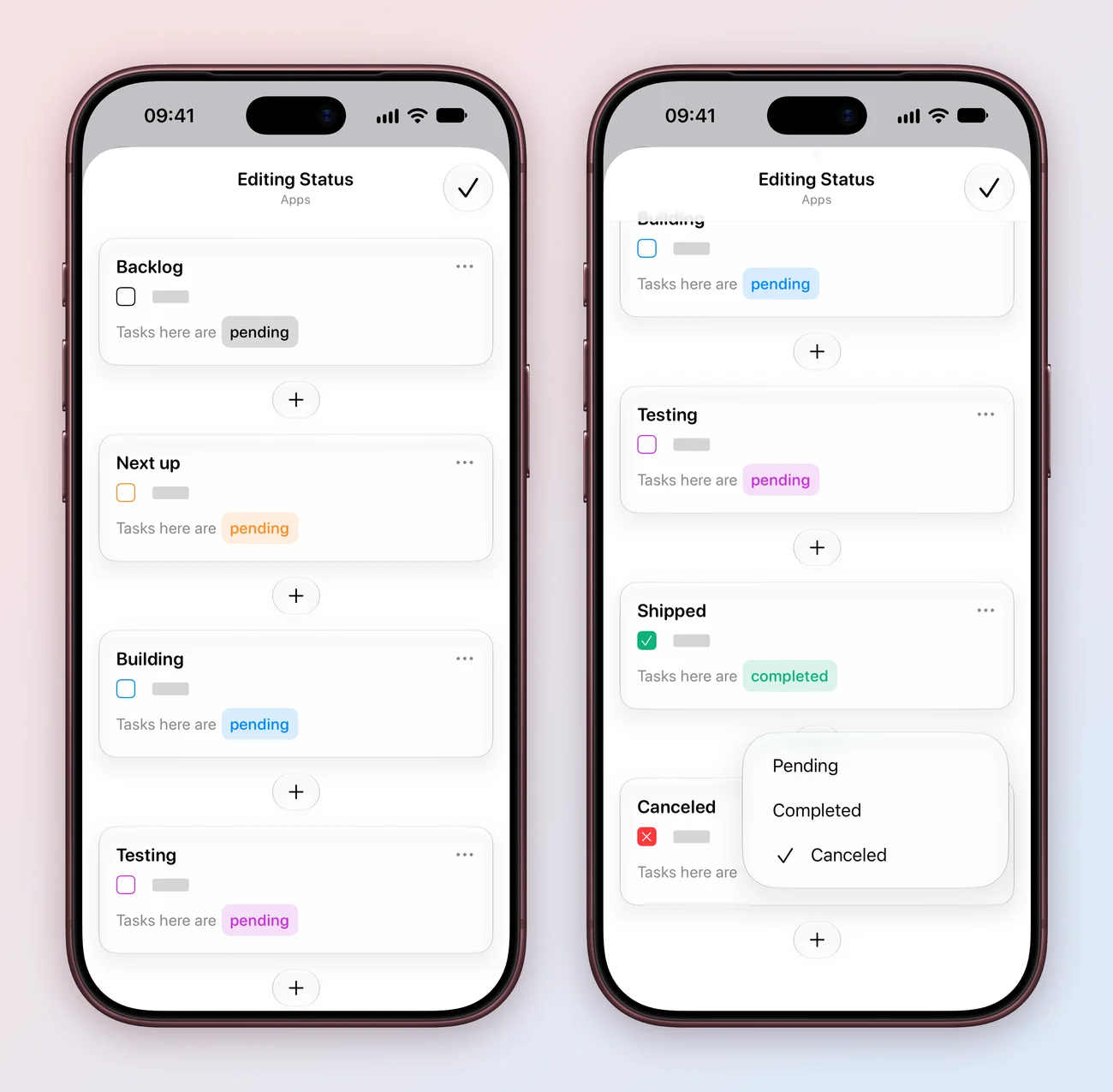
- Right click Apps in the sidebar and choose Edit, then Statuses.
- Each status card ends with Tasks here are. Click the word after it and choose Pending, Completed or Canceled.
- Click + between two cards to add a status there, such as Canceled after Shipped.
The project guide covers the rest of a project’s settings.
Hide a column
A board with Shipped and Canceled columns keeps growing on the right. If you’d rather not see a column, hide it:
- On the Home screen, expand Apps, then Status.
- Long press the status, such as Canceled, and choose Hide status on board.
- Choose Yes. The column leaves the board.
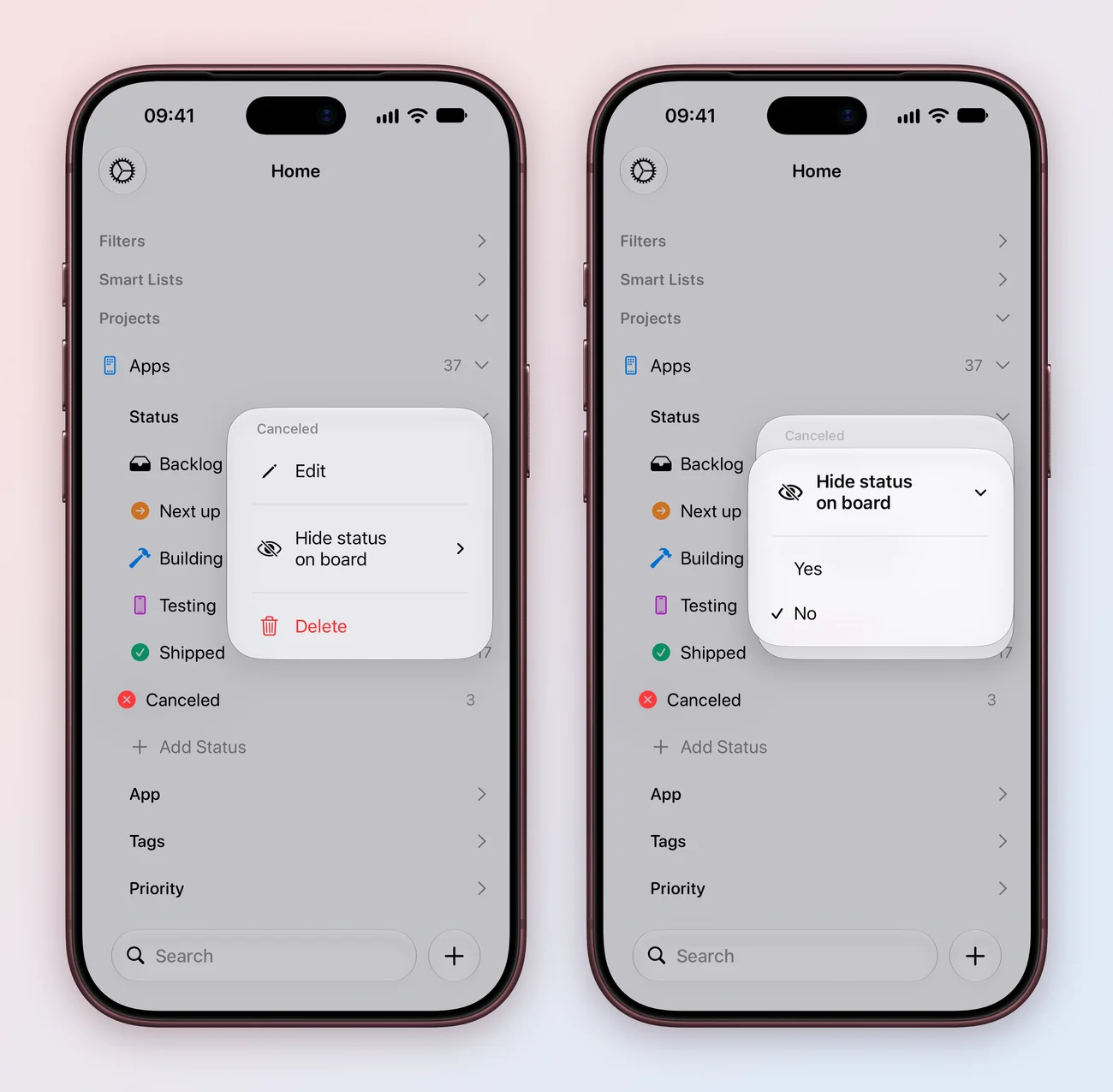
- In the sidebar, expand Apps, then Status.
- Right click the status, such as Canceled, and choose Hide status on board.
- Choose Yes. The column leaves the board.
To bring it back, choose Hide status on board again, then No. Hiding a column changes nothing about its tasks; they keep their status and still show up in search, filters and Smart Lists.
Find hidden work again
A hidden column is never far away. Expand the project in the sidebar, then Status: every status is listed with its number of tasks, whether it has a column on the board or not. Tap one, such as Canceled, to see just its tasks.
Leave Status expanded and the list stays in the sidebar, so finished and canceled work is always one tap away while the board shows only what’s still in progress.
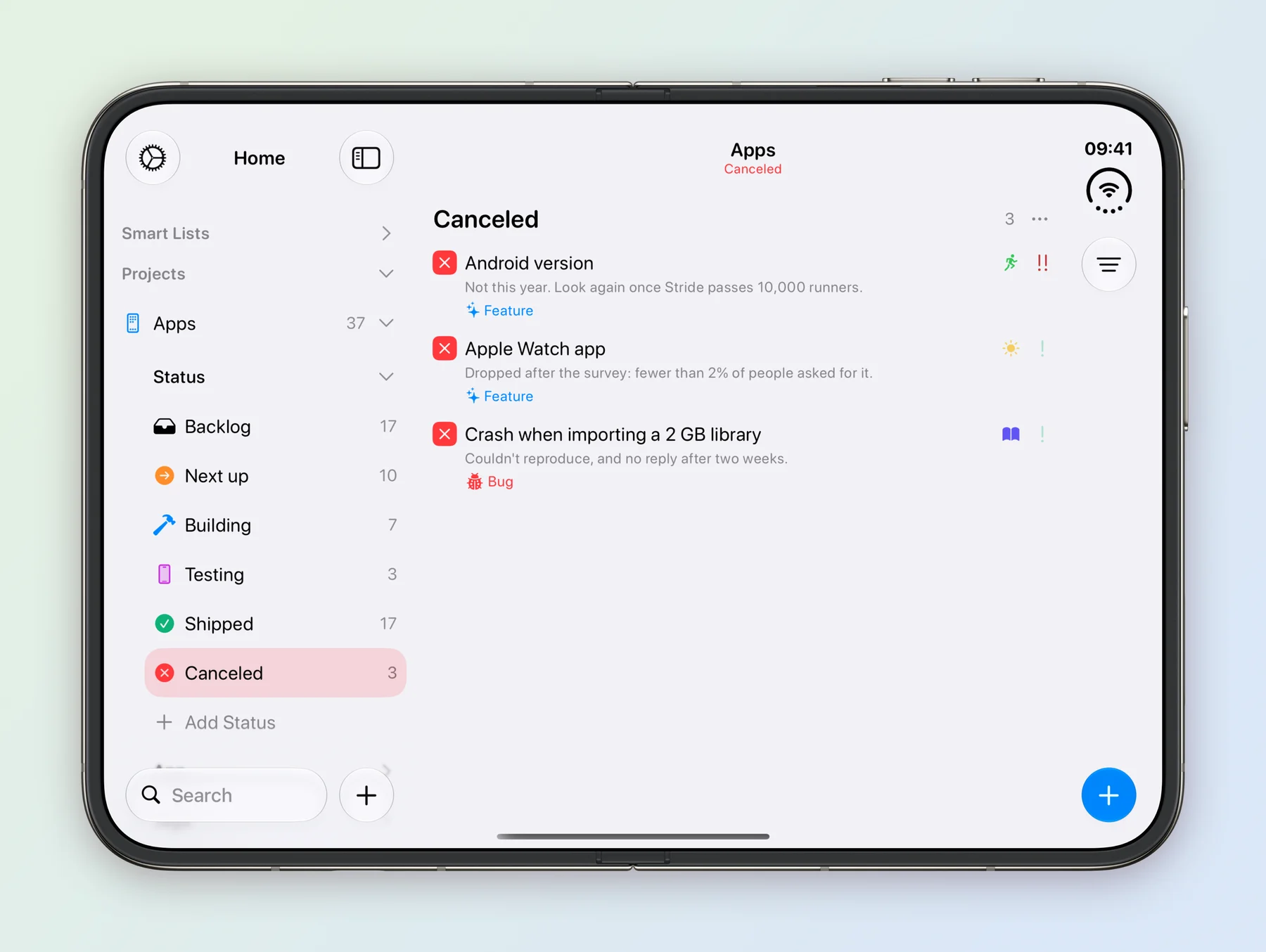
Start with the column you look at least, often Completed or Canceled, and hide that one first.