Set a reminder once and let Tasks bring the work back at the right moment: every Monday, three days after you last did it, or when you walk into the office.
Choose how it repeats
A repeat can count from the calendar or from when you actually finished.
- Scheduled date: every MondayTake out the recycling. Finish it on Tuesday and the next one is still due Monday.
- Completion date: every 3 daysWater the plants. Finish on Tuesday and the next one is due Friday.
Set a date and repeat
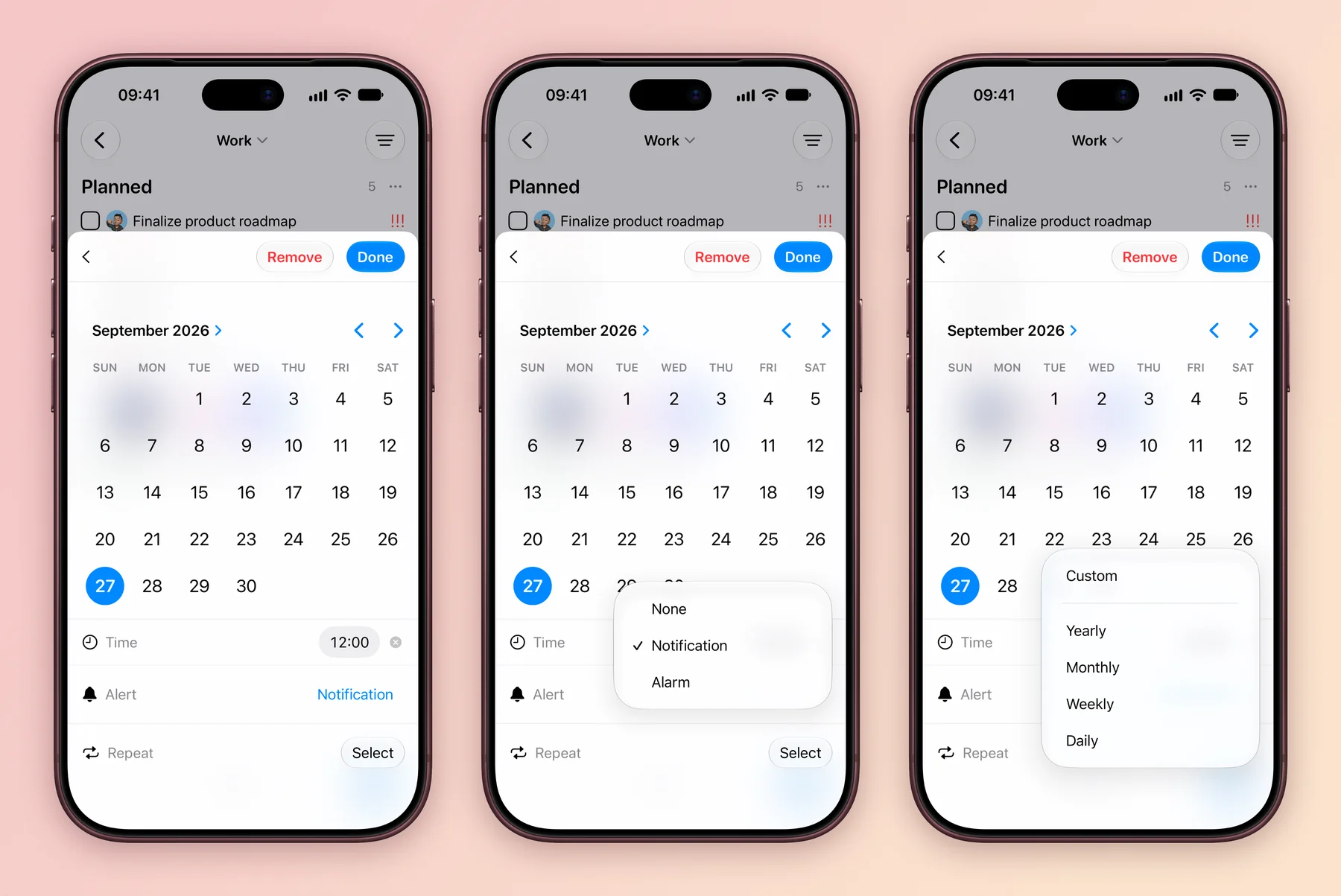
- Open the task and tap its Date. Pick the day, and set a Time if you want the alert at a set hour. Without a time, the alert comes at noon.
- Next to Alert, choose None, Notification or Alarm.
- Next to Repeat, tap Select and choose Daily, Weekly, Monthly or Yearly, or Custom for more control.
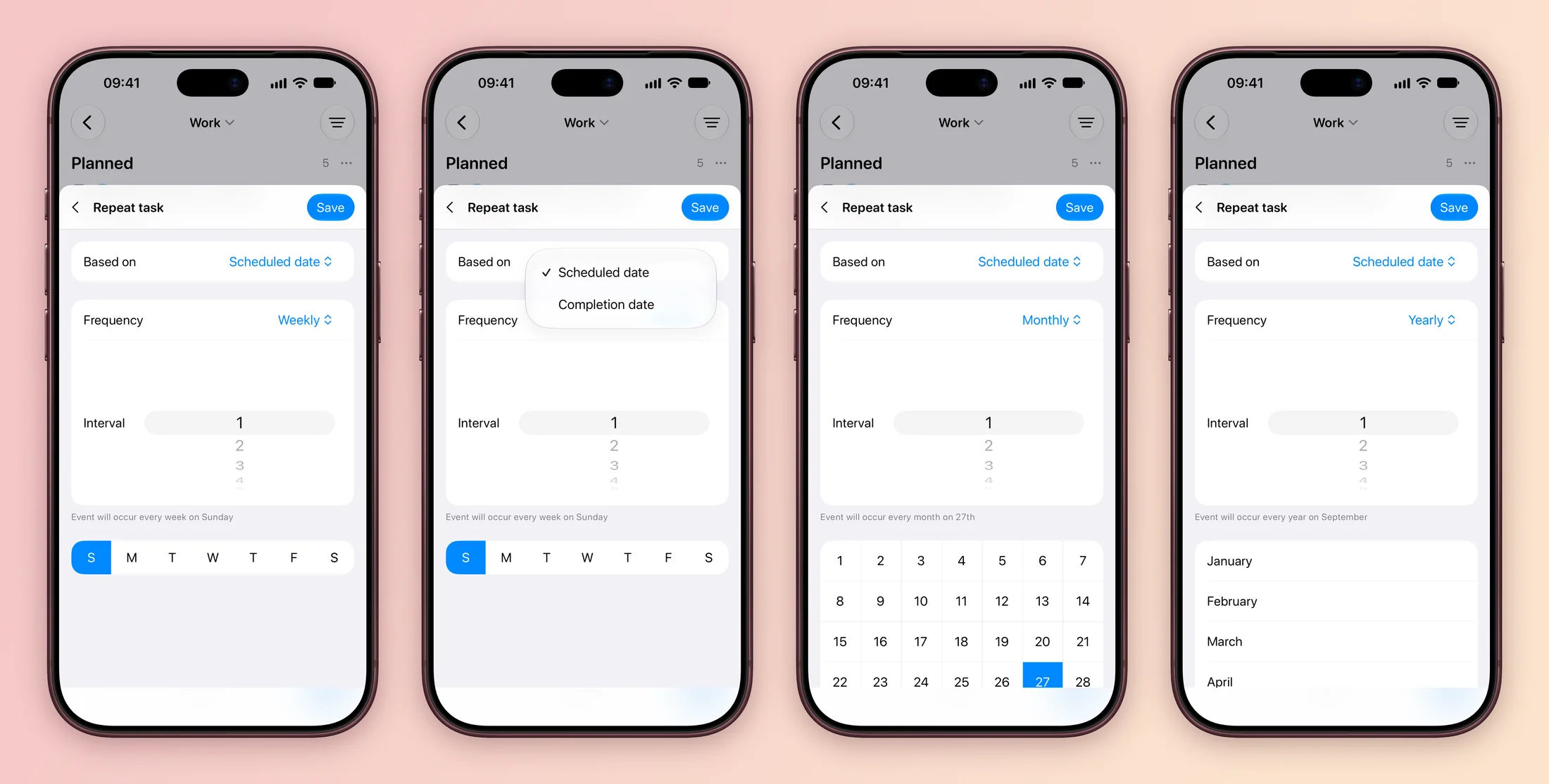
- In Custom, set Based on to Scheduled date or Completion date. Pick the Frequency and Interval, then the days: weekdays for Weekly, dates for Monthly, months for Yearly. Tap Save.
- Tap Done. When you complete the task, it moves on to its next date.
An alarm rings like a clock alarm, which helps for things you really cannot miss.
Quicker still, type it into the title: Take out the recycling every Monday at 7pm or Water the plants every 3 days. See Type or say a task for more phrases.
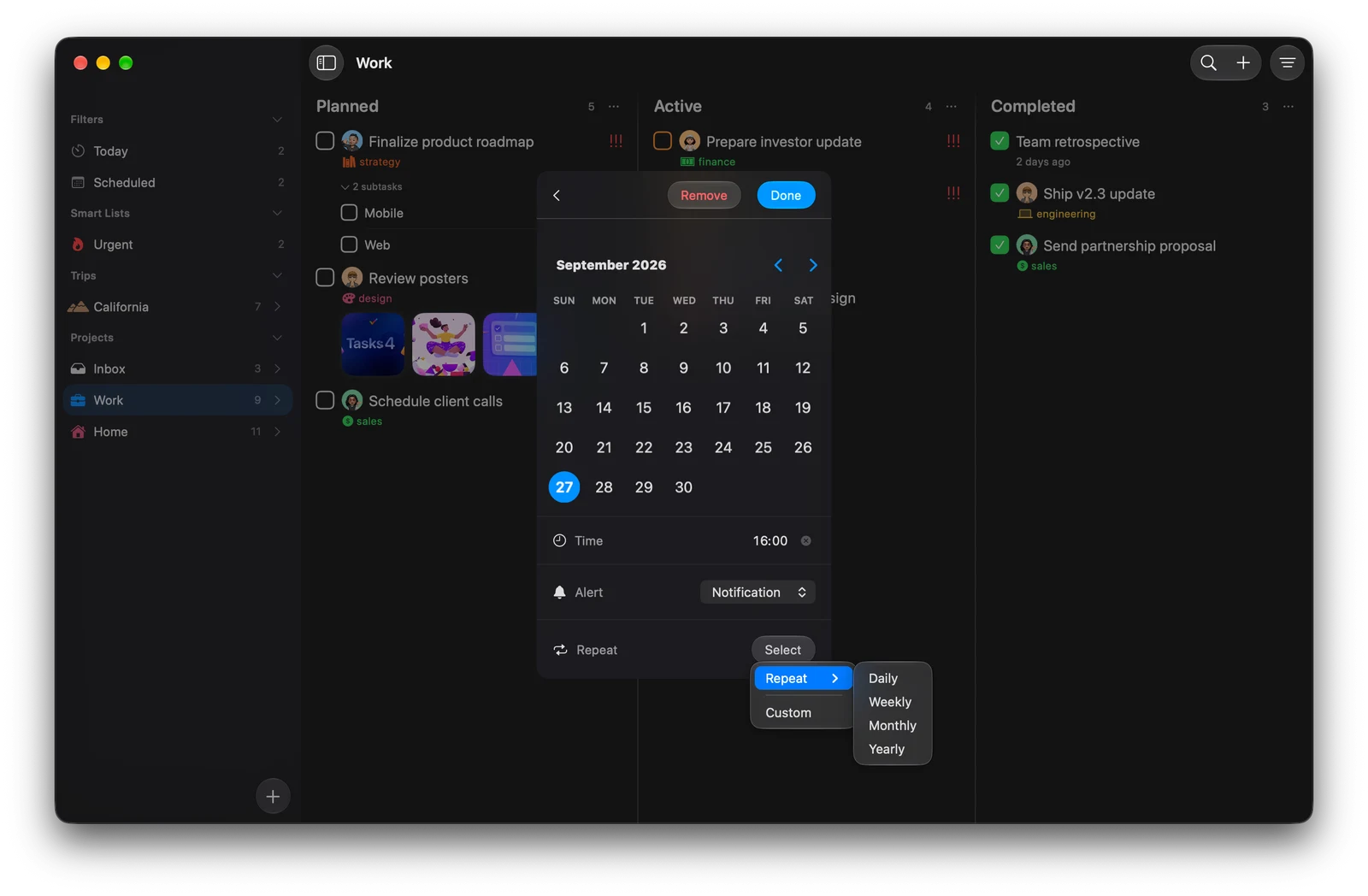
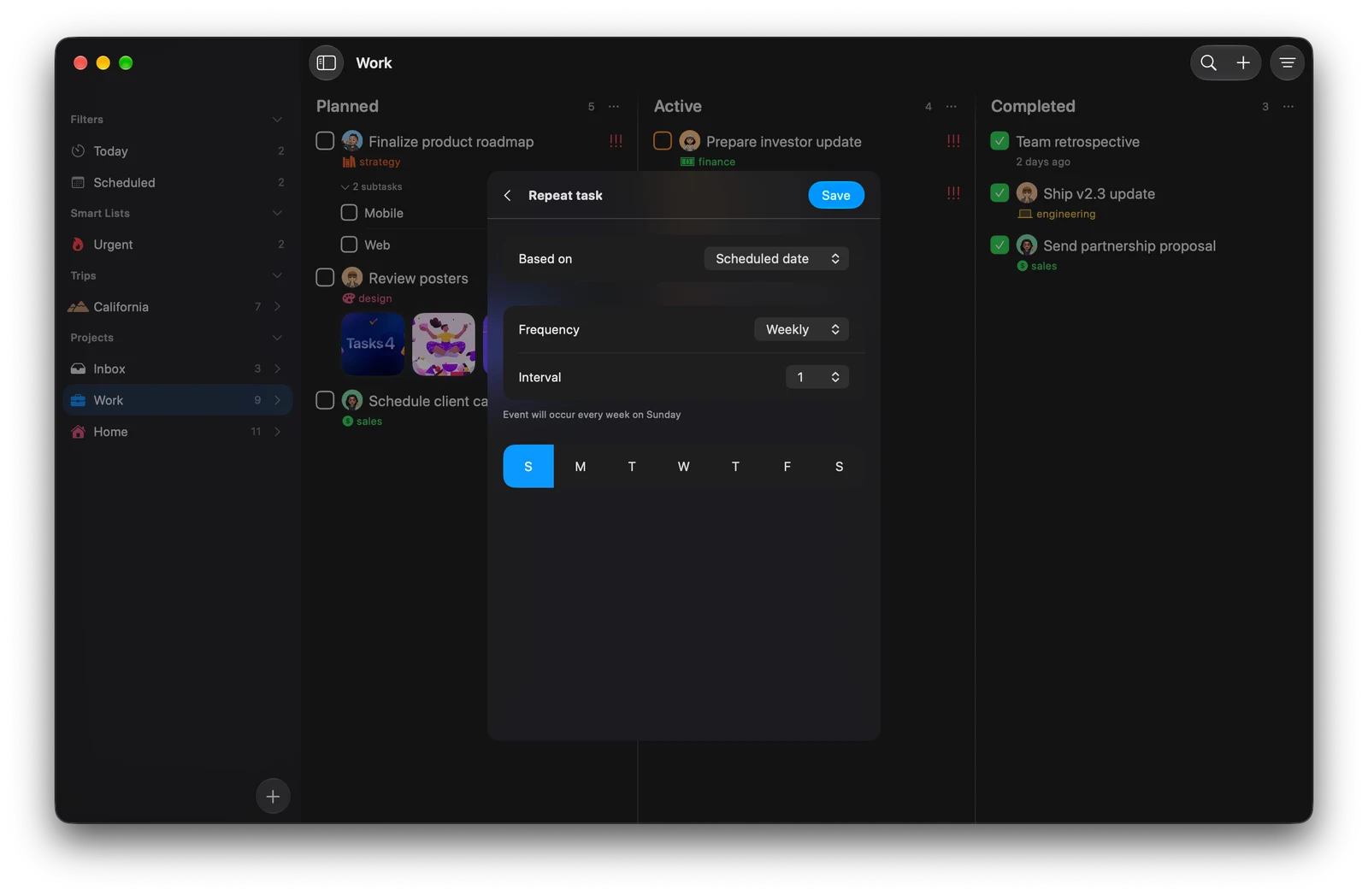
Select the task and press ⌘S to open its date, or click the date in the task panel. Select next to Repeat opens a menu: Repeat holds Daily, Weekly, Monthly and Yearly, and Custom sits below it. Custom repeats use pop-up menus instead of scroll wheels.
Remind me at a place
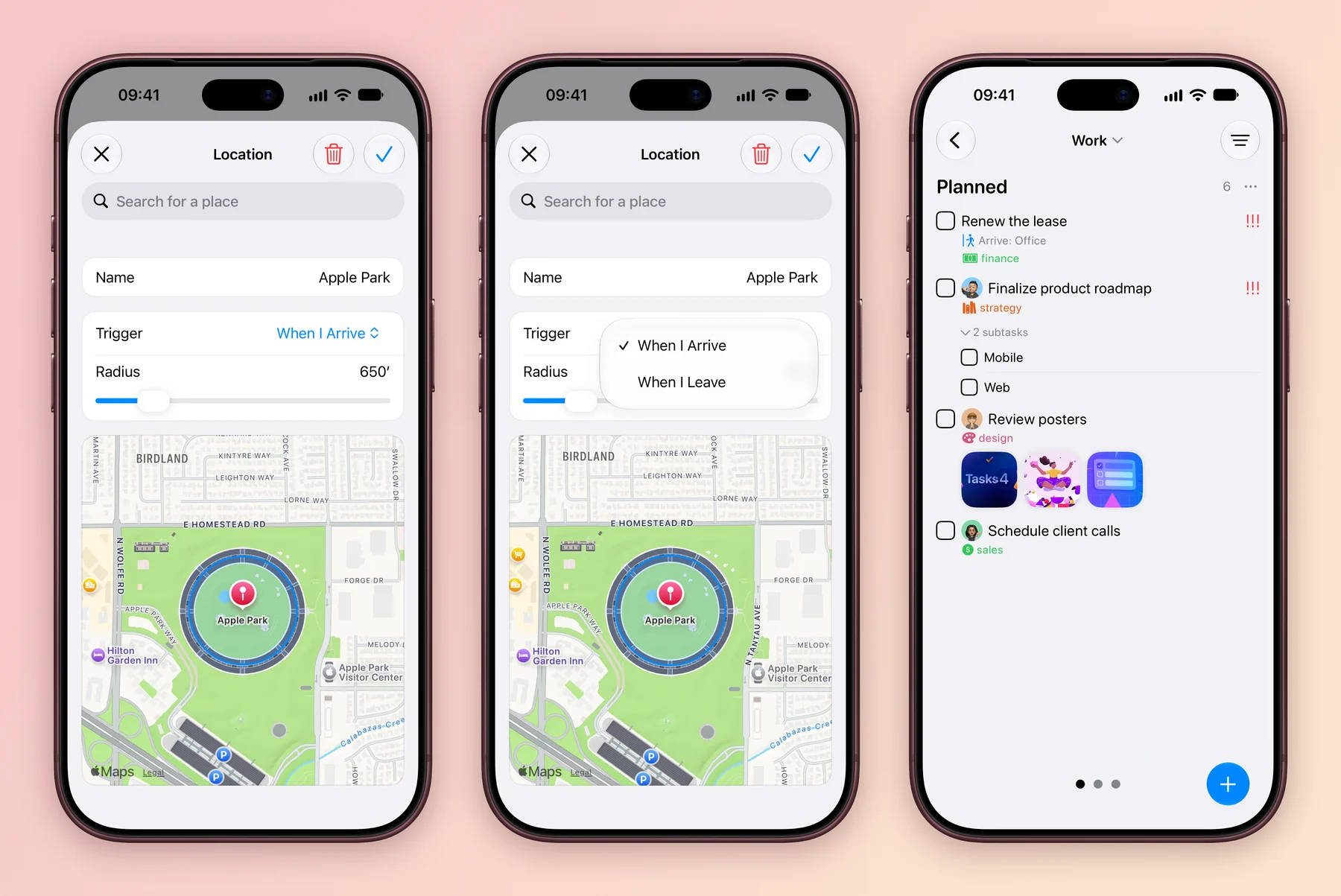
Some tasks are about where you are, not when. Renew the lease is best remembered when you get to the office.
- Open the task’s Location and use Search for a place.
- Next to Trigger, choose When I Arrive or When I Leave.
- Drag the Radius slider to set how close counts, then tap the checkmark. The task card now shows the place, such as Arrive: Office.
You can also type it: Renew the lease when I arrive at the office.
Act on the alert
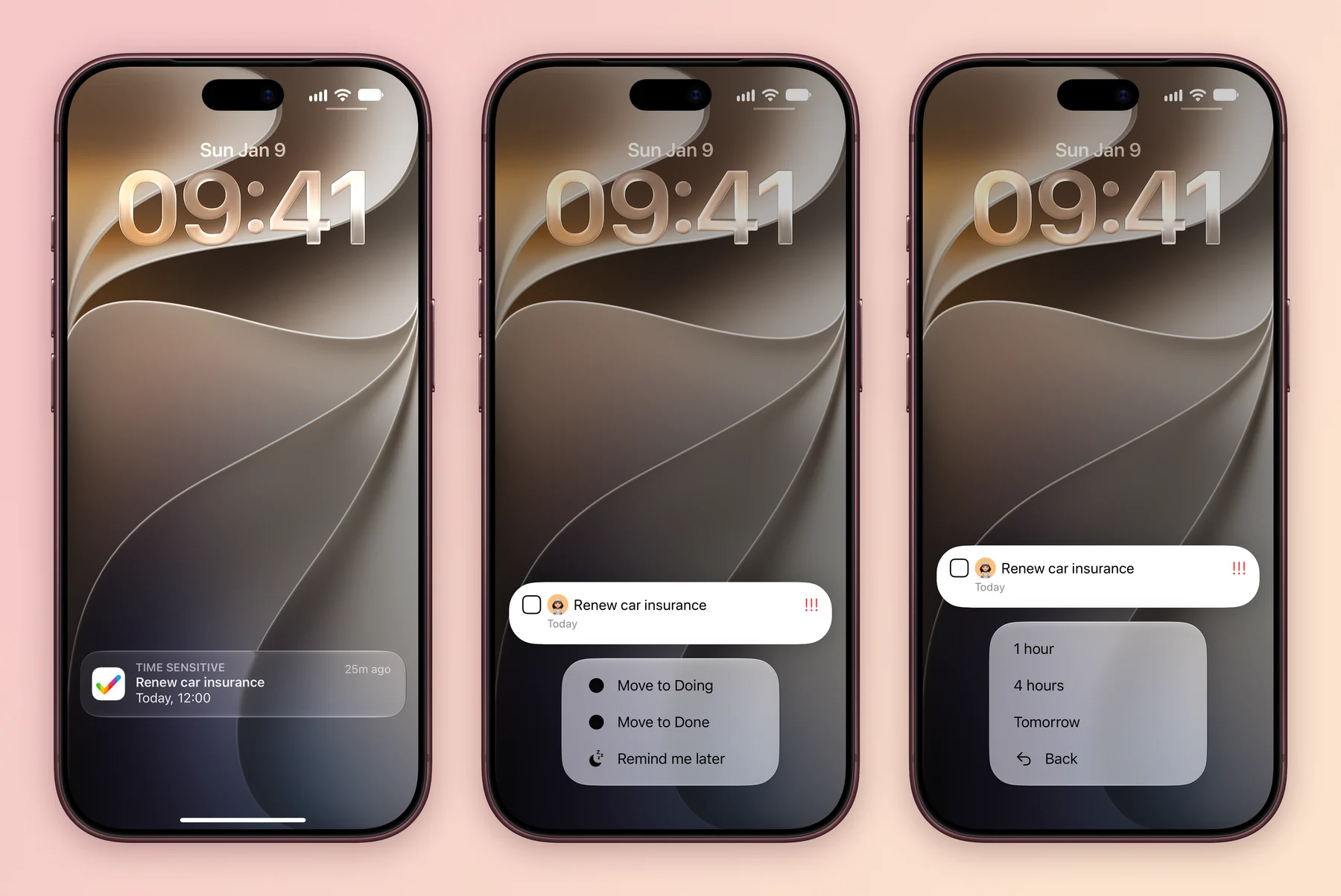
Tasks alerts arrive as Time Sensitive notifications. Press and hold one to move the task to another status, such as Move to Doing or Move to Done, or choose Remind me later and pick 1 hour, 4 hours or Tomorrow. If alerts do not arrive, allow notifications for Tasks in Settings. Place reminders also need location access.
Click a notification to open the task. A few things work differently on Mac:
- Alarm arrives as a normal notification.
- Place reminders can be set on your Mac, but they fire on your iPhone, which is the device that knows where you are.
- Status and Remind me later actions in the notification are on iPhone.
Just need a one-off reminder? Leave Repeat off. A date or a place is useful on its own.
Explore all 15 related features
Browse the related features below for more detail, or search every feature.
Fixed recurrence
Repeat on a calendar schedule such as every Monday.
Completion-based recurrence
Repeat a set time after the task is actually completed.
Daily rules
Repeat tasks on daily schedules.
Weekly rules
Repeat tasks on chosen weeks or weekdays.
Monthly rules
Repeat tasks on a monthly pattern.
Advanced calendar rules
Use more specific recurrence selectors when a simple interval is not enough.
Date and time notifications
Receive a reminder when a task date arrives.
Alarm reminders
Use an alarm for a timed task on supported systems.
Arrival reminders
Receive a task alert when arriving at a saved place.
Departure reminders
Receive a task alert when leaving a saved place.
Location radius
Control the useful area around a saved task location.
Rich notifications
Act on useful task information from a notification.
Time Sensitive alerts
Use Apple's Time Sensitive notification level where appropriate.
Upcoming repeat alerts
Schedules upcoming reminders for recurring work instead of waiting on one completion.
Notification settings
Control how Tasks alerts appear.