With a keyboard you can plan a whole day in Tasks without reaching for the pointer. Learn three shortcuts first: ⌘N to add, ⌘F to find and ⌘. to move a task along.
The shortcuts worth learning
Task shortcuts act on the selected task. Click a task, or reach it with the arrow keys, then press the keys.
| Action | Keys |
|---|---|
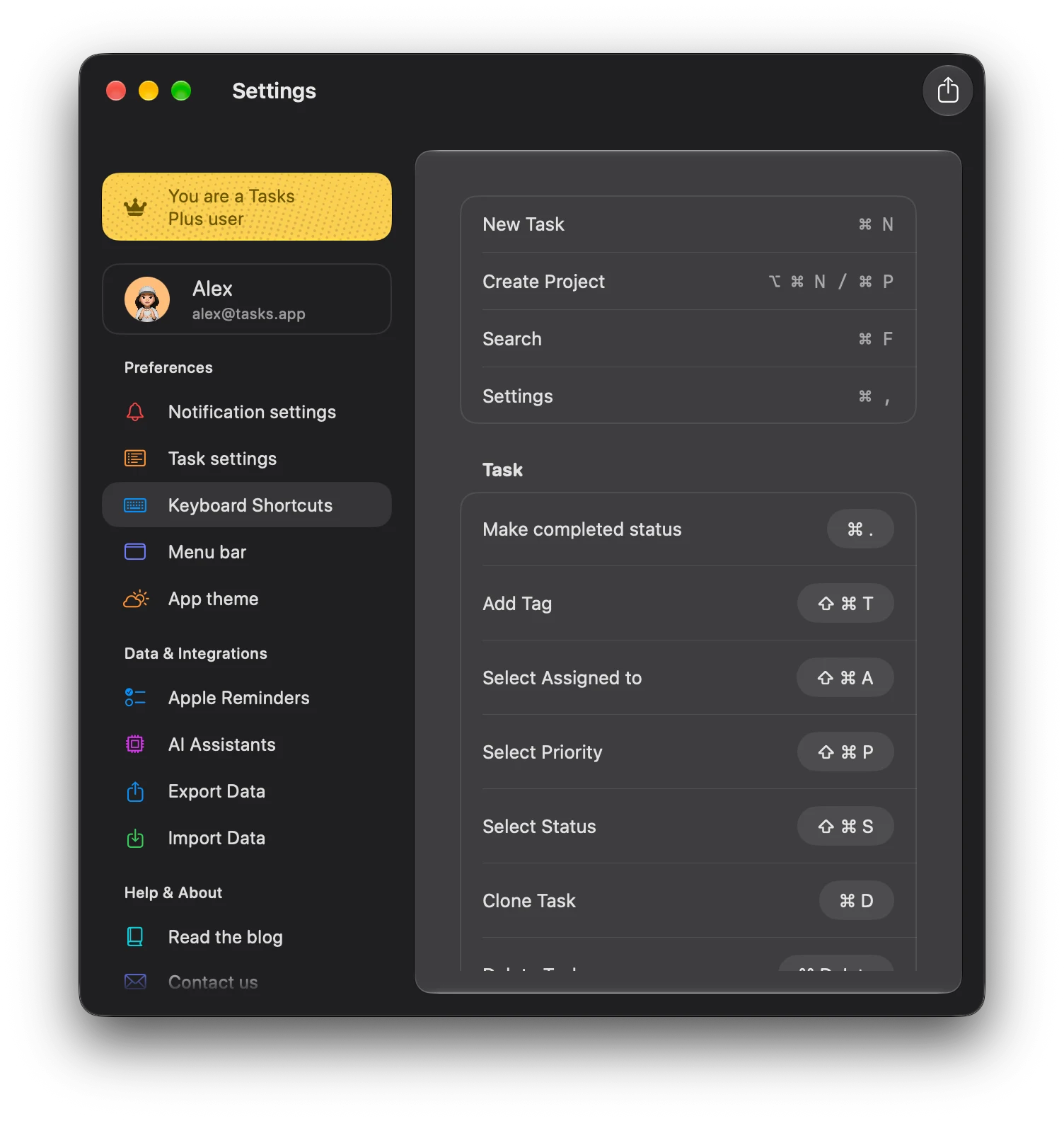
| New task | ⌘N |
| New project | ⌥⌘N or ⌘P |
| Search | ⌘F |
| Settings | ⌘, |
| Save a task or comment | ⌘Return |
| Close a panel, picker or search | Esc |
| Move to the next status (Make completed status in Settings) | ⌘. |
| Add a tag | ⇧⌘T |
| Assign to someone | ⇧⌘A |
| Set priority | ⇧⌘P |
| Choose a status | ⇧⌘S |
| Add a date | ⌘S |
| Due today | ⌘T |
| Due tomorrow | ⌥⌘T |
| Due this weekend | ⌘K |
| Due next week | ⌥⌘K |
| Clone task | ⌘D |
| Delete task | ⌘⌫ |
| Tasks Plus | ⌃⌘T |
Tag, assignee, priority and status open a small picker. Use the arrow keys, then Return or Tab to choose.
To look a shortcut up, open Settings (⌘,) and choose Keyboard Shortcuts. It lists the app shortcuts and every task shortcut, with the keys each one uses. New Task and Create Project are also in the File menu, and Settings is in the Tasks app menu.
With a hardware keyboard, the same shortcuts work on iPad.
Move around with the arrow keys
- In the sidebar, use ↑ and ↓ to move, → to open a folder and ← to close it. Press Return to open a project.
- On a board, use ↑ and ↓ within a column and ← and → to move between columns.
- Press Return to open the selected task, and Esc to close it again.
Change a shortcut
In Settings, Keyboard Shortcuts, click a shortcut under Task and press the new keys. Use the reset button next to it to go back to the default. If Tasks, macOS or another app already uses those keys, Tasks tells you.
New Task, Create Project, Search and Settings stay fixed, so they always work.
On Mac, scroll down to Global Shortcut to set the Add Anywhere shortcut, ⌃Space by default, or turn it off with Enabled. It opens a small Create Task window over whatever app you are using.
Pointer, drag and the menu bar
- Right click anything, a task, project, folder or empty column, for its actions.
- Hover a sidebar section or column header to reveal a + for adding right there.
- Drag a task onto another column to change its status, onto a tag or person to tag or assign it, or into another task to make it a subtask.
- Open a project in its own window from its right click menu with Open in New Window.
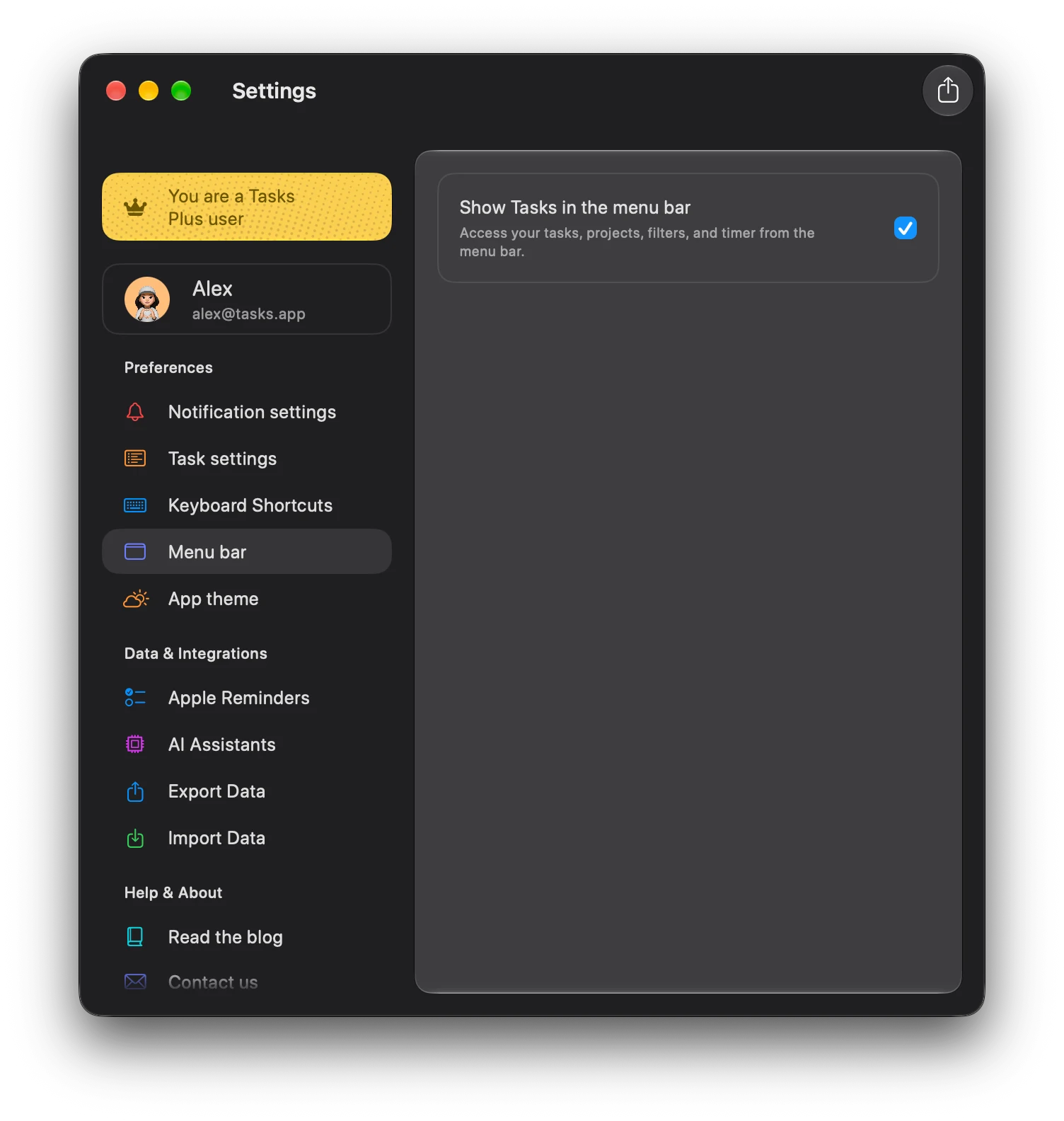
The Tasks icon in the menu bar gives you Add Task, your projects, filters and Smart Lists, and a live timer you can stop. Turn it on or off in Settings, Menu bar, Show Tasks in the menu bar. Selected text in any app can also become a task through Services, Create task in Tasks.
On iPad, touch and hold, or right click with a trackpad, for a task or project’s actions, and drag works the same way. Columns sit side by side on a larger iPad, just like on Mac. Add Anywhere, the menu bar item and the Services menu are Mac only.
Pick two shortcuts you will use today, such as ⌘N and ⌘., and add more once they feel natural.
Explore all 16 related features
Browse the related features below for more detail, or search every feature.
Create shortcuts
Use keyboard commands for a new task or project.
Search shortcut
Open search from the keyboard.
Settings shortcut
Open settings from the keyboard.
Complete shortcut
Move a selected task to its final status.
Tag shortcut
Add a tag to the selected task.
Assign shortcut
Choose an assignee without leaving the keyboard.
Priority shortcut
Set a task's priority.
Status shortcut
Change a task's workflow status.
Duplicate shortcut
Clone the selected task.
Delete shortcut
Delete the selected task.
Date shortcuts
Set today, tomorrow, this weekend or next week quickly.
Custom task shortcuts
Change supported task-action key combinations.
Trackpad support
Use pointer interactions on iPad and Mac.
Drag and drop
Move tasks and project content with direct manipulation.
Arrow key navigation
Move through the sidebar, columns and tasks with the arrow keys.
Menu bar setting
Show or hide Tasks in the Mac menu bar.