Every project, tag and person opens as a board with one column per stage. Filters narrow the board, and a Smart List saves that view so you can come back to it. The examples below narrow the Work board to planned tasks and save the result as a Smart List.
Work on a board
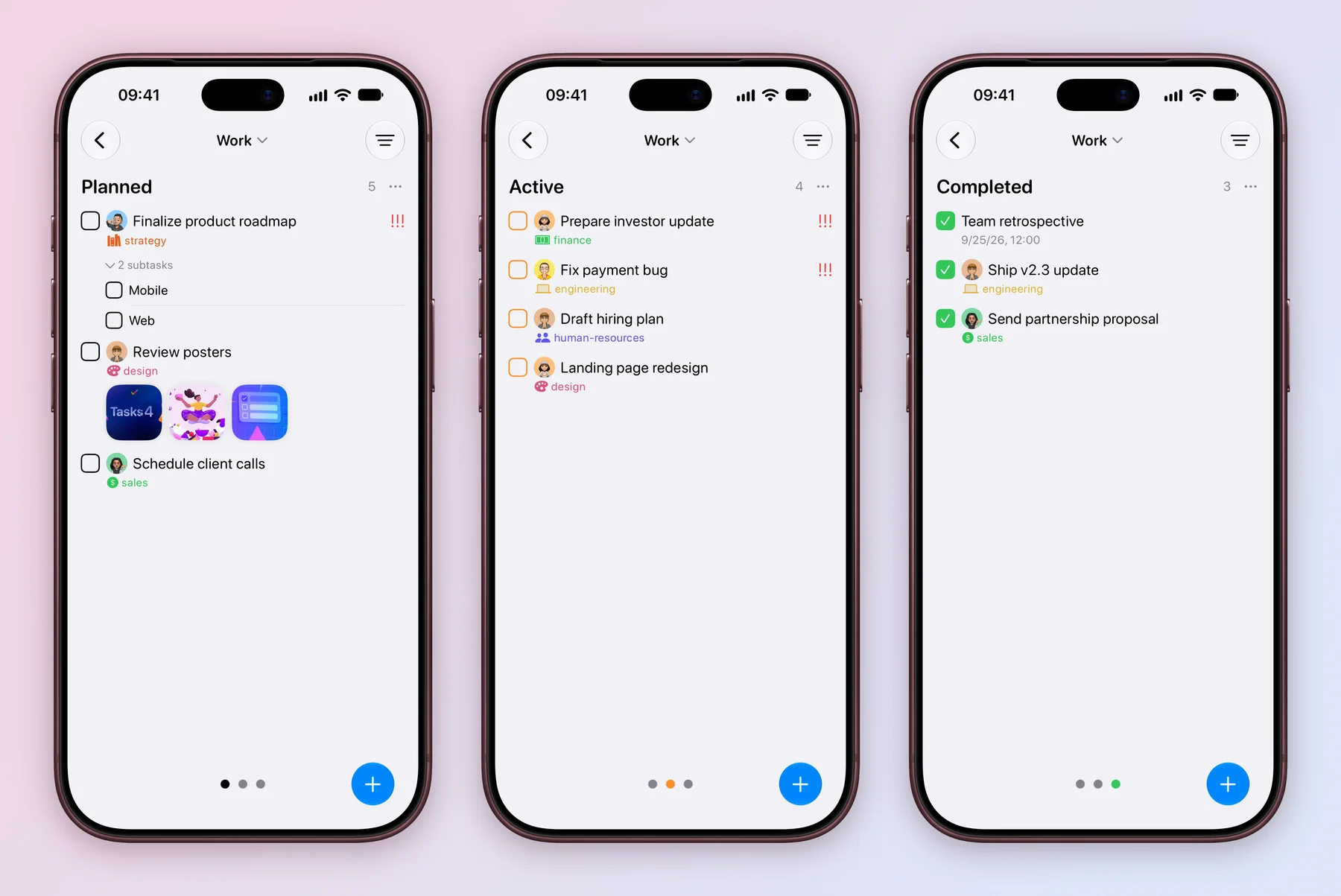
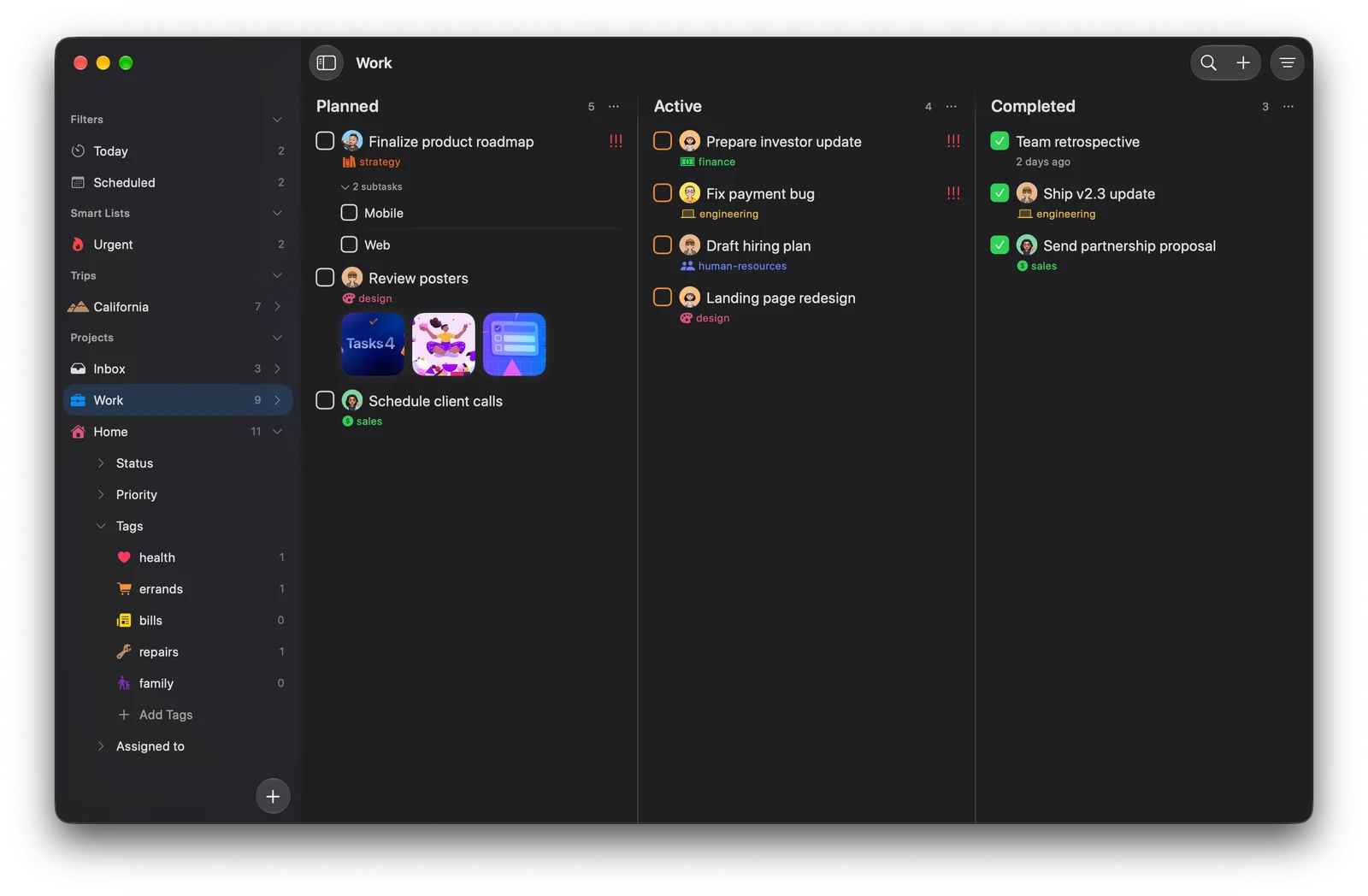
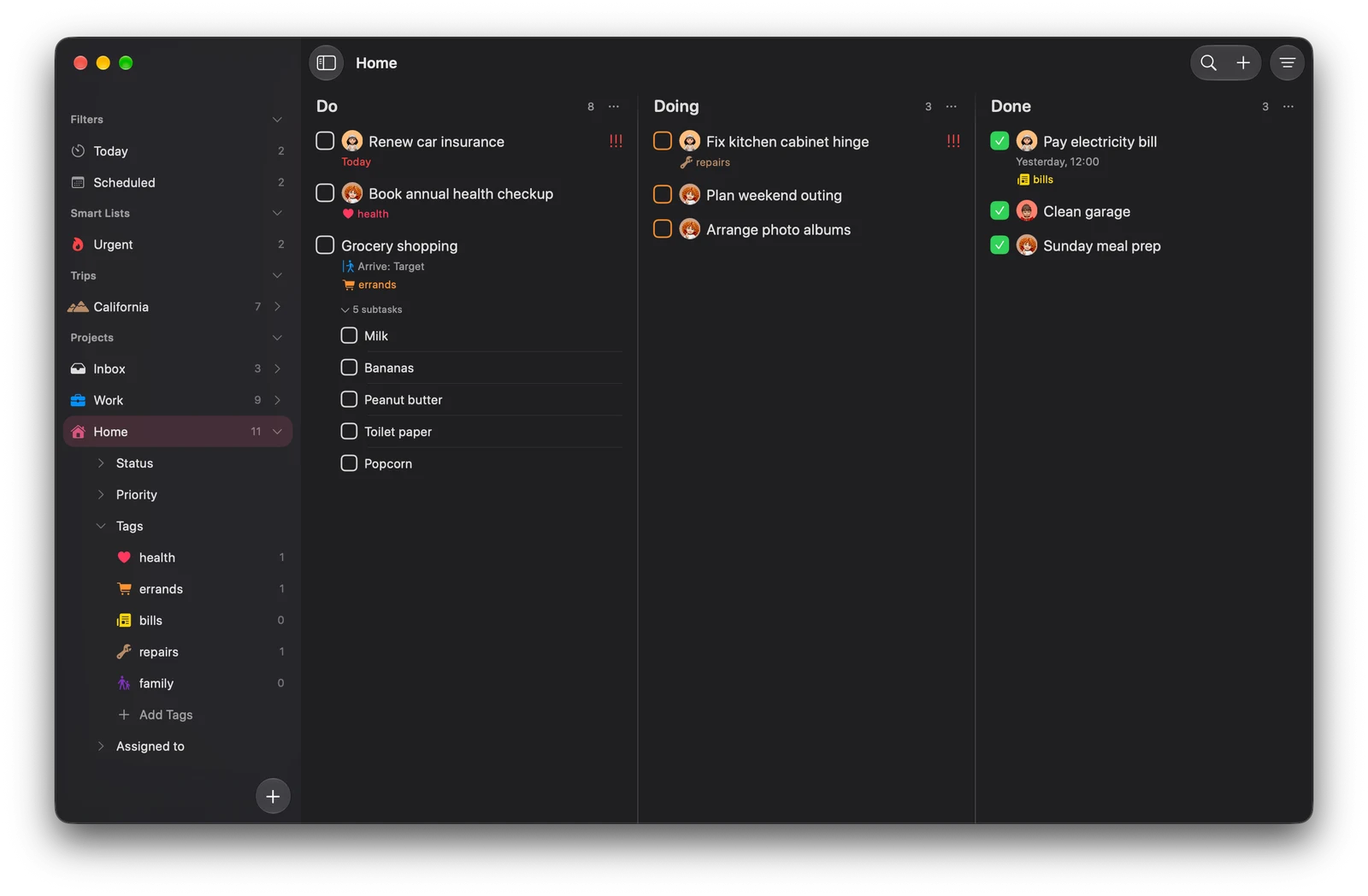
Tasks sit in columns that match the project’s statuses, such as Planned, Active and Completed in Work, or Do, Doing and Done in Home. The number beside each column name counts its tasks. Drag a task to another column to move it on.
The board shows one column at a time. Swipe left or right to change column, and watch the dots at the bottom to see where you are. Pull down inside a column to add a task straight to it.
Columns sit side by side. Use the arrow keys to move between tasks and columns, and press Return to open one. Hover a column header and click + to add a task to that column.
Narrow it down with filters
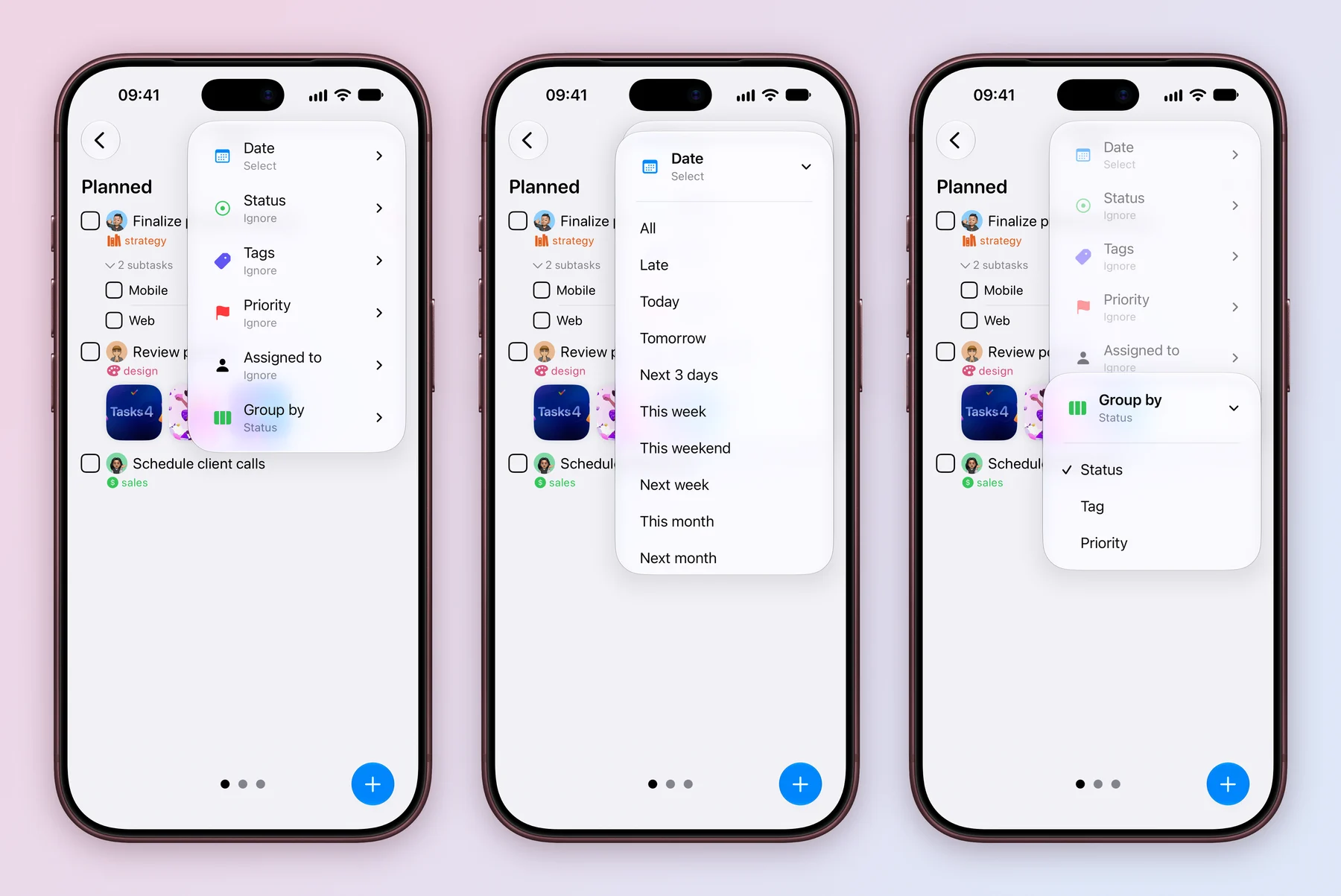
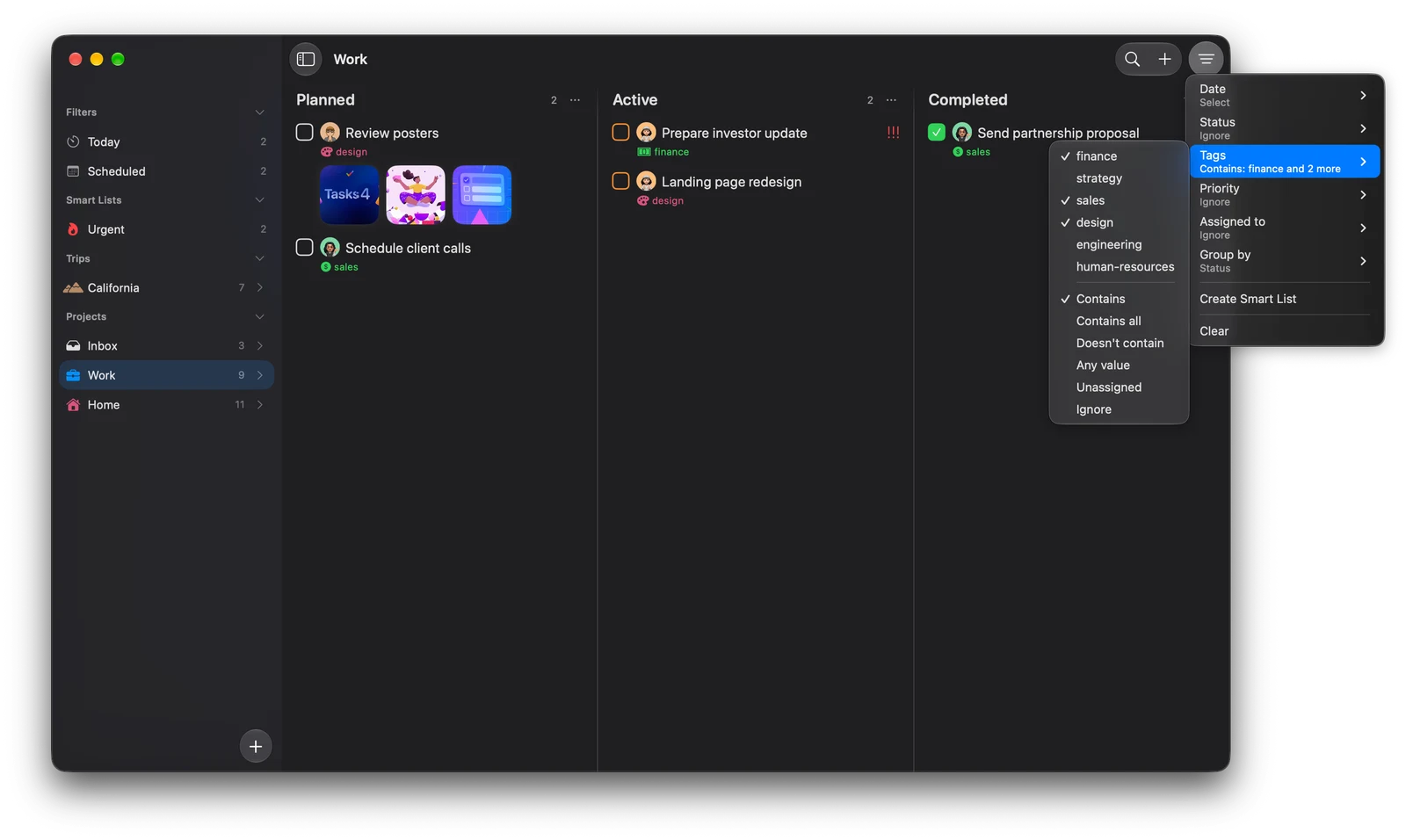
The filter menu lists Date, Status, Tags, Priority, Assigned to and Group by. The options follow the fields the project has.
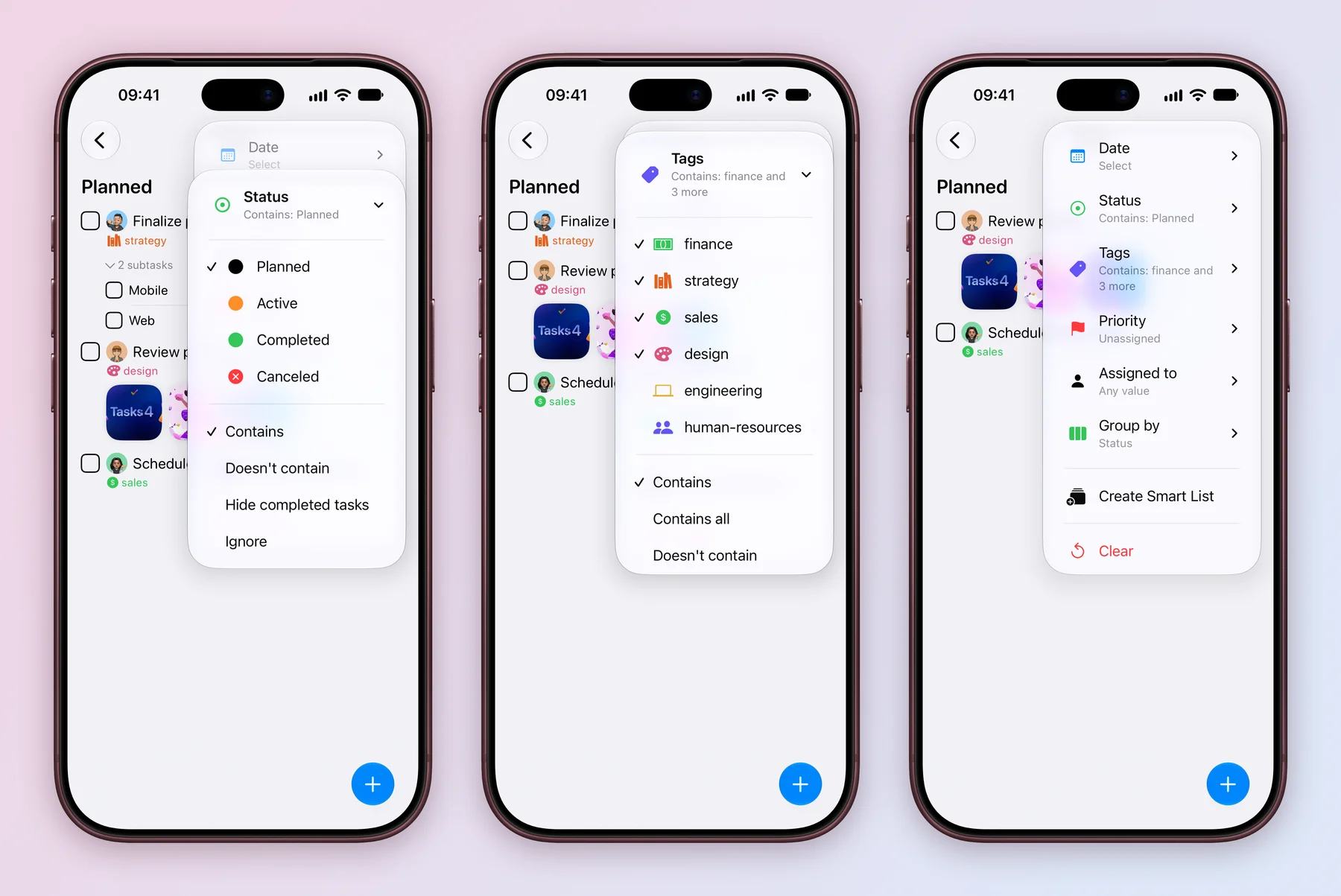
- Tap the filter button, then Status, then Planned. The menu now reads Contains: Planned.
- Add more. Pick several Tags, or choose a rule instead of a value: Doesn’t contain, Contains all for tags, Any value or Unassigned. Ignore turns a filter off.
- Use Date for ranges such as Late, Today, This weekend or Next month, and Group by to lay the columns out by Status, Tag or Priority.
- Choose Clear to go back to the full board.
Click the filter button at the right of the toolbar. Each field opens a submenu with its values and rules.
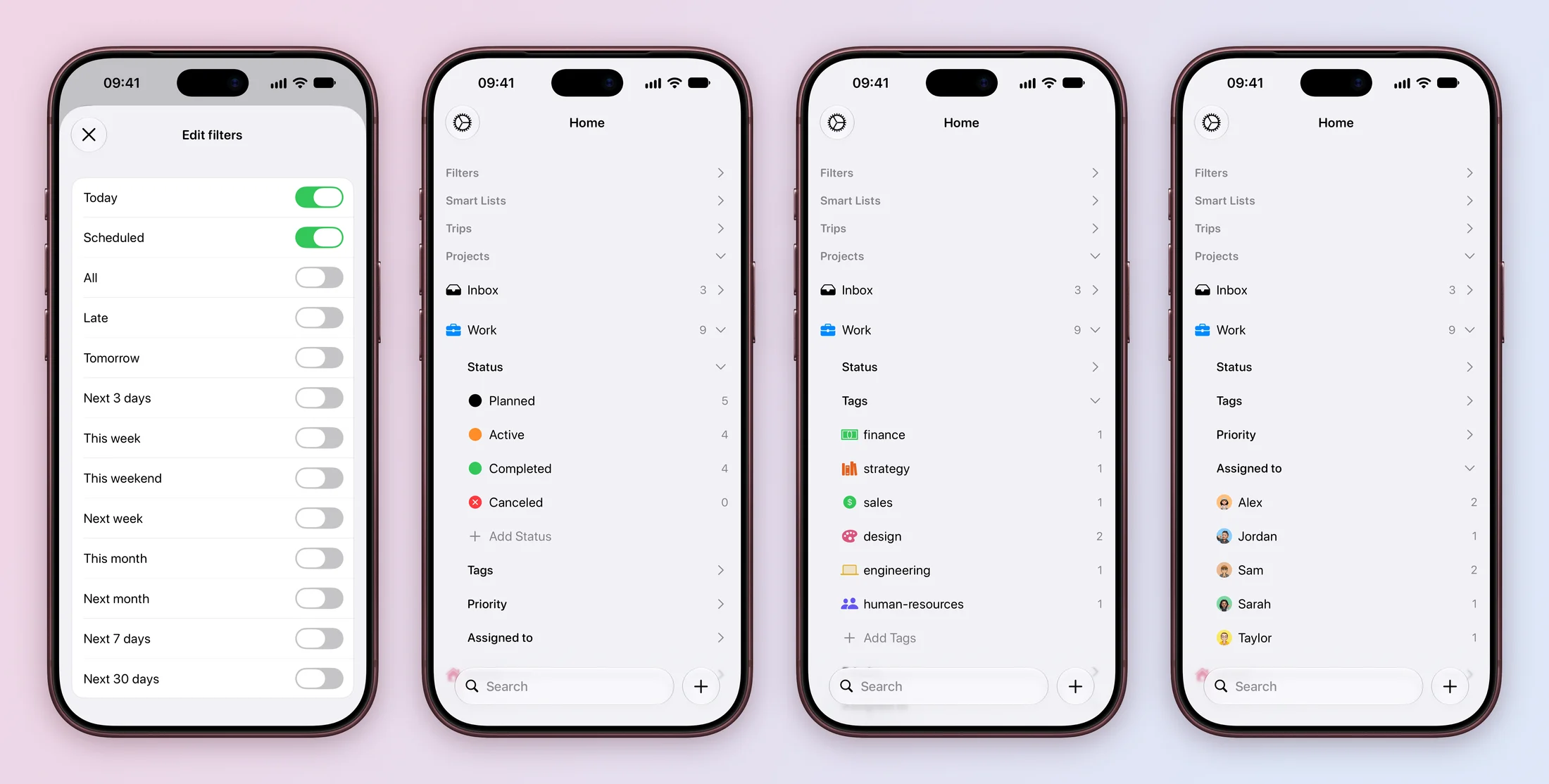
The Home screen has shortcuts too. Under Filters, date filters such as Today and Scheduled gather tasks from every project. Press and hold Filters and choose Manage, or use +, then More, then Filter, to switch others on, such as Late, Tomorrow or Next 7 days. Under Projects, expand a project to see its Status, Tags, Priority and Assigned to groups with a count beside each. Tap one to open just those tasks.
In the sidebar, click the arrow beside a project to show its groups, then click one to open it.
Save it as a Smart List
A Smart List is a saved filter that keeps itself up to date across projects. Smart Lists are part of Tasks Plus.
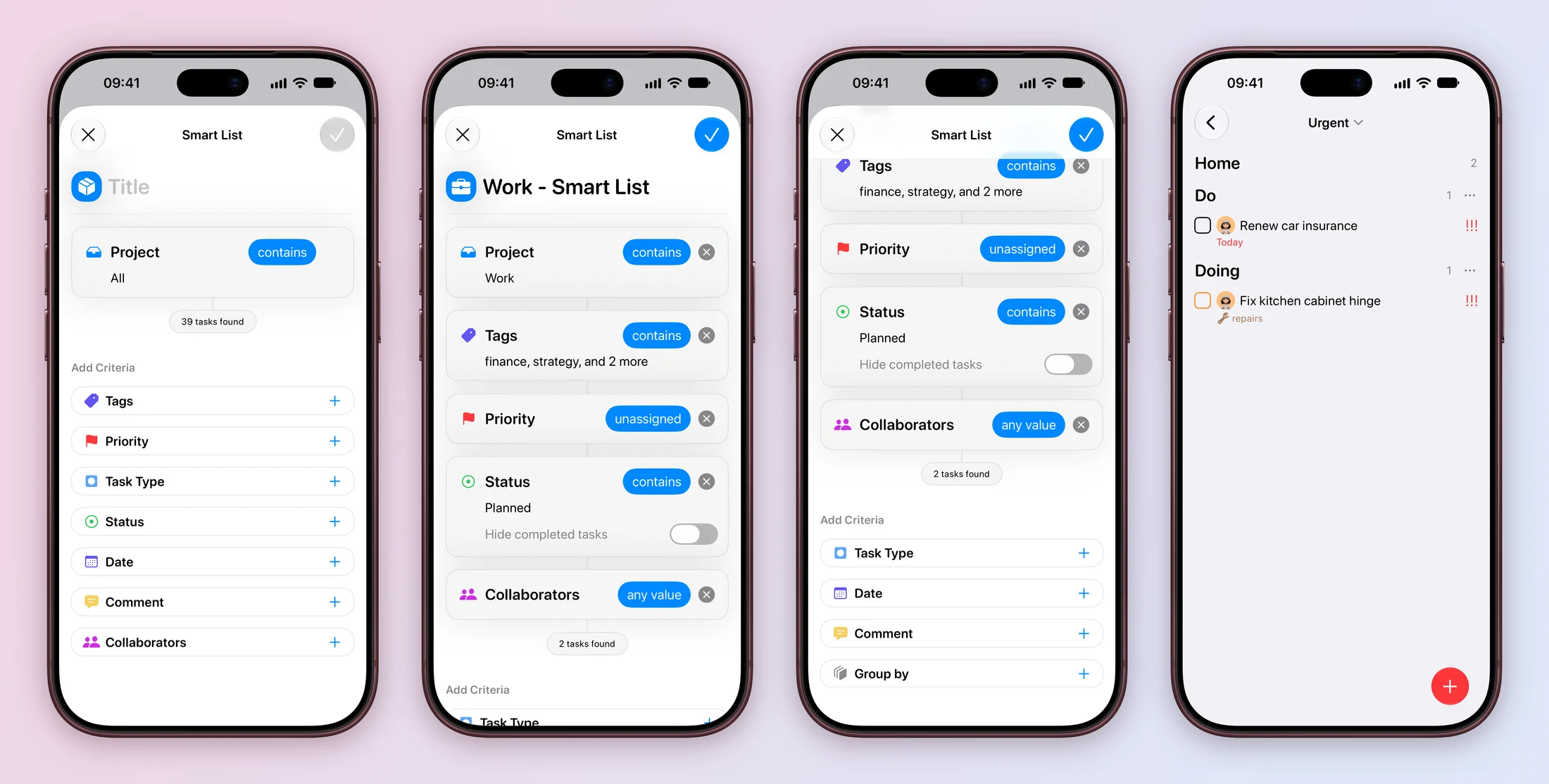
- With a filter on, choose Create Smart List from the filter menu. Your filters come across, and the list is named after the project, such as Work - Smart List. Or use +, then More, then Smart List to start from every project.
- Give it a title. Tap a blue rule, such as contains, to change it, or the × to remove that condition. The count, such as 2 tasks found, updates as you go. Assigned to appears here as Collaborators.
- Add conditions under Add Criteria, such as Task Type, Date or Comment, or add Group by.
- Tap the checkmark to save. The list appears under Smart Lists, ready to open any time.
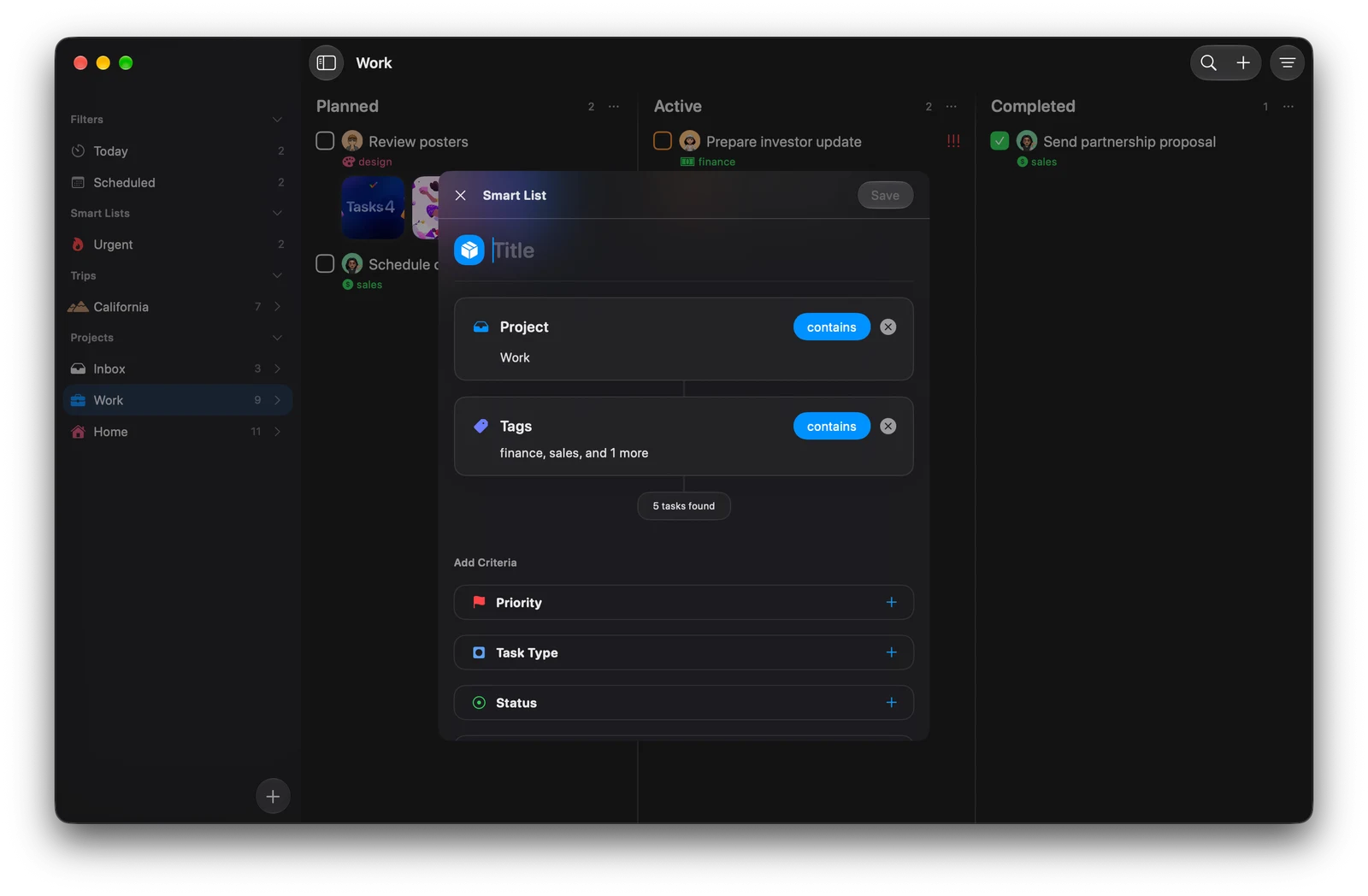
If a list looks empty, check that the projects you picked actually use the fields you are filtering on.
Search everything
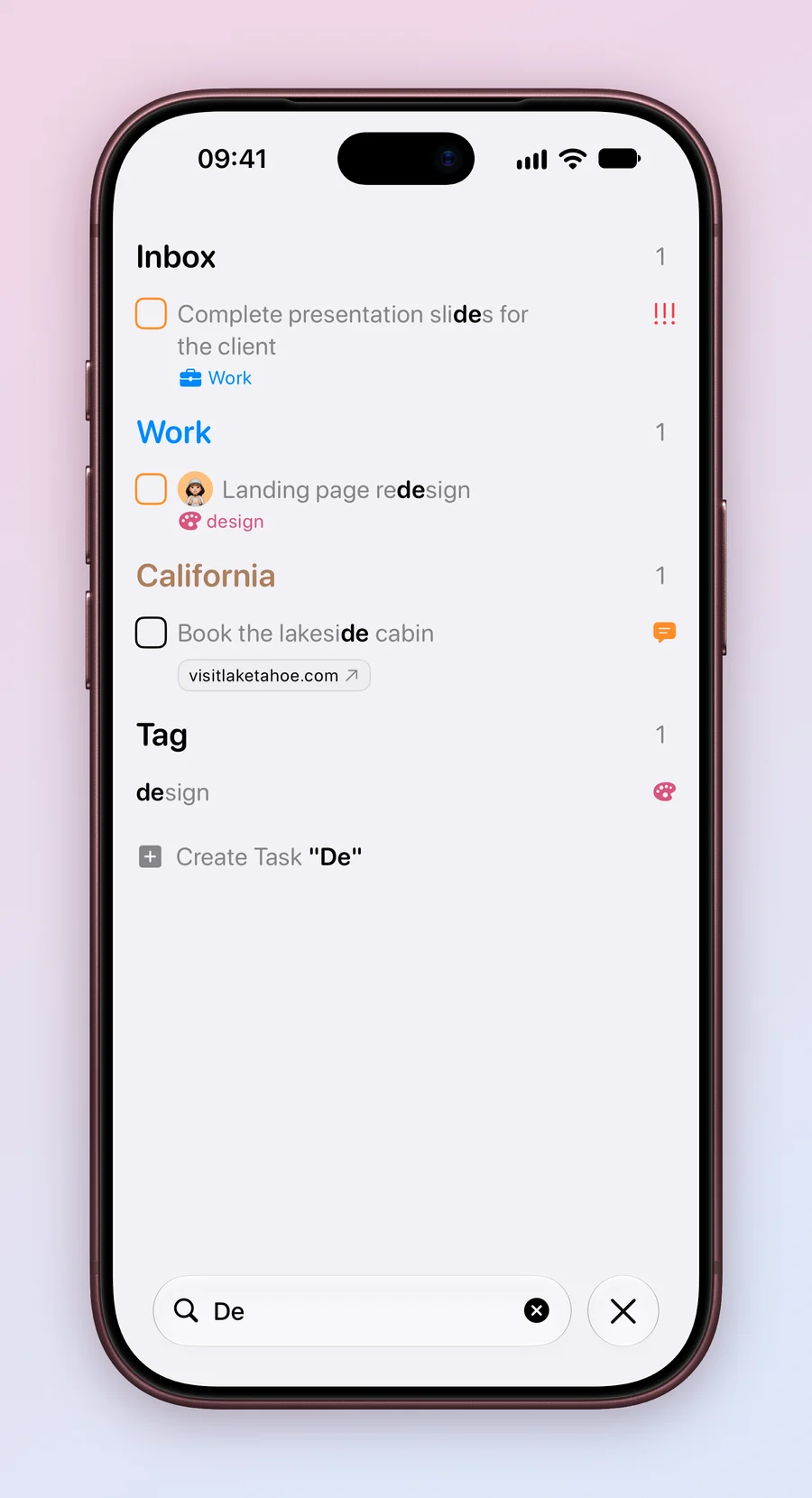
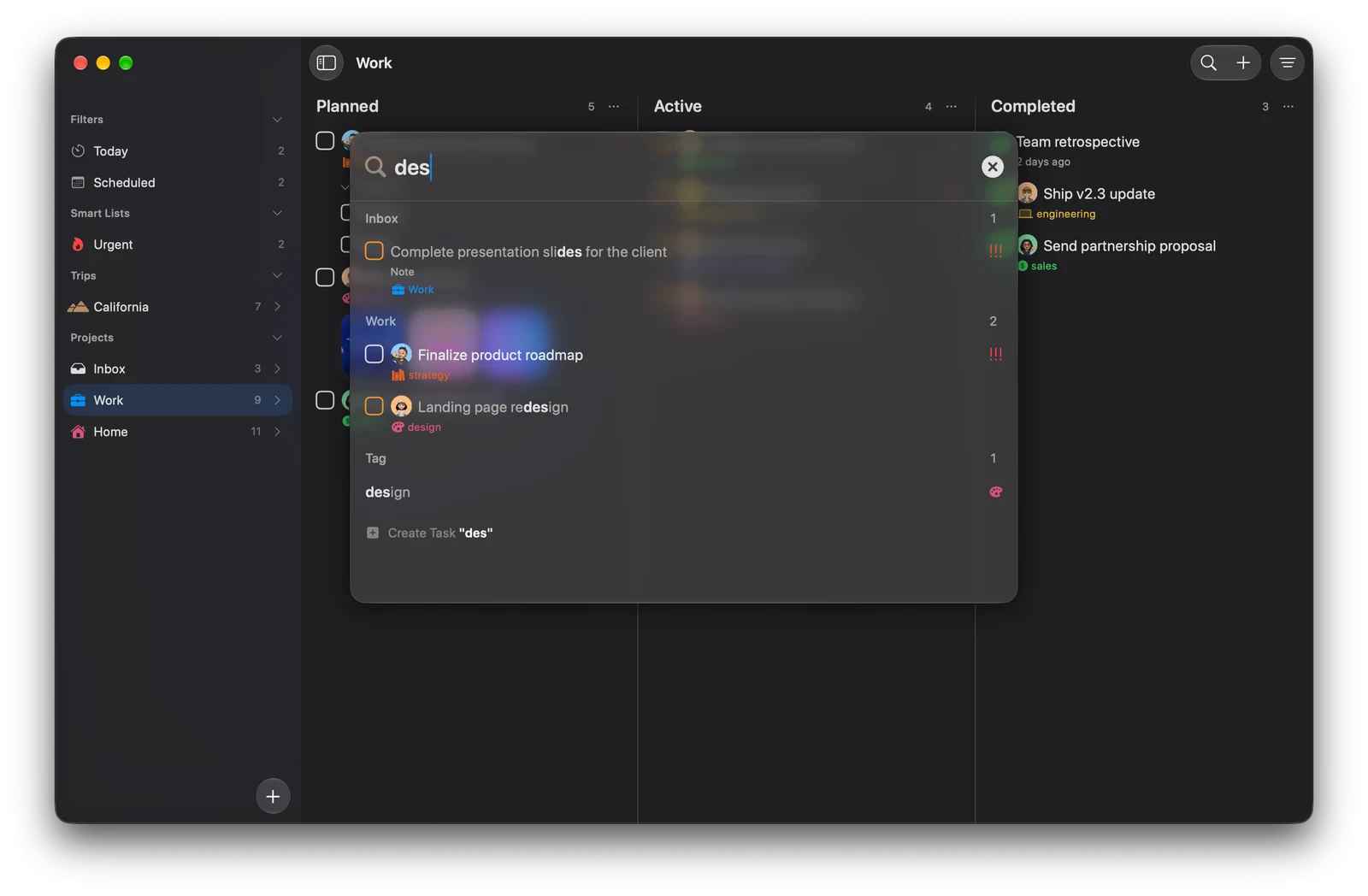
Search matches task titles, notes and comments, plus tags and filters. Results are grouped by project, and Create Task at the end adds a task with what you typed.
Use the Search field at the bottom of the Home screen and type a few letters, such as de. Tap a result to open it.
Press ⌘F, or click the magnifying glass in the toolbar. A search window opens over Tasks. Type des, pick a result, or press Esc to close it.
Next, keep your Smart List on the Home Screen with a widget.
Explore all 25 related features
Browse the related features below for more detail, or search every feature.
List view
Scan and manage tasks in a compact list.
Kanban view
Move tasks across project workflow columns.
Read moreStatus columns
Build board columns from custom statuses.
Flexible board grouping
Group supported boards by tags, priorities, task types or collaborators.
All tasks
See the complete task set available to a view.
Late
Collect work whose date has passed.
Today
Focus on work due today.
Tomorrow
See the next day's dated work.
Upcoming
Review work scheduled ahead.
Week and month filters
Use this week, this weekend, next week, this month and next month views.
Rolling date filters
Use the next 3, 7 or 30 days as a moving window.
Smart Lists
Save a useful cross-project filter and let it update automatically.
Read moreFilter by project
Include chosen projects in a Smart List.
Filter by status
Match workflow stages across supported projects.
Filter by tag
Find tasks with the tags you care about.
Filter by priority
Collect work at chosen priority levels.
Filter by task type
Match project-specific kinds of work.
Filter by collaborator
Find work assigned to selected people.
Filter by comments
Match tasks with unread, present or empty comments.
Filter by date range
Use preset or custom date windows.
Smart List grouping
Group results by status, tag, priority, type, project or date.
Global search
Find tasks, comments and project information.
Entity search
Search projects, Smart Lists, tags, statuses and people through supported system features.
Date, priority and custom sorting
Order work by date, then priority, or arrange it yourself.
Sidebar shortcuts
Open common dates, tags, statuses, priorities, types and collaborators quickly.