Your AI assistant can work in Tasks with you. Connect it once, add it to a project, and it can read the work, pick up tasks you assign and leave comments on them, just like a collaborator.
Connect your assistant
Tasks connects through the Model Context Protocol (MCP), which ChatGPT, Claude and many other assistants support. You need the address of the Tasks server:
https://api.thetasks.app/mcp- In your assistant’s settings, find Connectors (sometimes called integrations or MCP servers) and add a custom connector.
- Claude: Settings, then Connectors, then Add custom connector. Name it Tasks.
- ChatGPT: Settings, then Connectors. You may need to turn on developer mode to add a custom one.
- Another assistant: any assistant that supports remote MCP servers with sign in works the same way.
- Paste the address above and save.
- When asked, sign in to your Tasks account and allow access. The assistant can then read and update your tasks.
Once connected, the assistant shows up in Tasks under AI Assistants, marked Active.
Open Settings with the gear at the top of the Home screen, then AI Assistants under Data & Integrations. Pull down to refresh if it has not appeared yet.
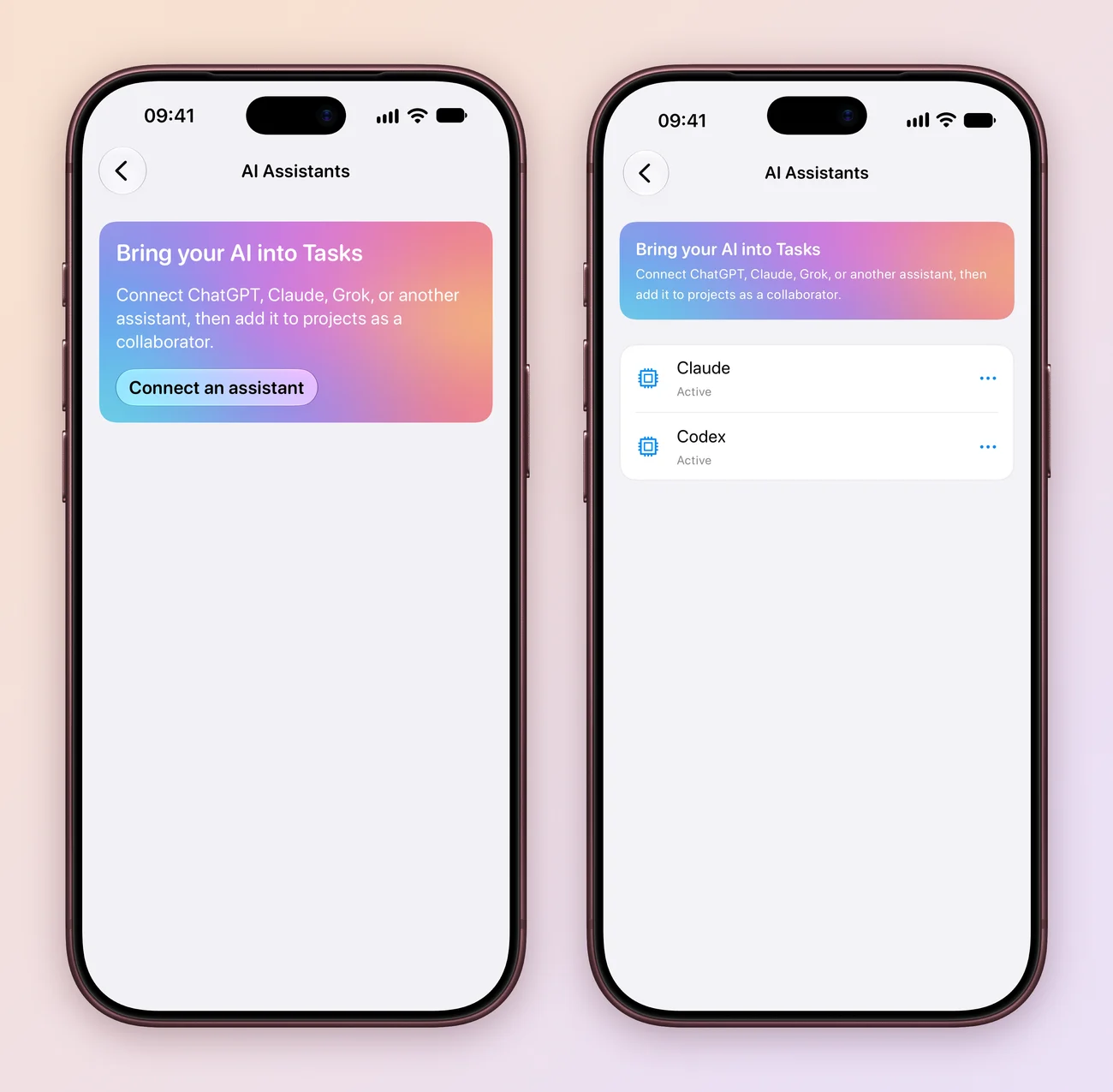
Press ⌘, to open Settings, then choose AI Assistants under Data & Integrations.
Add it to a project
Add the assistant to a project to work on it together.
- Open the project menu for Work and choose Invite people. On Mac, right click the project in the sidebar.
- Under Quick add, find your assistant, such as Claude.
- Choose Invite, then Editor or Admin. Assistants cannot be owners.
The assistant joins the project’s collaborators and is labelled Agent.
Give it work
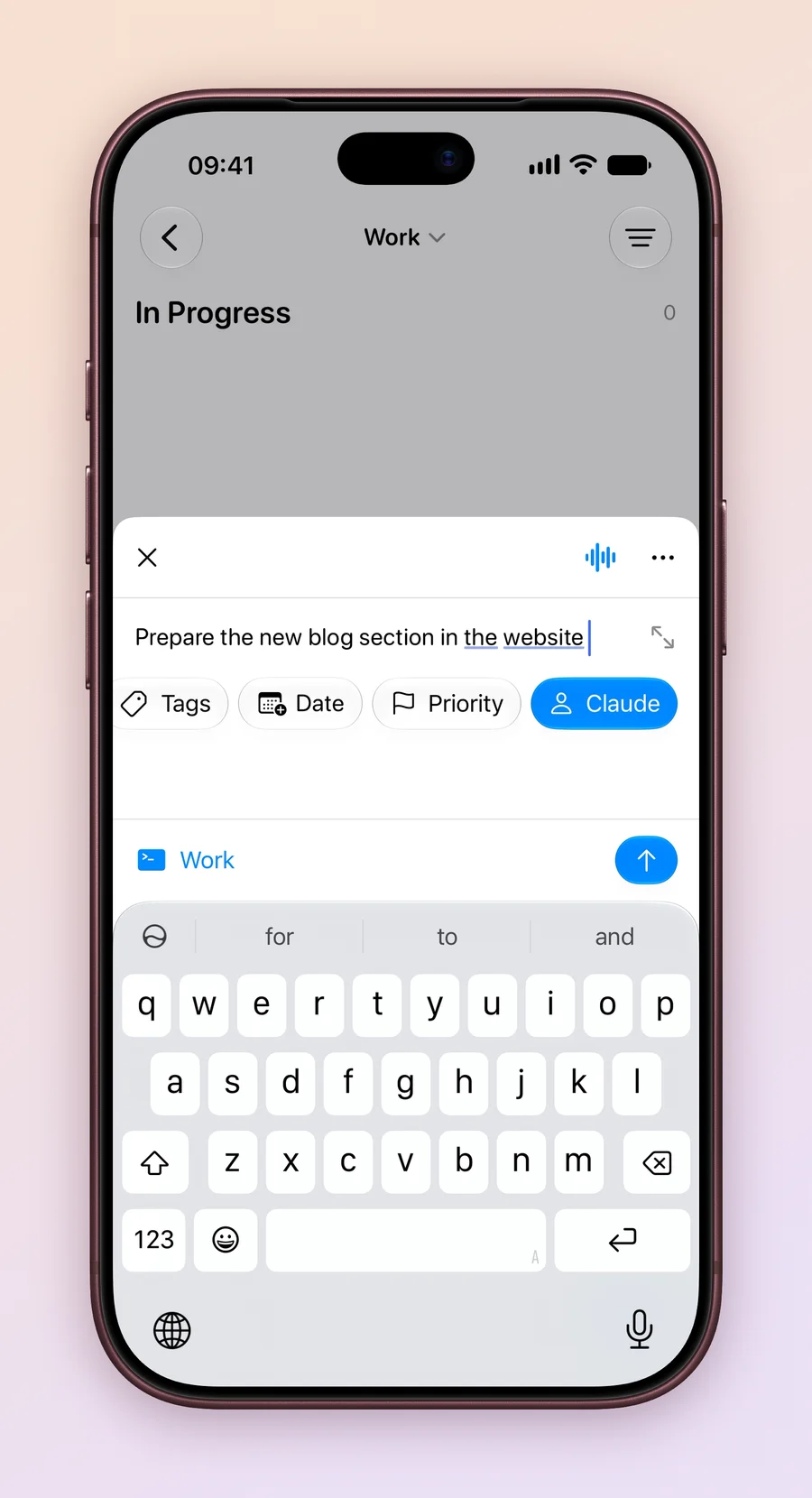
Assign a task the same way you would to a person: choose Assigned to, or type + in the title while creating a task. Then ask your assistant to pick up its tasks, for example: “Check my Work tasks and draft the hiring plan.” It can update the task and comment with what it did.
Stay in control
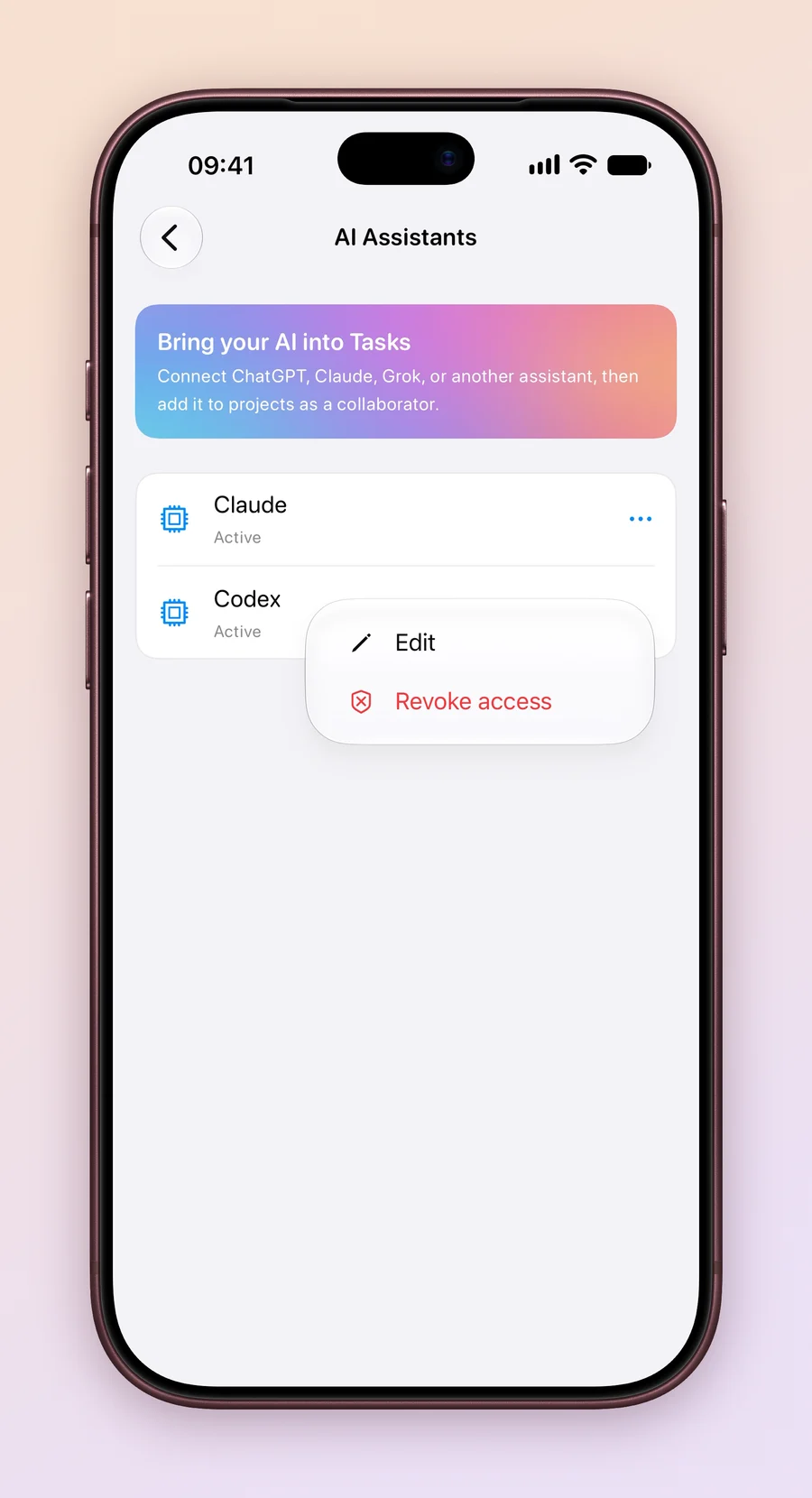
- Rename: in AI Assistants, open the … menu and choose Edit.
- Remove from one project: open the project’s Collaboration screen, then … and Remove.
- Disconnect completely: choose Revoke access. The assistant loses access to every project and its tasks come back to you. Connecting again creates a new assistant.
Connecting and managing assistants is free. Adding one to a project needs Tasks Plus, and the project must use Tasks Cloud, the same as sharing with people.
Start small: add your assistant to one project and give it one task to see how it works for you.
Explore all 4 related features
Browse the related features below for more detail, or search every feature.
AI Assistants
Connect ChatGPT, Claude or another assistant to your Tasks account.
Assistants as collaborators
Add a connected assistant to a project as an Editor or Admin.
Assign work to an assistant
Give an assistant a task and read its comments beside the work.
Revoke access
Disconnect an assistant from every project at once.