A Tasks customer makes iPhone apps on their own: a journaling app, a running log and a reading tracker. We call them Glow, Stride and Margin here. Each app has its own bug reports, feature ideas and releases, and behind all three sits a small business with renewals, taxes and paperwork of its own.
They had tried a few project tools built for teams and found them heavy for one person. They wrote in with five questions. This is how we set it up, and the whole setup is yours to import.
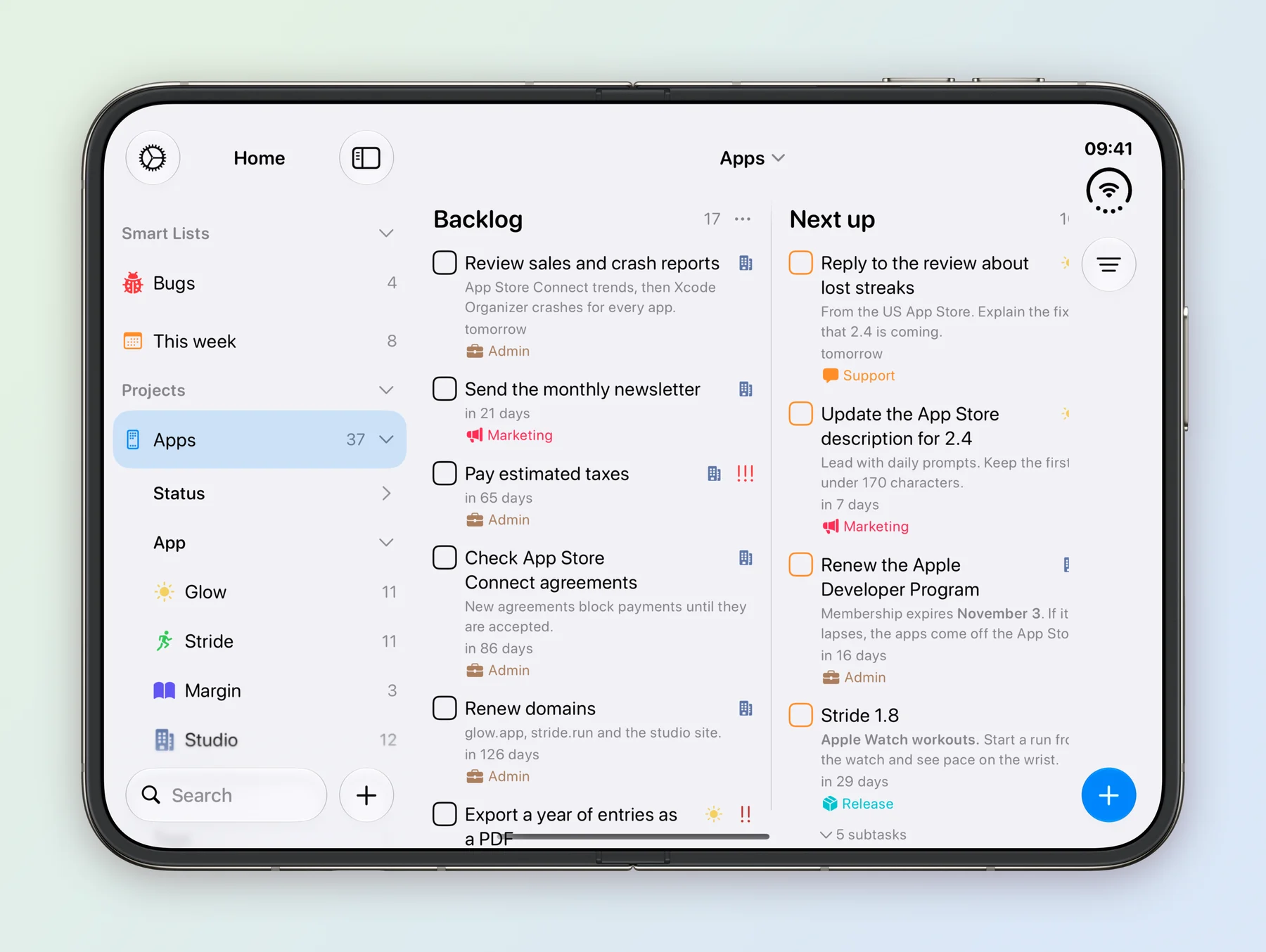
What they asked for
- Every app in one place. But a way to look at one app at a time.
- The same steps for every release. Version numbers, What’s New, screenshots, TestFlight and review, without writing the list out again.
- Bugs by how bad they are. Across all three apps, with the worst ones at the top.
- The business side. The developer membership, taxes and agreements that come round on their own schedules.
- Room for their coding assistant. They write code with an AI assistant and wanted it to see the same list of bugs and releases.
One project, one field per question
Everything lives in one project called Apps. With one project, the same work can be seen by app, by stage or by priority, and a task never has to move between projects. Each field answers a question about the task:
| Field | Answers | Values |
|---|---|---|
| App | Which app? This is a Task Type field renamed to App. | Glow, Stride, Margin, Studio |
| Status | How far along is it? | Backlog, Next up, Building, Testing, Shipped, Canceled |
| Tags | What kind of work? | Bug, Feature, Release, Marketing, Support, Admin |
| Priority | How much does it matter? | High, Medium, Low |
| Date | When is it due? | October 20 |
| Checklist | What are the steps? This is a Subtasks field renamed to Checklist. | Bump the version, Write What’s New |
| Time Tracking | How long did it take? | 3:25:00 |
| Notes | What do I need to know? | Fixed in build 412, on TestFlight now. |
A Task Type holds one value per task, which suits App: a bug belongs to one app. Work for the business itself, like renewing the developer membership, does not belong to an app, so it gets an app of its own, Studio.
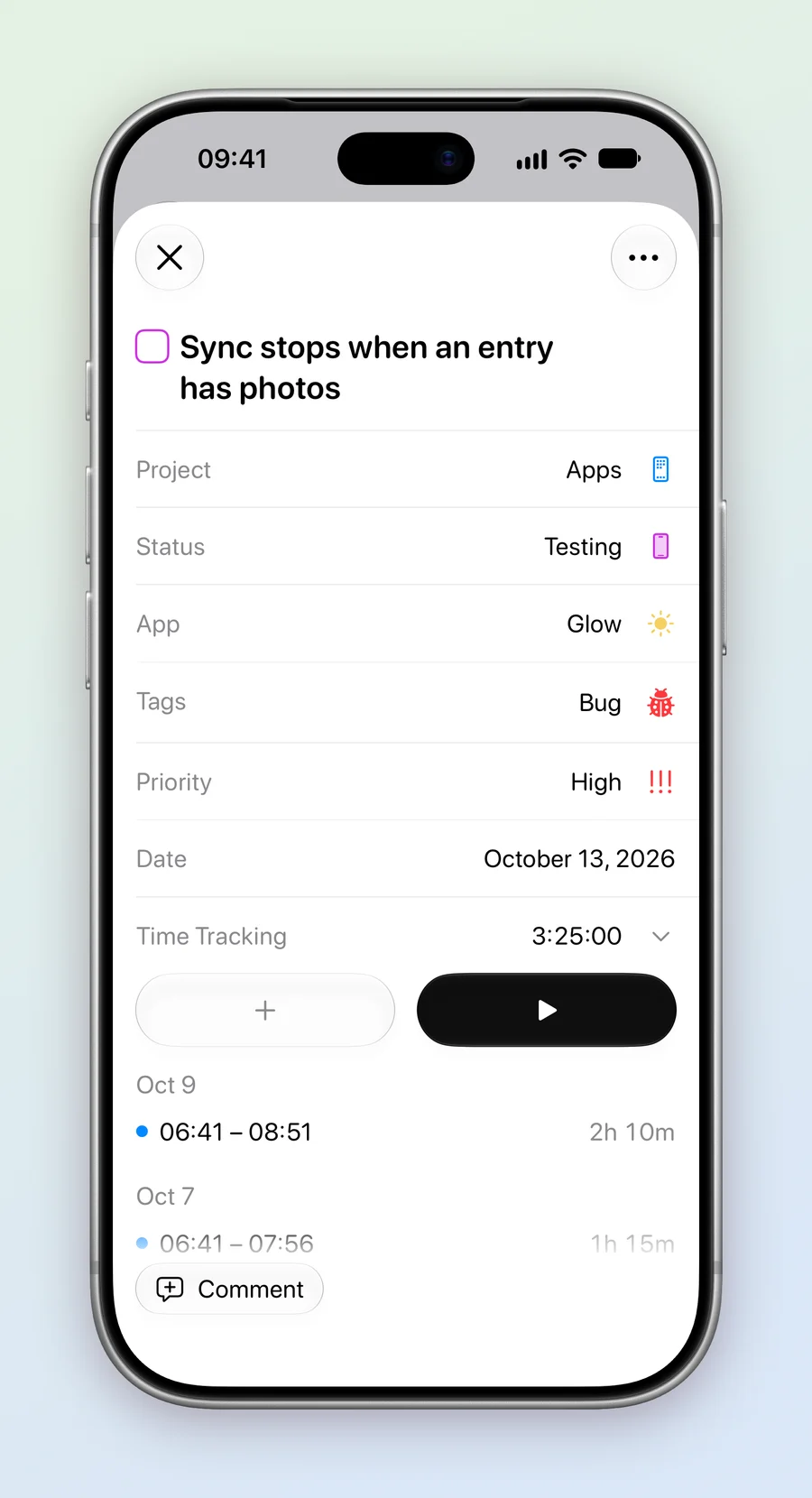
The statuses follow an app’s own path to the App Store. Testing covers TestFlight and App Review, and moving a task to Shipped completes it.
Not every idea ships, so Canceled is a status of its own. A canceled task gets a cross instead of a tick: it’s finished with, but not counted as done. The Apple Watch app nobody asked for and the crash that never happened again stay on record, with the reason in their notes, instead of being deleted.
If a column like Shipped or Canceled gets in the way, hide it. Expand Apps in the sidebar, then Status, long press the status and choose Hide status on board, then Yes. The board drops that column, and its tasks stay one tap away under Status in the sidebar. The statuses guide has more on done, canceled and hidden columns.
One app at a time
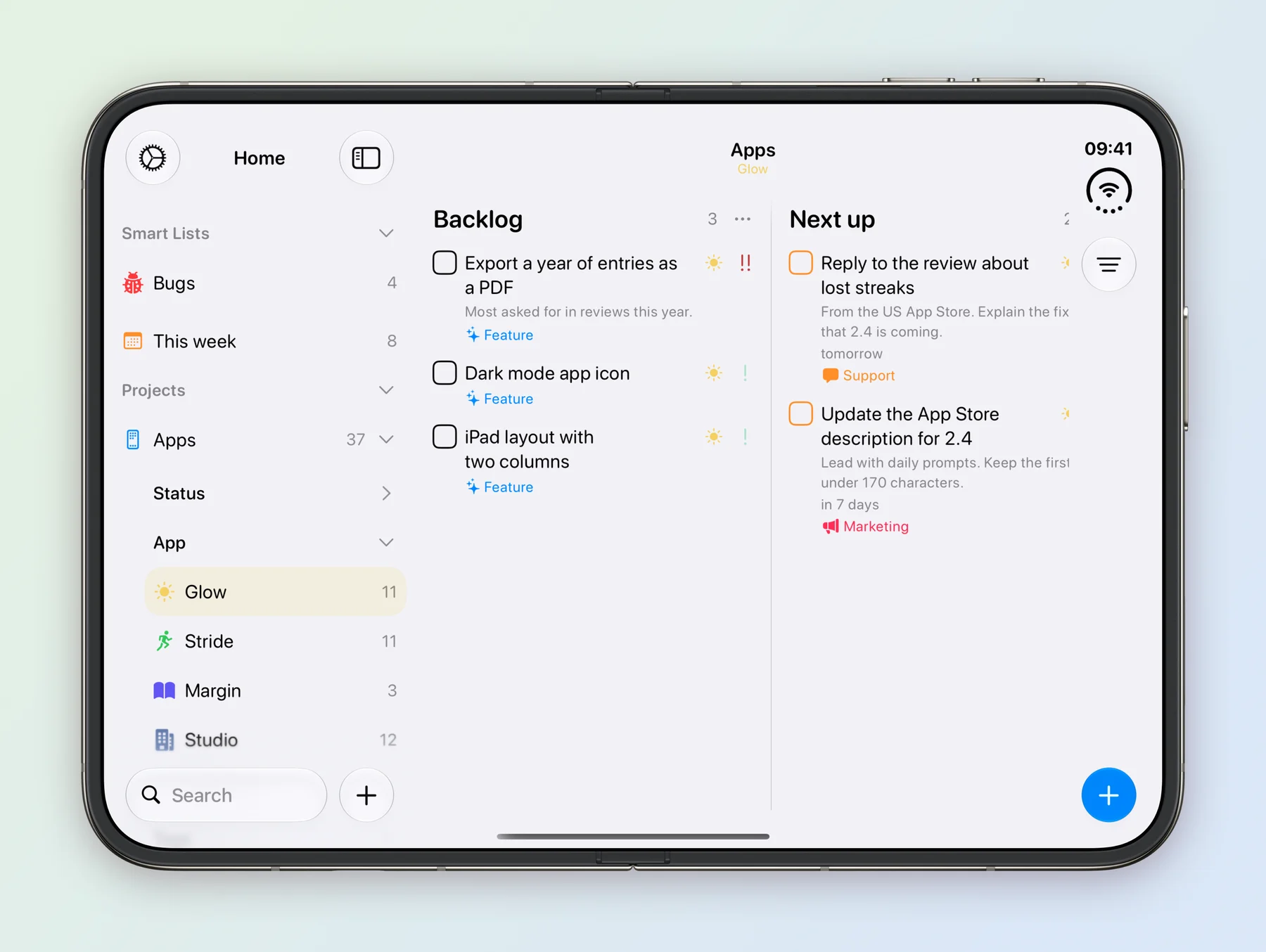
The App field does the sorting. On the Home screen, expand Apps, then App, and each app is listed with a count of its open tasks. Tap one, such as Glow, to see only that app’s board.
We considered one project per app, grouped in a folder. It reads nicely in the sidebar, but a bug list or a weekly view across every app then needs a Smart List for each question, and every new field has to be added three times.
The same steps for every release
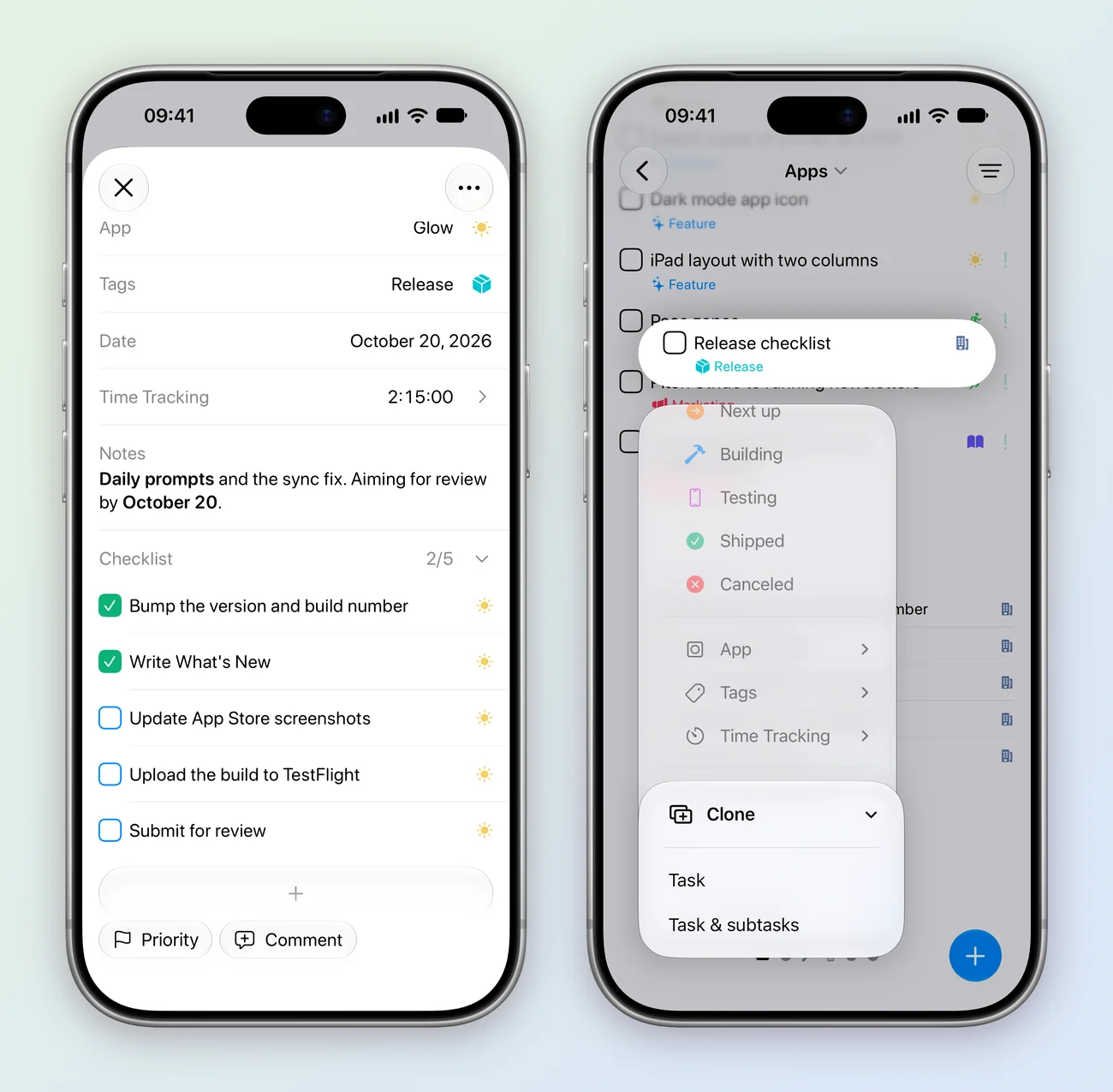
Each release is a task tagged Release, such as Glow 2.4, and its steps are subtasks in the Checklist field. Ticking a step marks it done on the release, so 2/5 shows how far the release has come.
The steps are the same every time, so the project keeps a template: a task called Release checklist, under Studio, with all five steps unticked. For the next release, long press it, choose Clone, then Task & subtasks. Rename the copy to the version, set its App and its date, and the checklist is ready.
Bugs by how bad they are
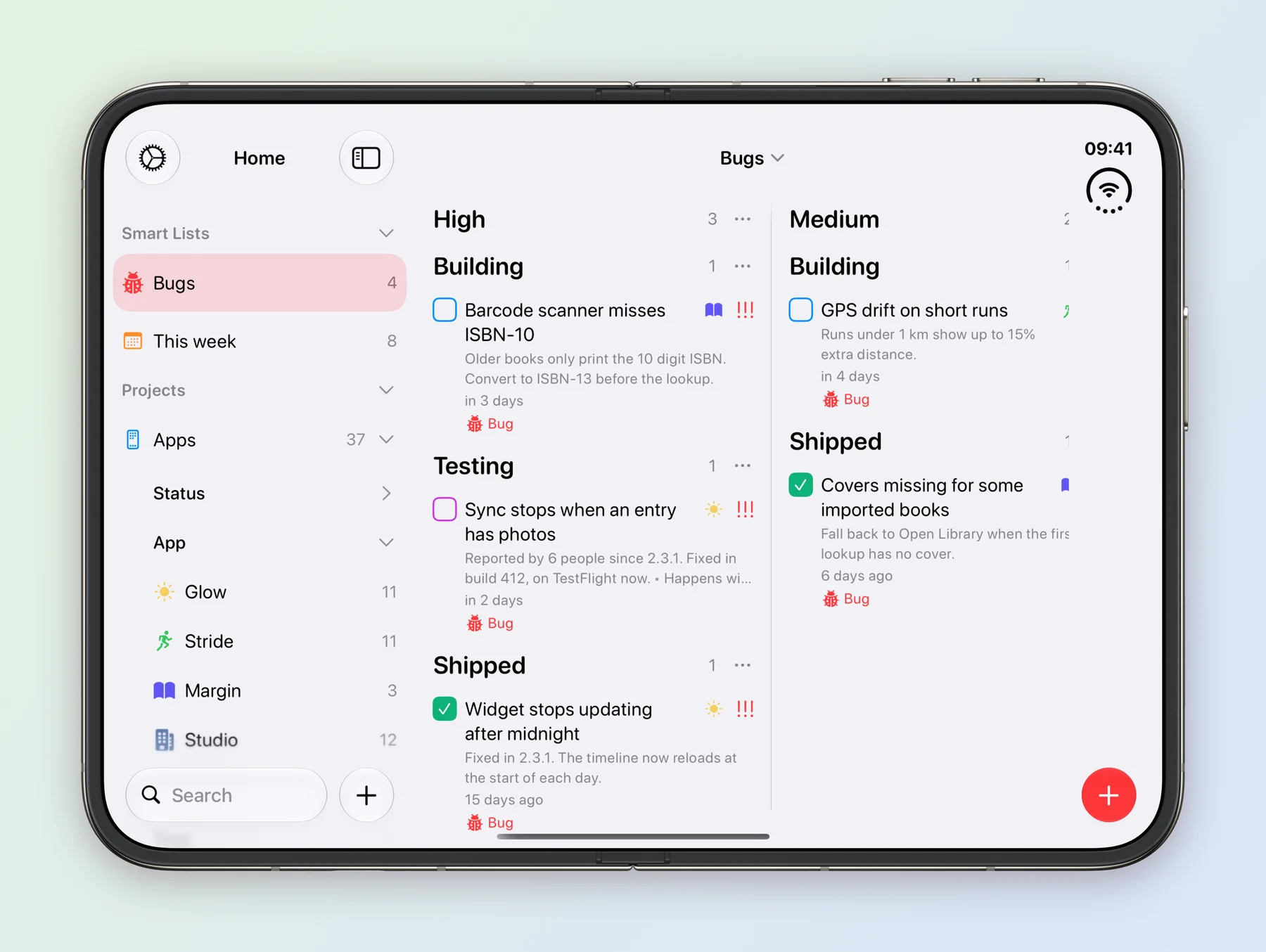
A Smart List gathers the bugs from all three apps. Bugs looks in Apps for the Bug tag and groups what it finds by Priority, so High, Medium and Low each get a column, with every bug’s stage inside it. To make one, tap + on the Home screen, then More, then Smart List. Smart Lists are part of Tasks Plus.
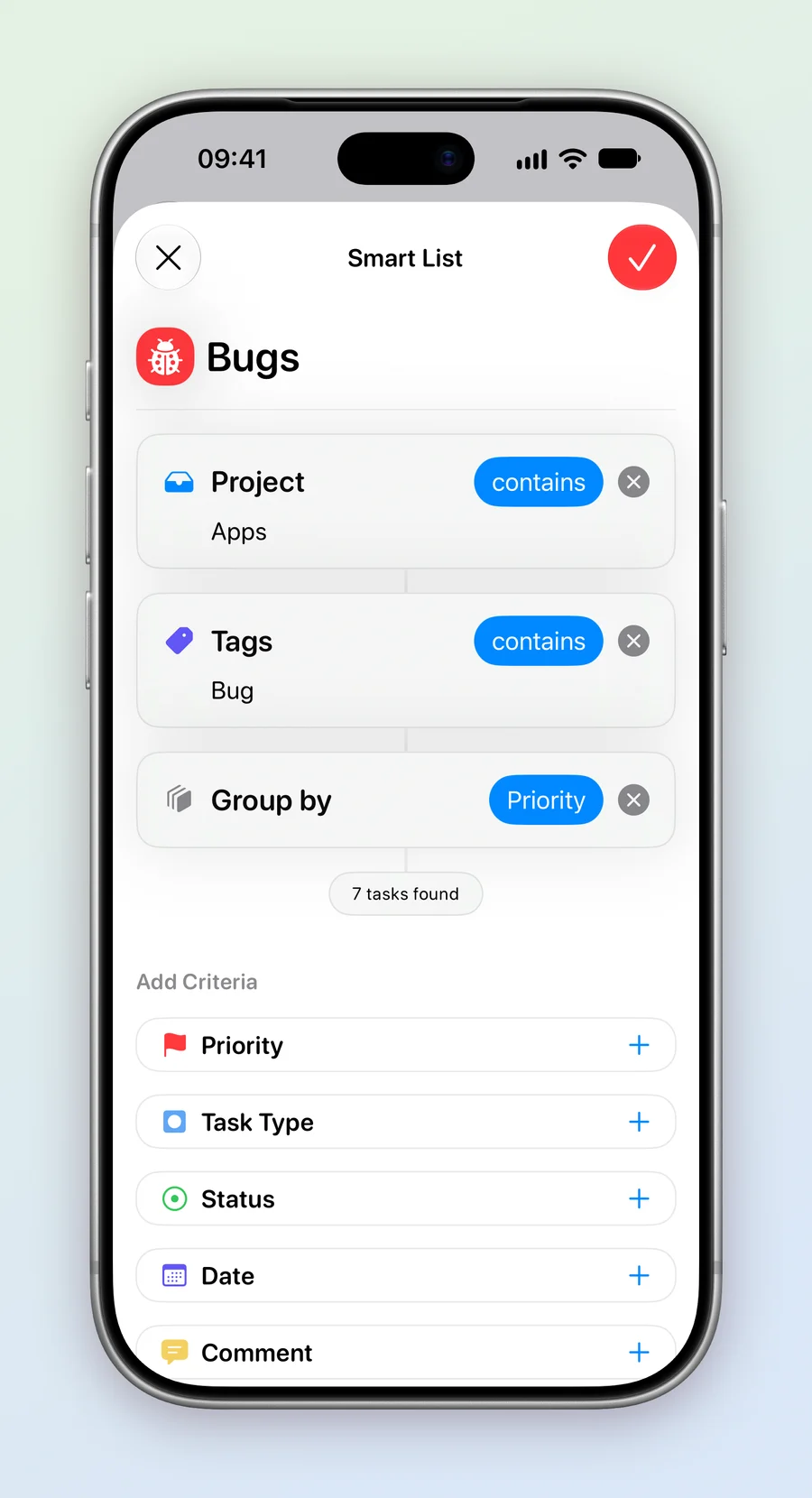
Bugs leaves Status out on purpose, so fixed bugs stay in the list under Shipped. That makes it a record of what each release fixed, which is handy when writing What’s New. To see only open bugs, add Status and turn on Hide completed tasks.
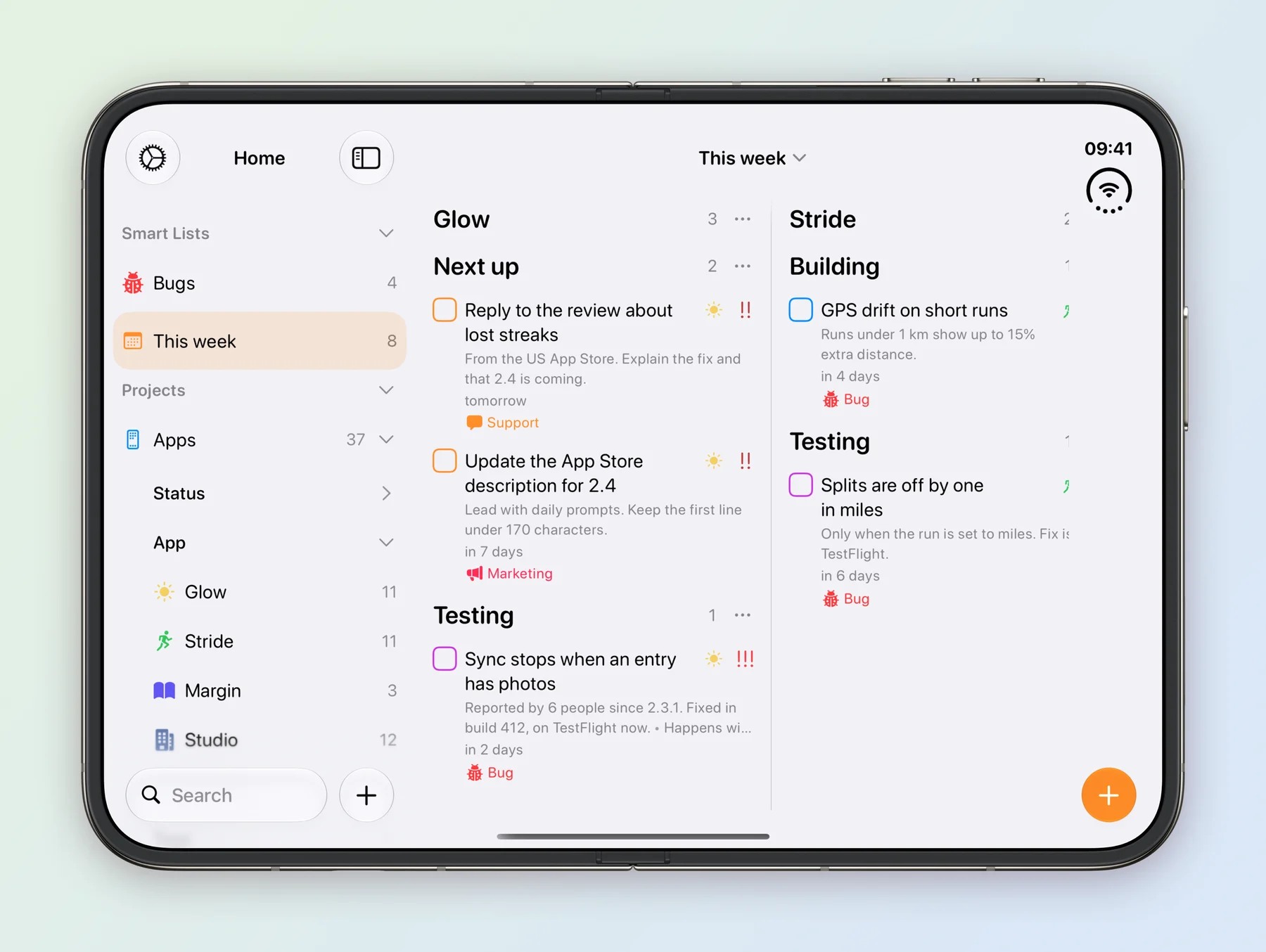
A second Smart List, This week, answers the Monday question: what is due in the next 7 days? It uses Date set to Next 7 days, hides completed tasks and groups by Task Type, so each app gets a column.
The business side
The work that keeps the apps on sale repeats, each on its own schedule:
| Task | Repeat |
|---|---|
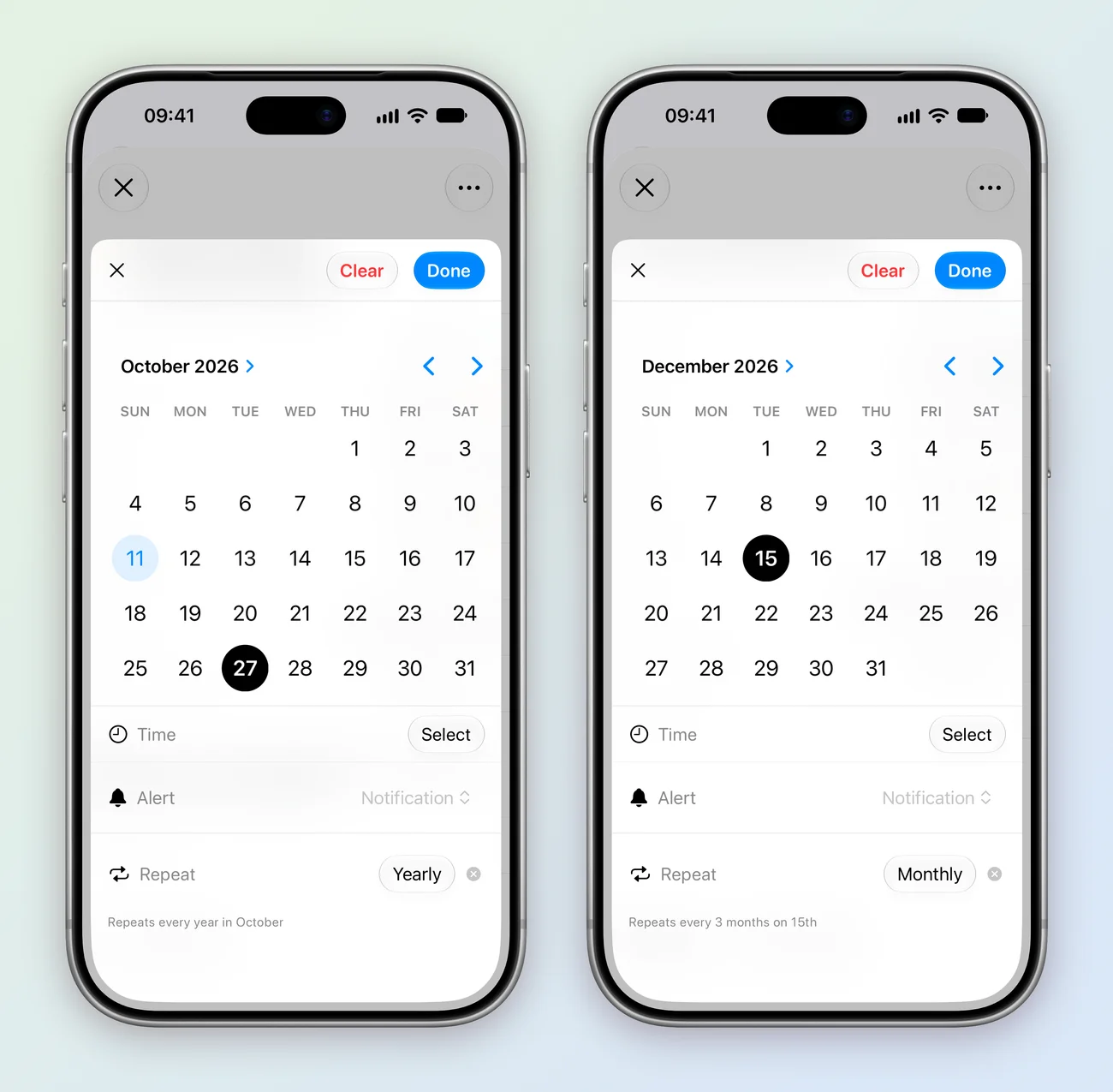
| Renew the Apple Developer Program | Yearly, in October |
| Check App Store Connect agreements | Yearly, in January |
| Renew domains | Yearly, in February |
| Pay estimated taxes | Every 3 months, on the 15th |
| Send the monthly newsletter | Monthly, on the 1st |
| Review sales and crash reports | Weekly, on Mondays |
Mark one done and Tasks moves it to its next date. The developer membership is the one that matters most: if it lapses, the apps come off the App Store. Its task is dated a week before the expiry, which is in its notes, so there is time to sort out a card problem. To set a repeat, open the task’s Date, then Repeat.
Where the time goes
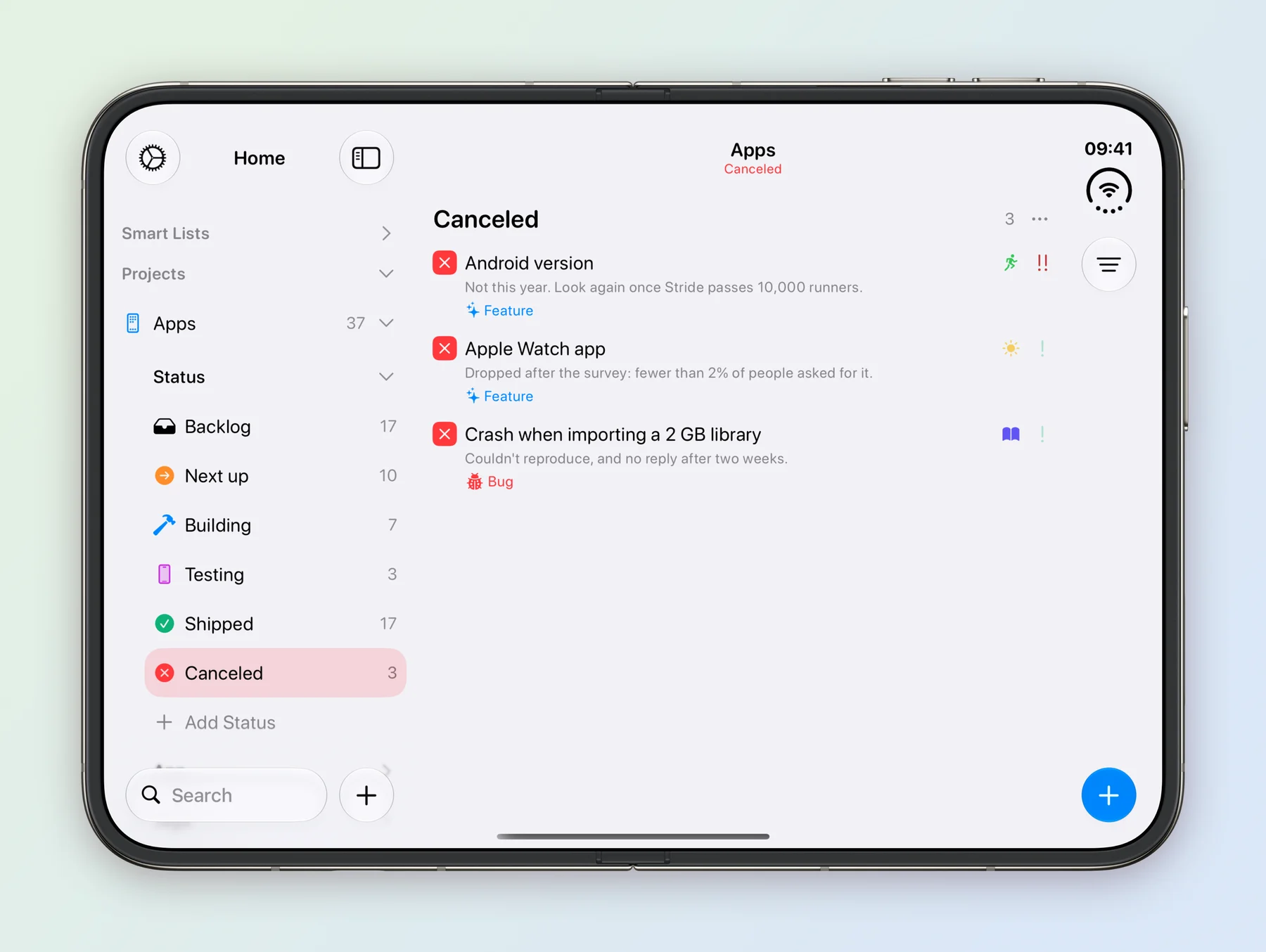
Every task has a Time Tracking field. Long press a task, open Time Tracking and choose Start Timer, and the timer runs on the Lock Screen while you work. Each session is kept with the task, so it is easy to see that the photo sync bug took three and a half hours over two sessions. The time tracking guide has more.
Your coding assistant on the board
The busiest collaborator a solo developer has is often the AI assistant writing code with them. Tasks has an MCP server, so Claude, ChatGPT, Codex and other assistants that support the Model Context Protocol can work on the Apps board directly, the same way a teammate would.
- Add
https://api.thetasks.app/mcpto your assistant as a custom connector. In Claude Code, that’sclaude mcp add --transport http tasks https://api.thetasks.app/mcp. - Sign in with Apple when the Tasks page opens, and tick Apps under Which projects can it use?
- The assistant appears in Tasks under Settings, then AI Assistants, marked Active, and in Apps it shows as an Agent.
Working with an assistant in a project needs a project on Tasks Cloud, the same as sharing with a person. The AI assistant guide has the steps for Claude, ChatGPT, Codex and others.
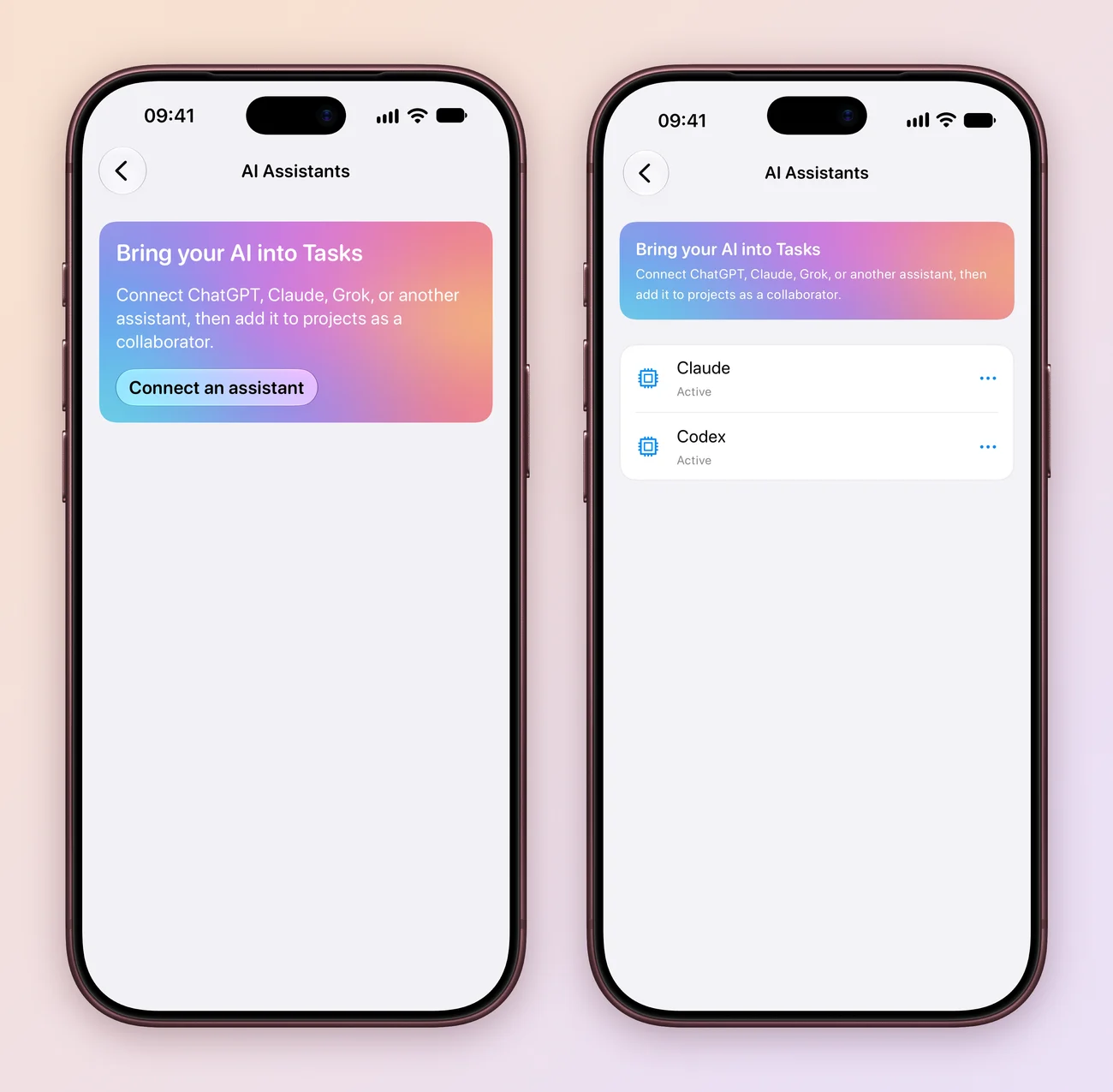
From then on the board is shared context. The assistant reads the same fields you do, so it knows which app a bug belongs to, how bad it is and where it stands:
| You ask | The assistant |
|---|---|
| “Fix the worst open bug in Glow.” | Finds the Bug tasks for Glow, picks the High one, moves it to Building and starts its timer. When the fix is in, it moves the task to Testing and comments with what changed. |
| “File this crash log as a Stride bug.” | Creates a task in Apps with App set to Stride, the Bug tag, a priority and the stack trace in its notes. |
| “What’s left before Glow 2.4 can ship?” | Reads the Glow 2.4 checklist and the open Glow bugs, and lists what’s still to do. |
| “Draft What’s New from what shipped this month.” | Reads the tasks in Shipped and writes the release notes from them. |
The assistant’s timer runs on your Lock Screen while it works, and its time lands in the task’s Time Tracking, next to yours. Its comments notify you the way a person’s would, so you hear when a fix is ready to test, not every step along the way. To hand a task over outright, add an Assigned to field and pick the assistant, or type + and its name in the title.
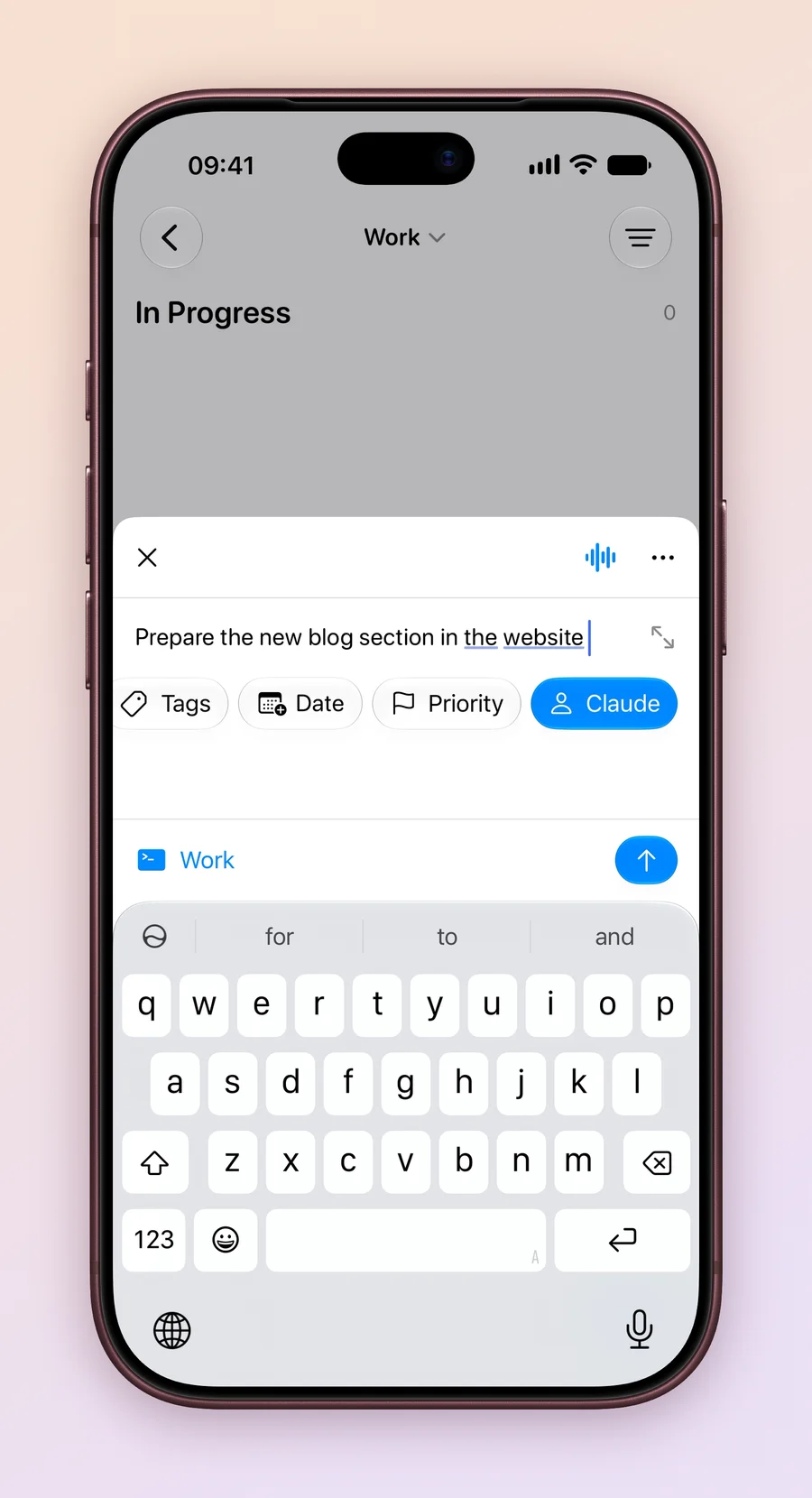
We build Tasks this way ourselves. The coding assistants working on the app log every bug they run into as a task, run a timer on what they’re doing and comment when something needs a decision.
What we learned
- One field can do the sorting. A renamed Task Type turns a flat list into one board per app, with no extra projects to keep in step.
- A template beats a habit. A release checklist kept as a task, cloned with its subtasks, means no step gets forgotten at 1 AM before a submission.
- Keep finished bugs in view. A bug list that includes what shipped doubles as release notes.
- Give the business its own app. Renewals and taxes are easy to miss when they sit between feature work, and easy to see under Studio.
- Let the assistant see the board. With MCP, the same fields that sort the work for you tell a coding assistant what to pick up, and its progress shows up where you already look.
Try it yourself
The whole setup is in one file: the Apps project with its fields, 32 tasks across three apps and the studio, plus their checklist steps, a release checklist template, and the Bugs and This week Smart Lists.
- Download Apps.tasks on your iPhone, iPad or Mac.
- Tap the file, in your downloads or in Files. It opens in Tasks.
- Import Data? tells you what it will add. Tap Import, and Apps appears on the Home screen.
If tapping the file doesn’t open Tasks, open Settings in Tasks, scroll down to Import Data under Data & Integrations, tap it and pick Apps.tasks.
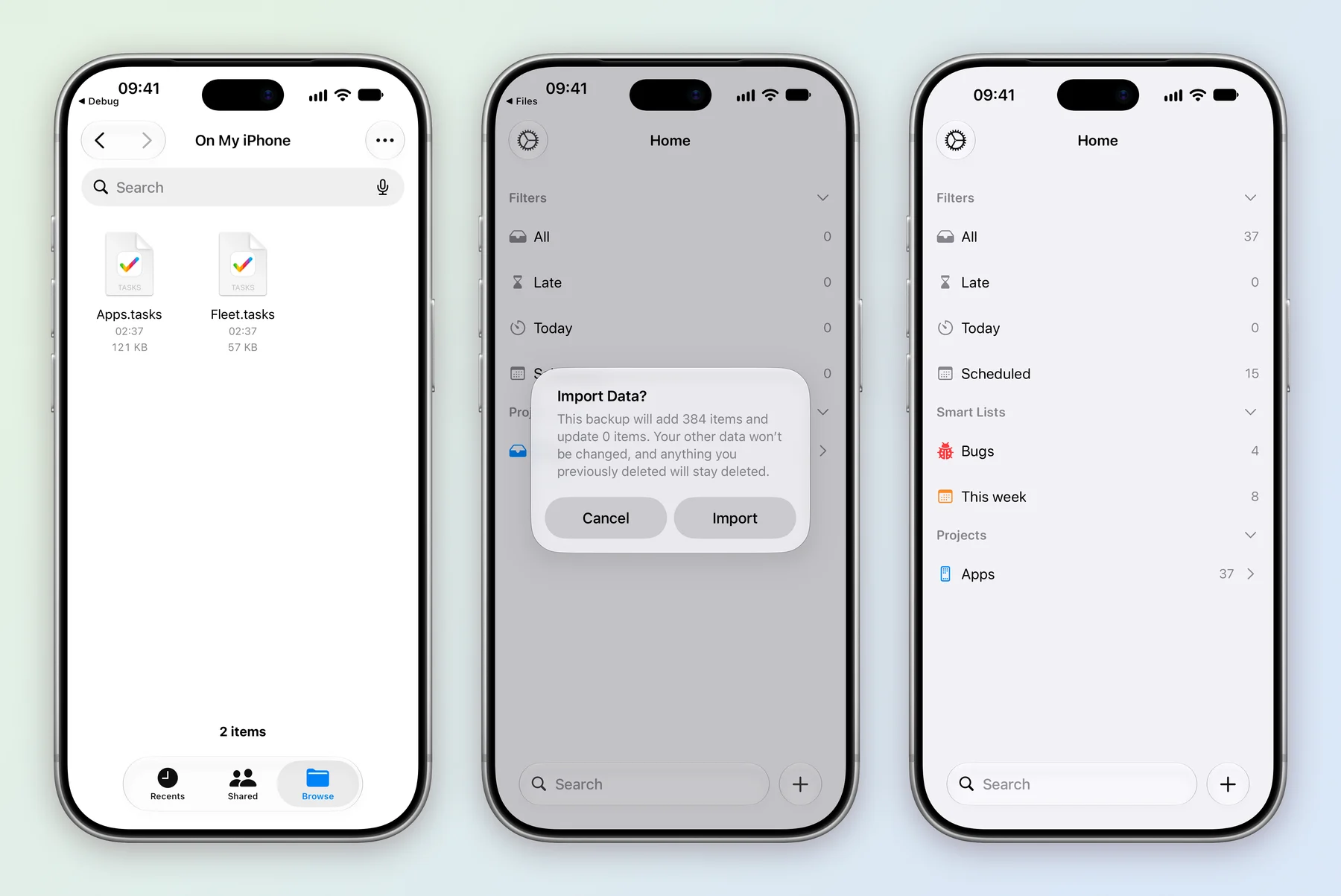
Importing adds the sample next to your own projects and never changes them. The dates are examples, so move them to your own, rename the apps to yours, and delete what you do not need. The backup and import guide has more on how importing works.
This is part of a series of case studies on how people use Tasks; the first was Fleet Maintenance.