A Tasks customer looks after a small personal fleet: a pickup truck, an electric car, a light aircraft, a tractor and a standby generator. Every one of them comes with paperwork and servicing, and none of it lines up. The truck’s registration is due in October, the aircraft’s annual inspection in November, the tractor wants a service before spring, and the aircraft registration only comes round every seven years.
They signed up for a 30 day trial, not sure Tasks was the right app, and wrote in with three questions. This is how we set it up, and the whole setup is yours to import.
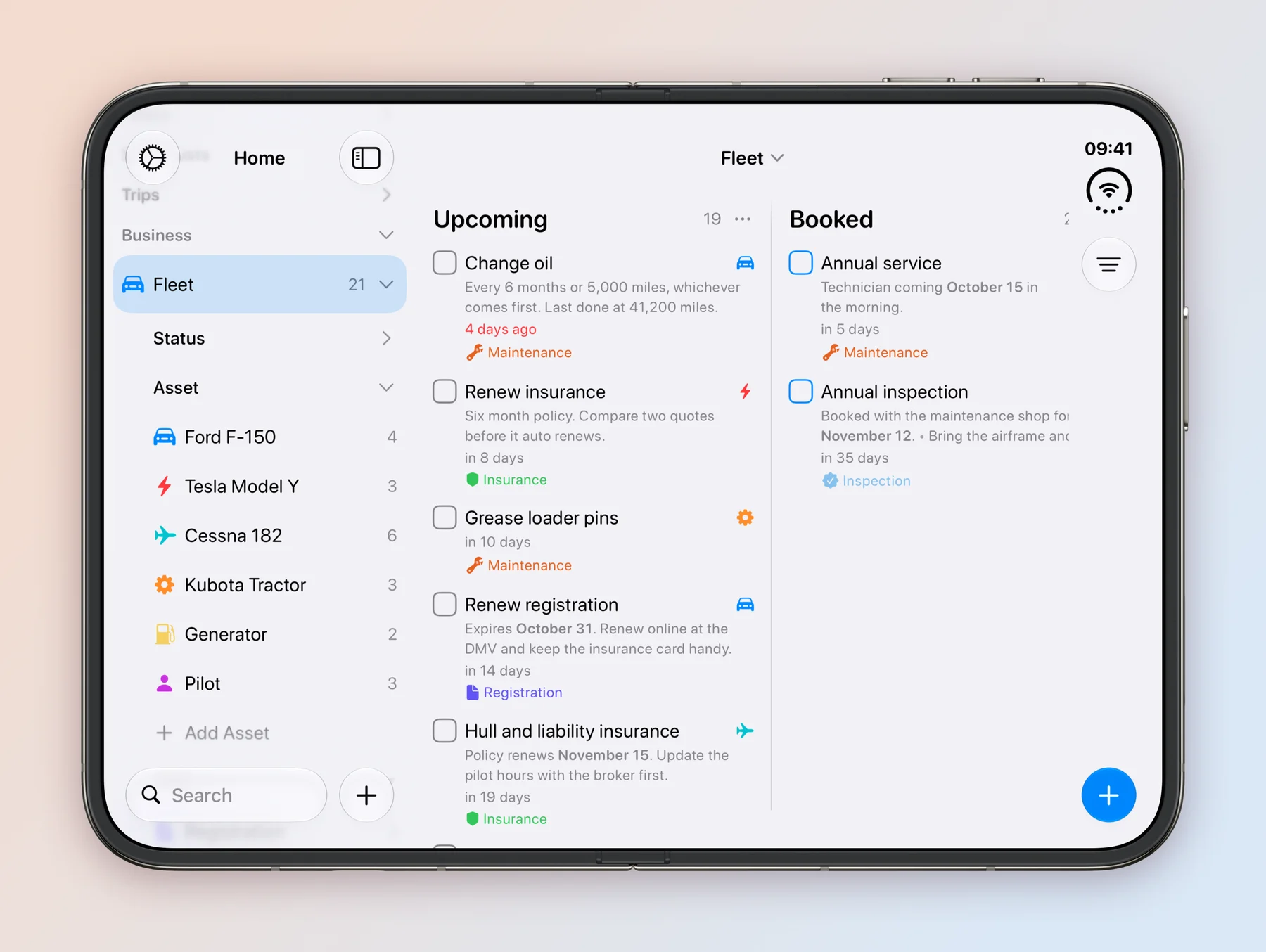
What they asked for
- A screen on the desk. Something that sits there all day and shows what is coming up.
- Organized by vehicle. Not one long list sorted by due date, but each vehicle’s renewals and servicing together.
- Renewals that come back. Finish this year’s registration and next year’s should already be there.
One project, one field per question
Everything lives in a single project called Fleet. One project is what makes it possible to look at the same work in different ways: by vehicle, by kind of job, or by what is due in the next few weeks. Each field answers a question about the job:
| Field | Answers | Values |
|---|---|---|
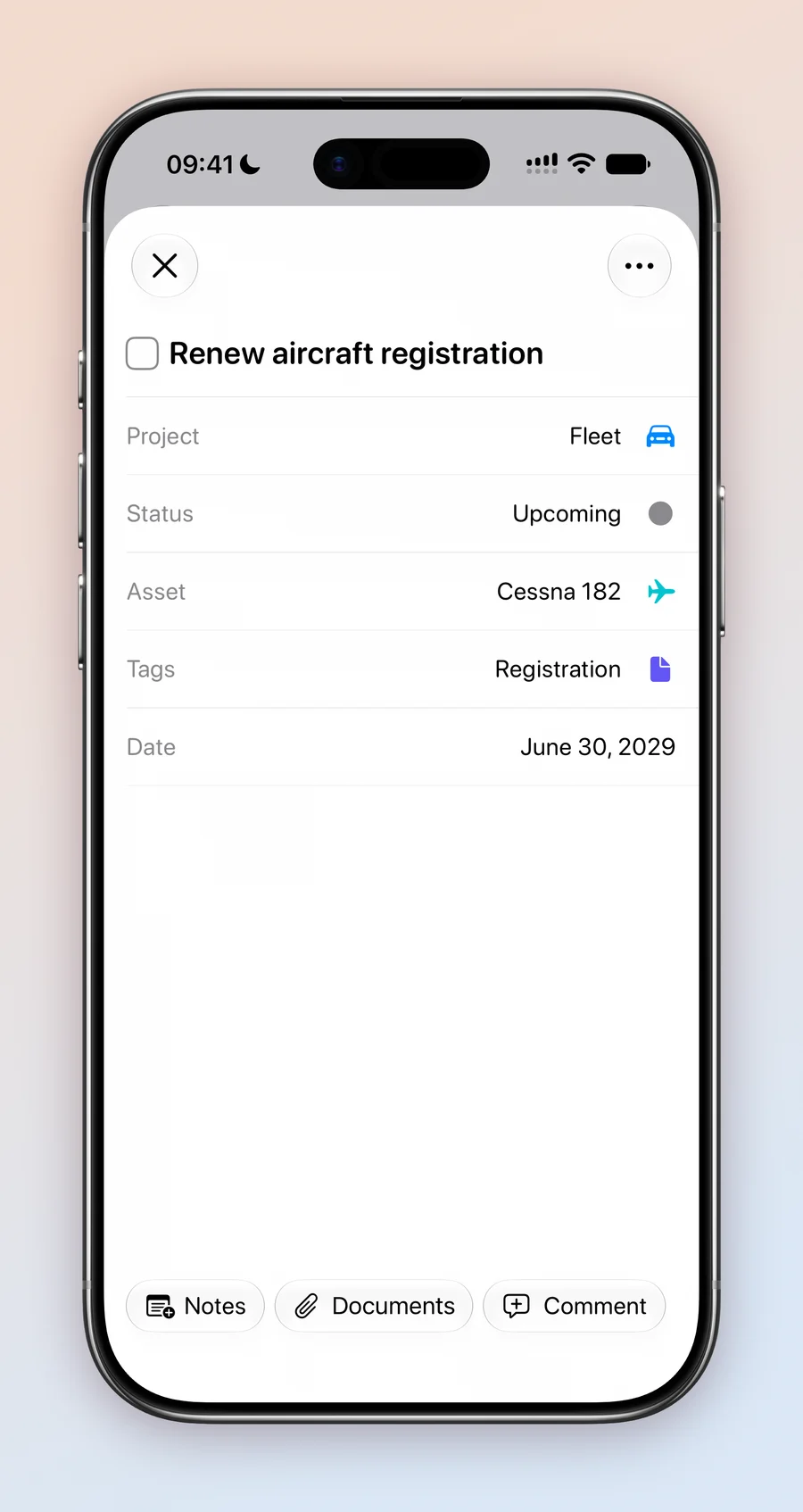
| Asset | Which vehicle? This is a Task Type field renamed to Asset. | Ford F-150, Tesla Model Y, Cessna 182, Kubota Tractor, Generator, Pilot |
| Tags | What kind of job? | Registration, Insurance, Inspection, Maintenance, Licensing |
| Date | When, and how often? | October 24, every year |
| Status | Where is it? | Upcoming, Booked, Done |
| Notes | What do I need to know? | Expires October 31. Renew online at the DMV. |
| Documents | Where is the paperwork? This is an Attachments field. | A scan of the policy |
A Task Type holds one value per task, which is exactly right for Asset: an oil change belongs to one truck. The pilot medical and flight review do not belong to a vehicle, so they get an asset of their own, Pilot.
We considered one project per vehicle, grouped in a folder. It reads nicely in the sidebar, but you have to open each project to see what is due, which defeats the point of a single screen on the desk.
Organized by vehicle
The Asset field does the organizing on its own. On the Home screen, expand Fleet, then Asset, and every vehicle is listed with a count of its tasks. Tap one, such as Cessna 182, to see only that vehicle’s jobs.
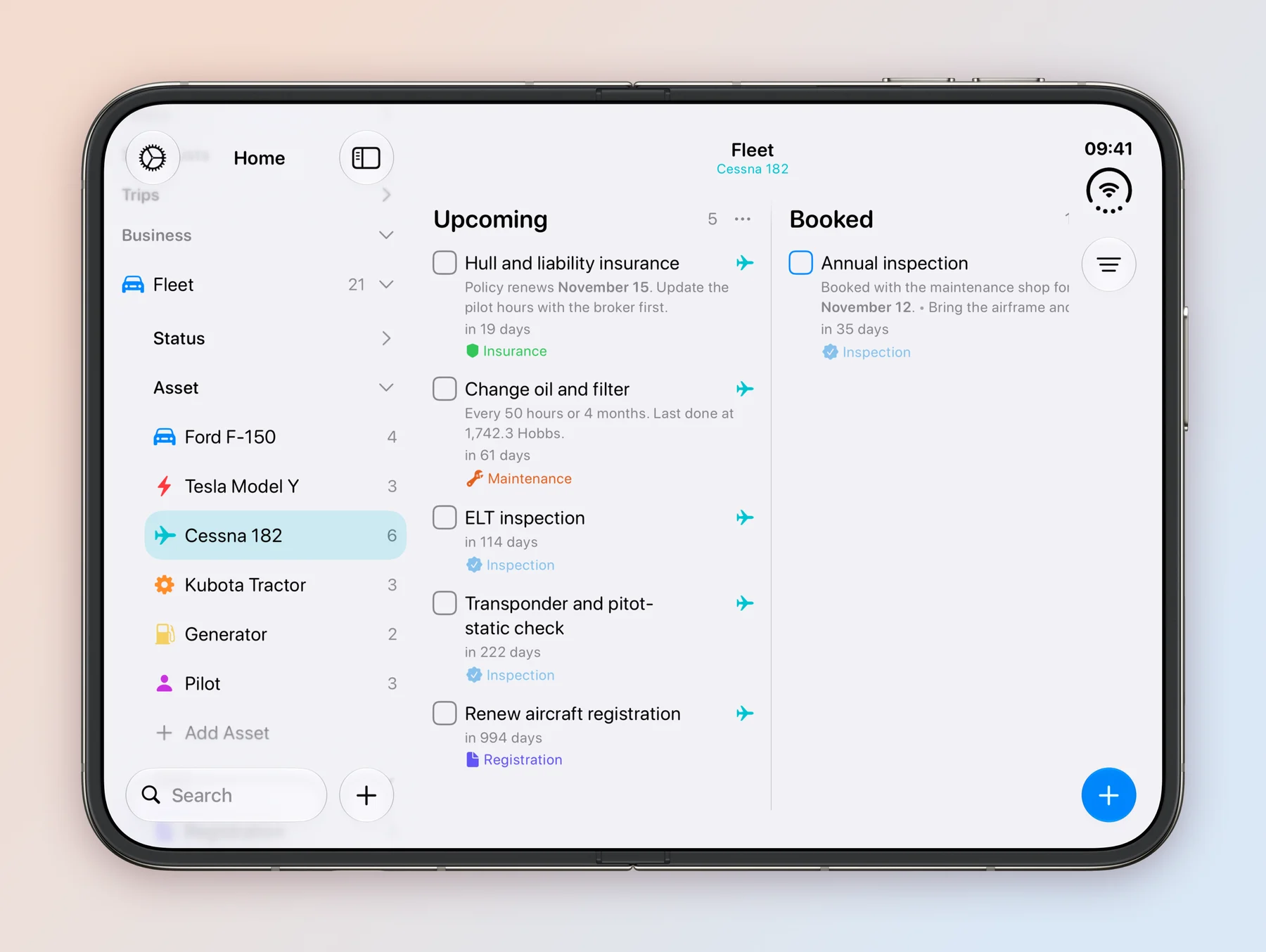
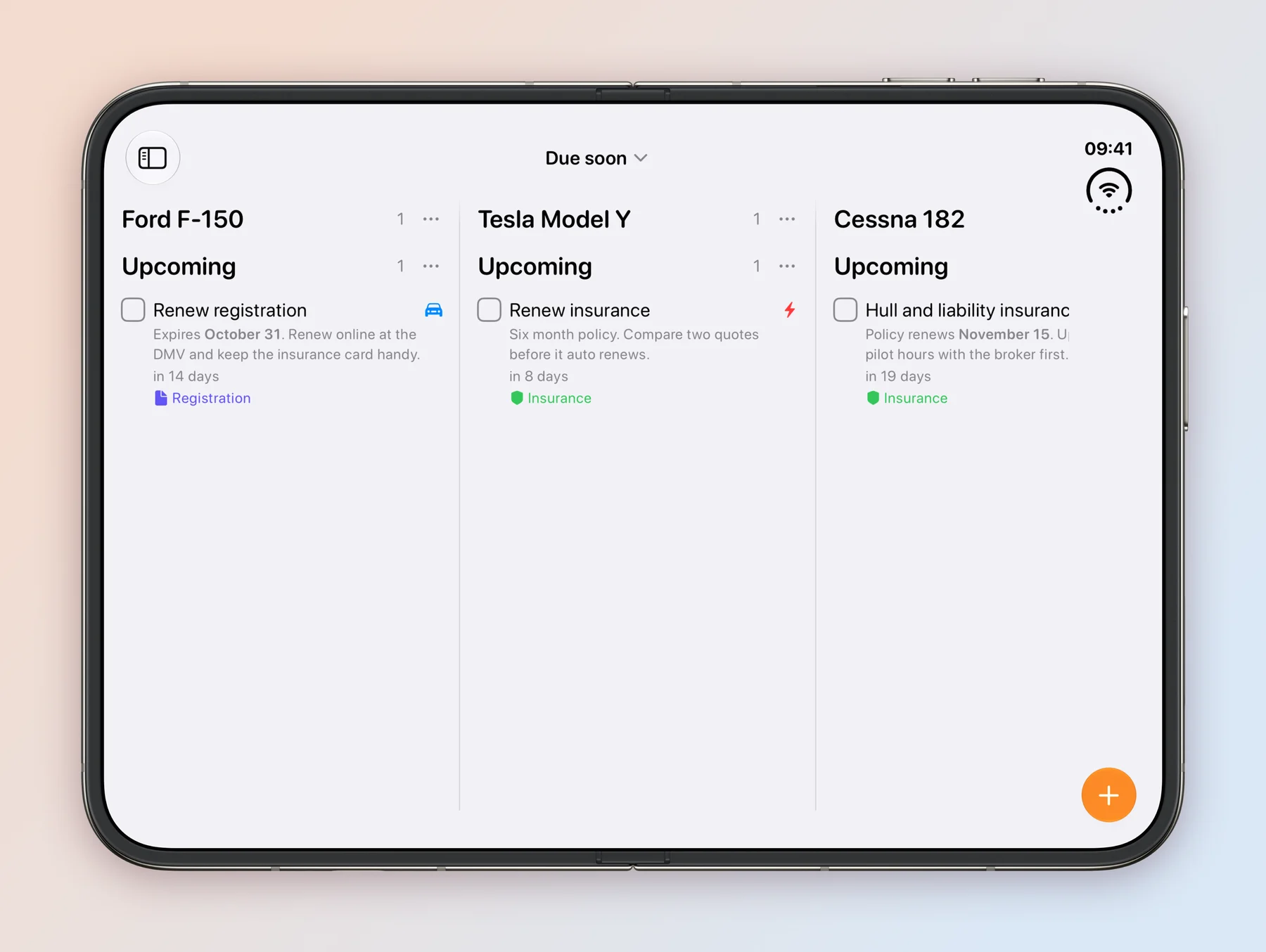
To see the whole fleet at once, open Fleet, tap the filter button, then Group by, then Task Type. The board now has one column per vehicle instead of one per status. The board goes back to status columns when you leave it, so we saved the grouped view as a Smart List called By vehicle: with the board grouped, choose Create Smart List from the filter menu. Smart Lists are part of Tasks Plus.
What is due now
Most of a fleet’s dates are months away. Two more Smart Lists, both grouped by Task Type, keep the screen down to what matters:
| Smart List | Date rule | Shows |
|---|---|---|
| Due soon | Next 21 days | Everything coming up in the next three weeks |
| Overdue | Late | Everything past its date |
Both turn on Hide completed tasks under Status, so a finished job drops out straight away.
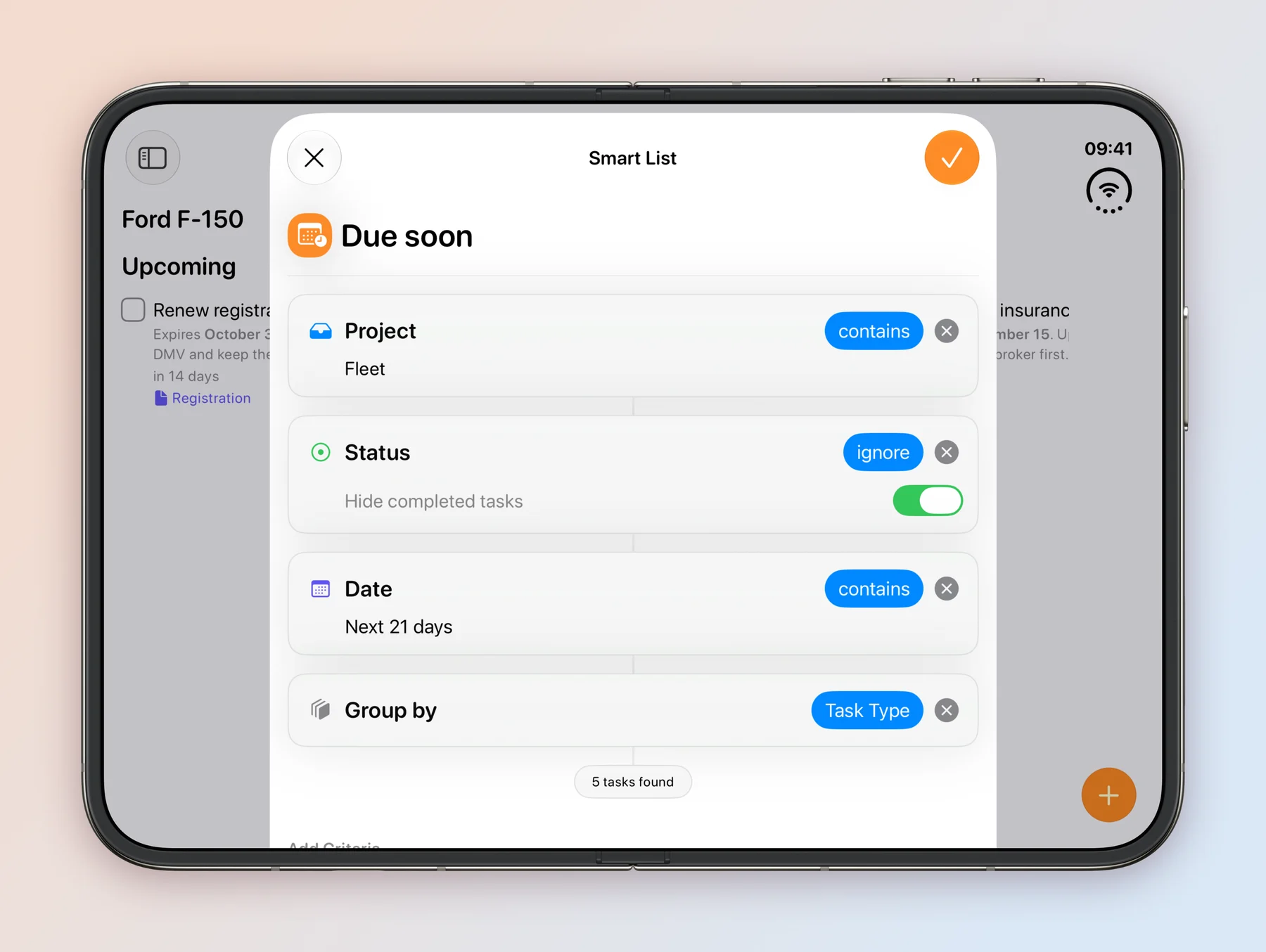
The result answers the first two questions at once. Each vehicle gets a column, and each column holds only what is coming up. As a renewal comes within three weeks, it appears on its own.
Renewals that come back
Every task in the fleet repeats. Mark this year’s registration as done and Tasks moves it to next year’s date, so nothing has to be typed twice. Not everything runs on a one year cycle:
| Job | Repeat | Based on |
|---|---|---|
| Vehicle registration, insurance, annual inspection | Yearly | Scheduled date |
| Car insurance on a six month policy | Every 6 months | Scheduled date |
| Transponder check, flight review, pilot medical | Every 2 years | Scheduled date |
| Aircraft registration | Every 7 years | Scheduled date |
| Oil change, tire rotation | Every 6 months | Completion date |
| Generator test run | Monthly on the 1st | Scheduled date |
Based on is the setting that matters. A registration expires on the same day every year, however late it is renewed, so it counts from the scheduled date. An oil change should come six months after the last one was actually done, so it counts from the completion date: change the oil three weeks late and the next one moves three weeks later too. To set it, open the task’s Date, then Repeat, and pick Yearly or Custom.
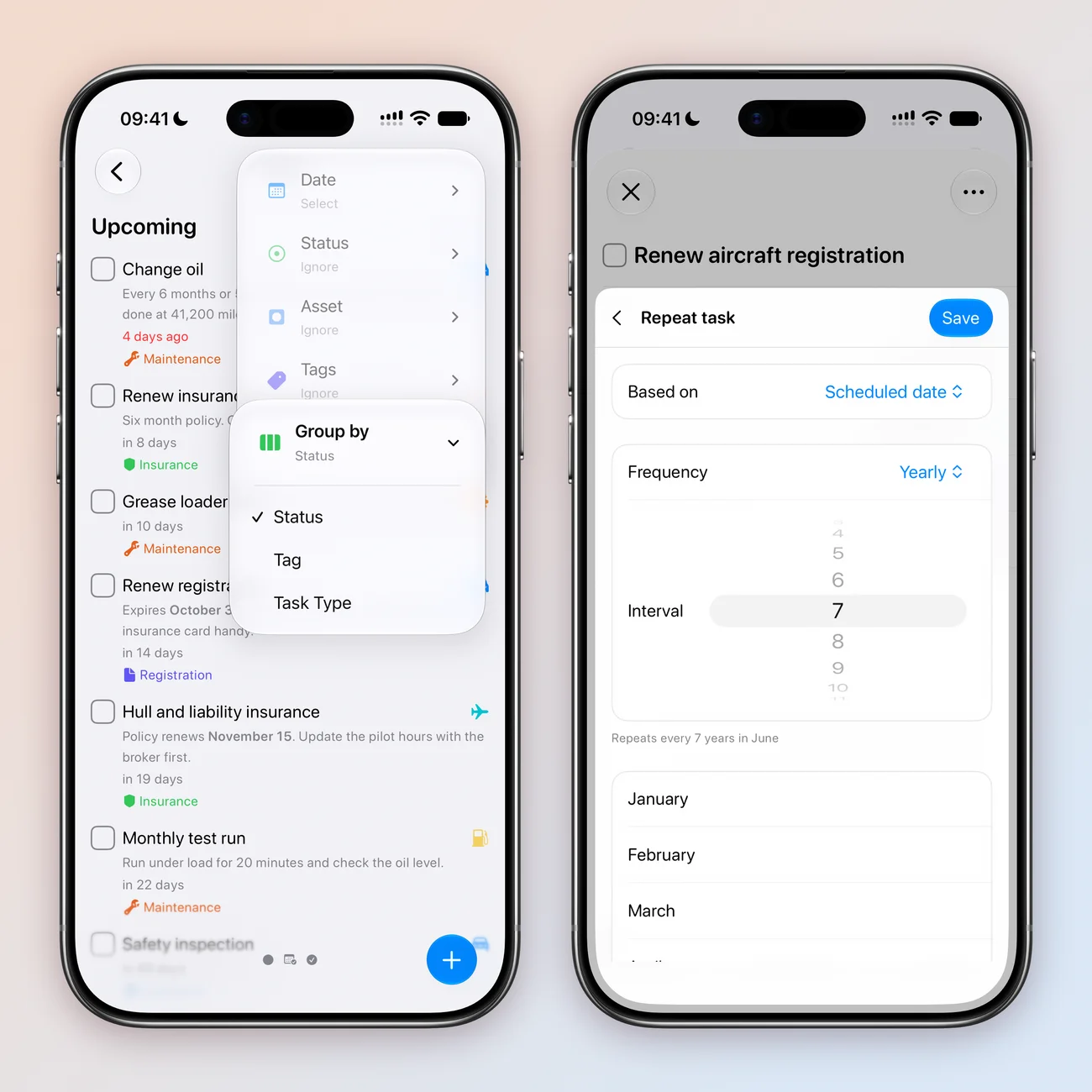
Each task is dated for when to start, not when the paperwork expires. Insurance quotes take a week and a maintenance shop can be booked out for a month, so the expiry goes in the notes and the date sits a week or two earlier. The repeat keeps that head start every year.
The desk screen
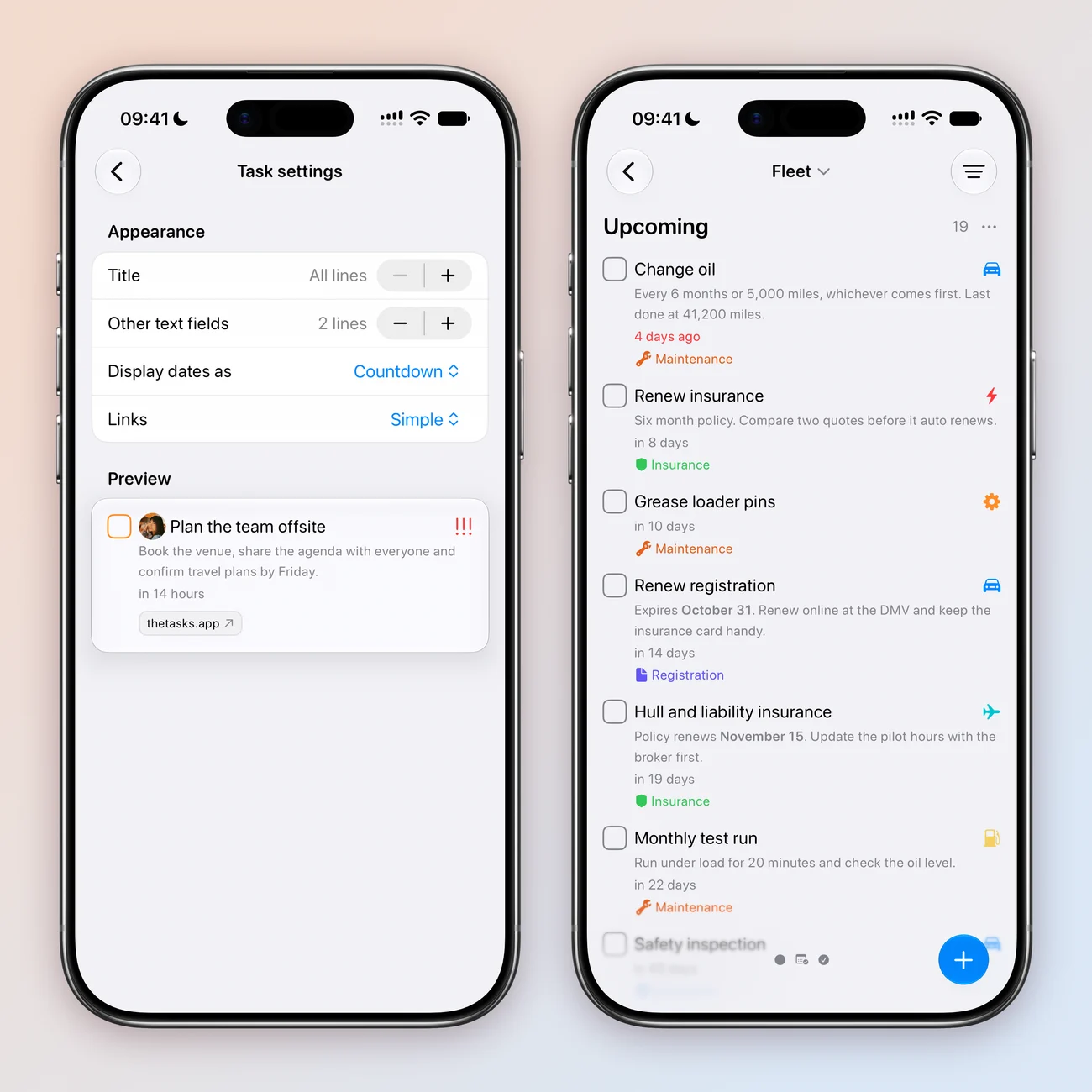
Two settings make the board readable from across a desk. In Settings, then Task settings, Display dates as is set to Countdown, so every card reads in 14 days or 4 days ago instead of a date. Other text fields is set to 2 lines, so each card shows the start of its notes, including the expiry date and the shop’s details.
Then the screen itself. Any of these works, and they stay in sync:
- An iPad on a stand, left open on By vehicle or Due soon, with Auto-Lock set to Never in iPad Settings, under Display & Brightness, while it is plugged in.
- A Mac, with Fleet opened in its own window from its right click menu, made full screen or moved to a second display.
- A widget on the Home Screen or the Mac desktop: Smart Lists and Filters for Due soon, or Projects for Fleet. On an iPhone charging on its side, widgets show in StandBy too. The widgets guide has the steps.
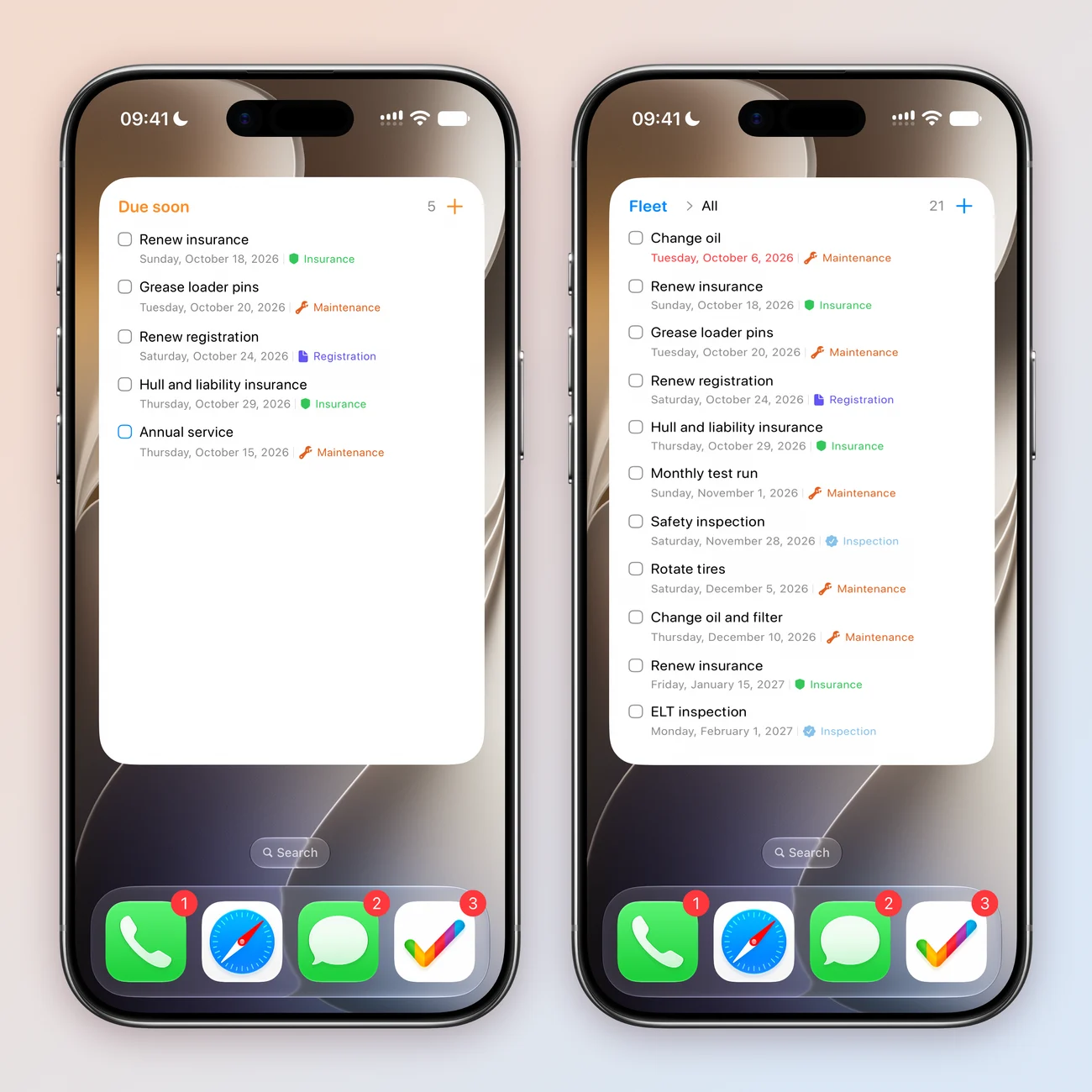
Alerts still arrive on iPhone and Apple Watch, so the desk screen is the daily overview, not the only reminder.
What we learned
- One field can do the organizing. A renamed Task Type turned a flat list into a fleet, with no extra projects to keep in step.
- Save the views you keep coming back to. Grouping a board is quick, but it resets. A Smart List remembers it and keeps itself current.
- Pick the right starting point for each repeat. Paperwork counts from the scheduled date. Servicing counts from when it was last done.
- Tasks counts in days, not miles or hours. For servicing that goes by usage, a completion based repeat that matches typical use gets close, with the latest reading in the notes.
Try it yourself
The whole fleet is in one file: the Fleet project with its Asset and Tags fields, 21 repeating renewals across six assets, and the By vehicle, Due soon and Overdue Smart Lists.
- Download Fleet.tasks on your iPhone, iPad or Mac.
- In Tasks, open Settings and tap Import Data under Data & Integrations.
- Pick Fleet.tasks. Import Data? tells you what it will add. Tap Import, and Fleet appears on the Home screen.
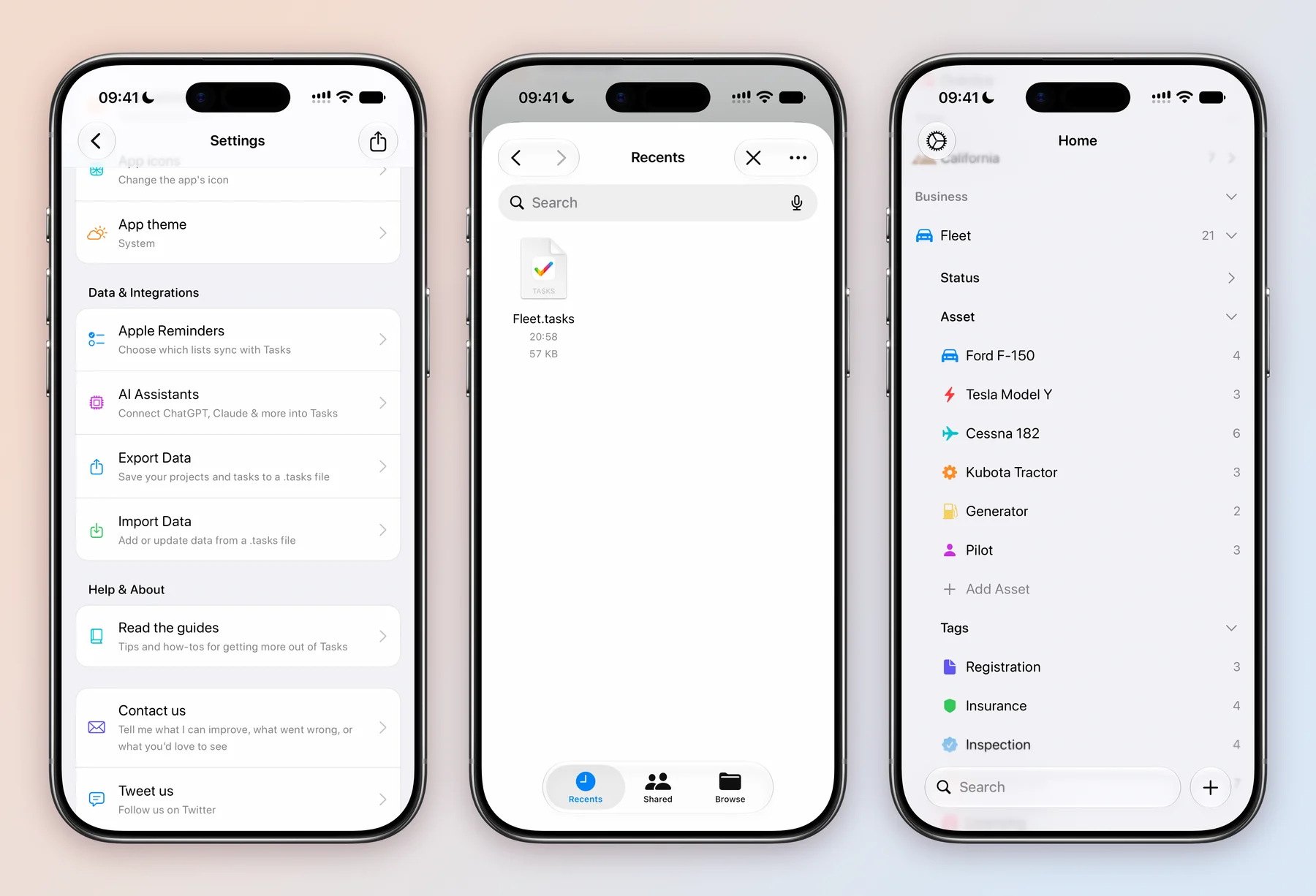
Importing adds the sample next to your own projects and never changes them. The dates are examples, so move them to your own renewal dates, rename the assets to your own vehicles, and delete what you do not need. The backup and import guide has more on how importing works.
Have a setup you would like us to look at? Get in touch. This is the first of a series of case studies on how people use Tasks.