A Tasks customer leads a small marketing team at a software company: a designer, a writer, a social media manager and themselves. We call them Priya, Jordan, Chen and Sofia here. Their work was spread across a spreadsheet, a chat channel and a weekly meeting that mostly asked “where is this at?”
They wanted one board the whole team could share, without the setup of a big project tool. This is how we set it up, and it’s yours to import.
What they asked for
- Who owns what, at a glance, and whether anyone has too much.
- Big launches in pieces, each with its own owner.
- Handoffs that don’t get lost, with the feedback next to the work.
- A weekly view without a meeting to build it.
One shared project
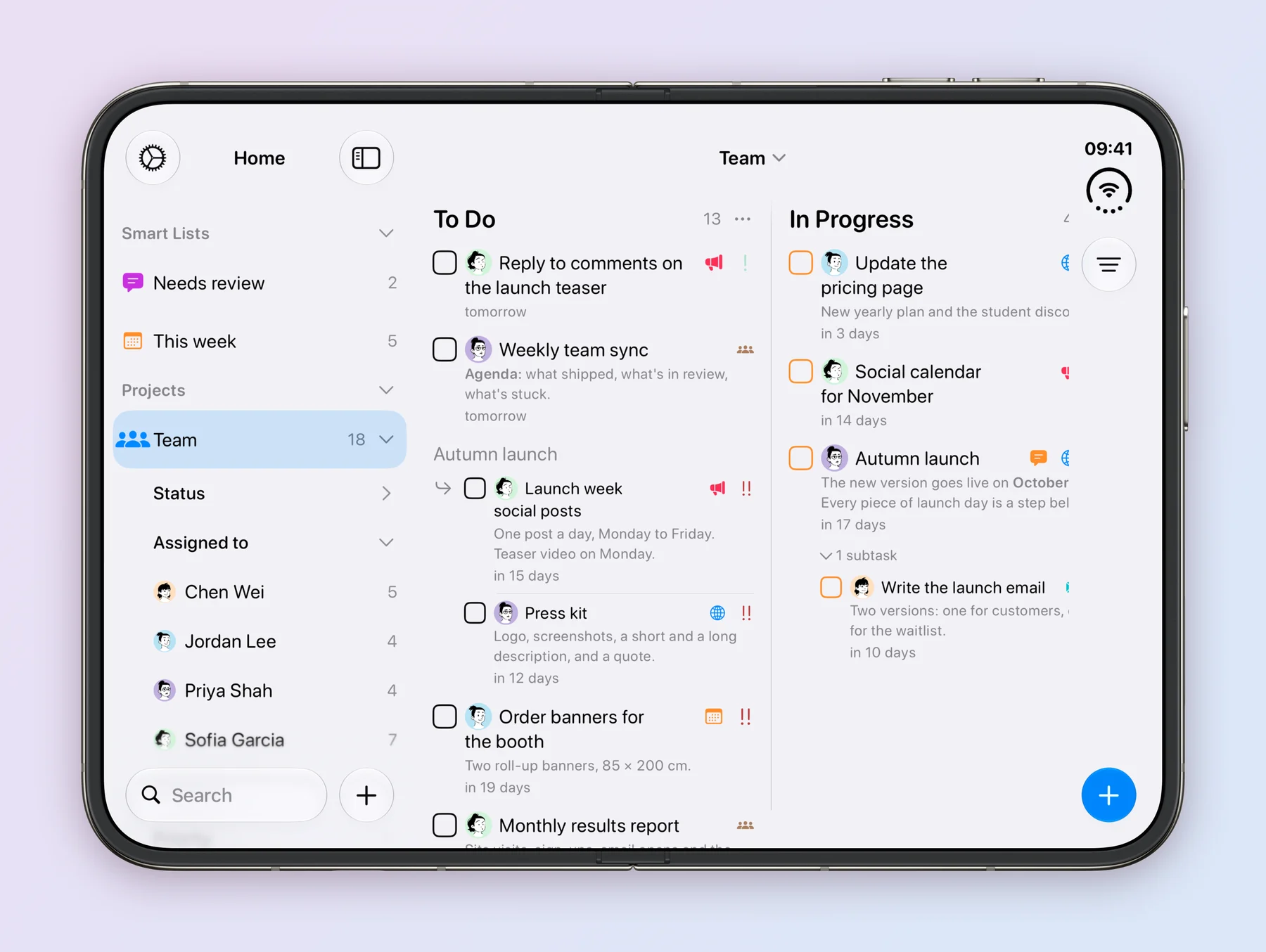
Everything lives in one project called Team, shared with all four of them:
| Field | Answers | Values |
|---|---|---|
| Status | Where is it? | To Do, In Progress, In Review, Done |
| Assigned to | Who owns it? An Assigned to field. | Priya, Jordan, Chen, Sofia |
| Channel | Where will it show up? A Task Type renamed to Channel. | Website, Blog, Social, Email, Events, Team |
| Priority | How much does it matter? | High, Medium, Low |
| Due | When is it due? | October 28 |
| Steps | What are the pieces? A Subtasks field renamed to Steps. | Launch landing page, Press kit |
| Time Tracking | How long did it take? | 4:05:00 |
The statuses follow how the team works. In Review is the one that matters most: it’s where work waits for someone else, so it gets a column of its own.
To share the project, open the menu for Team and choose Invite people, then tap Invite, pick a role, choose Create and send the link. Only the person sharing needs Tasks Plus, and the project has to use Tasks Cloud, which Tasks offers to switch to. The sharing guide has the details.
Who owns what
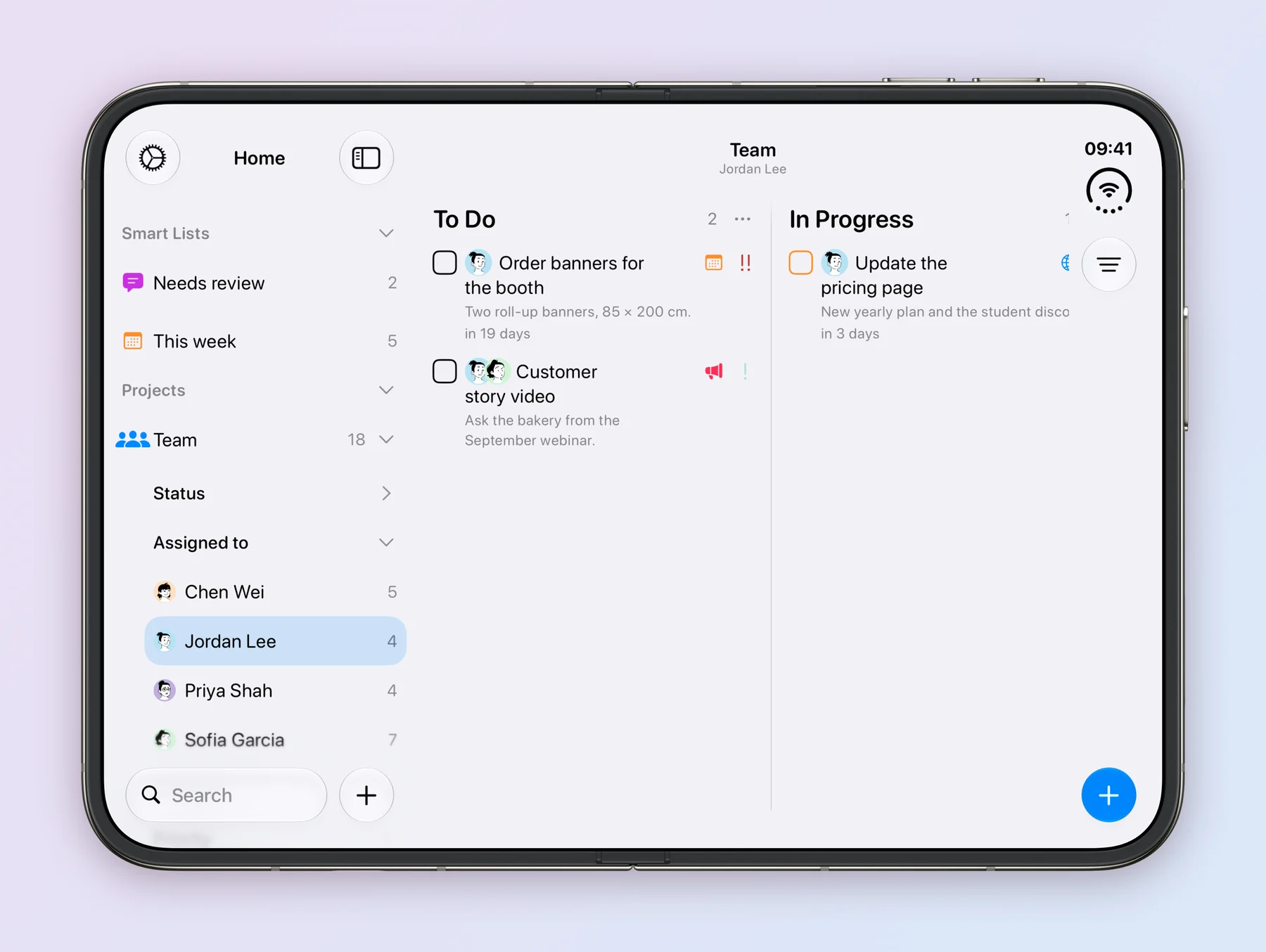
Every task has an owner in Assigned to, and each owner’s face shows on the board. Expand Team in the sidebar, then Assigned to, and everyone is listed with how many open tasks they have, so it’s easy to spot who’s overloaded. Tap a name, such as Jordan Lee, to see only their board.
A launch in pieces
The autumn launch is too big for one owner, so it’s a task called Autumn launch, owned by Priya, and each piece of launch day is a step in its Steps field. Every step is a full task with its own owner, status and due date: Jordan has the landing page, Chen the launch email, Sofia the social posts and Priya the press kit.
Each step moves across the board on its own, under the name of the launch, so the board shows how every piece is doing. 1/5 on the launch shows how many pieces are done.
Handoffs in review
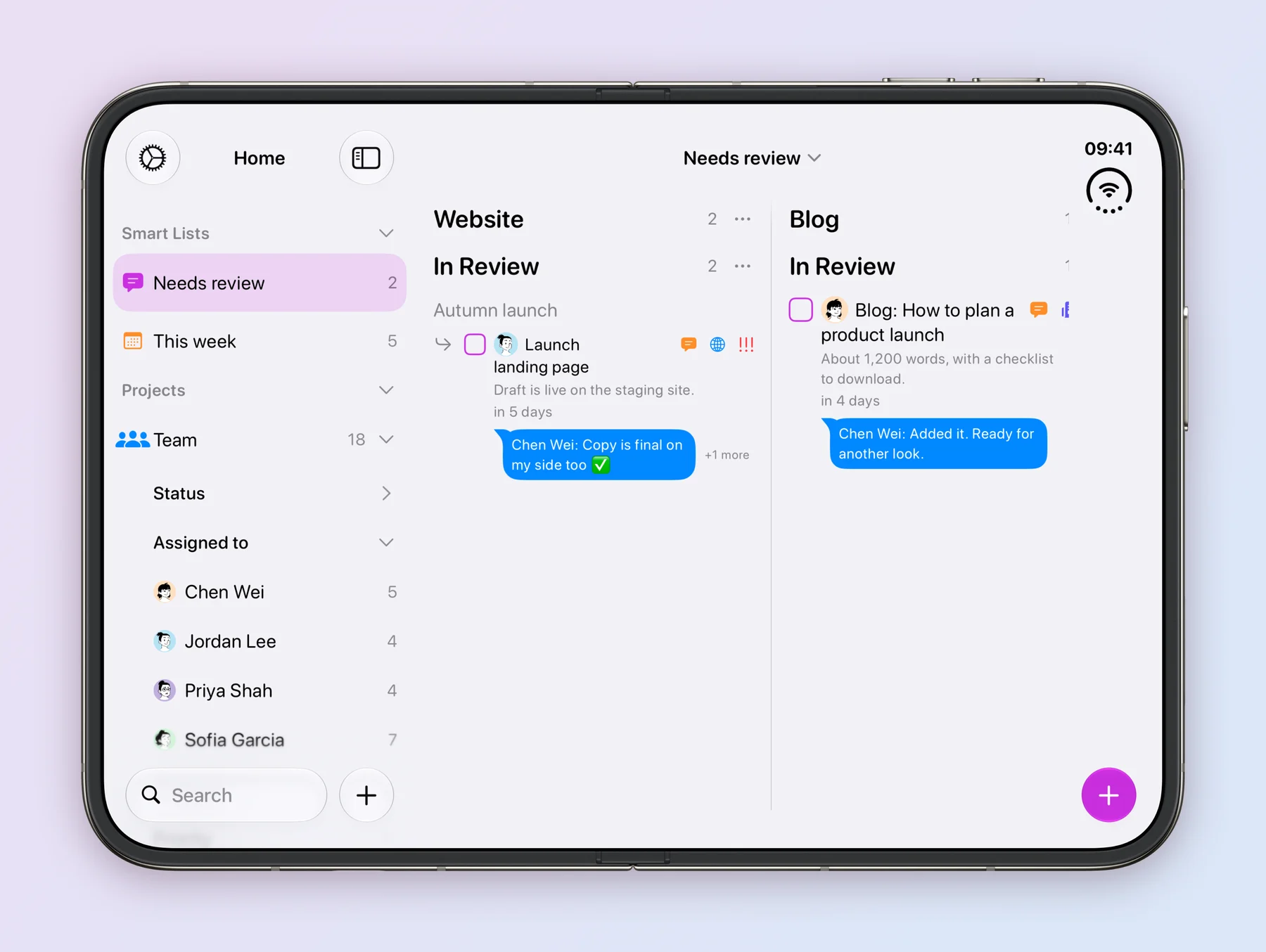
When a piece is ready for feedback, its owner moves it to In Review. The feedback goes in the task’s comments instead of the chat channel, so the decision stays with the work. On the landing page, Priya asks for a different button, Jordan updates it, and Chen confirms the copy is final.
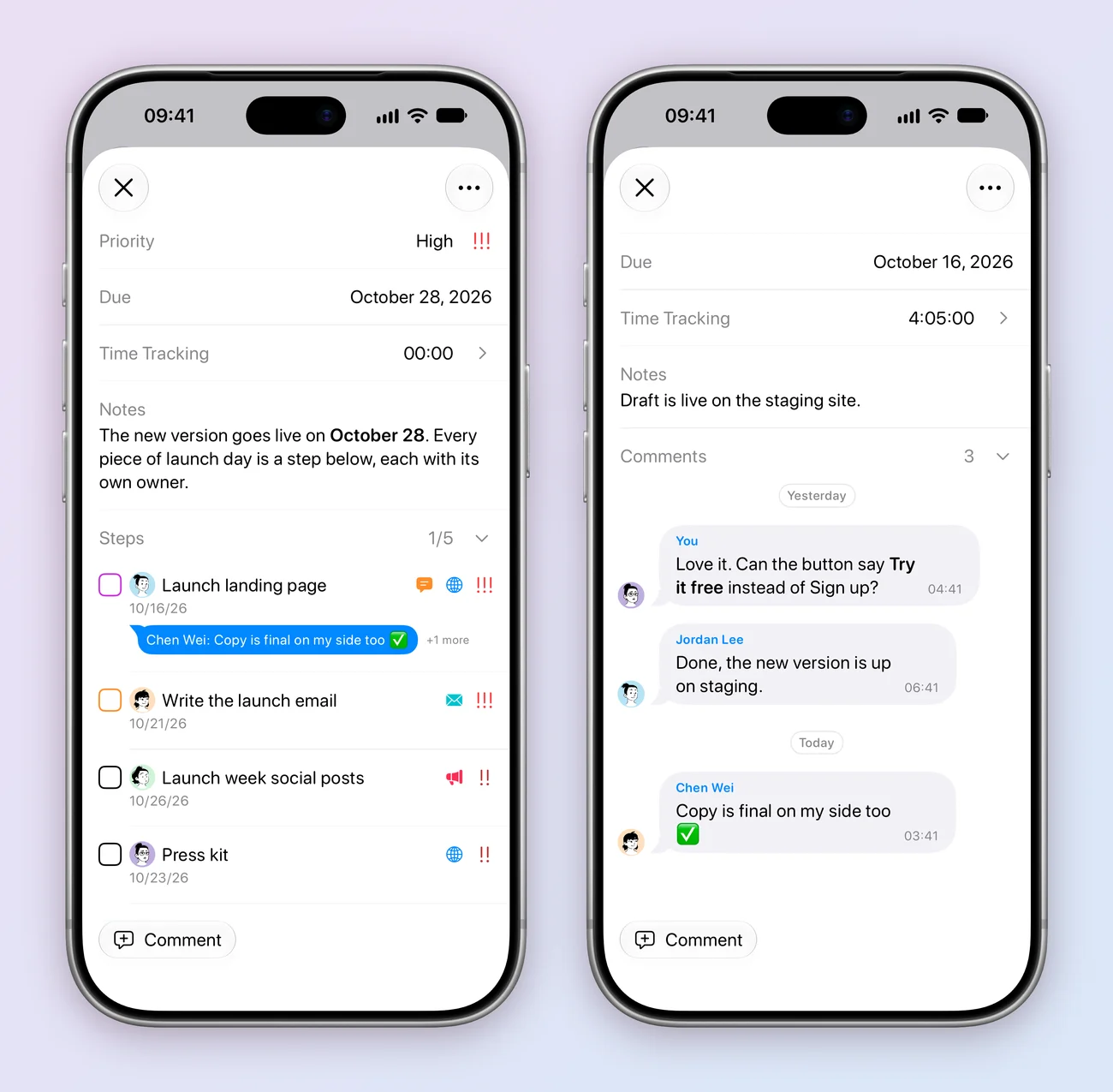
The newest comment shows on the board under its task, and a new one shows a blue dot until you’ve read it.
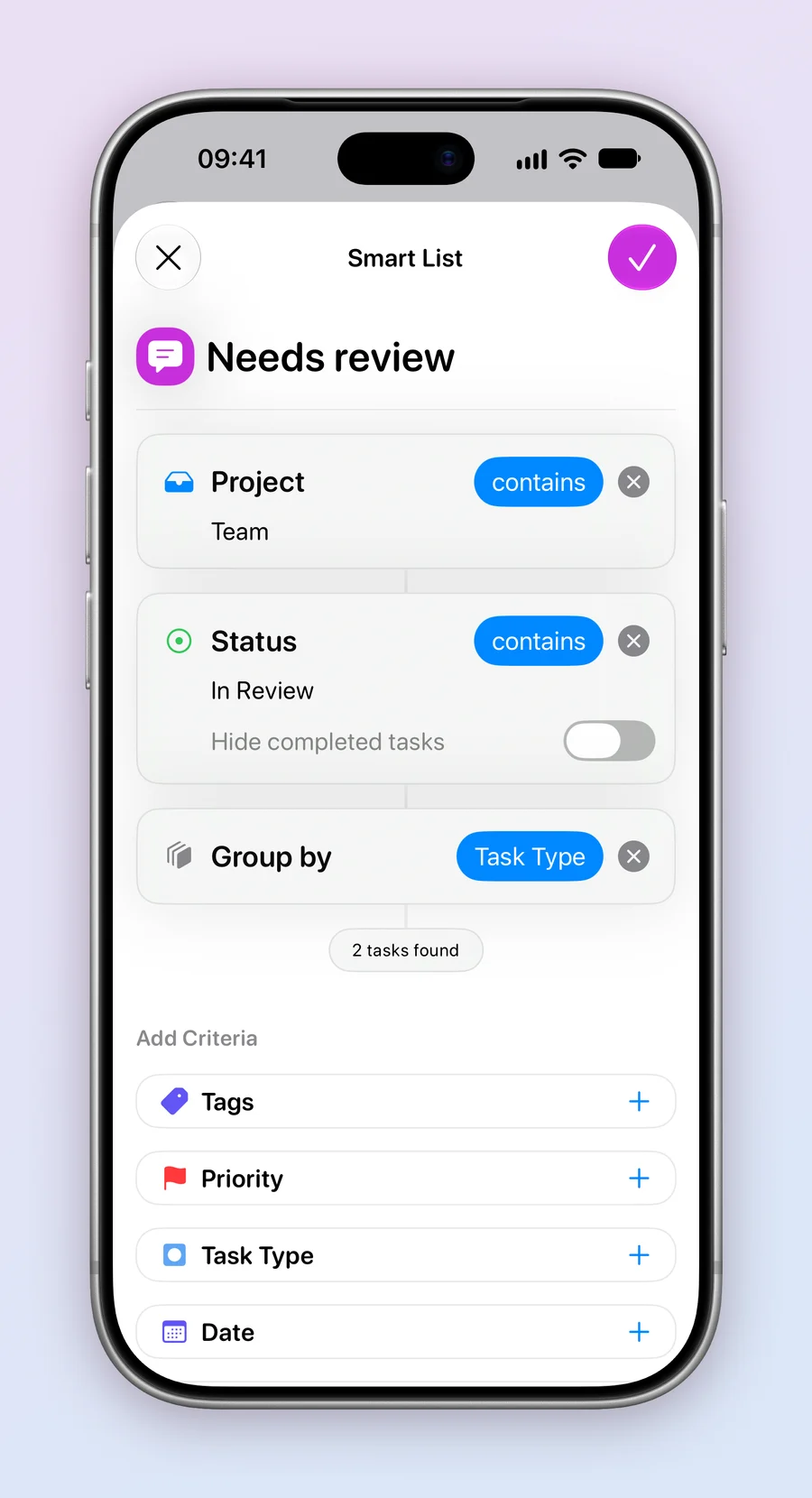
A Smart List called Needs review gathers everything in In Review, grouped by channel, so Priya can clear the queue in one place. To make one, tap + on the Home screen, then More, then Smart List. Smart Lists are part of Tasks Plus.
The week without the meeting
A second Smart List, This week, shows everything due in the next 7 days that isn’t done yet, one column per channel. With it open on Monday morning, the weekly meeting gets shorter: what’s due is on screen, and who owns it is on each card.
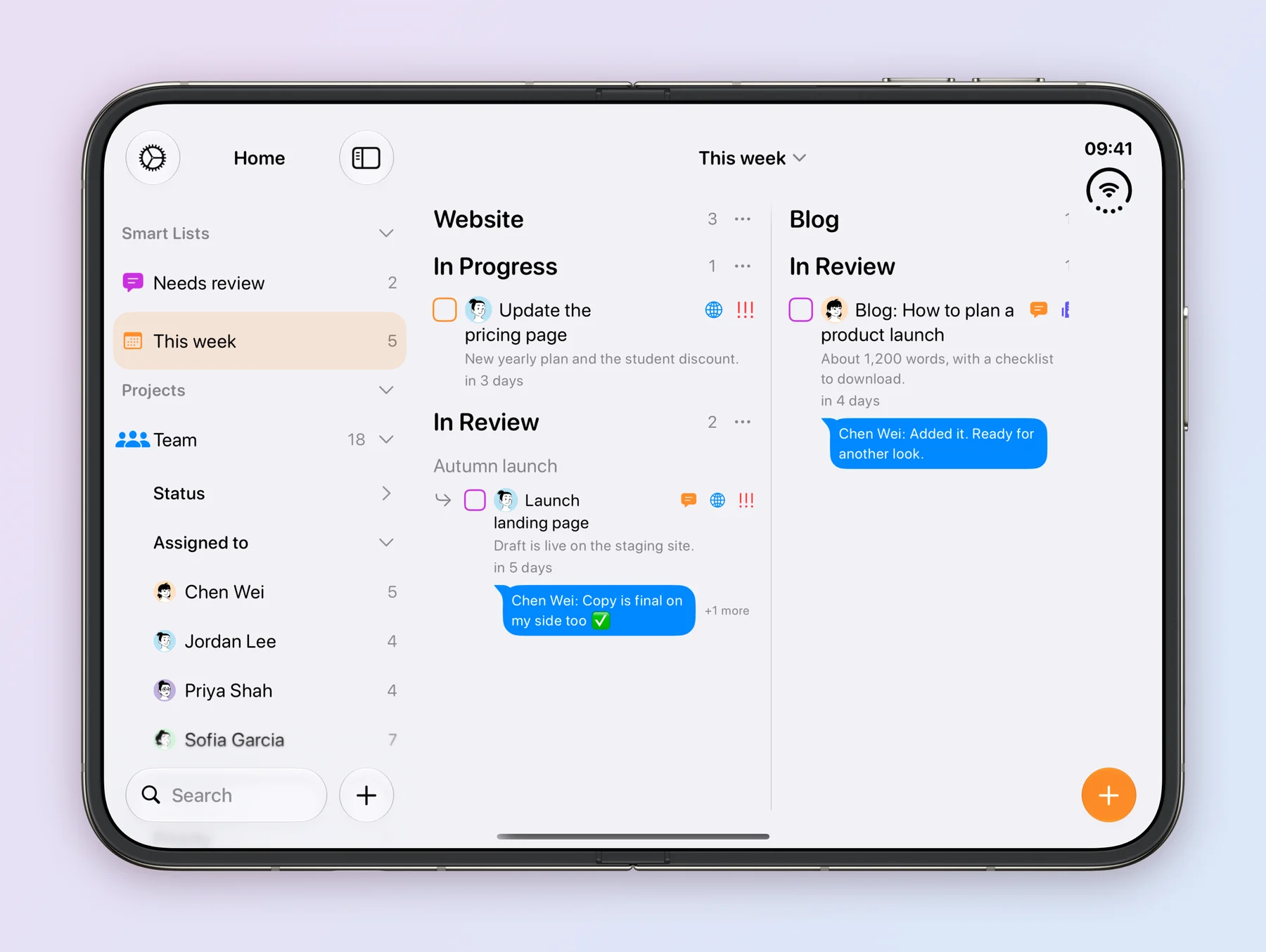
The team’s routines repeat on their own: Weekly team sync every Monday and the Monthly results report on the 2nd of each month. Each task also keeps the time spent on it in Time Tracking, so it’s easy to see the landing page took just over 4 hours.
What we learned
- One owner per piece. A launch has many hands, but each piece of it has one name on it.
- Give review its own column. Work waiting on someone else is easy to forget, and easy to see in In Review.
- Keep feedback on the task. A comment on the landing page is still there next week, unlike a message in a busy channel.
- Let Smart Lists answer the weekly questions. What needs review and what’s due are a tap away, for everyone.
Try it yourself
The whole setup is in one file: the Team project with its fields, 18 tasks and the 5 pieces of the launch, and the Needs review and This week Smart Lists.
- Download Team.tasks on your iPhone, iPad or Mac.
- Tap the file, in your downloads or in Files. It opens in Tasks.
- Import Data? tells you what it will add. Tap Import, and Team appears on the Home screen.
If tapping the file doesn’t open Tasks, open Settings in Tasks, scroll down to Import Data under Data & Integrations, tap it and pick Team.tasks.
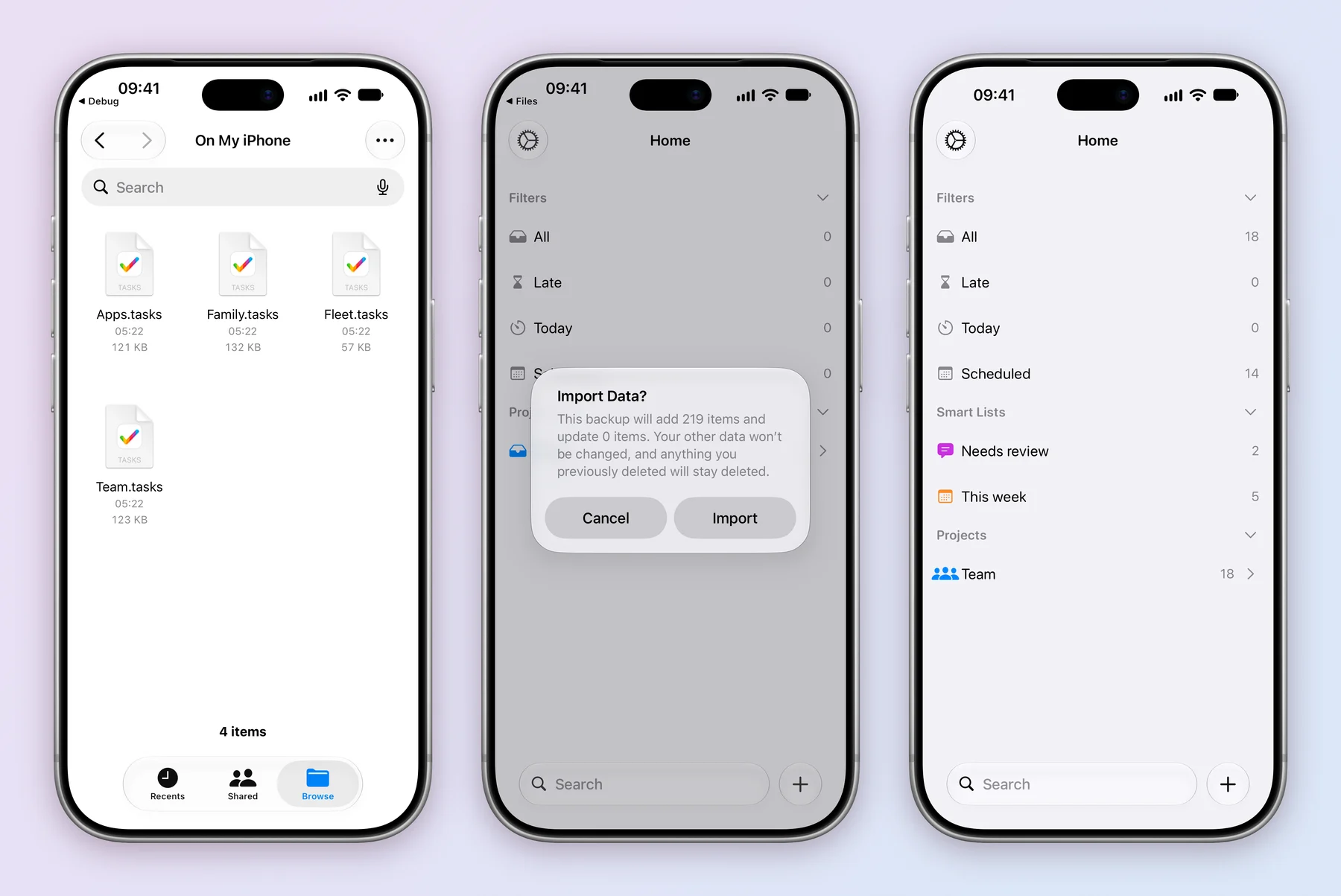
People don’t come with a file, so the tasks arrive without an owner, and the comments arrive as yours. Share Team, and once your teammates join, pick them in Assigned to. The dates are examples, so move them to your own. The backup and import guide has more on how importing works, and an AI assistant can join the board as a teammate too.
This is part of a series of case studies on how people use Tasks. For a family sharing chores, see Tasks at Home.