
Tasks 5 is out on iPhone, iPad and Mac, and it is the biggest update Tasks has ever had. It tracks your time, clears your screen so you can focus, works with the new Siri, syncs with Apple Reminders and reminds you when you walk into the office.
Then 5.1 arrived a couple of weeks later with a bag of extras. Rather than make you read three sets of release notes, I have rolled everything into one post. One update, one read, no version numbers to remember.
Apple noticed
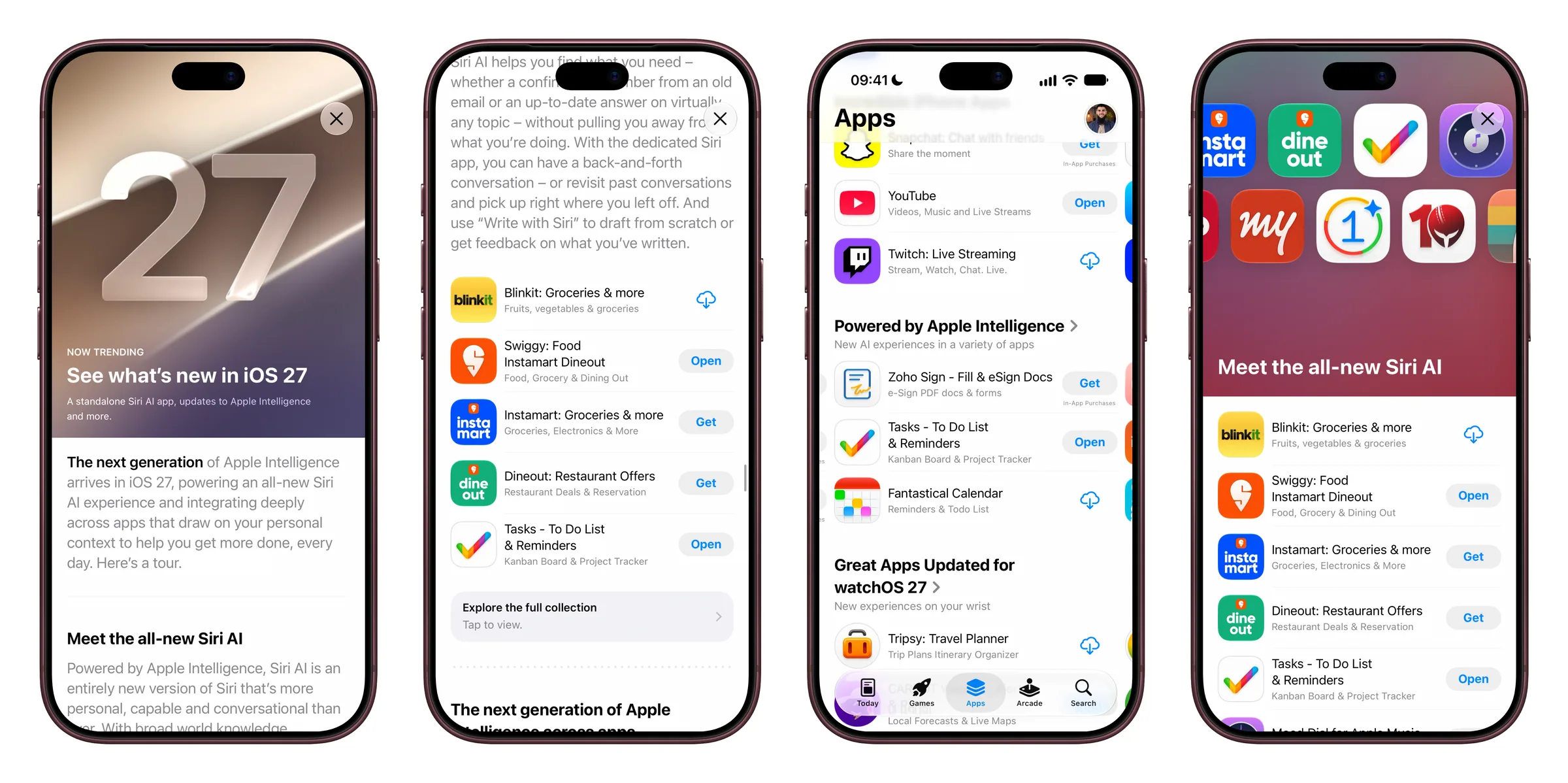
First, a small brag. When iOS 27 launched, the App Store picked Tasks for its “See what’s new in iOS 27” story, right under Meet the all-new Siri AI. It also put Tasks in the Powered by Apple Intelligence collection on the Apps tab. Seeing a rainbow checkmark sitting next to some very big names made for a very good morning.
Now, the good stuff.
Track your time without thinking about it
Start a timer on any task and get on with your work. Forgot to start it? Everybody does. Add the session by hand afterwards, then look back through the history of every task to see where the hours actually went.
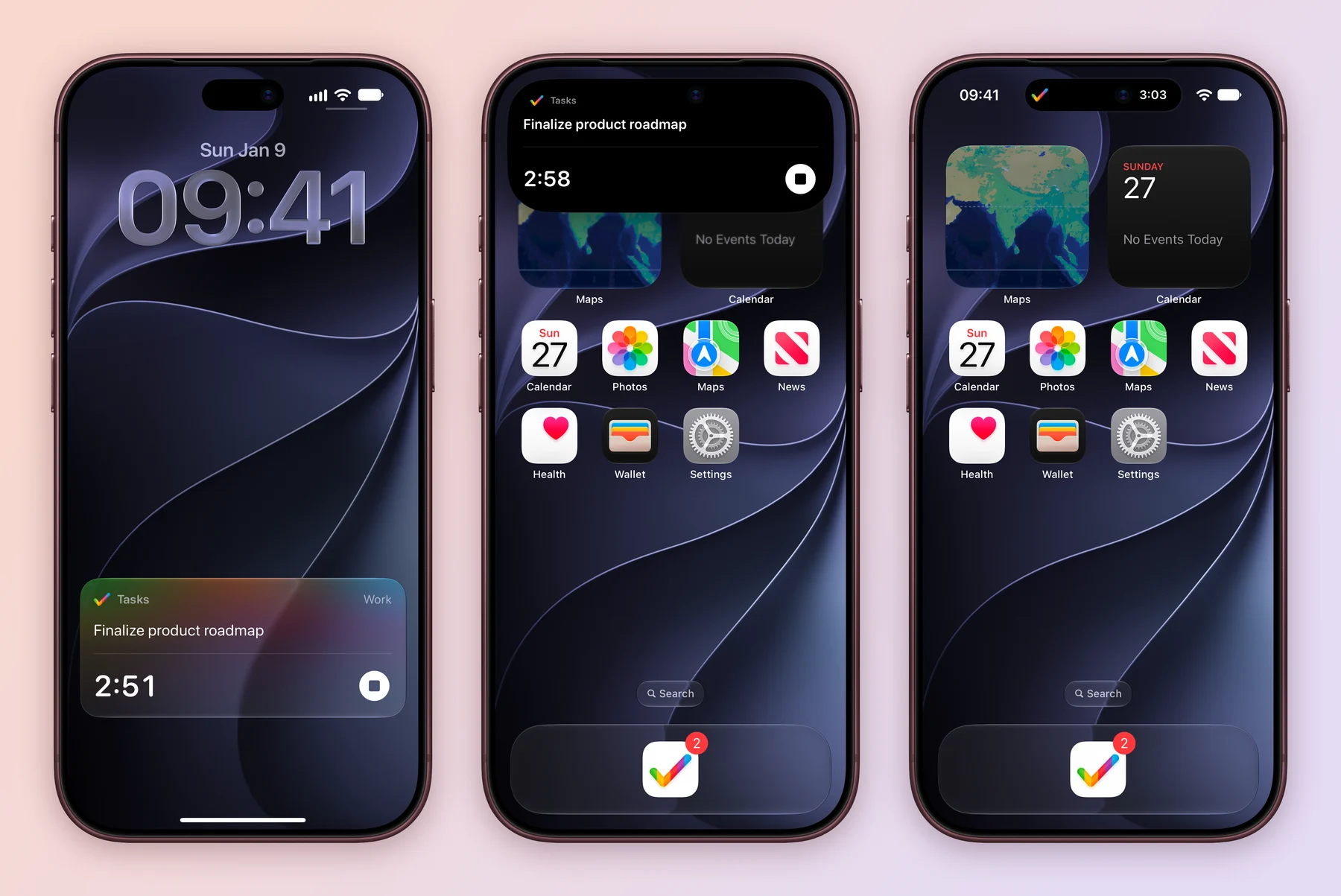
The timer follows you to the Lock Screen and the Dynamic Island, so you can check it or stop it without opening Tasks. Add a Time Tracking field to a project and each task shows its total.
Learn more about time tracking.
A Focus view for the hard stuff
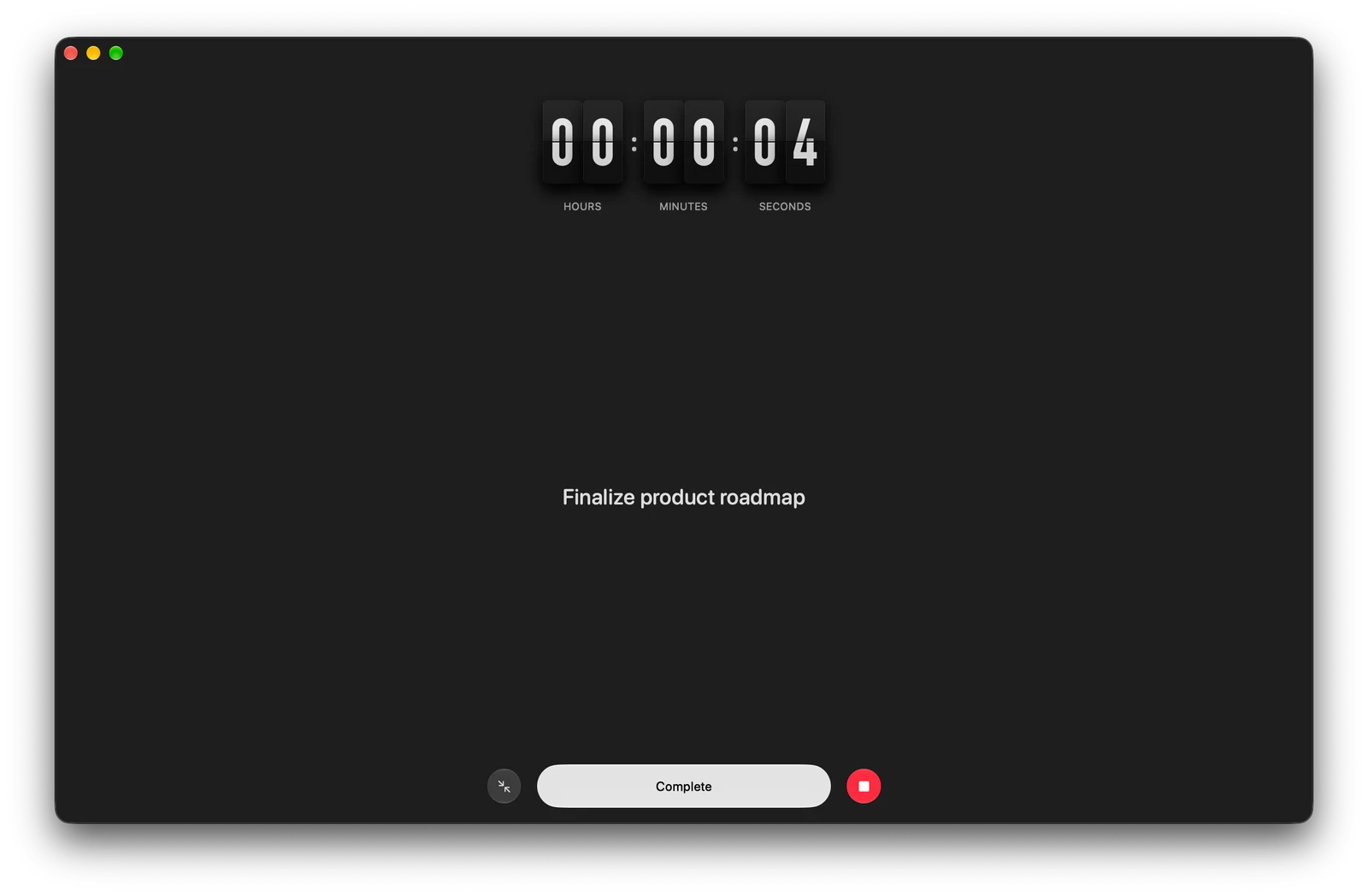
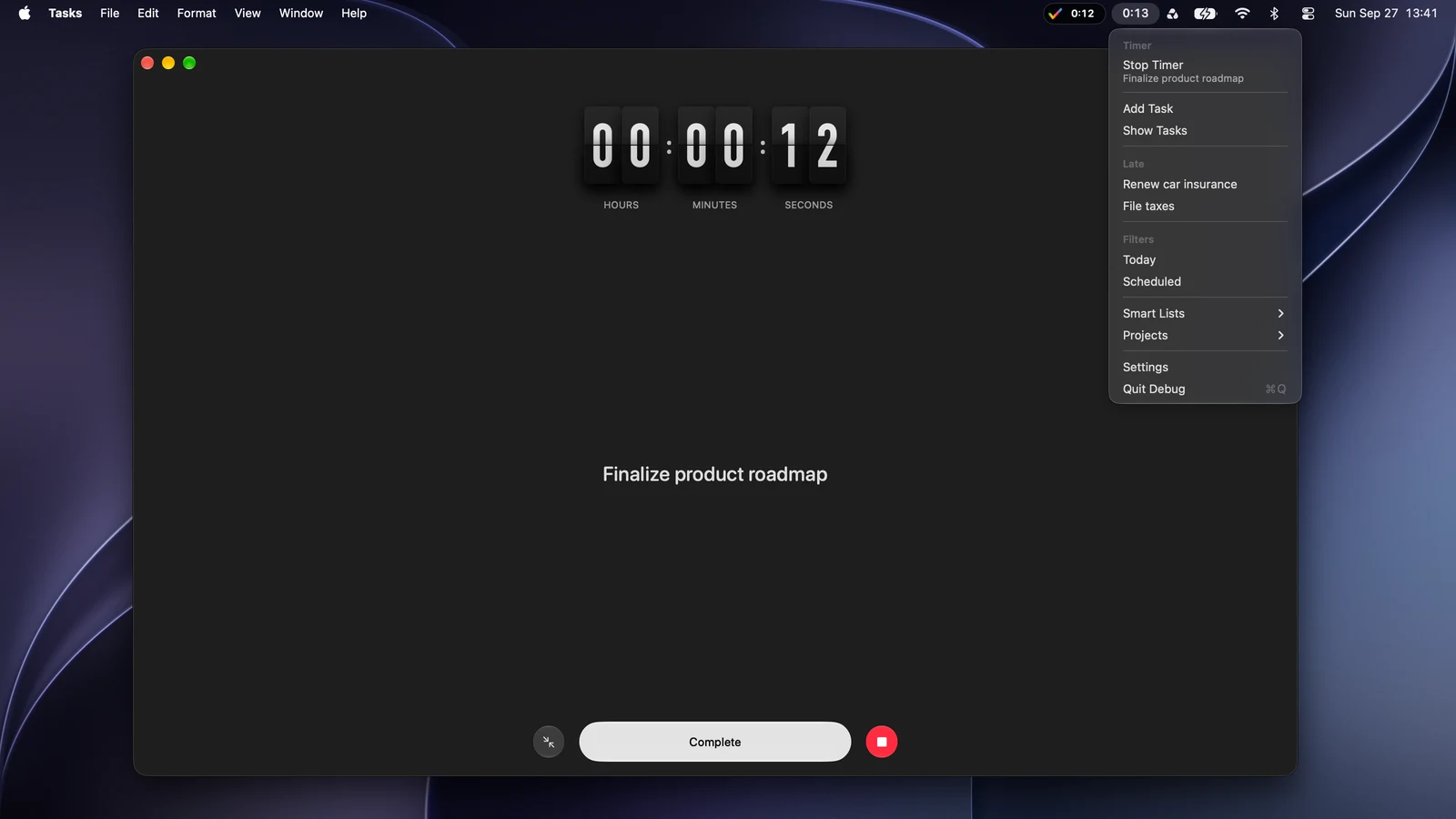
Some tasks deserve your whole screen. Focus view gives them exactly that: the task front and centre, a big timer and nothing else. On Mac, a flip-clock timer keeps you company.
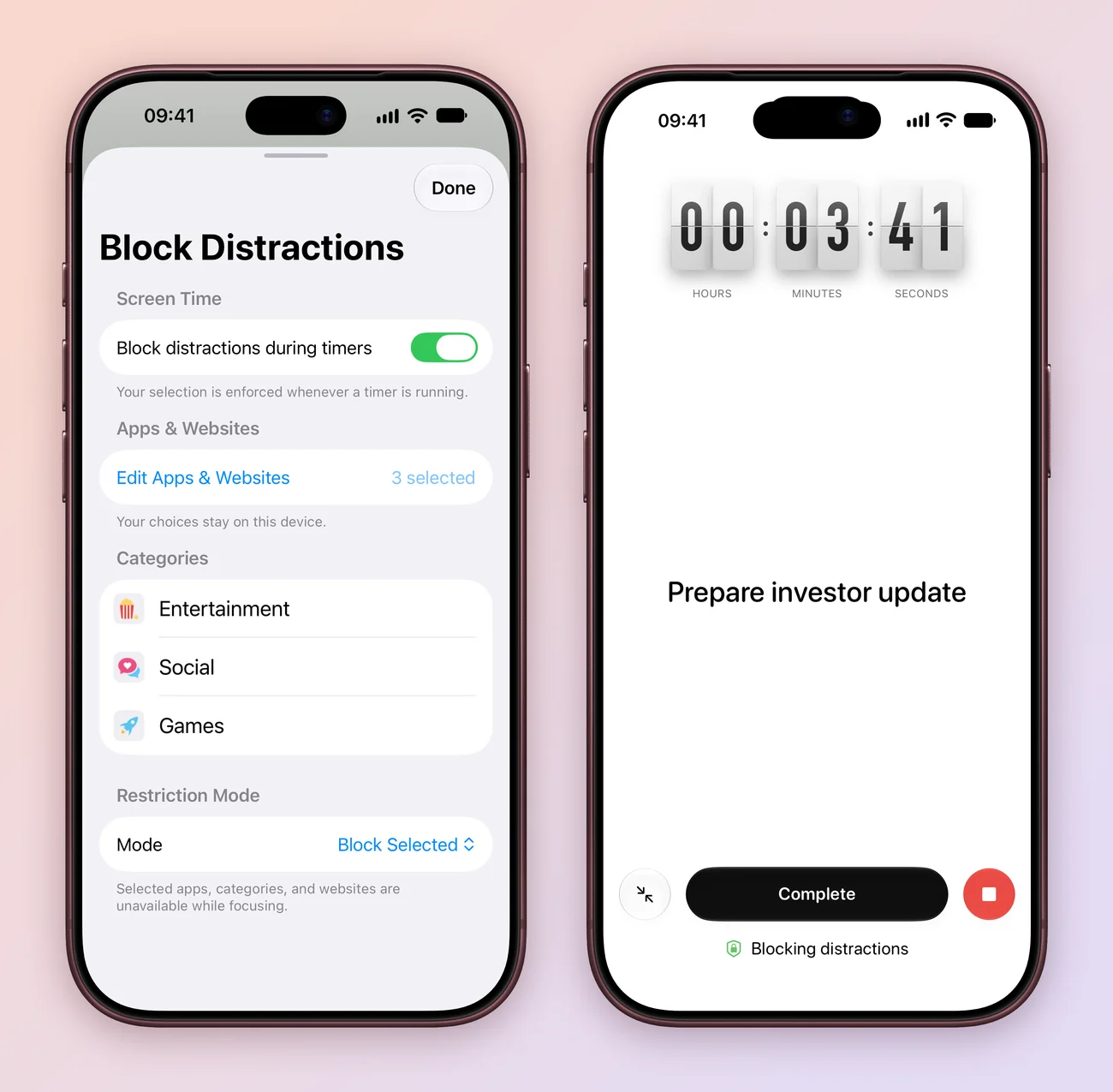
On iPhone and iPad, Focus view can also block the apps and websites that tend to eat your afternoon. Pick them once, and they stay blocked until you stop the timer.
Siri, now with eyes on your screen
On iOS 27 and macOS 27, you can ask Siri to work with the tasks and projects on your screen. No need to spell out which project you mean when you are already looking at it.
On supported iOS 27 devices, Quick Create lets you speak or type what you need to do in one go. You review the tasks before they are added, so nothing sneaks in by mistake. And every Tasks action is waiting in Shortcuts for when you want to automate the boring bits.
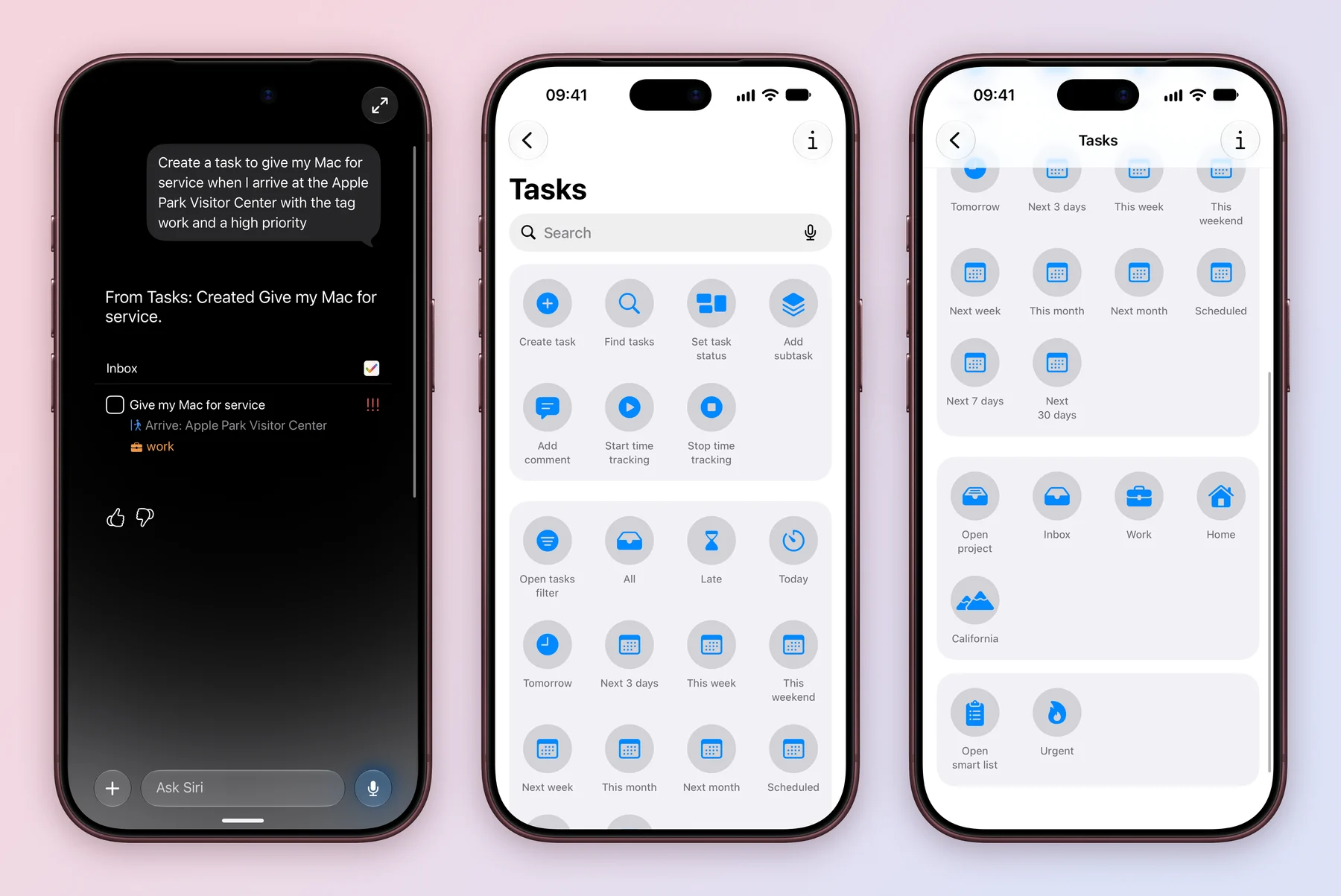
See everything Siri and Shortcuts can do.
Apple Reminders, both ways
Choose the Reminders lists you want in Tasks, and changes sync in both directions. It all happens privately, on your device. Keep using Reminders where it suits you, and Tasks everywhere else.
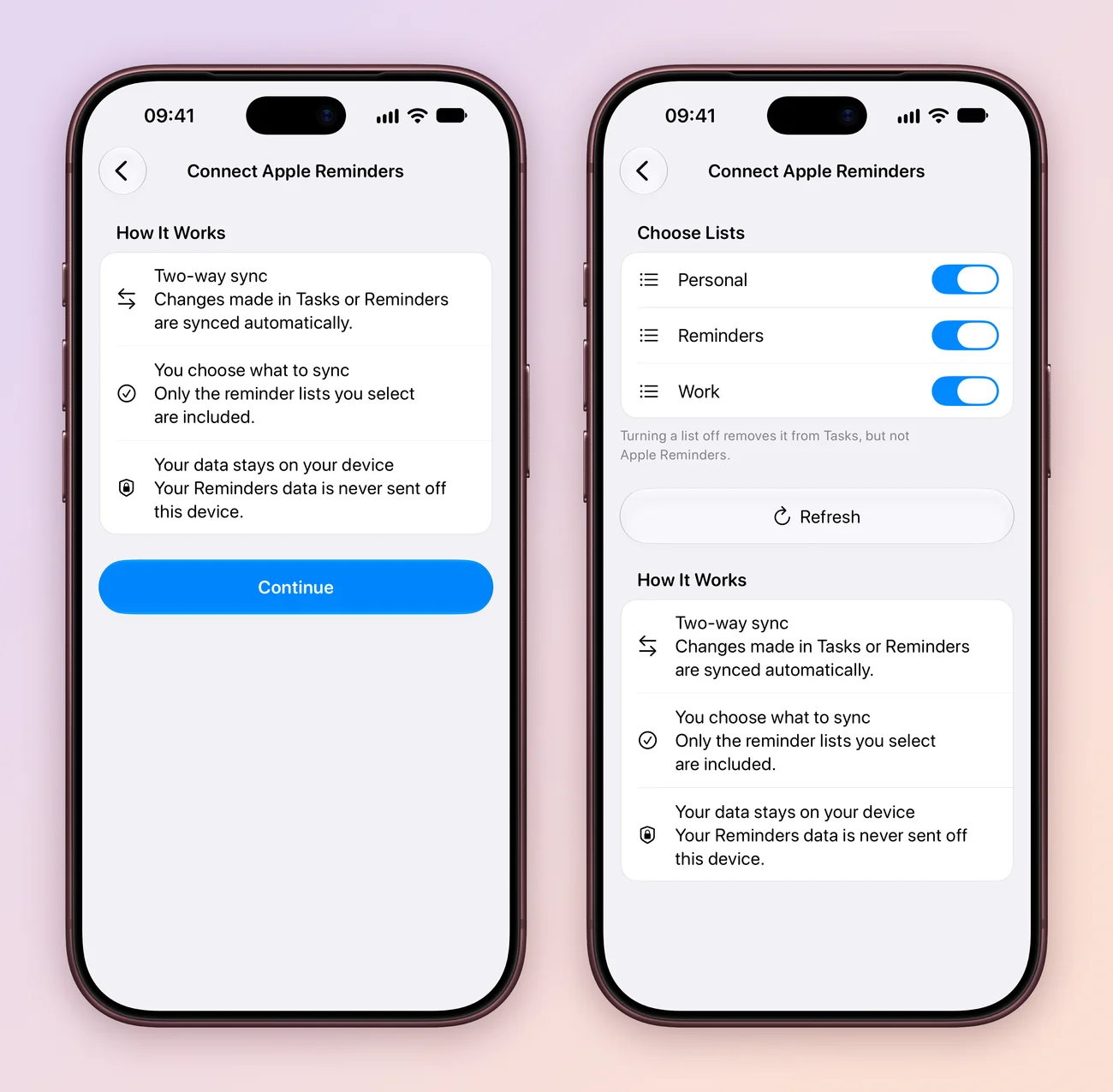
Reminders that know where you are
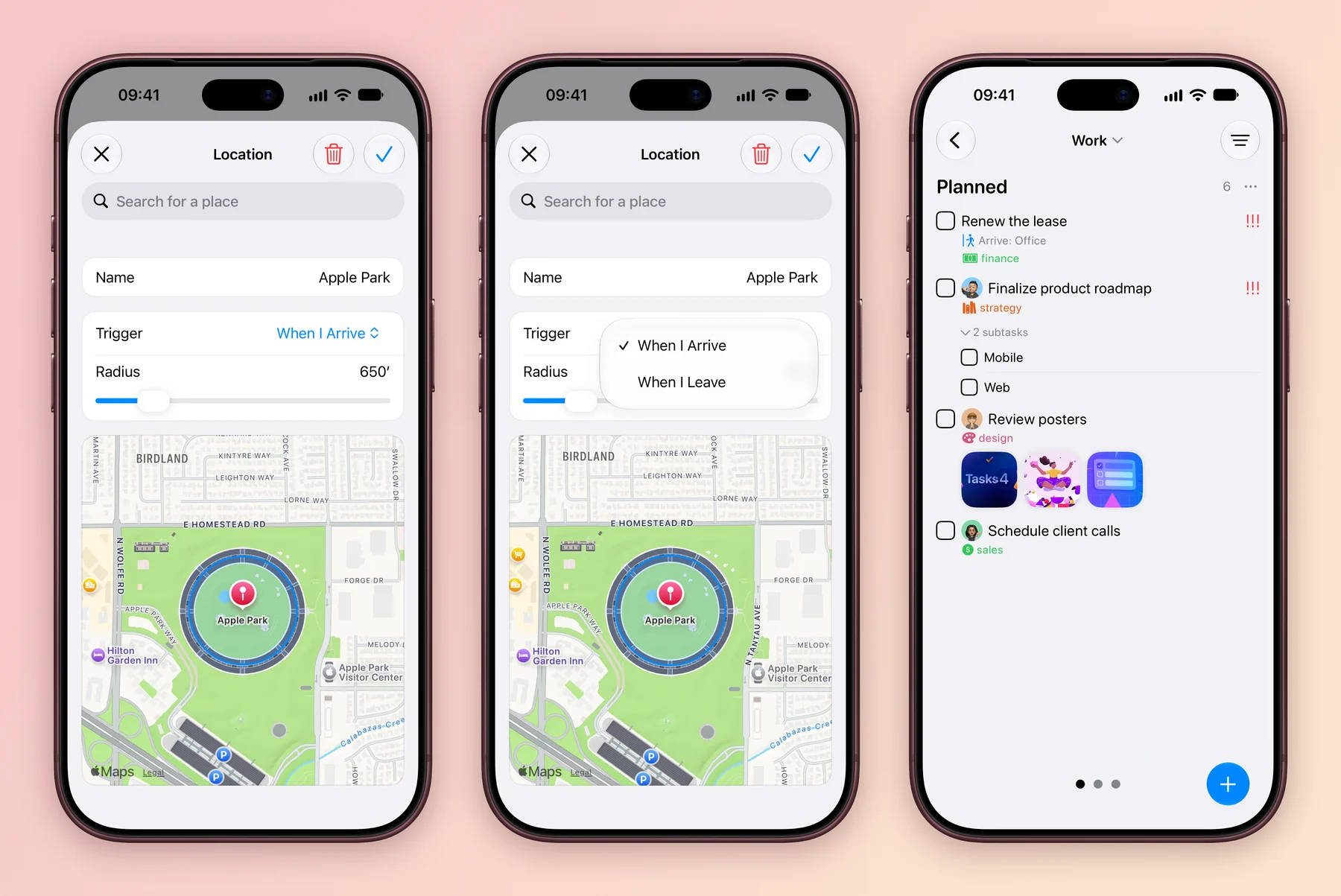
Get reminded when you arrive at or leave a place, whether it is the office, the shops or home. Finally, a reminder to buy milk that fires at the shop instead of on the sofa.
For the things you really cannot miss, timed tasks can ring as a proper alarm, with Stop and Snooze.
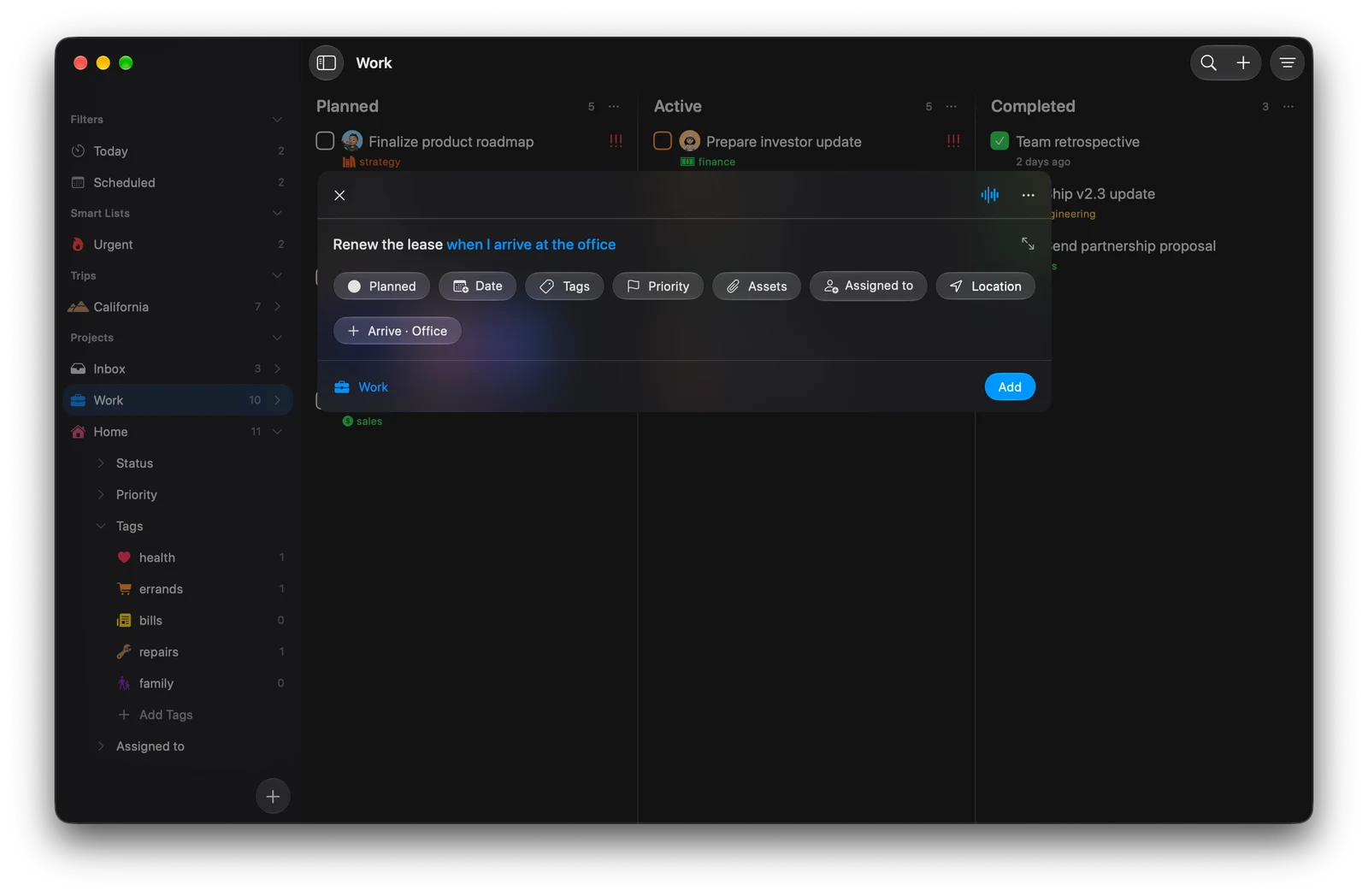
Type it once, in plain words
Type “team meeting every Monday at 4pm” and Tasks offers the repeat. Type “when I arrive at the office” and it offers a location reminder. Tap the suggestion, and the title keeps only the action. On Mac, you can also pick the project, tags, priority and assignee without leaving the keyboard.
Speaking of keyboards, new shortcuts change the tags, assignee, priority and status of the selected task, so your hands can stay where they are. Here is the full list.
Notes with a bit more structure
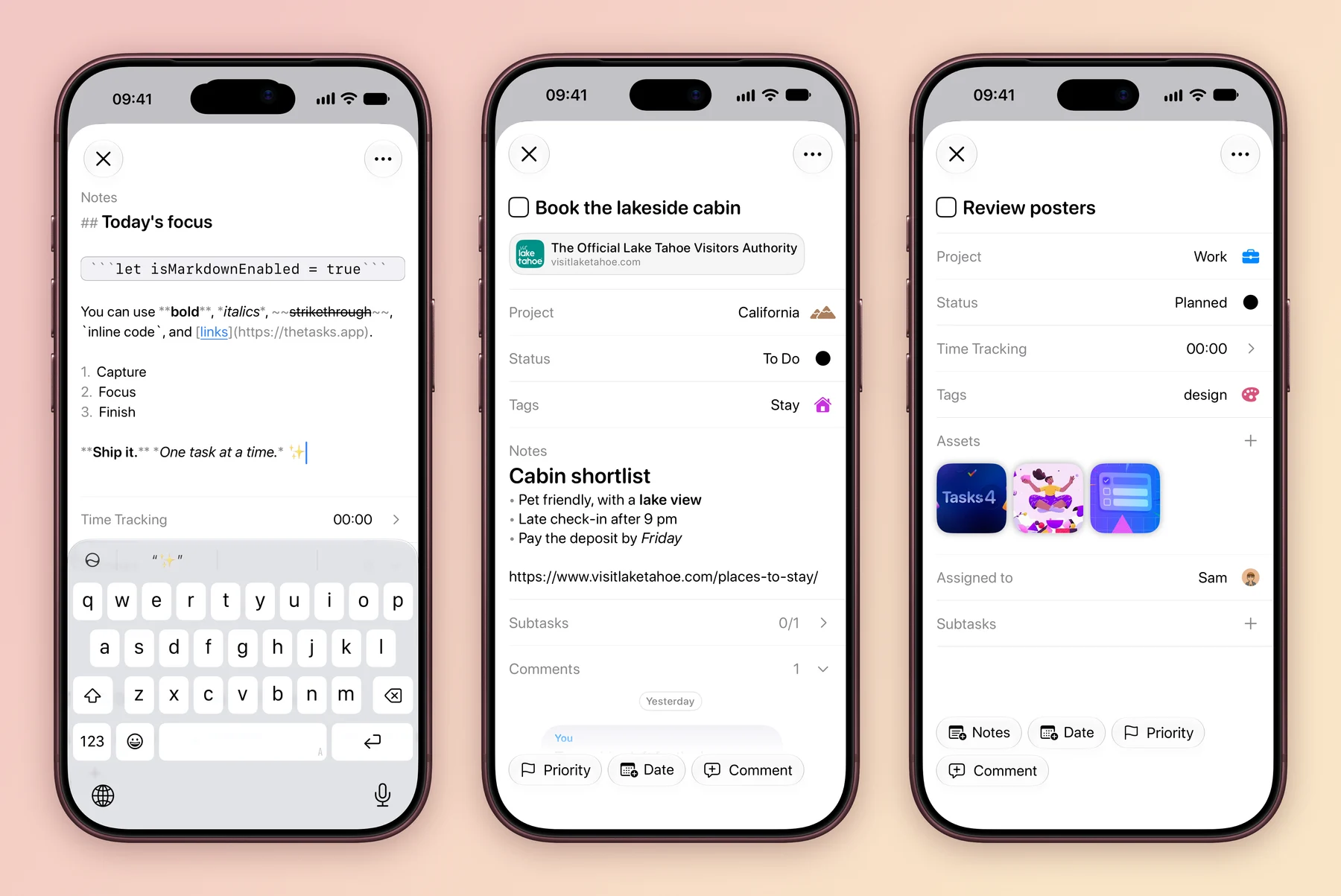
Task titles, notes and comments now speak Markdown: headings, lists, links and code blocks. Your meeting notes can finally look like someone cared.
Projects that fit the work
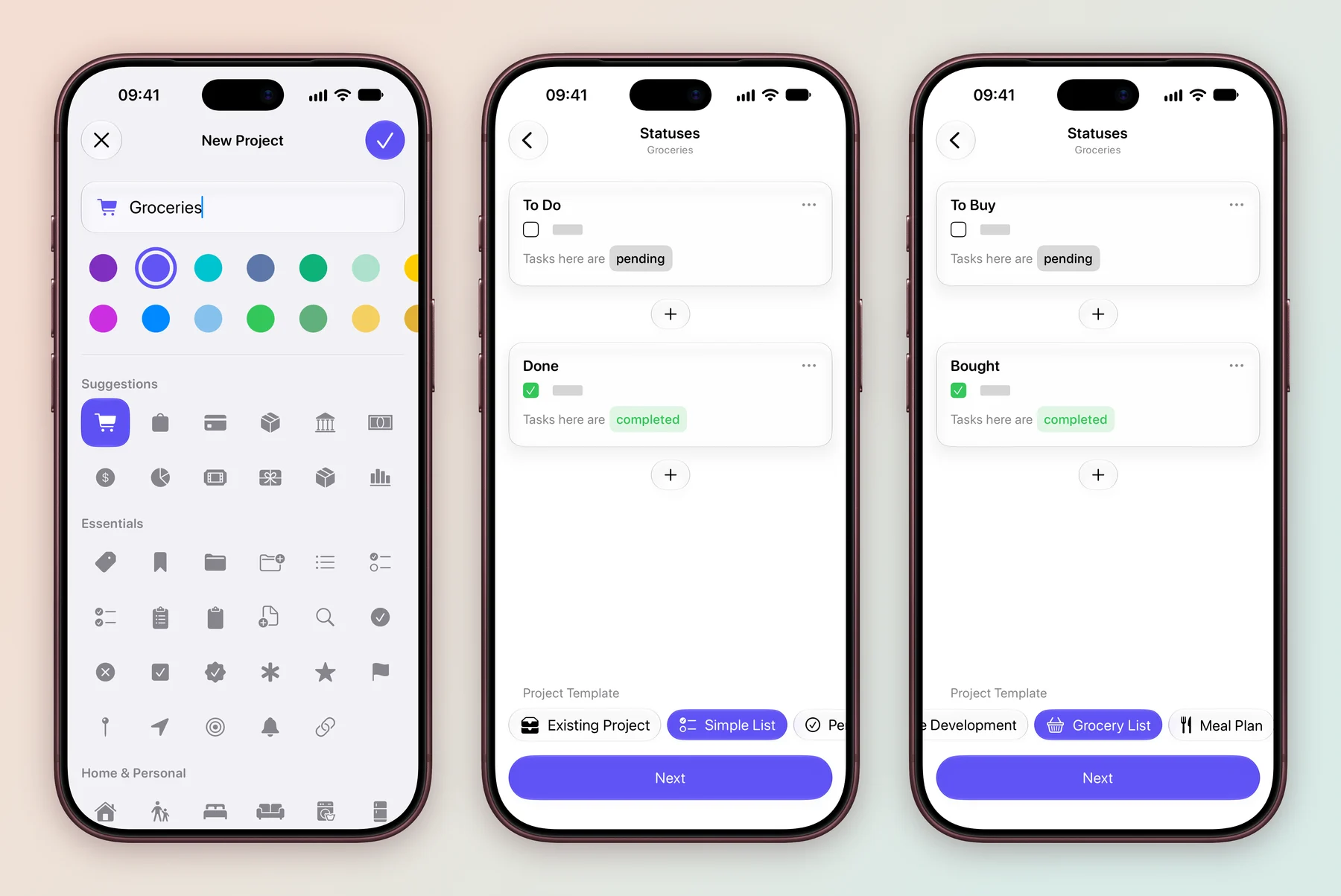
Setting up a project is simpler. Name it, pick the statuses, often straight from a template, and choose only the fields you need, including the new Location and Time Tracking fields.
Kanban boards are clearer, with subtasks easier to follow on busy boards. When plans change, mark a task as canceled instead of pretending you did it. And once you have filtered a board just right, turn those filters into a Smart List and come back to it any time.
Tasks lives in your Mac menu bar now
Add a task, open a project or Smart List, and check or stop your timer from the menu bar, whichever app you are in. Prefer a tidy menu bar? Since 5.1, you can hide it in Settings.
New in 5.1: make it yours
5.1 is all about the details:
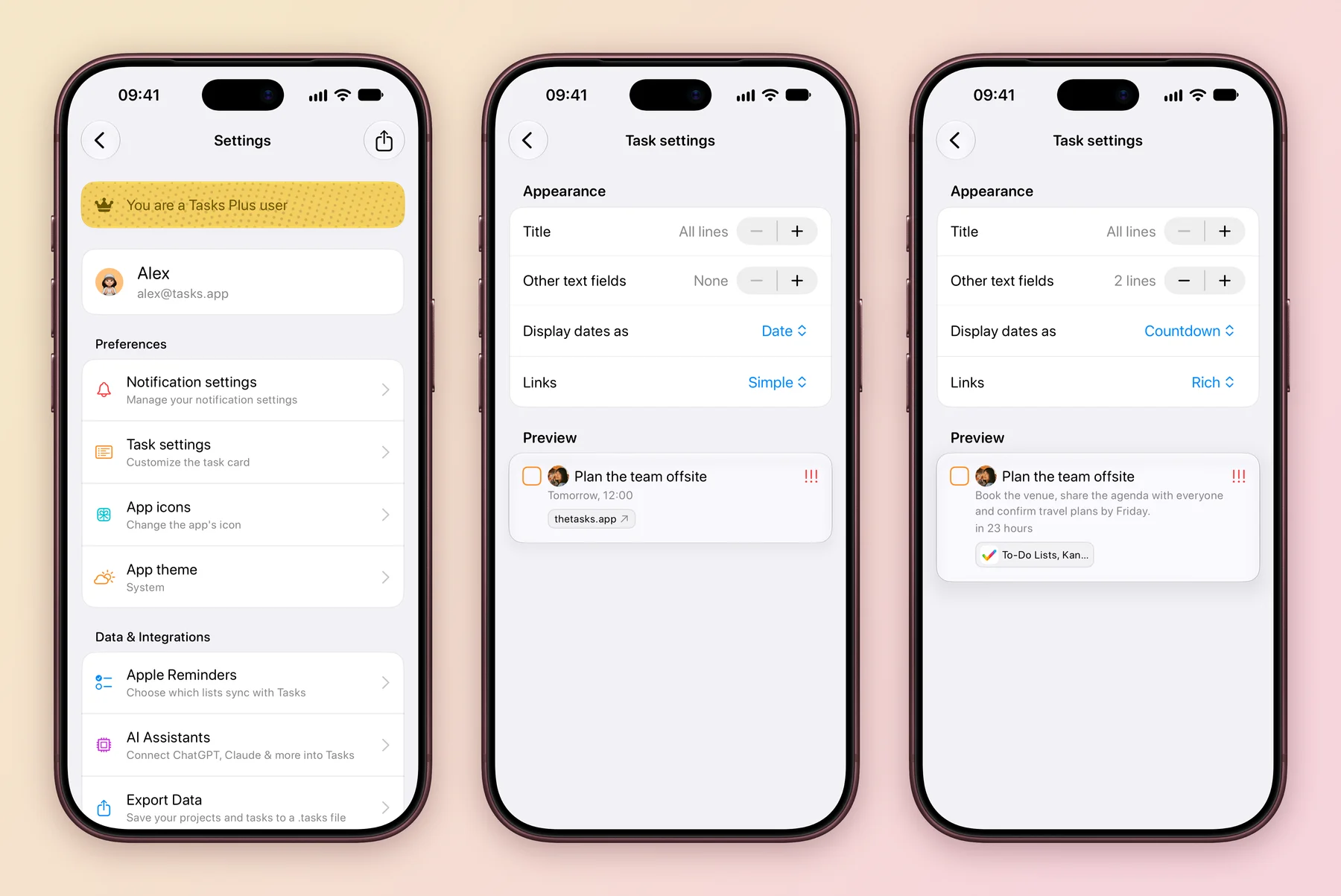
- Task Settings. Choose whether task cards show a date or a live countdown, with a preview so you can see the difference first.
- Activity. See when a task was created and when it last changed.
- Duplicate. Copy a task with or without its comments.
- Subtasks. Add the first one in a single tap, then drag to reorder them right inside the task.
- Voice input. Your words appear on screen as you speak.
- Widgets. Changes you make from widgets and extensions show up in Tasks right away.
- Speed. Links and attachments load in the background with cached previews, and busy lists scroll more smoothly.
- Notifications. Clearer notification and app badge settings, and tidier task titles in Live Activities.
And the little things
- Extra-large portrait widgets on iOS 27, for seeing more of your list at a glance.
- Clearer link and attachment previews, and better PDF exports.
- Better VoiceOver and Reduce Motion support, plus localisation improvements.
- Fixes for search, task ordering, reminders, sync, Siri, drag and drop, comments and the macOS 27 sidebar.
Thank you
So much of Tasks 5 started as an idea from someone using the app. Thank you for every email, review and feature request. They really do shape what I build next.
If you are enjoying Tasks, leaving a review on the App Store means the world to me and helps more people discover it. If something is not right, write to me at tasks@msquarelabs.com. I would love to hear what you think.
Tasks 5 is out now. Get it on the App Store and go get things done.