Find out how long a task really takes. Start a timer when you begin, stop it when you finish, and Tasks keeps every session with the task.
Start a timer
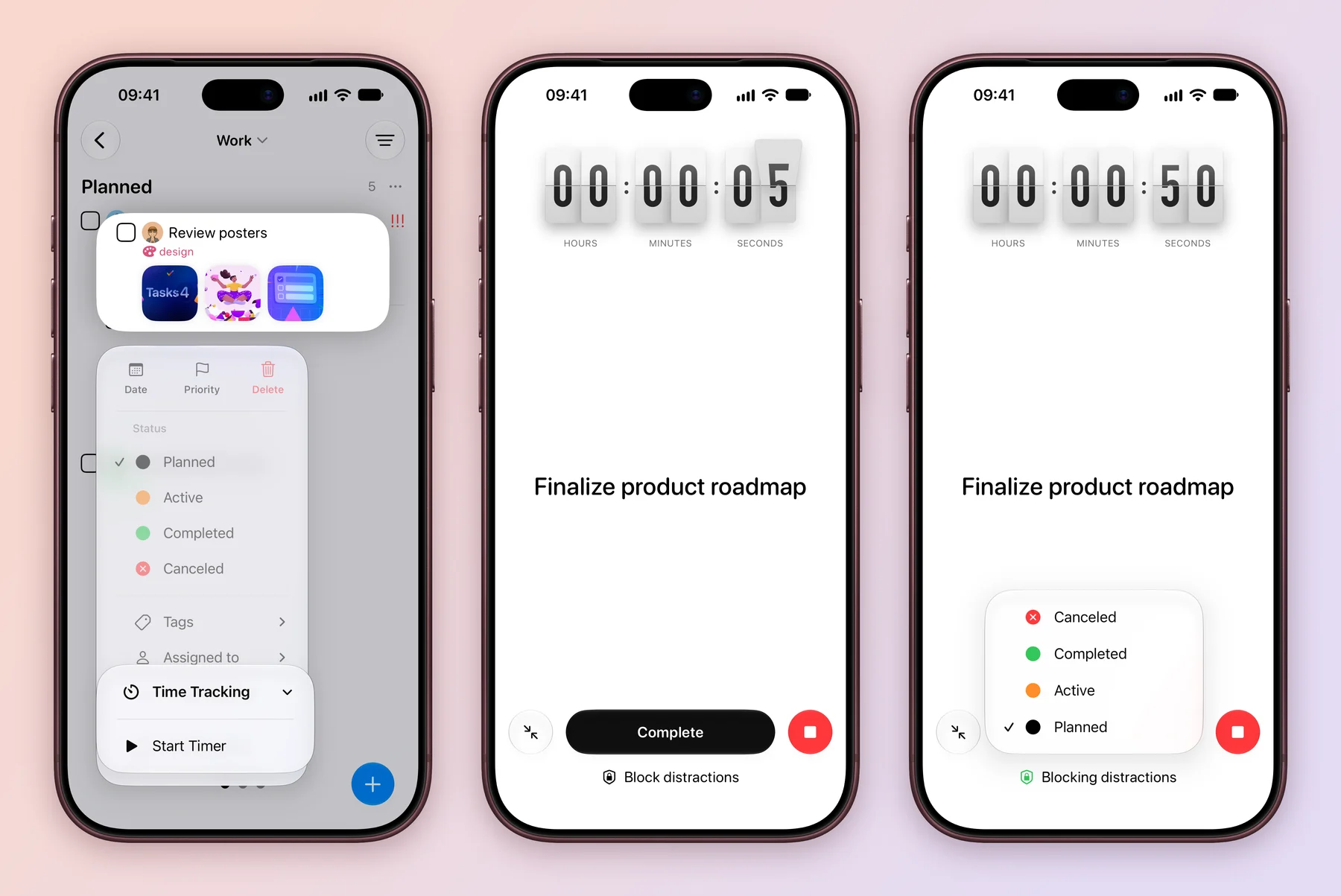
- Long press a task, such as Review posters in Work, open Time Tracking and choose Start Timer. You can also open the task and tap play in its Time Tracking field.
- The task shows a running timer chip on its card. Tap the chip to open the full-screen focus timer, with the task title always in view.
- When you are done, tap Complete and pick the status to move the task to, such as Completed. The timer stops and the session is saved. The red stop button ends the session without changing the status, and the minimise button on the left keeps the timer running while you use the rest of the app.
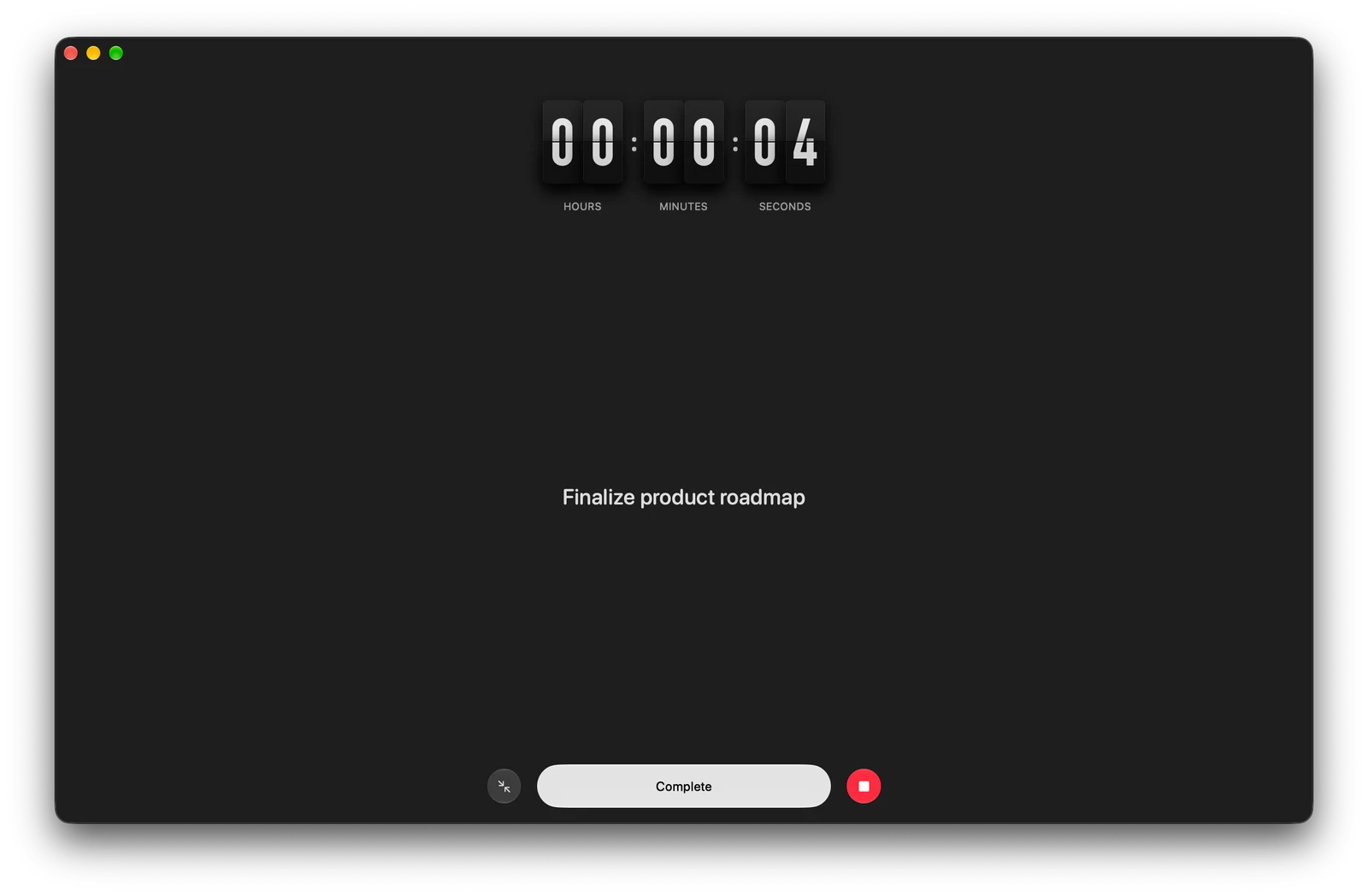
- Right click a task, such as Finalize product roadmap, open Time Tracking and choose Start Timer. You can also click play in the task’s Time Tracking field.
- The focus timer fills the window, with the task title in view. The toolbar hides while it is open.
- Click Complete and pick a status to finish the task, or click the red stop button to end the session. The minimise button keeps it running in the background.
Forgot to start the timer? Open Time Tracking on the task and use + to add the time yourself. Time Tracking is already part of new projects and the Inbox.
Keep the timer in view
A running timer stays with you after you leave the app.
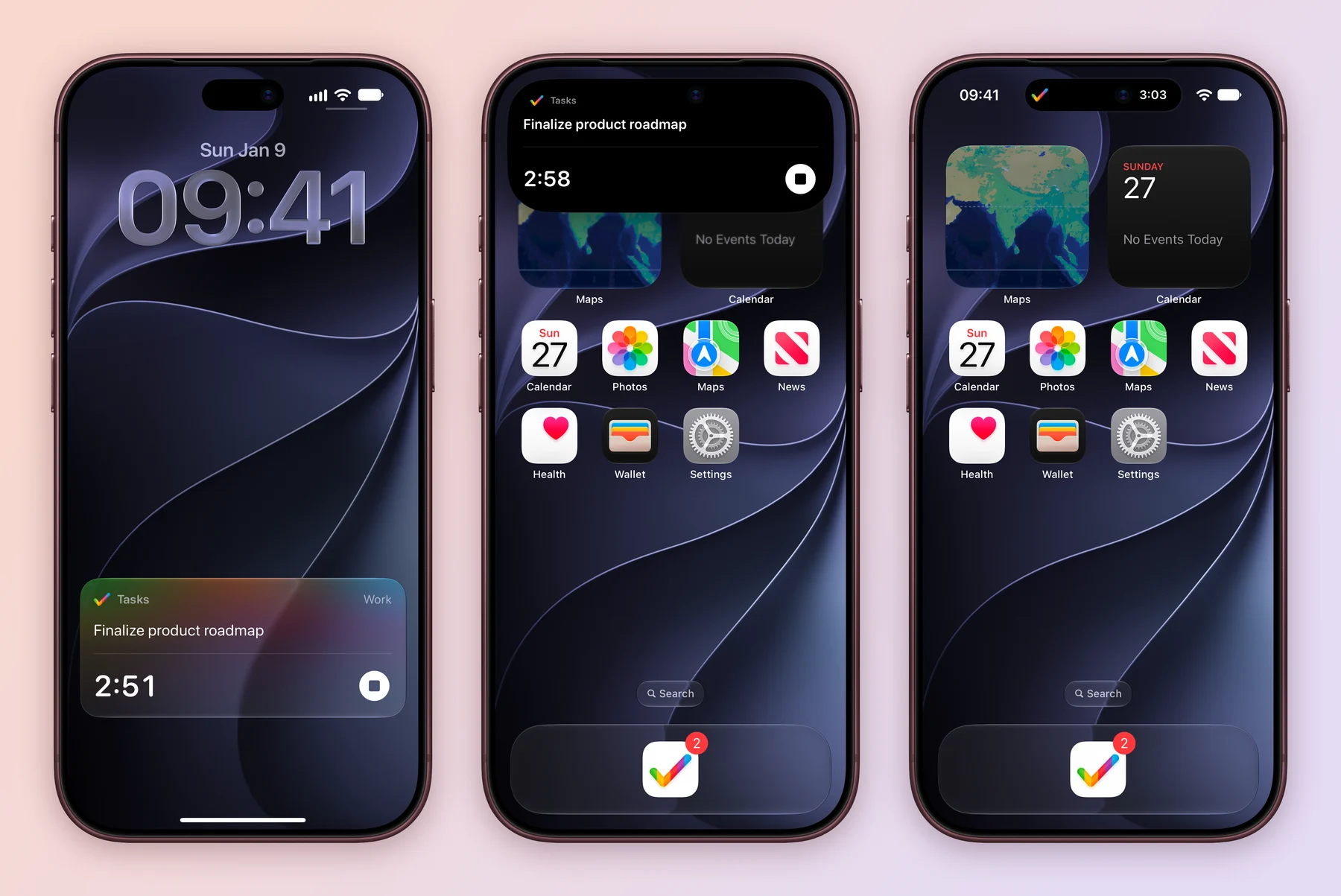
- Lock Screen: a Live Activity shows the task, the project and the elapsed time, with a stop button.
- Dynamic Island: the Tasks icon and the elapsed time sit at the top of the screen. Touch and hold it for the task title and the stop button.
- Apple Watch: the timer appears in the Smart Stack on a paired Apple Watch, so a glance at your wrist shows how long you have been going.
While a timer runs, the Tasks icon in the menu bar turns into the elapsed time. Click it to see Stop Timer with the task name, along with Add Task, your late tasks, filters, Smart Lists and projects.
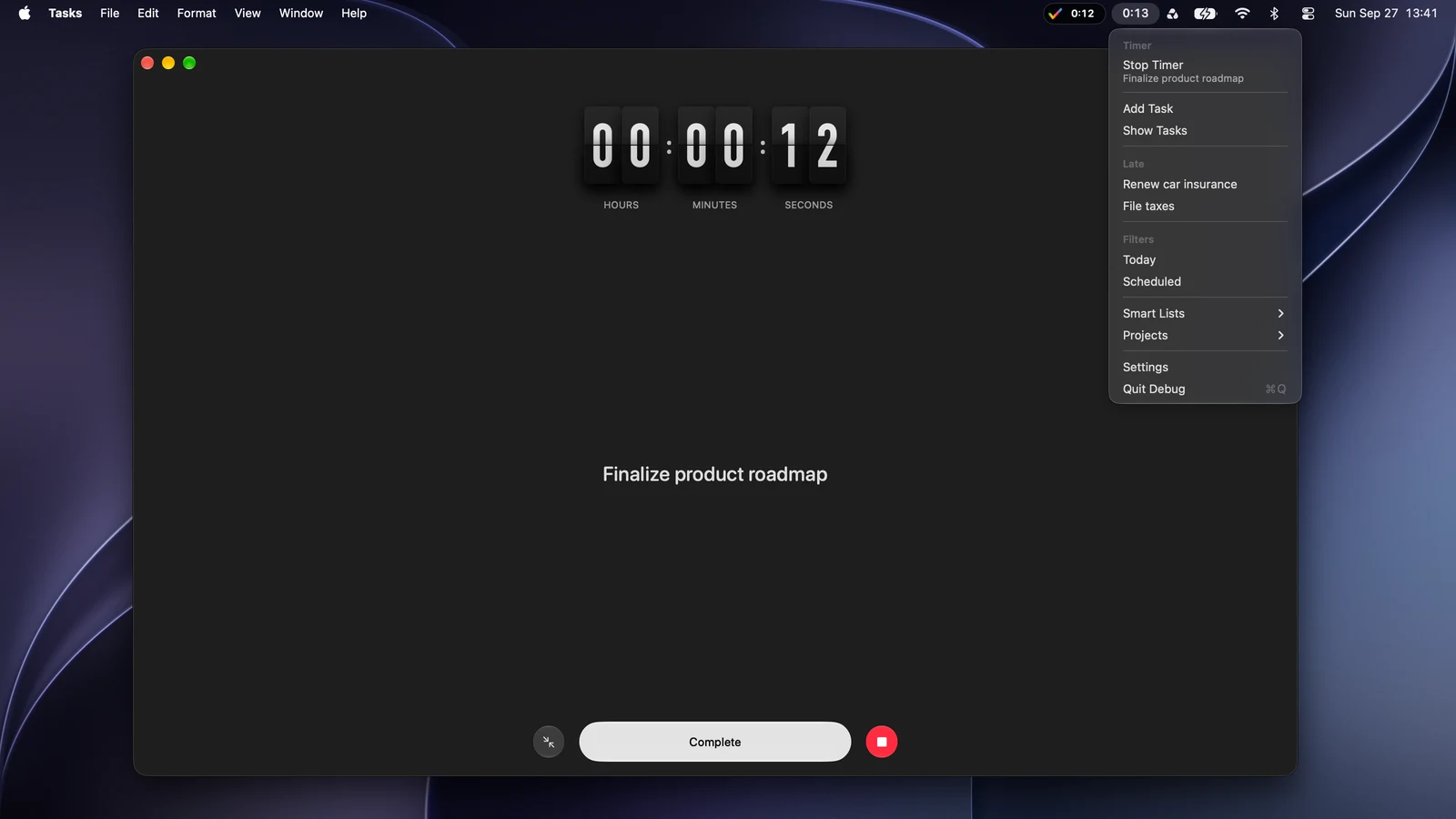
If you do not see the Tasks icon, turn on Show Tasks in the menu bar in Settings (⌘,) under Menu bar.
Block distractions while you work
Tasks can use Screen Time to keep chosen apps and websites closed while a timer runs.
- In the focus timer, tap Block distractions.
- The first time, tap Choose Apps & Websites, then Continue and Allow with Passcode to give Tasks Screen Time access. Tap Done when it is approved.
- Turn on Block distractions during timers, then tap Edit Apps & Websites and choose apps, categories and websites.
- Under Mode, pick Block Selected, or Allow Only Selected to keep only chosen apps and websites open. Allow Only works with apps and websites, not whole categories.
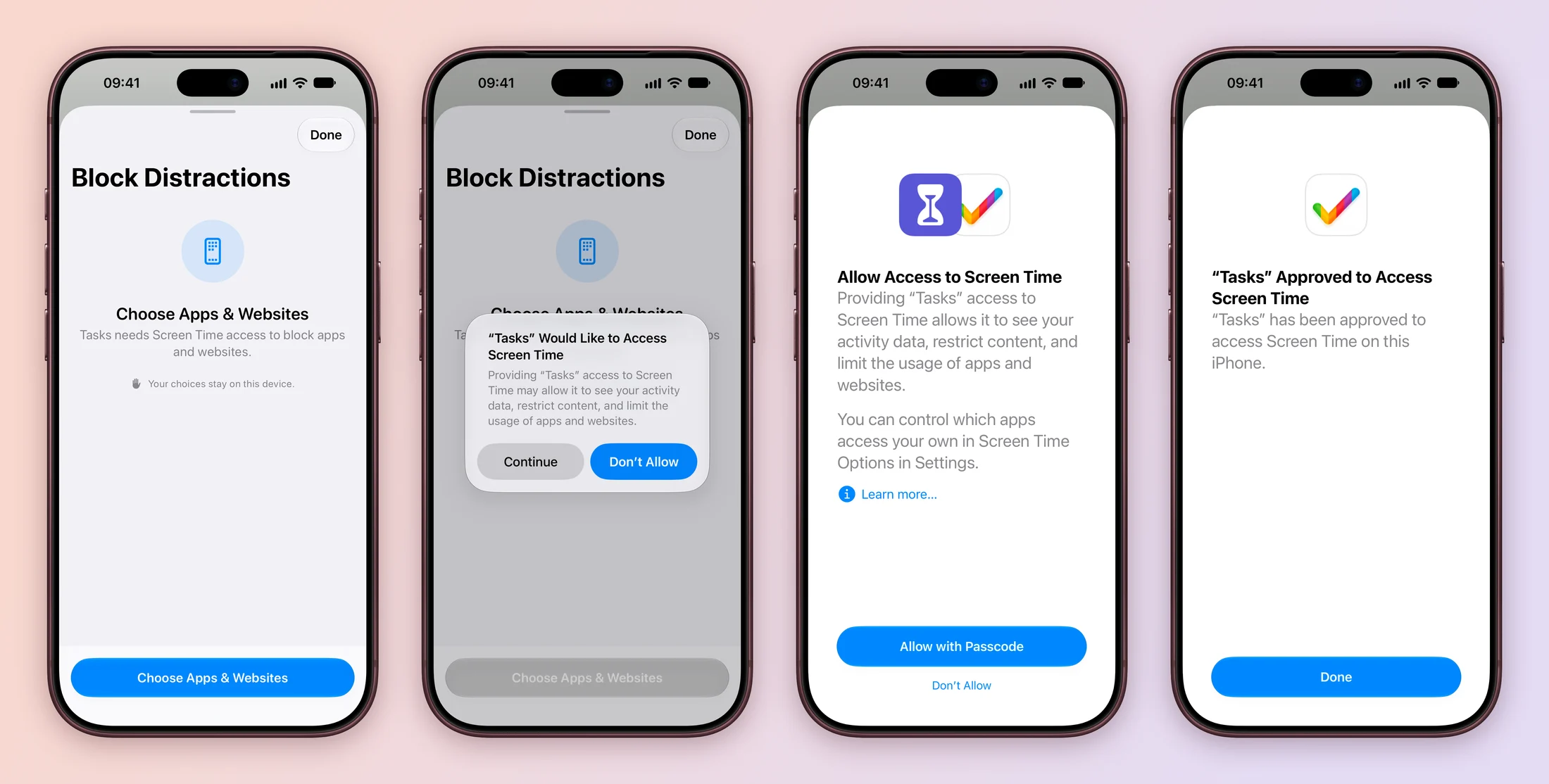
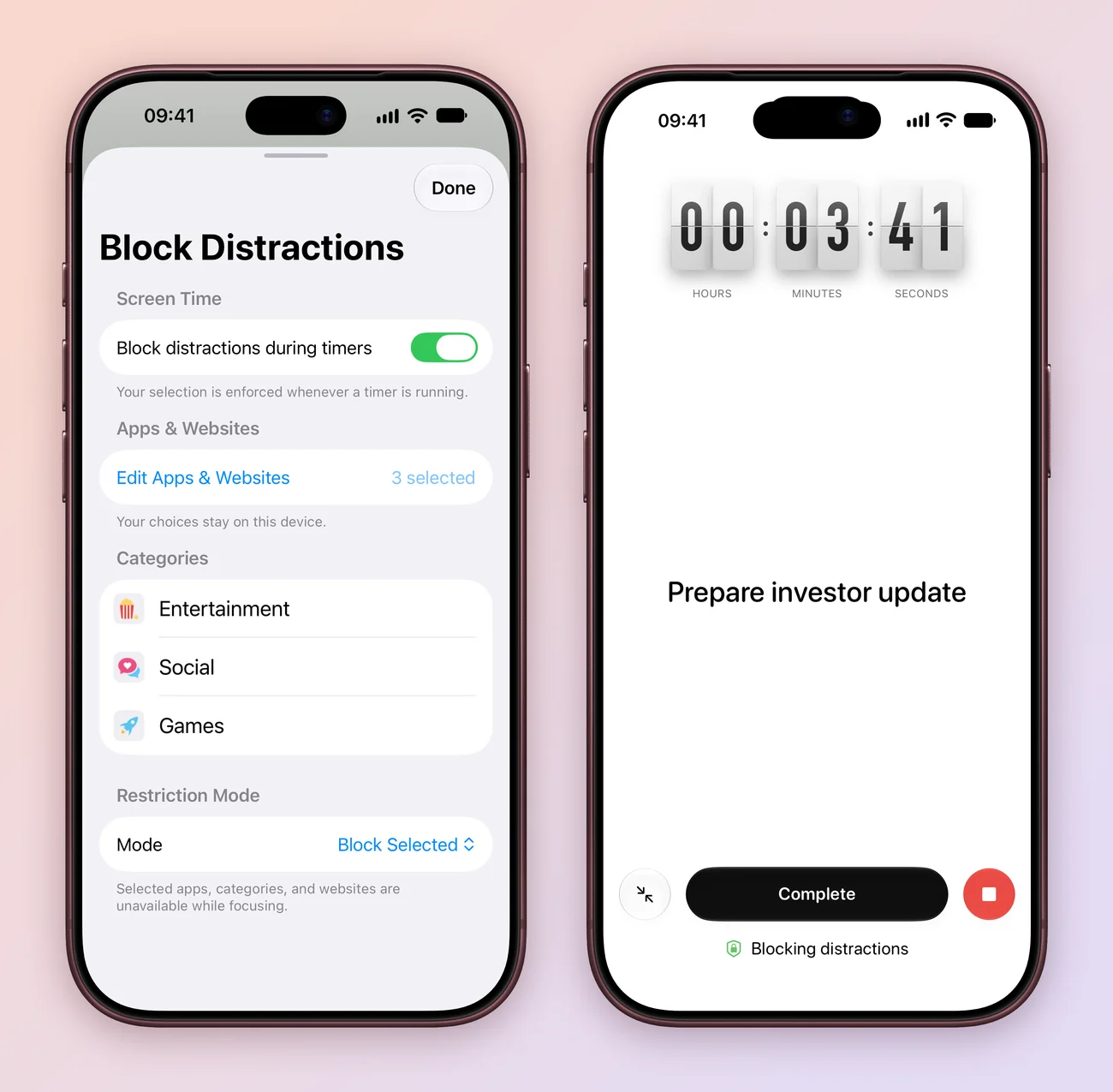
Your choices stay on this iPhone. The next timer you start uses them automatically.
Distraction blocking, the Lock Screen Live Activity and the Dynamic Island are iPhone features. Sessions you record on Mac are saved with the task, just like on iPhone.
Want a timer to start on its own? The Start tracking time action in Siri and Shortcuts can start one for you, or you can just ask Siri.
Explore all 9 related features
Browse the related features below for more detail, or search every feature.
Task timer
Start and stop time tracking from a task.
Time sessions
Keep completed and running sessions with the task.
Manual duration
Store a duration for a tracked session.
Timer Live Activity
Monitor and stop a running timer from the Lock Screen.
Dynamic Island timer
Keep a running timer visible on supported iPhones.
Distraction blocking
Shield selected apps or categories while focusing.
Timer automation
Start a timer and read running sessions with Shortcuts.
Timer in the Watch Smart Stack
See a running timer on a paired Apple Watch.
Menu bar timer on Mac
See the elapsed time in the Mac menu bar and stop it from there.