Sync in Tasks has been rebuilt to be fast and reliable. If a project changed on one device but not on another, a project can get stuck on an older copy. The steps below get it moving again. Most people are back in sync after the first two.
Try these in order
- Sign inUse the same account on every device.
- Move to Tasks CloudFaster and steadier than iCloud.
- Send a reportFrom every device, so we can see what went wrong.
- Clone the projectA fresh copy when you cannot wait.
First, a quick check. Tasks picks up changes every time you come back to it, so open Tasks on the device that is behind and give it a moment. There is no separate sync button to press. Make sure every device runs the latest version of Tasks from the App Store, too.
Sign in on every device
Signing in lets your projects sync through Tasks Cloud. Do this on every iPhone, iPad and Mac you use.
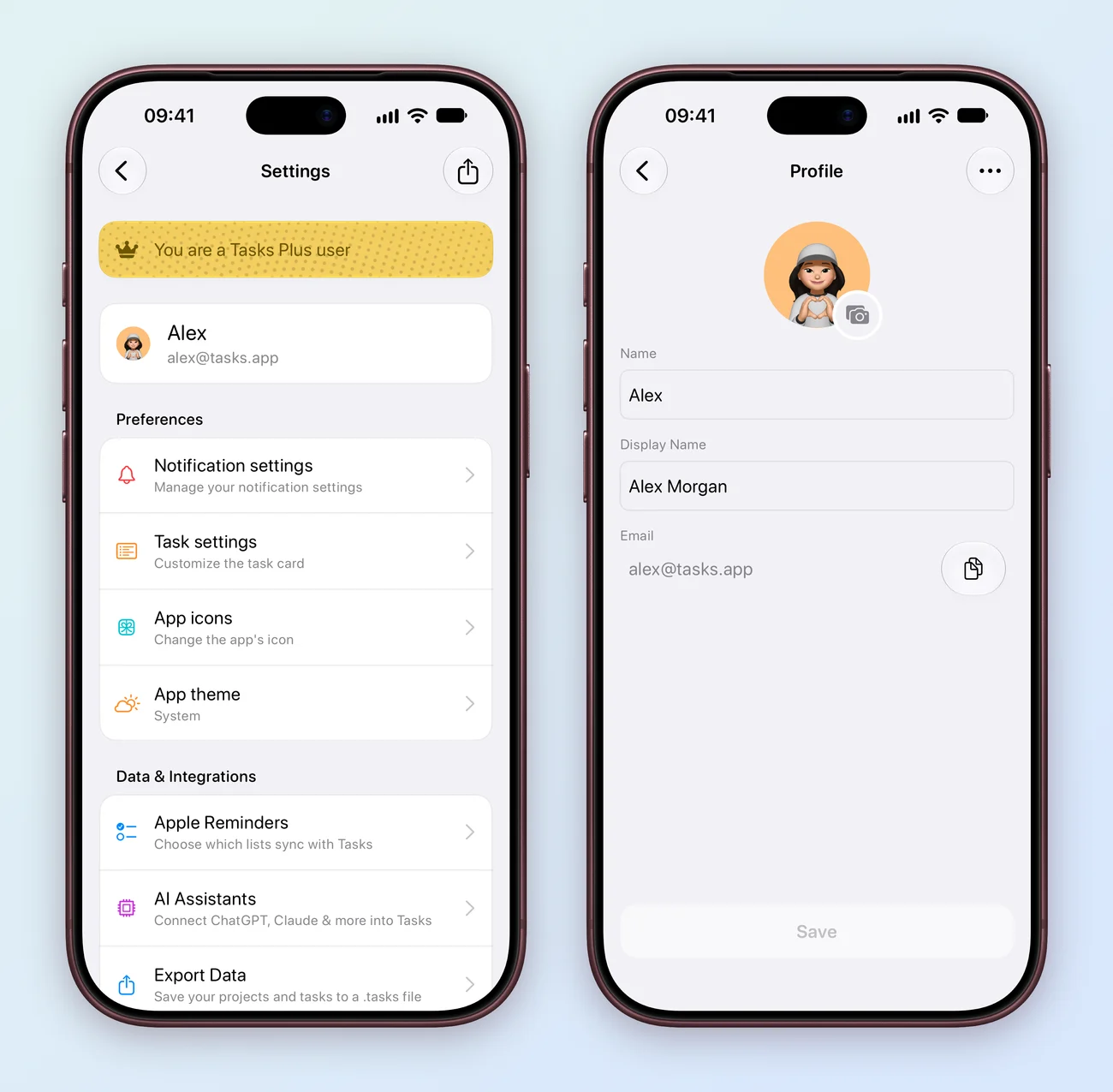
- Tap the gear at the top left of Home to open Settings.
- At the top, tap Sign in with Apple. If you see your name there instead, you are already signed in.
- Tap your name to open Profile and check the Email. It must be the same on every device.
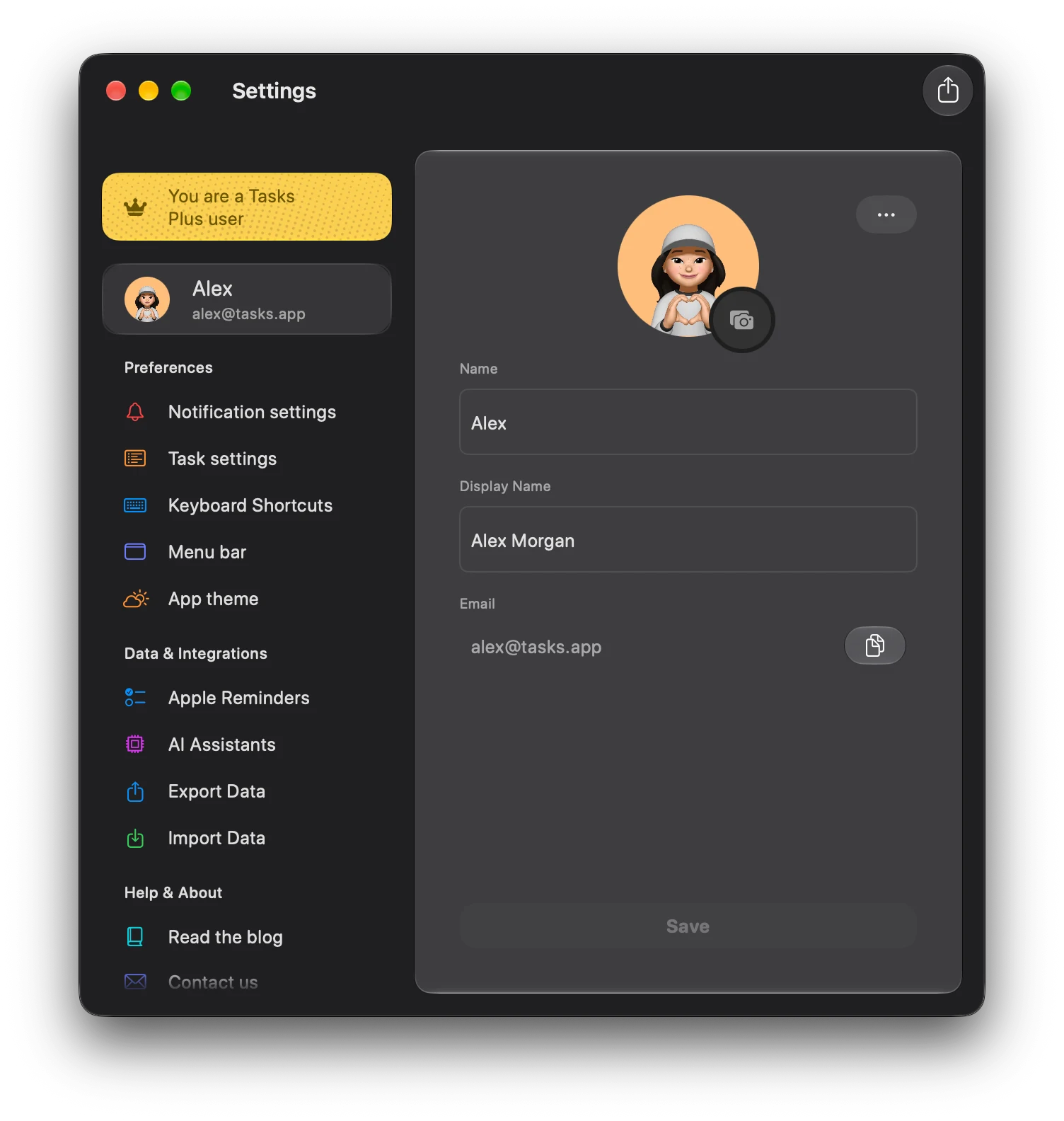
- Press ⌘, to open Settings.
- At the top of the sidebar, click Sign in with Apple. If your name is there instead, you are already signed in.
- Click your name and check the Email. It must be the same on every device.
If Sign in with Apple does not go through, Tasks offers to sign you in with your email and a one time passcode instead.
Move the project to Tasks Cloud
Older projects may still sync through iCloud, which is slower and less dependable. Tasks Cloud is Tasks’ own sync service, and it is where every shared project lives. Moving a project there is often all it takes.
Do this on the device where the project looks most complete, because that copy is the one that moves. Moving needs Tasks Plus, the same as sharing.
- Long press the project on Home, or tap the project name at the top of its board, and choose Invite people.
- If the project is on iCloud, you will see Switch to Tasks Cloud. Tap Confirm.
- Tasks opens the project again a moment later, now on Tasks Cloud. You do not need to invite anyone.
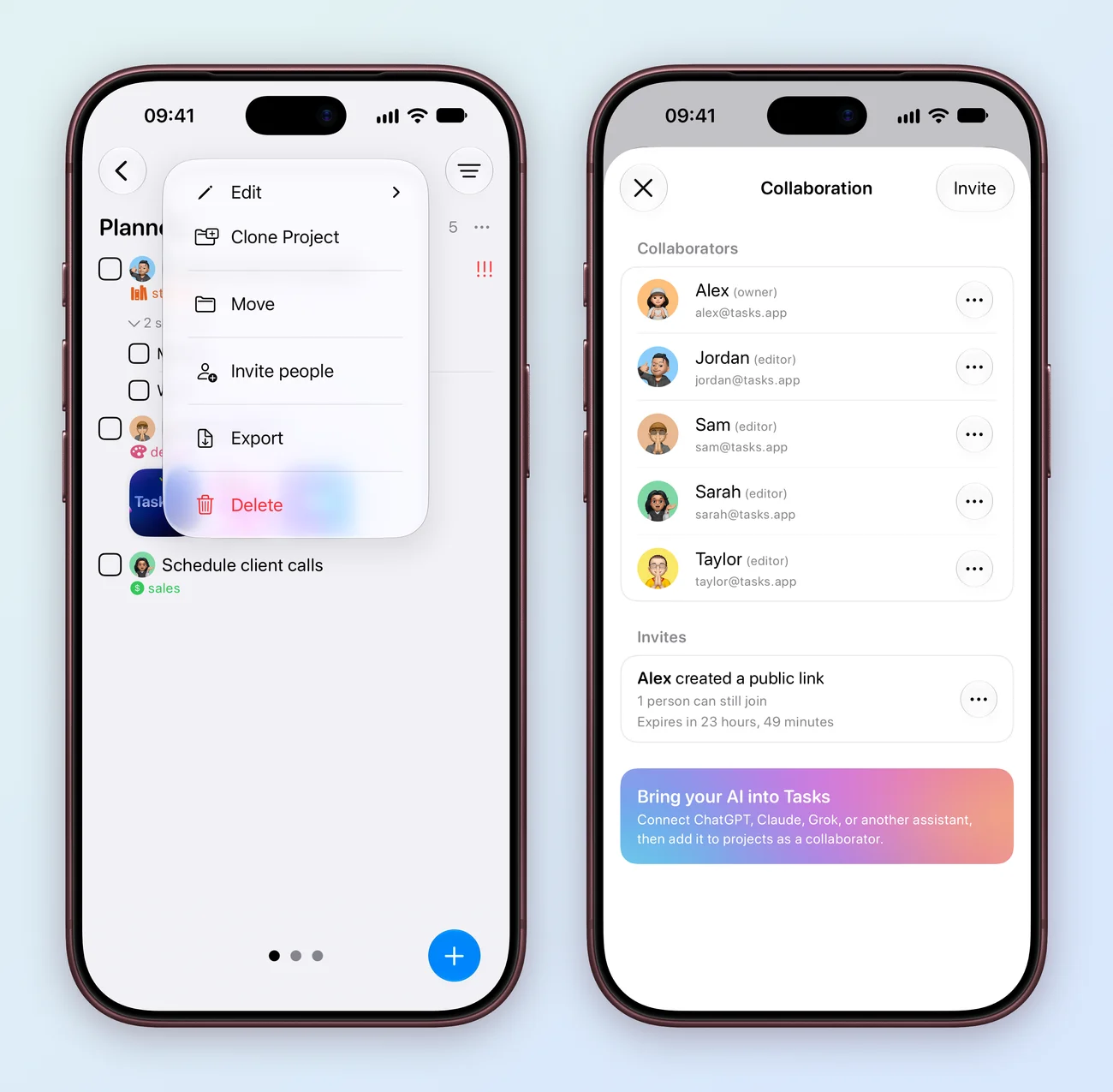
- Right click the project in the sidebar and choose Invite people.
- If the project is on iCloud, you will see Switch to Tasks Cloud. Click Confirm.
- Tasks opens the project again a moment later, now on Tasks Cloud. You do not need to invite anyone.
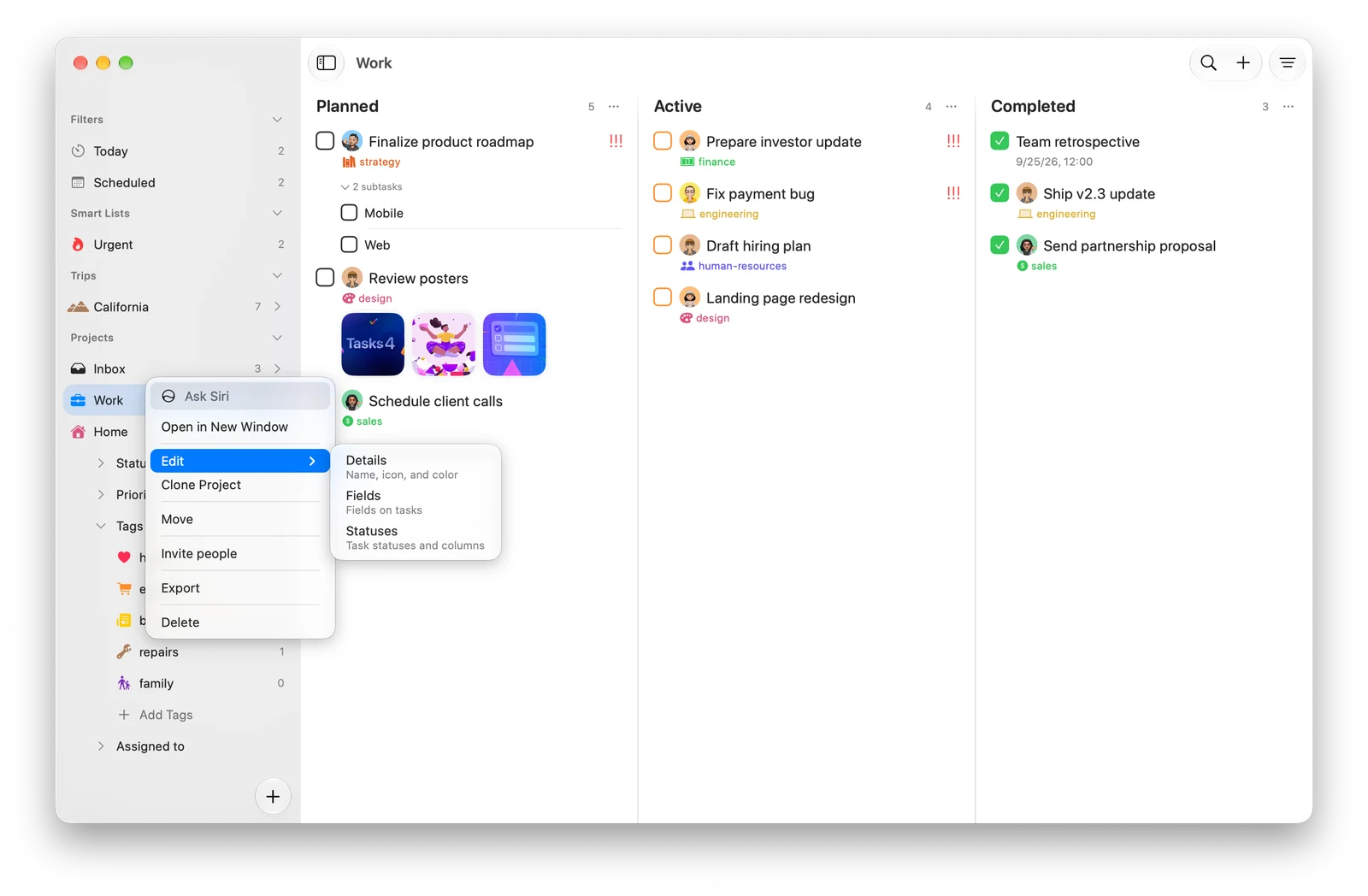
Tasks moves everything across: tasks, subtasks, fields, statuses and comments. The iCloud copy is removed, and the project reaches your other devices through Tasks Cloud. If Collaboration opens straight to its list of people and invites, the project is already on Tasks Cloud. Go to the next step.
Send a report if it is still stuck
A project on Tasks Cloud that still does not match is not supposed to happen, and a report helps find out why.
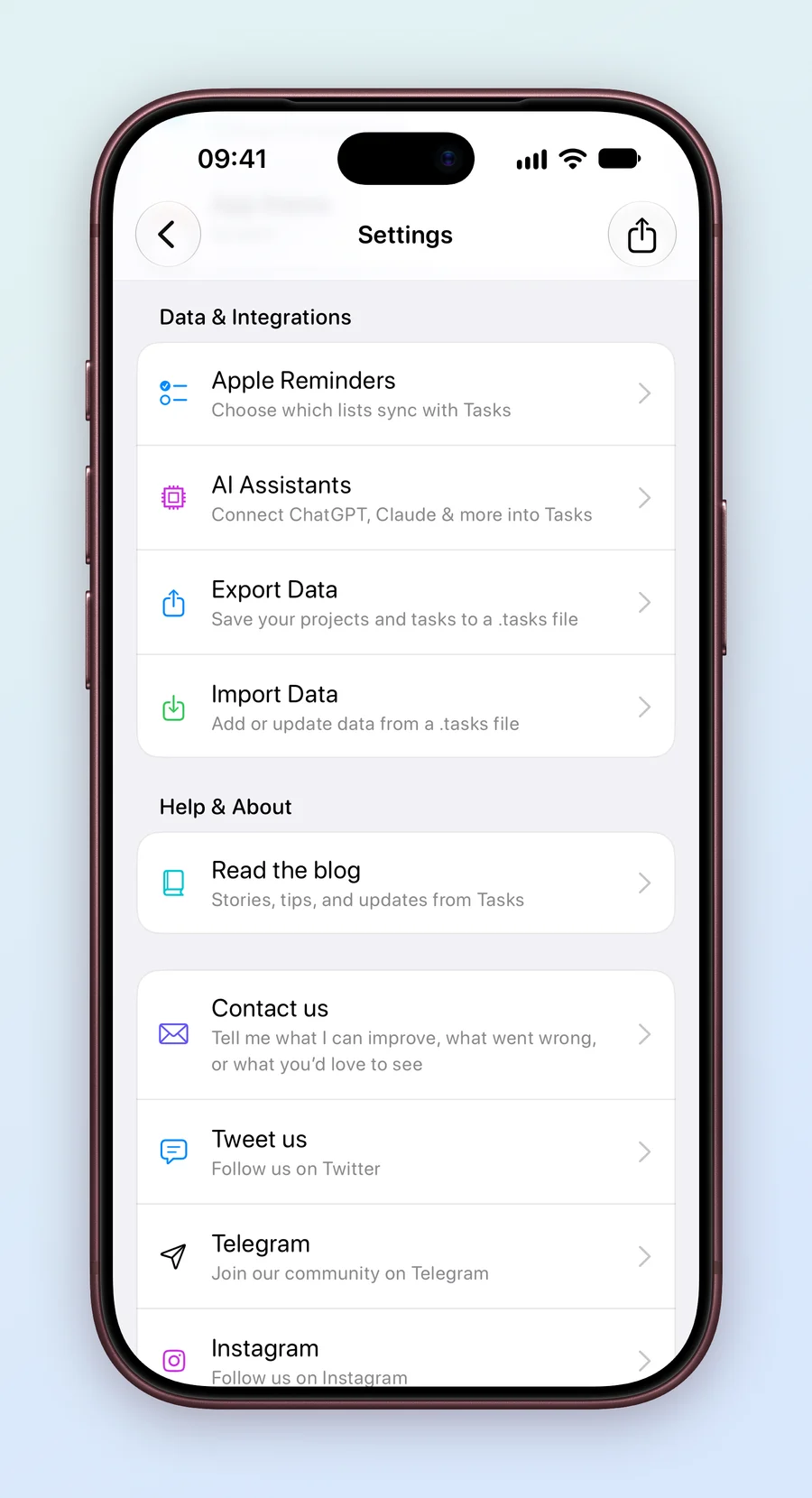
- Open Settings and scroll to Help & About.
- Tap Contact us. A new email opens with your app logs and device details already attached.
- Say which device has the right changes and which one is missing them, then send it.
- Press ⌘, to open Settings.
- Under Help & About, click Contact us. A new email opens with your app logs and device details already attached.
- Say which device has the right changes and which one is missing them, then send it.
Send one from every device involved. Each report carries that device’s logs, and comparing them is how the problem gets found. If Contact us opens a mail app other than Apple Mail, the logs cannot be attached. Tap Copy Support ID, also under Help & About, and paste it into your email.
Clone the project as a last resort
If you need your devices to match right now, make a fresh copy of the project and remove the stuck one. Cloning needs Tasks Plus.
- On the device where the project looks most complete, save a backup first: Settings, then Export Data. See Back Up, Import and Protect Your Tasks.
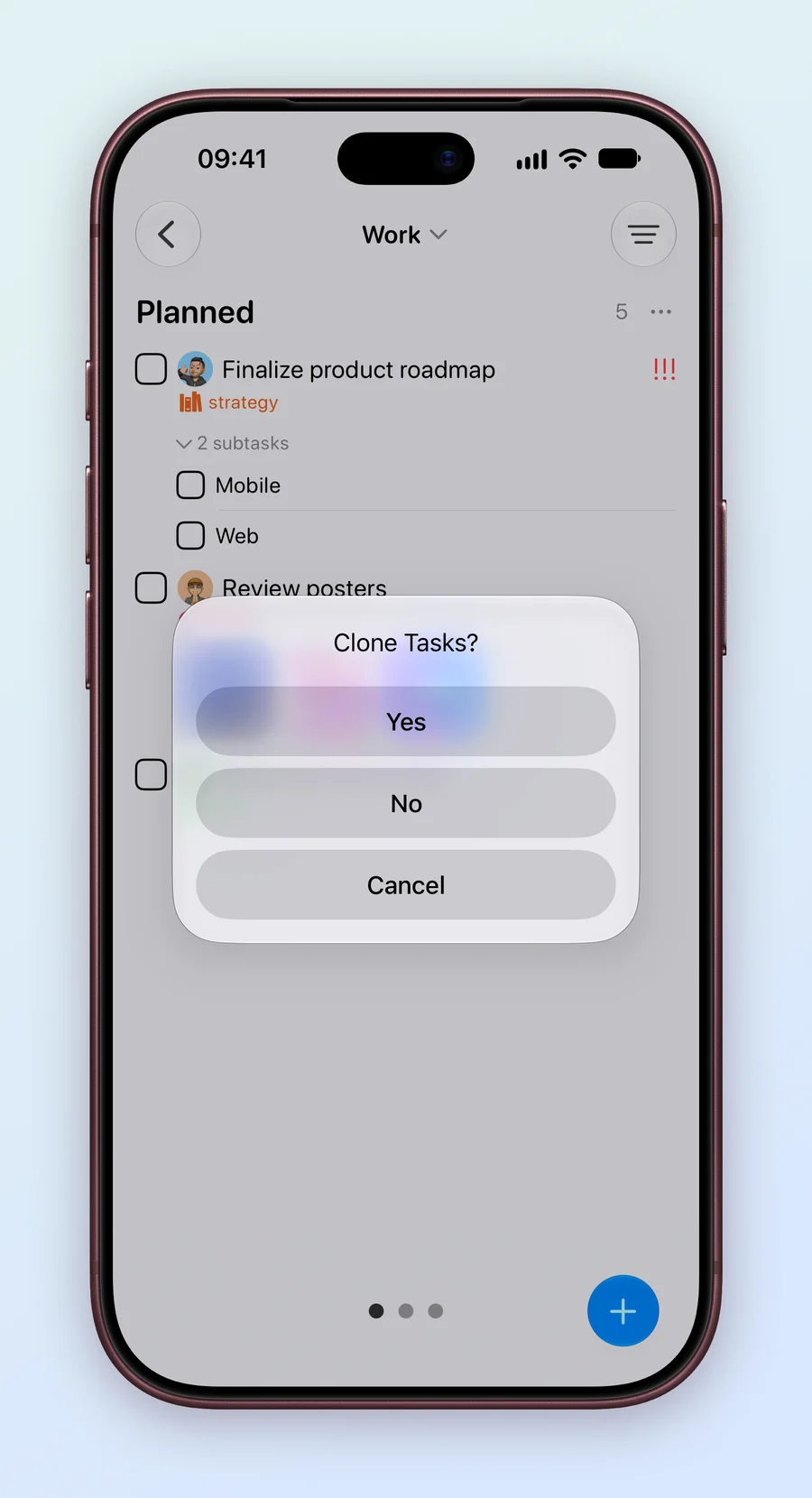
- Open the project menu and choose Clone Project.
- At Clone Tasks?, choose Yes to copy the tasks too. No copies only the fields and statuses.
- The clone has the same name as the original. Open it, check everything is there, and wait for it to appear on your other devices.
- Open the old project’s menu, choose Delete, and confirm. Deleting cannot be undone, so make sure you picked the old one.
A clone keeps its tasks, subtasks, fields, statuses and comments. People are not copied, so for a shared project, invite everyone again and reassign tasks in the new copy.
Still out of sync after all four steps? Write to us from Support. A person reads every message.