1
Only when half-folded
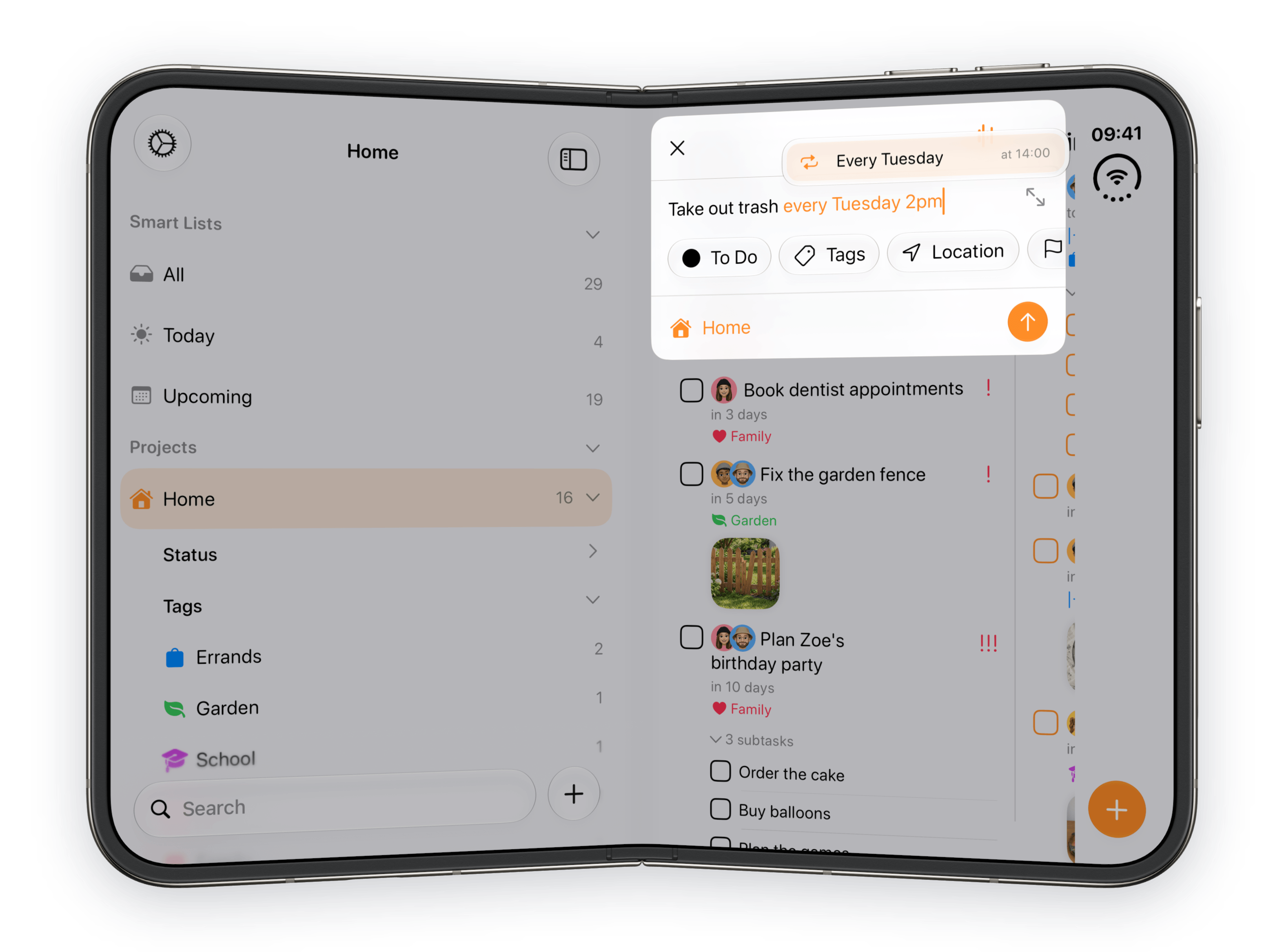
Cards only move when the hinge is partly open. iOS 27.1 tells the app through UIHingeInteraction.
Press kit · Tasks 5.2 · October 13, 2026
I spent a week making Tasks feel right on a folding iPhone. Here's what I built, why, and everything you need to write about it.
1
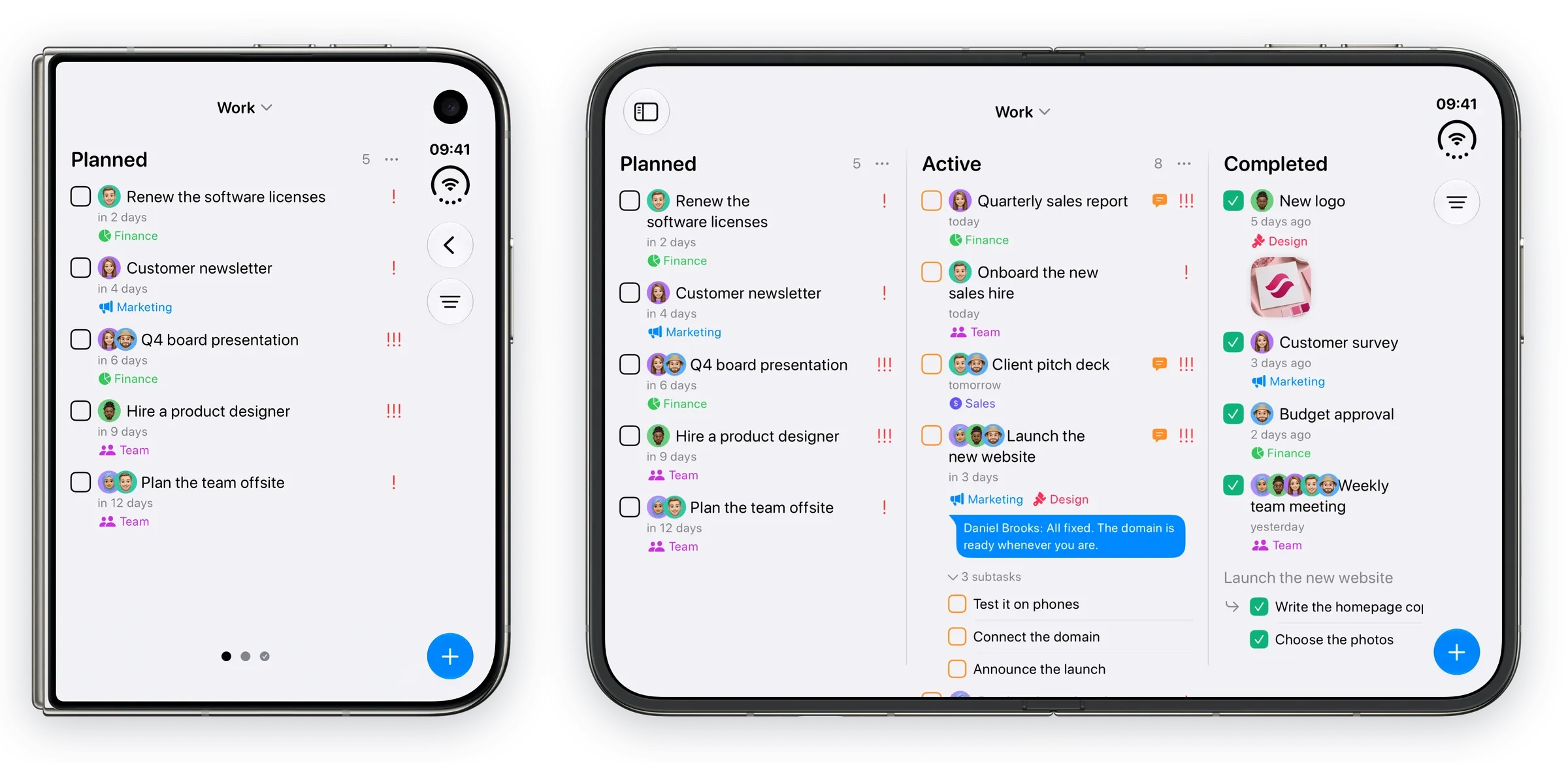
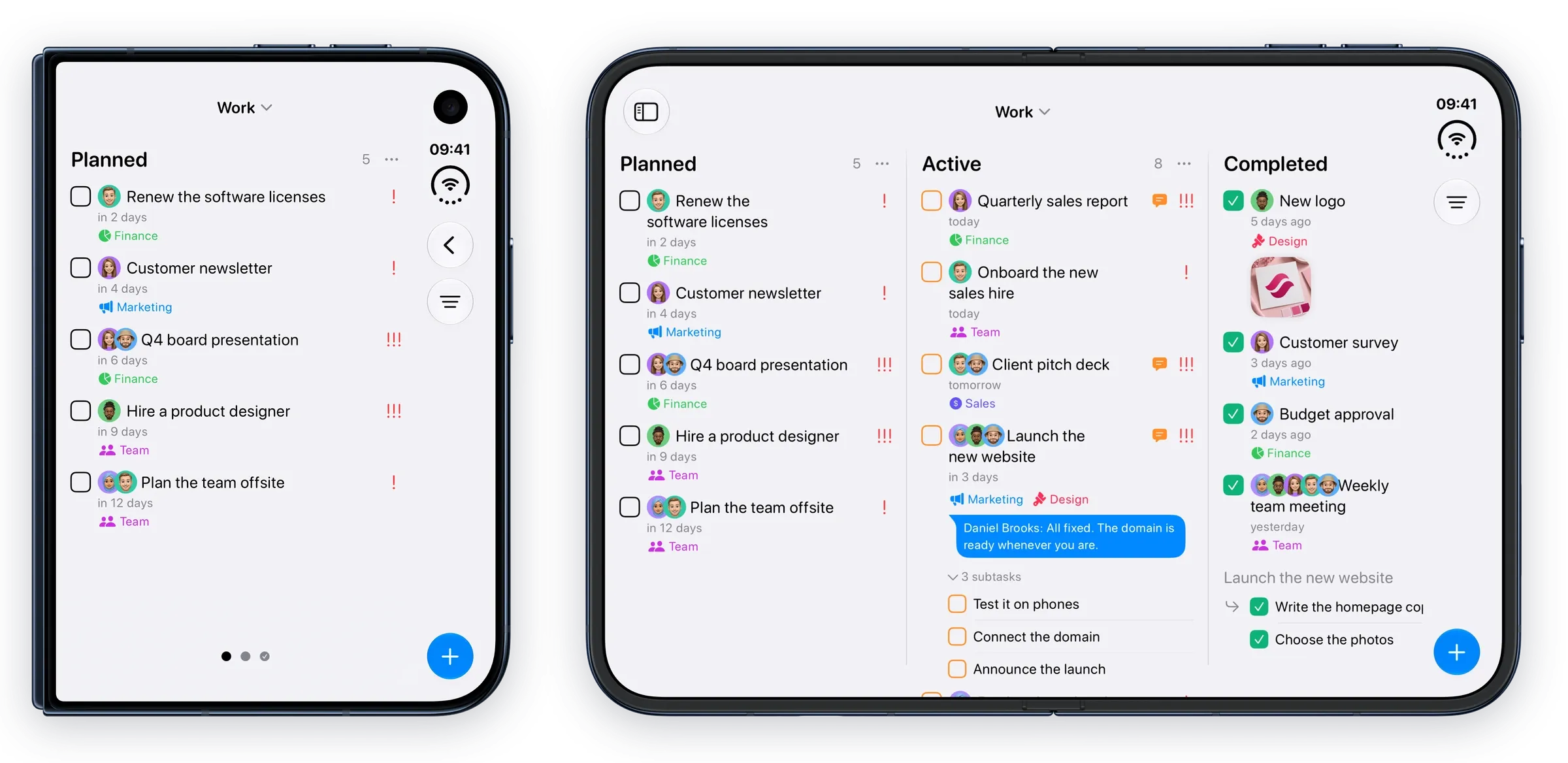
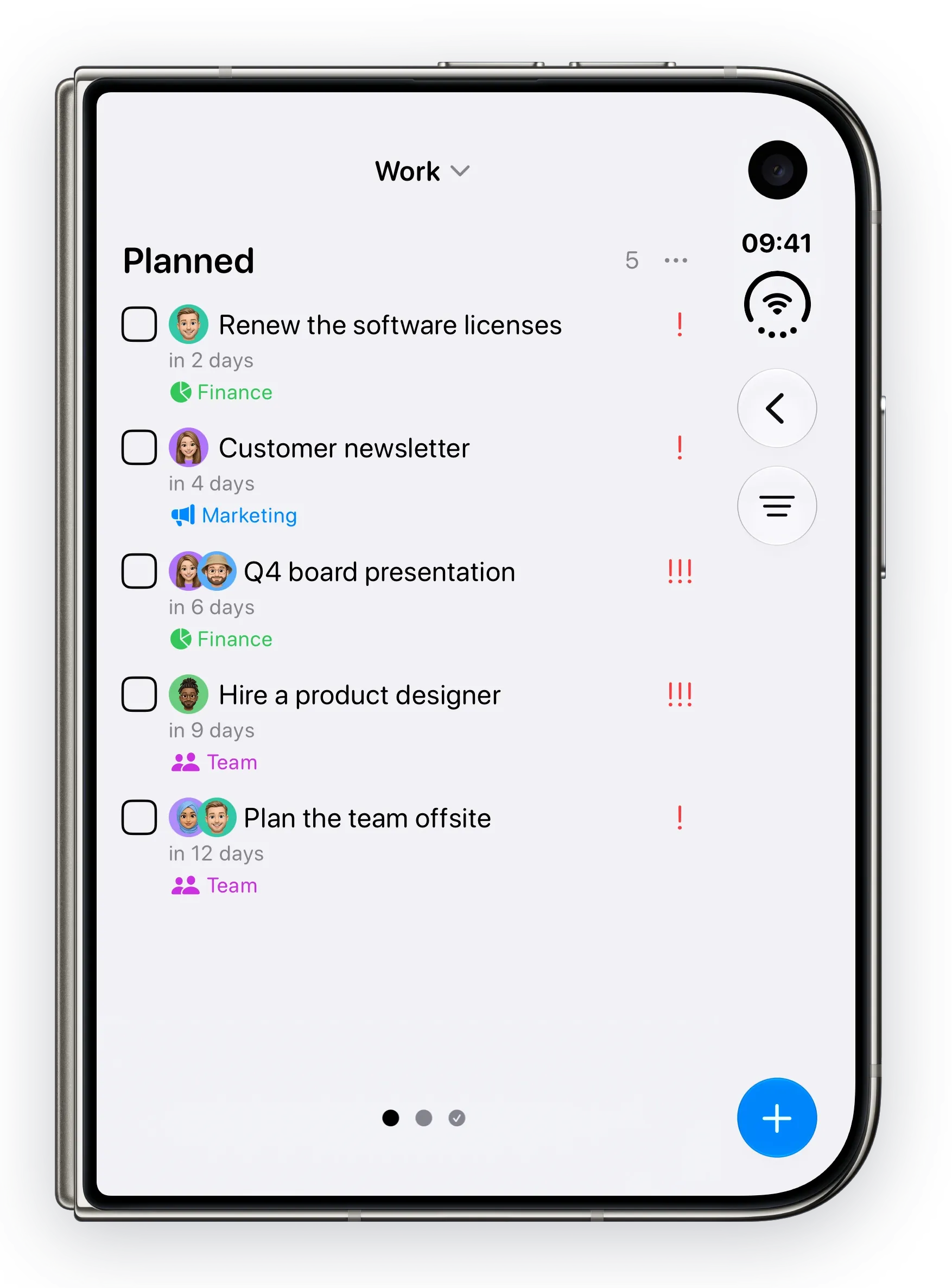
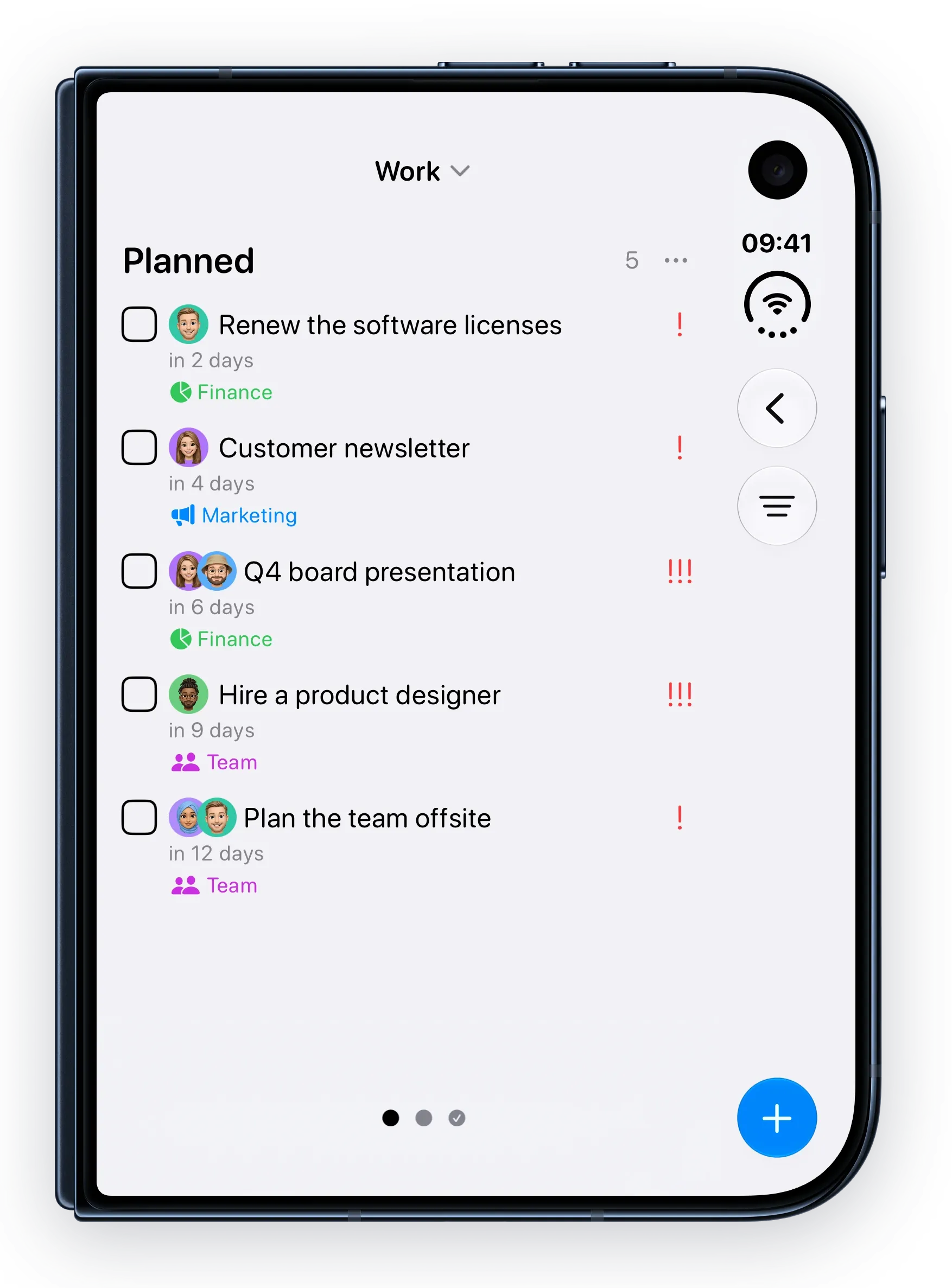
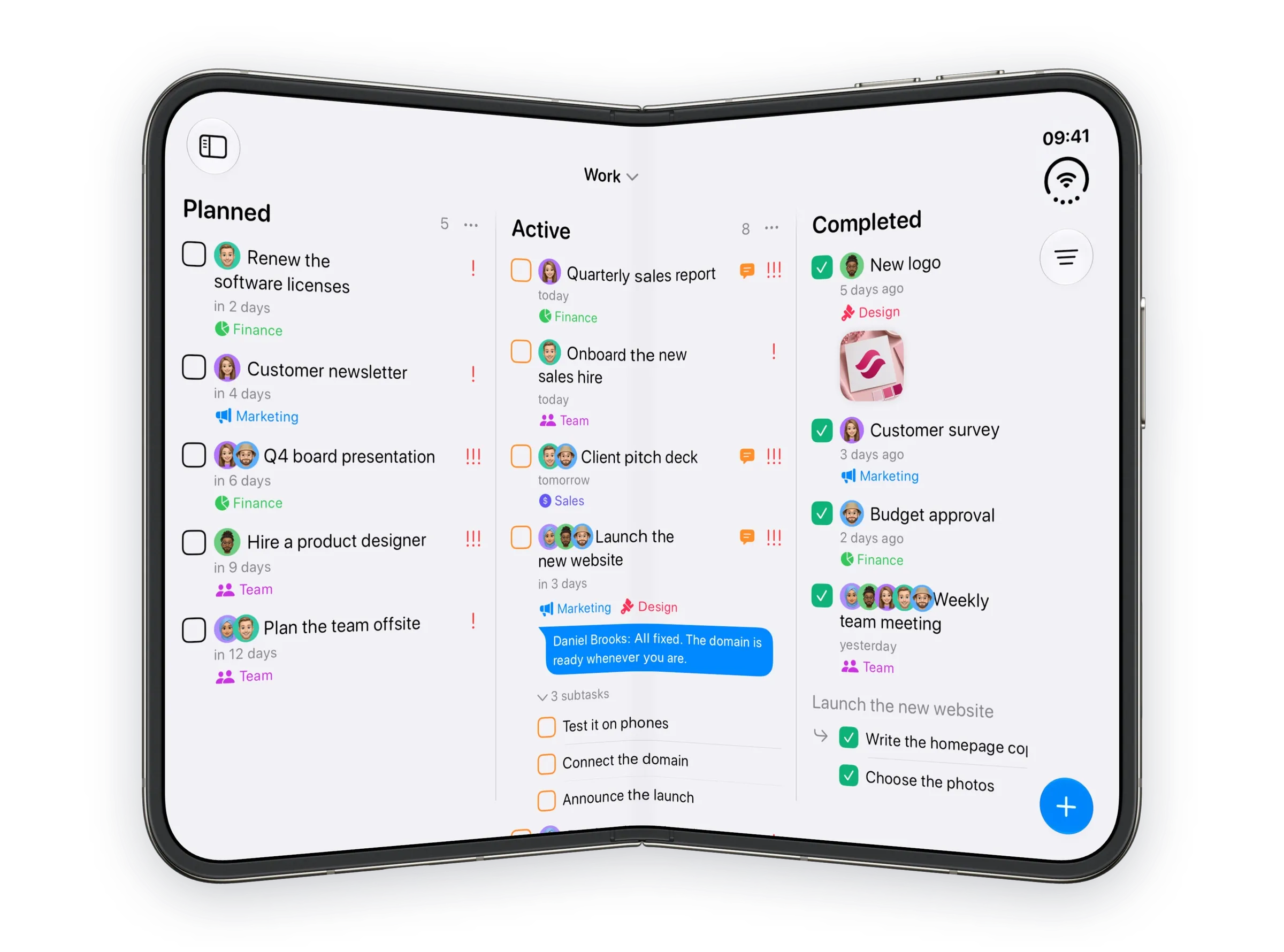
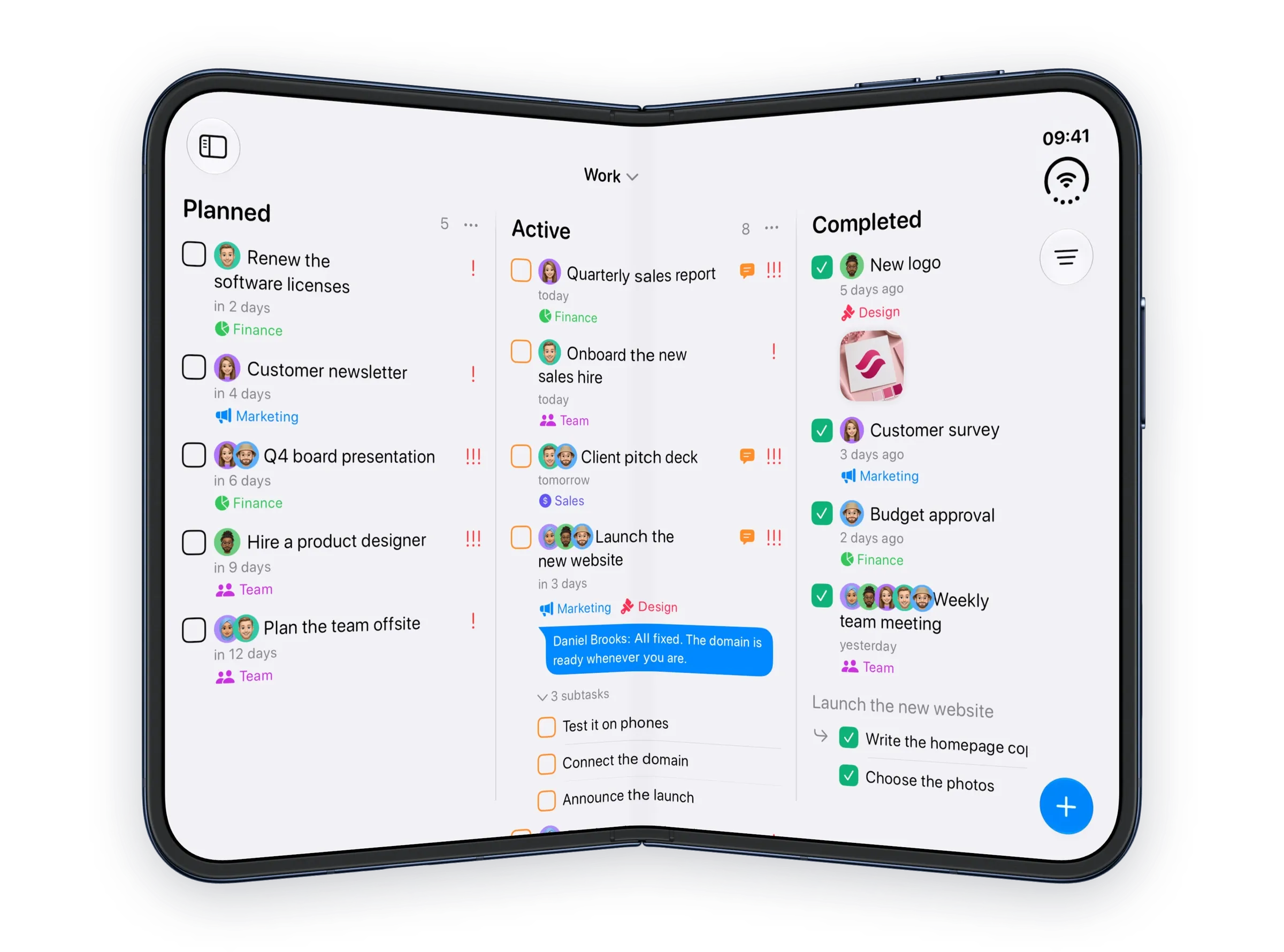
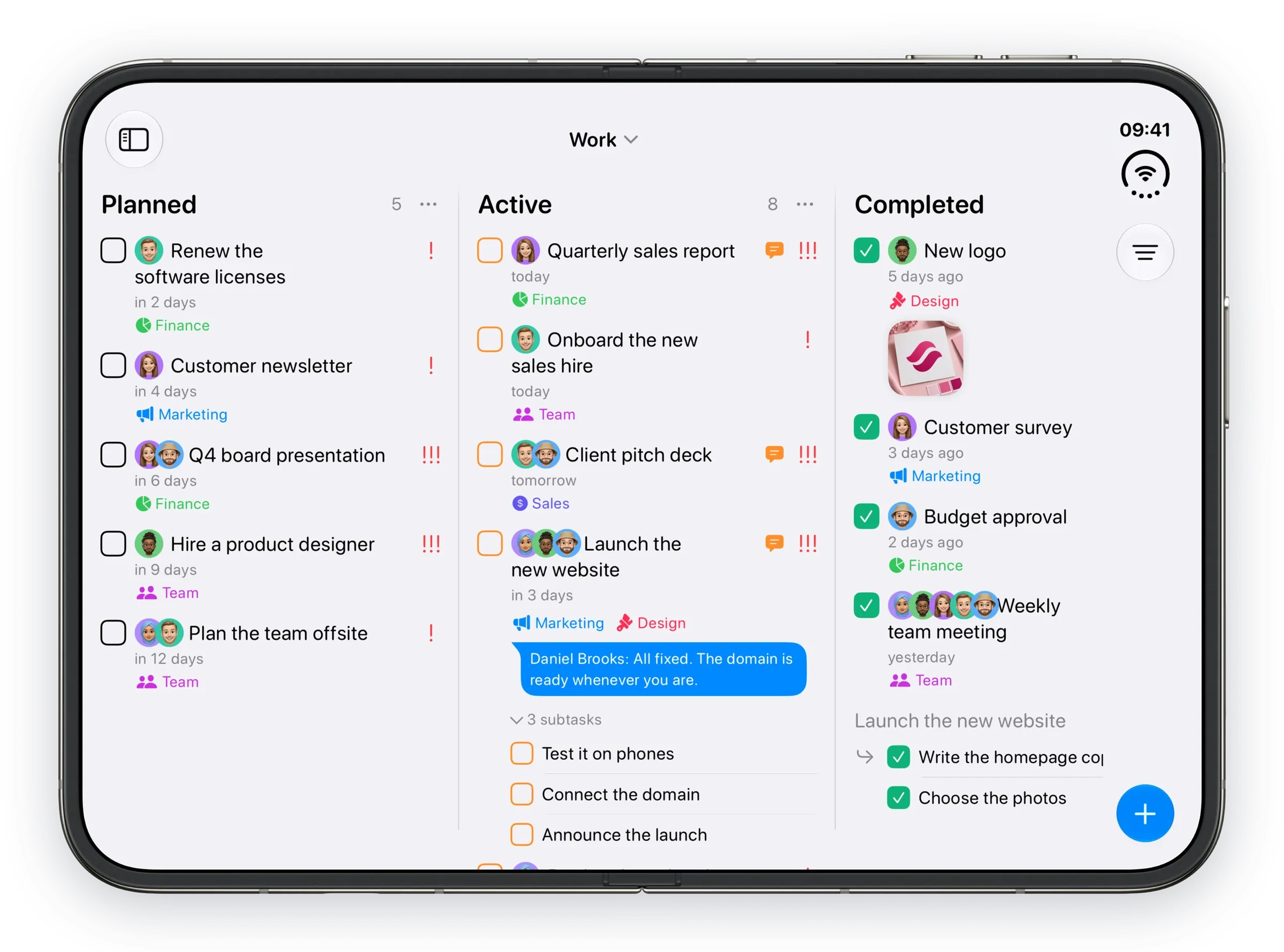
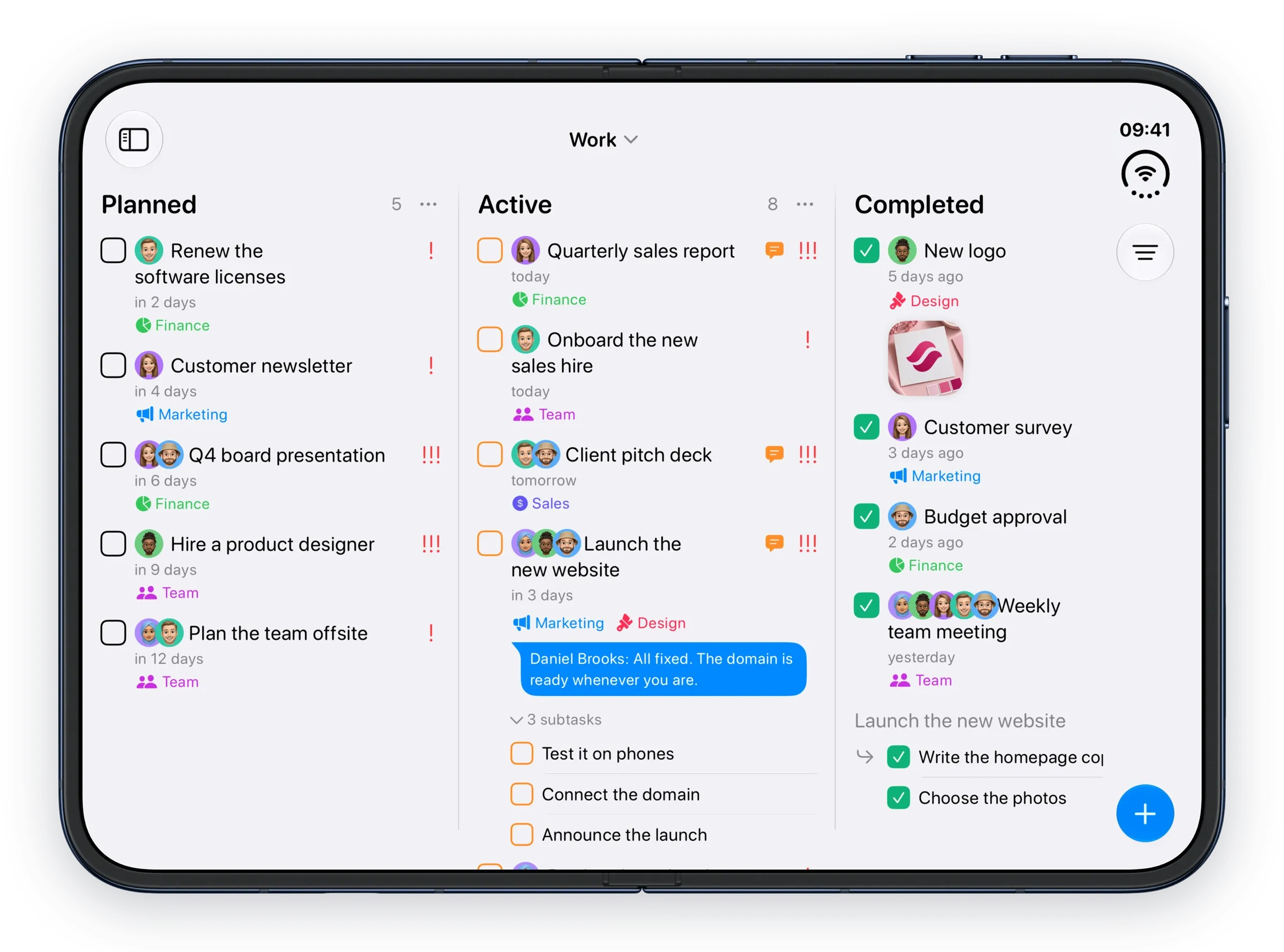
The Duo is a 5.4-inch phone on the outside and a 7.6-inch screen on the inside. Tasks doesn't have a layout for each. It looks at how much room it has and works it out.
2
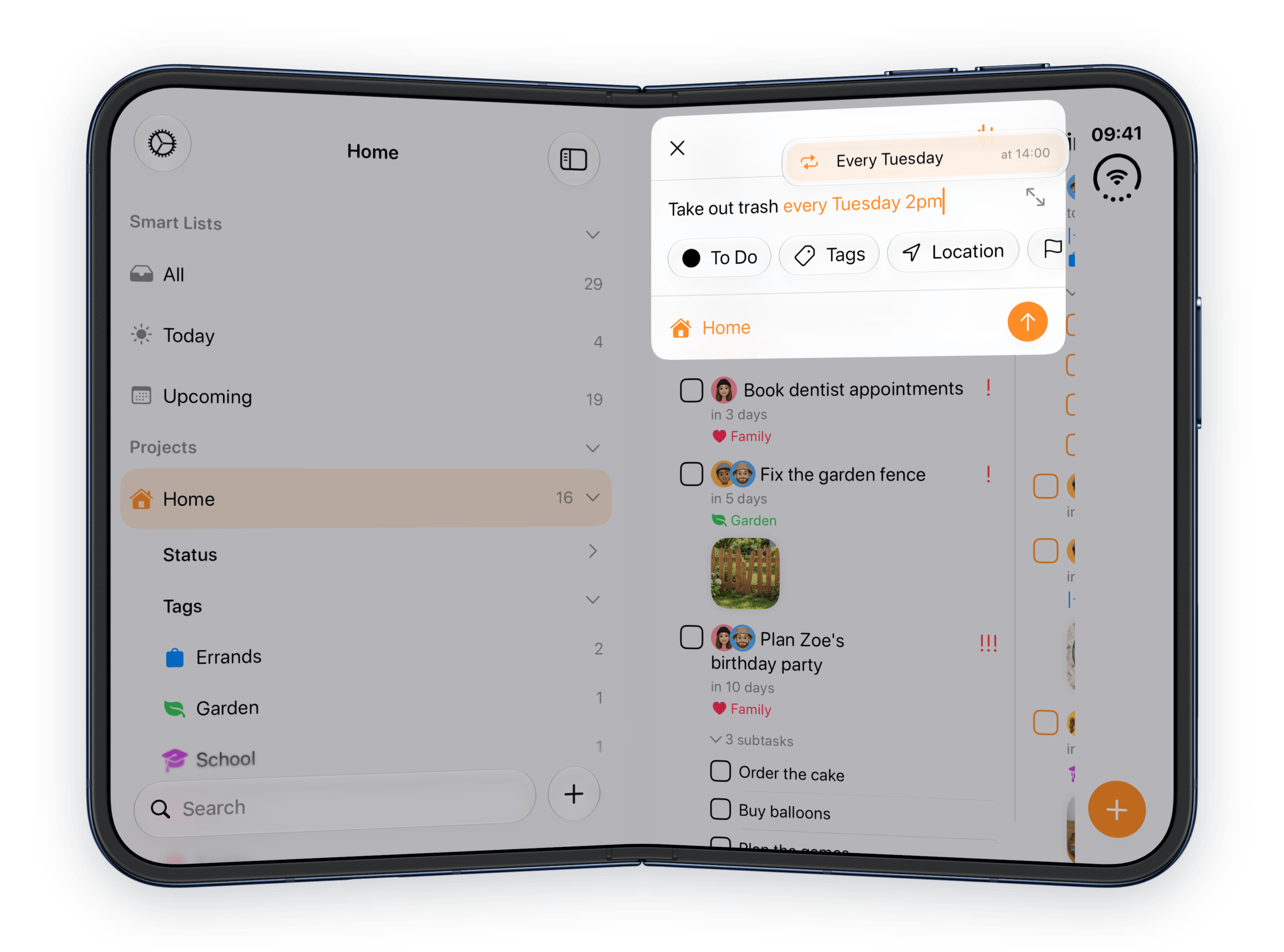
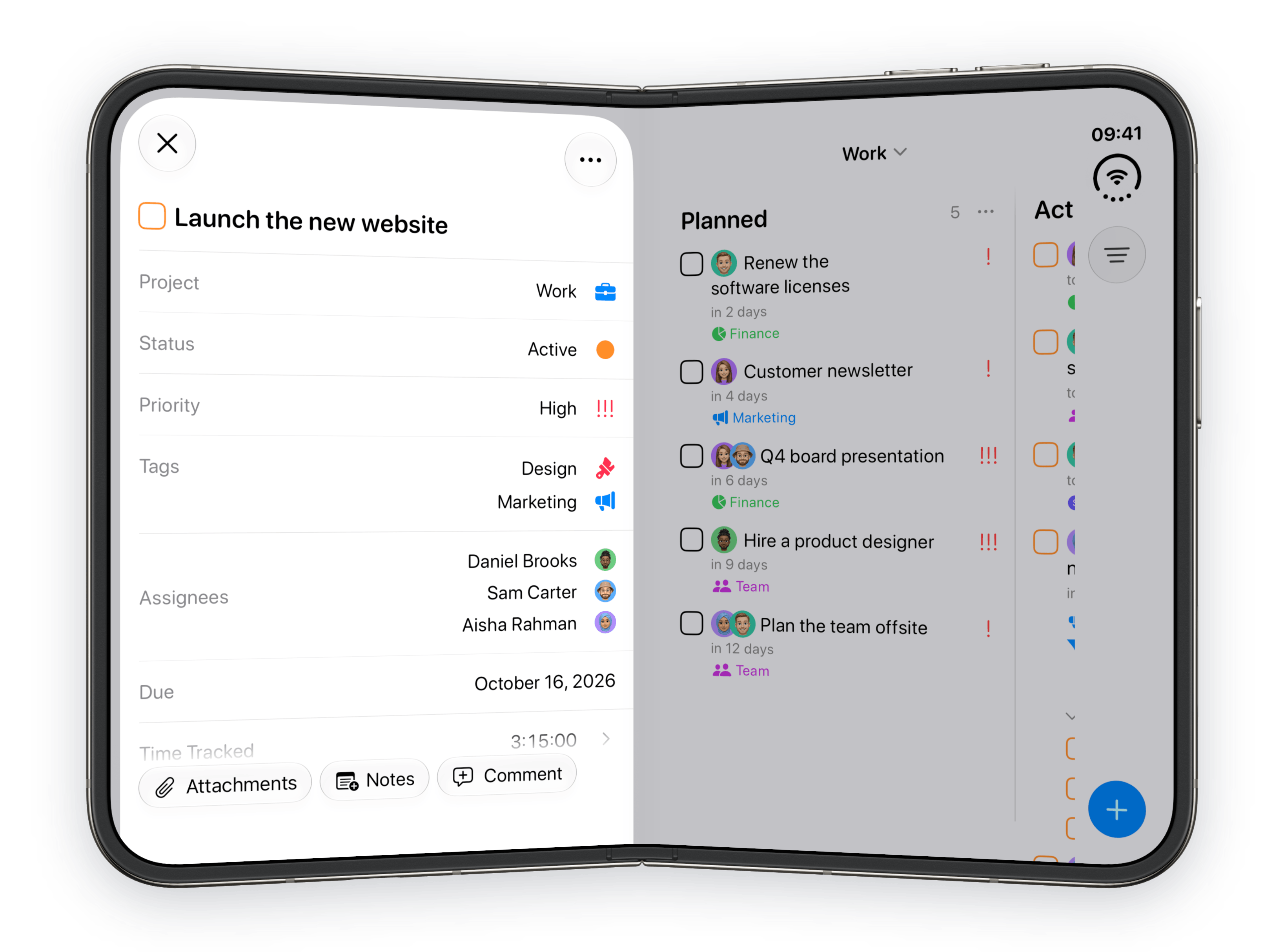
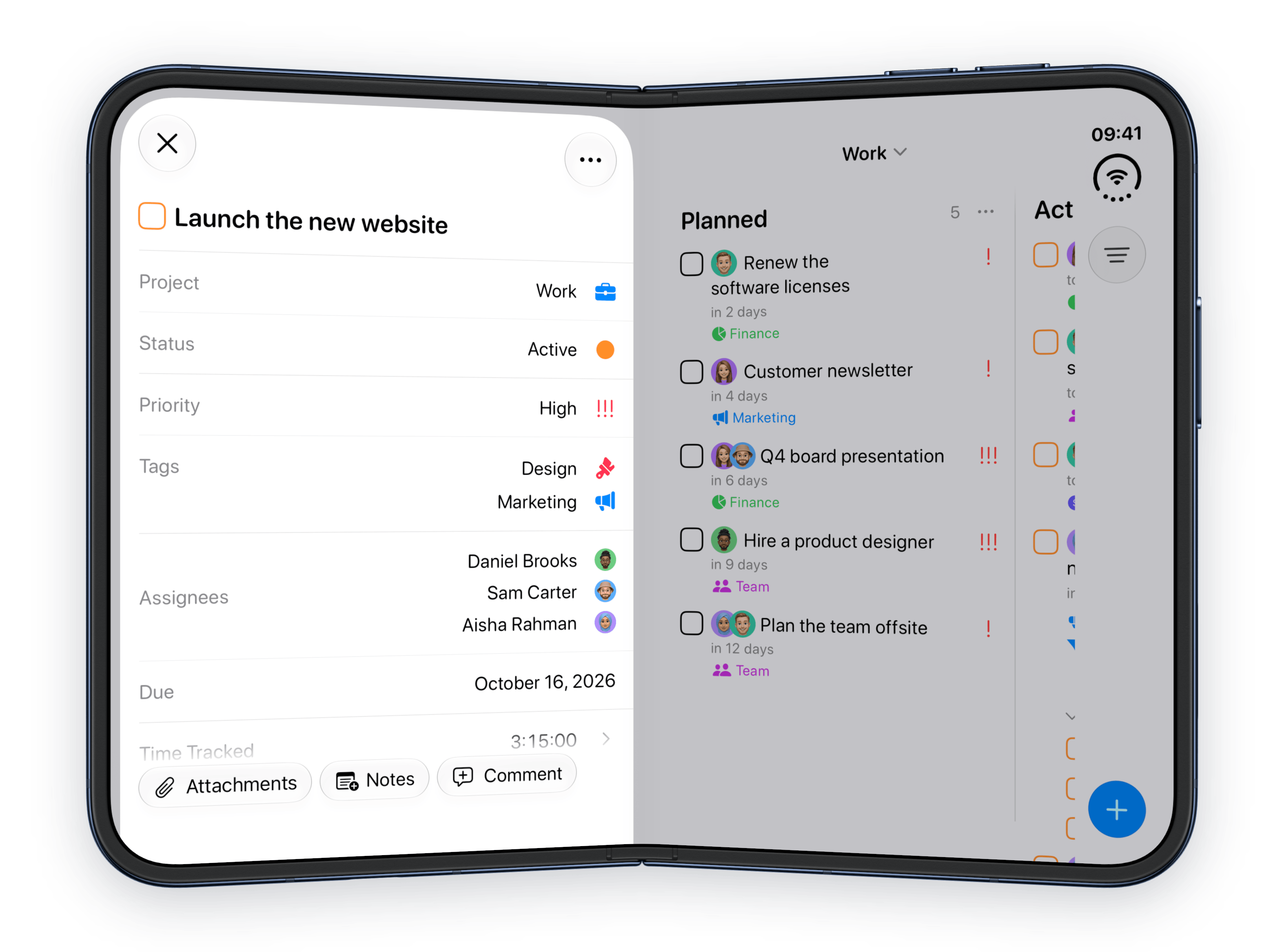
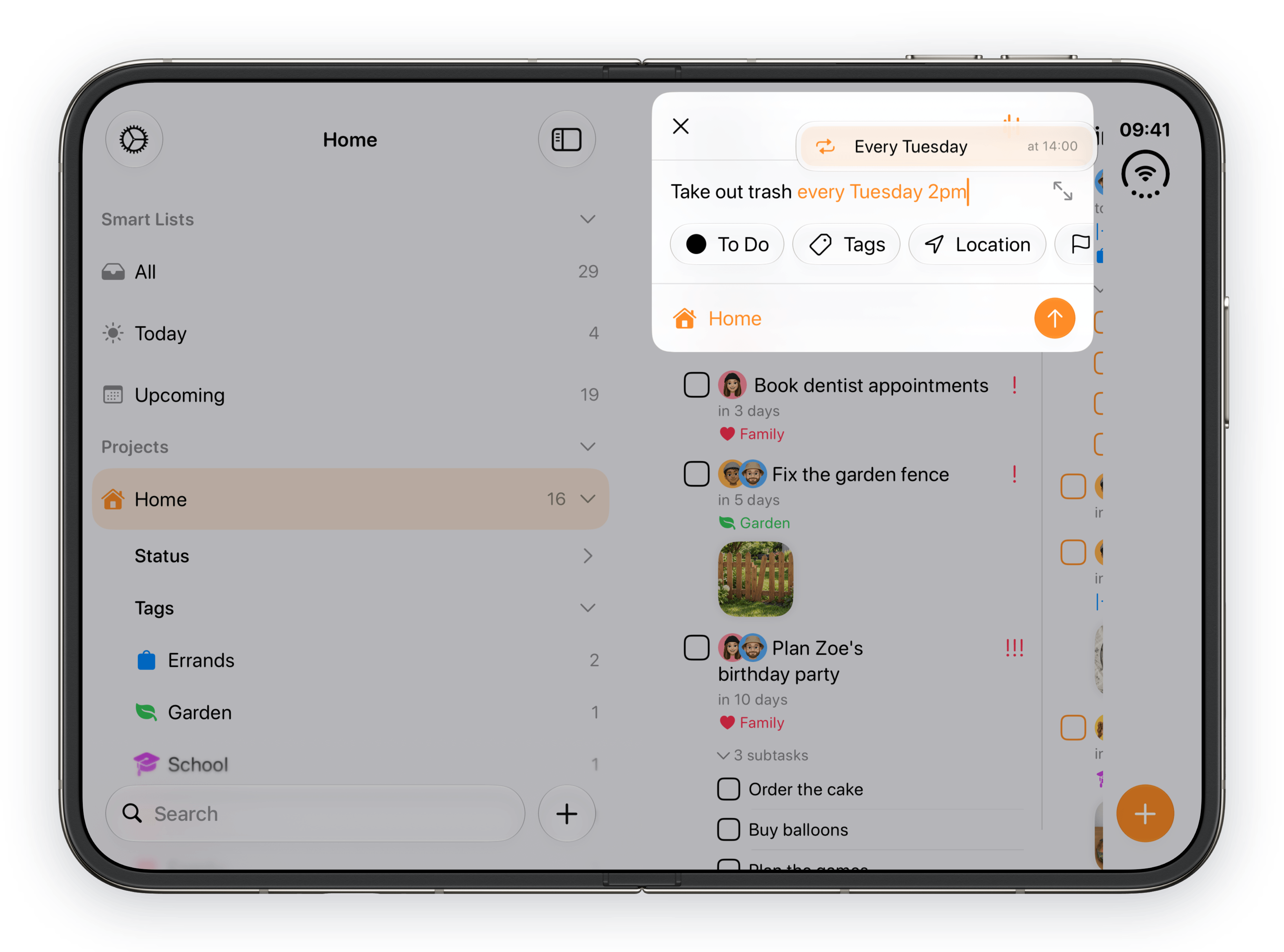
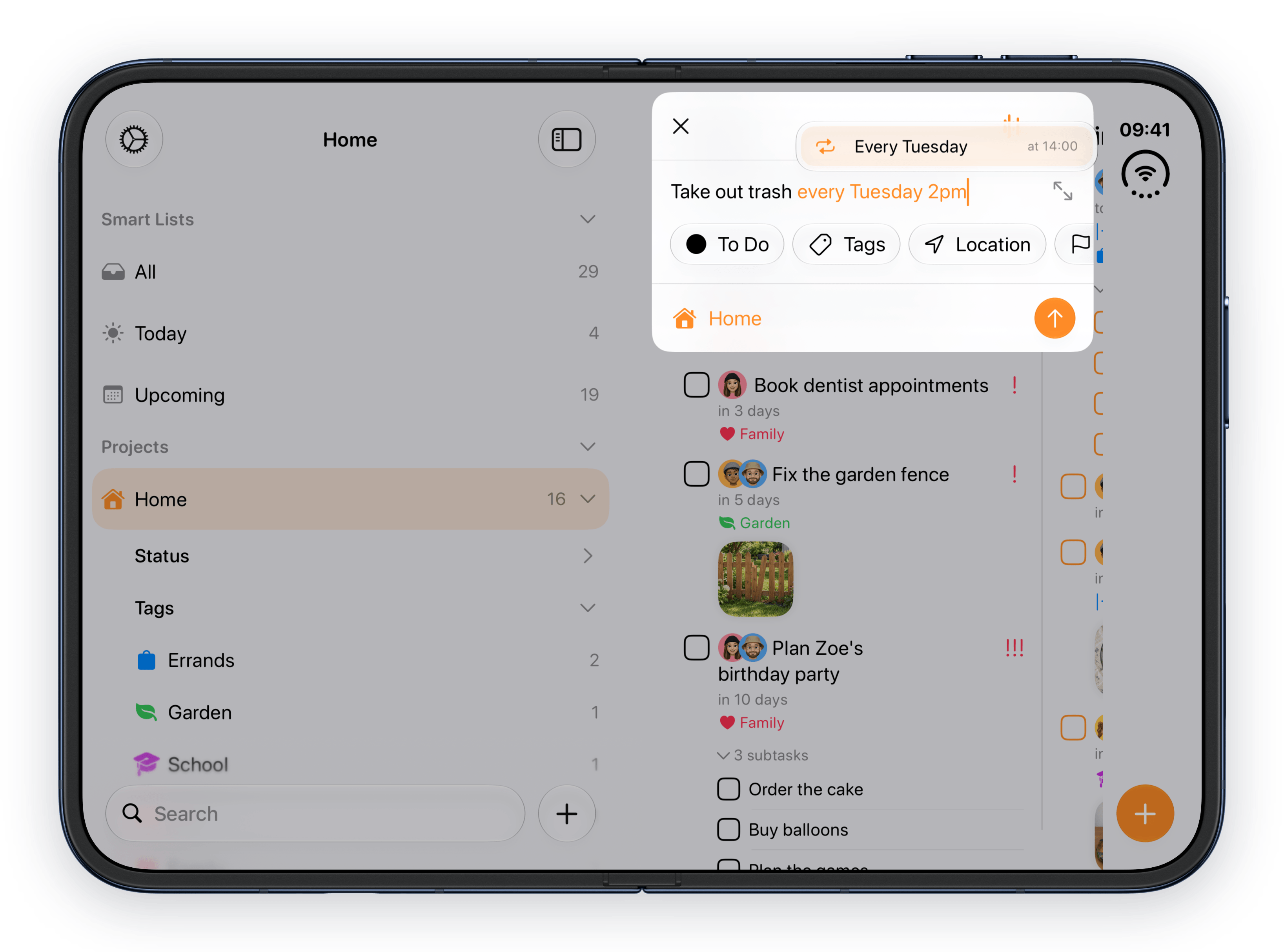
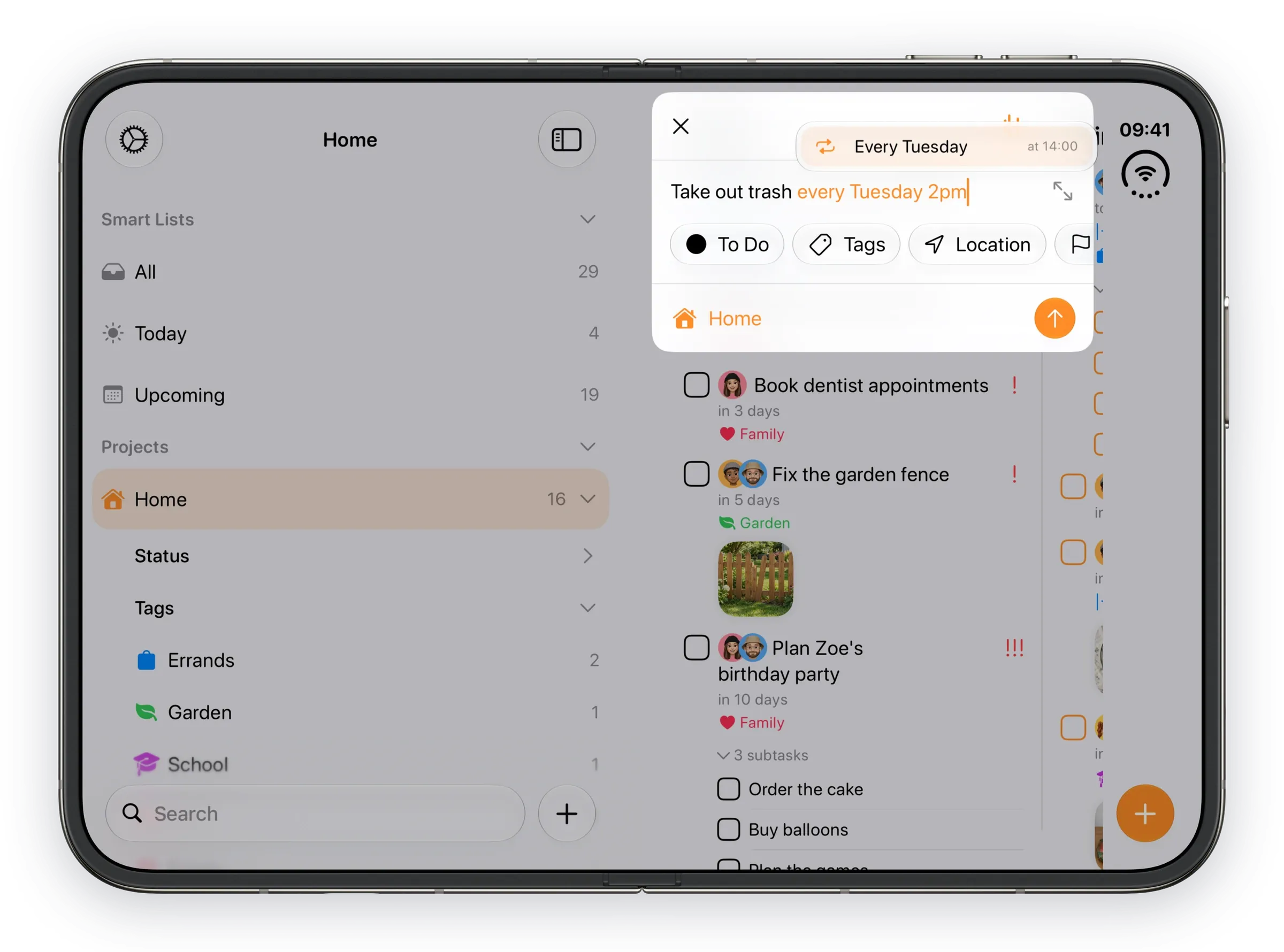
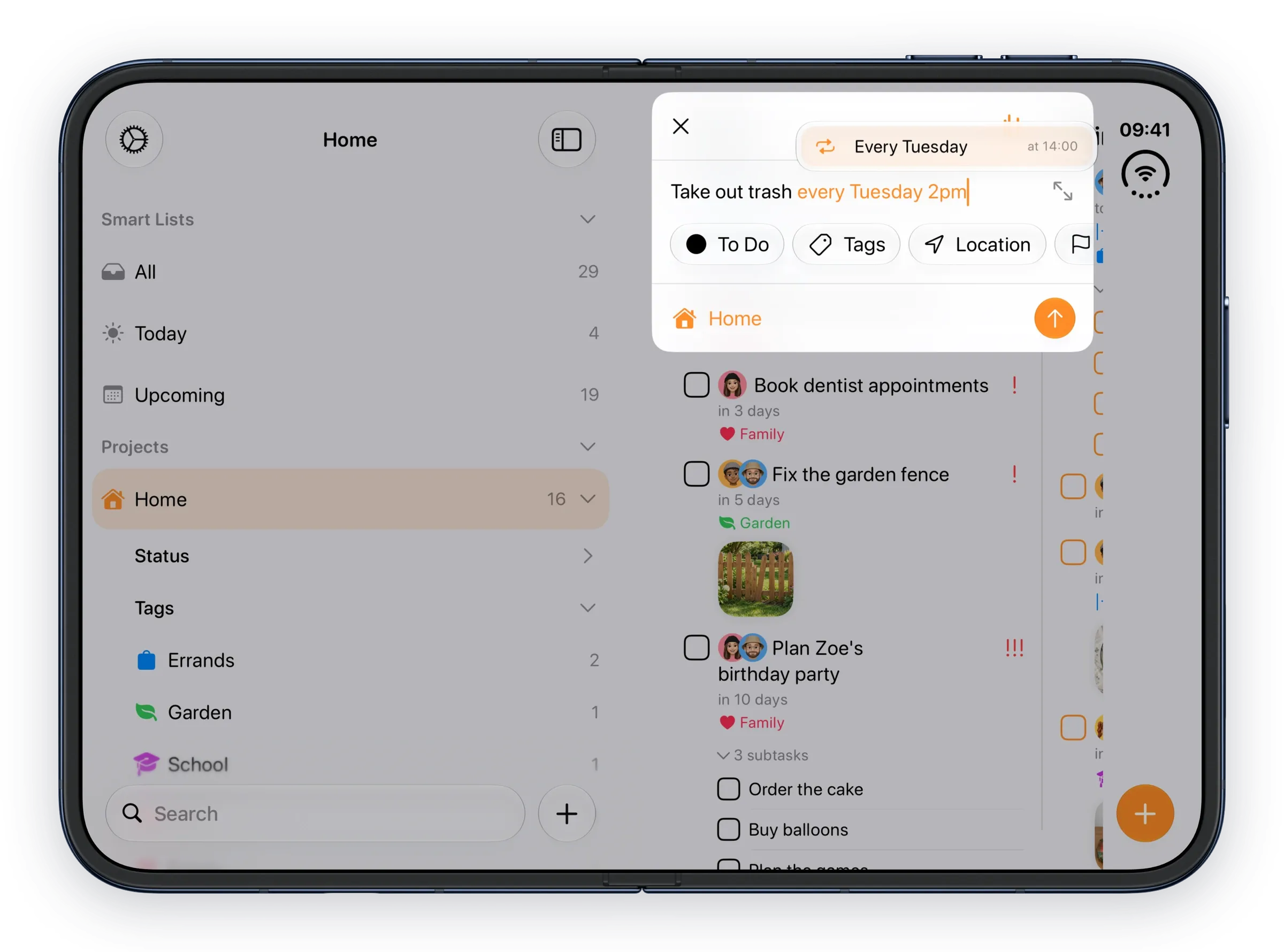
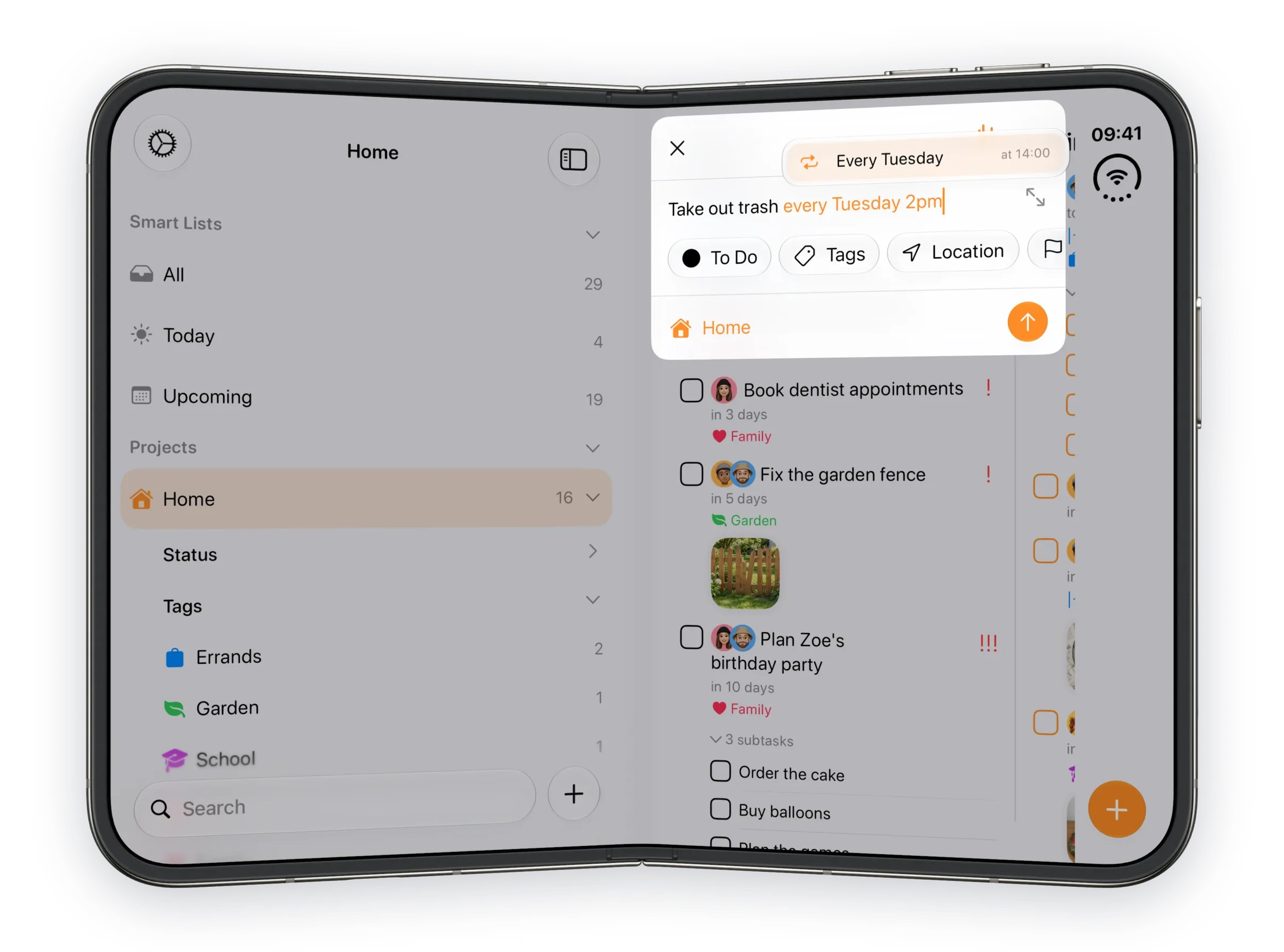
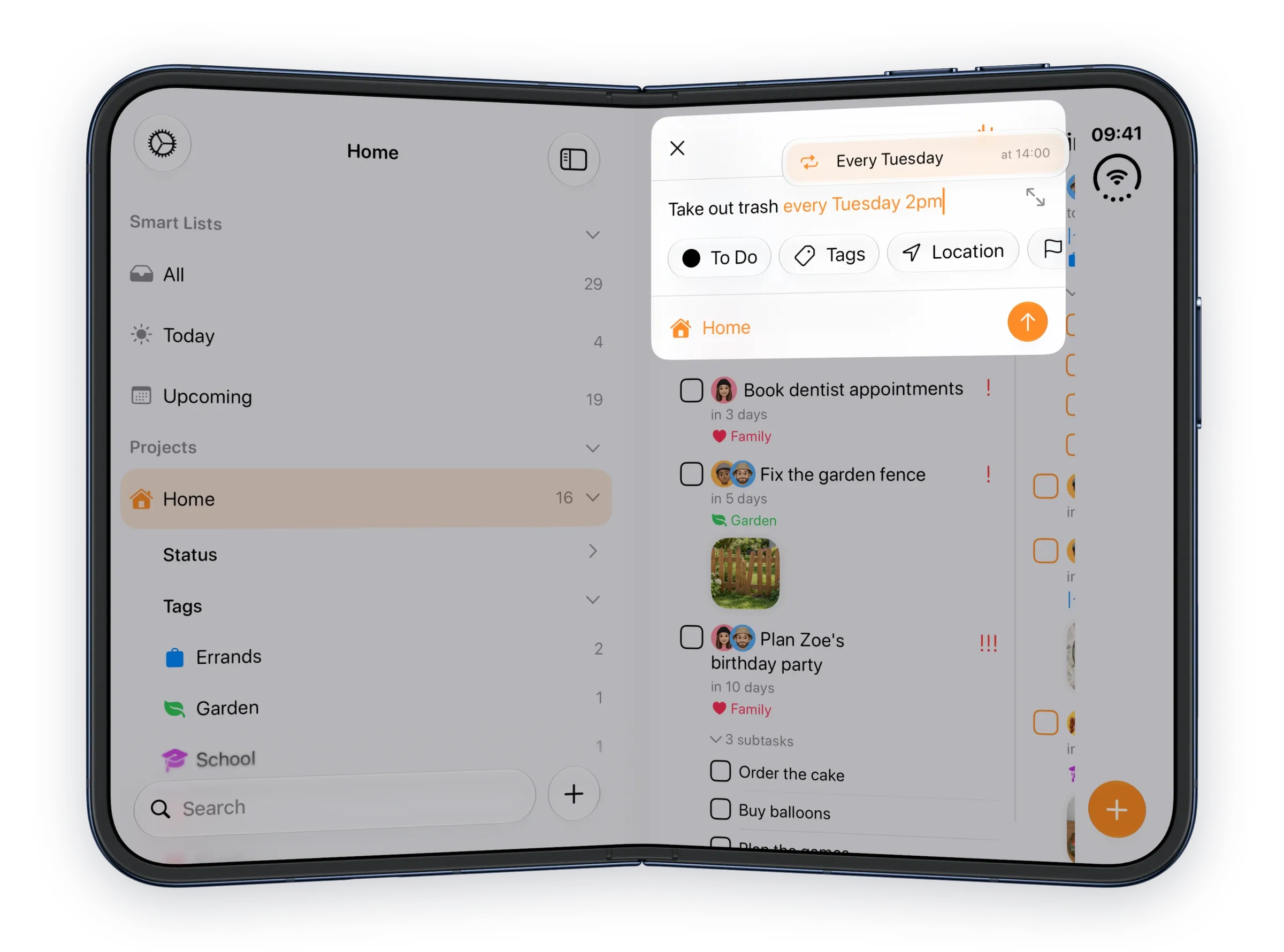
Half-fold the Duo like a book and a card in the middle of the screen sits right on the crease. Nobody wants to type over a crease. So in Tasks the card moves into the half facing you, and follows if you turn the Duo.
Try it
Drag the slider and watch the card pick a side. It uses the same numbers as the app.
Held as you started. The card rests on the right.
1
Cards only move when the hinge is partly open. iOS 27.1 tells the app through UIHingeInteraction.
2
It switches sides once you turn past 15°. Back within 8° of how you started, it sits on the right. In between, it stays put.
3
Tasks only reads motion while a card is open.
4
The card fills its half and stays at least 8 pt away from the fold.
3
It changes the layout and that's it.
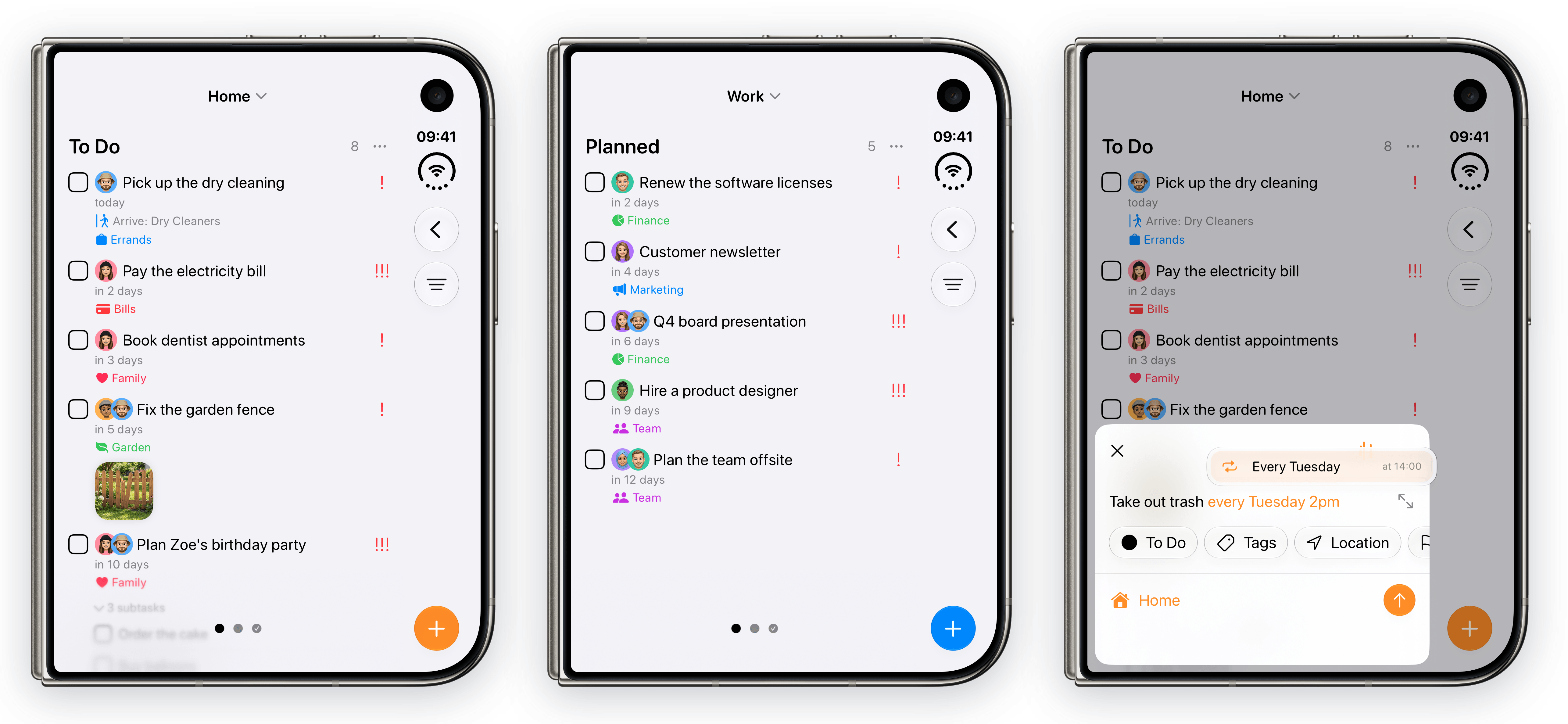
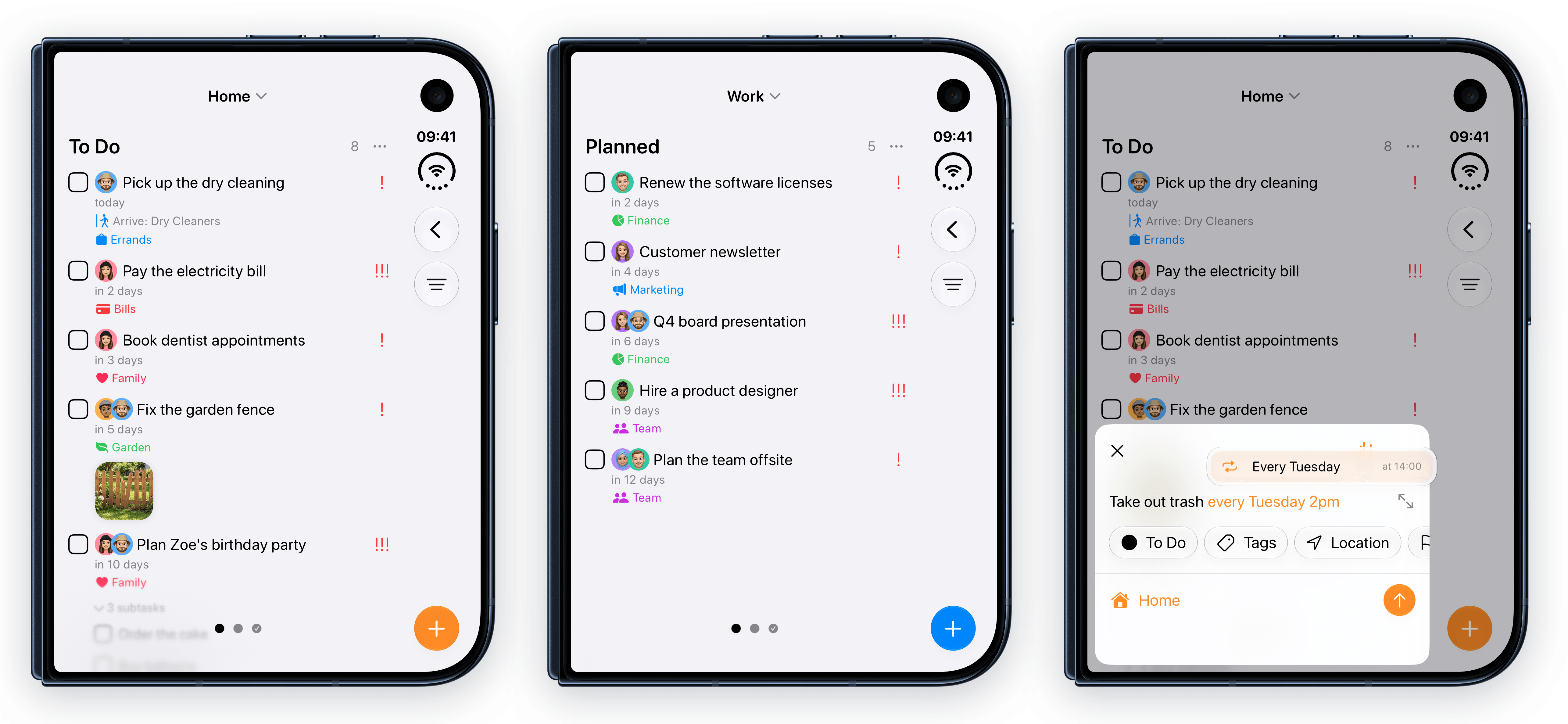
The draft comes with you.
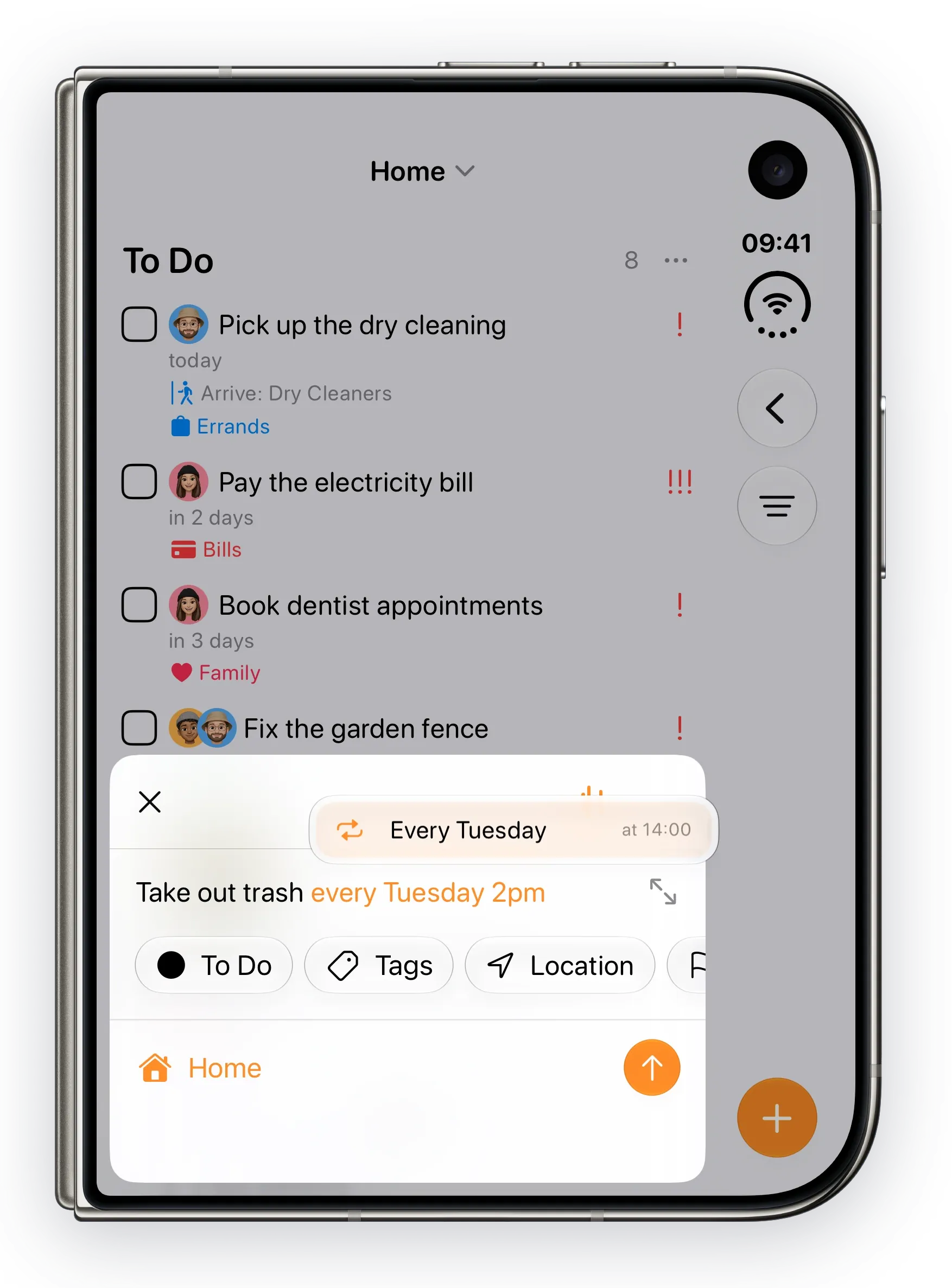
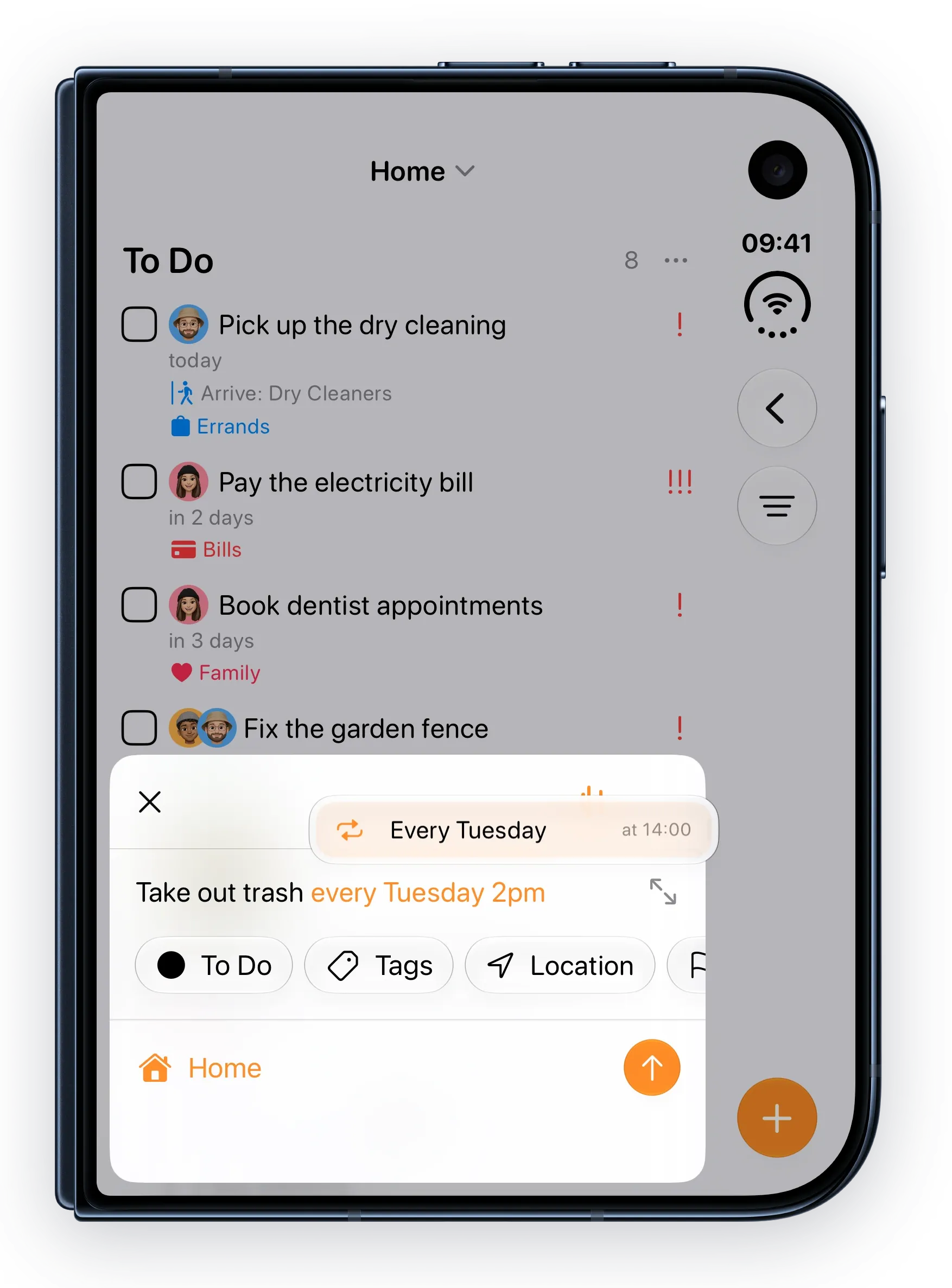
Fold it and the outer screen opens right there.
Each column remembers where you were.
Quit, come back, and you're in the same project, tag, Smart List or person.
They go into the project you opened last.
4
Holding an open Duo, your thumbs sit on the sides and the bottom. So that's where the buttons went.
Easy to reach with a thumb. On iPad it stays top right.
Toolbar buttons move into the bar down the side.
All the same width, never narrower than 320 pt.
Hide it and the board gets the whole screen.
5
Most of the week went into deciding what Tasks shouldn't do on a Duo.
Even open, the Duo gets the iPhone versions of screens. Only the quick-entry ones turn into cards.
Layout comes from the size class and the split view, so nothing is tied to one device.
It doesn't save, complete or delete anything. It only changes the layout.
6
AI assistants
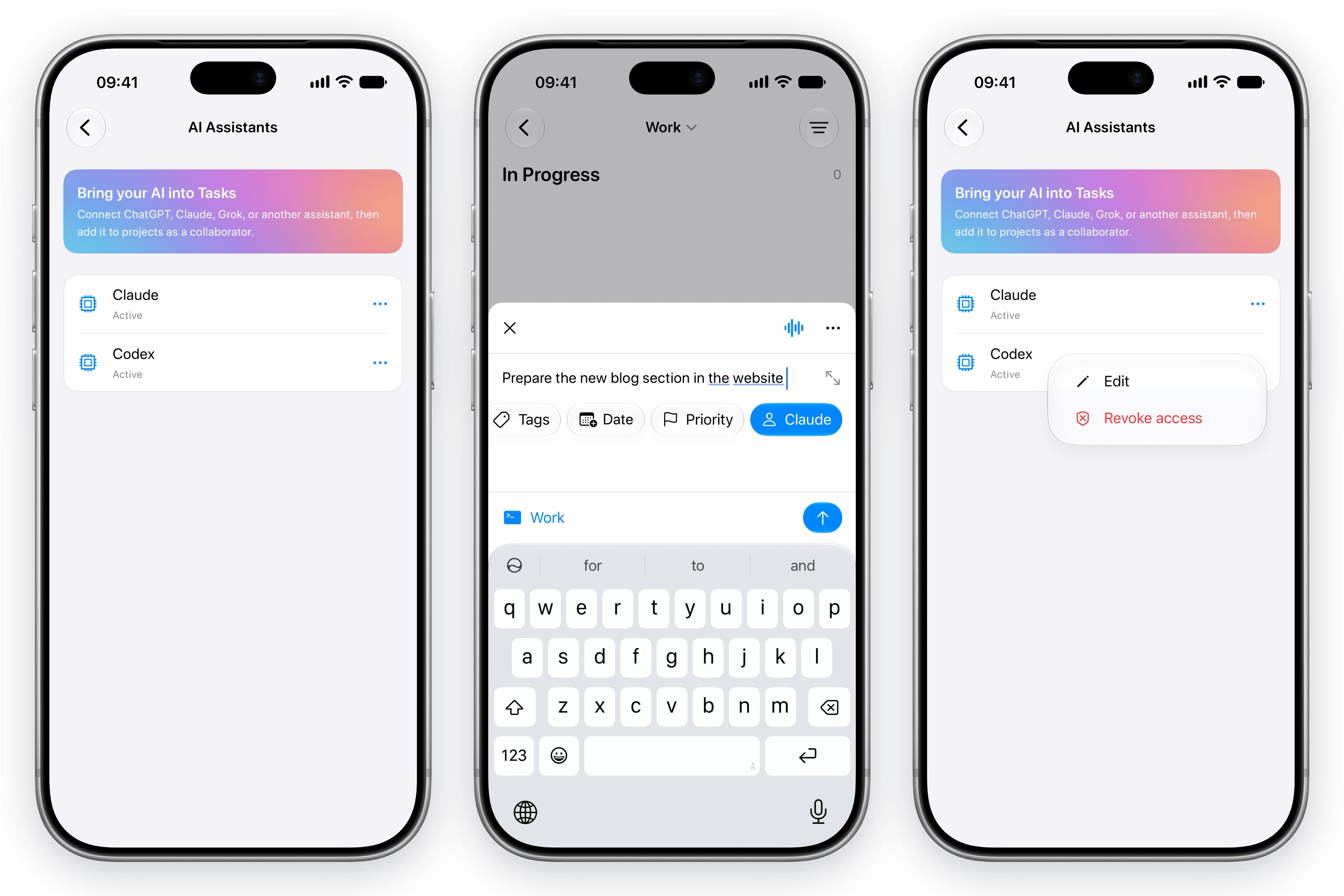
ChatGPT, Claude or Grok can join a project like a person would. Assign them tasks and mention them in comments. Revoke one and its tasks come back to you.
Bring your AI assistant into Tasks →
Natural language
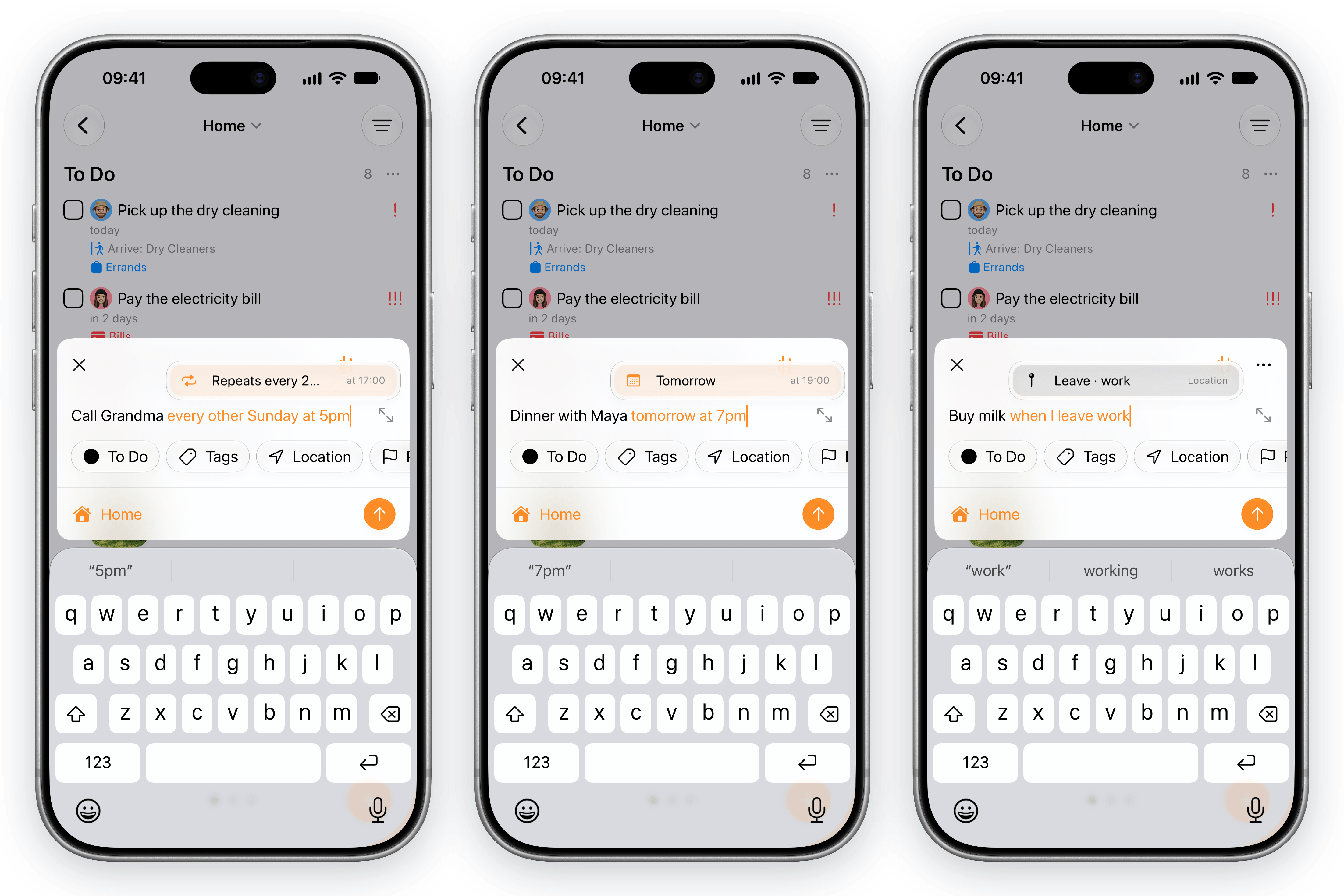
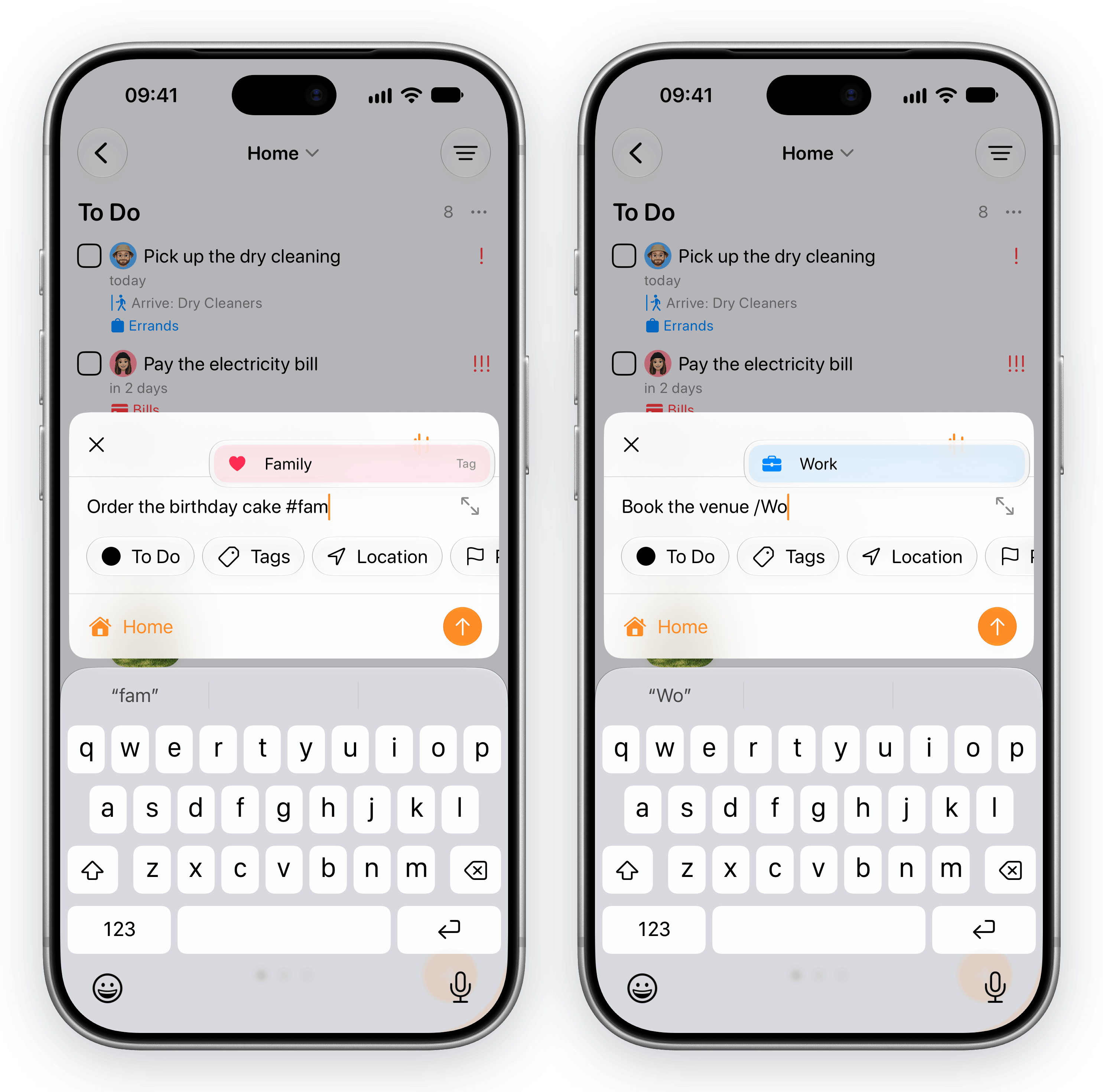
I rewrote the parser from scratch. It picks out dates, repeats, places, priorities and tags as you type, in English, French, German and Spanish. All on device, in under a millisecond.

Settings
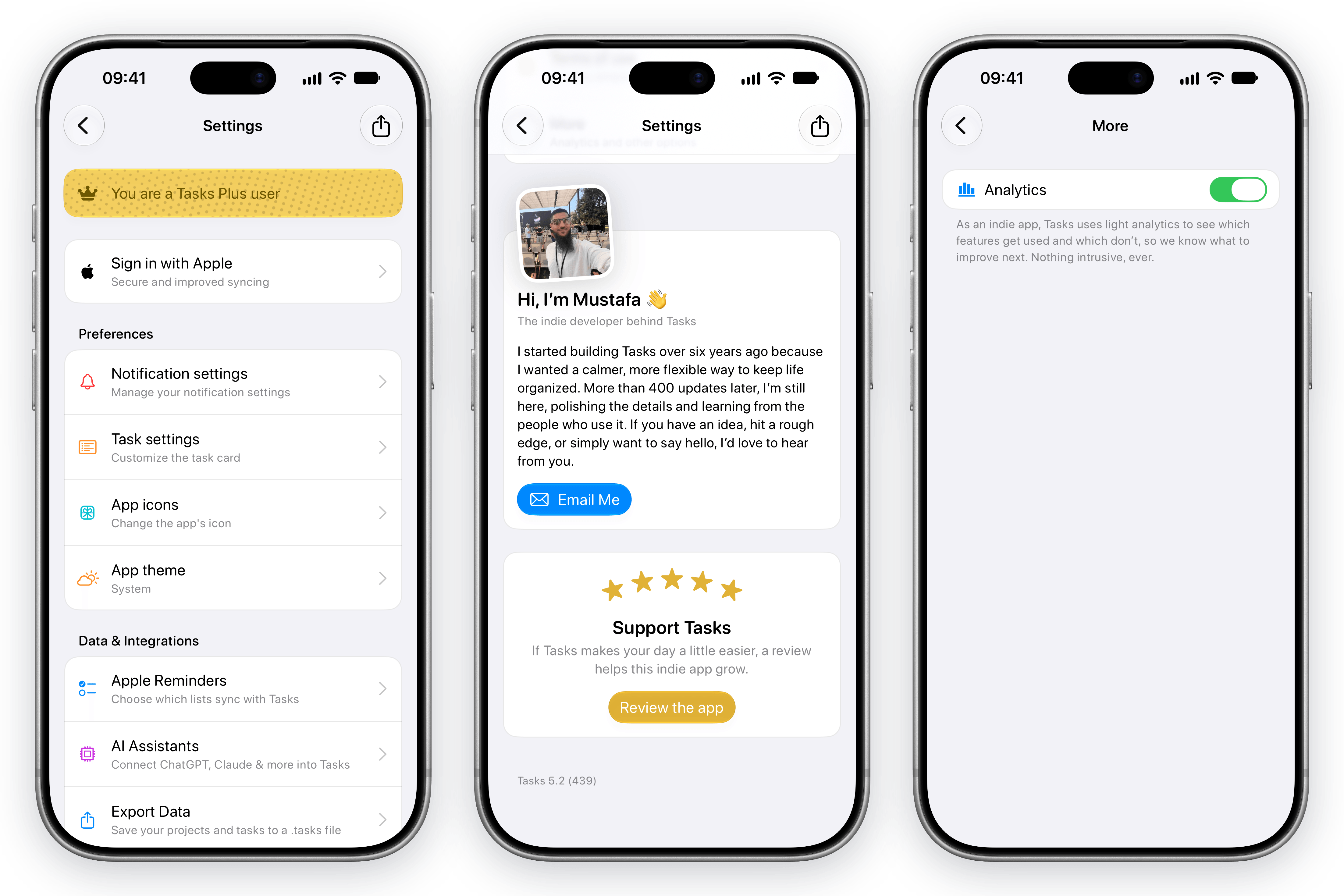
Rebuilt into four groups with live previews, plus one switch to turn analytics off.

Import
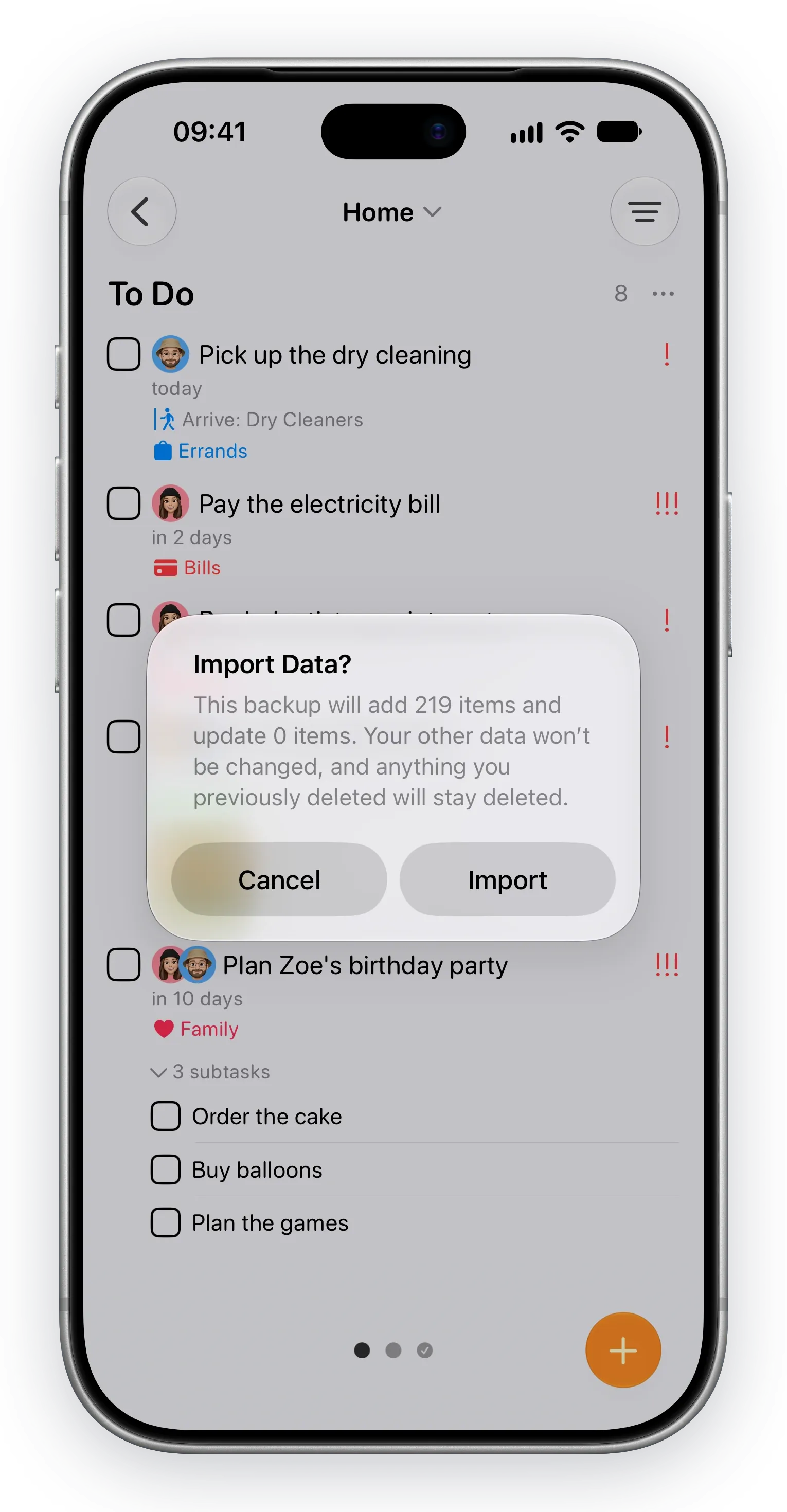
Tap one in Files, Mail or AirDrop. Tasks shows you what's inside and asks before importing.
7
8
All real screenshots from the app, as full-size transparent PNGs in both Duo colours. Use them however you like when you write about Tasks.
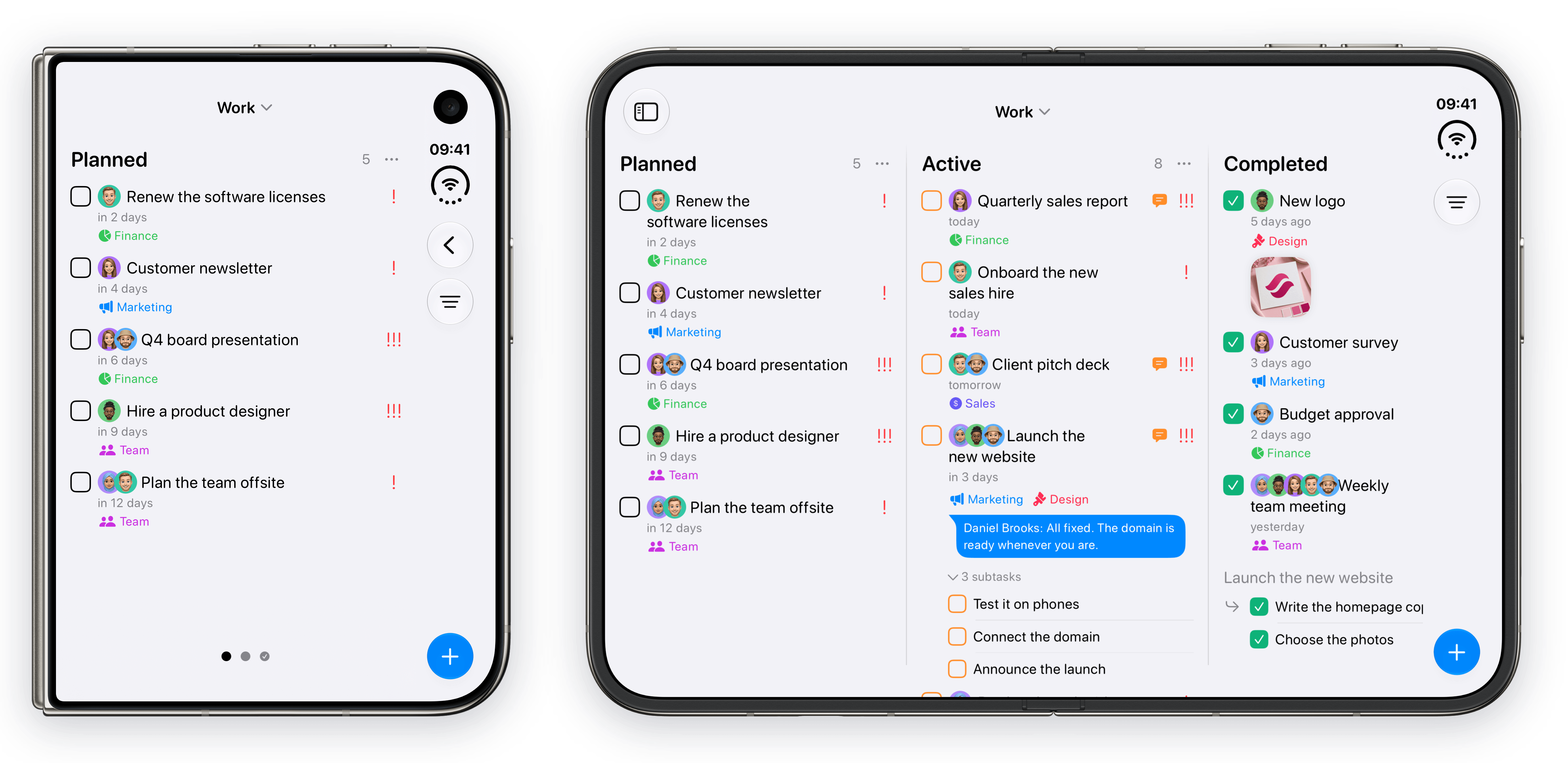
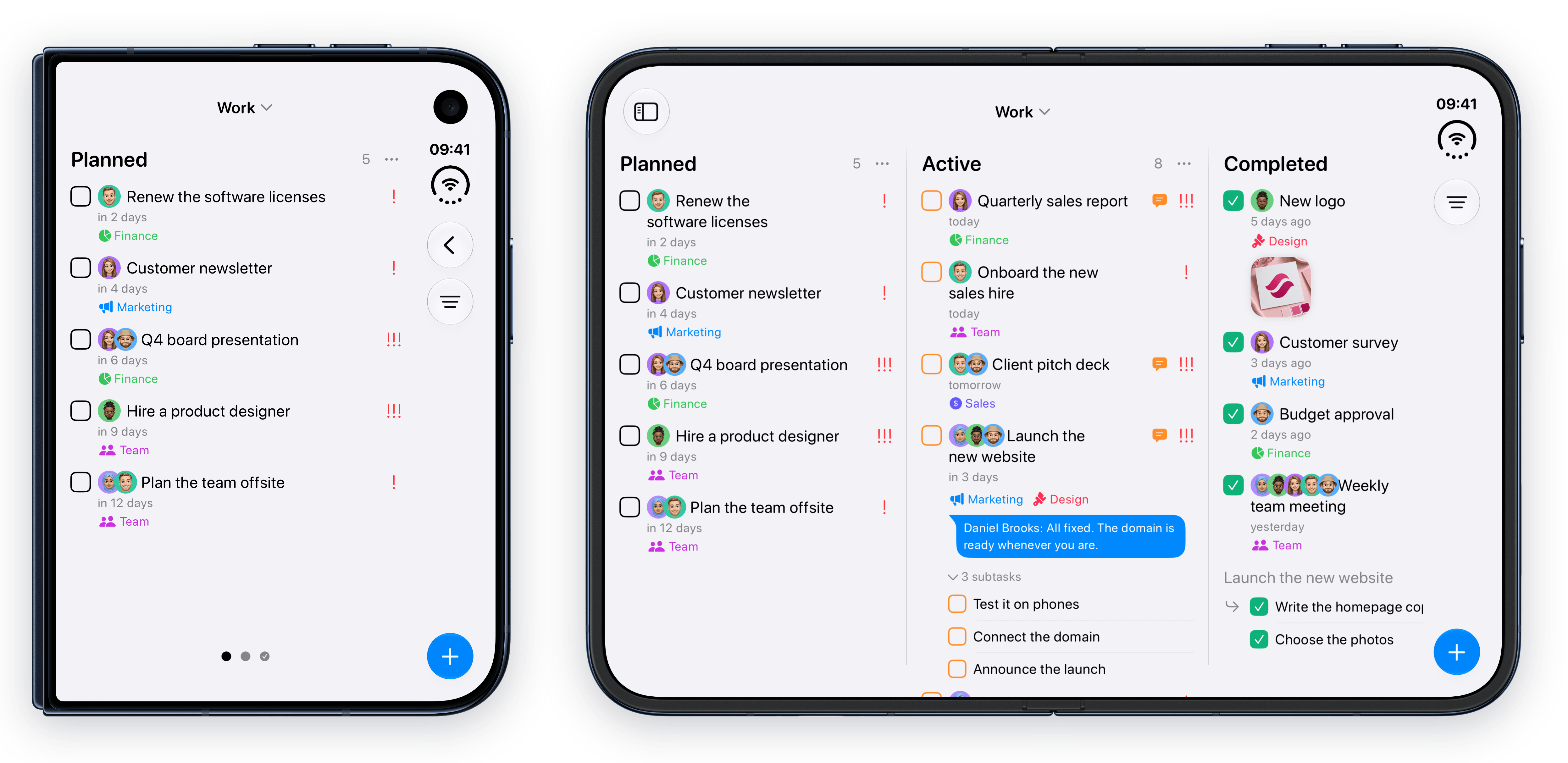
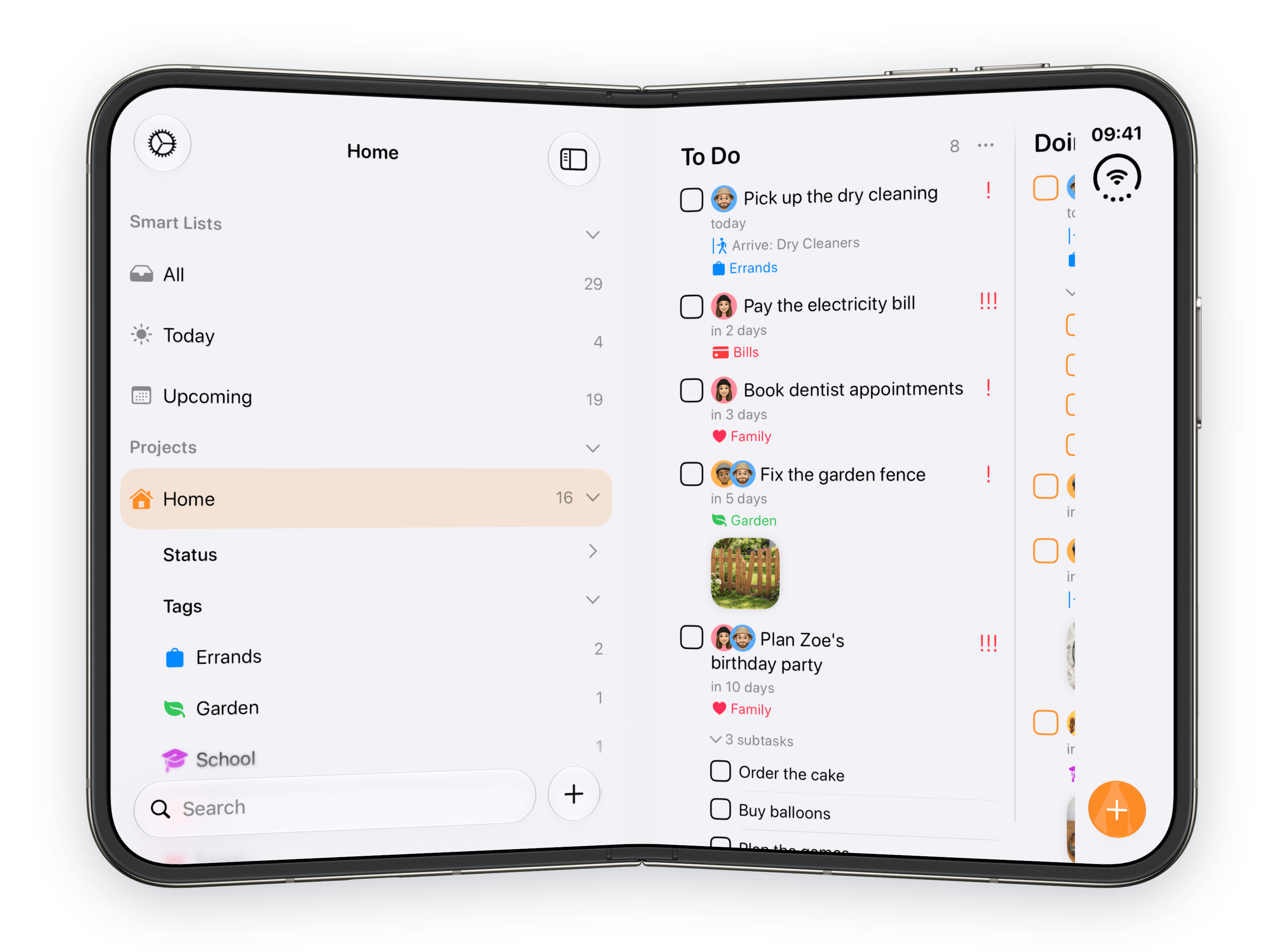
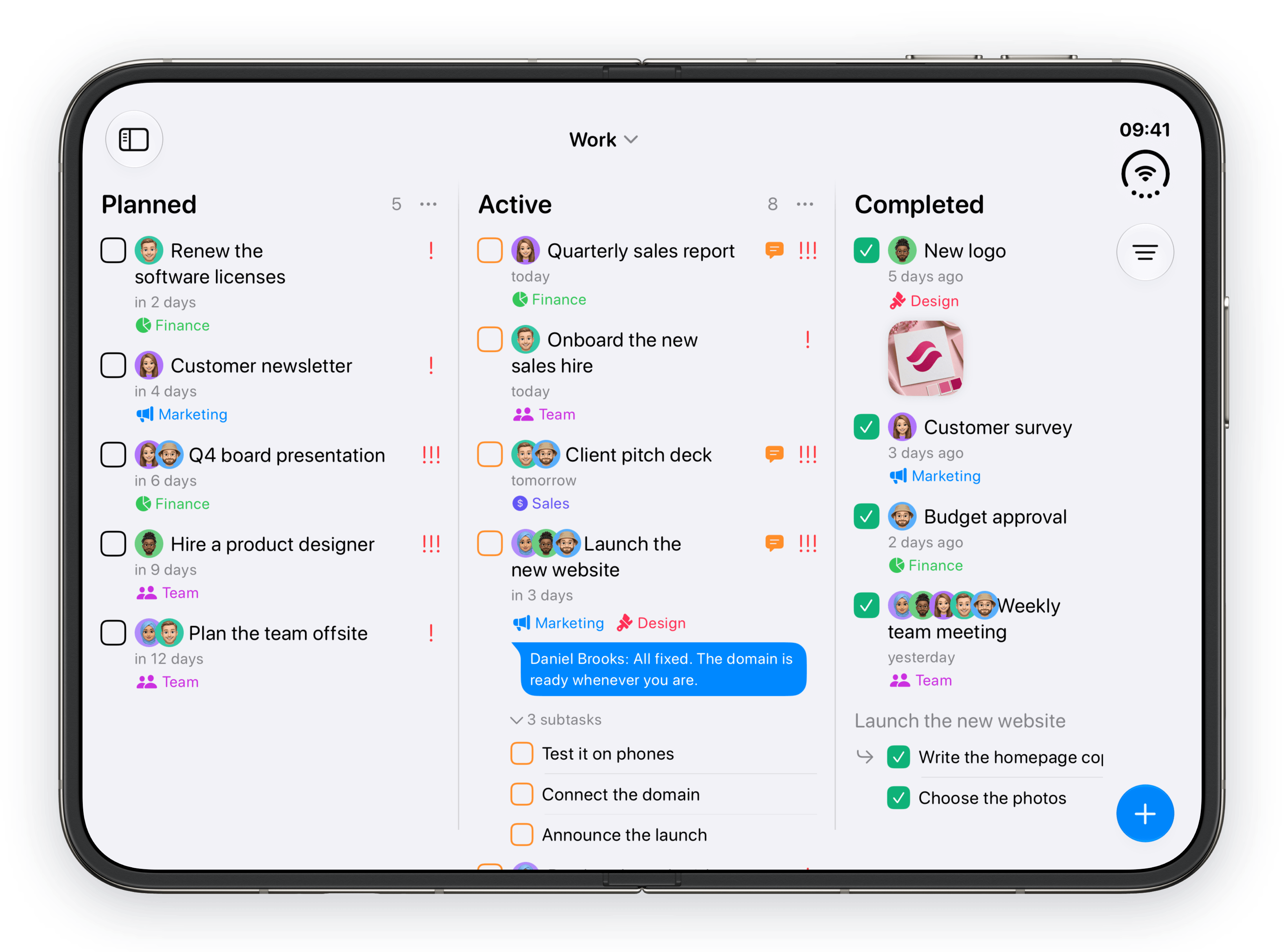
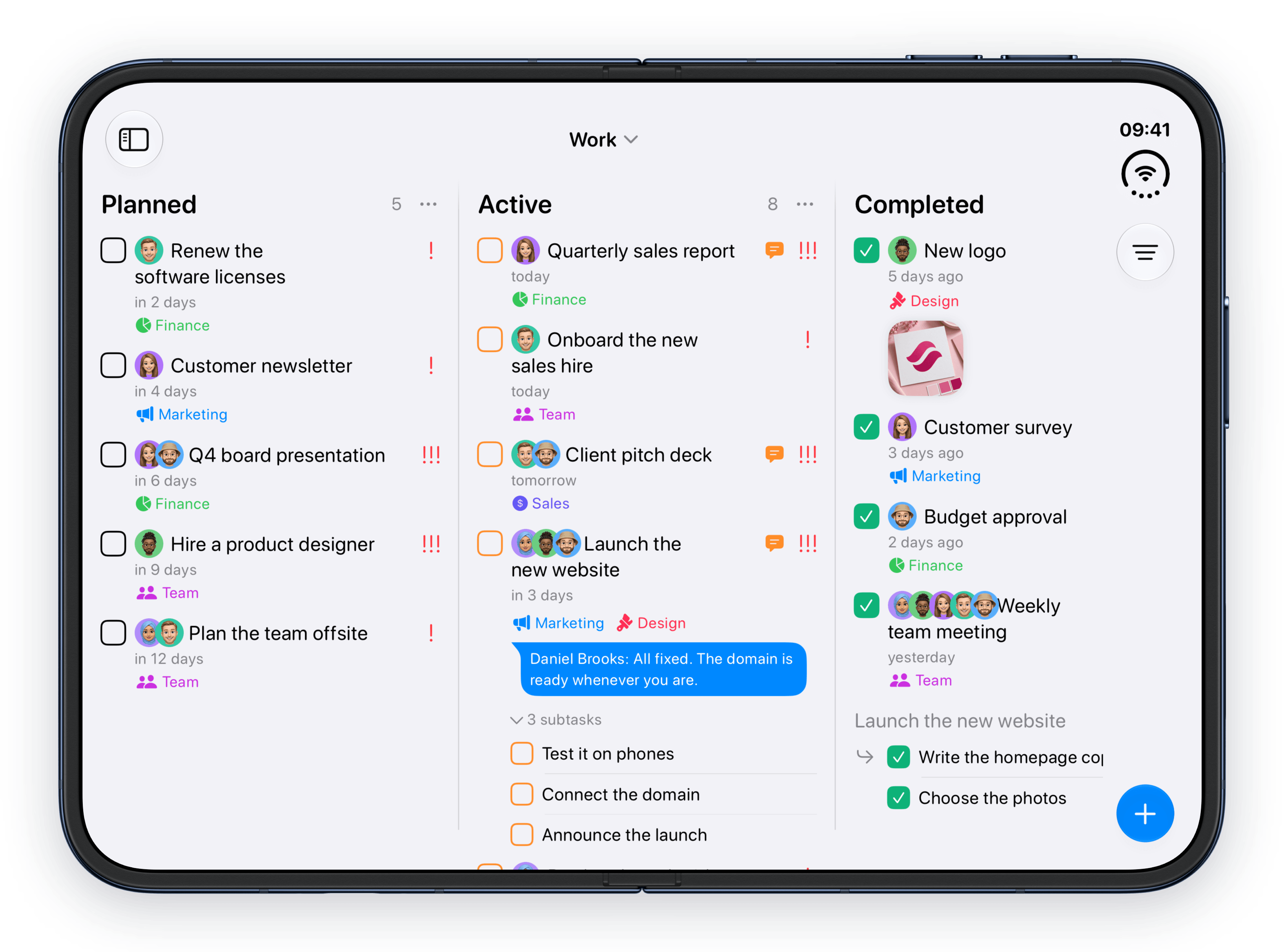
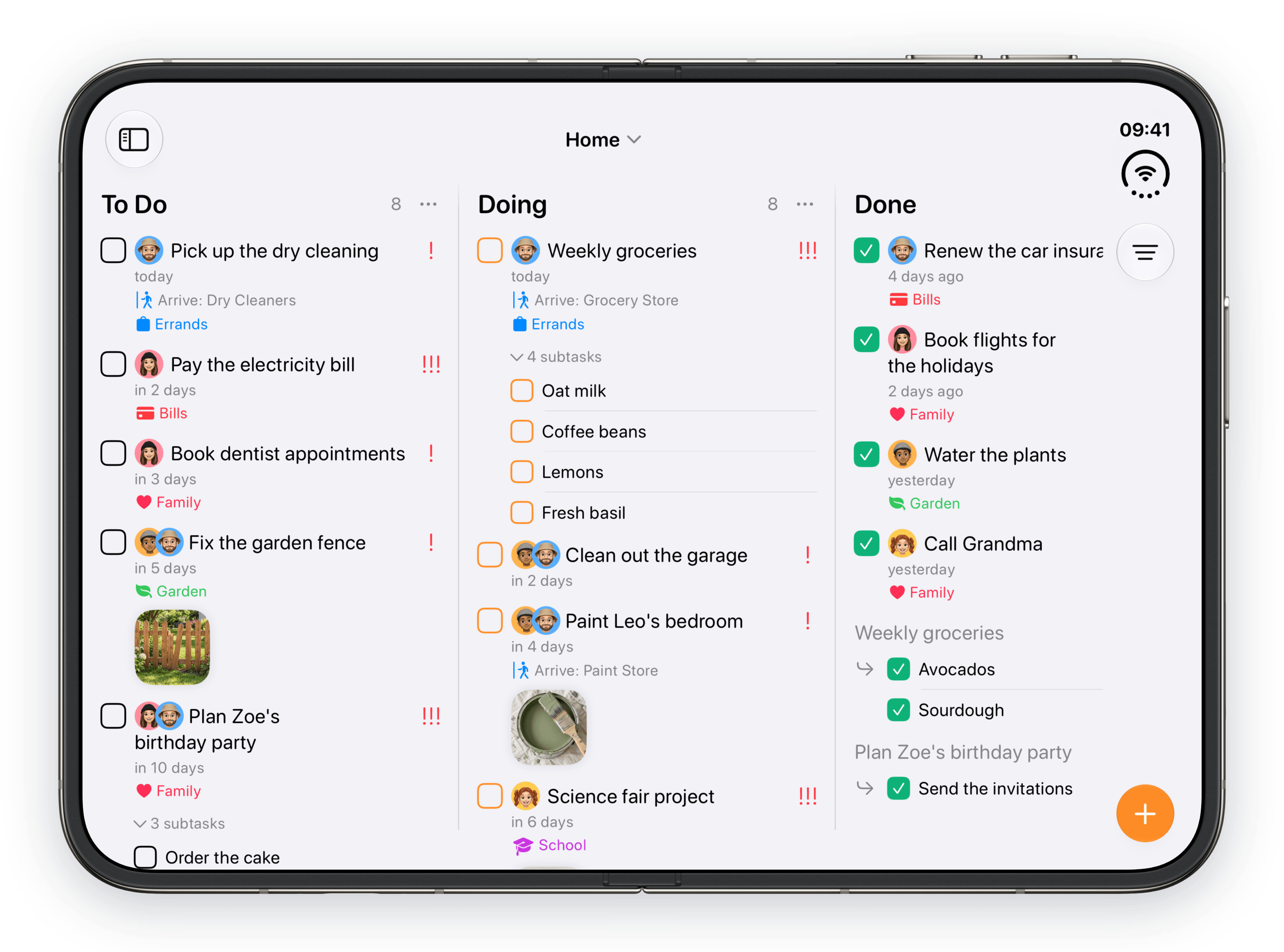
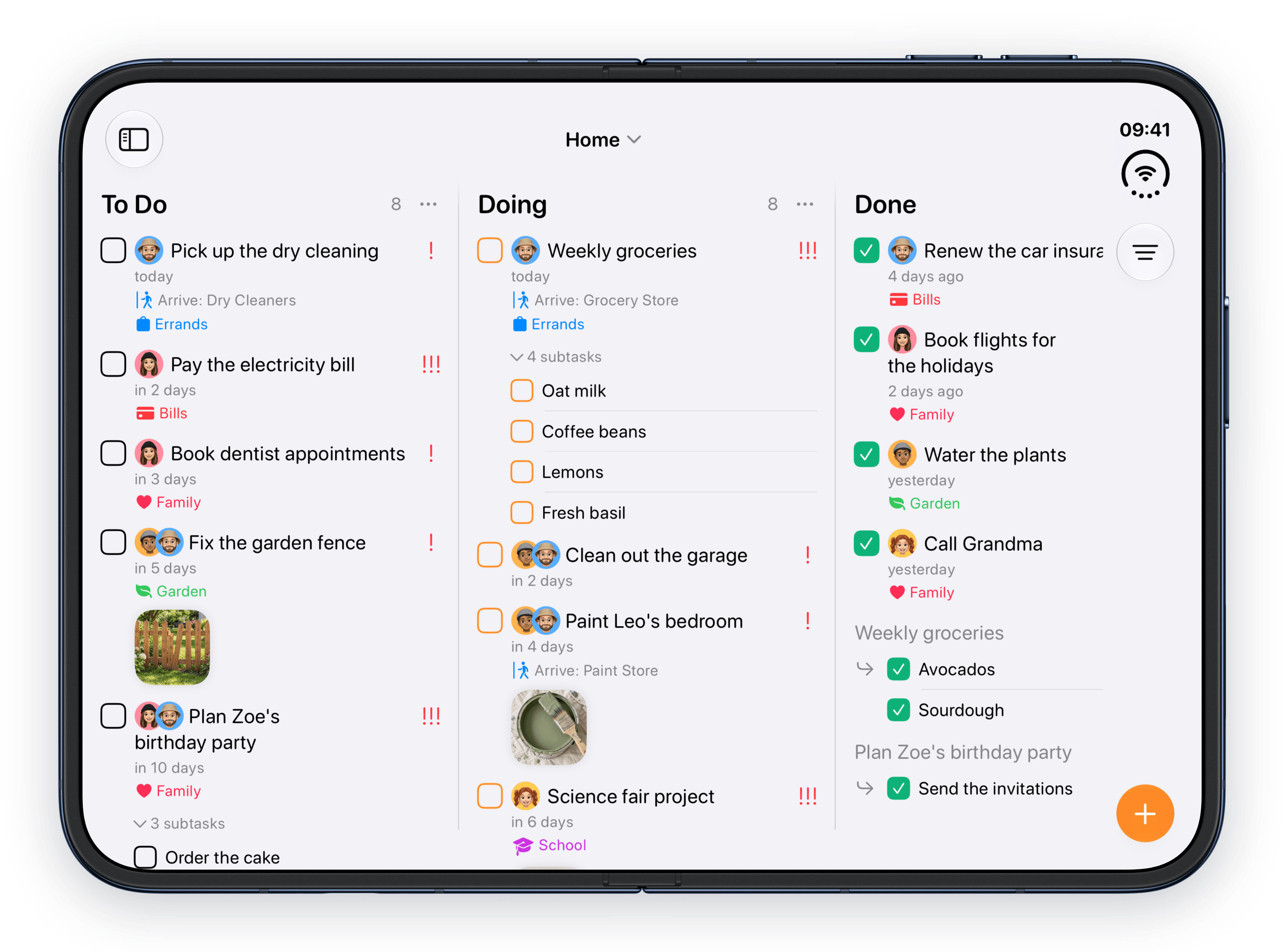
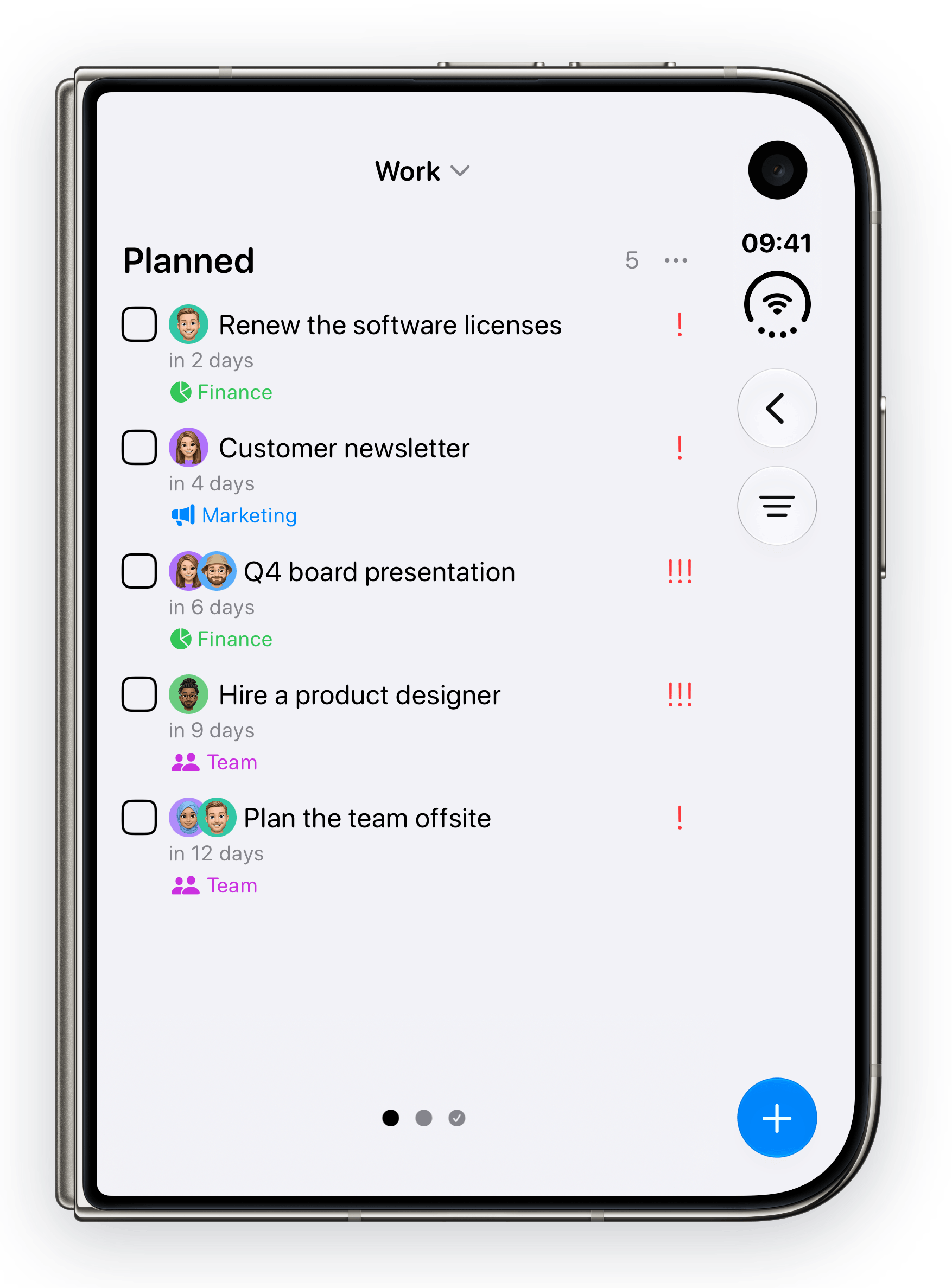
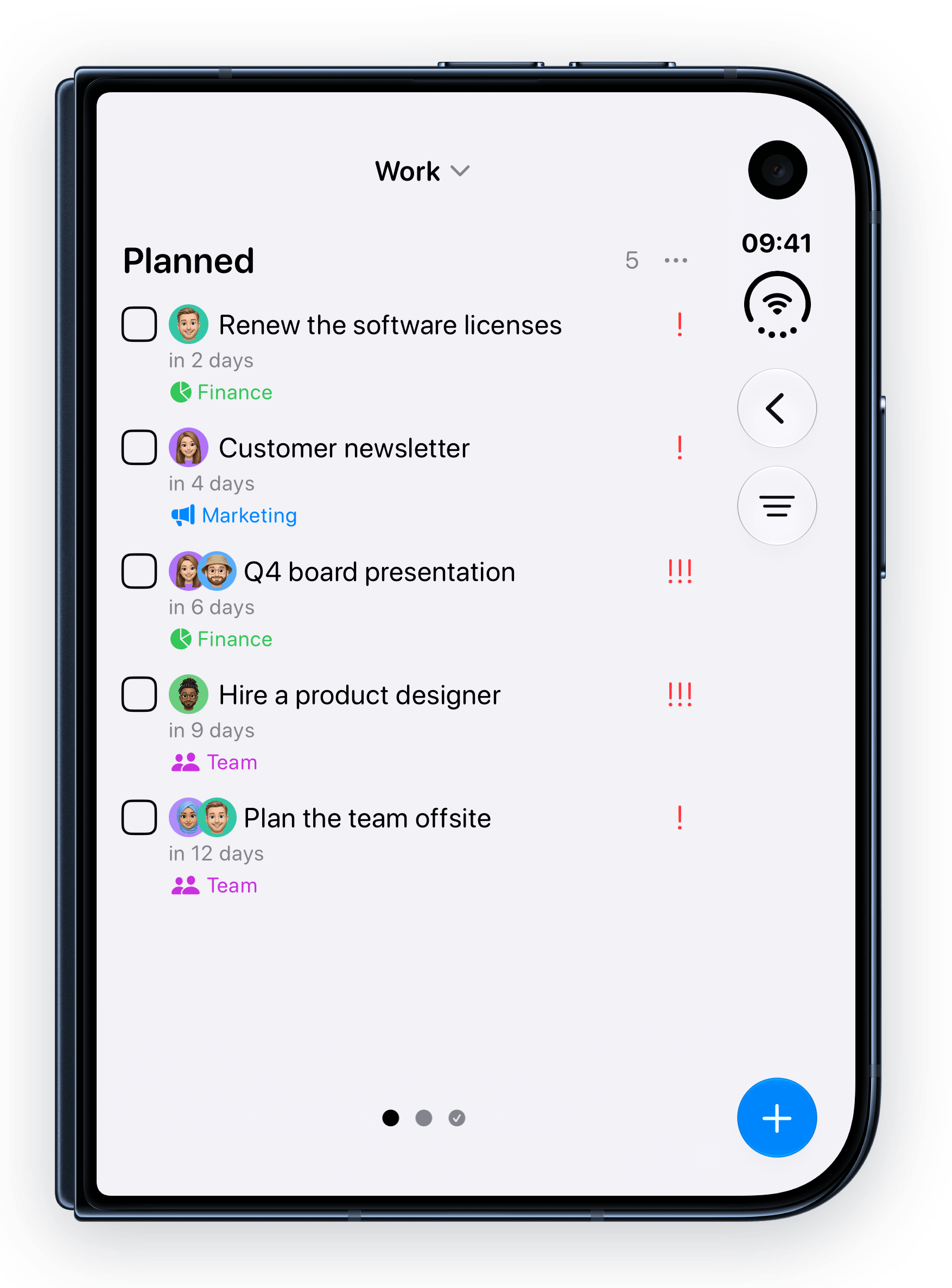
The Work board on the outer and inner displays.
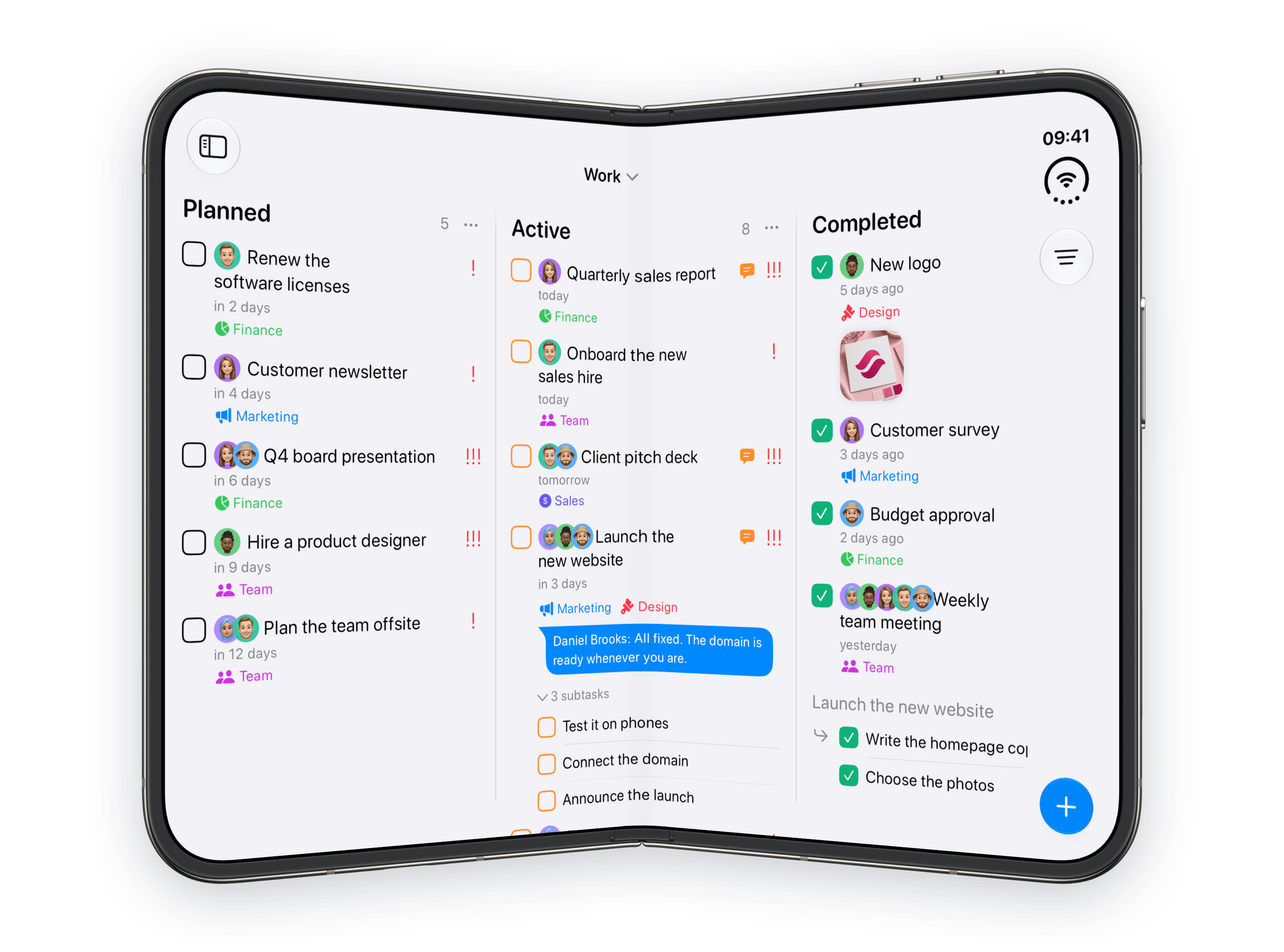
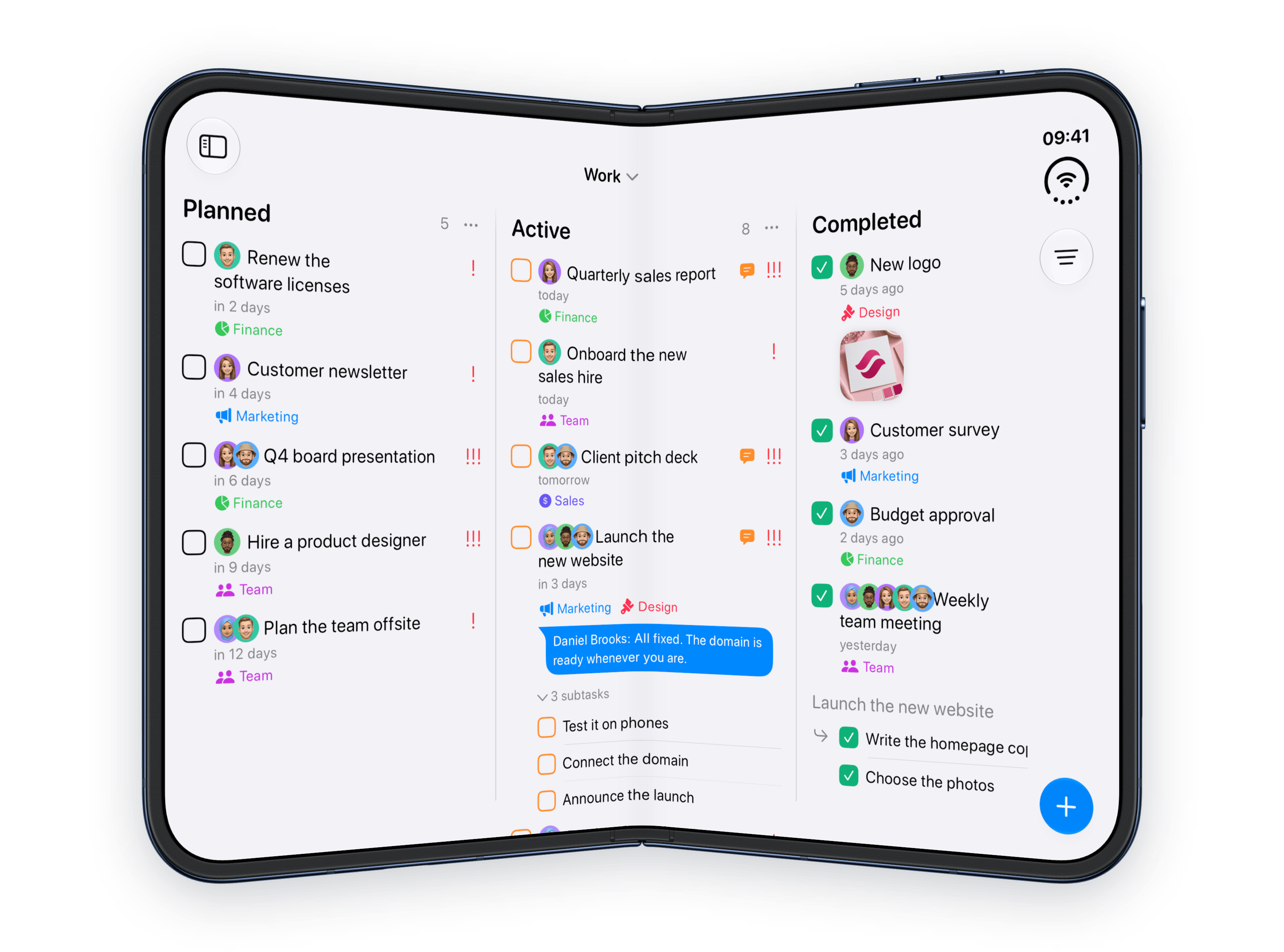
The same board with the Duo partly folded.
The card moves into the half facing you.
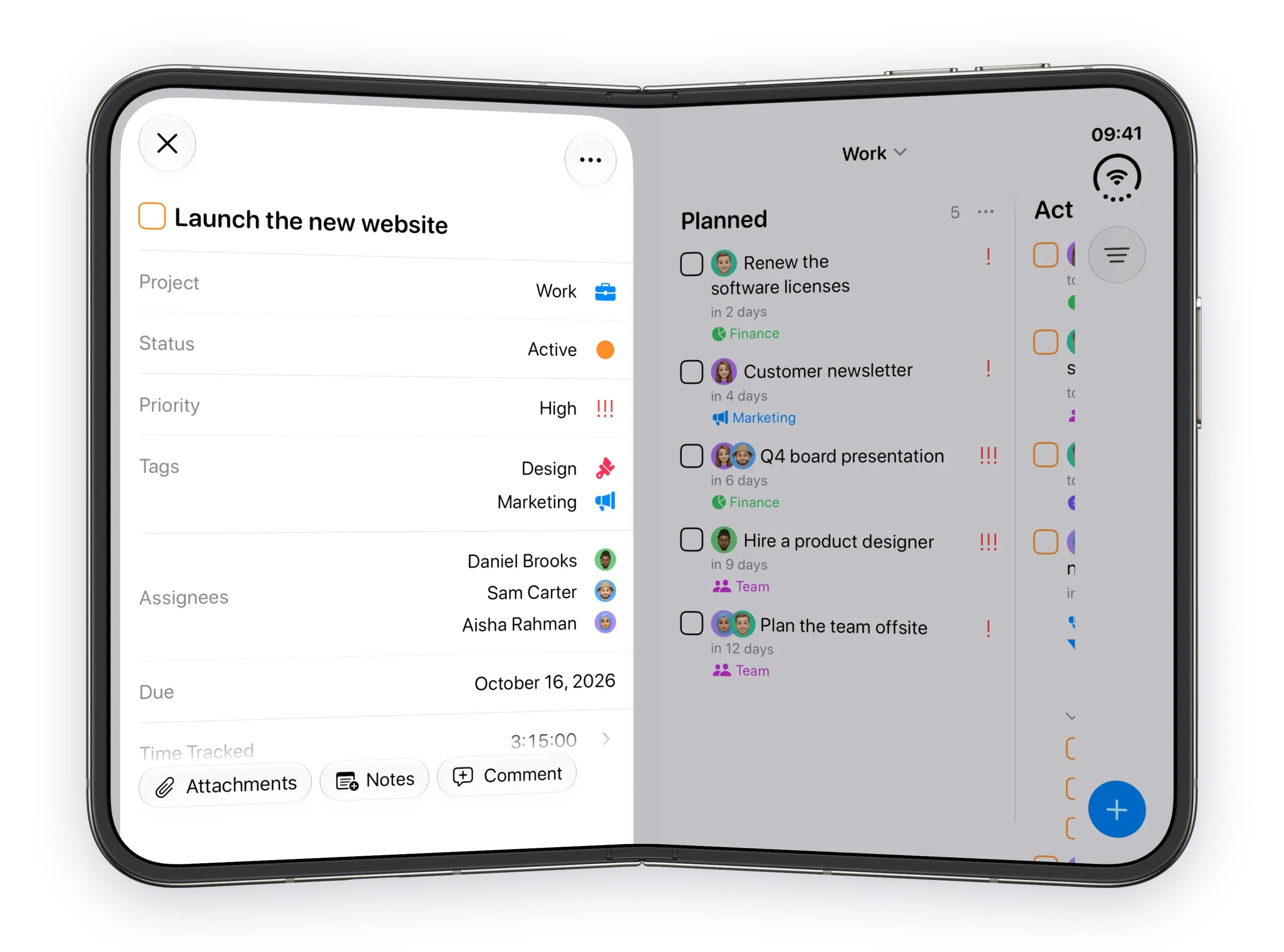
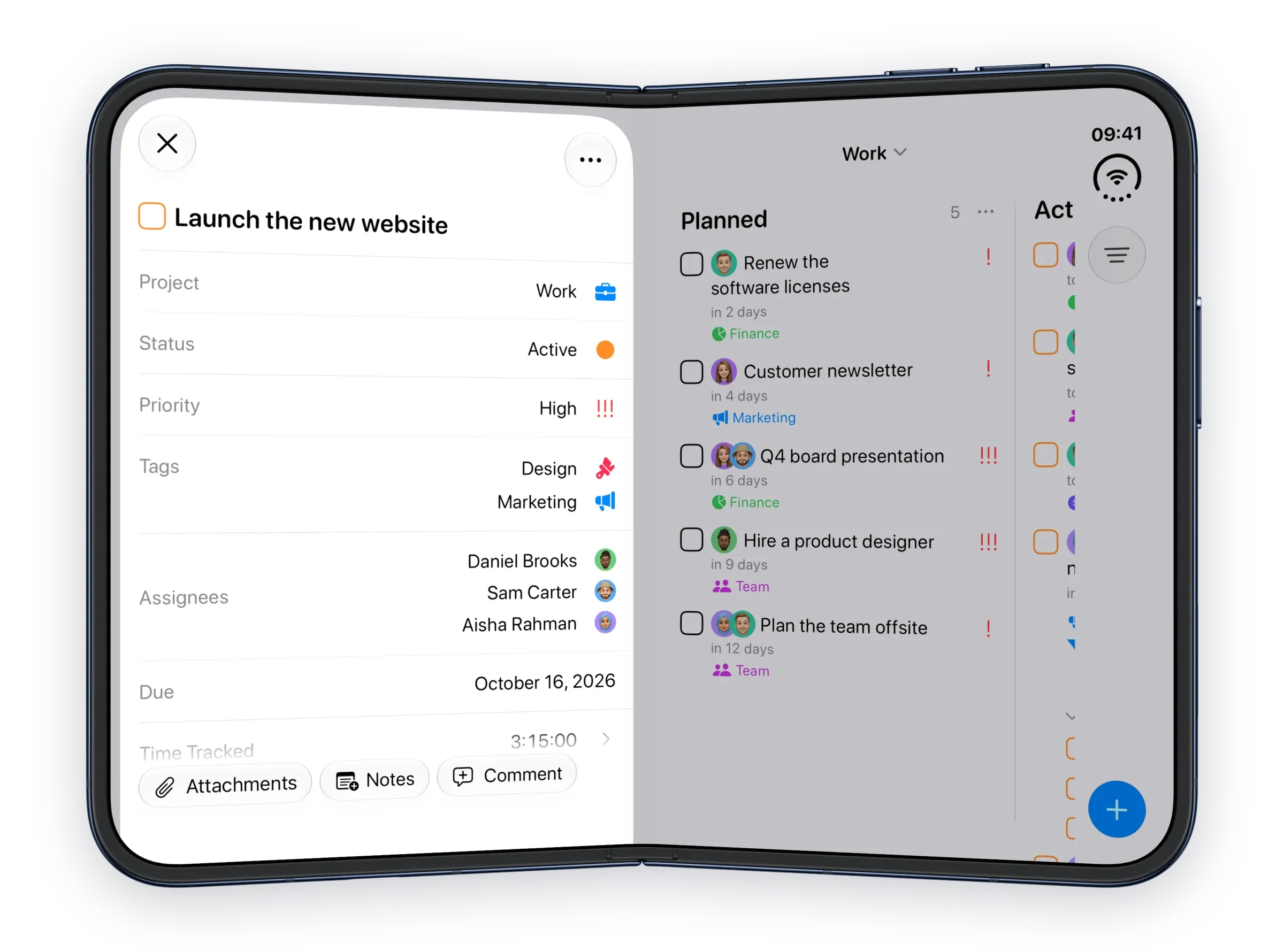
Launch the new website, with the board in view.
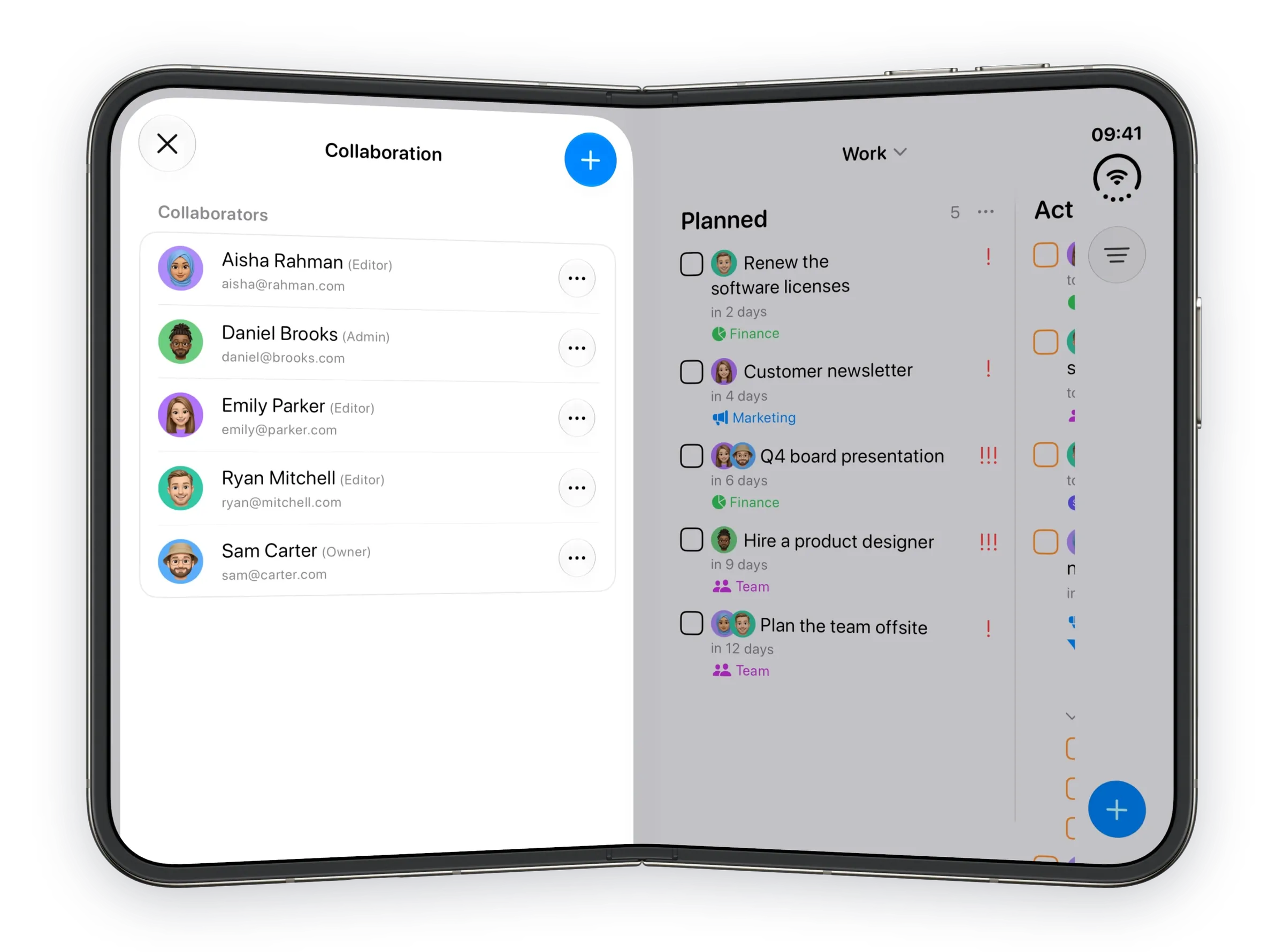
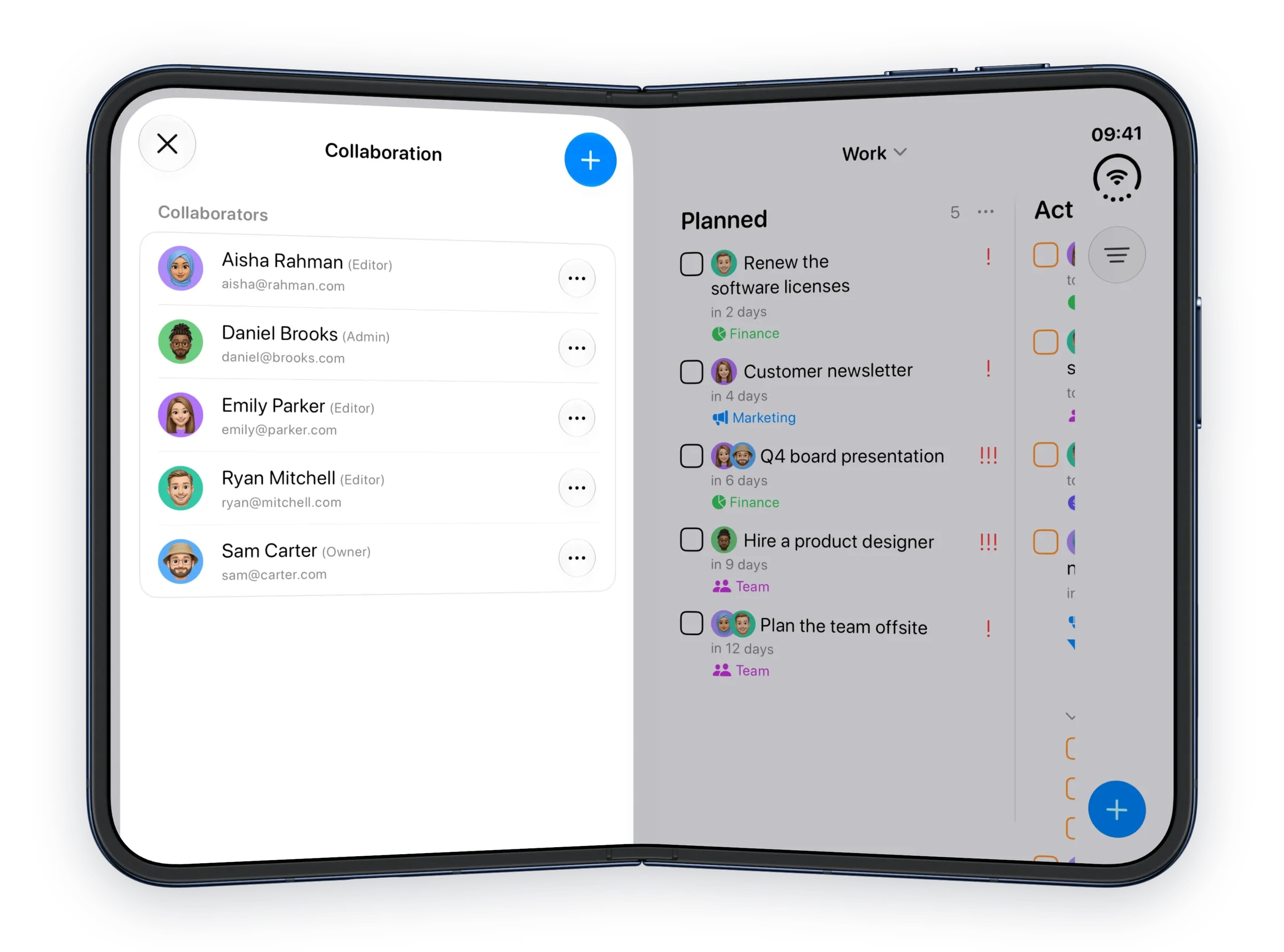
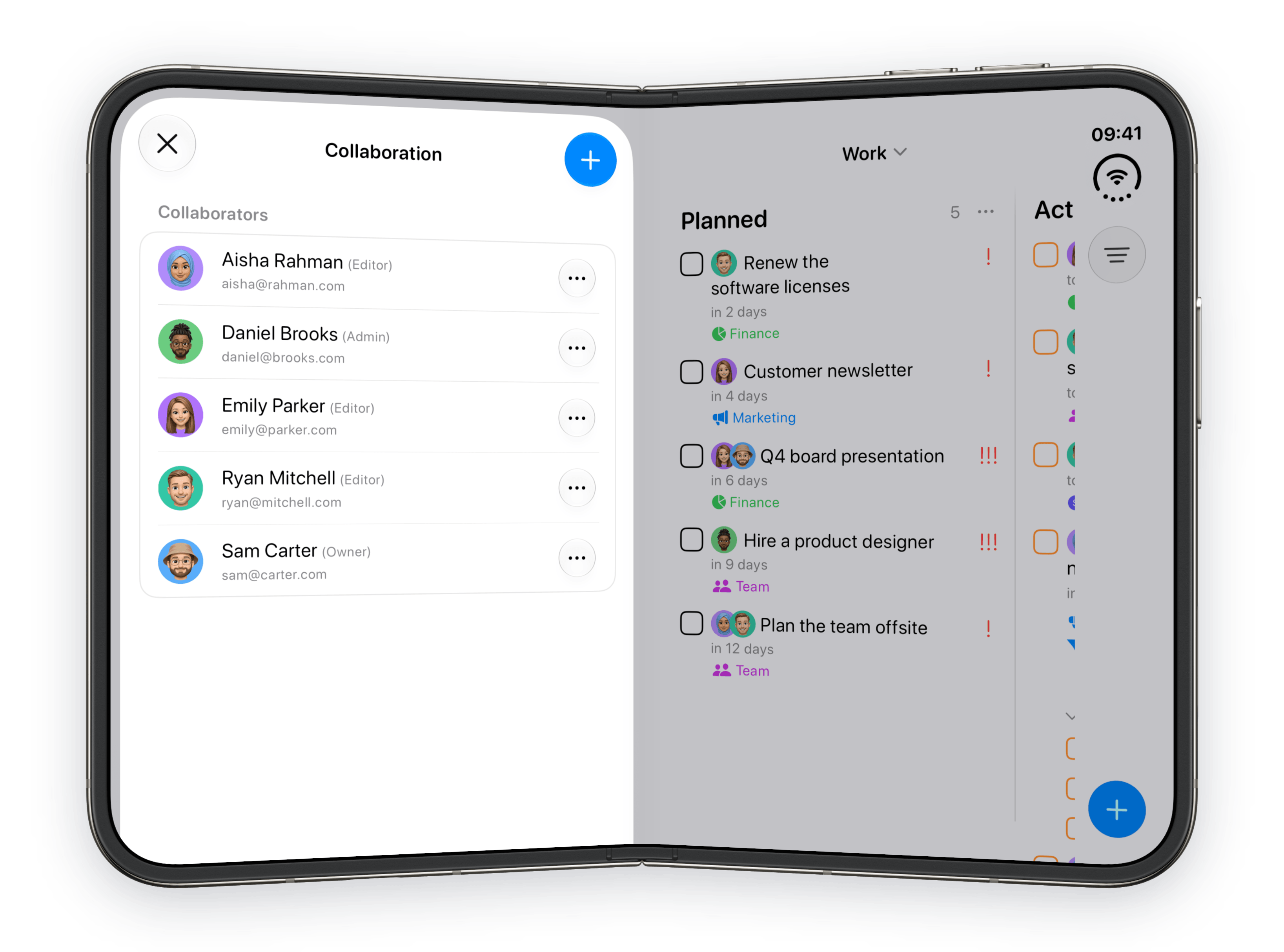
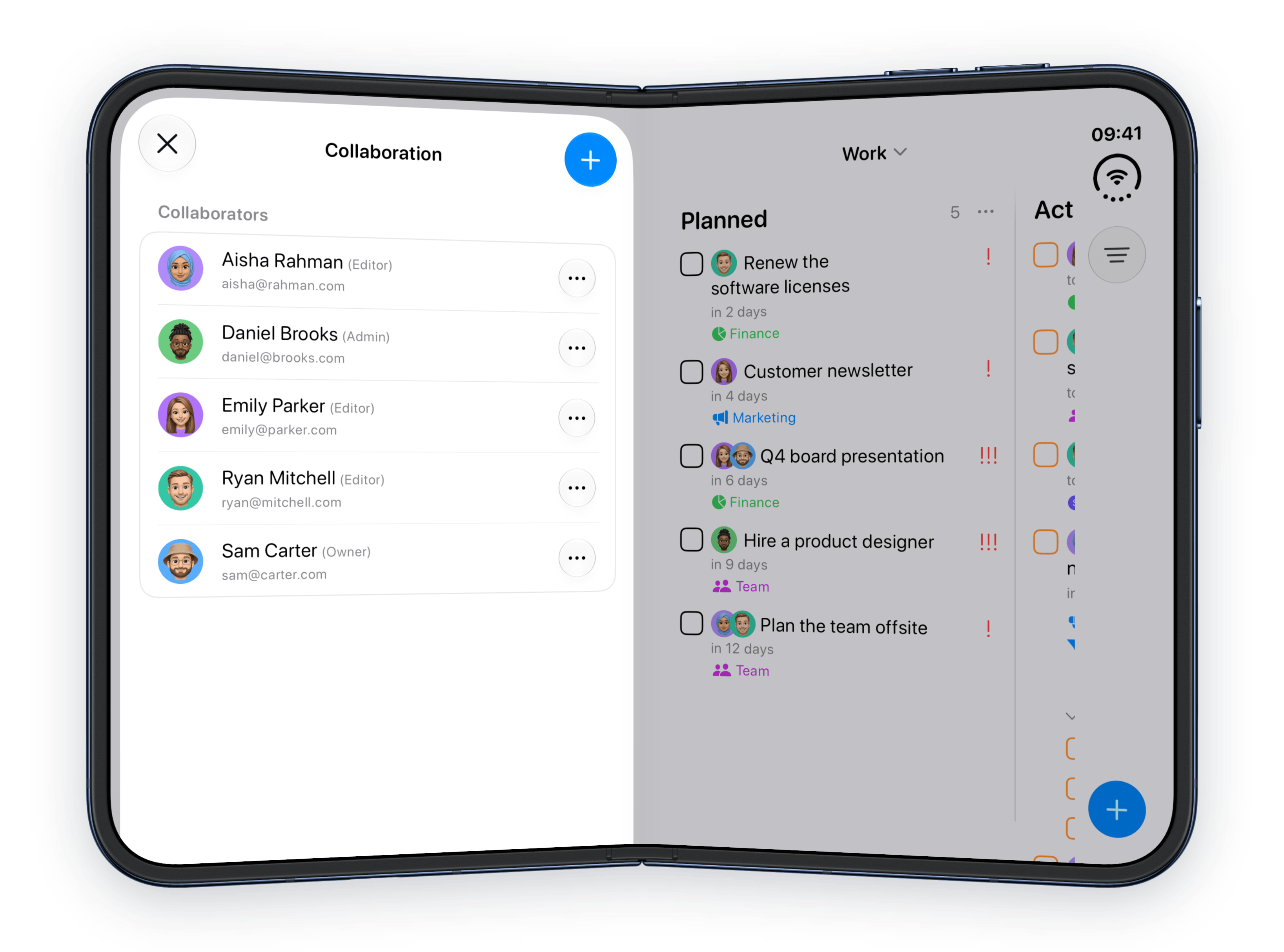
People and AI assistants join a project here.
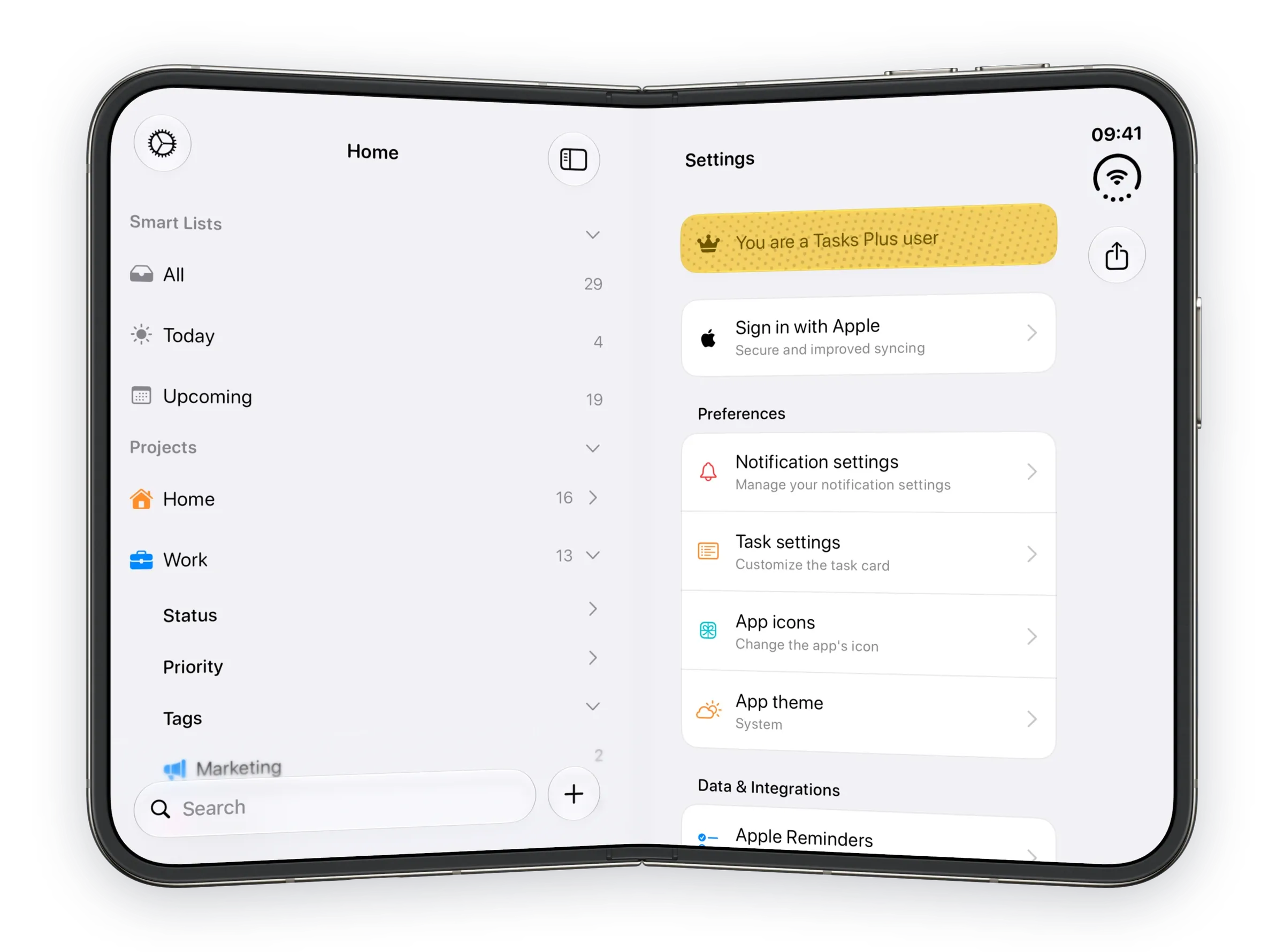
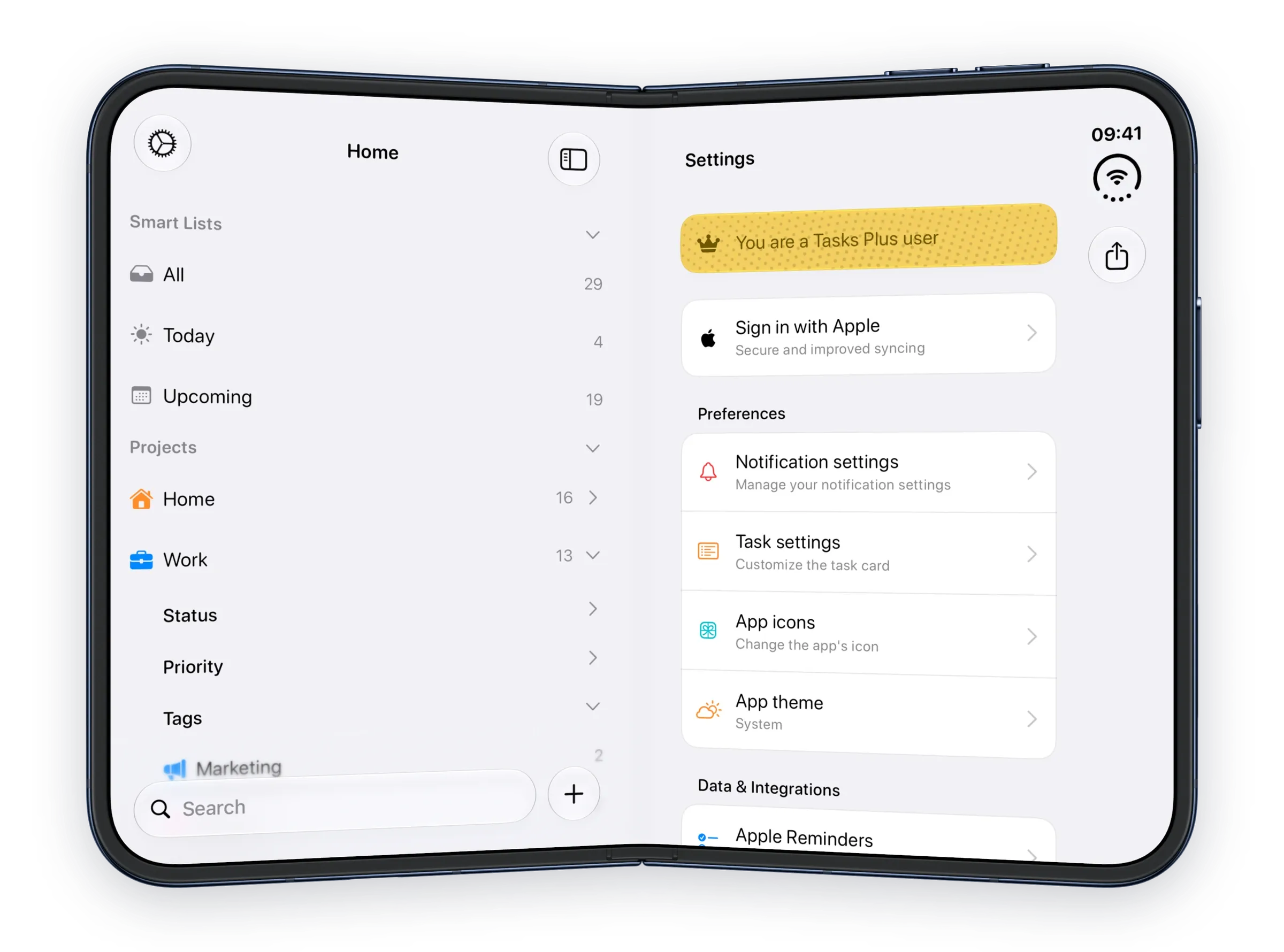
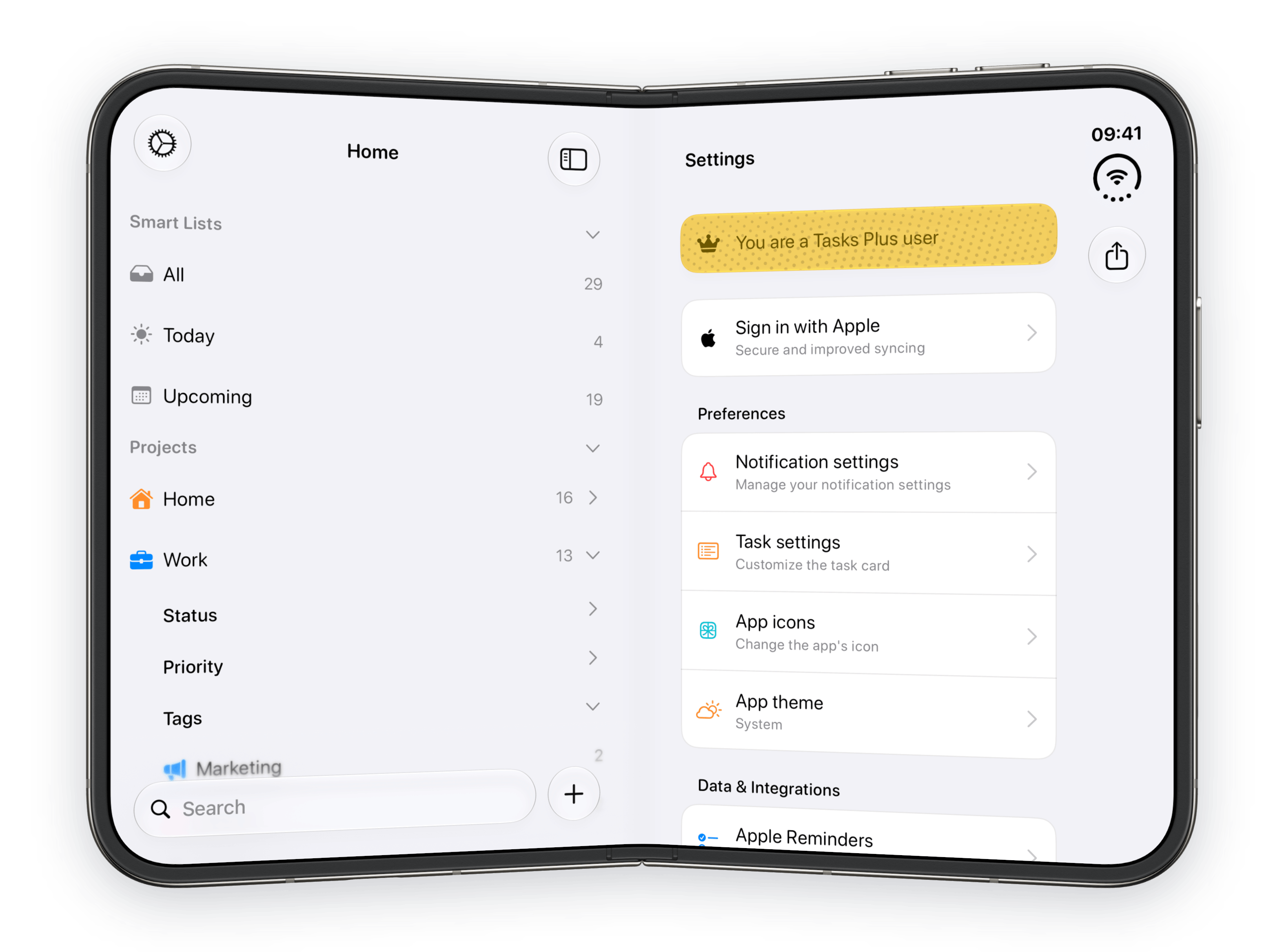
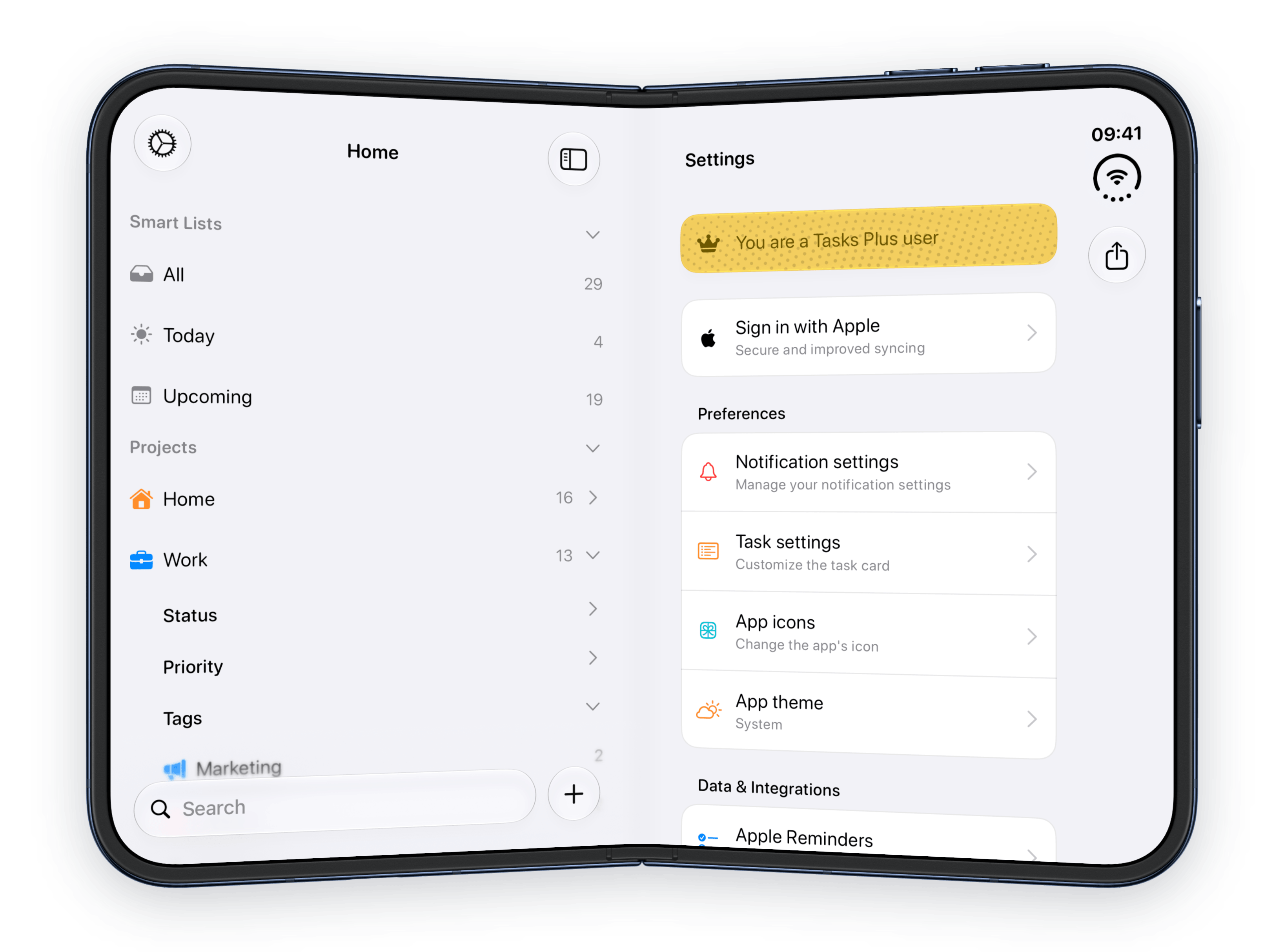
The rebuilt Settings in the detail column.
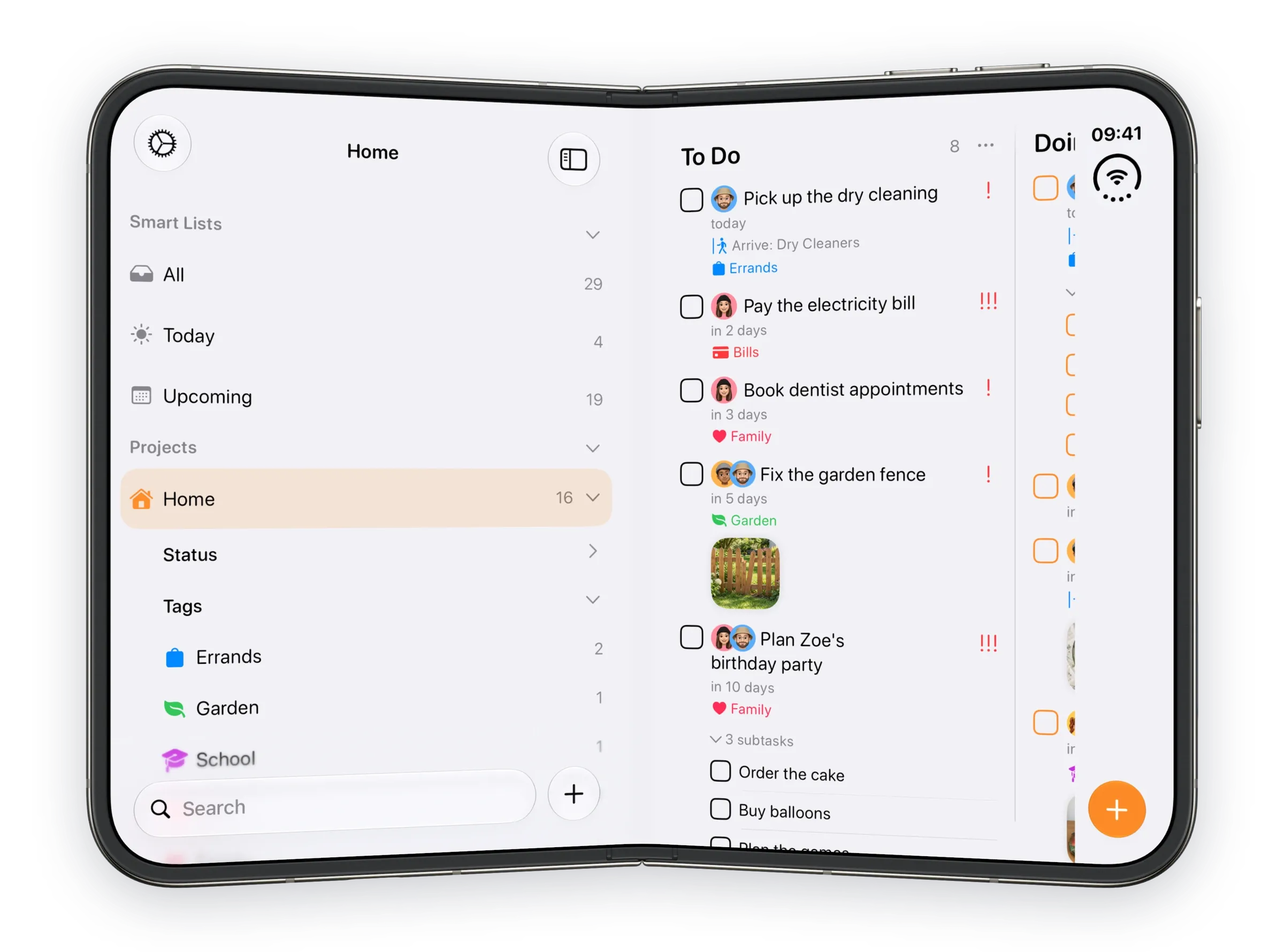
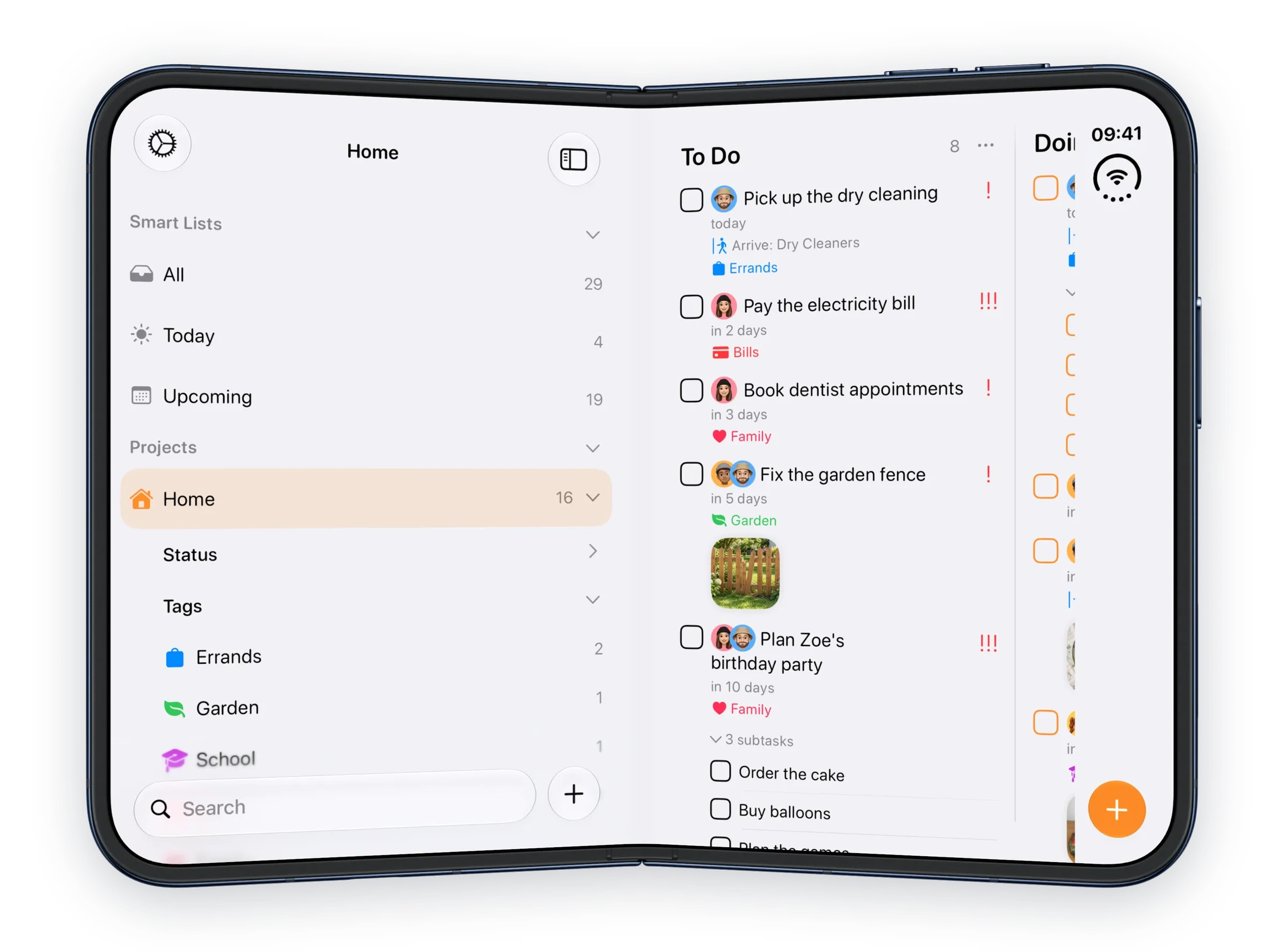
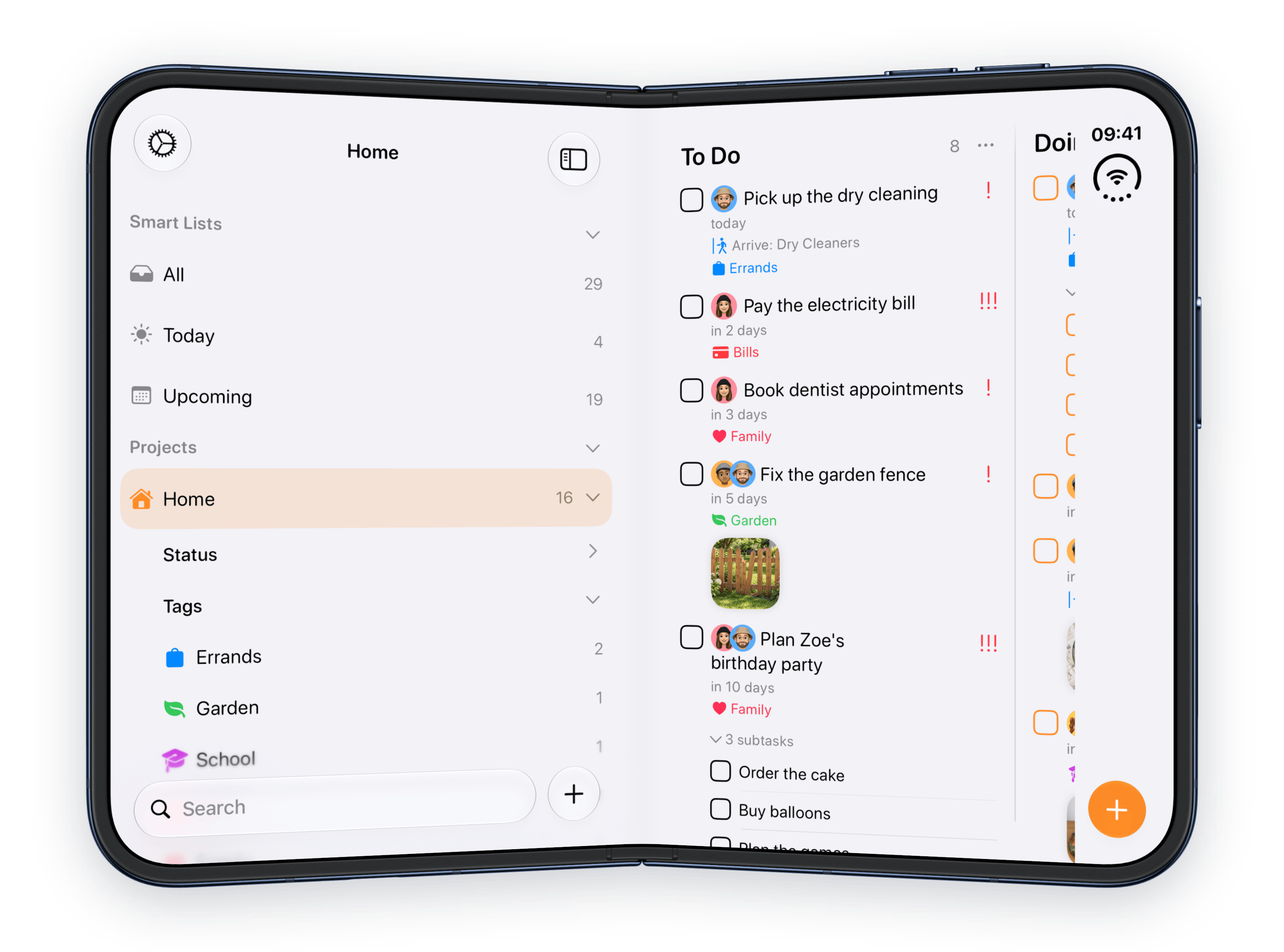
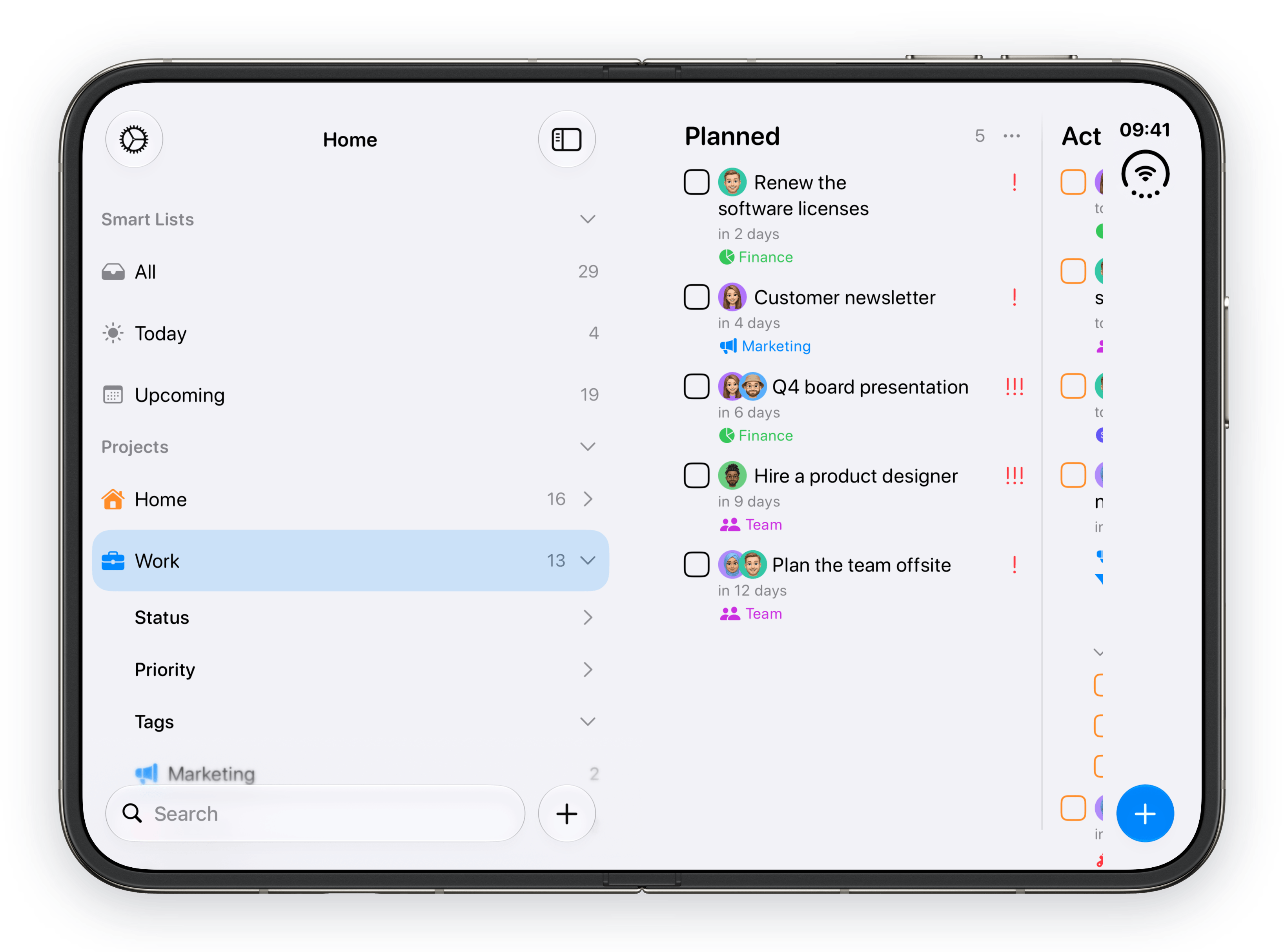
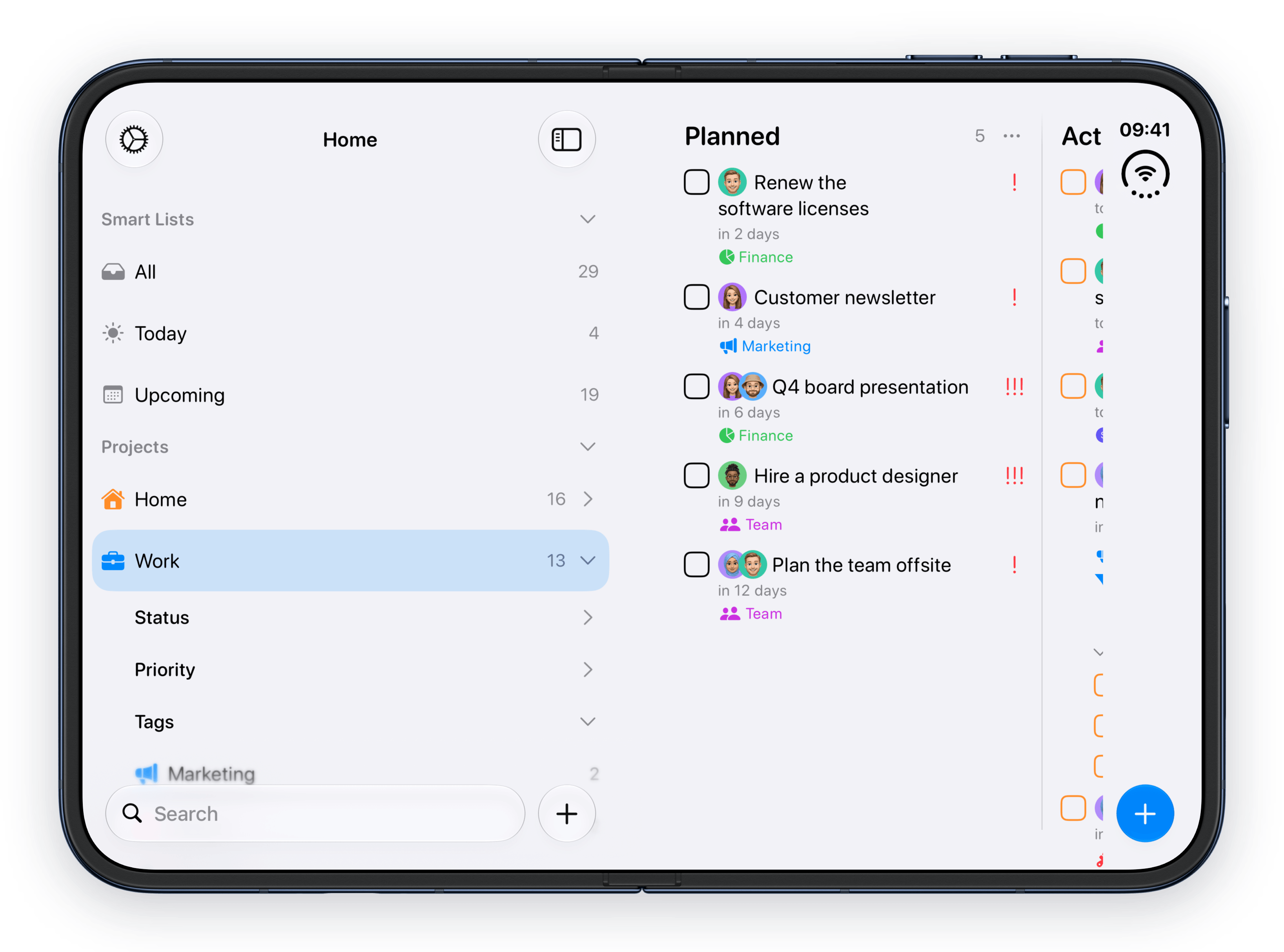
Smart Lists, projects and tags beside Home.
Planned, Active and Completed side by side.
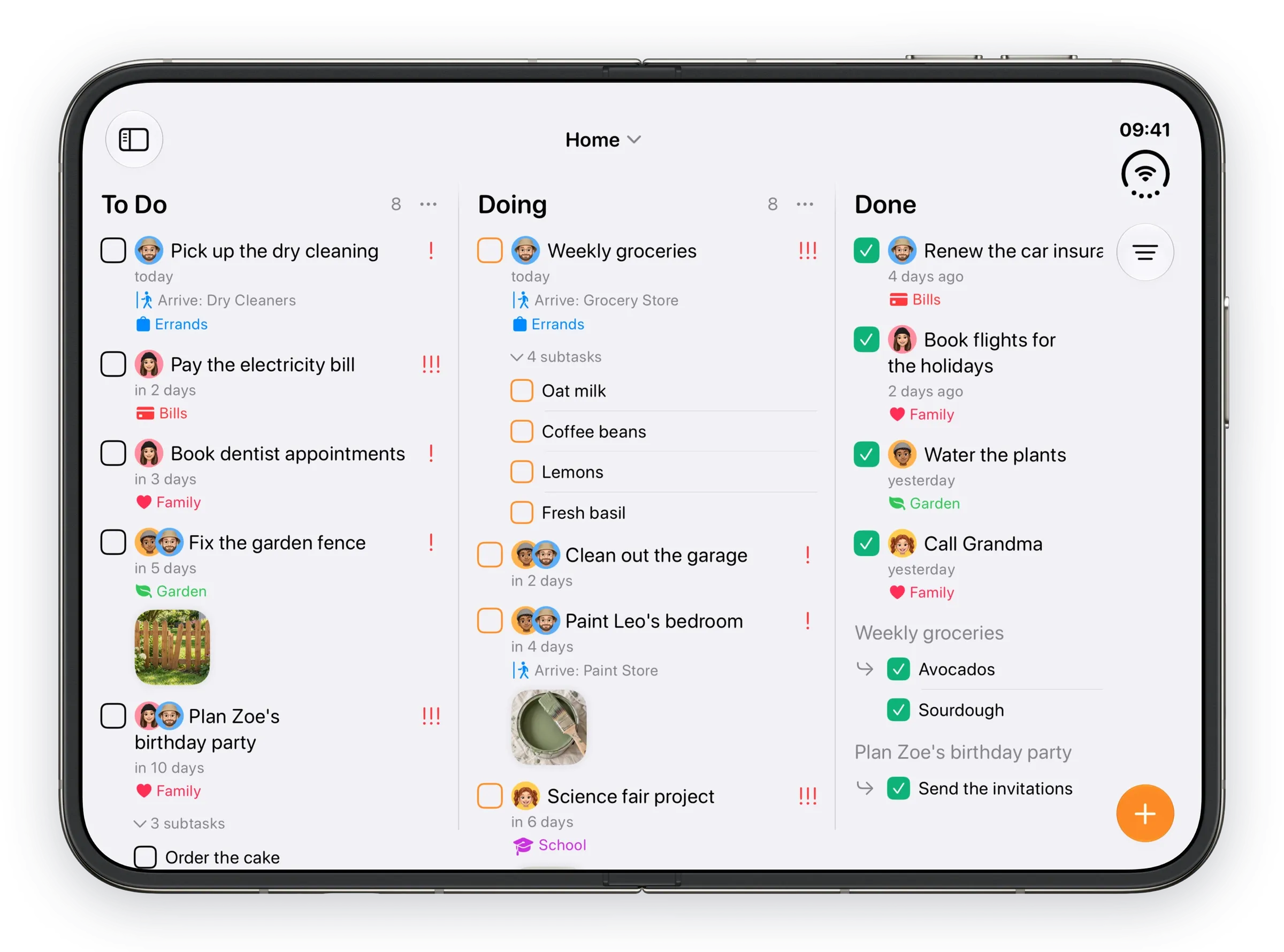
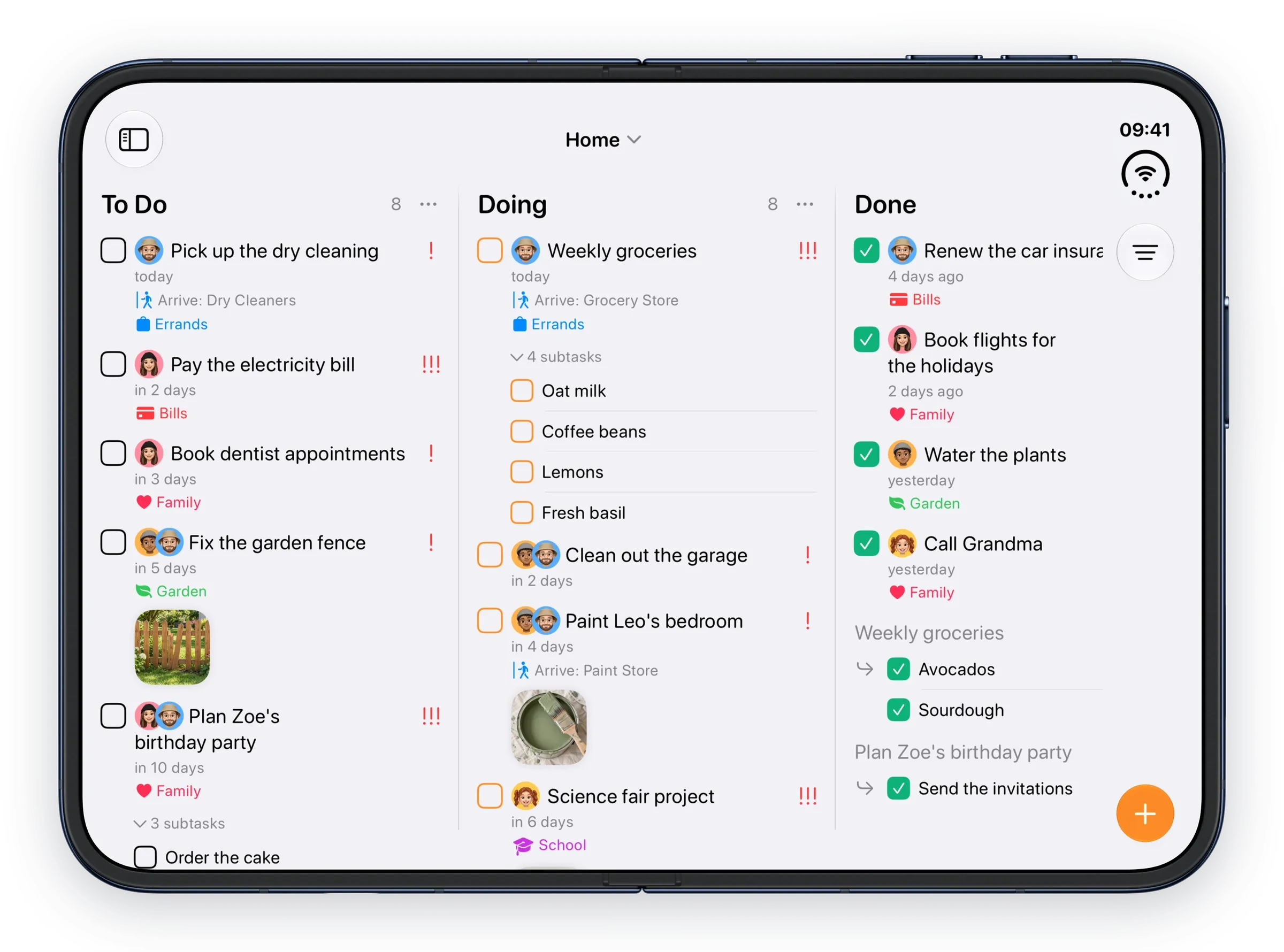
A family's chores across three columns.
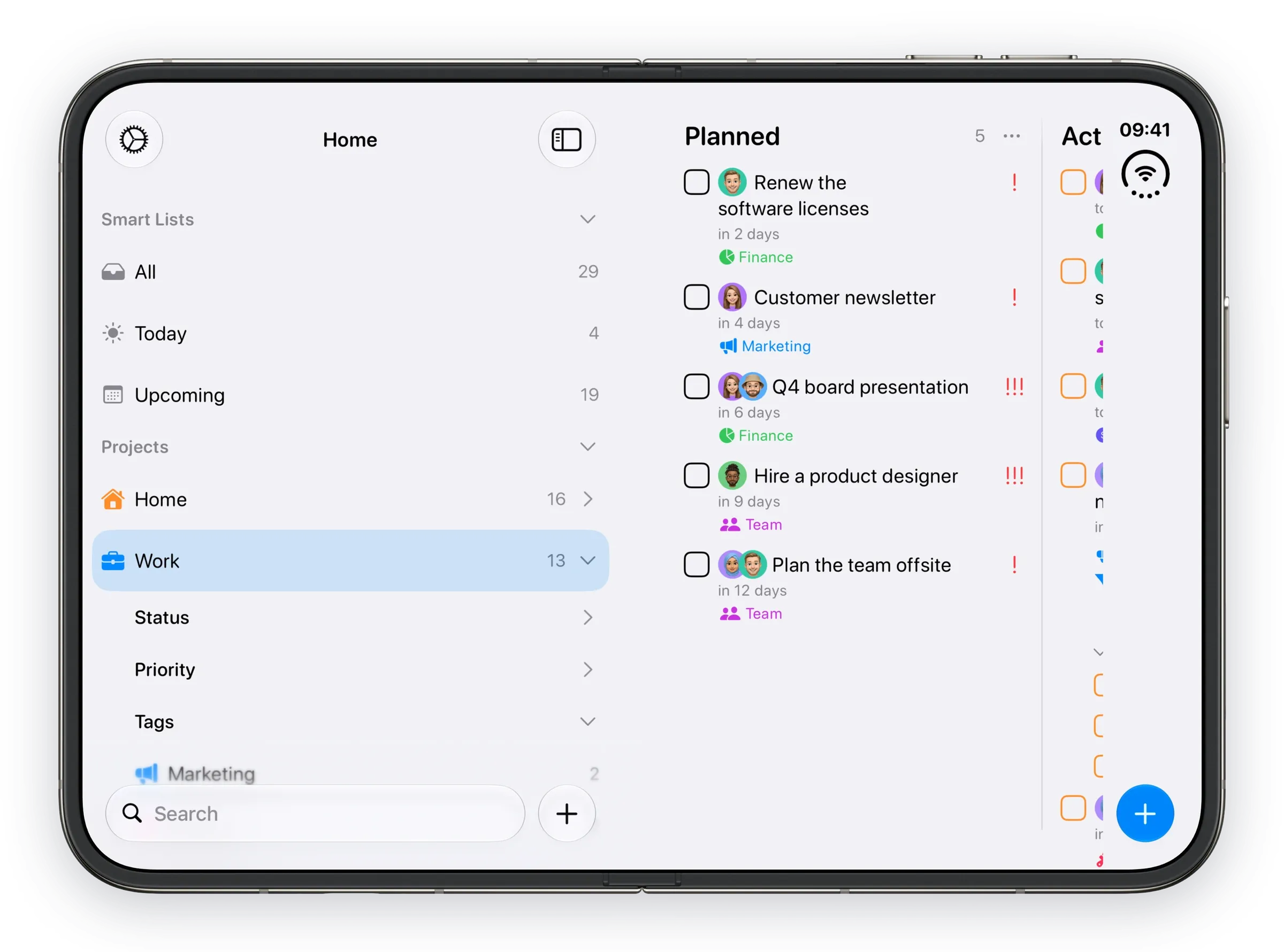
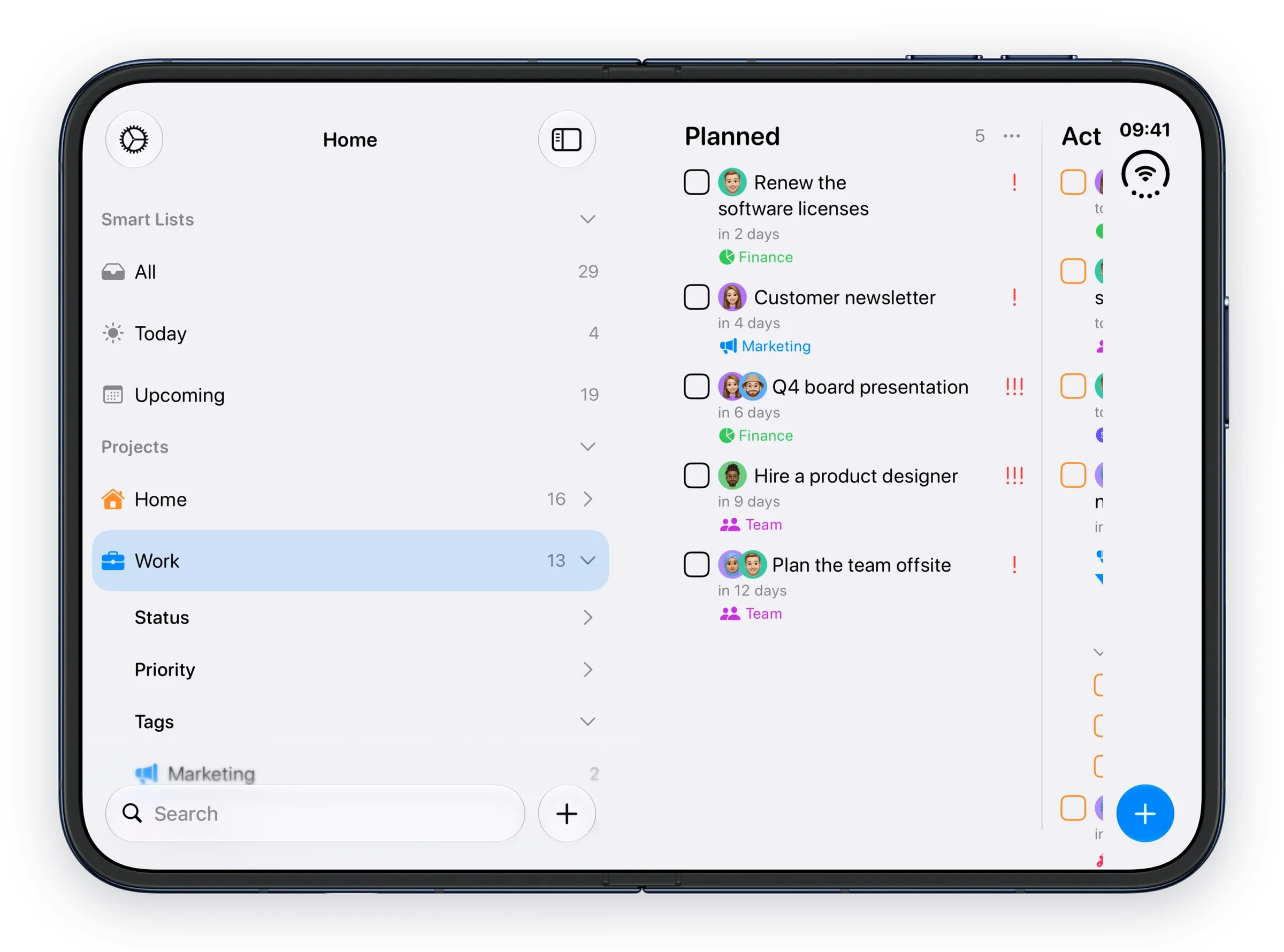
The Work project selected and expanded.
The card floats near the top of the board.
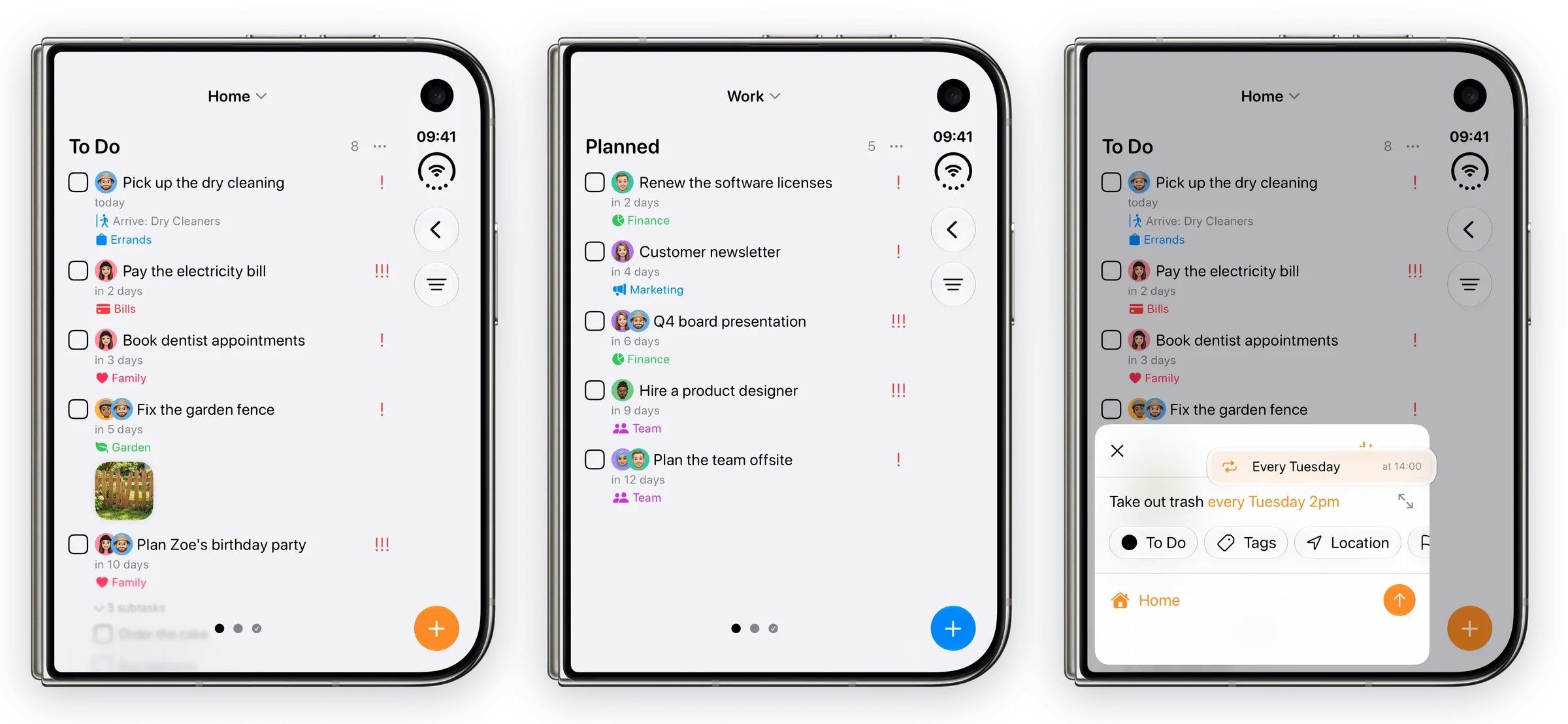
Home, Work and Create Task on the outer display.
The Work board, one column at a time.
Docked at the bottom, right by your thumb.

Connected, assigned a task, and revoked.

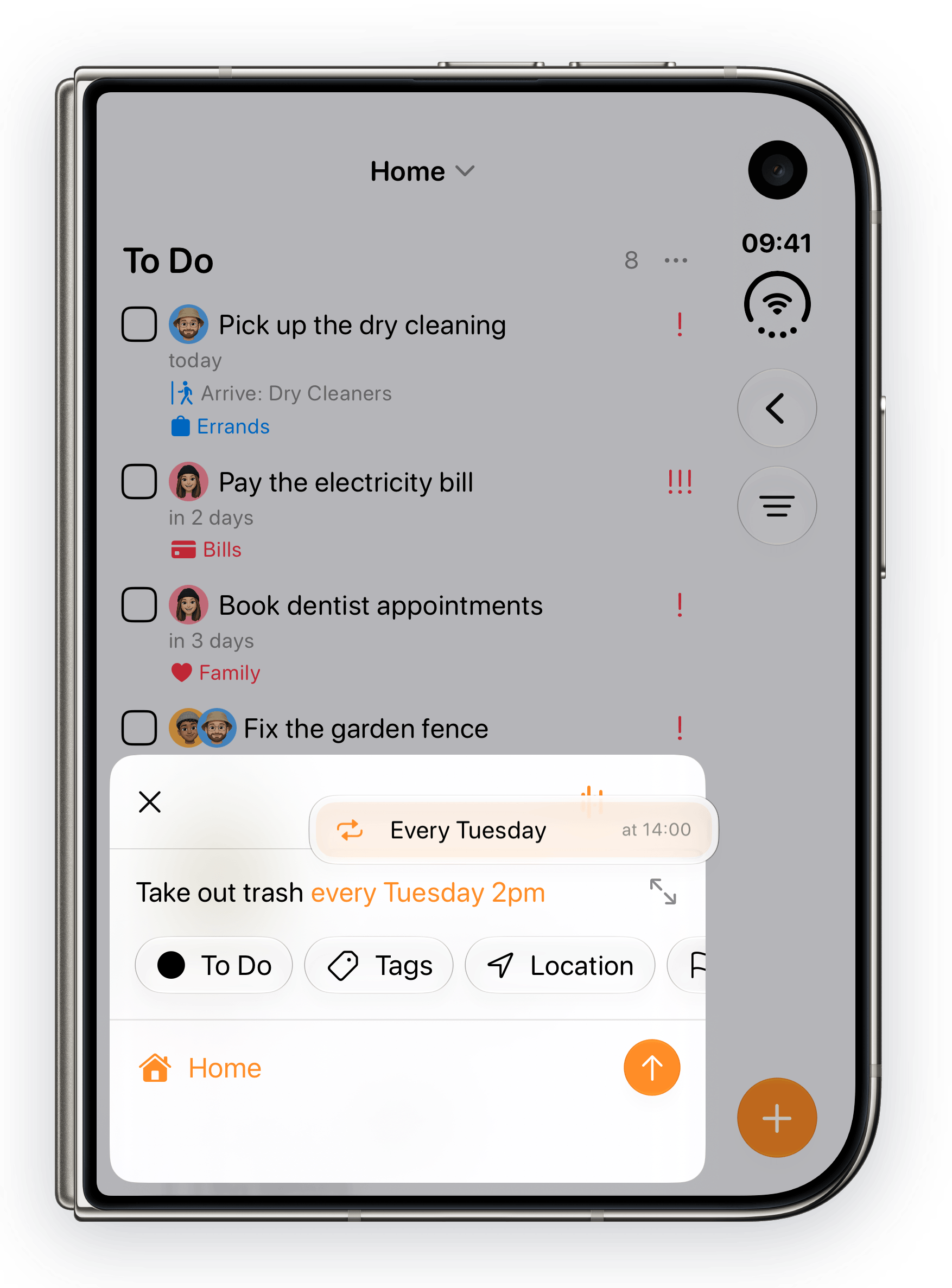
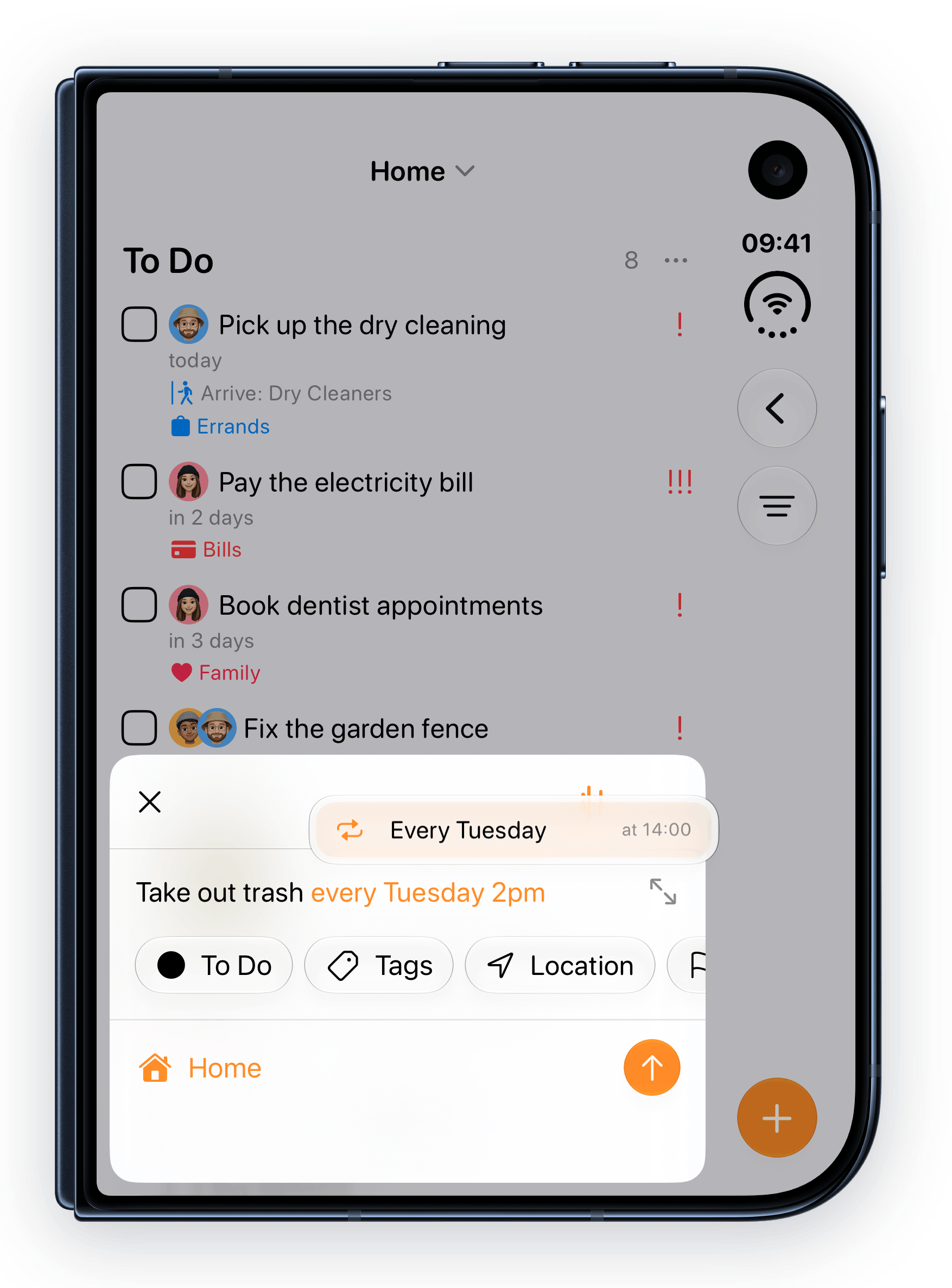
A repeat, a date and a place, offered as you type.

# for a tag, / for a project.

Four groups, a note from the developer and the analytics switch.

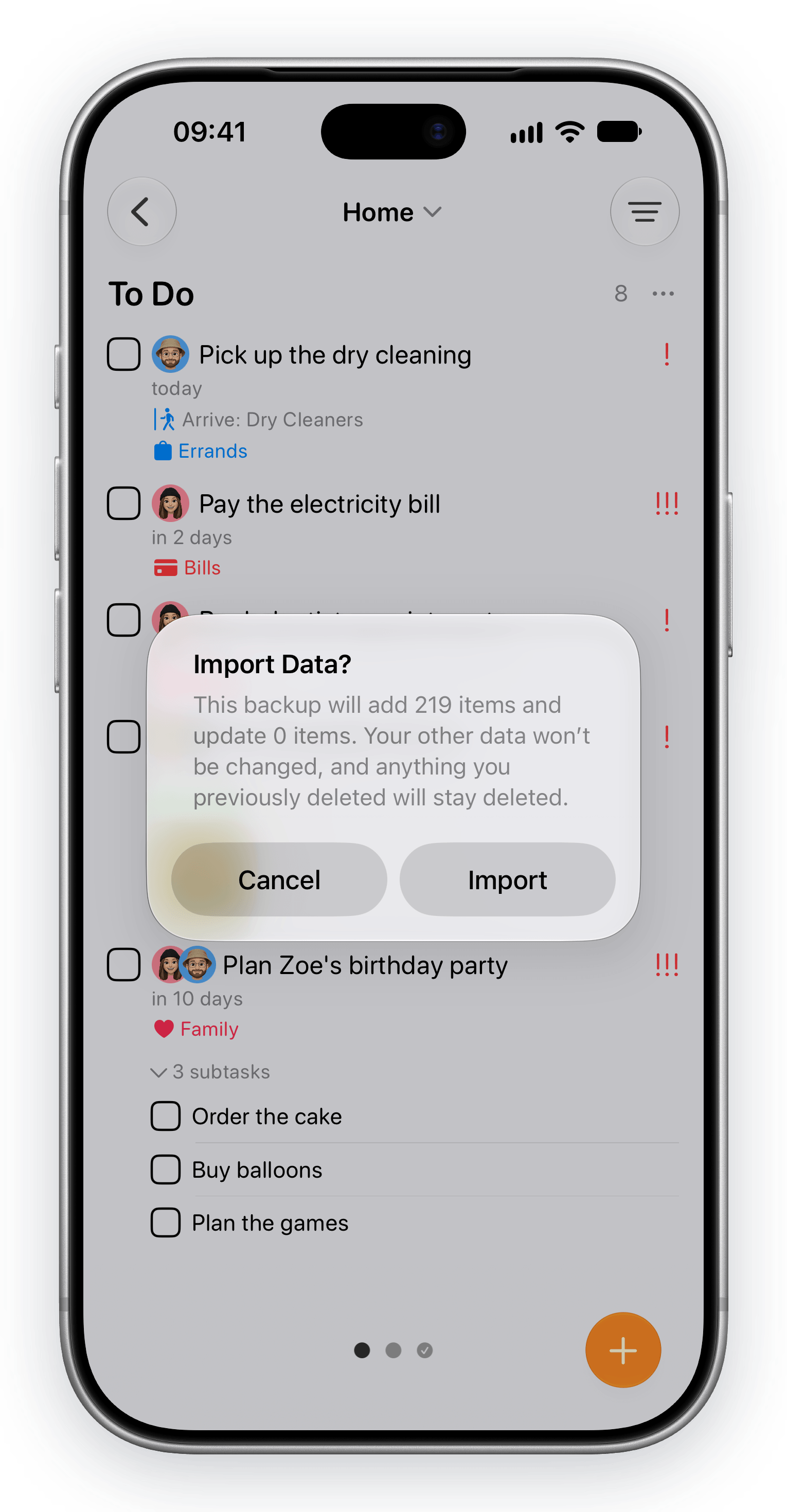
Tasks asks before importing anything.
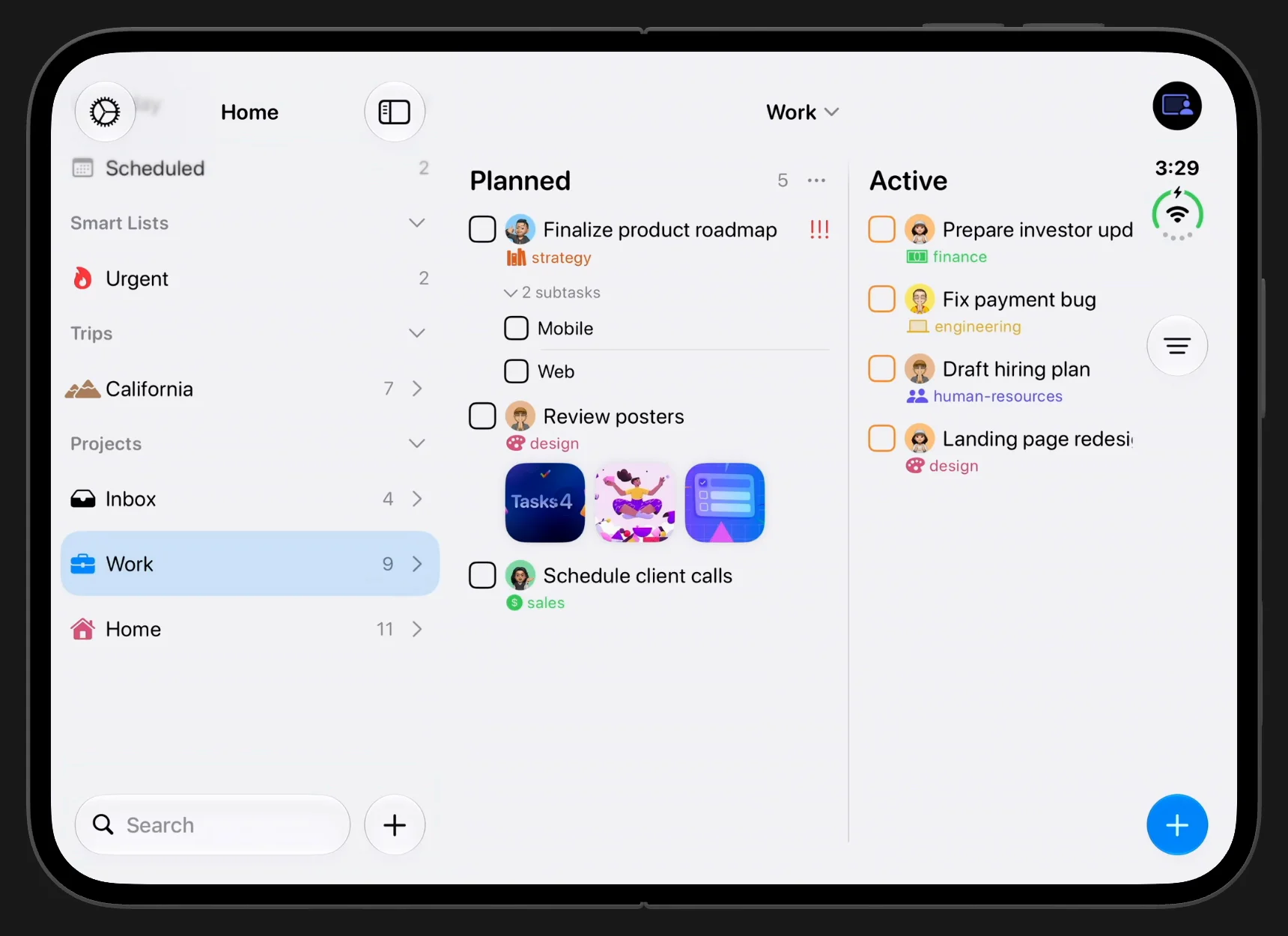
The card following the tilt, half-folded.
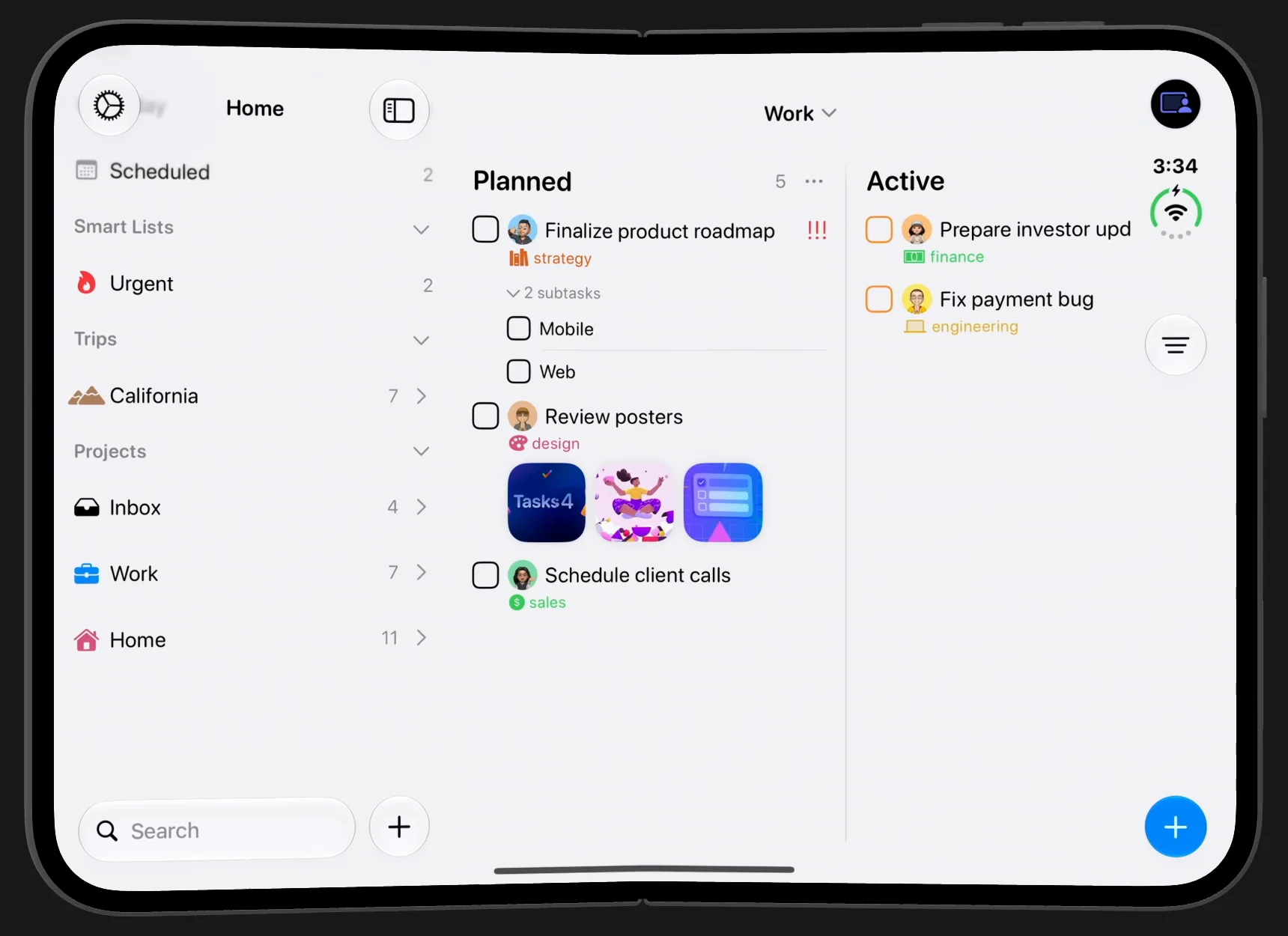
Each fold lands on the column you were reading.
The rainbow checkmark, on white.