I spent the last week on one thing: getting Tasks right on iPhone Duo. 5.2 is out today, ten days before the Duo goes on sale, so if you’ve got one coming, Tasks is ready for it.
Folded, it’s the Tasks you already know. Open it up and you get your whole board, sidebar and all. There’s a lot more in this update too and I’ll get to it, but the Duo first.
iPhone Duo
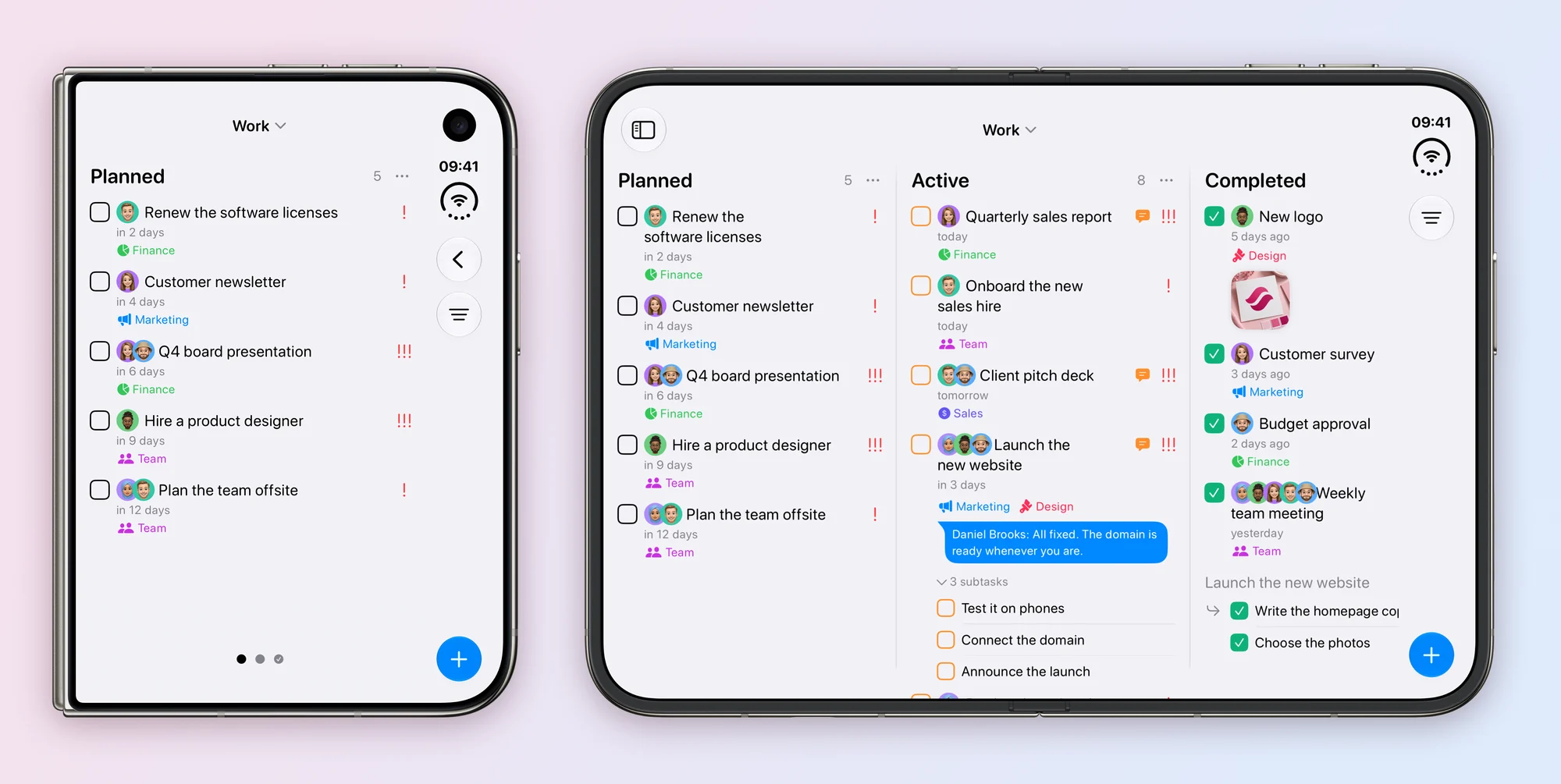
Folded, the outer screen is basically an iPhone, so Tasks behaves exactly like it does on your iPhone. One column at a time, swipe to the next, and Create Task sits at the bottom where your thumb already is. I didn’t want to reinvent anything here.
Open is where it gets fun. The inner screen is 7.6 inches, which is enough for the sidebar (Smart Lists, projects, search) and your columns side by side. Planned, Active and Completed in one look. Want more room? Hide the sidebar and the board takes the whole width.
Fold and unfold as much as you like, Tasks keeps your place. If you were reading Active when you folded it, the outer screen opens on Active. Whatever you were halfway through typing is still there too.
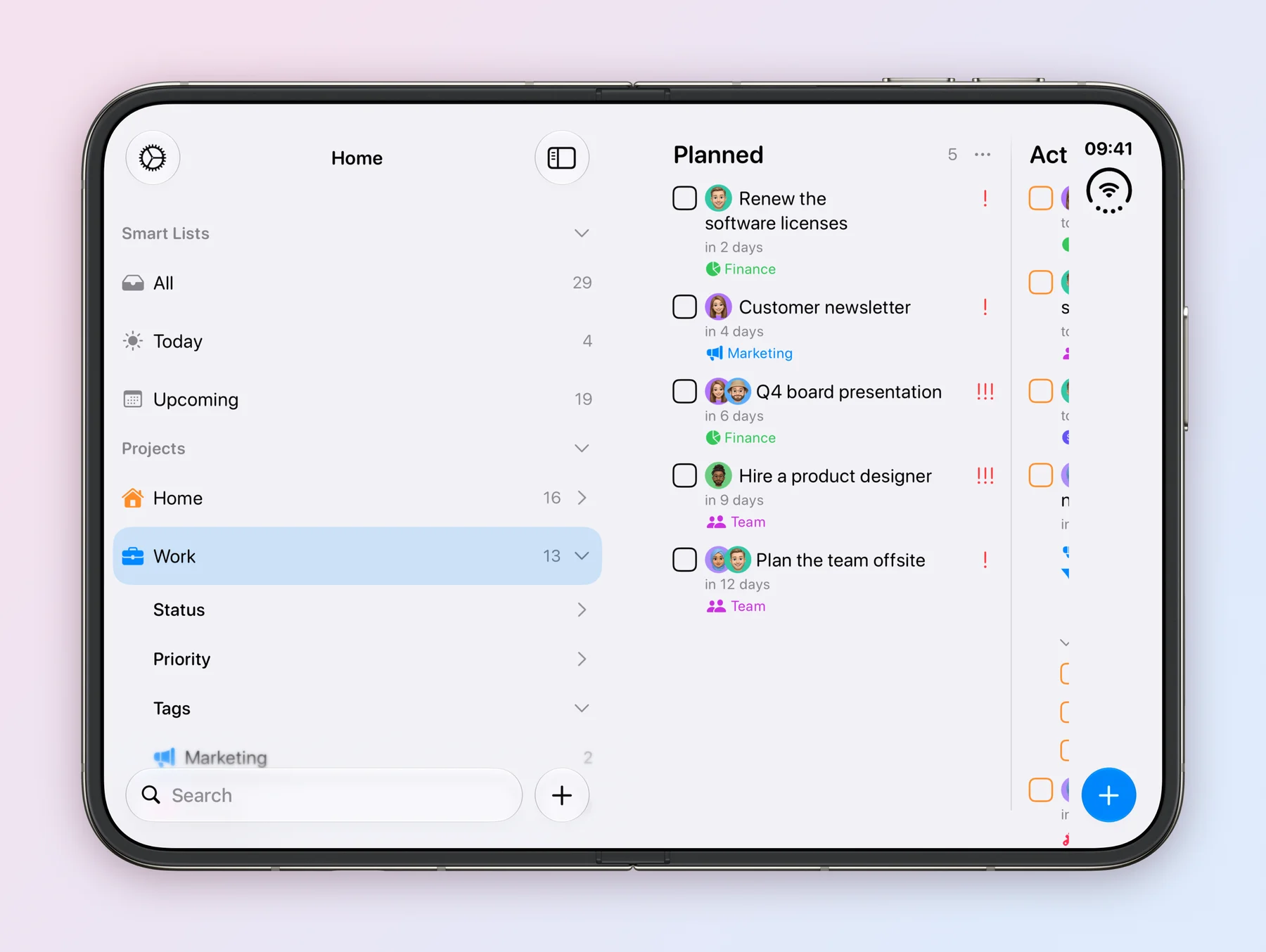
The part I spent the most time on is how you actually hold the thing. You don’t hold a big screen in landscape like a phone. Your thumbs end up on the sides and the bottom, so that’s where I moved stuff. The + button is at the bottom instead of up in the corner, and Save, Done, Invite and the rest live in the bar along the edge, next to the clock.
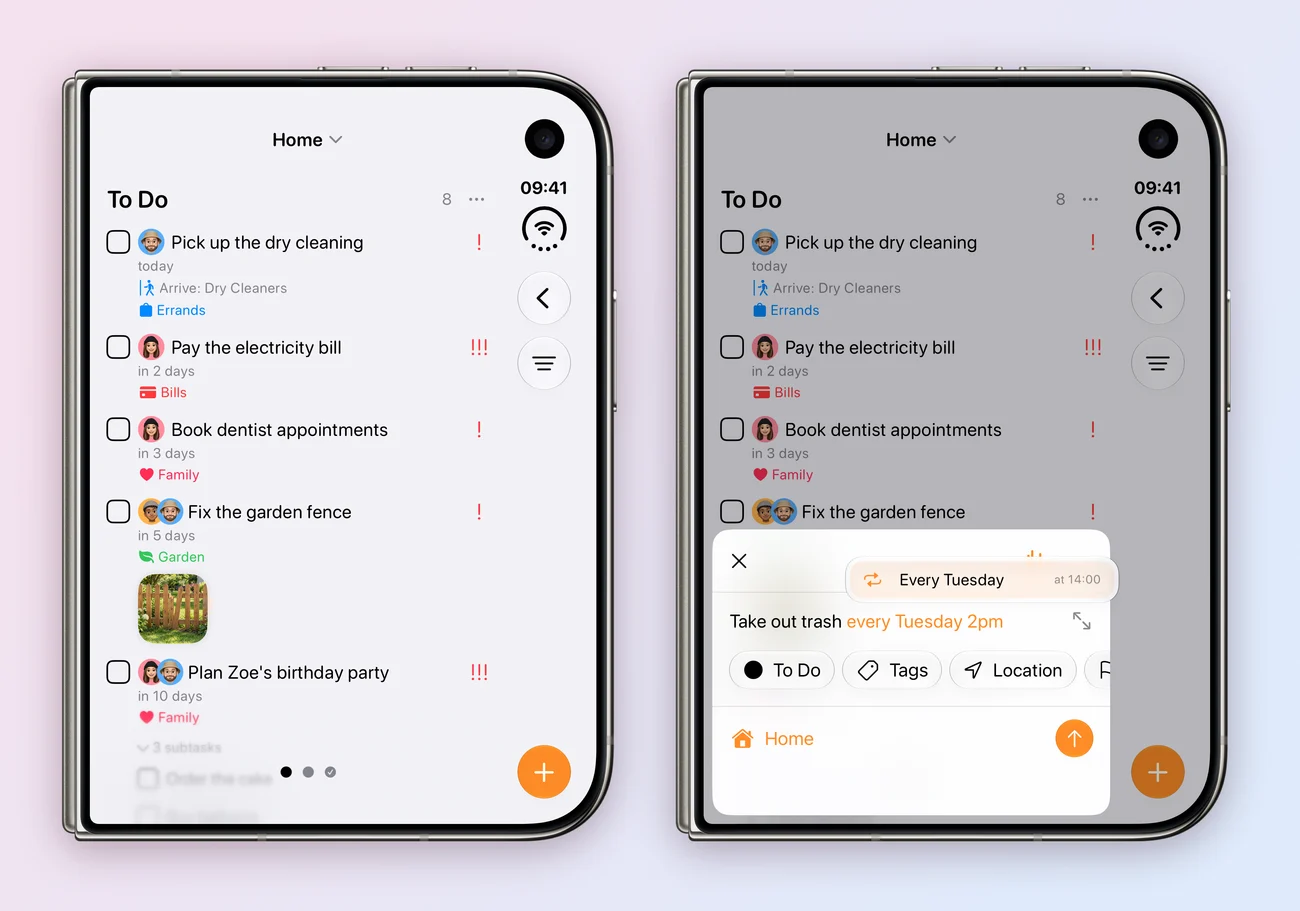
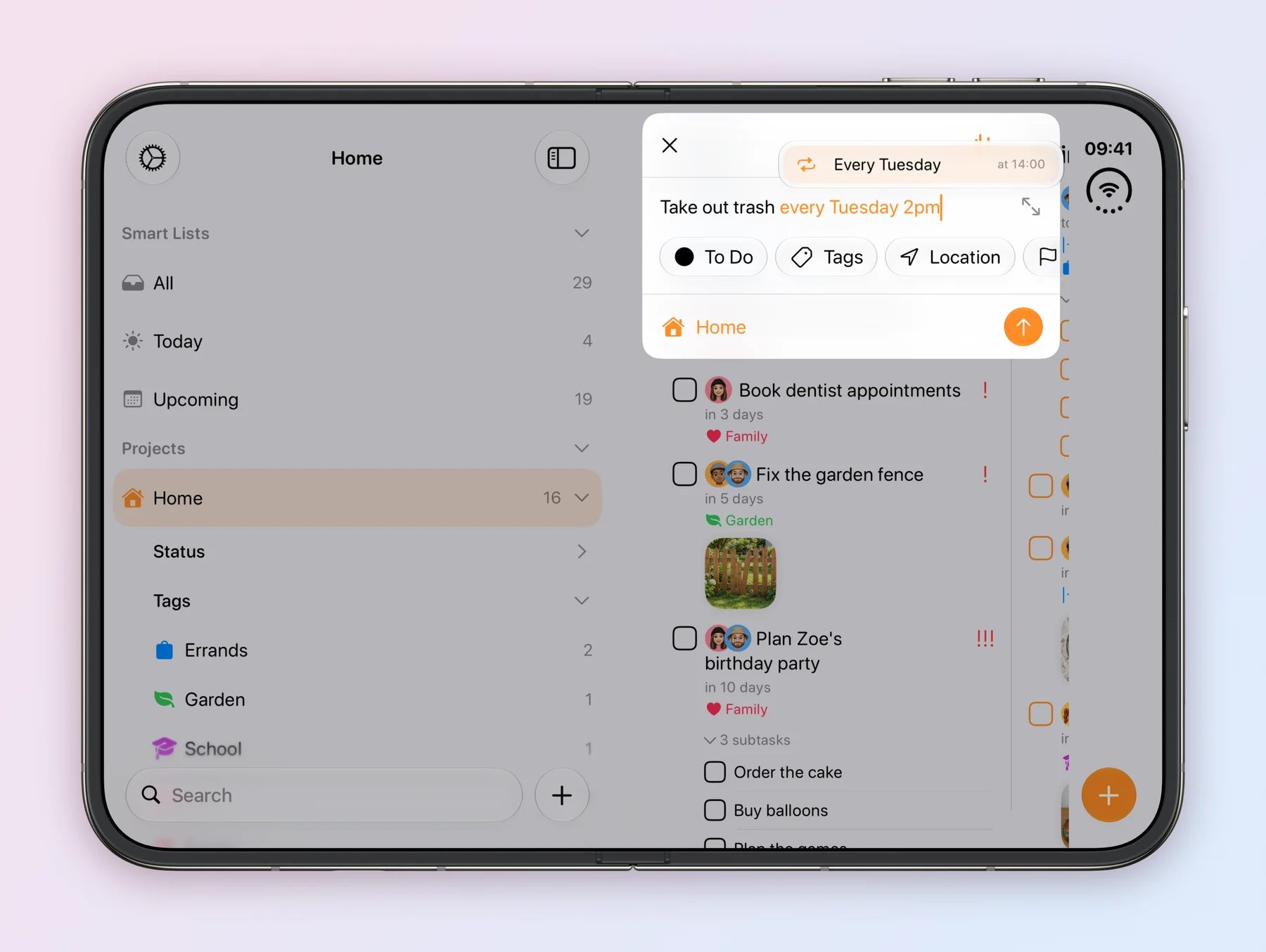
Create Task, the date picker and Repeat open as a card near the top when the Duo is open, and dock at the bottom when it’s folded. The cards grow with what’s in them, scroll when they run out of room, and get out of the keyboard’s way.
Then there’s half-folded, which is my favourite bit of the whole update. Hold the Duo partly open like a book and a card in the middle of the screen would sit right on the crease. Nobody wants to type over a crease. So Tasks reads the hinge and puts the card in the half that’s facing you, and if you turn the Duo, the card follows. The tricky part was stopping it from jumping back and forth, so it only switches sides once you’ve turned past 15°. It also only reads motion while a card is actually open, so it isn’t eating your battery for nothing.
Open a task and it slides in next to the board, so you can still see everything else while you edit. Settings opens next to the sidebar the same way.
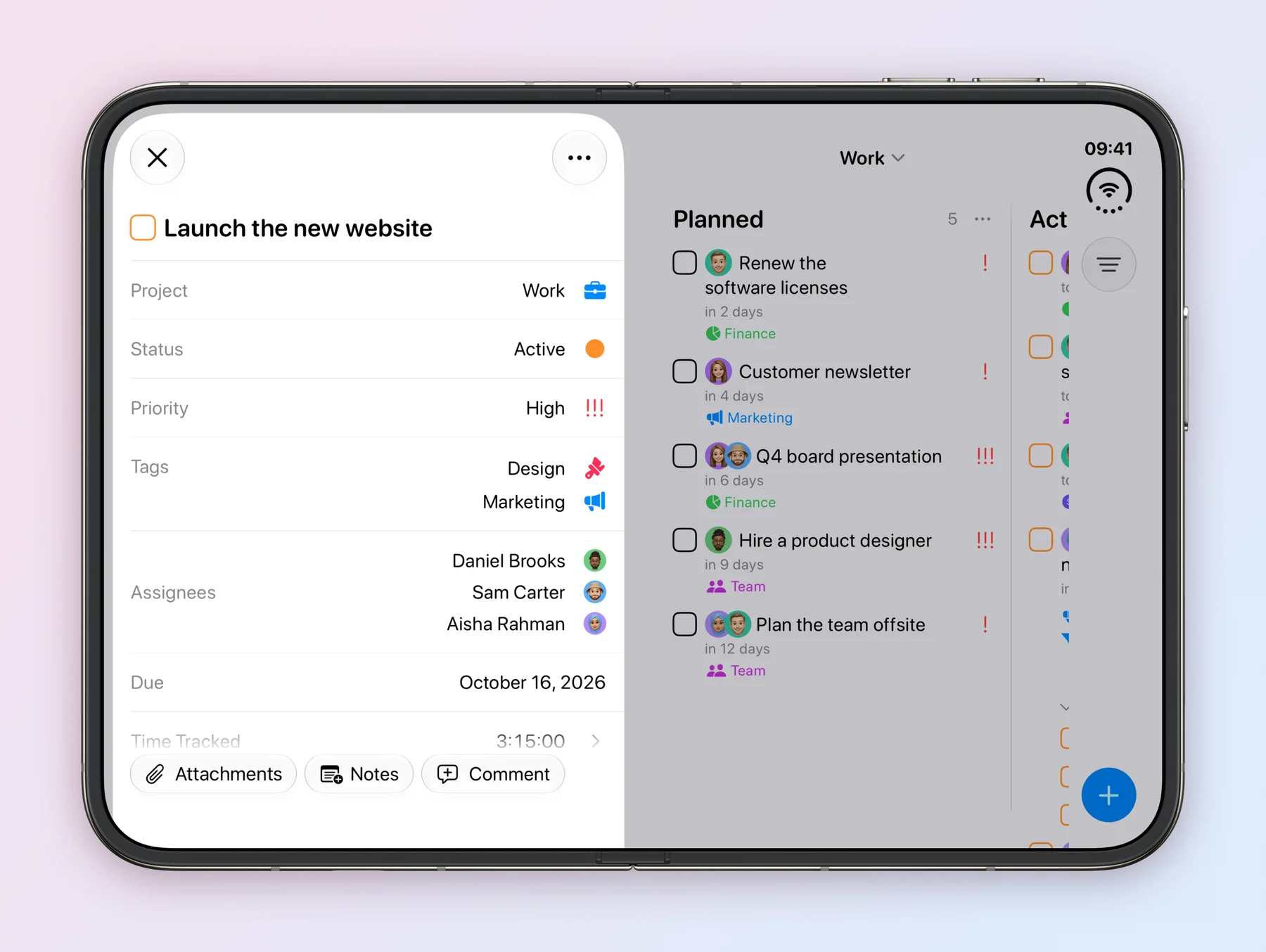
Two rules I stuck to the whole week. There are no Duo screen sizes hard-coded anywhere, Tasks just looks at how much room it has and lays itself out. And folding never does anything to your stuff. It doesn’t save, complete or delete anything, it only changes the layout.
If you want the nerdy details, the press kit has a little demo where you can tilt a Duo and watch the card pick a side.
AI assistants can join your projects
Connect ChatGPT, Claude, Grok or whatever assistant you use, then add it to a project like you’d add a person. Open the project’s Collaboration screen, find it under Quick add, invite it as an Editor or Admin and it’s in.
From there it’s basically a teammate. Assign it tasks, mention it in comments, watch it move things around on the board. It even gets its own coloured avatar. There’s a new AI Assistants screen in Settings with everything you’ve connected, where you can rename one or revoke it. Revoke it and it leaves your projects, and its tasks come back to you.
I’ve had Claude and Codex on my own Tasks board for a while now. They pick up tasks, track their time and leave a note when they’re done.
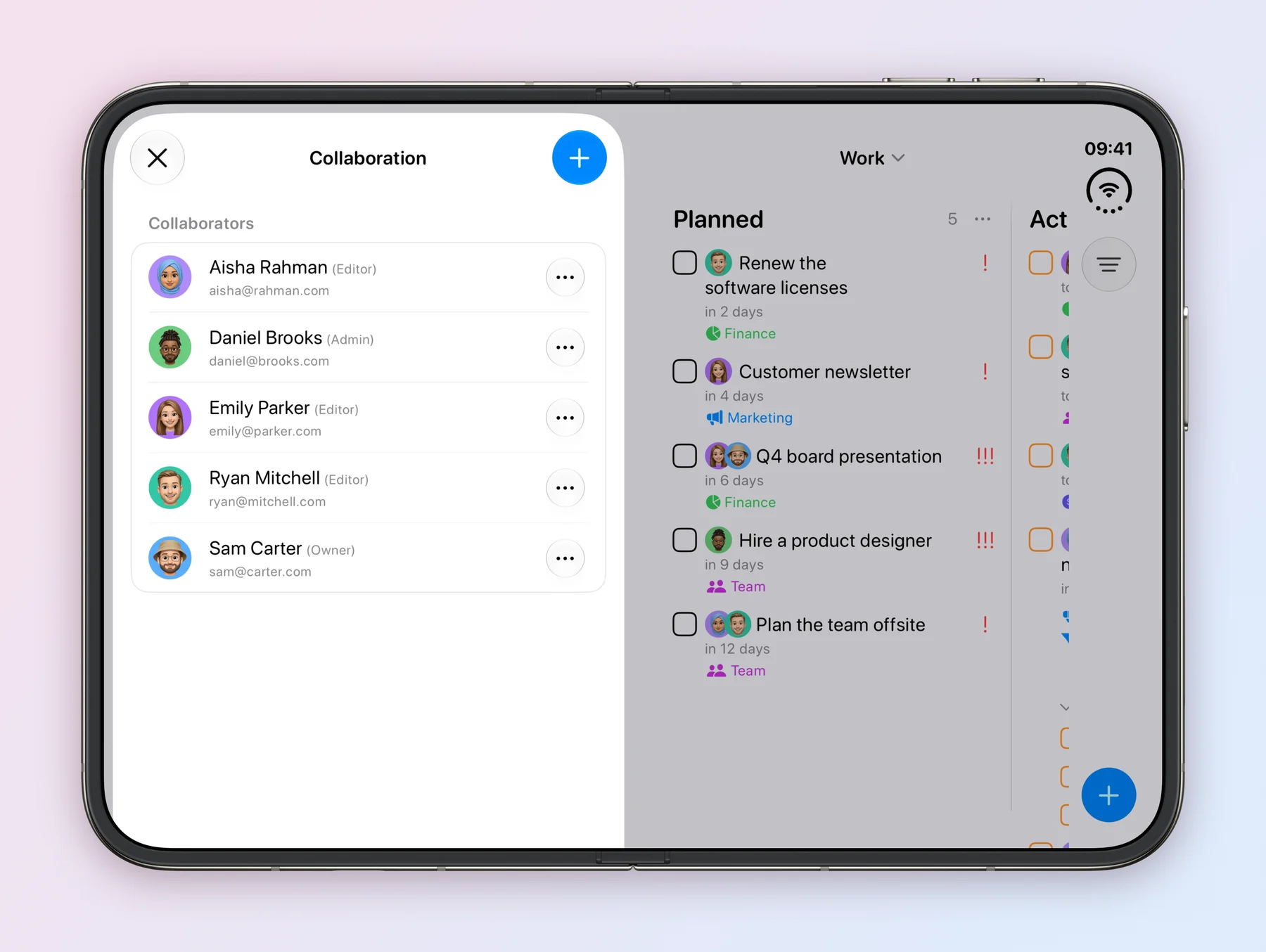
Sharing with actual humans got some love too. People who left a project now show up under Previous Collaborators, so you can bring them back with one tap, and only owners and admins can change who’s in. Here’s how to set up an assistant and how sharing works.
Just type it
I rewrote the parser from scratch for 5.2. It runs entirely on your phone and it speaks English, French, German and Spanish. Type a task the way you’d say it and Tasks picks out the date, the repeat, the place, the priority and the tags.
So “dinner with Maya tomorrow at 7pm” works. So does “call Grandma every other Sunday at 5pm”, “buy milk when I leave work”, “3-5pm”, “for 2 hours”, “every weekday”, or just “!!!” when something’s on fire.
Suggestions show up right where you’re typing. Tap one (or hit Return or Tab on a keyboard) and those words come out of the title, so the task just says what you need to do.
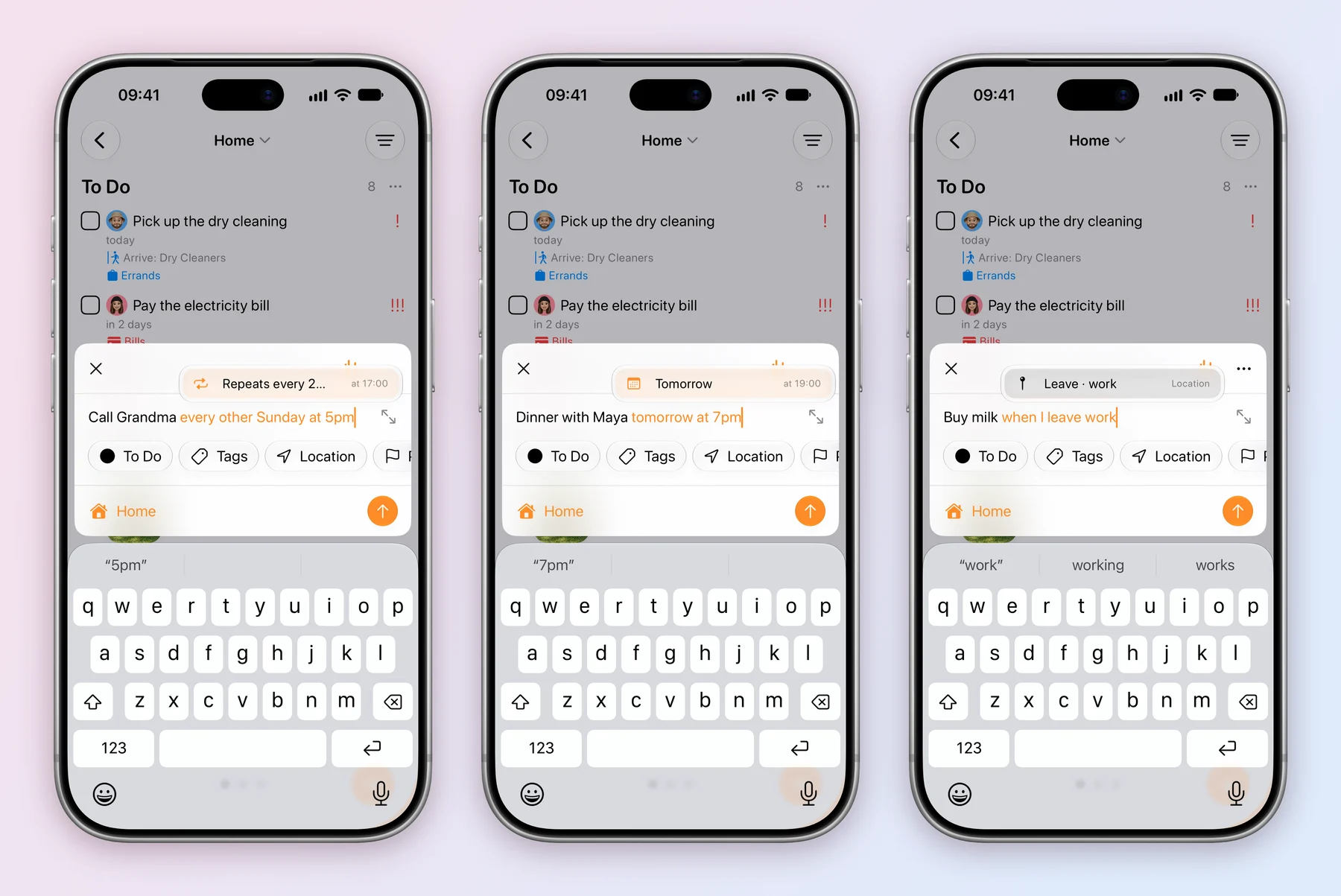
If you like typing fast, there are shortcuts: # for a tag, / for a project, ! for priority, + for a person, ^ for a due date, and @ for any of them.
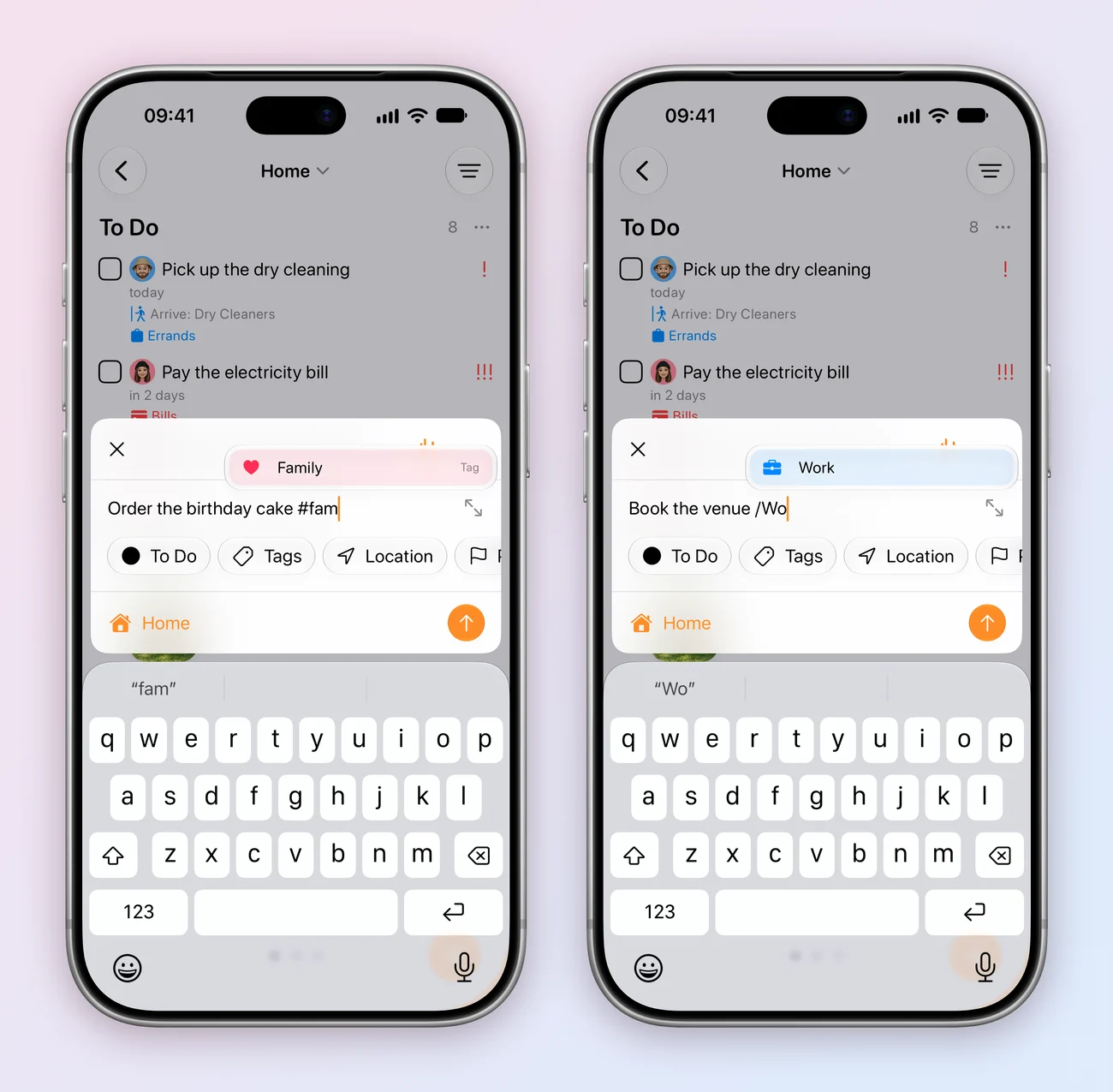
Repeats read like normal sentences everywhere now, like “Every weekday” or “Monthly on 1st”. Your week starts on whatever day your phone says it does, and “this weekend” means your weekend, wherever you live.
Oh, and you can paste images and PDFs straight into any text field in a task now, on iPhone, iPad and Mac. More in the typing guide.
A new Settings
Settings was overdue for a rebuild. It’s four groups now: Preferences, Data & Integrations, Help & About, and Privacy & Legal. Things are where you’d expect them.
Scroll all the way down and there’s a note from me. Tasks is just me, and I do read every email.
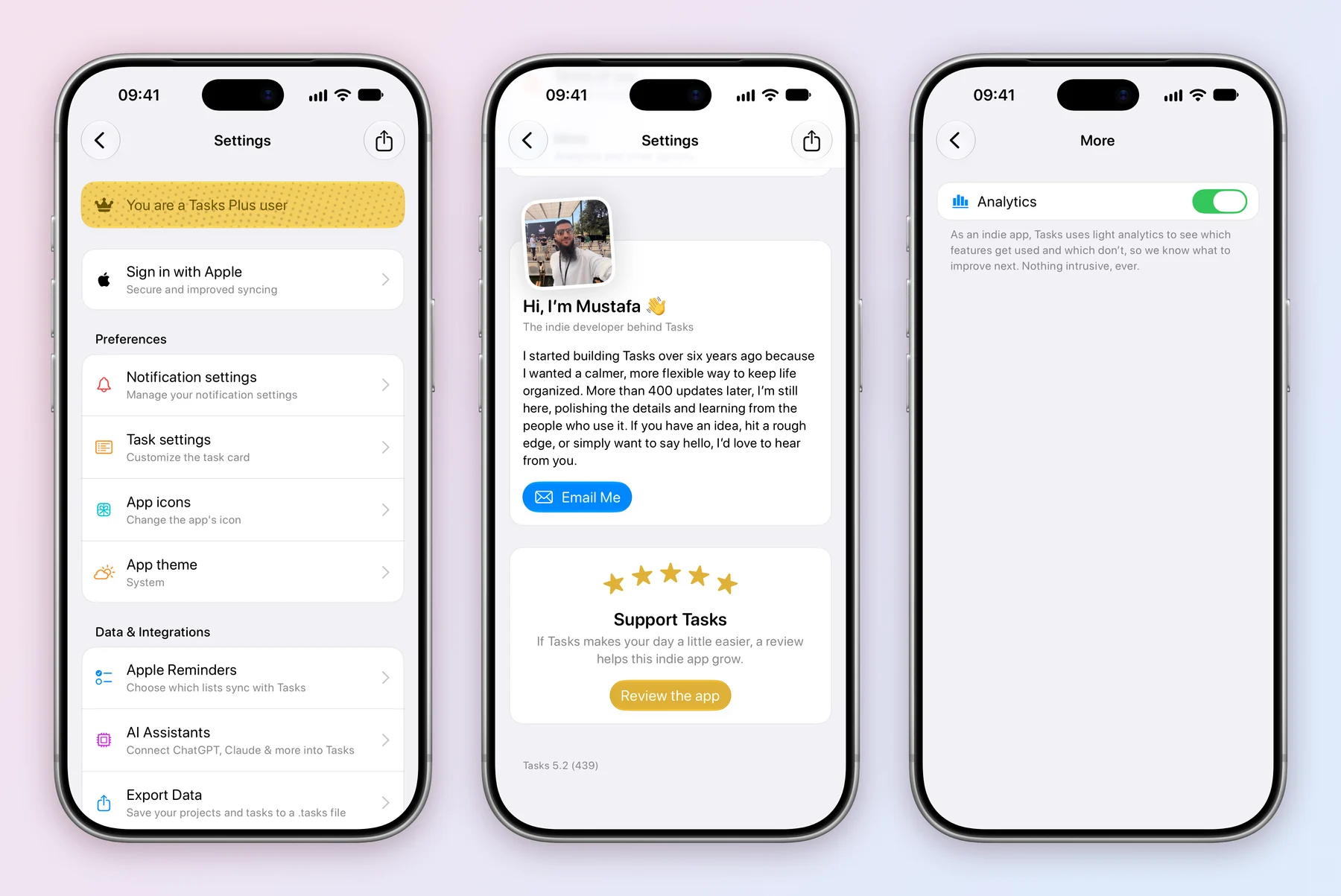
About analytics: Tasks sends a light bit of analytics so I can see which features people actually use and what to work on next. If you’d rather not send even that, it’s one switch in Settings › Privacy & Legal › More.
While I was in there I fixed a few things. Notification settings are simple switches now, and the Mac finally has the same screen as iPhone. Logging out warns you if something hasn’t synced yet. Images are sharp again. And Privacy and Terms open as web pages, so they’re always current.
Sync, and everything else
Nobody should have to think about sync, so here’s what I fixed so you don’t. If the server had a hiccup and didn’t recognise you for a second, Tasks used to sign you out, and anything that hadn’t synced yet went with it. Now it double-checks your account first and keeps you signed in. And if the server rejects one change, that no longer holds up the rest. Everything else goes through and Tasks keeps retrying the one that failed. Syncs also finish in the background now, including on Apple Watch, and the Mac checks for changes as soon as you come back to the window.
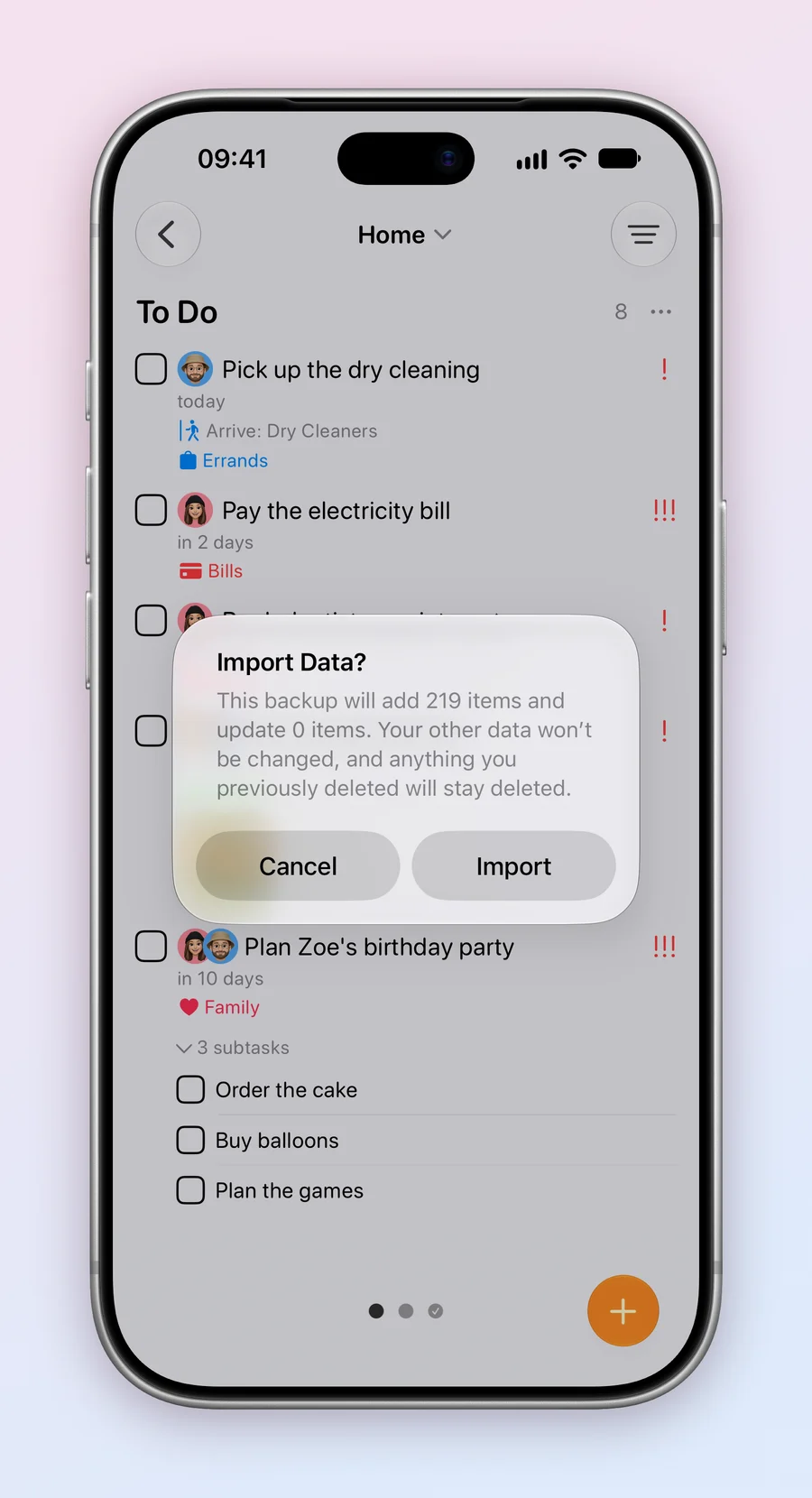
You can open a .tasks file from anywhere now. Someone sends you a backup or a sample project, you tap it in Files, Mail or AirDrop, and Tasks shows you what’s inside and asks before importing anything. Importing the same file again keeps the assignees you already set. Every case study on the blog comes with a sample project if you want something to try it on.
Running timers show up in your Apple Watch Smart Stack now, with the task and the time on the rainbow gradient, and the Lock Screen timer got a fresh gradient too. I also fixed timers not starting on older tasks in projects that had only just got a Time Tracking field.
And the small stuff:
- Drag a task over a tag or a person and it lights up in that colour, so you know where it’ll land.
- Dragging the same card twice in a row doesn’t make you wait ten seconds anymore.
- Shortcuts has a new Add Attachments to Task action.
- Links from widgets, Shortcuts and Quick Actions open the right screen even when Tasks was closed.
- Code in notes shows in a monospaced font, and headings come in three sizes.
- The Mac search panel is bigger and remembers what you last searched for.
- Boards keep their scroll position, photos load faster, and deleting an attachment or a time entry asks first.
That’s 5.2. It’s out now on iPhone, iPad and Mac. If you’ve got a Duo on the way, I’d really love to hear how Tasks feels on it, good or bad. Write to me at tasks@msquarelabs.com.
And if Tasks makes your day a bit easier, a review on the App Store helps a small indie app more than you’d think.
Thanks for using Tasks.
Mustafa