A Tasks customer runs a busy house: two parents and two kids, aged 15 and 10. We call them Alex, Sam, Maya and Leo here. The chores lived on a whiteboard on the fridge, the shopping list in someone’s notes and everything else in the family group chat, where it scrolled away.
They wanted one list the whole family could share, simple enough for a 10 year old. This is the setup, and it’s yours to import.
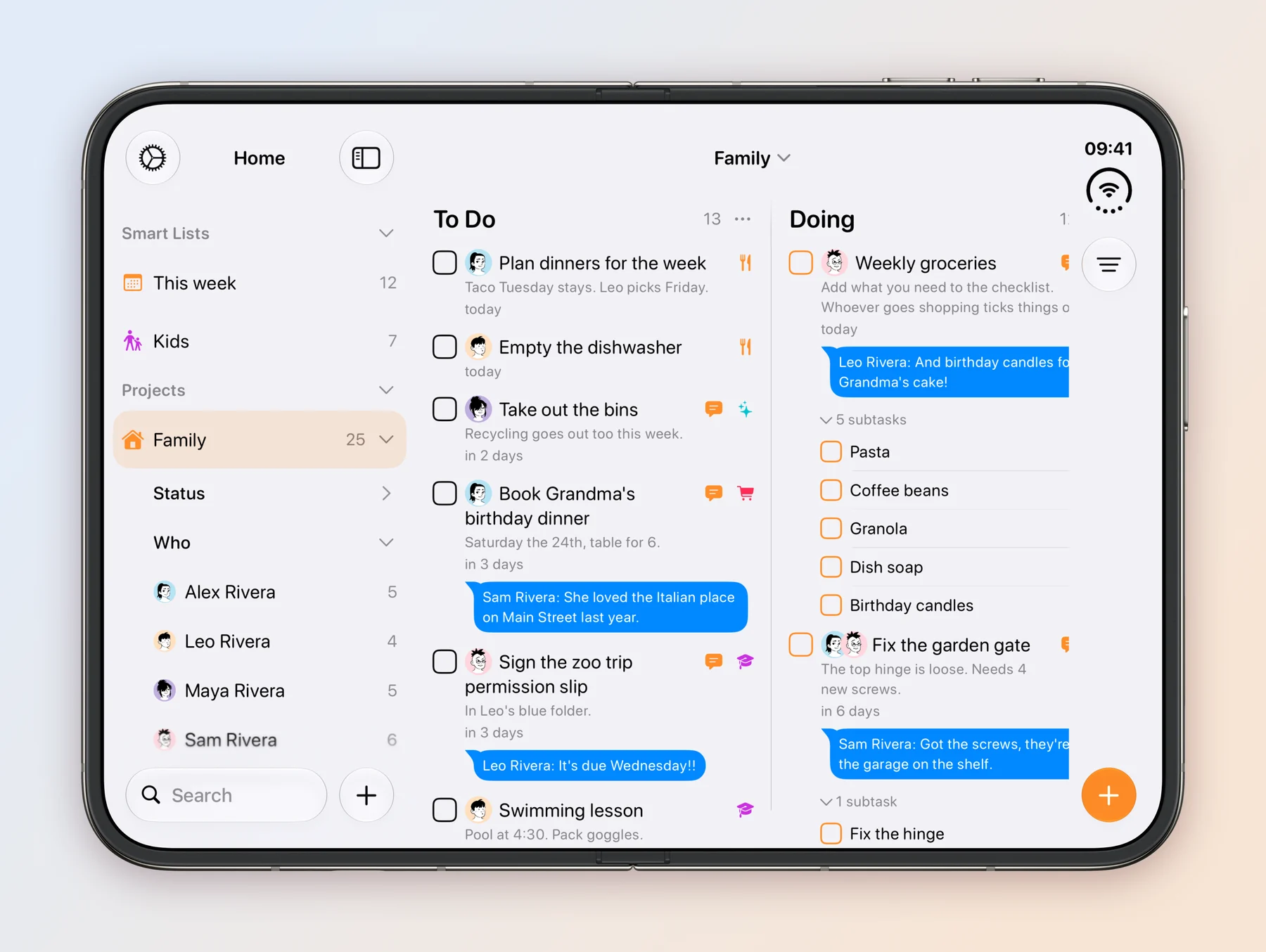
What they asked for
- One list for the whole house, on everyone’s phone.
- Who’s doing what, without having to ask.
- Chores that come back, like the bins every Tuesday.
- One shopping list that anyone can add to.
- Fewer messages in the group chat.
One shared project
Everything lives in one project called Family, shared with all four of them. It has a few fields, each answering one question:
| Field | Answers | Values |
|---|---|---|
| Status | Has it started? | To Do, Doing, Done |
| Who | Who’s doing it? This is an Assigned to field renamed to Who. | Alex, Sam, Maya, Leo |
| Area | Which part of home life? A Task Type renamed to Area. | Kitchen, Cleaning, Garden, Errands, School, Bills |
| Date | When? | Every Tuesday |
| Checklist | What’s on the list? A Subtasks field. | Milk, Eggs, Pasta |
| Notes | Anything else? | In Leo’s blue folder. |
Three statuses is plenty for a family. Nobody has to think about which column a chore goes in, and moving it to Done ticks it off.
To share the project, open the menu for Family and choose Invite people, then tap Invite, choose Create and send the link to the family. Only the person sharing needs Tasks Plus, and the project has to use Tasks Cloud, which Tasks offers to switch to. The sharing guide has the details.
A name on every chore
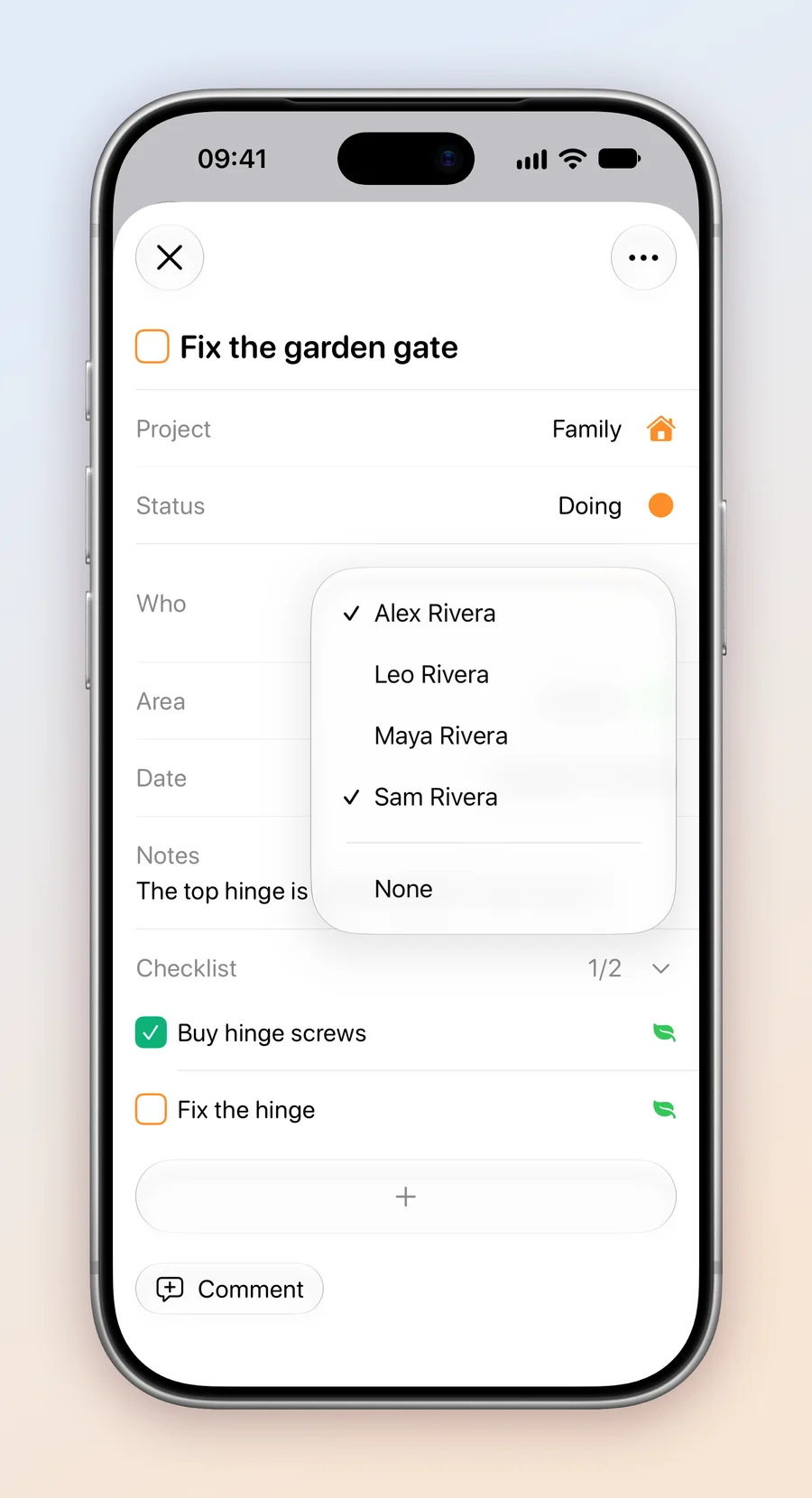
Every task has a Who. Open a task, tap Who and pick someone. A chore can have more than one name: Alex and Sam are fixing the garden gate together, and Maya and Leo split the laundry.
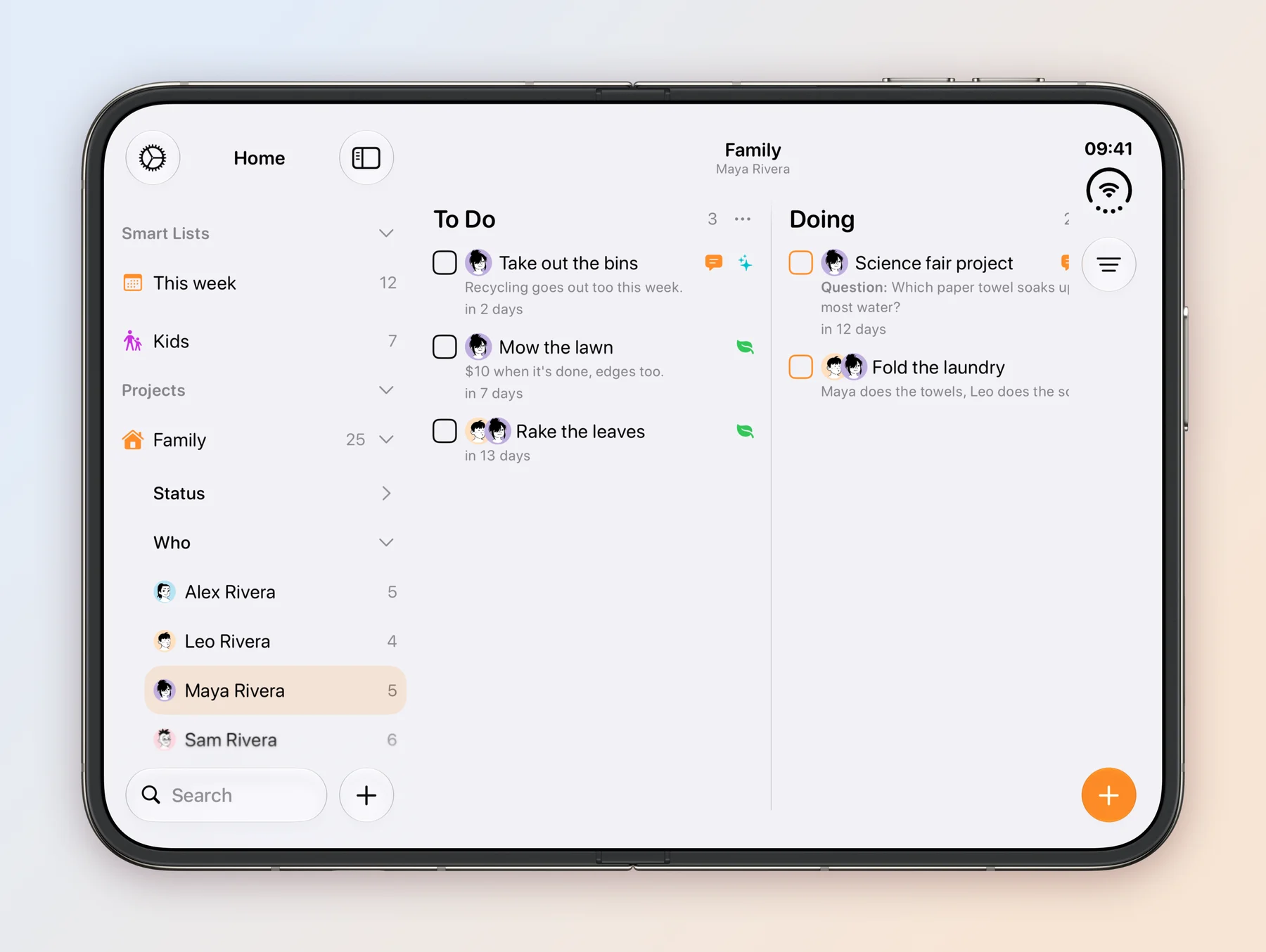
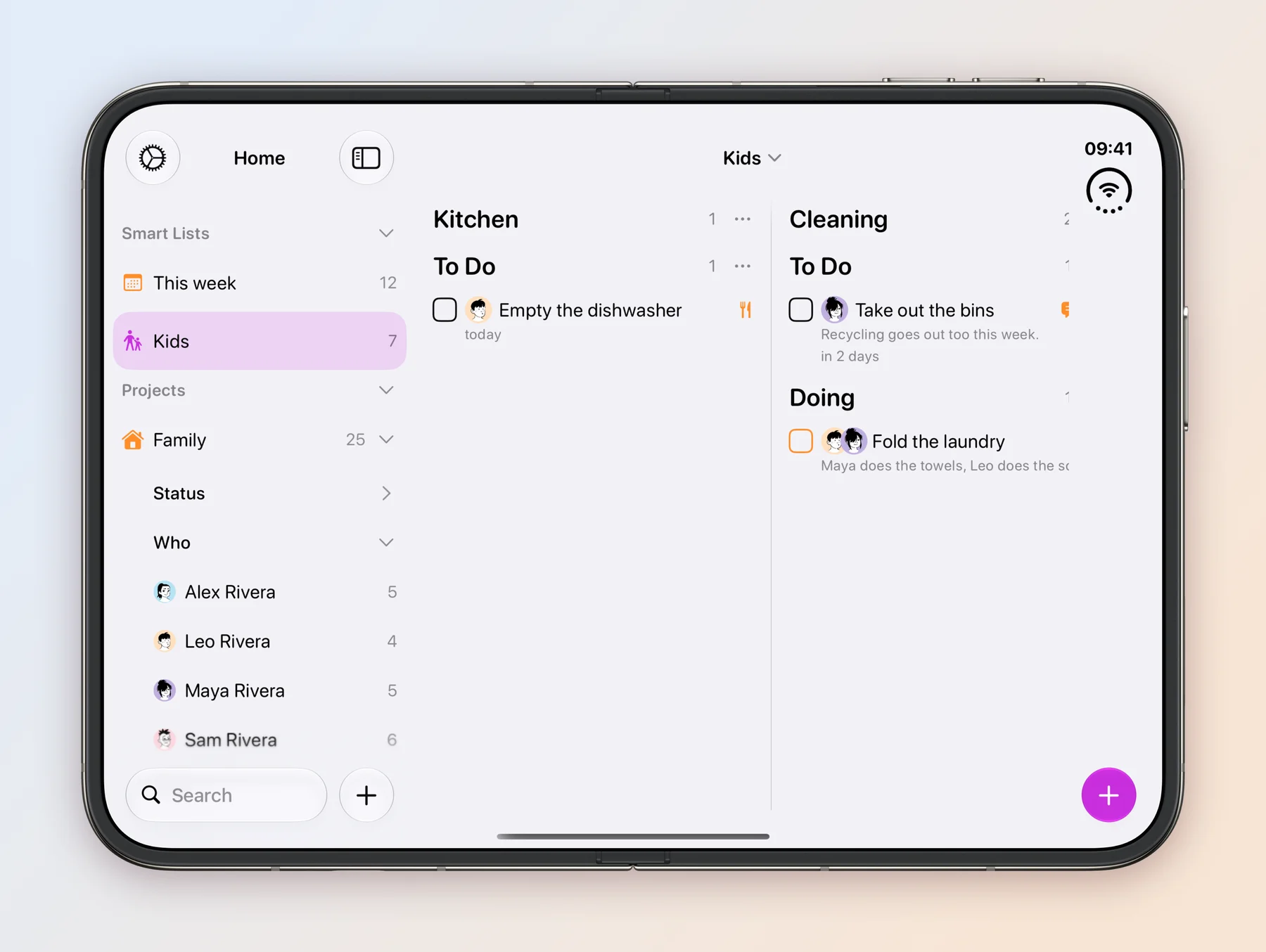
The sidebar does the rest. Expand Family, then Who, and everyone is listed with how many chores they have. Tap a name, such as Maya Rivera, to see only hers. It’s the easiest way for a teenager to check what’s left before going out.
Chores that come back
Most chores repeat, so each one has a date and a repeat:
| Chore | Who | Repeat |
|---|---|---|
| Empty the dishwasher | Leo | Every day |
| Pack school lunches | Sam | Every weekday |
| Take out the bins | Maya | Every Tuesday |
| Water the tomatoes | Leo | Tuesday, Thursday and Saturday |
| Clean the bathroom | Alex | Every Saturday |
| Mow the lawn | Maya | Every 2 weeks |
| Pay the electricity bill | Alex | Monthly, on the 15th |
| Renew home insurance | Sam | Every year |
Mark one done and Tasks moves it to its next date, so nobody has to write it on the whiteboard again. To set a repeat, open the task’s Date, then Repeat.
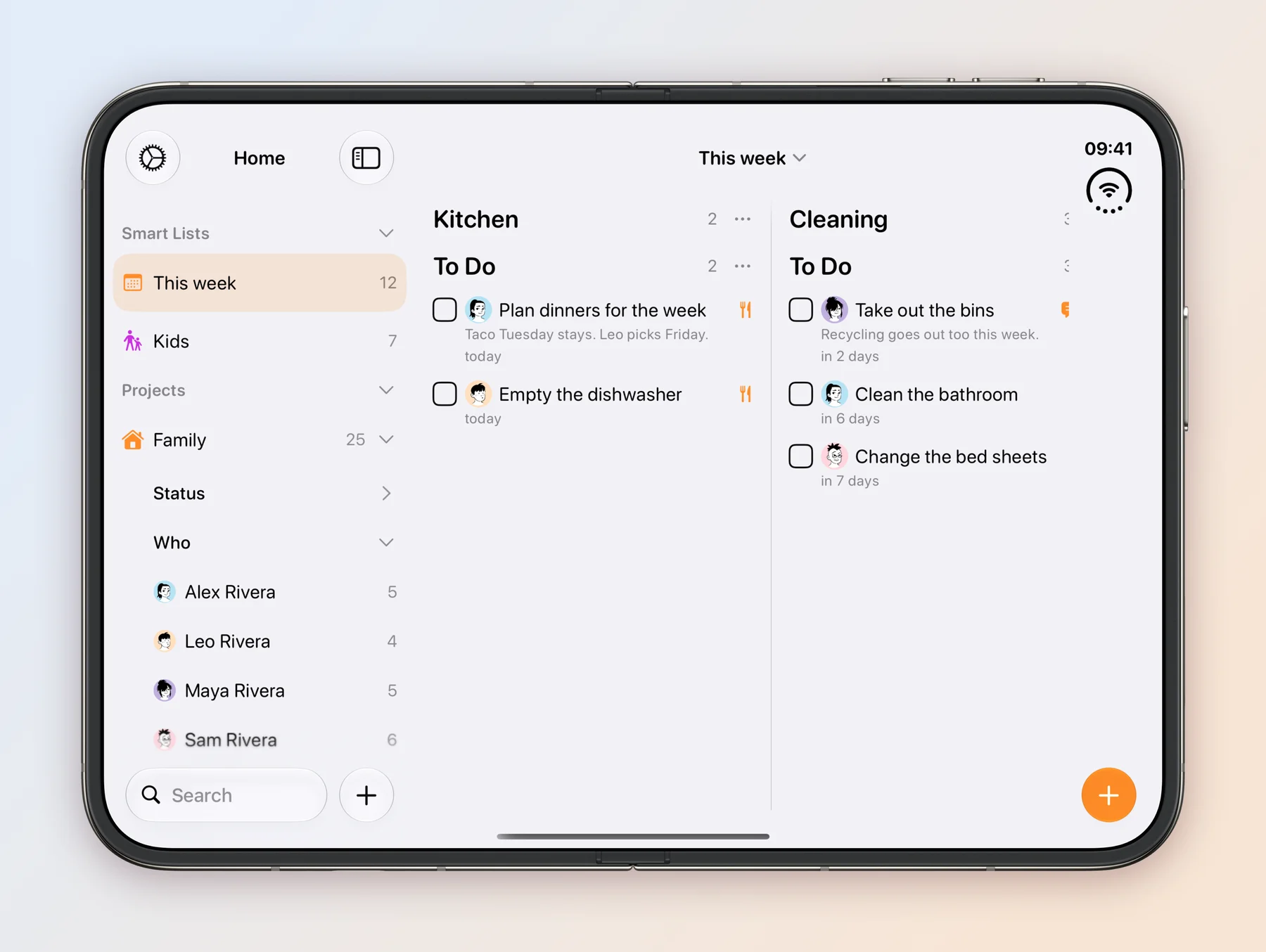
A Smart List called This week shows everything due in the next 7 days, with one column for each area of the house. It’s the Sunday evening question, answered. To make a Smart List, tap + on the Home screen, then More, then Smart List. Smart Lists are part of Tasks Plus.
One grocery list
Weekly groceries is a task, and each thing to buy is an item in its Checklist. Anyone can add to it during the week. Whoever goes to the shop ticks things off as they go, and 3/8 shows how much is left. The task repeats every Sunday.
Talk on the task, not in the group chat
Questions about a chore go in its comments, so the answer stays with the chore instead of scrolling away in the group chat. Maya asks for the granola with nuts on the grocery list, Sam replies that it’s added, and Leo reminds everyone about Grandma’s birthday candles. Each comment shows who wrote it, and a new one shows a blue dot until you’ve read it.
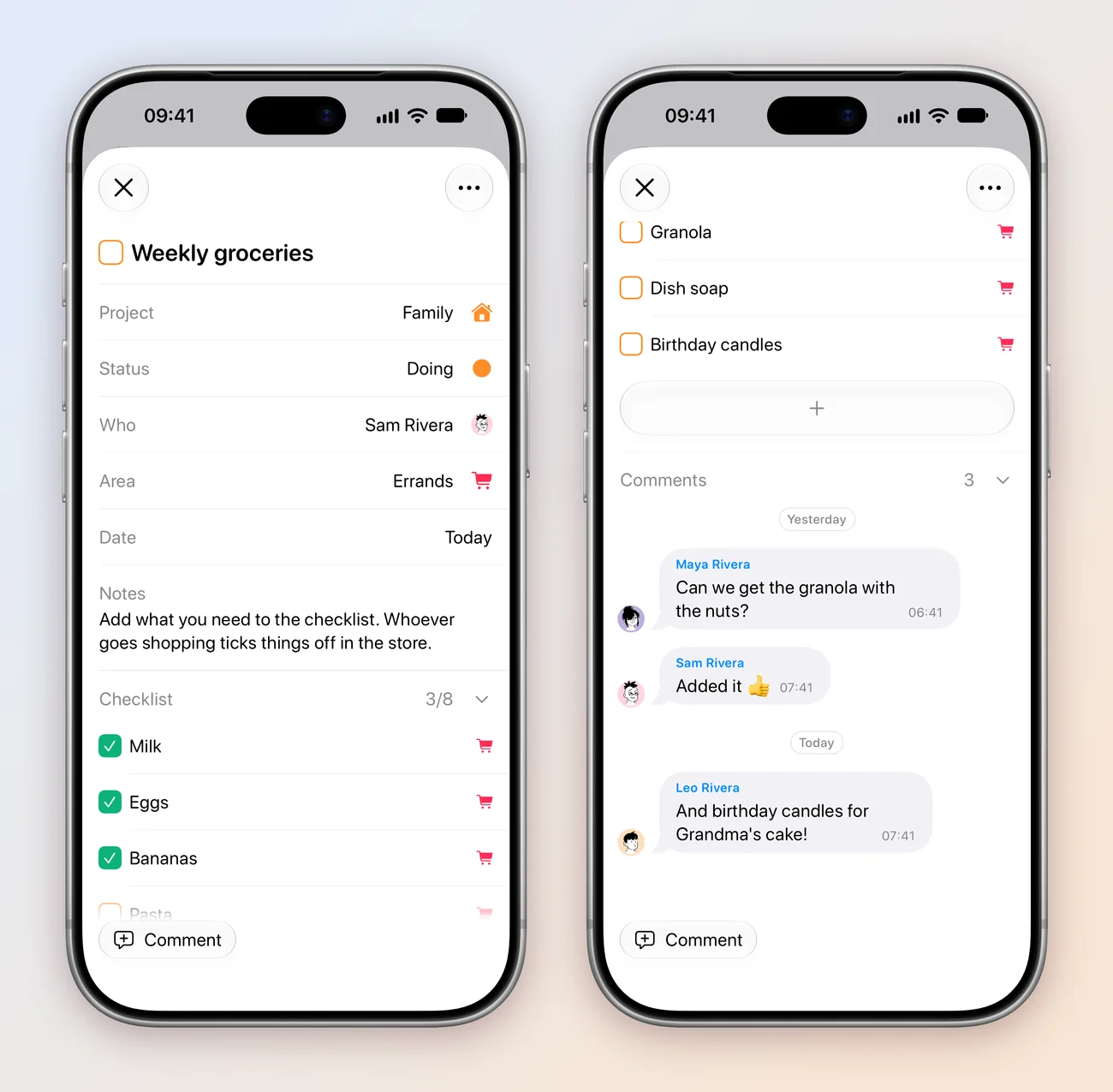
The latest comment also shows on the board under its task, so a quick look at Family shows what’s new.
A list for the kids
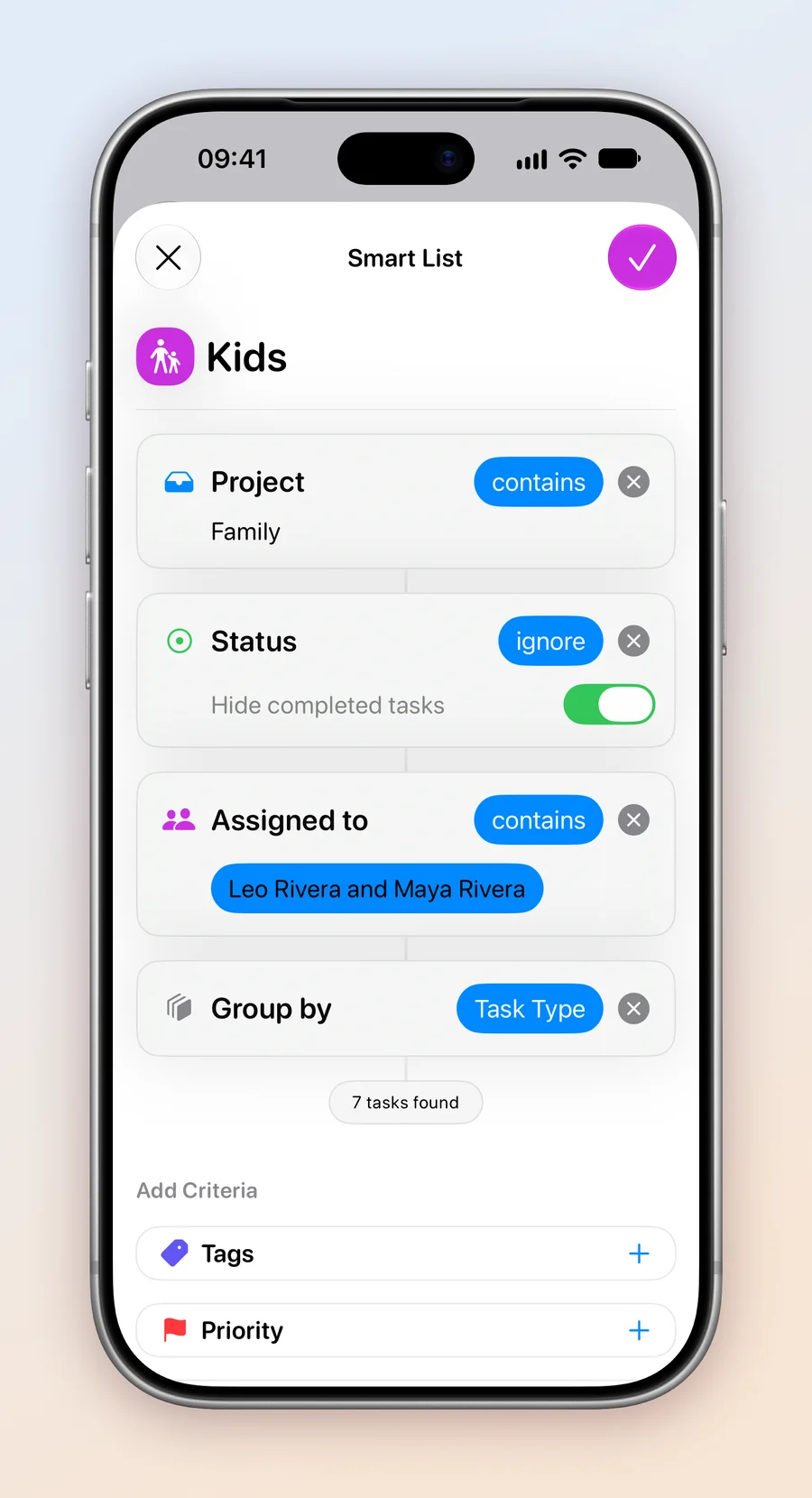
A second Smart List, Kids, shows what Maya and Leo still have to do. It looks in Family for tasks assigned to either of them, hides completed ones and groups by area. It’s the kids’ own view of the house, without the parents’ errands and bills.
What we learned
- Keep it small. Three statuses and a handful of fields are enough for a family, and easy for a 10 year old.
- Put a name on every chore. “Someone should take out the bins” becomes Maya’s job, on Maya’s list.
- Let repeats do the remembering. Chores come back on their own, so nobody has to keep the whiteboard up to date.
- Keep the conversation with the chore. A question asked on the task is still there when someone needs the answer.
Try it yourself
The whole setup is in one file: the Family project with its fields, 24 tasks across the house with their checklist items and repeats, and the This week and Kids Smart Lists.
- Download Family.tasks on your iPhone, iPad or Mac.
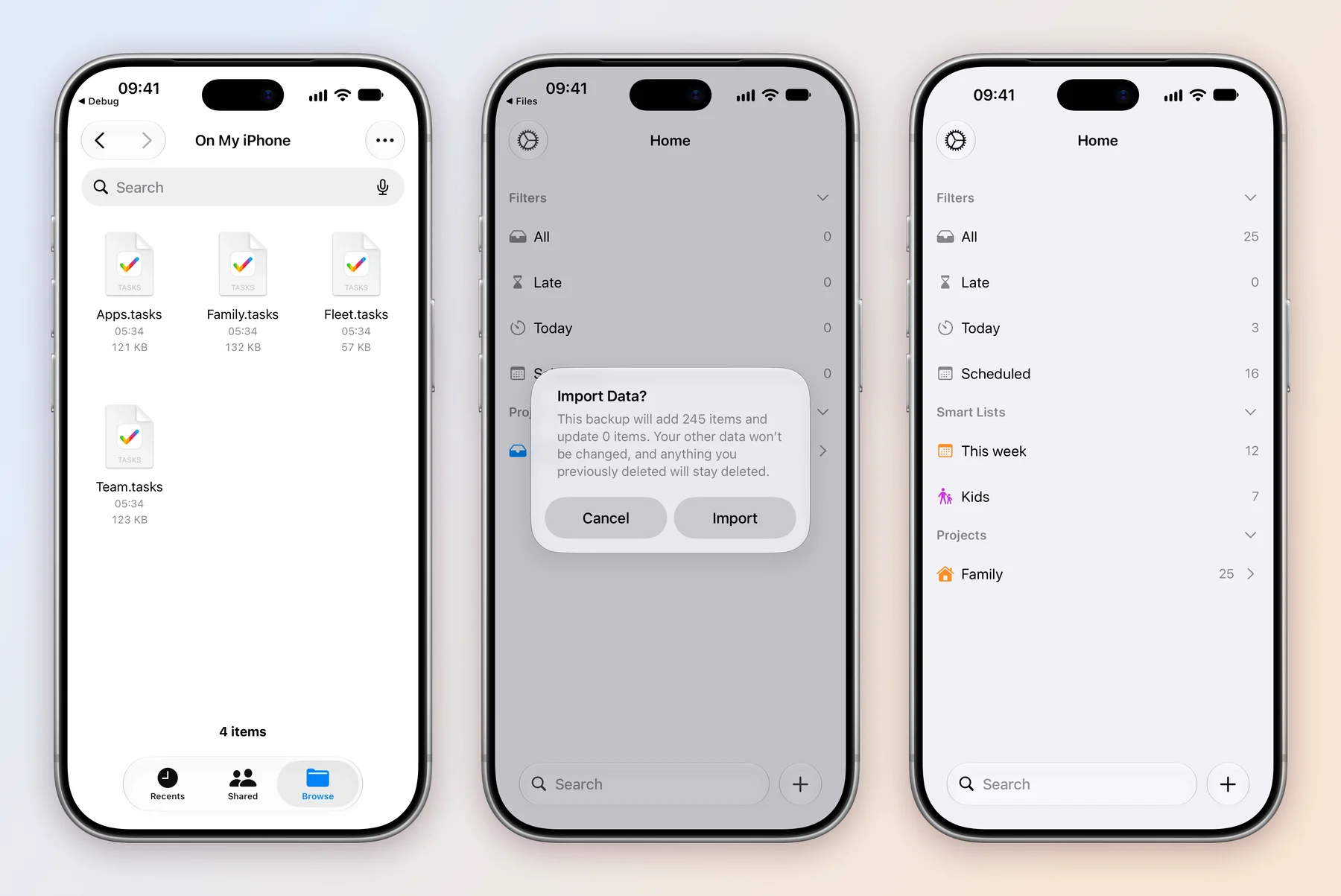
- Tap the file, in your downloads or in Files. It opens in Tasks.
- Import Data? tells you what it will add. Tap Import, and Family appears on the Home screen.
If tapping the file doesn’t open Tasks, open Settings in Tasks, scroll down to Import Data under Data & Integrations, tap it and pick Family.tasks.
People don’t come with a file, so the Rivera family stays behind: the tasks arrive without a Who, and their comments arrive as yours. Share Family, and once your family joins, pick them in Who and edit Kids to choose your own kids. The dates are examples, so move them to your own week. The backup and import guide has more on how importing works.
This is part of a series of case studies on how people use Tasks. For a team sharing a board at work, see Tasks at Work.