You don’t have to leave Apple Reminders behind. Connect the lists you choose and they show up in Tasks, with changes syncing both ways. Your Reminders data never leaves your device.
Connect your lists
- Open Settings in Tasks and choose Apple Reminders under Data & Integrations.
- Read How It Works, then tap Continue.
- Allow Tasks to access Reminders when asked.
- Under Choose Lists, turn on each list you want in Tasks.
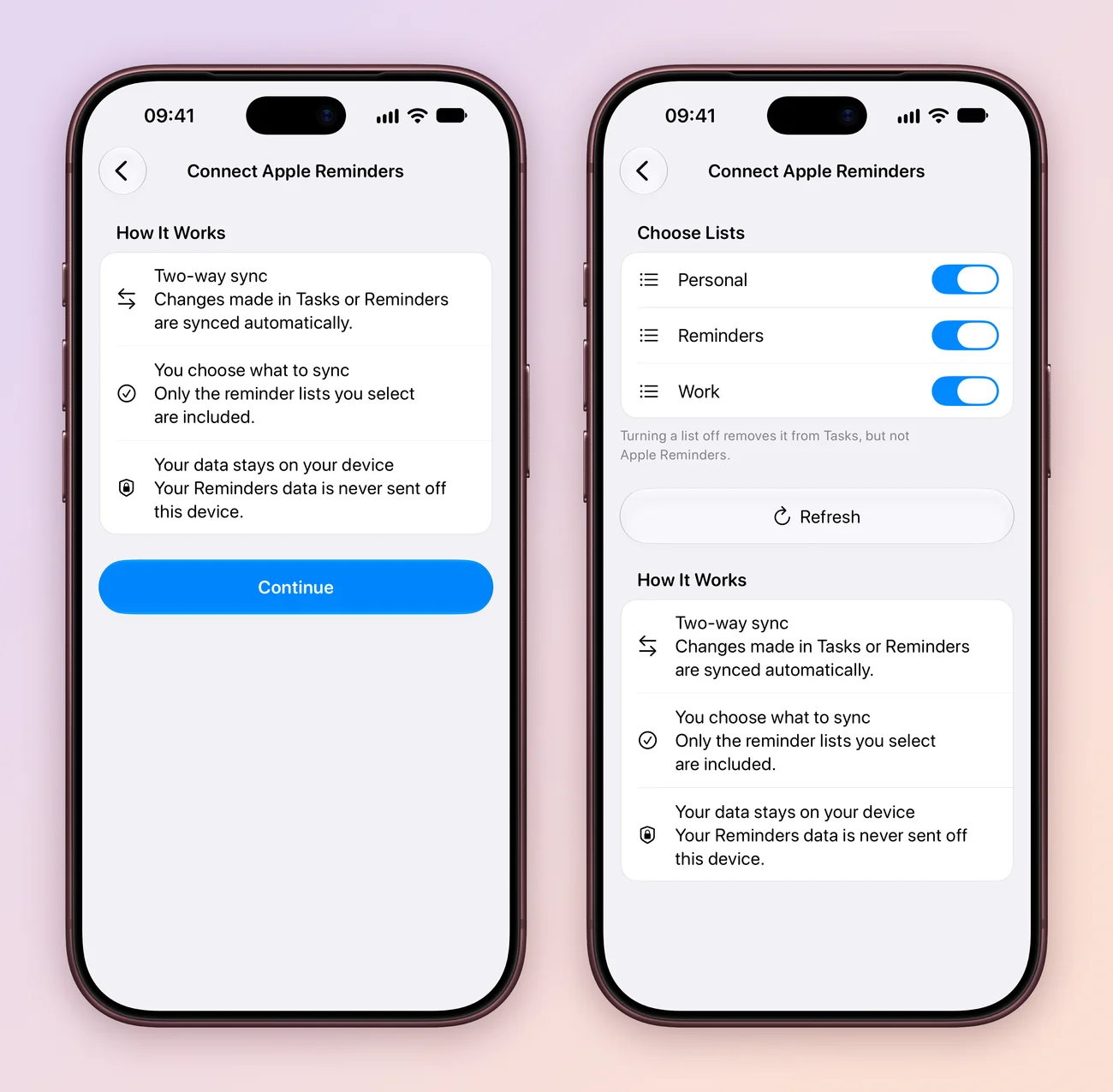
Press ⌘, to open Settings. Apple Reminders is in the sidebar under Data & Integrations, and each list has a checkbox.
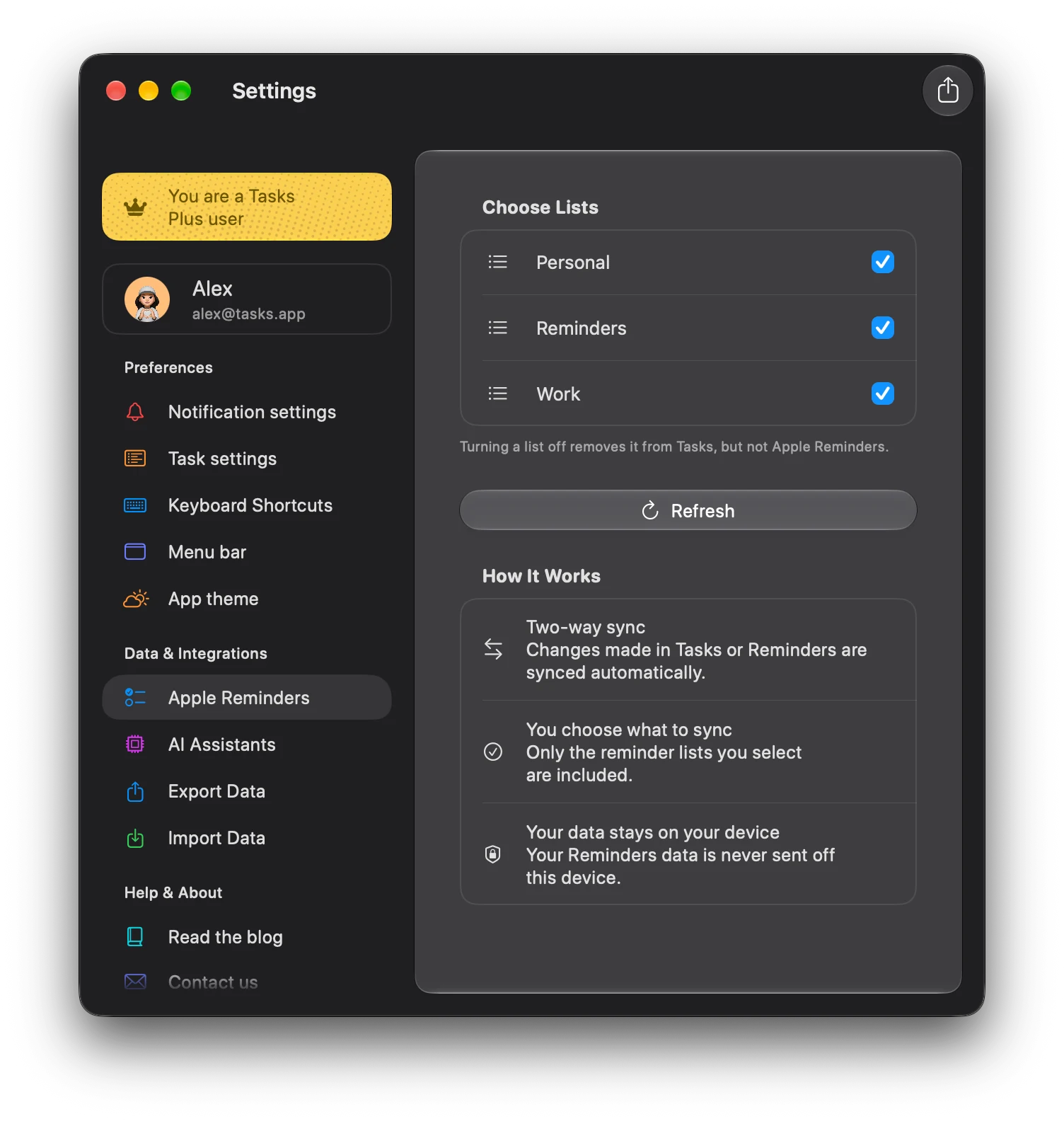
A list you just made in Reminders not showing? Tap Refresh.
What syncs
Changes made in either app sync automatically. These details carry across:
- Title and notes
- Due date
- Priority: High, Medium or Low
- Whether it’s done
- Tags, location and URL
Stop syncing a list
Turn the list off under Choose Lists. As the note under the lists says, turning a list off removes it from Tasks, but not Apple Reminders.
Deleting a connected list from inside Tasks is different. It deletes the list and all its reminders from Apple Reminders on every device, and it can’t be undone from Tasks.
Good to know
- Backups. Connected lists stay in Reminders, so they aren’t part of a Tasks backup.
- Sharing and AI assistants. These work on Tasks projects, not connected Reminders lists. Create a Tasks project for work you want to share.
- Custom stages and fields. A Reminders list keeps the fields Reminders understands. Use a Tasks project when you want your own statuses and fields.
Still deciding? See how Tasks compares with Apple Reminders.