A Tasks widget keeps one project or list in view, so you can see what is next and tick it off without opening the app. Everything stays in sync, so a task you finish on your wrist is done on your iPhone, iPad and Mac too.
Pick what the widget shows
Tasks has three widgets. Choose the one that matches how you look for work.
| Widget | Shows | What you can tap |
|---|---|---|
| Projects | Tasks from one project, one status column at a time | The checkbox moves a task to its next status. The column name in the header switches columns. + opens Create Task. |
| Smart Lists and Filters | A Smart List or a filter such as Today | The checkbox, or a task to open it |
| Tags | The tags you pick | A tag to open its tasks |
A good first widget is Projects set to Home, so the household list is always one glance away.
Add a widget
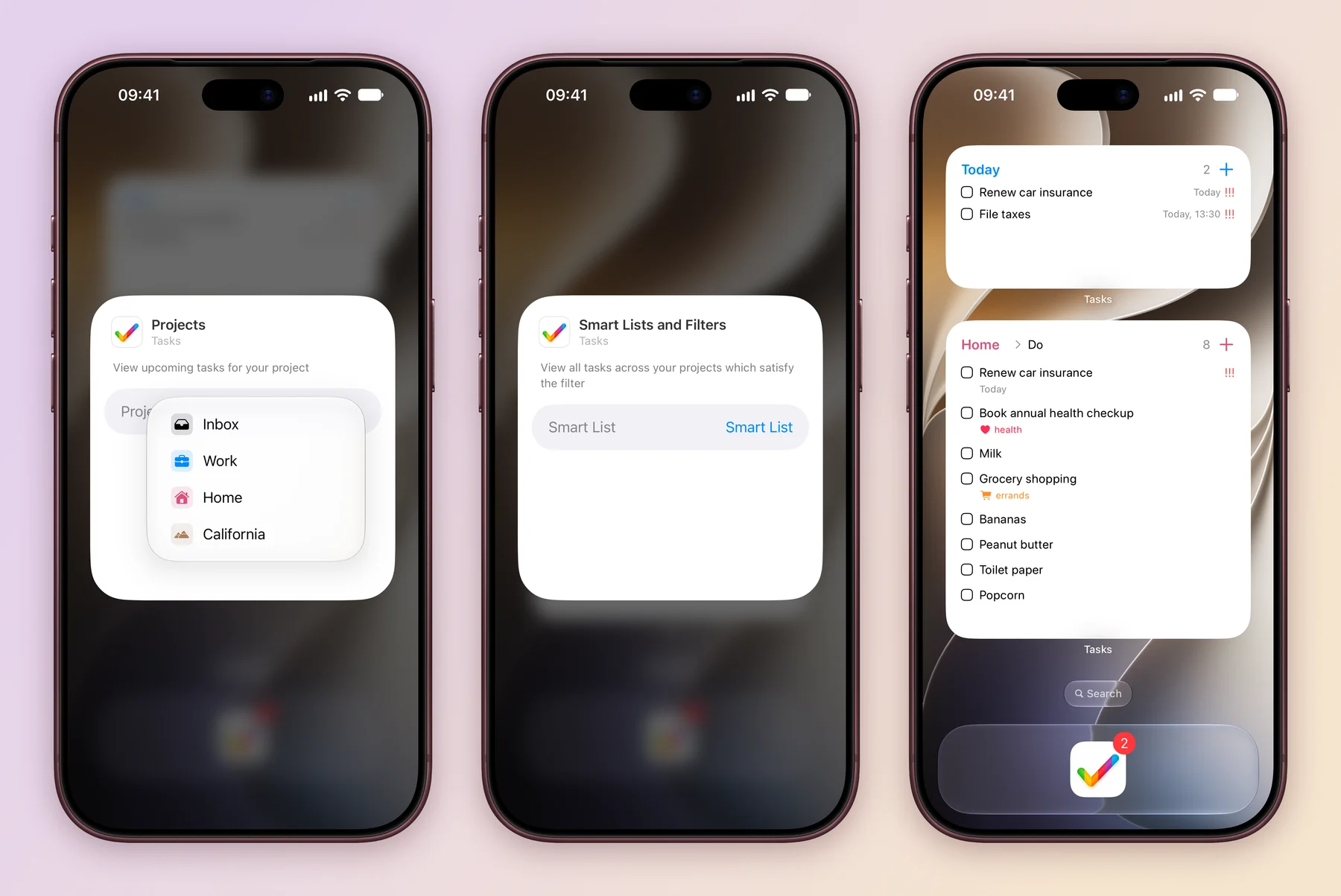
- Touch and hold an empty spot on the Home Screen, then tap Edit and Add Widget.
- Search for Tasks, choose Projects and pick a size.
- Touch and hold the new widget, choose Edit Widget, tap Project and pick Home.
For a Smart Lists and Filters widget, tap Smart List instead and pick a list or a filter, such as Today.
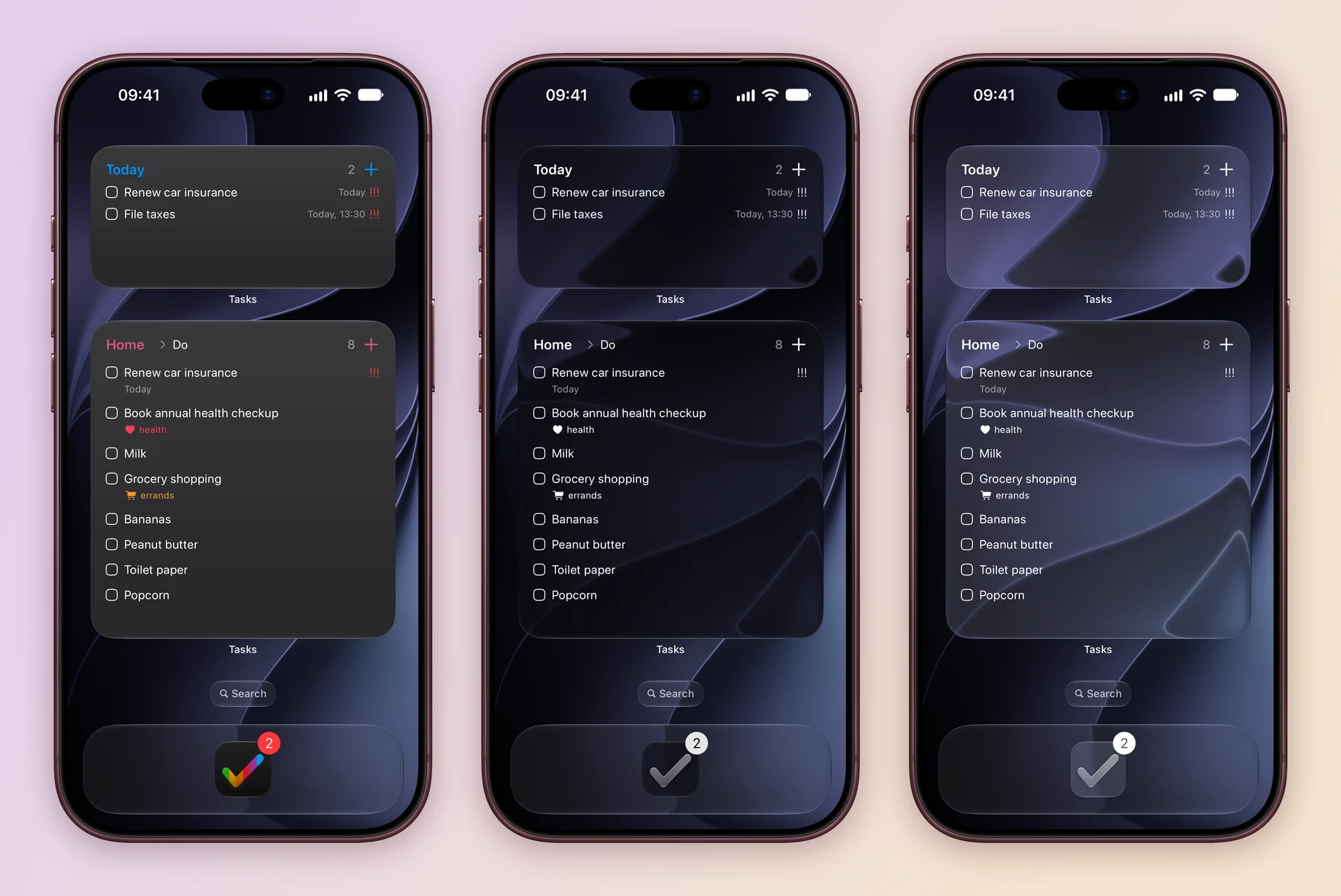
Widgets follow the look you choose for your Home Screen. Touch and hold the Home Screen, tap Edit, then Customize, and pick Dark, Tinted or Clear.
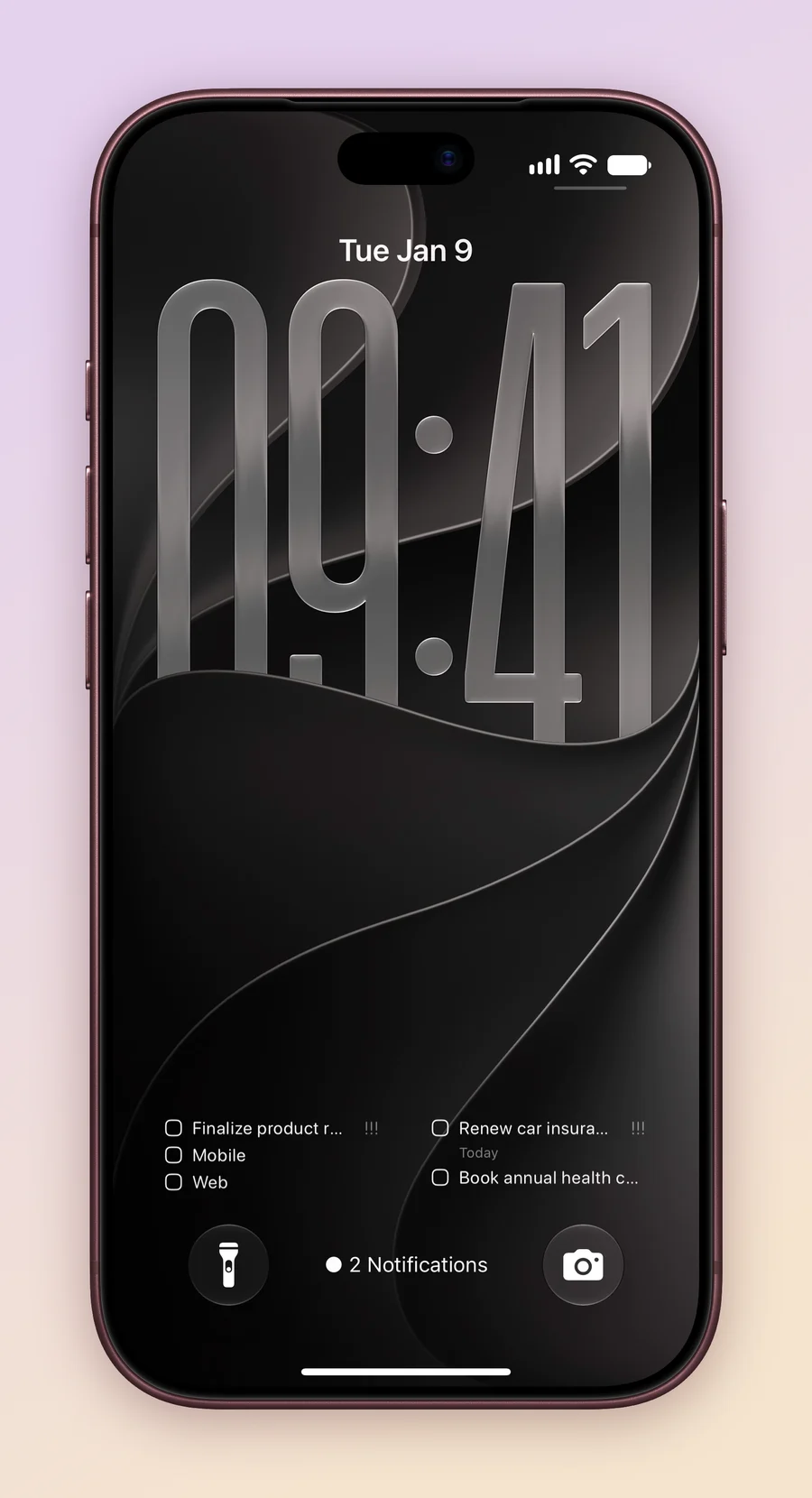
On the Lock Screen, touch and hold, tap Customize, then add a rectangular or circular Tasks widget. Widgets also work in StandBy when your iPhone is charging on its side.
For one-tap capture, add the Add Task control to Control Center or the Lock Screen. It opens Create Task straight away.
The same widgets work on iPad and Mac. On iPad, add them from the Home Screen just as on iPhone. On Mac, right click the desktop and choose Edit Widgets, search for Tasks and drag a widget into place, then right click it and choose Edit “Projects”. iPad and Mac also offer an extra large size, which fits several columns of a board.
Why a task is missing from a widget
A widget shows only the project, column or filter you chose. If a task you expect is not there:
- Check the widget’s project and the column in its header. Tap the column name to switch to the next column, or to All.
- For a Smart List or a date filter such as Today, make sure the task matches it. A task with no date will not appear in Today.
- Open Tasks once. Widgets refresh on the system’s schedule, and opening the app nudges them.
Tasks on Apple Watch
The Apple Watch app opens your projects, lets you swipe through a board’s columns, and completes a task with a tap. To add one, tap + and dictate or type the title.
Add a complication to your watch face for a quick look at a project, or the Create Task complication to capture from your wrist. A running timer also shows in the Smart Stack.
The Apple Watch app pairs with your iPhone. Tasks you add or complete on your wrist appear on your iPad and Mac as soon as they sync.
Start with one widget for the project you open most, then add a second only if you keep reaching for it.
Explore all 15 related features
Browse the related features below for more detail, or search every feature.
iPhone app
Capture and manage Tasks on iPhone.
iPad app
Use Tasks with touch, keyboard, trackpad and larger layouts.
Mac app
Plan projects and boards in a desktop interface.
Apple Watch app
Capture, review and complete work from your wrist.
Apple Vision Pro app
Use Tasks on Apple Vision Pro.
Project widgets
Show tasks from a chosen project.
Smart List widgets
Show a chosen Smart List or filter.
Tag widgets
Open or review work connected to selected tags.
Interactive widgets
Complete supported tasks without first opening the app.
Home Screen widgets
Use small, medium, large and supported extra-large layouts.
Lock Screen widgets
Use circular and rectangular accessory widgets.
Watch widgets
See Tasks information in supported watchOS widget areas.
Watch capture widget
Open task creation from a watch face or widget.
Watch complications
Keep Tasks available from supported watch faces.
Cross-device CloudKit sync
Keep work in sync across signed-in Apple devices.