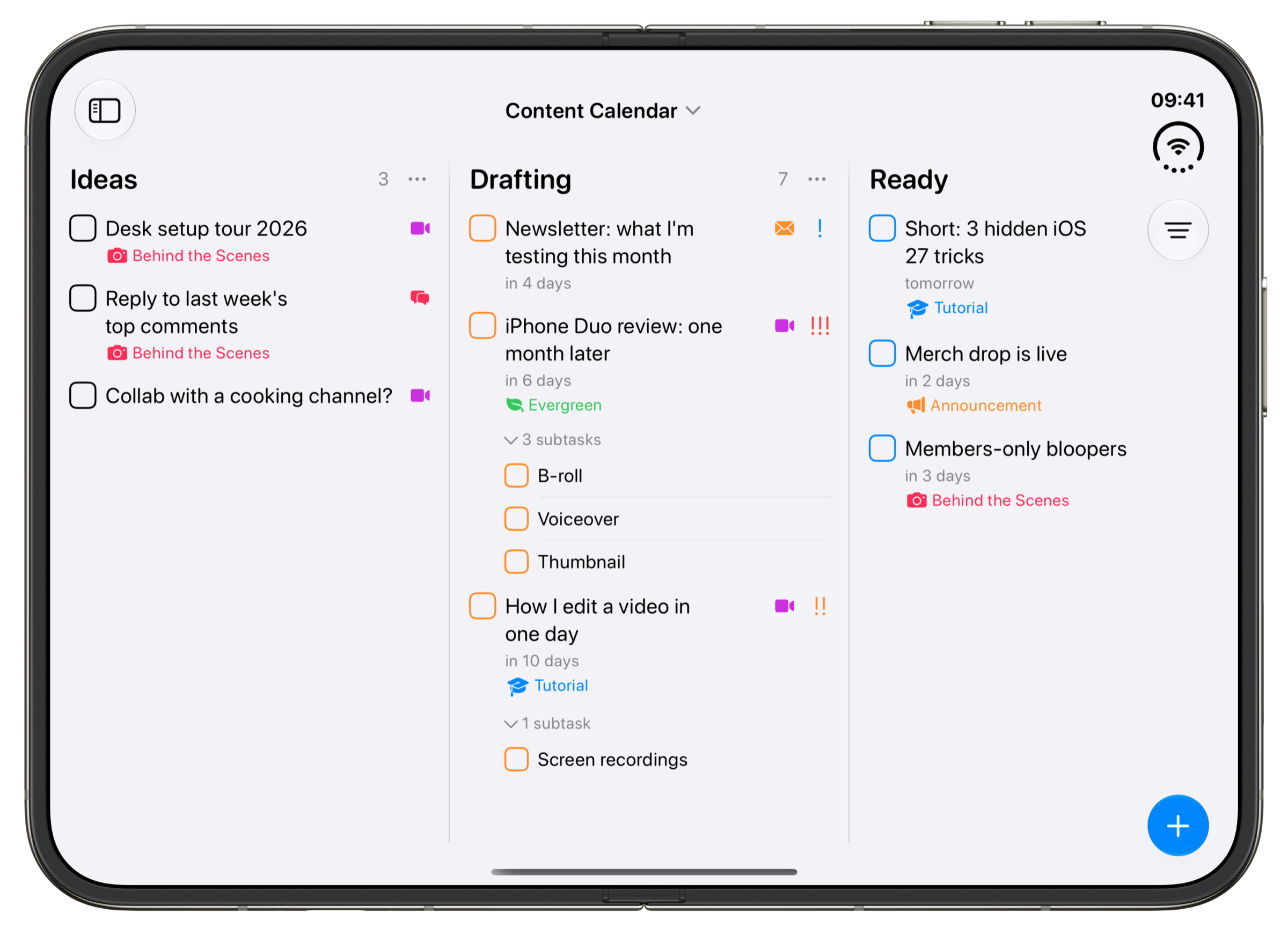
The board has four stages. Ideas holds everything you might make, Drafting is what you're working on, Ready is finished and waiting for its date, and Published keeps a record of what went out.
What's in the template
A project made from Content Calendar starts with these fields. You can rename, remove or add fields before you create it, or later.
- Title
- The name of each task.
- Status
- Ideas, Drafting, Ready and Published. Moving a task to Published completes it.
- Date
- A date, with a time, alert or repeat if you want one.
- Task Type
- Article and Social Post.Suggests Newsletter and Video while you set it up.
- Subtasks
- Smaller steps inside a task.
- Attachments
- Photos and files.
- Tags
- Tutorial and Announcement.Suggests Behind the Scenes, Case Study and Evergreen while you set it up.
- Priority
- High, Medium and Low.
- Time Tracking
- Timers and time added by hand.
Create it in Tasks
- On iPhone, tap + at the bottom of the Home screen and choose Project. On Mac, press ⌥⌘N, or click + at the bottom of the sidebar and choose Project.
- Type a name, pick a colour and an icon, then tap the checkmark.
- Under Project Template, tap Content Calendar. The stages change to Ideas, Drafting, Ready and Published. Tap Next.
- Check the fields the template brings, add anything else you want on every task, then tap the checkmark to create the project.
The projects guide shows each step with screenshots.
Download it
You can also download the template as a file and import it into Tasks. There are two versions. One is the board above with its 12 example tasks, so you can see how it works. The other is empty and ready for your own work. Both have every stage, field and tag, including the ones the app only suggests, and time tracking on every task.
- Download with the example tasks (Content-Calendar.tasks)
- Download the empty template (Content-Calendar-Template.tasks)
- Download one of the files on your iPhone, iPad or Mac.
- Tap the file, in your downloads or in Files. It opens in Tasks.
- Import Data? tells you what it will add. Tap Import, and the project appears on the Home screen.
If tapping the file doesn't open Tasks, open Settings in Tasks, scroll down to Import Data under Data & Integrations, tap it and pick the file. The example dates are made up, so move them to your own schedule. The backup and import guide has more on importing.
Make it yours
Task Type starts with Article and Social Post. If you also send a newsletter or make videos, tap Task Type on the Fields step while you set up the project, then tap Newsletter or Video under Suggested Tags. Tags works the same way, with Behind the Scenes, Case Study and Evergreen waiting there. Both downloads below already include them.
To see what goes out this week, filter the board by Date and pick This week, or save that filter as a Smart List so it's one tap away. The views guide shows how.
If you write with other people, share the project and add a Collaborators field so every piece has a name on it. The sharing guide covers inviting people.
Questions
Is the Content Calendar template free?
Yes. Every template is in the free version of Tasks. The first two projects are free, and more projects need Tasks Plus.
Can I change the stages or fields later?
Yes. Open the project menu and choose Edit, then Statuses to rename, add or remove stages, or Fields to change what every task has.
Can my team use the same calendar?
Yes. Share the project from its menu with Invite people, and everyone works from the same board. Only the person sharing needs Tasks Plus.